This article demonstrates how to set the row height and column width of an existing table in PowerPoint document using Spire.Presentation in C# and VB.NET.
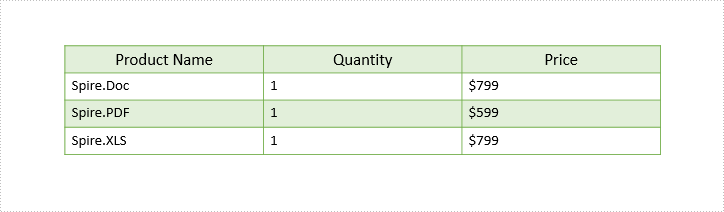
The following screenshot shows the table before setting row height and column width.
Detail steps:
Step 1: Instantiate a Presentation object and load the PowerPoint document.
Presentation ppt = new Presentation();
ppt.LoadFromFile("Input.pptx");
Step 2: Get the first slide.
ISlide slide = ppt.Slides[0];
Step 3: Get the first table on the slide.
ITable table = ppt.Slides[0].Shapes[0] as ITable;
Step 4: Set table row height and column width.
table.TableRows[1].Height = 50;
table.ColumnsList[1].Width = 100;
Step 5: Save the document.
ppt.SaveToFile("Output.pptx", FileFormat.Pptx2013);
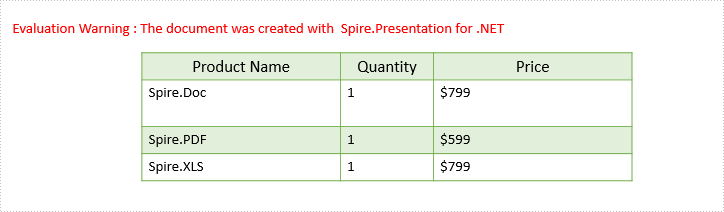
Screenshot:
Full code:
[C#]
using Spire.Presentation;

namespace Set_table_column_width_and_row_height
{
    class Program
    {
        static void Main(string[] args)
        {
            Presentation ppt = new Presentation();
            ppt.LoadFromFile("Input.pptx");

            ISlide slide = ppt.Slides[0];

            ITable table = ppt.Slides[0].Shapes[0] as ITable;

            table.TableRows[1].Height = 50;
            table.ColumnsList[1].Width = 100;

            ppt.SaveToFile("Output.pptx", FileFormat.Pptx2013);
        }
    }
}
[VB.NET]
Imports Spire.Presentation

Namespace Set_table_column_width_and_row_height
	Class Program
		Private Shared Sub Main(args As String())
			Dim ppt As New Presentation()
			ppt.LoadFromFile("Input.pptx")

			Dim slide As ISlide = ppt.Slides(0)

			Dim table As ITable = TryCast(ppt.Slides(0).Shapes(0), ITable)

			table.TableRows(1).Height = 50
			table.ColumnsList(1).Width = 100

			ppt.SaveToFile("Output.pptx", FileFormat.Pptx2013)
		End Sub
	End Class
End Namespace