
Conversion (15)
UOS is the spreadsheet format of the UOF specification, saved with the .uos extension, and office suites that implement the specification can open it directly. When an Excel report is handed to such an environment and .xlsx is not supported, the workbook has to be converted to UOS first; a UOS file received in return has to be converted back to Excel before it can be edited in the usual tools. Conversion only changes the saved format: formulas, merged areas, number formats and text formatting travel with the file. Spire.XLS for JavaScript performs the conversion in the browser through WebAssembly, and the input and output files are managed by a virtual file system (VFS), with no backend service required.
This article covers two feature points:
For installation and project setup, see Integrating Spire.XLS for JavaScript in a React Project. The examples below assume Spire.XLS is installed and the WebAssembly module has been initialized.
Convert Excel to UOS
Saving an Excel workbook as UOS lets an office suite that only recognizes the UOF format open the report directly. Only the saved format changes; worksheet names, merged areas and number formats stay as they are. Formula cells need one extra step: they have to be calculated before saving so that both the formula and its result are written.
How to convert Excel to UOS and what it produces:
| Call | Result |
|---|---|
window.spire.FetchFileToVFS |
Loads the font file and the Excel file into the virtual file system |
workbook.LoadFromFile({ fileName }) |
Loads the Excel workbook |
workbook.CalculateAllValue() |
Calculates every formula in the workbook |
xlsModule.FileFormat.UOS |
Sets the target format to UOS |
workbook.SaveToFile({ fileName, fileFormat }) |
Writes the workbook to the virtual file system in UOS format |
The steps are:
- Load the font file and the Excel test file into the VFS with
window.spire.FetchFileToVFS. - Create a workbook with
new Workbook()and load the test file withworkbook.LoadFromFile. - Calculate the formulas with
workbook.CalculateAllValue(). - Call
workbook.SaveToFilewithfileFormatset toxlsModule.FileFormat.UOS, writingExcelToUos.uos. - Release the workbook with
workbook.Dispose, then read the result out of the VFS and trigger the download.
The following is a complete code example that shows how to convert an Excel workbook to UOS in React:
function App() {
  const excelToUos = async () => {
    // Get the Spire.XLS WASM module
    const xlsModule = window.wasmModule?.spirexls;

    // Check that the module is ready
    if (!xlsModule) {
      alert('Spire.Xls is not ready yet');
      return;
    }

    // Load the font and the test data file into the VFS
    await window.spire.FetchFileToVFS('ARIAL.TTF', '/Library/Fonts/', `${process.env.PUBLIC_URL}/font/`);
    const inputFileName = 'SalesReport.xlsx';
    await window.spire.FetchFileToVFS(inputFileName, '', `${process.env.PUBLIC_URL}data/`);

    // Load the workbook
    const workbook = new xlsModule.Workbook();
    workbook.LoadFromFile({ fileName: inputFileName });

    // Calculate the formulas so the formula cells carry their results
    workbook.CalculateAllValue();

    // Save as UOS, with the format given by fileFormat
    const outputFileName = 'ExcelToUos.uos';
    workbook.SaveToFile({ fileName: outputFileName, fileFormat: xlsModule.FileFormat.UOS });

    // Dispose of the workbook to release its resources
    workbook.Dispose();

    // Read the result back out of the VFS and trigger the download
    const fileArray = window.dotnetRuntime.Module.FS.readFile(outputFileName);
    const blob = new Blob([fileArray], { type: 'application/octet-stream' });
    const url = URL.createObjectURL(blob);
    const a = document.createElement('a');
    a.href = url;
    a.download = outputFileName;
    a.click();
    URL.revokeObjectURL(url);
  };

  return (
    <div style={{ textAlign: 'center', height: '300px' }}>
      <h1>Convert Between Excel and UOS in React</h1>
      <button id="excel-to-uos" onClick={excelToUos}>Convert Excel to UOS</button>
    </div>
  );
}

export default App;
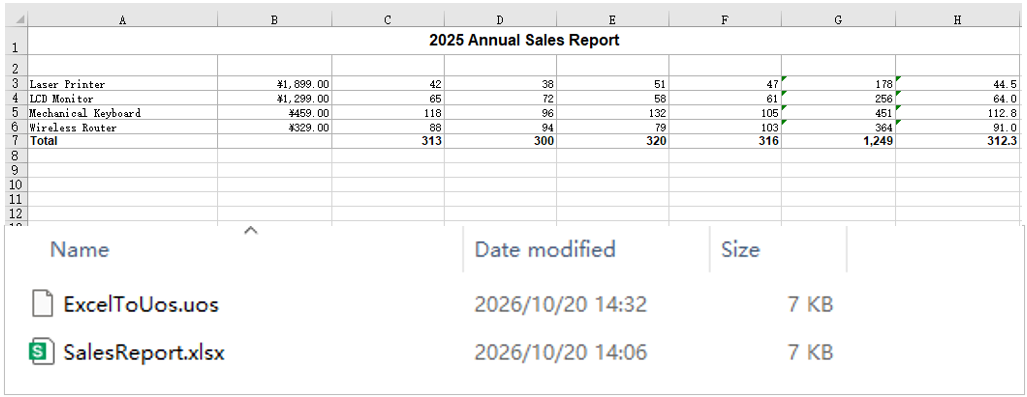
The UOS file produced from the Excel workbook:
Convert UOS to Excel
Converting a received UOS file back to Excel is the reverse of the same process. UOS and Excel store the same workbook content; loading restores worksheet names, cell data and styles, and formulas come back together with their cached results, so nothing has to be recalculated before saving. The converted file can then be opened in Excel or an online spreadsheet tool for further editing, summarizing or printing.
How to convert a UOS file to Excel and what it produces:
| Call | Result |
|---|---|
window.spire.FetchFileToVFS |
Loads the font file and the UOS file into the virtual file system |
workbook.LoadFromFile({ fileName }) |
Reads the UOS file and recognizes it as a workbook |
xlsModule.FileFormat.Version2010 |
Sets the target format to Excel 2010 or later |
workbook.SaveToFile({ fileName, fileFormat }) |
Writes the workbook to the virtual file system in Excel format |
window.dotnetRuntime.Module.FS.readFile |
Reads the result out of the VFS and triggers the download |
The steps are:
- Load the font file and the UOS test file into the VFS with
window.spire.FetchFileToVFS. - Create a workbook with
new Workbook()and load the UOS file withworkbook.LoadFromFile. - Call
workbook.SaveToFilewithfileFormatset toxlsModule.FileFormat.Version2010, writingUosToExcel.xlsx. - Release the workbook with
workbook.Dispose, then read the result out of the VFS and trigger the download.
The following is a complete code example that shows how to convert a UOS file back to Excel in React:
function App() {
  const uosToExcel = async () => {
    // Get the Spire.XLS WASM module
    const xlsModule = window.wasmModule?.spirexls;

    // Check that the module is ready
    if (!xlsModule) {
      alert('Spire.Xls is not ready yet');
      return;
    }

    // Load the font and the test data file into the VFS
    await window.spire.FetchFileToVFS('ARIAL.TTF', '/Library/Fonts/', `${process.env.PUBLIC_URL}/font/`);
    const inputFileName = 'SalesReport.uos';
    await window.spire.FetchFileToVFS(inputFileName, '', `${process.env.PUBLIC_URL}data/`);

    // Load the UOS file
    const workbook = new xlsModule.Workbook();
    workbook.LoadFromFile({ fileName: inputFileName });

    // Save as Excel, with the version given by fileFormat
    const outputFileName = 'UosToExcel.xlsx';
    workbook.SaveToFile({ fileName: outputFileName, fileFormat: xlsModule.FileFormat.Version2010 });

    // Dispose of the workbook to release its resources
    workbook.Dispose();

    // Read the result back out of the VFS and trigger the download
    const fileArray = window.dotnetRuntime.Module.FS.readFile(outputFileName);
    const blob = new Blob([fileArray], { type: 'application/vnd.openxmlformats-officedocument.spreadsheetml.sheet' });
    const url = URL.createObjectURL(blob);
    const a = document.createElement('a');
    a.href = url;
    a.download = outputFileName;
    a.click();
    URL.revokeObjectURL(url);
  };

  return (
    <div style={{ textAlign: 'center', height: '300px' }}>
      <h1>Convert Between Excel and UOS in React</h1>
      <button id="uos-to-excel" onClick={uosToExcel}>Convert UOS to Excel</button>
    </div>
  );
}

export default App;
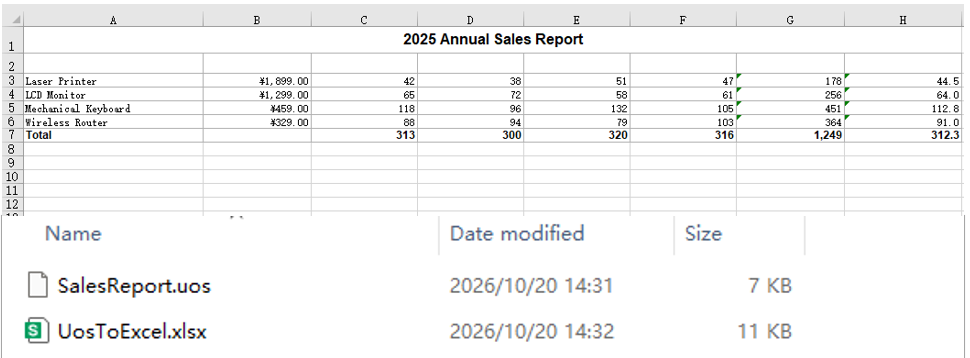
The workbook produced from the UOS file:
FAQ
Why are the formula cells empty in the UOS file after conversion
Cause: During export, the formula and the value of each cell are taken from the workbook's current calculation results. If CalculateAllValue has not been called after loading, the formula cells are still uncalculated and are written as empty cells, so neither the formula nor the value survives.
Solution: Call workbook.CalculateAllValue() after workbook.LoadFromFile and before workbook.SaveToFile, then save with FileFormat.UOS; the formula cells will carry both the formula and the calculated result.
Can I save as UOS by using only the .uos extension without fileFormat
Cause: fileFormat is an optional parameter of SaveToFile. When it is omitted, the save format is inferred from the extension of the output file name, and a recognizable extension selects that format.
Solution: Yes. Name the output file ExcelToUos.uos and call workbook.SaveToFile({ fileName: outputFileName }); the file is still written as UOS. Setting fileFormat explicitly is safer, because a missing or misspelled extension will not silently produce another format.
Get a Free License
Spire.XLS for JavaScript offers a 30-day full-featured free trial license with no functional limitations. Apply here to evaluate before purchasing.
When a workbook has to be handed to a front-end program, JSON is the shape that fits APIs, caches and components alike: one array per worksheet, one object per row, and the column headers as the keys. Once the workbook is converted, the table data joins the data flow of the page without a backend parsing it first. Spire.XLS for JavaScript performs the conversion in the browser on WebAssembly, handling input and output files through a virtual file system (VFS) with no backend service.
This article covers four core feature points:
- Convert the Entire Workbook to JSON
- Convert a Specific Worksheet to JSON
- Convert a Specific Cell Range to JSON
- Customize the JSON Output Format
For installation and project setup, see Integrating Spire.XLS for JavaScript in a React Project. The examples below assume Spire.XLS is installed and the WebAssembly module has been initialised.
Convert the Entire Workbook to JSON
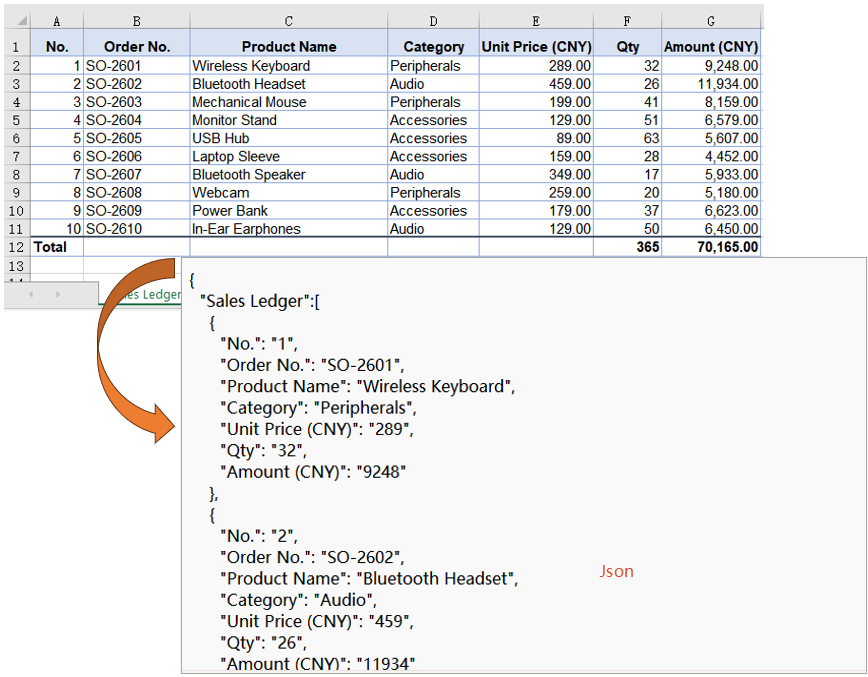
Every worksheet is a set of records that share a shape: the first row names the fields, and each row below it is one record. Handing over the whole workbook writes all of them at once, with the worksheet name as the key and the records as an array under it, so there is no need to call the conversion once per worksheet or to pick a range in advance. The sample workbook's three worksheets, the sales ledger, the customers and the notes, are written together, one top-level key each.
The whole-workbook conversion only has to name the target format when saving:
| Syntax | Result |
|---|---|
fileFormat: xlsModule.FileFormat.Json |
Writes the workbook as JSON, one top-level key per worksheet |
The steps are:
- Load the font and the test data file into the VFS with
window.spire.FetchFileToVFS. - Create a workbook with
new Workbook(), then load the input file withworkbook.LoadFromFile. - Save the workbook with
workbook.SaveToFile, namingxlsModule.FileFormat.JsoninfileFormat. - Dispose of the workbook with
workbook.Disposeto free resources.
The code below is the complete example of converting the entire workbook to JSON:
function App() {
  const workbookToJson = async () => {
    // get the Spire.XLS WASM module
    const xlsModule = window.wasmModule?.spirexls;

    // check that the module is ready
    if (!xlsModule) {
      alert('Spire.Xls is not ready yet');
      return;
    }

    // load the font and the test data file into the VFS
    await window.spire.FetchFileToVFS('ARIAL.TTF', '/Library/Fonts/', `${process.env.PUBLIC_URL}/font/`);
    const inputFileName = 'Sample.xlsx';
    await window.spire.FetchFileToVFS(inputFileName, '', `${process.env.PUBLIC_URL}data/`);

    // load the workbook
    const workbook = new xlsModule.Workbook();
    workbook.LoadFromFile({ fileName: inputFileName });

    // save the whole workbook as JSON
    const outputFileName = 'WorkbookToJson.json';
    workbook.SaveToFile({ fileName: outputFileName, fileFormat: xlsModule.FileFormat.Json });

    // dispose of the workbook to release its resources
    workbook.Dispose();

    // read the result back out of the VFS and trigger the download
    const fileArray = window.dotnetRuntime.Module.FS.readFile(outputFileName);
    const blob = new Blob([fileArray], { type: 'application/json' });
    const url = URL.createObjectURL(blob);
    const a = document.createElement('a');
    a.href = url;
    a.download = outputFileName;
    a.click();
    URL.revokeObjectURL(url);
  };

  return (
    <div style={{ textAlign: 'center', height: '300px' }}>
      <h1>Convert Excel to JSON</h1>
      <button id="workbook-to-json" onClick={workbookToJson}>Convert the Entire Workbook to JSON</button>
    </div>
  );
}

export default App;
The JSON file after converting the entire workbook:
Convert a Specific Worksheet to JSON
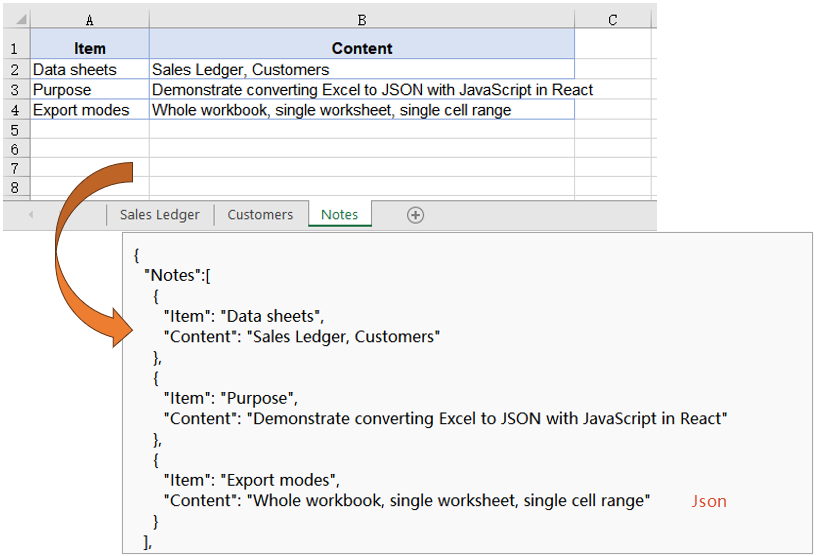
Most of the time only one worksheet is meant for the front end, while the rest are internal ledgers or instructions. Writing them all out lengthens the response and leaves the caller to pick the right one. The way around it is to copy the worksheet into a new workbook that holds nothing else and save that, so the result carries this one worksheet only. In the example the third worksheet, the notes, is exported, and the sales ledger and customers worksheets stay out of the result.
Isolating one worksheet comes down to three operations on the Worksheets collection:
| Syntax | Result |
|---|---|
workbook.Worksheets.get(2) |
Takes the third worksheet by index, counting from 0 |
workbook.Worksheets.Clear() |
Clears the worksheets the workbook already holds |
workbook.Worksheets.AddCopy({ sheet }) |
Copies the whole source worksheet into the cleared workbook |
The steps are:
- Load the font and the test data file into the VFS with
window.spire.FetchFileToVFS. - Create the source workbook with
new Workbook()and load the input file withworkbook.LoadFromFile, then take the worksheet to export withWorksheets.get(2). - Create a second workbook with
new Workbook()and clear the three blank worksheets it starts with usingWorksheets.Clear(). - Copy the target worksheet in with
Worksheets.AddCopy({ sheet }), so that it is the only one left. - Save the new workbook with
SaveToFile, namingxlsModule.FileFormat.JsoninfileFormat. - Dispose of both workbook objects with
Dispose.
The code below is the complete example of converting a specific worksheet to JSON:
function App() {
  const worksheetToJson = async () => {
    // get the Spire.XLS WASM module
    const xlsModule = window.wasmModule?.spirexls;

    // check that the module is ready
    if (!xlsModule) {
      alert('Spire.Xls is not ready yet');
      return;
    }

    // load the font and the test data file into the VFS
    await window.spire.FetchFileToVFS('ARIAL.TTF', '/Library/Fonts/', `${process.env.PUBLIC_URL}/font/`);
    const inputFileName = 'Sample.xlsx';
    await window.spire.FetchFileToVFS(inputFileName, '', `${process.env.PUBLIC_URL}data/`);

    // load the source workbook and take the third worksheet
    const sourceWorkbook = new xlsModule.Workbook();
    sourceWorkbook.LoadFromFile({ fileName: inputFileName });
    const targetSheet = sourceWorkbook.Worksheets.get(2);

    // create a new workbook and clear the three worksheets it starts with
    const targetWorkbook = new xlsModule.Workbook();
    targetWorkbook.Worksheets.Clear();

    // copy the target worksheet in, so that it is the only one left
    targetWorkbook.Worksheets.AddCopy({ sheet: targetSheet });

    // save that worksheet alone
    const outputFileName = 'WorksheetToJson.json';
    targetWorkbook.SaveToFile({ fileName: outputFileName, fileFormat: xlsModule.FileFormat.Json });

    // dispose of the workbook to release its resources
    sourceWorkbook.Dispose();
    targetWorkbook.Dispose();

    // read the result back out of the VFS and trigger the download
    const fileArray = window.dotnetRuntime.Module.FS.readFile(outputFileName);
    const blob = new Blob([fileArray], { type: 'application/json' });
    const url = URL.createObjectURL(blob);
    const a = document.createElement('a');
    a.href = url;
    a.download = outputFileName;
    a.click();
    URL.revokeObjectURL(url);
  };

  return (
    <div style={{ textAlign: 'center', height: '300px' }}>
      <h1>Convert Excel to JSON</h1>
      <button id="worksheet-to-json" onClick={worksheetToJson}>Convert a Specific Worksheet to JSON</button>
    </div>
  );
}

export default App;
The JSON file after converting a specific worksheet:
Convert a Specific Cell Range to JSON
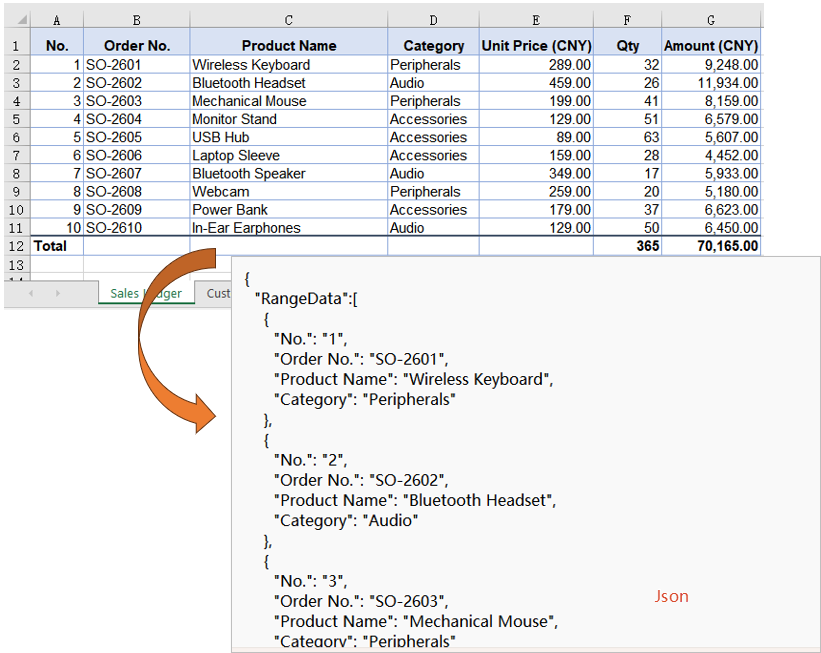
A worksheet usually carries more than the records themselves: title rows, totals formulas, helper columns pasted in from somewhere else. Exporting the whole sheet takes all of that along, when the caller only wants the tidy block in the middle. Naming the range first keeps everything outside it out of the result. The example takes A1:D6 of the sales ledger, six rows by four columns, leaving the price, quantity and amount columns behind in the workbook.
A range export follows the same path as a worksheet export, with a block of cells standing in for the whole sheet:
| Syntax | Result |
|---|---|
sourceSheet.Range.get('A1:D6') |
Takes the source cell range by address |
workbook.Worksheets.Add('RangeData') |
Adds a worksheet called RangeData to the cleared workbook |
targetSheet.Range.get('A1:D6') |
Takes a destination range of the same size as the source |
sourceSheet.Copy({ sourceRange, destRange, copyStyle: true }) |
Copies the values and styles into the destination range; copyStyle set to true brings the styles along |
The steps are:
- Load the font and the test data file into the VFS with
window.spire.FetchFileToVFS. - Create the source workbook with
new Workbook()and load the input file withworkbook.LoadFromFile, then take the source worksheet withWorksheets.get(0). - Mark out the cell range to export with
sourceSheet.Range.get('A1:D6'). - Create a target workbook and clear its default worksheets with
Worksheets.Clear(), then add a worksheet to receive the range withWorksheets.Add('RangeData'). - Take a destination range of the same size with
targetSheet.Range.get('A1:D6')and copy the values and styles across withsourceSheet.Copy({ sourceRange, destRange, copyStyle: true }). - Save the new workbook with
SaveToFile, namingxlsModule.FileFormat.JsoninfileFormat, and dispose of both workbook objects.
The code below is the complete example of converting a specific cell range to JSON:
function App() {
  const rangeToJson = async () => {
    // get the Spire.XLS WASM module
    const xlsModule = window.wasmModule?.spirexls;

    // check that the module is ready
    if (!xlsModule) {
      alert('Spire.Xls is not ready yet');
      return;
    }

    // load the font and the test data file into the VFS
    await window.spire.FetchFileToVFS('ARIAL.TTF', '/Library/Fonts/', `${process.env.PUBLIC_URL}/font/`);
    const inputFileName = 'Sample.xlsx';
    await window.spire.FetchFileToVFS(inputFileName, '', `${process.env.PUBLIC_URL}data/`);

    // load the source workbook and take the first worksheet
    const sourceWorkbook = new xlsModule.Workbook();
    sourceWorkbook.LoadFromFile({ fileName: inputFileName });
    const sourceSheet = sourceWorkbook.Worksheets.get(0);

    // name the cell range to export
    const sourceRange = sourceSheet.Range.get('A1:D6');

    // create a new workbook, clear its default worksheets and add one to receive the range
    const targetWorkbook = new xlsModule.Workbook();
    targetWorkbook.Worksheets.Clear();
    const targetSheet = targetWorkbook.Worksheets.Add('RangeData');

    // copy the values and styles across; the destination range must match the source size
    const destRange = targetSheet.Range.get('A1:D6');
    sourceSheet.Copy({ sourceRange, destRange, copyStyle: true });

    // save the new workbook
    const outputFileName = 'RangeToJson.json';
    targetWorkbook.SaveToFile({ fileName: outputFileName, fileFormat: xlsModule.FileFormat.Json });

    // dispose of the workbook to release its resources
    sourceWorkbook.Dispose();
    targetWorkbook.Dispose();

    // read the result back out of the VFS and trigger the download
    const fileArray = window.dotnetRuntime.Module.FS.readFile(outputFileName);
    const blob = new Blob([fileArray], { type: 'application/json' });
    const url = URL.createObjectURL(blob);
    const a = document.createElement('a');
    a.href = url;
    a.download = outputFileName;
    a.click();
    URL.revokeObjectURL(url);
  };

  return (
    <div style={{ textAlign: 'center', height: '300px' }}>
      <h1>Convert Excel to JSON</h1>
      <button id="range-to-json" onClick={rangeToJson}>Convert a Specific Cell Range to JSON</button>
    </div>
  );
}

export default App;
The JSON file after converting a specific cell range:
Customize the JSON Output Format
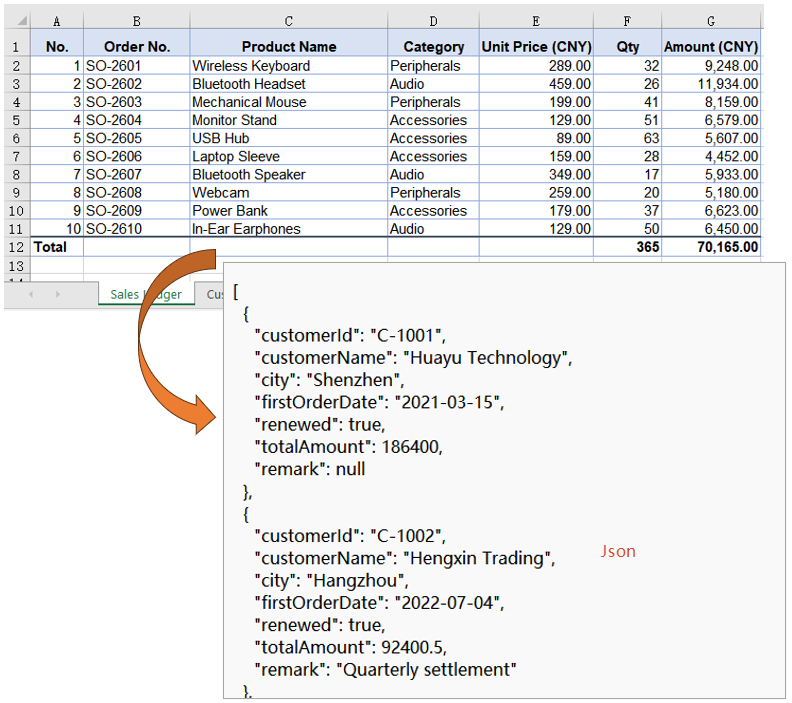
The three conversions above all produce a fixed shape: the field names are taken from the header row as they stand, every value is written as a string, an amount comes out as "186400", a boolean as "TRUE", a date in the runtime's own format rather than as yyyy-MM-dd, and a blank cell leaves its field out altogether. A result like that still has to be cleaned up before an API or a component binding can use it. Reading the cells one by one instead lets you decide the field names, the type of every value, and how a blank is represented.
Reading the cells yourself calls for the getters that return real types:
| Syntax | Result |
|---|---|
sheet.get(row, column) |
Takes a cell by row and column number, both counting from 1 |
sheet.LastRow / sheet.LastColumn |
The last row and column of the used range |
cell.Text |
The text in the cell; a blank cell returns an empty string |
cell.NumberValue |
The number in a numeric column, as a number; a blank cell returns null |
cell.BooleanValue |
The true or false of a boolean column, as a boolean |
cell.DateTimeValue |
The Date object of a date column, ready to be formatted |
JSON.stringify(records, null, 2) |
Serialises the records into JSON text indented by two spaces |
The steps are:
- Load the font and the test data file into the VFS with
window.spire.FetchFileToVFS, load the workbook withnew Workbook()andworkbook.LoadFromFile, and take the customers worksheet withWorksheets.get(1). - List the fields to keep in an array, each entry naming its column header, its output field name and how its value is read.
- Read the header row with
sheet.get(1, column)and, usingsheet.LastColumn, map each column header to its column number. - Walk the rows from row 2 to
sheet.LastRow, reading each value withcell.Text,cell.NumberValue,cell.BooleanValueorcell.DateTimeValueaccording to its field, and recording a blank cell asnull. - Build a
yyyy-MM-dddate from the year, month and day of theDateobject. - Serialise the records with
JSON.stringifyand a two-space indent, then write the text into the VFS withFS.writeFile. - Dispose of the workbook with
workbook.Disposeto free resources.
The code below is the complete example of customizing the JSON output format:
function App() {
  const customJsonFormat = async () => {
    // get the Spire.XLS WASM module
    const xlsModule = window.wasmModule?.spirexls;

    // check that the module is ready
    if (!xlsModule) {
      alert('Spire.Xls is not ready yet');
      return;
    }

    // load the font and the test data file into the VFS
    await window.spire.FetchFileToVFS('ARIAL.TTF', '/Library/Fonts/', `${process.env.PUBLIC_URL}/font/`);
    const inputFileName = 'Sample.xlsx';
    await window.spire.FetchFileToVFS(inputFileName, '', `${process.env.PUBLIC_URL}data/`);

    // load the workbook and take the customers worksheet
    const workbook = new xlsModule.Workbook();
    workbook.LoadFromFile({ fileName: inputFileName });
    const sheet = workbook.Worksheets.get(1);

    // the fields to keep: column header, output field name, how to read the value
    const fields = [
      { header: 'Customer ID', key: 'customerId', type: 'text' },
      { header: 'Customer Name', key: 'customerName', type: 'text' },
      { header: 'City', key: 'city', type: 'text' },
      { header: 'First Order Date', key: 'firstOrderDate', type: 'date' },
      { header: 'Renewed', key: 'renewed', type: 'boolean' },
      { header: 'Total Amount (CNY)', key: 'totalAmount', type: 'number' },
      { header: 'Remark', key: 'remark', type: 'text' },
    ];

    // read the header row and map each column header to its column number
    const columnOf = {};
    for (let column = 1; column <= sheet.LastColumn; column++) {
      columnOf[sheet.get(1, column).Text] = column;
    }

    // dates all go out as yyyy-MM-dd
    const pad = (value) => String(value).padStart(2, '0');
    const formatDate = (date) =>
      `${date.getFullYear()}-${pad(date.getMonth() + 1)}-${pad(date.getDate())}`;

    // walk the rows; a blank cell becomes null
    const records = [];
    for (let row = 2; row <= sheet.LastRow; row++) {
      const record = {};
      for (const field of fields) {
        const cell = sheet.get(row, columnOf[field.header]);
        if (field.type === 'number') {
          record[field.key] = cell.NumberValue;
        } else if (field.type === 'boolean') {
          record[field.key] = cell.BooleanValue;
        } else if (field.type === 'date') {
          record[field.key] = formatDate(cell.DateTimeValue);
        } else {
          const text = cell.Text;
          record[field.key] = text === '' ? null : text;
        }
      }
      records.push(record);
    }

    // write with a two-space indent so the result stays readable
    const json = JSON.stringify(records, null, 2);

    // write the JSON string into the VFS
    const outputFileName = 'CustomJsonFormat.json';
    window.dotnetRuntime.Module.FS.writeFile(outputFileName, new TextEncoder().encode(json));

    // dispose of the workbook to release its resources
    workbook.Dispose();

    // read the result back out of the VFS and trigger the download
    const fileArray = window.dotnetRuntime.Module.FS.readFile(outputFileName);
    const blob = new Blob([fileArray], { type: 'application/json' });
    const url = URL.createObjectURL(blob);
    const a = document.createElement('a');
    a.href = url;
    a.download = outputFileName;
    a.click();
    URL.revokeObjectURL(url);
  };

  return (
    <div style={{ textAlign: 'center', height: '300px' }}>
      <h1>Convert Excel to JSON</h1>
      <button id="custom-json-format" onClick={customJsonFormat}>Customize the JSON Output Format</button>
    </div>
  );
}

export default App;
The JSON file after applying the custom output format:
FAQ
Why are numbers, booleans and dates all strings in the exported JSON
Cause: SaveToFile writes the stored value of each cell. It neither applies the cell's number format nor infers a type, so an amount is written as "186400", a boolean as "TRUE", and a date in the runtime's own format instead of yyyy-MM-dd.
Solution: To get real types, read the cells yourself and take the value with cell.NumberValue, cell.BooleanValue or cell.DateTimeValue, then let JSON.stringify serialise the result.
Why do blank cells not appear in the JSON
Cause: Both the workbook and the worksheet conversion use the header row as the field names, and a blank cell produces no field at all, so that object ends up with fewer keys than the others.
Solution: If the caller needs every object to carry the same keys, read the cells yourself and write null whenever cell.Text comes back as an empty string.
Why is there an extra Evaluation Warning key at the top level of the JSON
Cause: The trial build adds an evaluation warning worksheet to the workbook, and in a whole-workbook conversion it becomes one more top-level key alongside the real worksheets.
Solution: Convert a specific worksheet or a specific cell range instead, and only the data you asked for is written; if the whole workbook has to be exported as it stands, contact sales for a temporary license that removes the evaluation message.
How do I export only a few columns
Cause: The workbook and worksheet conversions both write every column in the worksheet, while a range export can only take a consecutive block, so columns such as A, C and E cannot be expressed as a range.
Solution: Read the cells yourself the way the custom output format does and keep the fields you need; when the columns happen to be consecutive, a range export narrows the result just as well.
Get a Free License
Spire.XLS for JavaScript offers a 30-day full-featured free trial license with no functional limitations. Apply here to evaluate before purchasing.
A workbook is made for editing, which does not always make it the right thing to hand over for archiving or printing. XPS, OFD and PostScript are all fixed-layout documents: the page size, the position of every piece of text and the fonts are pinned when the file is written, so the document looks the same on any machine that opens it. Spire.XLS for JavaScript performs all three conversions in the browser on WebAssembly, handling input and output files through a virtual file system (VFS) with no backend service.
This article covers three core feature points:
For installation and project setup, see Integrating Spire.XLS for JavaScript in a React Project. The examples below assume Spire.XLS is installed and the WebAssembly module has been initialised.
Convert Excel to XPS
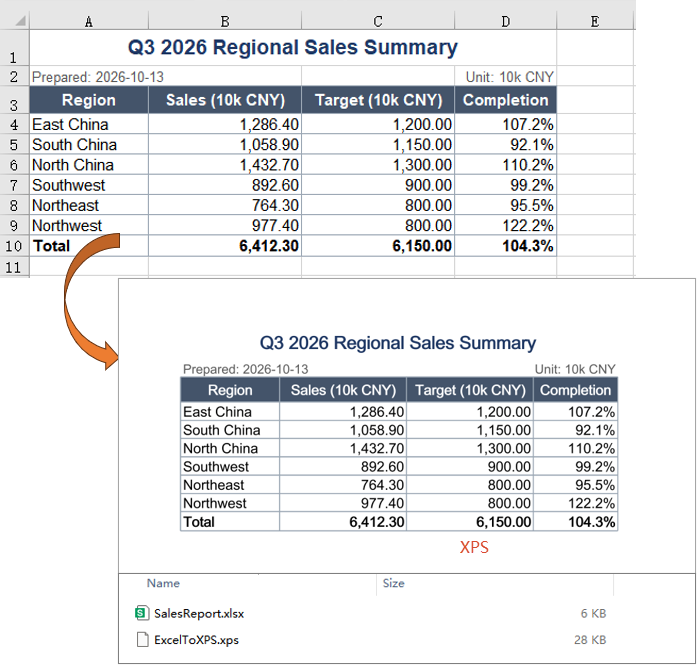
XPS is a fixed-layout document format that ships with Windows, and saving a workbook as XPS gives it an archived copy that no longer rearranges itself to suit the program that opens it, which is what makes it fit for a report that has to be read on a machine without Excel installed. The conversion changes only the format the file is saved in: the page setup, the cell formatting and the fonts of the worksheet are all written out with it, and a fileFormat argument names the target.
The fileFormat argument of workbook.SaveToFile decides which of the formats is written:
| Syntax | Result |
|---|---|
workbook.LoadFromFile({ fileName: inputFileName }) |
Loads the workbook to convert from the VFS |
workbook.SaveToFile({ fileName: 'ExcelToXPS.xps', fileFormat: xlsModule.FileFormat.XPS }) |
Writes the workbook as XPS, pinning the page size, the text position and the fonts |
workbook.Dispose() |
Releases the resources held by the workbook object |
The steps are:
- Load the font and the test data file into the VFS with
window.spire.FetchFileToVFS. - Create a workbook with
new Workbook(), then load the Excel file withworkbook.LoadFromFile. - Save the workbook with
workbook.SaveToFile, namingxlsModule.FileFormat.XPSinfileFormat. - Dispose of the workbook with
workbook.Disposeto free resources.
The code below is the complete example of converting a workbook to XPS in React:
function App() {
  const excelToXps = async () => {
    // get the Spire.XLS WASM module
    const xlsModule = window.wasmModule?.spirexls;

    // check that the module is ready
    if (!xlsModule) {
      alert('Spire.Xls is not ready yet');
      return;
    }

    // load the font and the test data file into the VFS
    await window.spire.FetchFileToVFS('ARIAL.TTF', '/Library/Fonts/', `${process.env.PUBLIC_URL}/font/`);
    const inputFileName = 'SalesReport.xlsx';
    await window.spire.FetchFileToVFS(inputFileName, '', `${process.env.PUBLIC_URL}data/`);

    // load the workbook
    const workbook = new xlsModule.Workbook();
    workbook.LoadFromFile({ fileName: inputFileName });

    // save as XPS, naming the format with fileFormat
    const outputFileName = 'ExcelToXPS.xps';
    workbook.SaveToFile({ fileName: outputFileName, fileFormat: xlsModule.FileFormat.XPS });

    // dispose of the workbook to free resources
    workbook.Dispose();

    // read the result file from the VFS and start the download
    const fileArray = window.dotnetRuntime.Module.FS.readFile(outputFileName);
    const blob = new Blob([fileArray], { type: 'application/vnd.ms-xpsdocument' });
    const url = URL.createObjectURL(blob);
    const a = document.createElement('a');
    a.href = url;
    a.download = outputFileName;
    a.click();
    URL.revokeObjectURL(url);
  };

  return (
    <div style={{ textAlign: 'center', height: '300px' }}>
      <h1>Convert Excel to XPS, OFD or PostScript</h1>
      <button id="excel-to-xps" onClick={excelToXps}>Convert Excel to XPS</button>
    </div>
  );
}

export default App;
The document after converting Excel to XPS:
Convert Excel to OFD
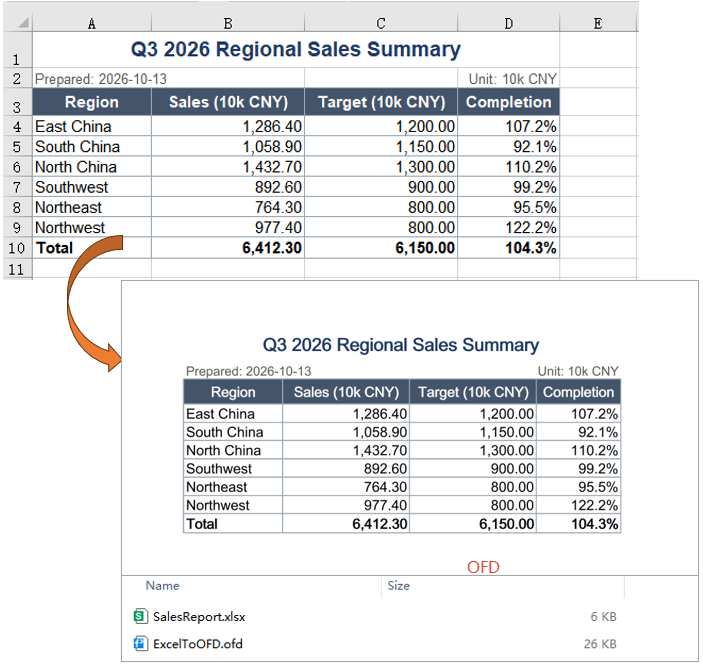
OFD is the fixed-layout document format used by Chinese electronic official documents and e-invoices, describing a page in a national standard so that it can be kept for the long term. Saving a sales report as OFD hands other systems a page whose layout is already fixed, and it no longer matters whether that system has the fonts or applies the same row heights. The conversion runs exactly like the previous feature point, with OFD named as the format.
| Syntax | Result |
|---|---|
workbook.LoadFromFile({ fileName: inputFileName }) |
Loads the workbook to convert from the VFS |
workbook.SaveToFile({ fileName: 'ExcelToOFD.ofd', fileFormat: xlsModule.FileFormat.OFD }) |
Writes the workbook as OFD, describing the page in the national standard |
workbook.Dispose() |
Releases the resources held by the workbook object |
The steps are:
- Load the font and the test data file into the VFS with
window.spire.FetchFileToVFS. - Create a workbook with
new Workbook(), then load the Excel file withworkbook.LoadFromFile. - Save the workbook with
workbook.SaveToFile, namingxlsModule.FileFormat.OFDinfileFormat. - Dispose of the workbook with
workbook.Disposeto free resources.
The code below is the complete example of converting a workbook to OFD in React:
function App() {
  const excelToOfd = async () => {
    // get the Spire.XLS WASM module
    const xlsModule = window.wasmModule?.spirexls;

    // check that the module is ready
    if (!xlsModule) {
      alert('Spire.Xls is not ready yet');
      return;
    }

    // load the font and the test data file into the VFS
    await window.spire.FetchFileToVFS('ARIAL.TTF', '/Library/Fonts/', `${process.env.PUBLIC_URL}/font/`);
    const inputFileName = 'SalesReport.xlsx';
    await window.spire.FetchFileToVFS(inputFileName, '', `${process.env.PUBLIC_URL}data/`);

    // load the workbook
    const workbook = new xlsModule.Workbook();
    workbook.LoadFromFile({ fileName: inputFileName });

    // save as OFD, naming the format with fileFormat
    const outputFileName = 'ExcelToOFD.ofd';
    workbook.SaveToFile({ fileName: outputFileName, fileFormat: xlsModule.FileFormat.OFD });

    // dispose of the workbook to free resources
    workbook.Dispose();

    // read the result file from the VFS and start the download
    const fileArray = window.dotnetRuntime.Module.FS.readFile(outputFileName);
    const blob = new Blob([fileArray], { type: 'application/ofd' });
    const url = URL.createObjectURL(blob);
    const a = document.createElement('a');
    a.href = url;
    a.download = outputFileName;
    a.click();
    URL.revokeObjectURL(url);
  };

  return (
    <div style={{ textAlign: 'center', height: '300px' }}>
      <h1>Convert Excel to XPS, OFD or PostScript</h1>
      <button id="excel-to-ofd" onClick={excelToOfd}>Convert Excel to OFD</button>
    </div>
  );
}

export default App;
The document after converting Excel to OFD:
Convert Excel to PostScript
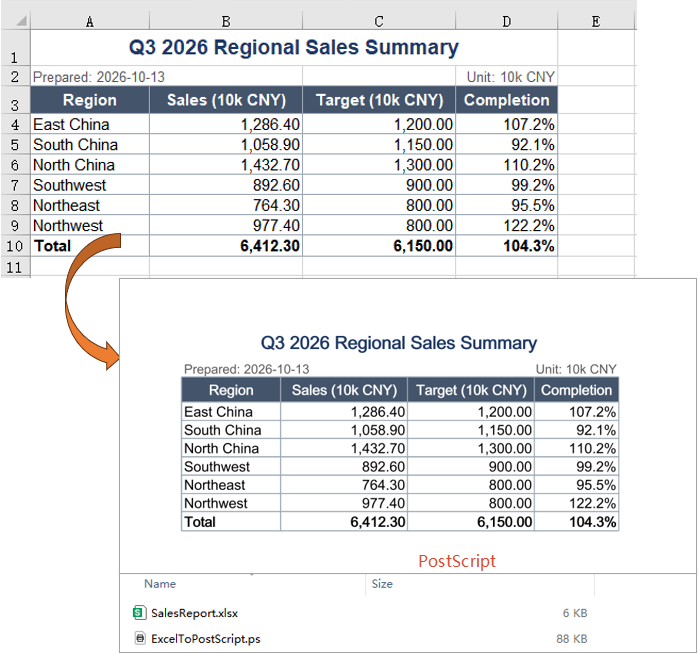
PostScript is the page description language used by printing devices and print workflows. The file is readable text that carries both the page description and the fonts embedded in it, so it can go straight to a PostScript printer or to typesetting software. When a report is headed for a print run, handing over PostScript is safer than handing over the original workbook. The usage matches the first two feature points, with PostScript named as the format.
| Syntax | Result |
|---|---|
workbook.LoadFromFile({ fileName: inputFileName }) |
Loads the workbook to convert from the VFS |
workbook.SaveToFile({ fileName: 'ExcelToPostScript.ps', fileFormat: xlsModule.FileFormat.PostScript }) |
Writes the workbook as PostScript, a readable page description |
workbook.Dispose() |
Releases the resources held by the workbook object |
The steps are:
- Load the font and the test data file into the VFS with
window.spire.FetchFileToVFS. - Create a workbook with
new Workbook(), then load the Excel file withworkbook.LoadFromFile. - Save the workbook with
workbook.SaveToFile, namingxlsModule.FileFormat.PostScriptinfileFormat. - Dispose of the workbook with
workbook.Disposeto free resources.
The code below is the complete example of converting a workbook to PostScript in React:
function App() {
  const excelToPostScript = async () => {
    // get the Spire.XLS WASM module
    const xlsModule = window.wasmModule?.spirexls;

    // check that the module is ready
    if (!xlsModule) {
      alert('Spire.Xls is not ready yet');
      return;
    }

    // load the font and the test data file into the VFS
    await window.spire.FetchFileToVFS('ARIAL.TTF', '/Library/Fonts/', `${process.env.PUBLIC_URL}/font/`);
    const inputFileName = 'SalesReport.xlsx';
    await window.spire.FetchFileToVFS(inputFileName, '', `${process.env.PUBLIC_URL}data/`);

    // load the workbook
    const workbook = new xlsModule.Workbook();
    workbook.LoadFromFile({ fileName: inputFileName });

    // save as PostScript, naming the format with fileFormat
    const outputFileName = 'ExcelToPostScript.ps';
    workbook.SaveToFile({ fileName: outputFileName, fileFormat: xlsModule.FileFormat.PostScript });

    // dispose of the workbook to free resources
    workbook.Dispose();

    // read the result file from the VFS and start the download
    const fileArray = window.dotnetRuntime.Module.FS.readFile(outputFileName);
    const blob = new Blob([fileArray], { type: 'application/postscript' });
    const url = URL.createObjectURL(blob);
    const a = document.createElement('a');
    a.href = url;
    a.download = outputFileName;
    a.click();
    URL.revokeObjectURL(url);
  };

  return (
    <div style={{ textAlign: 'center', height: '300px' }}>
      <h1>Convert Excel to XPS, OFD or PostScript</h1>
      <button id="excel-to-ps" onClick={excelToPostScript}>Convert Excel to PostScript</button>
    </div>
  );
}

export default App;
The document after converting Excel to PostScript:
FAQ
Why does the conversion fail with Cannot found font?
Cause: Writing XPS, OFD and PostScript means embedding every font the document uses, so a workbook whose text is not in the default Latin range needs the font file for it. If the font was never loaded into the VFS before the conversion, the module cannot find it and SaveToFile stops with a Cannot found font(...) installed on the system. error instead of writing a document.
Solution: Put the font file in public/font and load it into the VFS before loading the workbook, using the same file name the code refers to:
await window.spire.FetchFileToVFS('ARIAL.TTF', '/Library/Fonts/', `${process.env.PUBLIC_URL}/font/`);
Does the worksheet's page setup affect the converted document?
Cause: XPS, OFD and PostScript are all written page by page, and the size and the orientation of that page come from the worksheet's own page setup rather than from a decision the conversion makes on its own.
Solution: They carry over as they are. Taking the report in this example, the XPS page box is 794 x 1122 (portrait) while the report keeps its default orientation; set the first worksheet's sheet.PageSetup.Orientation to xlsModule.PageOrientationType.Landscape before converting, and the page box becomes 1122 x 794 (landscape). Paper size, margins and print area take effect on the way out in the same manner.
Why is the converted file much larger than the original workbook
Cause: Writing XPS, OFD and PostScript embeds every font the workbook uses, so the result comes out several times the size of a workbook that only holds cell data. That embedding is what lets a fixed-layout document be opened away from the machine it was made on.
Solution: This is normal and nothing needs fixing. To bring the size down, use a smaller font file, or check first that the report does not rely on several font files at once.
Get a Free License
Spire.XLS for JavaScript offers a 30-day full-featured free trial license with no functional limitations. Apply here to evaluate before purchasing.
ET is WPS Office's workbook format, and its files carry the .et extension. When workbooks are exchanged between office suites, format compatibility decides whether a file can be opened directly. Spire.XLS for JavaScript converts between Excel and ET both ways in the browser on WebAssembly, keeping the formulas, the merged areas and the number formats of the workbook, and handling input and output files through a virtual file system (VFS) with no backend service.
This article covers two core feature points:
For installation and project setup, see Integrating Spire.XLS for JavaScript in a React Project. The examples below assume Spire.XLS is installed and the WebAssembly module has been initialised.
Convert Excel to ET
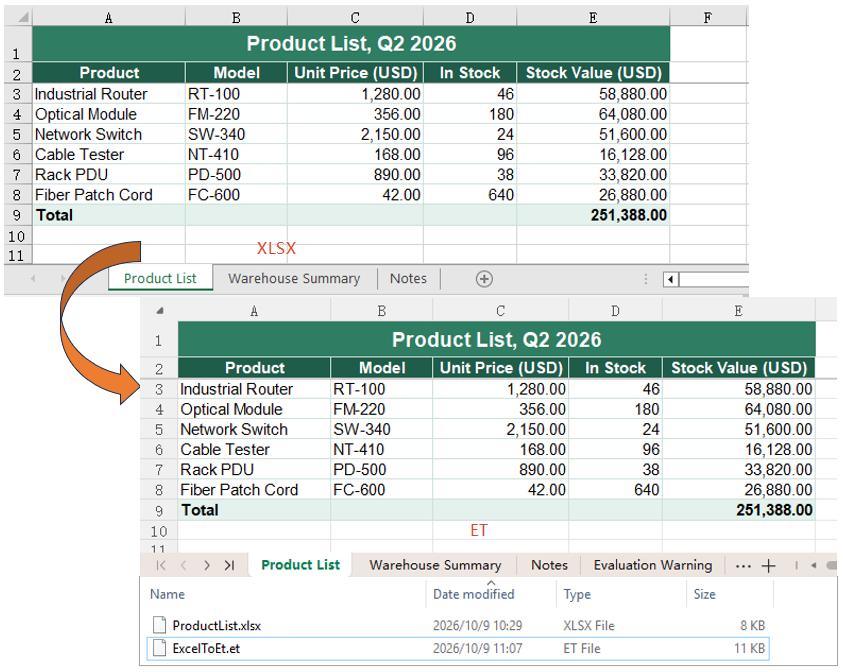
Saving an Excel workbook as ET makes the workbook open directly in WPS. The conversion changes only the format the file is saved in: the content of the workbook is unchanged, the target format is named by a fileFormat argument on the way out, and the formulas, the merged areas and the number formats of the cells are all kept. The steps are:
- Load the font and the test data file into the VFS.
- Load the Excel workbook with
workbook.LoadFromFile. - Save the workbook with
workbook.SaveToFile, namingxlsModule.FileFormat.ETas thefileFormat. - Dispose of the workbook with
workbook.Disposeto free resources.
The complete code example below shows how to convert an Excel workbook to ET in React:
function App() {
  const excelToEt = async () => {
    // get the Spire.XLS WASM module
    const xlsModule = window.wasmModule?.spirexls;

    // check that the module is ready
    if (!xlsModule) {
      alert('Spire.Xls is not ready yet');
      return;
    }

    // load the font and the test data file into the VFS
    await window.spire.FetchFileToVFS('ARIAL.TTF', '/Library/Fonts/', `${process.env.PUBLIC_URL}/font/`);
    const inputFileName = 'ProductList.xlsx';
    await window.spire.FetchFileToVFS(inputFileName, '', `${process.env.PUBLIC_URL}data/`);

    // load the workbook
    const workbook = new xlsModule.Workbook();
    workbook.LoadFromFile({ fileName: inputFileName });

    // save as ET; the format is named by fileFormat
    const outputFileName = 'ExcelToEt.et';
    workbook.SaveToFile({ fileName: outputFileName, fileFormat: xlsModule.FileFormat.ET });

    // dispose of the workbook to free resources
    workbook.Dispose();

    // read the result file from the VFS and start the download
    const fileArray = window.dotnetRuntime.Module.FS.readFile(outputFileName);
    const blob = new Blob([fileArray], { type: 'application/vnd.wps-office.et' });
    const url = URL.createObjectURL(blob);
    const a = document.createElement('a');
    a.href = url;
    a.download = outputFileName;
    a.click();
    URL.revokeObjectURL(url);
  };

  return (
    <div style={{ textAlign: 'center', height: '300px' }}>
      <h1>Convert Between Excel and ET in React</h1>
      <button id="excel-to-et" onClick={excelToEt}>Convert Excel to ET</button>
    </div>
  );
}

export default App;
After running, the effect of converting an Excel workbook to an ET file:
Convert ET to Excel
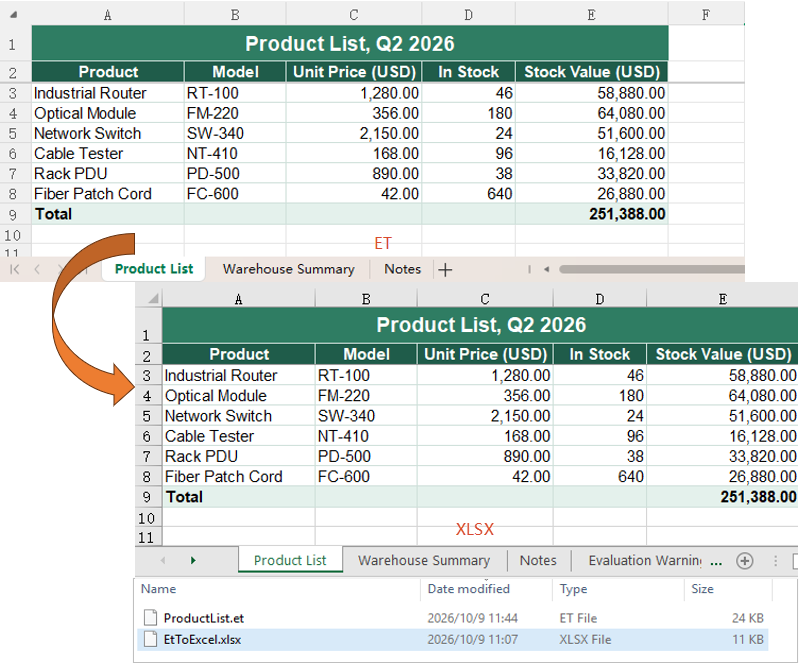
Converting an ET file to Excel is the same operation in the other direction. ET and Excel hold the same workbook content and differ only in the file format, so loading the ET and writing it out as an Excel version is all it takes. The steps are:
- Load the font and the test data file into the VFS.
- Load the ET file with
workbook.LoadFromFile. - Save it as an Excel workbook with
workbook.SaveToFile, namingxlsModule.FileFormat.Version2010as thefileFormat. - Dispose of the workbook with
workbook.Disposeto free resources.
The complete code example below shows how to convert an ET file back to Excel in React:
function App() {
  const etToExcel = async () => {
    // get the Spire.XLS WASM module
    const xlsModule = window.wasmModule?.spirexls;

    // check that the module is ready
    if (!xlsModule) {
      alert('Spire.Xls is not ready yet');
      return;
    }

    // load the font and the test data file into the VFS
    await window.spire.FetchFileToVFS('ARIAL.TTF', '/Library/Fonts/', `${process.env.PUBLIC_URL}/font/`);
    const inputFileName = 'ProductList.et';
    await window.spire.FetchFileToVFS(inputFileName, '', `${process.env.PUBLIC_URL}data/`);

    // load the workbook
    const workbook = new xlsModule.Workbook();
    workbook.LoadFromFile({ fileName: inputFileName });

    // save as Excel, again naming the version through fileFormat
    const outputFileName = 'EtToExcel.xlsx';
    workbook.SaveToFile({ fileName: outputFileName, fileFormat: xlsModule.FileFormat.Version2010 });

    // dispose of the workbook to free resources
    workbook.Dispose();

    // read the result file from the VFS and start the download
    const fileArray = window.dotnetRuntime.Module.FS.readFile(outputFileName);
    const blob = new Blob([fileArray], { type: 'application/vnd.openxmlformats-officedocument.spreadsheetml.sheet' });
    const url = URL.createObjectURL(blob);
    const a = document.createElement('a');
    a.href = url;
    a.download = outputFileName;
    a.click();
    URL.revokeObjectURL(url);
  };

  return (
    <div style={{ textAlign: 'center', height: '300px' }}>
      <h1>Convert Between Excel and ET in React</h1>
      <button id="et-to-excel" onClick={etToExcel}>Convert ET to Excel</button>
    </div>
  );
}

export default App;
After running, the effect of converting an ET file back to an Excel workbook:
FAQ
Can a file be saved as ET by naming it .et and leaving fileFormat out?
Cause: fileFormat is an optional argument of SaveToFile. When it is not passed, the format is taken from the extension of the output file name, so a name the library recognises determines the format.
Solution: Leaving it out works. Saving a .xlsx with workbook.SaveToFile({ fileName: 'ProductList.et' }) writes an ET file all the same. Writing fileFormat out is still the clearer of the two, and it keeps the output from landing in some other format when the name carries no extension or the wrong one.
Do the formulas in the workbook turn into fixed values after converting to ET?
Cause: ET and Excel carry the same workbook object, and the conversion only changes the format; nothing goes near the contents of the cells.
Solution: The formulas are kept as they are. In this example, reading the ET file that was written back in, the amount cell still has HasFormula set to true, its Formula is still =C3*D3, and FormulaNumberValue gives 58880 as the result; the merged area is still five columns wide, and the #,##0.00 number format is still in place. Formulas, formatting and layout survive the conversion in both directions.
Get a Free License
Spire.XLS for JavaScript offers a 30-day full-featured free trial license with no functional limitations. Apply here to evaluate before purchasing.

JSON is widely used to exchange data between web applications and APIs, but it is not always the most convenient format for reviewing or sharing records. Exporting JSON to Excel turns that data into a worksheet that users can sort, edit, and use in reports.
This tutorial explains how to convert JSON to Excel in a React application using JavaScript and Spire.XLS for JavaScript. It covers both a simple array of employee records and nested JSON that must be flattened before export. You will also learn how to preserve basic data types, format the worksheet, and download the resulting XLSX file in the browser.
Table of Contents:
- Set Up Spire.XLS for JavaScript in React
- Convert a Simple JSON Array to Excel in React
- Convert Nested JSON to Excel in React
- Common Issues and Solutions
- FAQs
- Conclusion
1. Set Up Spire.XLS for JavaScript in React
Spire.XLS for JavaScript provides APIs for creating workbooks, writing cell values, applying styles, and saving Excel files. In this workflow, JavaScript parses and prepares the JSON data, while Spire.XLS builds the Excel workbook.
In your React project, install the package:
npm i spire.office
Copy the corresponding runtime files from the package into your project's public folder: spire.xls.js, Spire.Xls.Wasm.zip, spire.common.js, Spire.Common.Wasm.zip, and the _framework folder. Keep these files from the same package version. For detailed setup instructions, see How to Integrate Spire.XLS for JavaScript in a React Project.
Place the JSON input files in public as well. The examples below use employees.json and employees_nested.json.
The React component loads spire.xls.js inside useEffect() and keeps the initialized module in state. The conversion button remains disabled until initialization completes.
Project configuration: These examples follow the process.env.PUBLIC_URL and webpack-based loading convention in the supplied React component. If your project uses Vite or another build tool, adapt the public asset URL and dynamic import configuration to that environment.
2. Convert a Simple JSON Array to Excel in React
A flat array of objects maps naturally to a worksheet: property names become column headers, and each object becomes one data row.
Prepare the JSON File
Save the following content as public/employees.json:
[
  {
    "employee_id": "E001",
    "name": "Jane Doe",
    "department": "HR",
    "salary": 85000.5,
    "active": true,
    "hire_date": "2022-03-15"
  },
  {
    "employee_id": "E002",
    "name": "Michael Smith",
    "department": "IT",
    "salary": 96000,
    "active": true,
    "hire_date": "2021-07-01"
  },
  {
    "employee_id": "E003",
    "name": "Sara Lin",
    "department": "Finance",
    "salary": 92000.75,
    "active": false,
    "hire_date": "2023-01-12"
  },
  {
    "employee_id": "E004",
    "name": "李伟",
    "department": "Operations",
    "salary": 81500,
    "active": true,
    "hire_date": "2020-11-30"
  },
  {
    "employee_id": "E005",
    "name": "Anna Petrova",
    "department": "Marketing",
    "salary": 78000,
    "active": true,
    "hire_date": "2019-08-19"
  },
  {
    "employee_id": "E006",
    "name": "David Chen",
    "department": null,
    "salary": 0,
    "active": false
  }
]
This example includes strings, numbers, Boolean values, Chinese characters, a null value, and a missing property. These cases illustrate how the export handles different values without losing zero or false.
Convert JSON to Excel
The conversion follows these steps:
- Load the JSON file into the virtual file system (VFS), decode its UTF-8 content, and parse it with
JSON.parse(). - Create a workbook, remove its default worksheets, and add an
Employeesworksheet. - Write the first object's keys into the header row.
- Write each record to a new row, using
NumberValue,BooleanValue, orTextaccording to the JavaScript value type. - Style the headers, estimate column widths from the content, and add thin borders.
- Save the workbook to the VFS, read the generated bytes, and download them as an XLSX file.
Complete React Example
Replace the contents of App.js with the following component:
import React, { useState, useEffect } from 'react';

function App() {
  const [wasmModule, setWasmModule] = useState(null);

  // Load Spire.XLS
  useEffect(() => {
    (async () => {
      try {
        const publicUrl = process.env.PUBLIC_URL || '';
        const spireModule = await import(/* webpackIgnore: true */ `${publicUrl}/spire.xls.js`);
        const rawModule = spireModule.default || spireModule;
        window.wasmModule = typeof rawModule === 'function'
          ? await rawModule({ locateFile: p => p.endsWith('.wasm') ? `${publicUrl}/${p}` : p })
          : rawModule;
        setWasmModule(window.wasmModule);
      } catch (error) {
        console.error('Failed to load spire.xls.js WASM module:', error);
      }
    })();
  }, []);

  // Convert JSON data to an Excel file
  const JsonToExcel = async () => {
    const spirexls = wasmModule?.spirexls;
    if (!spirexls) {
      console.error('Spire.XLS is not initialized.');
      return;
    }

    let workbook;

    try {
      // 1. Load the JSON file into the Virtual File System (VFS)
      const inputFileName = 'employees.json';
      const inputVfsPath = await window.spire.FetchFileToVFS(
        inputFileName,
        '/',
        `${process.env.PUBLIC_URL || ''}/`
      );

      // 2. Read it back as UTF-8 text and parse it into JS objects
      const jsonBytes = window.dotnetRuntime.Module.FS.readFile(inputVfsPath);
      const jsonText = new TextDecoder('utf-8').decode(jsonBytes);
      const data = JSON.parse(jsonText);

      // Guard against empty / invalid input
      if (!Array.isArray(data) || data.length === 0) {
        throw new Error('JSON must be a non-empty array of objects.');
      }

      // 3. Create a new workbook and worksheet
      workbook = new spirexls.Workbook();
      workbook.Worksheets.Clear();
      const sheet = workbook.Worksheets.Add('Employees');

      // 4. Write headers (row 1) from the keys of the first record
      const headers = Object.keys(data[0]);
      headers.forEach((header, col) => {
        const cell = sheet.get(1, col + 1); // 1-based
        cell.Text = header;
        cell.Style.Font.IsBold = true;
        cell.Style.Font.Size = 12;
        cell.Style.Font.Color = spirexls.Color.get_White();
        cell.Style.Color = spirexls.Color.get_DarkBlue();
      });

      // 5. Write data rows (from row 2), keeping the correct cell types
      data.forEach((record, rowIdx) => {
        headers.forEach((key, colIdx) => {
          const cell = sheet.get(rowIdx + 2, colIdx + 1);
          const value = record[key];
          if (typeof value === 'number') {
            cell.NumberValue = value;
          } else if (typeof value === 'boolean') {
            cell.BooleanValue = value;
          } else {
            cell.Text = value == null ? '' : String(value);
          }
        });
      });

      // 6. Set column widths explicitly
      const widths = headers.map((header) => {
        let maxLen = header.length;
        data.forEach(record => {
          const v = record[header];
          maxLen = Math.max(maxLen, v == null ? 0 : String(v).length);
        });
        return Math.min(Math.max(maxLen + 4, 10), 40);
      });
      const columns = sheet.Columns;
      widths.forEach((w, i) => { columns[i].ColumnWidth = w; }); // 0-based

      // 7. Add thin borders to the used range
      const usedRange = sheet.get(1, 1, data.length + 1, headers.length);
      usedRange.Borders.LineStyle = spirexls.LineStyleType.Thin;
      usedRange.Borders.Color = spirexls.Color.get_LightSteelBlue();

      // 8. Save the workbook to the VFS
      const outputFileName = 'employees.xlsx';
      workbook.SaveToFile({
        fileName: outputFileName,
        version: spirexls.ExcelVersion.Version2016
      });

      // 9. Read the saved file, convert to a Blob and trigger download
      const modifiedFileArray = window.dotnetRuntime.Module.FS.readFile(outputFileName);
      const modifiedFile = new Blob([modifiedFileArray], {
        type: 'application/vnd.openxmlformats-officedocument.spreadsheetml.sheet'
      });
      const url = URL.createObjectURL(modifiedFile);
      const a = document.createElement('a');
      a.href = url;
      a.download = outputFileName;
      document.body.appendChild(a);
      a.click();
      document.body.removeChild(a);
      URL.revokeObjectURL(url);

    } catch (error) {
      console.error('Failed to convert JSON to Excel:', error);
    } finally {
      // Clean up resources even when conversion fails part-way through.
      try {
        workbook?.Dispose();
      } catch (cleanupError) {
        console.warn('Failed to dispose workbook:', cleanupError);
      }
    }
  };

  return (
    <div style={{ textAlign: 'center', height: '300px' }}>
      <h1>Convert JSON to Excel Using JavaScript in React</h1>
      <button onClick={JsonToExcel} disabled={!wasmModule}>
        Convert
      </button>
    </div>
  );
}

export default App;
The code uses 1-based row and column indexes for sheet.get(), while the sheet.Columns collection is accessed with a 0-based index. Column widths are estimated from string length and capped at 40; this is a simple sizing rule rather than an exact measurement of rendered text.
Output:
The screenshot below shows the generated employees.xlsx file, with a styled header row and six employee records. Numbers and Boolean values retain their cell types, Chinese characters are preserved, and null or missing values appear as blank cells. Date strings remain in their original YYYY-MM-DD text format.
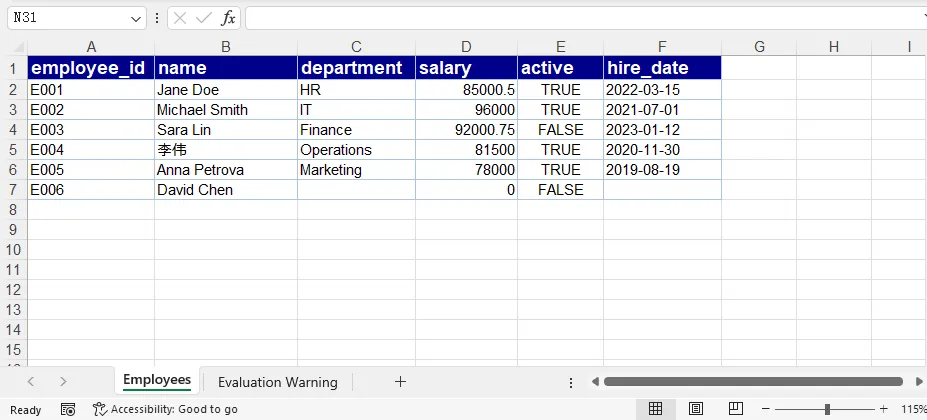
JSON has no native date type, and this code does not convert date strings into Excel dates. Also, the headers come from the first record: properties found only in later records are not included. The next example collects fields across all records to address that limitation.
3. Convert Nested JSON to Excel in React
Nested objects do not map directly to individual worksheet cells. Before exporting them, flatten their properties into a single level and decide how arrays should appear in the worksheet.
For this example, nested object paths become dot-separated column names, and arrays of simple values become comma-separated text. Each employee remains on one row.
Prepare a Nested JSON Example
Save the following content as public/employees_nested.json:
[
  {
    "employee_id": "E001",
    "name": "Jane Doe",
    "salary": 85000.5,
    "active": true,
    "address": {
      "city": "Seattle",
      "country": "USA"
    },
    "skills": ["Recruitment", "Training"]
  },
  {
    "employee_id": "E002",
    "name": "Michael Smith",
    "salary": 96000,
    "active": true,
    "address": {
      "city": "London",
      "country": "UK",
      "postal_code": "SW1A 1AA"
    },
    "skills": ["JavaScript", "React"]
  },
  {
    "employee_id": "E004",
    "name": "李伟",
    "salary": 81500,
    "active": false,
    "address": {
      "city": "Shanghai",
      "country": "China"
    },
    "skills": []
  }
]
The postal_code property appears only in the second employee's address. The export must therefore gather the column names from all flattened records, rather than using only the first one.
Flatten Nested Objects and Handle Arrays
Add these helper functions above function App() in the existing App.js file:
function isRecord(value) {
  return value !== null && typeof value === 'object' && !Array.isArray(value);
}

function flattenRecord(record) {
  // A null-prototype object safely holds arbitrary JSON property names.
  const result = Object.create(null);

  const visit = (value, path) => {
    if (Array.isArray(value)) {
      const containsComplexValues = value.some(
        item => item !== null && typeof item === 'object'
      );

      // Preserve complex arrays as JSON text; join simple arrays for readability.
      result[path] = containsComplexValues
        ? JSON.stringify(value)
        : value.map(item => item == null ? '' : String(item)).join(', ');
    } else if (isRecord(value)) {
      const entries = Object.entries(value);
      if (entries.length === 0 && path) {
        result[path] = '';
      } else {
        entries.forEach(([key, child]) => {
          visit(child, path ? `${path}.${key}` : key);
        });
      }
    } else {
      result[path] = value;
    }
  };

  visit(record, '');
  return result;
}
For the first employee, the resulting object is equivalent to:
{
  "employee_id": "E001",
  "name": "Jane Doe",
  "salary": 85000.5,
  "active": true,
  "address.city": "Seattle",
  "address.country": "USA",
  "skills": "Recruitment, Training"
}
Numbers and Boolean values remain unchanged outside arrays. Empty arrays become empty text. If an array contains objects or other arrays, the helper stores it as JSON text instead of producing an unhelpful [object Object] string.
This dot-separated naming convention assumes that the original property names do not contain dots. If your data includes literal keys such as "address.city", use an escaped path convention or an explicit column mapping to avoid collisions. Array-to-text conversion is intended for readable export, not lossless reconstruction of the original JSON.
Export the Flattened Data to Excel
Keep the module initialization and component layout from the simple example. Replace its JsonToExcel handler with the following handler. It loads the nested JSON file, flattens each record, collects every available field, and exports the resulting table:
const JsonToExcel = async () => {
  const spirexls = wasmModule?.spirexls;
  if (!spirexls) {
    console.error('Spire.XLS is not initialized.');
    return;
  }

  let workbook;

  try {
    // 1. Load and parse the nested JSON file
    const inputVfsPath = await window.spire.FetchFileToVFS(
      'employees_nested.json',
      '/',
      `${process.env.PUBLIC_URL || ''}/`
    );
    const bytes = window.dotnetRuntime.Module.FS.readFile(inputVfsPath);
    const data = JSON.parse(new TextDecoder('utf-8').decode(bytes));

    if (!Array.isArray(data) || data.length === 0 || !data.every(isRecord)) {
      throw new Error('JSON must be a non-empty array of objects.');
    }

    // 2. Flatten records and collect fields from every record
    const flatData = data.map(flattenRecord);
    const headers = [...new Set(flatData.flatMap(record => Object.keys(record)))];
    if (headers.length === 0) {
      throw new Error('JSON records contain no exportable fields.');
    }

    // 3. Create a workbook and worksheet
    workbook = new spirexls.Workbook();
    workbook.Worksheets.Clear();
    const sheet = workbook.Worksheets.Add('Employees');

    // 4. Write and style the headers
    headers.forEach((header, col) => {
      const cell = sheet.get(1, col + 1);
      cell.Text = header;
      cell.Style.Font.IsBold = true;
      cell.Style.Font.Size = 12;
      cell.Style.Font.Color = spirexls.Color.get_White();
      cell.Style.Color = spirexls.Color.get_DarkBlue();
    });

    // 5. Write flattened values, preserving scalar types
    flatData.forEach((record, row) => {
      headers.forEach((key, col) => {
        const cell = sheet.get(row + 2, col + 1);
        const value = record[key];
        if (typeof value === 'number') {
          cell.NumberValue = value;
        } else if (typeof value === 'boolean') {
          cell.BooleanValue = value;
        } else {
          cell.Text = value == null ? '' : String(value);
        }
      });
    });

    // 6. Estimate column widths and add borders
    const columns = sheet.Columns;
    headers.forEach((header, col) => {
      let maxLen = header.length;
      flatData.forEach(record => {
        const value = record[header];
        maxLen = Math.max(maxLen, value == null ? 0 : String(value).length);
      });
      columns[col].ColumnWidth = Math.min(Math.max(maxLen + 4, 10), 40);
    });

    const usedRange = sheet.get(1, 1, flatData.length + 1, headers.length);
    usedRange.Borders.LineStyle = spirexls.LineStyleType.Thin;
    usedRange.Borders.Color = spirexls.Color.get_LightSteelBlue();

    // 7. Save and download the workbook
    const outputFileName = 'employees_nested.xlsx';
    workbook.SaveToFile({
      fileName: outputFileName,
      version: spirexls.ExcelVersion.Version2016
    });

    const outputBytes = window.dotnetRuntime.Module.FS.readFile(outputFileName);
    const blob = new Blob([outputBytes], {
      type: 'application/vnd.openxmlformats-officedocument.spreadsheetml.sheet'
    });
    const url = URL.createObjectURL(blob);
    const link = document.createElement('a');
    link.href = url;
    link.download = outputFileName;
    document.body.appendChild(link);
    link.click();
    link.remove();
    URL.revokeObjectURL(url);

  } catch (error) {
    console.error('Failed to convert nested JSON to Excel:', error);
  } finally {
    try {
      workbook?.Dispose();
    } catch (cleanupError) {
      console.warn('Failed to dispose workbook:', cleanupError);
    }
  }
};
Output:
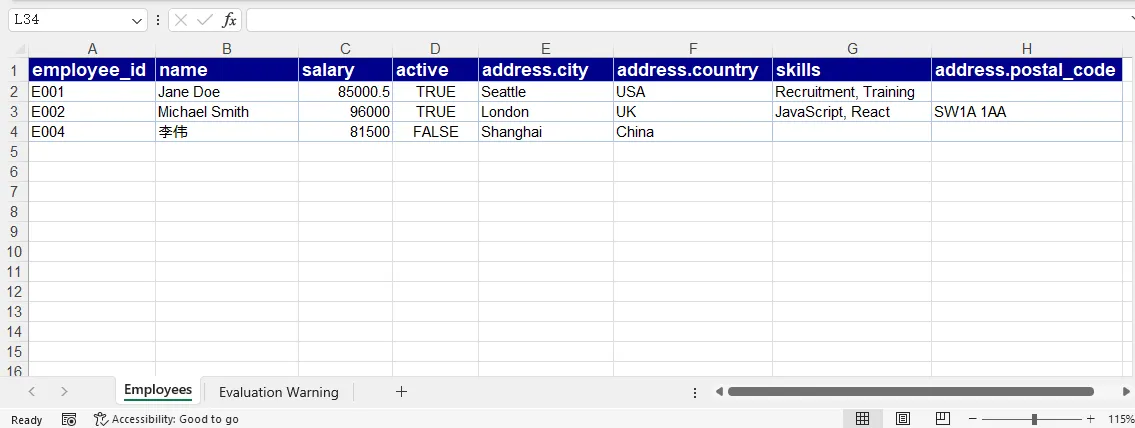
The generated worksheet includes address.city, address.country, and address.postal_code as separate columns. Skills appear as readable text in one cell, and employees without a postal code have an empty cell in that column. Header order follows the first appearance of each field across the records.
For arrays of objects that need to be analyzed as individual items, a separate worksheet or an explicitly defined one-to-many row expansion is usually more useful than storing JSON text. That approach requires deciding which parent fields to repeat and how related records should be linked.
4. Common Issues and Solutions
| Issue | Solution |
|---|---|
| The conversion button stays disabled | Check the browser console and Network panel for module-loading errors. Verify that the runtime files are accessible and come from the same package version. |
| The JSON file cannot be loaded | Confirm that it is in public and that the public URL points to the correct location. An HTML error page returned instead of JSON can also cause a parse error. |
JSON.parse() throws an error |
Check for malformed JSON, comments, trailing commas, or an unexpected response body. |
| Input is empty or has the wrong structure | Provide a non-empty array of objects. For API responses wrapped in an object, select the array property before exporting. |
| Some columns are missing | Collect the union of keys from all records, as shown in the nested example, instead of reading only data[0]. |
A cell contains [object Object] |
Flatten nested objects before writing them, or deliberately serialize complex values with JSON.stringify(). |
| Dates behave like text in Excel | The examples write date strings as text. Add explicit date parsing and Excel date formatting if date calculations are required. |
The simple example validates that the input is a non-empty array but does not verify each member's type. For less predictable input, use the stronger data.every(isRecord) validation from the nested example and reject records with no usable fields.
5. FAQs
Can I convert JSON from an API response to Excel?
Yes. Use fetch() and response.json() to obtain the data, then pass the resulting array through the same worksheet-writing process. If the response has a wrapper such as { "employees": [...] }, select responseData.employees first. Loading a static JSON file into the VFS is not necessary when the data is already available as JavaScript objects.
How do I handle records with different fields?
Build the column list from every record's keys. The nested example uses Set to collect unique field names in their first-seen order. When a record does not contain a column's field, the code writes empty text to that cell.
How can I export nested objects and arrays?
Flatten nested objects into path-based columns, such as address.city. For simple arrays, joining values into one cell keeps each parent record on one row. Arrays of objects can be stored as JSON text, expanded into multiple rows, or exported to a separate worksheet, depending on how users need to work with the data.
Are numbers and Boolean values preserved in Excel?
Yes. These examples assign JavaScript numbers to NumberValue and Boolean values to BooleanValue. Strings remain text, including numeric-looking identifiers and date strings. The null check uses value == null, so valid values such as 0 and false are not replaced with blanks.
6. Conclusion
Converting JSON to Excel in React involves preparing the data, writing it to a worksheet, and downloading the generated workbook. Flat JSON arrays can be exported directly, while nested data needs a defined flattening strategy. With type-aware cell assignments and consistent field collection, both workflows produce readable Excel files for sharing and further analysis.
Convert Excel to ODS or ODS to Excel with JavaScript in React
2026-08-18 02:51:43 Written by jie zouIn daily office work, data often needs to be exchanged between Excel spreadsheets and OpenDocument spreadsheets (ODS). ODS is an open-standard spreadsheet format widely used in open-source office software such as LibreOffice and OpenOffice. Spire.XLS for JavaScript runs entirely in the browser via WebAssembly, using a virtual file system (VFS) to manage input and output files — no backend server is required. It provides simple, easy-to-use APIs that make format conversion more convenient.
With Spire.XLS for JavaScript, you can save an Excel workbook as ODS format to work seamlessly with open-source office software, or import an ODS file to create a fully formatted Excel workbook. This makes data migration between different applications more convenient and efficient.
This article covers two core features:
For installation and project setup, refer to Integrating Spire.XLS for JavaScript in a React Project. The examples below assume Spire.XLS is installed and the WebAssembly module is initialized.
Convert Excel Workbook to ODS File
Exporting Excel data as ODS format makes it easy to open and edit directly in open-source office software such as LibreOffice and OpenOffice. With Spire.XLS for JavaScript, you can save an entire workbook as an ODS file, preserving table structure, styles, and data while enabling cross-platform data sharing. The steps are as follows:
- Create a
Workbookobject and load an existing Excel file. - Call the workbook's
SaveToFile()method, specifying the output filename and theFileFormat.ODSfile format. - Dispose of the workbook resources, read the result file from VFS, and trigger the download.
Below is a complete code example demonstrating how to convert Excel to ODS in React:
function App() {
  const convertToODS = async () => {
    // Get the Spire.XLS WASM module
    const xlsModule = window.wasmModule?.spirexls;

    // Check if the module is ready
    if (!xlsModule) {
      alert('Spire.Xls is not ready yet');
      return;
    }

    // Load the font file to ensure proper text rendering
    await window.spire.FetchFileToVFS('ARIAL.TTF', '/Library/Fonts/', `${process.env.PUBLIC_URL}font/`);

    // Load the sample Excel file into VFS
    await window.spire.FetchFileToVFS('Sample.xlsx', '', `${process.env.PUBLIC_URL}data/`);

    // Create a workbook object and load the Excel file
    const workbook = new xlsModule.Workbook();
    workbook.LoadFromFile({ fileName: 'Sample.xlsx' });

    // Save the workbook as an ODS file
    const outputFileName = 'ExcelToODS.ods';
    workbook.SaveToFile({ fileName: outputFileName, fileFormat: xlsModule.FileFormat.ODS });
    workbook.Dispose();

    // Read the file from VFS and trigger download
    const fileArray = window.dotnetRuntime.Module.FS.readFile(outputFileName);
    const blob = new Blob([fileArray], { type: 'application/vnd.oasis.opendocument.spreadsheet' });
    const url = URL.createObjectURL(blob);
    const a = document.createElement('a');
    a.href = url;
    a.download = outputFileName;
    a.click();
    URL.revokeObjectURL(url);
  };

  return (
    <div style={{ textAlign: 'center', height: '300px' }}>
      <h1>Convert Excel to ODS</h1>
      <button onClick={convertToODS}>
        Generate
      </button>
    </div>
  );
}

export default App;
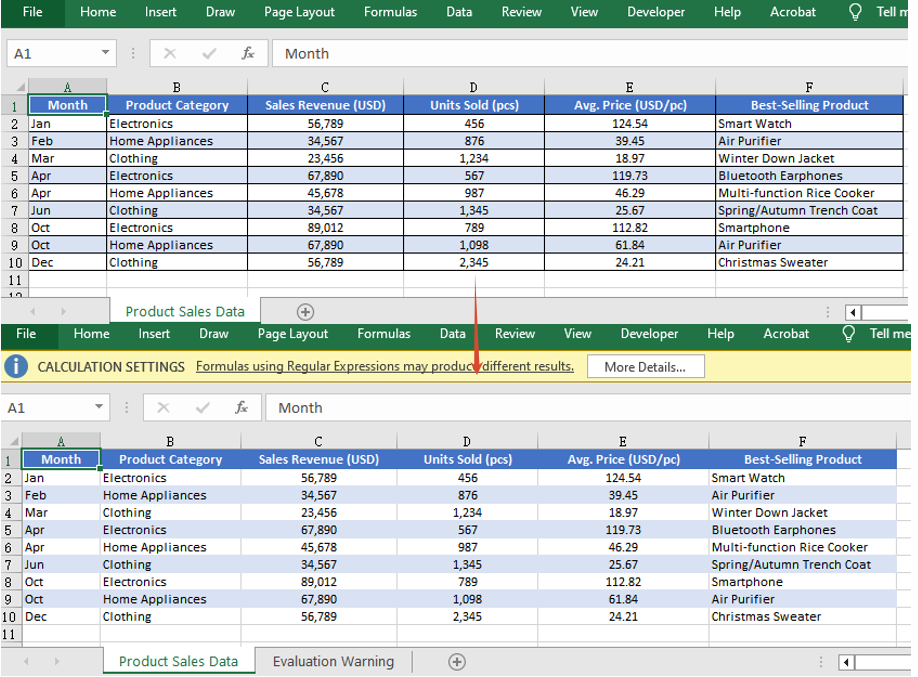
Excel converted to ODS with Spire.XLS for JavaScript
Convert ODS File to Excel Workbook
Importing an ODS file into an Excel spreadsheet allows you to take full advantage of Excel's powerful formatting, calculation, and charting capabilities. Spire.XLS for JavaScript supports loading an ODS file directly via the LoadFromFile() method, which automatically detects its file format, and then you can save the workbook as an Excel file. The steps are as follows:
- Load the font file and ODS sample file into the VFS.
- Create a
Workbookobject and load the ODS file via theLoadFromFile()method. - Save the workbook as an Excel file and trigger the download.
Below is a complete code example demonstrating how to convert ODS to Excel in React:
function App() {
  const convertToExcel = async () => {
    // Get the Spire.XLS WASM module
    const xlsModule = window.wasmModule?.spirexls;

    // Check if the module is ready
    if (!xlsModule) {
      alert('Spire.Xls is not ready yet');
      return;
    }

    // Load the font file to ensure proper text rendering
    await window.spire.FetchFileToVFS('ARIAL.TTF', '/Library/Fonts/', `${process.env.PUBLIC_URL}font/`);

    // Load the ODS sample file into VFS
    await window.spire.FetchFileToVFS('Sample.ods', '', `${process.env.PUBLIC_URL}data/`);

    // Create a workbook object and load the ODS file
    const workbook = new xlsModule.Workbook();
    workbook.LoadFromFile({ fileName: 'Sample.ods' });

    // Save the workbook and release resources
    const outputFileName = 'ODSToExcel.xlsx';
    workbook.SaveToFile({ fileName: outputFileName, version: xlsModule.ExcelVersion.Version2010 });
    workbook.Dispose();

    // Read the file from VFS and trigger download
    const fileArray = window.dotnetRuntime.Module.FS.readFile(outputFileName);
    const blob = new Blob([fileArray], { type: 'application/vnd.openxmlformats-officedocument.spreadsheetml.sheet' });
    const url = URL.createObjectURL(blob);
    const a = document.createElement('a');
    a.href = url;
    a.download = outputFileName;
    a.click();
    URL.revokeObjectURL(url);
  };

  return (
    <div style={{ textAlign: 'center', height: '300px' }}>
      <h1>Convert ODS to Excel</h1>
      <button onClick={convertToExcel}>
        Generate
      </button>
    </div>
  );
}

export default App;
ODS converted to Excel with Spire.XLS for JavaScript

FAQ
Why can't the generated ODS file be opened properly?
Cause: When saving the workbook with the SaveToFile() method, if the correct output file format is not specified via the fileFormat parameter, the generated file format may not match the extension, causing it to fail to open.
Solution: Specify the specific file format enum value xlsModule.FileFormat.ODS when saving as ODS:
const outputFileName = 'ExcelToODS.ods';
workbook.SaveToFile({ fileName: outputFileName, fileFormat: xlsModule.FileFormat.ODS });
How to handle the downloaded ODS file being opened as another type or unrecognized?
Cause: The MIME type is not set correctly when creating the Blob, so the browser cannot recognize the downloaded file as an ODS document, which may cause it to open as another type or display garbled text.
Solution: Specify the correct MIME type when downloading and make sure the download filename ends with .ods:
const blob = new Blob([fileArray], { type: 'application/vnd.oasis.opendocument.spreadsheet' });
const a = document.createElement('a');
a.href = URL.createObjectURL(blob);
a.download = 'ExcelToODS.ods';
a.click();
Get a Free License
Spire.XLS for JavaScript offers a 30-day full-featured free trial license with no functional limitations. Apply here to evaluate before purchasing.
Convert Excel to Markdown or Markdown to Excel with JavaScript in React
2026-08-14 08:08:14 Written by jie zouIn daily office work, data often needs to be exchanged between Excel spreadsheets and Markdown files. Markdown is a lightweight markup language widely used for documentation, blogs, and technical notes. Spire.XLS for JavaScript runs entirely in the browser via WebAssembly, using a virtual file system (VFS) to manage input and output files — no backend server is required. It provides simple, easy-to-use APIs that make format conversion more convenient.
With Spire.XLS for JavaScript, you can export Excel worksheet data as well-structured, easy-to-read Markdown tables, or import Markdown files containing table syntax to create fully formatted Excel workbooks. This makes data migration between different applications more convenient and efficient.
This article covers two core features:
For installation and project setup, refer to Integrating Spire.XLS for JavaScript in a React Project. The examples below assume Spire.XLS is installed and the WebAssembly module is initialized.
Convert Excel Workbook to Markdown File
Exporting Excel data as a Markdown table makes it convenient to read and share spreadsheet data directly in documents, blogs, or version control systems. With Spire.XLS for JavaScript, you can save an entire workbook as a Markdown file, and the resulting table is well-structured and easy to maintain. The steps are as follows:
- Create a
Workbookobject and load an existing Excel file. - Call the workbook's
SaveToFile()method, specifying the output filename and theFileFormat.Markdownfile format. - Dispose of the workbook resources, read the result file from VFS, and trigger the download.
Below is a complete code example demonstrating how to convert Excel to Markdown in React:
function App() {
  const convertToMarkdown = async () => {
    // Get the Spire.XLS WASM module
    const xlsModule = window.wasmModule?.spirexls;

    // Check if the module is ready
    if (!xlsModule) {
      alert('Spire.Xls is not ready yet');
      return;
    }

    // Load the sample Excel file into VFS
    await window.spire.FetchFileToVFS('Sample.xlsx', '', `${process.env.PUBLIC_URL}data/`);

    // Load the font file to ensure proper text rendering
    await window.spire.FetchFileToVFS('ARIAL.TTF', '/Library/Fonts/', `${process.env.PUBLIC_URL}font/`);

    // Create a workbook object and load the Excel file
    const workbook = new xlsModule.Workbook();
    workbook.LoadFromFile({ fileName: 'Sample.xlsx' });

    // Save the workbook as a Markdown file
    const outputFileName = 'ExcelToMarkdown.md';
    workbook.SaveToFile({ fileName: outputFileName, fileFormat: xlsModule.FileFormat.Markdown });
    workbook.Dispose();

    // Read the file from VFS and trigger download
    const fileArray = window.dotnetRuntime.Module.FS.readFile(outputFileName);
    const blob = new Blob([fileArray], { type: 'text/markdown' });
    const url = URL.createObjectURL(blob);
    const a = document.createElement('a');
    a.href = url;
    a.download = outputFileName;
    a.click();
    URL.revokeObjectURL(url);
  };

  return (
    <div style={{ textAlign: 'center', height: '300px' }}>
      <h1>Convert Excel to Markdown</h1>
      <button onClick={convertToMarkdown}>
        Generate
      </button>
    </div>
  );
}

export default App;
Excel converted to Markdown with Spire.XLS for JavaScript
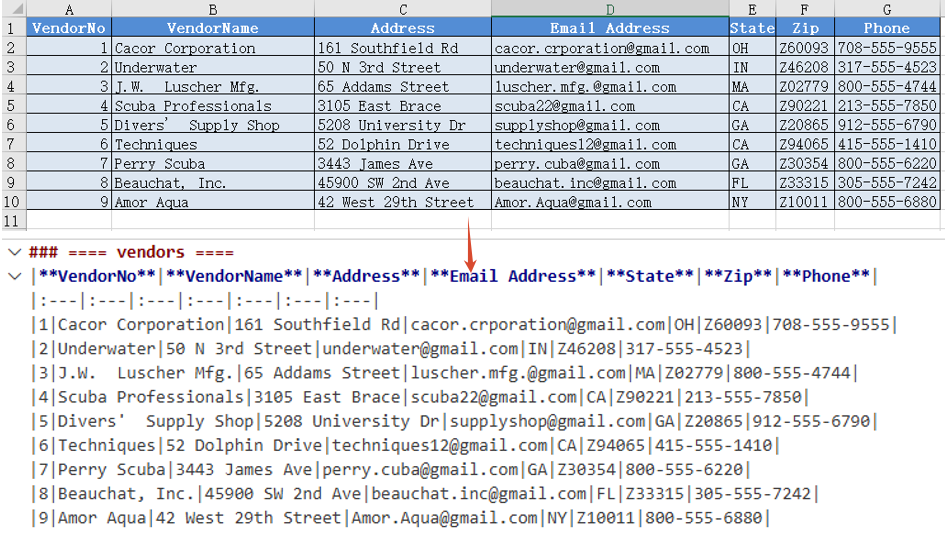
Convert Markdown File to Excel Workbook
Importing a Markdown file into an Excel spreadsheet allows you to take full advantage of Excel's formatting, calculation, and charting capabilities. Spire.XLS for JavaScript supports loading a Markdown file directly via the LoadFromMarkdown() method and converting its table data into worksheet cells. The steps are as follows:
- Load the font file and Markdown sample file into the VFS.
- Create a
Workbookobject and load the Markdown file via theLoadFromMarkdown()method. - Save the workbook as an Excel file and trigger the download.
Below is a complete code example demonstrating how to convert Markdown to Excel in React:
function App() {
  const convertToExcel = async () => {
    // Get the Spire.XLS WASM module
    const xlsModule = window.wasmModule?.spirexls;

    // Check if the module is ready
    if (!xlsModule) {
      alert('Spire.Xls is not ready yet');
      return;
    }

    // Load the font file to ensure proper text rendering
    await window.spire.FetchFileToVFS('ARIAL.TTF', '/Library/Fonts/', `${process.env.PUBLIC_URL}font/`);

    // Load the Markdown sample file into VFS
    await window.spire.FetchFileToVFS('Sample.md', '', `${process.env.PUBLIC_URL}data/`);

    // Create a workbook object and load the Markdown file
    const workbook = new xlsModule.Workbook();
    workbook.LoadFromMarkdown('Sample.md');

    // Save the workbook and release resources
    const outputFileName = 'MarkdownToExcel.xlsx';
    workbook.SaveToFile({ fileName: outputFileName, version: xlsModule.ExcelVersion.Version2010 });
    workbook.Dispose();

    // Read the file from VFS and trigger download
    const fileArray = window.dotnetRuntime.Module.FS.readFile(outputFileName);
    const blob = new Blob([fileArray], { type: 'application/vnd.openxmlformats-officedocument.spreadsheetml.sheet' });
    const url = URL.createObjectURL(blob);
    const a = document.createElement('a');
    a.href = url;
    a.download = outputFileName;
    a.click();
    URL.revokeObjectURL(url);
  };

  return (
    <div style={{ textAlign: 'center', height: '300px' }}>
      <h1>Convert Markdown to Excel</h1>
      <button onClick={convertToExcel}>
        Generate
      </button>
    </div>
  );
}

export default App;
Markdown converted to Excel with Spire.XLS for JavaScript
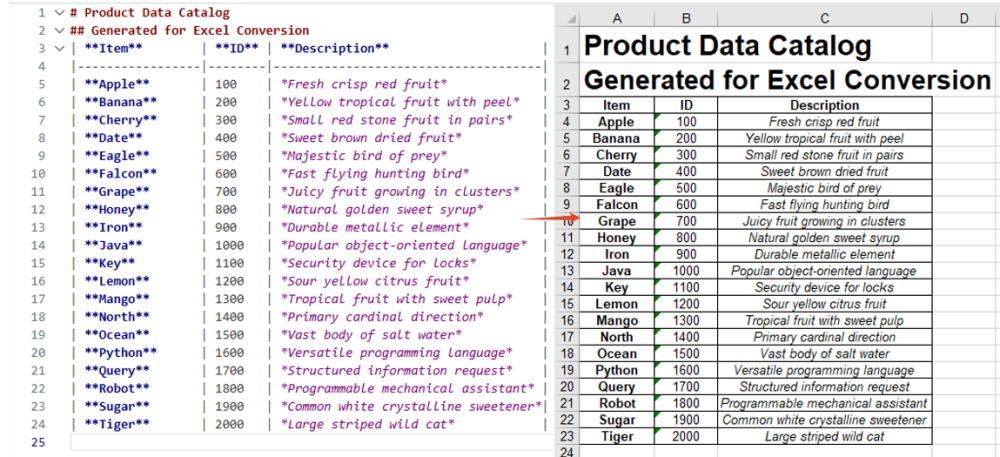
FAQ
How to handle font file missing issues during conversion?
Cause: If font files are not loaded into the WASM virtual file system (VFS), the exported Markdown content or imported cell text may not render correctly, especially when it contains non-ASCII characters such as Chinese.
Solution: Load the font files into VFS via FetchFileToVFS before conversion:
await window.spire.FetchFileToVFS(
  'ARIAL.TTF', '/Library/Fonts/', `${process.env.PUBLIC_URL}font/`
);
How to handle the downloaded Markdown file being opened as another type or showing garbled text?
Cause: The MIME type is not set correctly when creating the Blob, so the browser cannot recognize the downloaded file as Markdown text, which may cause it to open as another type or display garbled text.
Solution: Specify the correct MIME type when downloading and make sure the download filename ends with .md:
const blob = new Blob([fileArray], { type: 'text/markdown' });
const a = document.createElement('a');
a.href = URL.createObjectURL(blob);
a.download = 'ExcelToMarkdown.md';
a.click();
Get a Free License
Spire.XLS for JavaScript offers a 30-day full-featured free trial license with no functional limitations. Apply here to evaluate before purchasing.
Convert Excel to TXT or TXT to Excel with JavaScript in React
2026-08-03 02:29:40 Written by jie zouIn daily office work, data often needs to be exchanged between Excel spreadsheets and plain text (TXT) files. Spire.XLS for JavaScript runs entirely in the browser via WebAssembly, using a virtual file system (VFS) to manage input and output files — no backend server is required. It provides flexible APIs for controlling conversion parameters such as delimiters and encoding formats.
With Spire.XLS for JavaScript, you can export Excel worksheet data as structured text files, or import delimited text files to create fully formatted Excel workbooks. This makes data migration between different applications more convenient and efficient.
This article covers two core features:
For installation and project setup, refer to Integrating Spire.XLS for JavaScript in a React Project. The examples below assume Spire.XLS is installed and the WebAssembly module is initialized.
Convert Excel Worksheet Data to TXT
Exporting Excel data as a plain text file makes it convenient for further processing or analysis in other applications. With Spire.XLS for JavaScript, you can save the contents of a specified worksheet as a TXT file, with flexible control over the field separator and character encoding. The steps are as follows:
- Create a
Workbookobject and load an existing Excel file. - Retrieve a specific worksheet via
workbook.Worksheets.get(index). - Call the worksheet's
SaveToFile()method, specifying the output filename, separator, and encoding. - Dispose of the workbook resources, read the result file from VFS, and trigger the download.
Below is a complete code example demonstrating how to convert Excel to TXT in React:
function App() {
  const convertToText = async () => {
    // Get the Spire.XLS WASM module
    const xlsModule = window.wasmModule?.spirexls;

    // Check if the module is ready
    if (!xlsModule) {
      alert('Spire.Xls is not ready yet');
      return;
    }

    // Load the sample file into VFS
    await window.spire.FetchFileToVFS('Sample.xlsx', '', `${process.env.PUBLIC_URL}data/`);

    // Create a workbook object and load the Excel file
    const workbook = new xlsModule.Workbook();
    workbook.LoadFromFile({ fileName: 'Sample.xlsx' });

    // Get the first worksheet
    let sheet = workbook.Worksheets.get(0);

    // Save the worksheet as a TXT file with space separator and UTF-8 encoding
    const outputFileName = 'ExcelToTxt.txt';
    sheet.SaveToFile({
      fileName: outputFileName,
      separator: " ",
      encoding: xlsModule.Encoding.get_UTF8()
    });
    workbook.Dispose();

    // Read the file from VFS and trigger download
    const fileArray = window.dotnetRuntime.Module.FS.readFile(outputFileName);
    const blob = new Blob([fileArray], { type: 'text/plain' });
    const url = URL.createObjectURL(blob);
    const a = document.createElement('a');
    a.href = url;
    a.download = outputFileName;
    a.click();
    URL.revokeObjectURL(url);
  };

  return (
    <div style={{ textAlign: 'center', height: '300px' }}>
      <h1>Convert Excel to TXT</h1>
      <button onClick={convertToText}>
        Generate
      </button>
    </div>
  );
}

export default App;
Excel converted to TXT with Spire.XLS for JavaScript
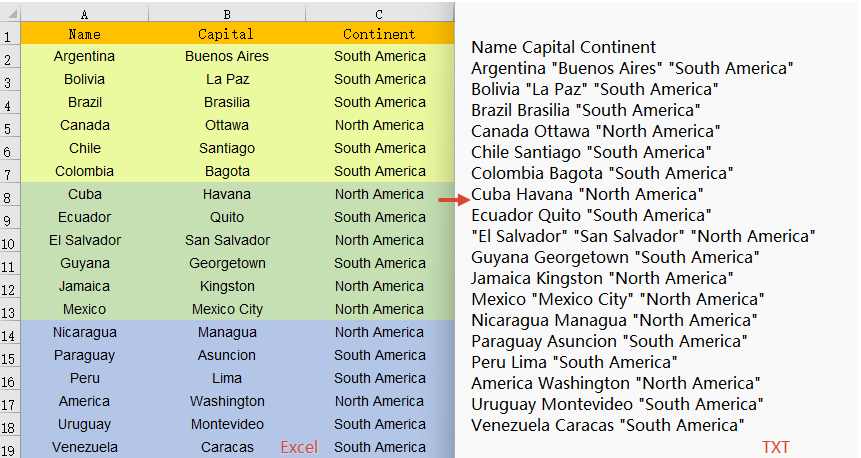
Convert TXT File to Excel Workbook
Importing a delimited text file into an Excel spreadsheet allows you to take full advantage of Excel's formatting, calculation, and charting capabilities. Spire.XLS for JavaScript supports TXT-to-Excel conversion by reading the text file content and writing data to the workbook cell by cell. Formatting such as bold headers can also be applied during the process. The steps are as follows:
- Load the font file and TXT sample file into the VFS.
- Read the TXT file content from VFS, split it by lines, and parse the cell data for each line.
- Create a
Workbookobject, iterate through the data array, and write data to worksheet cells row by row and column by column. - Apply bold styling to the header row and call
AllocatedRange.AutoFitColumns()to auto-fit column widths. - Save the workbook as an Excel file and trigger the download.
Below is a complete code example demonstrating how to convert TXT to Excel in React:
function App() {
  const convertToExcel = async () => {
    // Get the Spire.XLS WASM module
    const xlsModule = window.wasmModule?.spirexls;

    // Check if the module is ready
    if (!xlsModule) {
      alert('Spire.Xls is not ready yet');
      return;
    }

    // Load the font file to ensure proper text rendering
    await window.spire.FetchFileToVFS('ARIAL.TTF', '', `${process.env.PUBLIC_URL}font/`);

    // Load the TXT file into VFS
    await window.spire.FetchFileToVFS('Sample.txt', '', `${process.env.PUBLIC_URL}data/`);

    // Read the text file content from VFS
    const txtData = window.dotnetRuntime.Module.FS.readFile('Sample.txt');
    const text = typeof txtData === 'string' ? txtData : new TextDecoder('utf-8').decode(txtData);

    // Split by lines, compatible with \r\n and \n
    const lines = text.trim().split(/\r?\n/);

    // Parse each line of data (try tab delimiter first, then fallback to other delimiters)
    const data = [];
    for (const line of lines) {
      const trimmed = line.trim();
      if (!trimmed) continue;
      let cells = trimmed.split('\t');
      if (cells.length === 1) {
        cells = trimmed.split(/\s+/);
      }
      data.push(cells);
    }

    // Create a Workbook object
    const workbook = new xlsModule.Workbook();

    // Get the first worksheet
    const sheet = workbook.Worksheets.get(0);

    // Iterate through rows and columns in the data array and write to cells
    for (let row = 0; row < data.length; row++) {
      for (let col = 0; col < data[row].length; col++) {
        const cell = sheet.get_Item(row + 1, col + 1);
        cell.Value = data[row][col];
        // Bold the header row
        if (row === 0) {
          cell.Style.Font.IsBold = true;
        }
      }
    }

    // Auto-fit column widths
    sheet.AllocatedRange.AutoFitColumns();

    // Save the workbook and release resources
    const outputFileName = 'TxtToExcel.xlsx';
    workbook.SaveToFile({ fileName: outputFileName, version: xlsModule.ExcelVersion.Version2010 });
    workbook.Dispose();

    // Read the file from VFS and trigger download
    const fileArray = window.dotnetRuntime.Module.FS.readFile(outputFileName);
    const blob = new Blob([fileArray], { type: 'application/vnd.openxmlformats-officedocument.spreadsheetml.sheet' });
    const url = URL.createObjectURL(blob);
    const a = document.createElement('a');
    a.href = url;
    a.download = outputFileName;
    a.click();
    URL.revokeObjectURL(url);
  };

  return (
    <div style={{ textAlign: 'center', height: '300px' }}>
      <h1>Convert TXT to Excel</h1>
      <button onClick={convertToExcel}>
        Generate
      </button>
    </div>
  );
}

export default App;
TXT converted to Excel with Spire.XLS for JavaScript
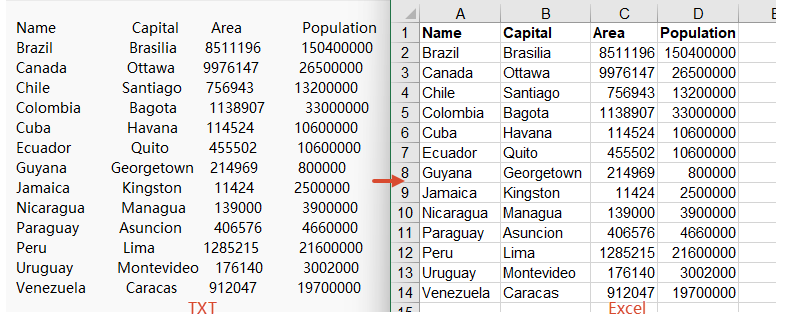
FAQ
How to handle encoding issues during conversion?
Cause: The TXT file in this example uses UTF-8 encoding. If the TXT file uses a different encoding format (such as GBK, GB2312, etc.), decoding it directly with TextDecoder('utf-8') will result in garbled text.
Solution: Specify the corresponding encoding type in the TextDecoder constructor parameter based on the actual encoding of the TXT file:
// UTF-8 encoding
const text = new TextDecoder('utf-8').decode(txtData);

// GBK encoding
const text = new TextDecoder('gbk').decode(txtData);

// GB2312 encoding
const text = new TextDecoder('gb2312').decode(txtData);

// UTF-16 encoding
const text = new TextDecoder('utf-16').decode(txtData);
How to handle TXT files with different delimiters?
Cause: TXT files may use different delimiters such as tabs (\t), spaces, commas (,), semicolons (;), etc. Choosing the wrong delimiter can lead to data parsing errors.
Solution: In JavaScript, you can specify different delimiters by modifying the parameter of the split() method:
// Tab delimiter
let cells = trimmed.split('\t');

// Comma delimiter
let cells = trimmed.split(',');

// Semicolon delimiter
let cells = trimmed.split(';');

// Regular expression: split by one or more whitespace characters (spaces, tabs, etc.)
let cells = trimmed.split(/\s+/);
Get a Free License
Spire.XLS for JavaScript offers a 30-day full-featured free trial license with no functional limitations. Apply here to evaluate before purchasing.
Exporting Excel worksheets and charts to SVG vector graphics lets you display data clearly at any resolution on the web, while keeping text selectable and searchable. Spire.XLS for JavaScript runs entirely in the browser via WebAssembly, using a virtual file system (VFS) to manage input and output files — no backend server required.
This article covers two core features:
For installation and project setup, refer to Integrating Spire.XLS for JavaScript in a React Project. The examples below assume Spire.XLS is installed and the WebAssembly module is initialized.
Worksheet to SVG
Converting a worksheet to SVG involves three steps: first, load the font files and the target Excel file into the WASM virtual file system via FetchFileToVFS; then instantiate a Workbook, load the file, retrieve the target worksheet, and call ToSVGStream to render it into a Stream object; finally, read the generated SVG file from VFS, wrap it as a Blob, and trigger a browser download.
function App() {
  const sheetToSVG = async () => {
    // Get the Spire.XLS WASM module
    const xlsModule = window.wasmModule?.spirexls;

    // Check if the module is ready
    if (!xlsModule) {
      alert('Spire.Xls is not ready yet');
      return;
    }

    // Load fonts and the Excel file into VFS
    await window.spire.FetchFileToVFS('arial.ttf', '/Library/Fonts/', `${process.env.PUBLIC_URL}/font/`);
    const inputFileName = 'ImageHeaderFooter.xlsx';
    await window.spire.FetchFileToVFS(inputFileName, '', `${process.env.PUBLIC_URL}data/`);

    // Load the workbook and get the first worksheet
    const workbook = new xlsModule.Workbook();
    workbook.LoadFromFile({ fileName: inputFileName });
    const sheet = workbook.Worksheets.get(0);

    // Convert the worksheet to an SVG stream
    const outputFileName = "Worksheet.svg";
    let fs = new xlsModule.Stream(outputFileName);
    sheet.ToSVGStream(fs, 0, 0, 0, 0);
    fs.Flush();
    fs.Dispose();

    // Read the converted file from VFS and trigger download
    const fileArray = window.dotnetRuntime.Module.FS.readFile(outputFileName);
    const blob = new Blob([fileArray], { type: "image/svg+xml;charset=utf-8"});
    const url = URL.createObjectURL(blob);
    const a = document.createElement('a');
    a.href = url;
    a.download = outputFileName;
    a.click();
    URL.revokeObjectURL(url);

    // Release resources
    workbook.Dispose();
  };

  return (
    <div style={{ textAlign: 'center', height: '300px' }}>
      <h1>Convert Excel To SVG</h1>
      <button onClick={sheetToSVG}>
        Generate
      </button>
    </div>
  );
}

export default App;
SVG output generated from a worksheet via ToSVGStream
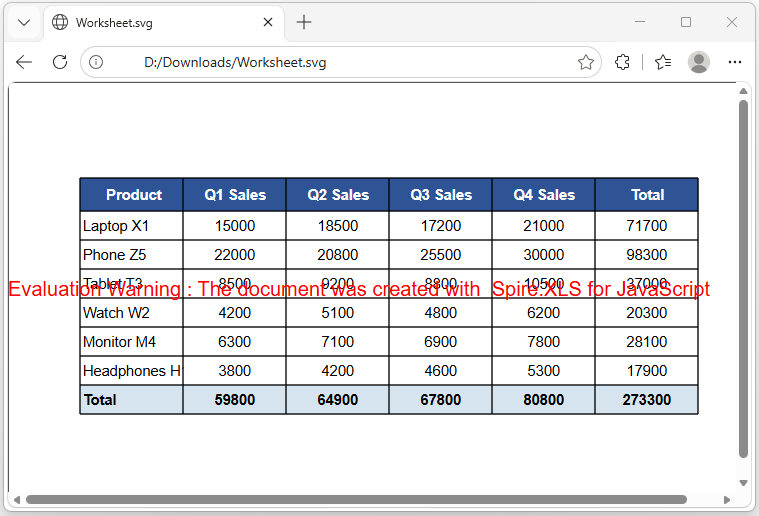
ChartSheet to SVG
A ChartSheet is a special type of worksheet that contains an embedded chart instead of cell data. The conversion process is similar to worksheet-to-SVG, with two key differences: retrieve the chartsheet by name using GetChartSheetByName("Chart1") instead of by index; and call ToSVGStream(fs) without specifying cell range parameters, since the rendering area is determined by the chart itself.
function App() {
  const chartsheetToSVG = async () => {
    // Get the Spire.XLS WASM module
    const xlsModule = window.wasmModule?.spirexls;

    // Check if the module is ready
    if (!xlsModule) {
      alert('Spire.Xls is not ready yet');
      return;
    }

    // Load fonts and the Excel file into VFS
    await window.spire.FetchFileToVFS('arial.ttf', '/Library/Fonts/', `${process.env.PUBLIC_URL}/font/`);
    const inputFileName = 'ChartSheet.xlsx';
    await window.spire.FetchFileToVFS(inputFileName, '', `${process.env.PUBLIC_URL}data/`);

    // Load the workbook
    const workbook = new xlsModule.Workbook();
    workbook.LoadFromFile({ fileName: inputFileName });

    // Get the chartsheet by name
    let cs = workbook.GetChartSheetByName("Chart1");

    // Define the output file name
    const outputFileName = 'ChartSheetToSVG-out.svg';

    // Create a stream and convert the chartsheet to SVG
    const fs = new xlsModule.Stream(outputFileName);
    cs.ToSVGStream(fs);
    fs.Flush();

    // Read the converted file from VFS and trigger download
    const fileArray = window.dotnetRuntime.Module.FS.readFile(outputFileName);
    const blob = new Blob([fileArray], { type: "image/svg+xml;charset=utf-8" });
    const url = URL.createObjectURL(blob);
    const a = document.createElement('a');
    a.href = url;
    a.download = outputFileName;
    a.click();
    URL.revokeObjectURL(url);

    // Release resources
    workbook.Dispose();
  };

  return (
    <div style={{ textAlign: 'center', height: '300px' }}>
      <h1>Convert Chartsheet To SVG</h1>
      <button onClick={chartsheetToSVG}>
        Generate
      </button>
    </div>
  );
}

export default App;
SVG output generated from a chartsheet via ToSVGStream
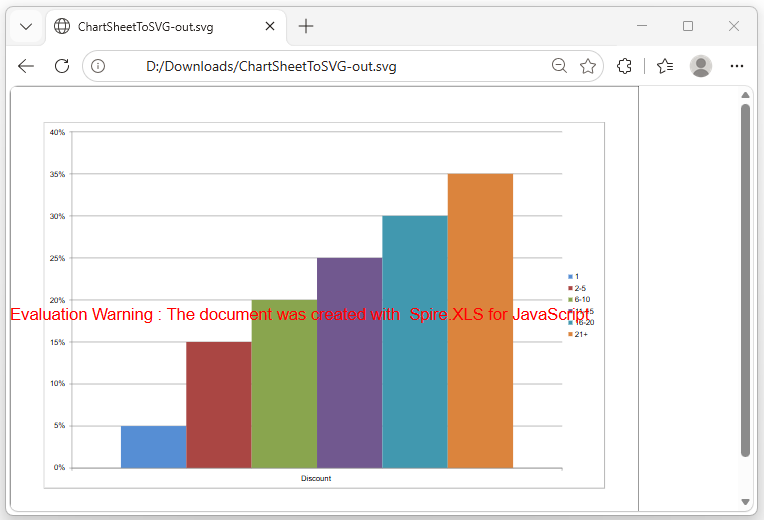
SVG vs PNG Comparison
| Feature | SVG | PNG |
|---|---|---|
| Scaling Quality | Sharp at any zoom | Blurry when enlarged |
| Text | Selectable and searchable | Rasterized (flat image) |
| File Size | Small (a few KB) | Large at high resolutions |
| CSS Styling | Supports inline styles | Not supported |
| Post-processing | Editable in Illustrator, Inkscape | Requires pixel-level editing |
| Browser Embedding | <img> or <embed> |
<img> tag |
Recommendation: Use SVG for web reports or scenarios where selectable text matters; use PNG when compatibility with image editors or legacy systems is required.
FAQ
Missing or garbled SVG text
Cause: The required font files are not present in the WASM virtual file system. ToSVGStream reads fonts from VFS when rendering text — if fonts are not preloaded, text areas will appear blank or garbled.
Solution: Load the font files into VFS via FetchFileToVFS before conversion:
await window.spire.FetchFileToVFS(
  'ARIAL.TTF', '/Library/Fonts/', '/'
);
SVG file cannot be opened or appears corrupted
Cause: The MIME type is incorrect when creating the Blob, so the browser cannot properly identify the file format.
Solution: Use the correct SVG MIME type:
const blob = new Blob([data], {
  type: "image/svg+xml;charset=utf-8"
});
Get a Free License
Spire.XLS for JavaScript offers a 30-day full-featured free trial license with no functional limitations. Apply here to evaluate before purchasing.
Convert Text to Numbers or Numbers to Text in Excel with JavaScript in React
2025-02-17 03:12:47 Written by AdministratorProper data formatting is essential for accurate calculations, sorting, and analysis. In Excel, numbers are sometimes mistakenly stored as text, which prevents them from being used in mathematical calculations. On the other hand, certain values like ZIP codes, phone numbers, and product IDs should be stored as text to preserve leading zeros and ensure consistency. Knowing how to convert between text and numeric formats is essential for maintaining data integrity, preventing errors, and improving usability. In this article, you will learn how to convert text to numbers and numbers to text in Excel in React using Spire.XLS for JavaScript.
Install Spire.XLS for JavaScript
To get started with converting text to numbers and numbers to text in Excel in a React application, you can either download Spire.XLS for JavaScript from our website or install it via npm with the following command:
npm i spire.office
The downloaded product package has been integrated Spire.Doc for JavaScript,Spire.XLS for JavaScript,Spire.PDF for JavaScript,Spire.Presentation for JavaScript. To use the functionality of Spire.XLS for JavaScript, you need to copy the corresponding files (spire.xls.js, Spire.Xls.Wasm.zip, spire.common.js, Spire.Common.Wasm.zip, and _framework) to the project's "public" folder. At the same time, in order to ensure text rendering, the related font files can be added with custom paths. In the following example, the font addition path is: public\static\font.
For more details, refer to the documentation: How to Integrate Spire.XLS for JavaScript in a React Project
Convert Text to Numbers in Excel
With Spire.XLS for JavaScript, developers can format the text in individual cells or a range of cells as numbers using the CellRange.ConvertToNumber() method. The detailed steps are as follows.
- Create a Workbook object using the new wasmModule.Workbook() method.
- Load the Excel file using the Workbook.LoadFromFile() method.
- Get a specific worksheet using the Workbook.Worksheets.get(index) method.
- Get the desired cell or range of cells using the Worksheet.Range.get() method.
- Format the text in the cell or range of cells as numbers using the CellRange.ConvertToNumber() method.
- Save the resulting workbook using the Workbook.SaveToFile() method.
- JavaScript
import React, { useState, useEffect } from 'react';
function App() {
  const [wasmModule, setWasmModule] = useState(null);
  // Load Spire.XLS
  useEffect(() => {
    (async () => {
      try {
        const publicUrl = process.env.PUBLIC_URL || '';
        const spireModule = await import(/* webpackIgnore: true */ `${publicUrl}/spire.xls.js`);
        const rawModule = spireModule.default || spireModule;
        window.wasmModule = typeof rawModule === 'function'
          ? await rawModule({ locateFile: p => p.endsWith('.wasm') ? `${publicUrl}/${p}` : p })
          : rawModule;
        setWasmModule(window.wasmModule);
      } catch (error) {
        console.error('Failed to load spire.xls.js WASM module:', error);
      }
    })();
  }, []);

  // Function to convert text to numbers in an Excel worksheet
  const ConvertTextToNumbers = async () => {
    const wasmModule = window.wasmModule.spirexls;

    if (wasmModule) {
      // Load font into Virtual File System (VFS)
      await window.spire.FetchFileToVFS('Arial.ttf', '/Library/Fonts/', `${process.env.PUBLIC_URL}/static/font/`);

      // Load input file into Virtual File System (VFS)
      const inputFileName = 'sample.xlsx';
      await window.spire.FetchFileToVFS(inputFileName, '', `${process.env.PUBLIC_URL}/static/data/`);

      // Create a new workbook
      const workbook = new wasmModule.Workbook();

      // Load the Excel file from the virtual file system
      workbook.LoadFromFile(inputFileName);

      // Get the first worksheet
      let sheet = workbook.Worksheets.get(0);

      // Get the desired cell range
      let range = sheet.Range.get("D2:D6");

      // Convert the text in the cell range as numbers
      range.ConvertToNumber();

      // Define the output file name
      const outputFileName = "TextToNumbers_output.xlsx";

      // Save the workbook to the specified path
      workbook.SaveToFile({ fileName: outputFileName, version: wasmModule.ExcelVersion.Version2010 });

      // Read the saved file and convert to Blob object
      const modifiedFileArray = window.dotnetRuntime.Module.FS.readFile(outputFileName);
      const modifiedFile = new Blob([modifiedFileArray], { type: 'application/vnd.openxmlformats-officedocument.spreadsheetml.sheet' });

      // Create a URL for the Blob and initiate download
      const url = URL.createObjectURL(modifiedFile);
      const a = document.createElement('a');
      a.href = url;
      a.download = outputFileName;
      document.body.appendChild(a);
      a.click();
      document.body.removeChild(a);
      URL.revokeObjectURL(url);

      // Clean up resources used by the workbook
      workbook.Dispose();
    }
  };

  return (
    <div style={{ textAlign: 'center', height: '300px' }}>
      <h1>Convert Text to Numbers in Excel Using JavaScript in React</h1>
      <button onClick={ConvertTextToNumbers} disabled={!wasmModule}>
        Convert
      </button>
    </div>
  );
}

export default App;
Run the code to launch the React app at localhost:3000. Once it's running, click on the "Convert" button to format text stored in specific cells of an Excel worksheet as numbers:
The screenshot below shows the input Excel worksheet and the output Excel worksheet:
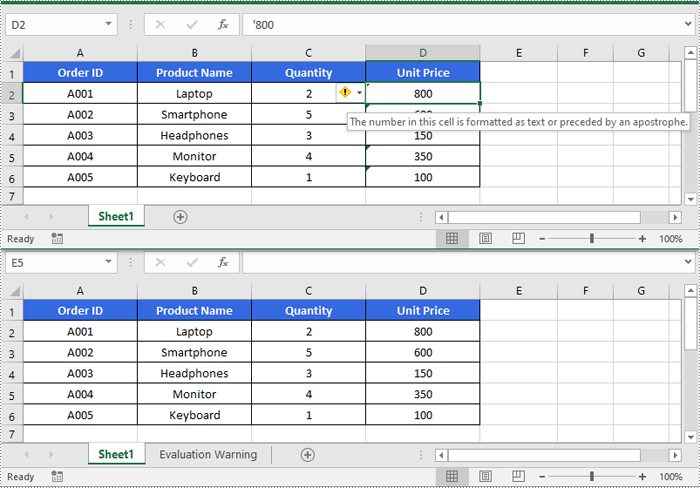
Convert Numbers to Text in Excel
To convert numbers stored in specific cells or a range of cells as text, developers can use the CellRange.NumberFormat property. The detailed steps are as follows.
- Create a Workbook object using the new wasmModule.Workbook() method.
- Load the Excel file using the Workbook.LoadFromFile() method.
- Get a specific worksheet using the Workbook.Worksheets.get(index) method.
- Get the desired cell or range of cells using the Worksheet.Range.get() method.
- Format the numbers in the cell or range of cells as text by setting the CellRange.NumberFormat property to "@".
- Save the resulting workbook using the Workbook.SaveToFile() method.
- JavaScript
import React, { useState, useEffect } from 'react';
function App() {
  const [wasmModule, setWasmModule] = useState(null);
  // Load Spire.XLS
  useEffect(() => {
    (async () => {
      try {
        const publicUrl = process.env.PUBLIC_URL || '';
        const spireModule = await import(/* webpackIgnore: true */ `${publicUrl}/spire.xls.js`);
        const rawModule = spireModule.default || spireModule;
        window.wasmModule = typeof rawModule === 'function'
          ? await rawModule({ locateFile: p => p.endsWith('.wasm') ? `${publicUrl}/${p}` : p })
          : rawModule;
        setWasmModule(window.wasmModule);
      } catch (error) {
        console.error('Failed to load spire.xls.js WASM module:', error);
      }
    })();
  }, []);

  // Function to convert numbers to text in an Excel worksheet
  const ConvertNumbersToText = async () => {
    const wasmModule = window.wasmModule.spirexls;

    if (wasmModule) {
      // Load font into Virtual File System (VFS)
      await window.spire.FetchFileToVFS('Arial.ttf', '/Library/Fonts/', `${process.env.PUBLIC_URL}/static/font/`);

      // Load input file into Virtual File System (VFS)
      const inputFileName = 'sample.xlsx';
      await window.spire.FetchFileToVFS(inputFileName, '', `${process.env.PUBLIC_URL}/static/data/`);

      // Create a new workbook
      const workbook = new wasmModule.Workbook();

      // Load the Excel file from the virtual file system
      workbook.LoadFromFile(inputFileName);

      // Get the first worksheet
      let sheet = workbook.Worksheets.get(0);

      // Get the desired cell range
      let range = sheet.Range.get("F2:F9");

      // Convert the numbers in the cell range as text
      range.NumberFormat = "@"

      // Define the output file name
      const outputFileName = "NumbersToText_output.xlsx";

      // Save the workbook to the specified path
      workbook.SaveToFile({ fileName: outputFileName, version: wasmModule.ExcelVersion.Version2010 });

      // Read the saved file and convert to Blob object
      const modifiedFileArray = window.dotnetRuntime.Module.FS.readFile(outputFileName);
      const modifiedFile = new Blob([modifiedFileArray], { type: 'application/vnd.openxmlformats-officedocument.spreadsheetml.sheet' });

      // Create a URL for the Blob and initiate download
      const url = URL.createObjectURL(modifiedFile);
      const a = document.createElement('a');
      a.href = url;
      a.download = outputFileName;
      document.body.appendChild(a);
      a.click();
      document.body.removeChild(a);
      URL.revokeObjectURL(url);

      // Clean up resources used by the workbook
      workbook.Dispose();
    }
  };

  return (
    <div style={{ textAlign: 'center', height: '300px' }}>
      <h1>Convert Numbers To Text in Excel Using JavaScript in React</h1>
      <button onClick={ConvertNumbersToText} disabled={!wasmModule}>
        Convert
      </button>
    </div>
  );
}

export default App;

Get a Free License
To fully experience the capabilities of Spire.XLS for JavaScript without any evaluation limitations, you can request a free 30-day trial license.
