Transform DataTables into Professional PDF Reports with C#

In many .NET-based business systems, structured data is often represented as a DataTable. When this data needs to be distributed, archived, or delivered as a read-only report, exporting a DataTable to PDF using C# becomes a common and practical requirement.
Compared with formats such as Excel or CSV, PDF is typically chosen when layout stability, visual consistency, and document integrity are more important than data editability. This makes PDF especially suitable for reports, invoices, audit records, and system-generated documents.
This tutorial takes a code-first approach to converting a DataTable to PDF in C#, focusing on the technical implementation rather than conceptual explanations. The solution is based on Spire.PDF for .NET, using its PdfGrid component to render DataTable content as a structured table inside a PDF document.
Table of Contents
- 1. Overview: DataTable to PDF Export in C#
- 2. Environment Setup
- 3. Core Workflow and Code Implementation
- 4. Controlling Table Layout, Page Flow, and Pagination
- 5. Customizing Table Appearance
- 6. PDF File and Stream Output
- 7. Practical Tips and Common Issues
1. Overview: DataTable to PDF Export in C#
Exporting a DataTable to PDF is fundamentally a data-binding and rendering task, not a low-level drawing problem.
Instead of manually calculating row positions, column widths, or page breaks, the recommended approach is to bind an existing DataTable to a PDF table component and let the rendering engine handle layout and pagination automatically.
In Spire.PDF for .NET, this role is fulfilled by the PdfGrid class.
Why PdfGrid Is the Right Abstraction
PdfGrid is a Spire.PDF for .NET component designed specifically for rendering structured, tabular data in PDF documents. It treats rows, columns, headers, and pagination as first-class concepts rather than graphical primitives.
From a technical standpoint, PdfGrid provides:
- Direct binding via the DataSource property, which accepts a DataTable
- Automatic column generation based on the DataTable schema
- Built-in header and row rendering
- Automatic page breaking when content exceeds page bounds
As a result, exporting a DataTable to PDF becomes a declarative operation: you describe what data should be rendered, and the PDF engine determines how it is laid out across pages.
The following sections focus on the concrete implementation and practical refinements of this approach.
2. Environment Setup
All examples in this article apply to both .NET Framework and modern .NET (6+) projects. The implementation is based entirely on managed code and does not require platform-specific configuration.
Installing Spire.PDF for .NET
Spire.PDF for .NET can be installed via NuGet:
Install-Package Spire.PDF
You can also download Spire.PDF for .NET and include it in your project manually.
Once installed, the library provides APIs for PDF document creation, page management, table rendering, and style control.
3. DataTable to PDF in C#: Core Workflow and Code Implementation
With the environment prepared, exporting a DataTable to PDF becomes a linear, implementation-driven process.
At its core, the workflow relies on binding an existing DataTable to PdfGrid and delegating layout, pagination, and table rendering to the PDF engine. There is no need to manually draw rows, columns, or borders.
From an implementation perspective, the process consists of the following steps:
- Prepare a populated DataTable
- Create a PDF document and page
- Bind the DataTable to a PdfGrid
- Render the grid onto the page
- Save the PDF output
These steps are typically executed together as a single, continuous code path in real-world applications. The following example demonstrates the complete workflow in one place.
Complete Example: Exporting a DataTable to PDF
The example below uses a business-oriented DataTable schema to reflect a typical reporting scenario. The source of the DataTable (database, API, or in-memory processing) does not affect the export logic.
DataTable dataTable = new DataTable();
dataTable.Columns.Add("OrderId", typeof(int));
dataTable.Columns.Add("CustomerName", typeof(string));
dataTable.Columns.Add("OrderDate", typeof(DateTime));
dataTable.Columns.Add("TotalAmount", typeof(decimal));

dataTable.Rows.Add(1001, "Contoso Ltd.", DateTime.Today, 1280.50m);
dataTable.Rows.Add(1002, "Northwind Co.", DateTime.Today, 760.00m);
dataTable.Rows.Add(1003, "Adventure Works", DateTime.Today, 2145.75m);
dataTable.Rows.Add(1004, "Wingtip Toys", DateTime.Today, 1230.00m);
dataTable.Rows.Add(1005, "Bike World", DateTime.Today, 1230.00m);
dataTable.Rows.Add(1006, "Woodgrove Bank", DateTime.Today, 1230.00m);

PdfDocument document = new PdfDocument();
PdfPageBase page = document.Pages.Add();

PdfGrid grid = new PdfGrid();
grid.DataSource = dataTable;

grid.Draw(page, new PointF(40f, 0));

document.SaveToFile("DataTableToPDF.pdf");
document.Close();
This single code block completes the entire DataTable-to-PDF export process. Below is a preview of the generated PDF:
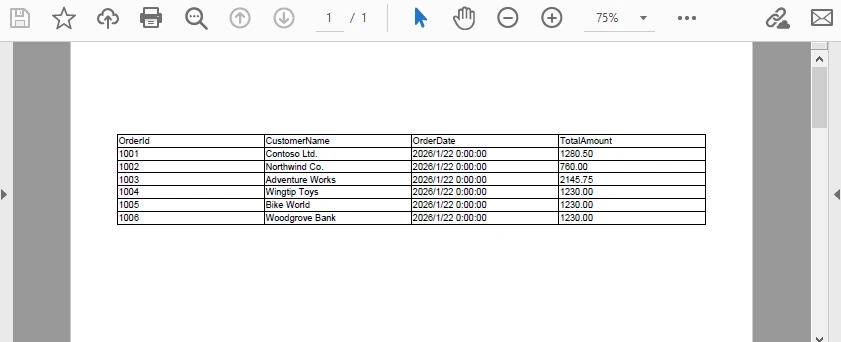
Key technical characteristics of this implementation:
- PdfGrid.DataSource accepts a DataTable directly, with no manual row or column mapping
- Column headers are generated automatically from DataColumn.ColumnName
- Row data is populated from each DataRow
- Pagination and page breaks are handled internally during rendering
- No coordinate-level table layout logic is required
The result is a structured, paginated PDF table that accurately reflects the DataTable’s schema and data. This method is already a fully functional and production-ready solution for exporting a DataTable to PDF in C#.
In practical applications, however, additional control is often required for layout positioning, page size, orientation, and visual styling. The following sections focus on refining table placement, appearance, and pagination behavior without altering the core export logic.
4. Controlling Table Layout, Page Flow, and Pagination
In real-world documents, table rendering is part of a larger page composition. Page geometry, table start position, and pagination behavior together determine how tabular data flows across one or more pages.
In PdfGrid, these concerns are resolved during rendering. The grid itself does not manage absolute layout or page transitions; instead, layout and pagination are governed by page configuration and the parameters supplied when calling Draw.
The following example demonstrates a typical layout and pagination configuration used in production reports.
Layout and Pagination Example
PdfDocument document = new PdfDocument();

// Create an A4 page with margins
PdfPageBase page = document.Pages.Add(
    PdfPageSize.A4,
    new PdfMargins(40),
    PdfPageRotateAngle.RotateAngle0,  // Rotates the page coordinate system
    PdfPageOrientation.Landscape  // Sets the page orientation
);

PdfGrid grid = new PdfGrid();
grid.DataSource = dataTable;

// Enable header repetition across pages
grid.RepeatHeader = true;

// Define table start position
float startX = 40f;
float startY = 80f;

// Render the table
grid.Draw(page, new PointF(startX, startY));
Below is a preview of the generated PDF with page configuration applied:
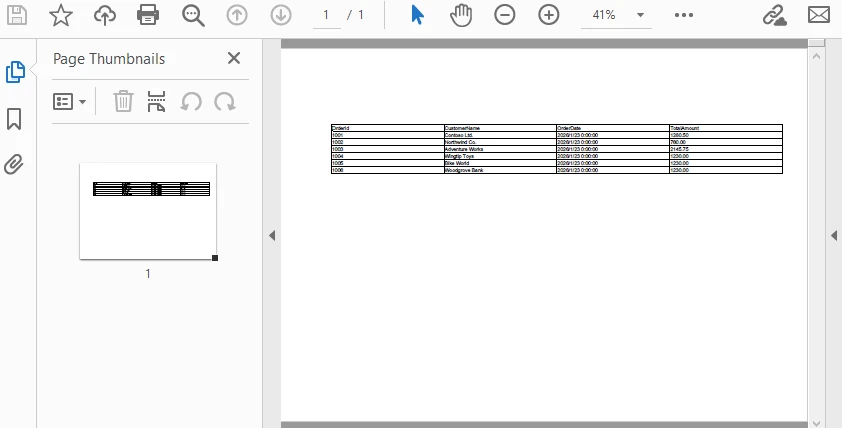
Technical Explanation
The rendering behavior illustrated above can be understood as a sequence of layout and flow decisions applied at draw time:
-
PdfPageBase
- Pages.Add creates a new page with configurable size, margins, rotation, and orientation.
-
RepeatHeader
- Boolean property controlling whether column headers are rendered on each page. When enabled, headers repeat automatically during multi-page rendering.
-
Draw method
- Accepts a PointF defining the starting position on the page.
- Responsible for rendering the grid and automatically handling pagination.
By configuring page geometry, table start position, and pagination behavior together, PdfGrid enables predictable multi-page table rendering without manual page management or row-level layout control.
Page numbers are also important for PDF reports. Refer to How to Add Pages Numbers to PDF with C# to learn page numbering techniques.
5. Customizing Table Appearance
Once layout is stable, appearance becomes the primary concern. PdfGrid provides a centralized styling model that allows table-wide, column-level, and row-level customization without interfering with data binding or pagination.
The example below consolidates common styling configurations typically applied in reporting scenarios.
Styling Example: Headers, Rows, and Columns
PdfDocument document = new PdfDocument();
PdfPageBase page = document.AppendPage();

PdfGrid grid = new PdfGrid();
grid.DataSource = dataTable;

// Create and apply the header style
PdfGridCellStyle headerStyle = new PdfGridCellStyle();
headerStyle.Font =
    new PdfFont(PdfFontFamily.Helvetica, 10f, PdfFontStyle.Bold);
headerStyle.BackgroundBrush =
    new PdfSolidBrush(Color.FromArgb(60, 120, 200));
headerStyle.TextBrush = PdfBrushes.White;
grid.Headers.ApplyStyle(headerStyle);


// Create row styles
PdfGridCellStyle defaultStyle = new PdfGridCellStyle();
defaultStyle.Font = new PdfFont(PdfFontFamily.Helvetica, 9f);
PdfGridCellStyle alternateStyle = new PdfGridCellStyle();
alternateStyle.BackgroundBrush = new PdfSolidBrush(Color.LightSkyBlue);
// Apply row styles
for (int rowIndex = 0; rowIndex < grid.Rows.Count; rowIndex++)
{
    if (rowIndex % 2 == 0)
    {
        grid.Rows[rowIndex].ApplyStyle(defaultStyle);
    }
    else
    {
        grid.Rows[rowIndex].ApplyStyle(alternateStyle);
    }
}

// Explicit column widths
grid.Columns[0].Width = 60f;    // OrderId
grid.Columns[1].Width = 140f;   // CustomerName
grid.Columns[2].Width = 90f;    // OrderDate
grid.Columns[3].Width = 90f;    // TotalAmount

// Render the table
grid.Draw(page, new PointF(40f, 80f));
Below is a preview of the generated PDF with the above styling applied:
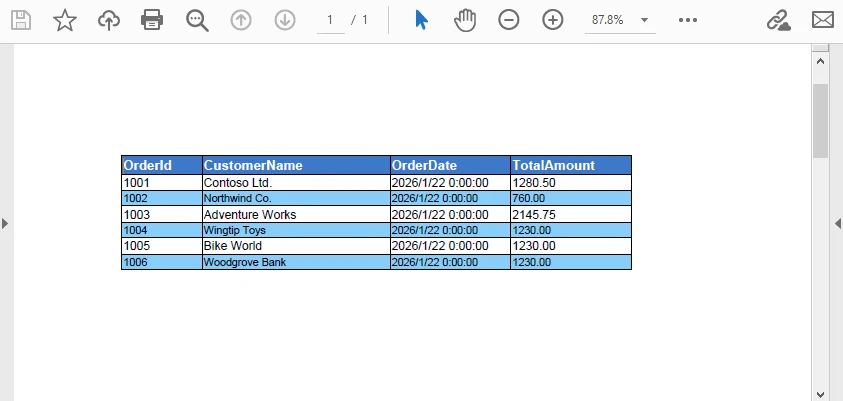
Styling Behavior Notes
-
Header styling
- Header appearance is defined through a dedicated PdfGridCellStyle and applied using grid.Headers.ApplyStyle(...).
- This ensures all header cells share the same font, background color, text color, and alignment across pages.
-
Row styling
- Data rows are styled explicitly via grid.Rows[i].ApplyStyle(...).
- Alternating row appearance is controlled by the row index, making the behavior predictable and easy to extend with additional conditions if needed.
-
Column width control
- Column widths are assigned directly through grid.Columns[index].Width.
- Explicit widths avoid layout shifts caused by content length and produce consistent results in report-style documents.
Make sure to bind the styles before applying styles.
All styles (header, rows, and columns) are resolved before calling grid.Draw(...). The rendering process applies these styles without affecting pagination or data binding.
For more complex styling scenarios, check out How to Create and Style Tables in PDF with C#.
6. Output Options: File vs Stream
Once the table has been rendered, the final step is exporting the PDF output.
The rendering logic remains identical regardless of the output destination.
Saving to a File
Saving directly to a file is suitable for desktop applications, background jobs, and batch exports.
document.SaveToFile("DataTableReport.pdf");
document.Close();
This approach is typically used in:
- Windows desktop applications
- Scheduled report generation
- Offline or server-side batch processing
Writing to a Stream (Web and API Scenarios)
In web-based systems, saving to disk is often unnecessary or undesirable. Instead, the PDF can be written directly to a stream.
using (MemoryStream stream = new MemoryStream())
{
    document.SaveToStream(stream);
    document.Close();

    byte[] pdfBytes = stream.ToArray();
    // return pdfBytes as HTTP response
}
Stream output integrates cleanly with ASP.NET controllers or minimal APIs, without the need for temporary file storage.
For a complete example of returning a generated PDF from an ASP.NET application, see how to create and return PDF documents in ASP.NET.
7. Practical Tips and Common Issues
This section focuses on issues commonly encountered in real-world projects when exporting DataTables to PDF.
7.1 Formatting Dates and Numeric Values
PdfGrid renders values using their string representation. To ensure consistent formatting, values should be normalized before binding.
Typical examples include:
- Formatting DateTime values using a fixed culture
- Standardizing currency precision
- Avoiding locale-dependent formats in multi-region systems
This preparation step belongs in the data layer, not the rendering layer.
7.2 Handling Null and Empty Values
DBNull.Value may result in empty cells or inconsistent alignment. Normalizing values before binding avoids layout surprises.
row["TotalAmount"] =
    row["TotalAmount"] == DBNull.Value ? 0m : row["TotalAmount"];
This approach keeps rendering logic simple and predictable.
7.3 Preventing Table Width Overflow
Wide DataTables can exceed page width if left unconfigured.
Common mitigation strategies include:
- Explicit column width configuration
- Slight font size reduction
- Switching to landscape orientation
- Increasing page margins selectively
These adjustments should be applied at the layout level rather than modifying the underlying data.
7.4 Large DataTables and Performance Considerations
When exporting DataTables with hundreds or thousands of rows, performance characteristics become more visible.
Practical recommendations:
- Avoid per-cell or per-row styling in large tables.
- Prefer table-level or column-level styles
- Use standard fonts instead of custom embedded fonts
- Keep layout calculations simple and consistent
For example, applying styles using grid.Rows[rowIndex].ApplyStyle(...) inside a loop can introduce unnecessary overhead for large datasets. In such cases, prefer applying a unified style at the row or column collection level (e.g., grid.Rows.ApplyStyle(...)) when individual row differentiation is not required.
In addition to rendering efficiency, in web environments, PDF generation should be performed outside the request thread when possible to avoid blocking.
8. Conclusion
Exporting a DataTable to PDF in C# can be handled directly through PdfGrid without manual table construction or low-level drawing. By binding an existing DataTable, you can generate paginated PDF tables while keeping layout and appearance fully under control.
This article focused on a practical, code-first approach, covering layout positioning, styling, and data preparation as they apply in real-world export scenarios. With these patterns in place, the same workflow scales cleanly from simple reports to large, multi-page documents.
If you plan to evaluate this workflow in a real project, you can apply for a temporary license from E-ICEBLUE to test the full functionality without limitations.
FAQ: DataTable to PDF in C#
When is PdfGrid the right choice for exporting DataTables to PDF?
PdfGrid is most suitable when you need structured, paginated tables with consistent layout. It handles column generation, headers, and page breaks automatically, making it a better choice than manual drawing for reports, invoices, and audit documents.
Should formatting be handled in the DataTable or in PdfGrid?
Data normalization (such as date formats, numeric precision, and null handling) should be done before binding. PdfGrid is best used for layout and visual styling, not for value transformation.
Can PdfGrid handle large DataTables efficiently?
Yes. PdfGrid supports automatic pagination and header repetition. For large datasets, applying table-level or column-level styles instead of per-cell styling helps maintain stable performance.
C#/VB.NET: Extract Tables from PDF to Excel
Extracting tables from PDFs and converting them into Excel format offers numerous advantages, such as enabling data manipulation, analysis, and visualization in a more versatile and familiar environment. This task is particularly valuable for researchers, analysts, and professionals dealing with large amounts of tabular data. In this article, you will learn how to extract tables from PDF to Excel in C# and VB.NET using Spire.Office for .NET.
Install Spire.Office for .NET
To begin with, you need to add the Spire.Pdf.dll and the Spire.Xls.dll included in the Spire.Office for.NET package as references in your .NET project. Spire.PDF is responsible for extracting data from PDF tables, and Spire.XLS is responsible for creating an Excel document based on the data obtained from PDF.
The DLL files can be either downloaded from this link or installed via NuGet.
PM> Install-Package Spire.Office
Extract Tables from PDF to Excel in C#, VB.NET
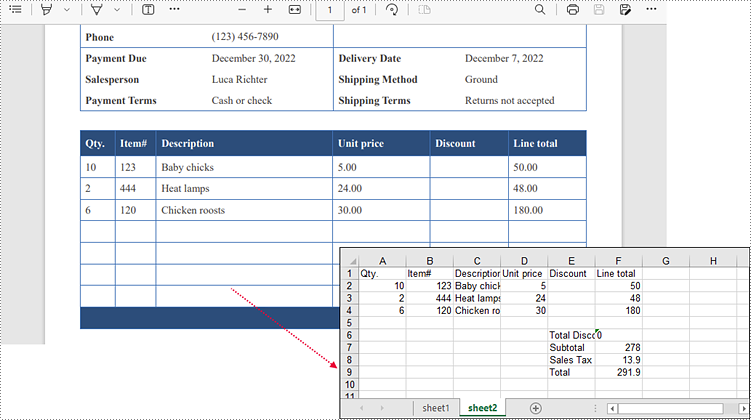
Spire.PDF for .NET offers the PdfTableExtractor.ExtractTable(int pageIndex) method to extract tables from a specific page of a searchable PDF document. The text of a specific cell can be accessed using PdfTable.GetText(int rowIndex, int columnIndex) method. This value can be then written to a worksheet through Worksheet.Range[int row, int column].Value property offered by Spire.XLS for .NET. The following are the detailed steps.
- Create an instance of PdfDocument class.
- Load the sample PDF document using PdfDocument.LoadFromFile() method.
- Extract tables from a specific page using PdfTableExtractor.ExtractTable() method.
- Get text of a certain table cell using PdfTable.GetText() method.
- Create a Workbook object.
- Write the cell data obtained from PDF into a worksheet through Worksheet.Range.Value property.
- Save the workbook to an Excel file using Workbook.SaveTofile() method.
The following code example extracts all tables from a PDF document and writes each of them into an individual worksheet within a workbook.
- C#
- VB.NET
using Spire.Pdf;
using Spire.Pdf.Utilities;
using Spire.Xls;

namespace ExtractTablesToExcel
{
    class Program
    {
        static void Main(string[] args)
        {
            //Create a PdfDocument object
            PdfDocument doc = new PdfDocument();

            //Load the sample PDF file
            doc.LoadFromFile(@"C:\Users\Administrator\Desktop\table.pdf");

            //Create a Workbook object
            Workbook workbook = new Workbook();

            //Clear default worksheets
            workbook.Worksheets.Clear();

            //Initialize an instance of PdfTableExtractor class
            PdfTableExtractor extractor = new PdfTableExtractor(doc);

            //Declare a PdfTable array
            PdfTable[] tableList = null;

            int sheetNumber = 1;

            //Loop through the pages
            for (int pageIndex = 0; pageIndex < doc.Pages.Count; pageIndex++)
            {
                //Extract tables from a specific page
                tableList = extractor.ExtractTable(pageIndex);

                //Determine if the table list is null
                if (tableList != null && tableList.Length > 0)
                {
                    //Loop through the table in the list
                    foreach (PdfTable table in tableList)
                    {
                        //Add a worksheet
                        Worksheet sheet = workbook.Worksheets.Add(String.Format("sheet{0}", sheetNumber));

                        //Get row number and column number of a certain table
                        int row = table.GetRowCount();
                        int column = table.GetColumnCount();

                        //Loop though the row and colunm
                        for (int i = 0; i < row; i++)
                        {
                            for (int j = 0; j < column; j++)
                            {
                                //Get text from the specific cell
                                string text = table.GetText(i, j);

                                //Write text to a specified cell
                                sheet.Range[i + 1, j + 1].Value = text;
                            }

                        }
                        sheetNumber++;
                    }
                }
            }

            //Save to file
            workbook.SaveToFile("ToExcel.xlsx", ExcelVersion.Version2013);
        }
    }
}
Apply for a Temporary License
If you'd like to remove the evaluation message from the generated documents, or to get rid of the function limitations, please request a 30-day trial license for yourself.
Extract Tables from PDFs in C# - Export to TXT & CSV
 Extracting tables from PDF files is a common requirement in data processing, reporting, and automation tasks. PDFs are widely used for sharing structured data, but extracting tables programmatically can be challenging due to their complex layout. Fortunately, with the right tools, this process becomes straightforward. In this guide, we’ll explore how to extract tables from PDF in C# using the Spire.PDF for .NET library, and export the results to TXT and CSV formats for easy reuse.
Table of Contents:
- Prerequisites for Reading PDF Tables in C#
- Understanding PDF Table Structure
- How to Extract Tables from PDF in C#
- Extract PDF Tables to a Text File in C#
- Export PDF Tables to CSV in C#
- Conclusion
- FAQs
Prerequisites for Reading PDF Tables in C#
Spire.PDF for .NET is a powerful library for processing PDF files in C# and VB.NET. It supports a wide range of PDF operations, including table extraction, text extraction, image extraction, and more.
The easiest way to add the Spire.PDF library is via NuGet Package Manager.
1. Open Visual Studio and create a new C# project. (Here we create a Console App)
2. In Visual Studio, right-click your project > Manage NuGet Packages.
3. Search for “Spire.PDF” and install the latest version.
Understanding PDF Table Structure
Before coding, let’s clarify how PDFs store tables. Unlike Excel (which explicitly defines rows/columns), PDFs use:
- Text Blocks: Individual text elements positioned with coordinates.
- Borders/Lines: Visual cues (horizontal/vertical lines) that humans interpret as table edges.
- Spacing: Consistent gaps between text blocks to indicate cells.
The Spire.PDF library infers table structure by analyzing these visual cues, matching text blocks to rows/columns based on proximity and alignment.
How to Extract Tables from PDF in C#
If you need a quick way to preview table data (e.g., debugging or verifying extraction), printing it to the console is a great starting point.
Key methods to extract data from a PDF table:
- PdfDocument: Represents a PDF file.
- LoadFromFile: Loads the PDF file for processing.
- PdfTableExtractor: Analyzes the PDF to detect tables using visual cues (borders, spacing).
- ExtractTable(pageIndex): Returns an array of PdfTable objects for the specified page.
- GetRowCount()/GetColumnCount(): Retrieve the dimensions of each table.
- GetText(rowIndex, columnIndex): Extracts text from the cell at the specified row and column.
using Spire.Pdf;
using Spire.Pdf.Utilities;

namespace ExtractPdfTable
{
    class Program
    {
        static void Main(string[] args)
        {
            // Create a PdfDocument object
            PdfDocument pdf = new PdfDocument();

            // Load a PDF file
            pdf.LoadFromFile("invoice.pdf");

            // Initialize an instance of PdfTableExtractor class
            PdfTableExtractor extractor = new PdfTableExtractor(pdf);


            // Loop through the pages
            for (int pageIndex = 0; pageIndex < pdf.Pages.Count; pageIndex++)
            {
                // Extract tables from a specific page
                PdfTable[] tableList = extractor.ExtractTable(pageIndex);

                // Determine if the table list is null
                if (tableList != null && tableList.Length > 0)
                {
                    int tableNumber = 1;
                    // Loop through the table in the list
                    foreach (PdfTable table in tableList)
                    {
                        Console.WriteLine($"\nTable {tableNumber} on Page {pageIndex + 1}:");
                        Console.WriteLine("-----------------------------------");

                        // Get row number and column number of a certain table
                        int row = table.GetRowCount();
                        int column = table.GetColumnCount();

                        // Loop through rows and columns
                        for (int i = 0; i < row; i++)
                        {
                            for (int j = 0; j < column; j++)
                            {
                                // Get text from the specific cell
                                string text = table.GetText(i, j);

                                // Print cell text to console with a separator
                                Console.Write($"{text}\t");
                            }
                            // New line after each row
                            Console.WriteLine();
                        }
                        tableNumber++;
                    }
                }
            }

            // Close the document
            pdf.Close();
        }
    }
}
When to Use This Method
- Quick debugging or validation of extracted data.
- Small datasets where you don’t need persistent storage.
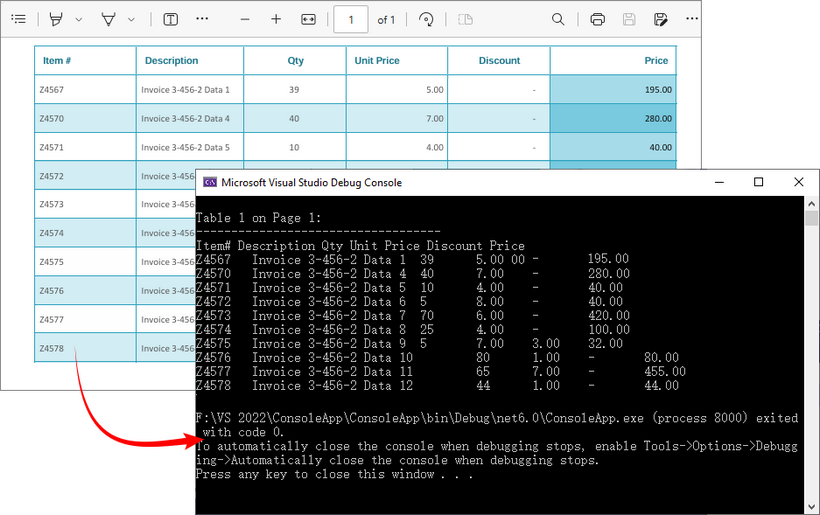
Output: Retrieve PDF table data and output to the console
Extract PDF Tables to a Text File in C#
For lightweight, human-readable storage, saving tables to a text file is ideal. This method uses StringBuilder to efficiently compile table data, preserving row breaks for readability.
Key features of extracting PDF tables and exporting to TXT:
- Efficiency: StringBuilder minimizes memory overhead compared to string concatenation.
- Persistent Storage: Saves data to a text file for later review or sharing.
- Row Preservation: Uses \r\n to maintain row structure, making the text file easy to scan.
using Spire.Pdf;
using Spire.Pdf.Utilities;
using System.Text;

namespace ExtractTableToTxt
{
    class Program
    {
        static void Main(string[] args)
        {
            // Create a PdfDocument object
            PdfDocument pdf = new PdfDocument();

            // Load a PDF file
            pdf.LoadFromFile("invoice.pdf");

            // Create a StringBuilder object
            StringBuilder builder = new StringBuilder();

            // Initialize an instance of PdfTableExtractor class
            PdfTableExtractor extractor = new PdfTableExtractor(pdf);

            // Declare a PdfTable array
            PdfTable[] tableList = null;

            // Loop through the pages
            for (int pageIndex = 0; pageIndex < pdf.Pages.Count; pageIndex++)
            {
                // Extract tables from a specific page
                tableList = extractor.ExtractTable(pageIndex);

                // Determine if the table list is null
                if (tableList != null && tableList.Length > 0)
                {
                    // Loop through the table in the list
                    foreach (PdfTable table in tableList)
                    {
                        // Get row number and column number of a certain table
                        int row = table.GetRowCount();
                        int column = table.GetColumnCount();

                        // Loop through the rows and columns
                        for (int i = 0; i < row; i++)
                        {
                            for (int j = 0; j < column; j++)
                            {
                                // Get text from the specific cell
                                string text = table.GetText(i, j);

                                // Add text to the string builder
                                builder.Append(text + " ");
                            }
                            builder.Append("\r\n");
                        }
                    }
                }
            }

            // Write to a .txt file
            File.WriteAllText("ExtractPDFTable.txt", builder.ToString());
        }
    }
}
When to Use This Method
- Archiving table data in a lightweight, universally accessible format.
- Sharing with teams that need to scan data without spreadsheet tools.
- Using as input for basic scripts (e.g., PowerShell) to extract specific values.
Output: Extract PDF table data and save to a text file.

Pro Tip: For VB.NET demos, convert the above code using our C# ⇆ VB.NET Converter.
Export PDF Tables to CSV in C#
CSV (Comma-Separated Values) is the industry standard for tabular data, compatible with Excel, Google Sheets, and databases. This method formats the extracted tables into a valid CSV file by quoting cells and handling special characters.
Key features of extracting tables from PDF to CSV:
- StreamWriter: Writes data incrementally to the CSV file, reducing memory usage for large PDFs.
- Quoted Cells: Cells are wrapped in double quotes (" ") to avoid misinterpreting commas within text as column separators.
- UTF-8 Encoding: Supports special characters in cell text.
- Spreadsheet Ready: Directly opens in Excel, Google Sheets, or spreadsheet tools for analysis.
using Spire.Pdf;
using Spire.Pdf.Utilities;
using System.Text;

namespace ExtractTableToCsv
{
    class Program
    {
        static void Main(string[] args)
        {
            // Create a PdfDocument object
            PdfDocument pdf = new PdfDocument();

            // Load a PDF file
            pdf.LoadFromFile("invoice.pdf");

            // Create a StreamWriter object for efficient CSV writing
            using (StreamWriter csvWriter = new StreamWriter("PDFtable.csv", false, Encoding.UTF8))
            {
                // Create a PdfTableExtractor object
                PdfTableExtractor extractor = new PdfTableExtractor(pdf);

                // Loop through the pages
                for (int pageIndex = 0; pageIndex < pdf.Pages.Count; pageIndex++)
                {
                    // Extract tables from a specific page
                    PdfTable[] tableList = extractor.ExtractTable(pageIndex);

                    // Determine if the table list is null
                    if (tableList != null && tableList.Length > 0)
                    {
                        // Loop through the table in the list
                        foreach (PdfTable table in tableList)
                        {
                            // Get row number and column number of a certain table
                            int row = table.GetRowCount();
                            int column = table.GetColumnCount();

                            // Loop through the rows
                            for (int i = 0; i < row; i++)
                            {
                                // Creates a list to store data
                                List<string> rowData = new List<string>();
                                // Loop through the columns
                                for (int j = 0; j < column; j++)
                                {
                                    // Retrieve text from table cells
                                    string cellText = table.GetText(i, j).Replace("\"", "\"\"");
                                    // Add the cell text to the list and wrap in double quotes
                                    rowData.Add($"\"{cellText}\"");
                                }
                                // Join cells with commas and write to CSV
                                csvWriter.WriteLine(string.Join(",", rowData));
                            }
                        }
                    }
                }
            }
        }
    }
}
When to Use This Method
- Data analysis (import into Excel for calculations).
- Migrating PDF tables to databases (e.g., SQL Server, PostgreSQL, MySQL).
- Collaborating with teams that rely on spreadsheets.
Output: Parse PDF table data and export to a CSV file.
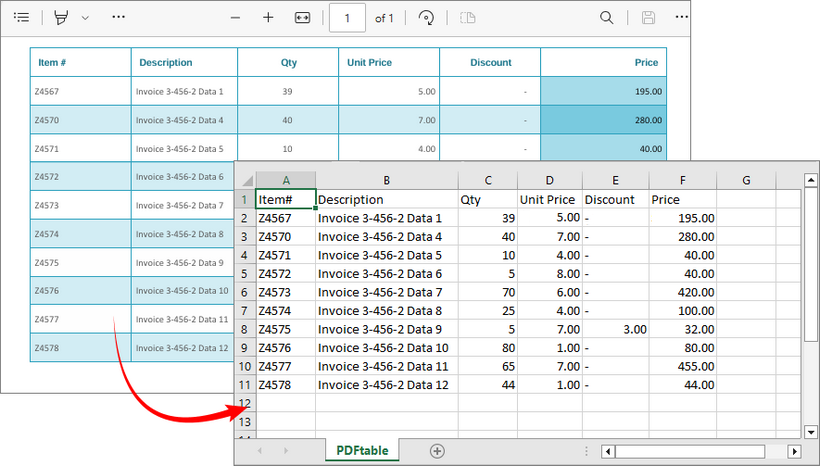
Recommendation: Integrate with Spire.XLS for .NET to extract tables from PDF to Excel directly.
Conclusion
This guide has outlined three efficient methods for extracting tables from PDFs in C#. By leveraging the Spire.PDF for .NET library, you can automate the PDF table extraction process and export results to console, TXT, or CSV for further analysis. Whether you’re building a data pipeline, report generator, or business tool, these approaches streamline workflows, save time, and minimize human error.
Refer to the online documentation and obtain a free trial license here to explore more advanced PDF operations.
FAQs
Q1: Why use Spire.PDF for .NET to extract tables?
A: Spire.PDF provides a dedicated PdfTableExtractor class that detects tables based on visual cues (borders, spacing, and text alignment), simplifying the process of parsing structured data from PDFs.
Q2: Can Spire.PDF extract tables from scanned (image-based) PDFs?
A: No. The .NET PDF library works only with text-based PDFs (where text is selectable). For scanned PDFs, use Spire.OCR to extract text before parsing tables.
Q3: Can I extract tables from multiple PDFs at once?
A: Yes. To batch-process multiple PDFs, use Directory.GetFiles() to list all PDF files in a folder, then loop through each file and run the extraction logic. For example:
string[] pdfFiles = Directory.GetFiles(@"C:\Invoices\", "*.pdf");
foreach (string file in pdfFiles)
{
// Run extraction code for each file
}
Q4: How can I improve performance when extracting tables from large PDFs?
A: For large PDFs (100+ pages), optimize performance by:
- Processing pages in batches instead of loading the entire PDF at once.
- Disposing of unused PdfTable or PdfDocument objects with the using statements to free memory.
- Skipping pages with no tables early (
using if (tableList == null || tableList.Length == 0)).
Repeat the header rows in PDF table in C#/VB.NET
This article will demonstrate how to repeat the table’s header row in C#/VB.NET by using Spire.PDF for .NET.
using Spire.Pdf;
using Spire.Pdf.Graphics;
using Spire.Pdf.Grid;
using System.Drawing;

namespace PDFGrid
{
    class Program
    {
        static void Main(string[] args)
        {
            //Create a pdf document
            PdfDocument doc = new PdfDocument();

            //Add a page to pdf
            PdfPageBase page = doc.Pages.Add();

            //Create a PdfGrid object
            PdfGrid grid = new PdfGrid();

            //Set the cell padding of the grid
            grid.Style.CellPadding = new PdfPaddings(1, 1, 1, 1);

            //Set the Columns of the grid
            grid.Columns.Add(3);

            //Set the header rows and define the data
            PdfGridRow[] pdfGridRows = grid.Headers.Add(2);
            for (int i = 0; i < pdfGridRows.Length; i++)
            {
                pdfGridRows[i].Style.Font = new PdfTrueTypeFont(new Font("Arial", 11f, FontStyle.Regular), true);
                pdfGridRows[i].Cells[0].Value = "Vendor Name";
                pdfGridRows[i].Cells[1].Value = "Address";
                pdfGridRows[i].Cells[2].Value = "City";
            }

            //Repeat the table header rows if the grid exceed one page
            grid.RepeatHeader = true;


            for (int i = 0; i < 60; i++)
            {
                PdfGridRow row = grid.Rows.Add();

                //Add the data to the table
                for (int j = 0; j < grid.Columns.Count; j++)
                {
                    row.Cells[j].Value = "(Row " + i + ", column " + j + ")";
                }
            }

            //draw grid on the pdf page
            PdfLayoutResult pdfLayoutResult = grid.Draw(page, new PointF(0, 20));
            float y = pdfLayoutResult.Bounds.Y + pdfLayoutResult.Bounds.Height;
            PdfPageBase currentPage = pdfLayoutResult.Page;


            //Save the doucment to file
            doc.SaveToFile("PDFGrid.pdf");

        }
    }
}
Imports Spire.Pdf
Imports Spire.Pdf.Graphics
Imports Spire.Pdf.Grid
Imports System.Drawing

Namespace PDFGrid

    Class Program

        Private Shared Sub Main(ByVal args() As String)
            'Create a pdf document
            Dim doc As PdfDocument = New PdfDocument
            'Add a page to pdf
            Dim page As PdfPageBase = doc.Pages.Add
            'Create a PdfGrid object
            Dim grid As PdfGrid = New PdfGrid
            'Set the cell padding of the grid
            grid.Style.CellPadding = New PdfPaddings(1, 1, 1, 1)
            'Set the Columns of the grid
            grid.Columns.Add(3)
            'Set the header rows and define the data
            Dim pdfGridRows() As PdfGridRow = grid.Headers.Add(2)
            Dim i As Integer = 0
            Do While (i < pdfGridRows.Length)
                pdfGridRows(i).Style.Font = New PdfTrueTypeFont(New Font("Arial", 11!, FontStyle.Regular), true)
                pdfGridRows(i).Cells(0).Value = "Vendor Name"
                pdfGridRows(i).Cells(1).Value = "Address"
                pdfGridRows(i).Cells(2).Value = "City"
                i = (i + 1)
            Loop

            'Repeat the table header rows if the grid exceed one page
            grid.RepeatHeader = true
            Dim i As Integer = 0
            Do While (i < 60)
                Dim row As PdfGridRow = grid.Rows.Add
                'Add the data to the table
                Dim j As Integer = 0
                Do While (j < grid.Columns.Count)
                    row.Cells(j).Value = ("(Row "  _
                                + (i + (", column "  _
                                + (j + ")"))))
                    j = (j + 1)
                Loop

                i = (i + 1)
            Loop

            'draw grid on the pdf page
            Dim pdfLayoutResult As PdfLayoutResult = grid.Draw(page, New PointF(0, 20))
            Dim y As Single = (pdfLayoutResult.Bounds.Y + pdfLayoutResult.Bounds.Height)
            Dim currentPage As PdfPageBase = pdfLayoutResult.Page
            'Save the doucment to file
            doc.SaveToFile("PDFGrid.pdf")
        End Sub
    End Class
End Namespace
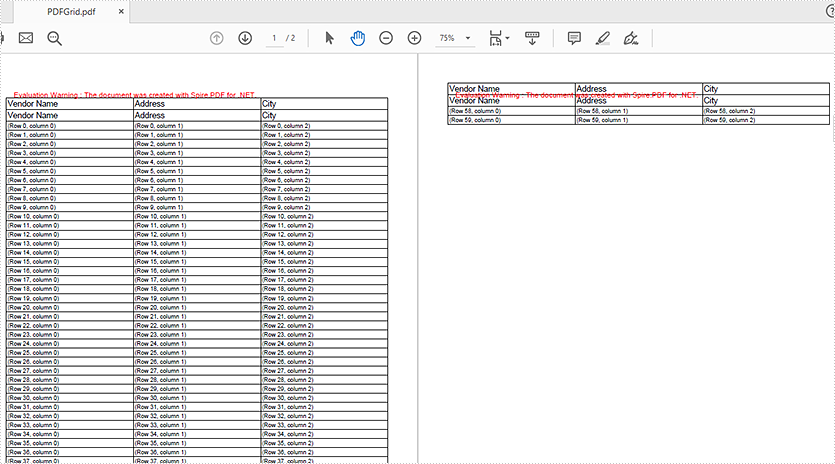
Effective screenshot of repeating the table's header row:
Delete Rows and Columns from a PDF Grid in C#
Spire.PDF supports to delete rows or columns from a PDF grid before drawing it onto a PDF page. This article demonstrates the detail steps of how to delete a row and a column from a PDF grid using Spire.PDF.
Detail steps:
Step 1: Create a PDF document and add a page to it.
PdfDocument doc = new PdfDocument();
PdfPageBase page = doc.Pages.Add();
Step 2: Create a PDF grid.
PdfGrid grid = new PdfGrid();
//Set cell padding
grid.Style.CellPadding = new PdfPaddings(3, 3, 1, 1);
Step 3: Add 3 rows and 4 columns to the grid.
PdfGridRow row1 = grid.Rows.Add();
PdfGridRow row2 = grid.Rows.Add();
PdfGridRow row3 = grid.Rows.Add();

grid.Columns.Add(4);
Step 4: Set columns' width.
foreach (PdfGridColumn column in grid.Columns)
{
    column.Width = 60f;
}
Step 5: Add values to grid cells.
for (int i = 0; i < grid.Columns.Count; i++)
{
    row1.Cells[i].Value = String.Format("column{0}", i + 1);
    row2.Cells[i].Value = "a";
    row3.Cells[i].Value = "b";
}
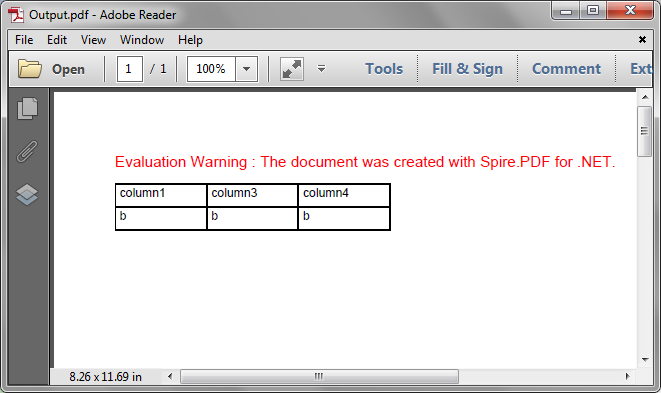
Step 6: Delete the second row and the second column from the grid.
grid.Rows.RemoveAt(1);

grid.Columns.RemoveAt(1);
Step 7: Draw the grid onto the page and save the file.
grid.Draw(page, new PointF(0, 20));

doc.SaveToFile("Output.pdf");
Output:
Full code:
using System;
using System.Drawing;
using Spire.Pdf;
using Spire.Pdf.Grid;

namespace Delete_Row_and_Column_from_PDFGrid
{
    class Program
    {
        static void Main(string[] args)
        {
            //Create a PDF document
            PdfDocument doc = new PdfDocument();

            //Add a page
            PdfPageBase page = doc.Pages.Add();

            //Create a PDF grid
            PdfGrid grid = new PdfGrid();

            //Set cell padding
            grid.Style.CellPadding = new PdfPaddings(3, 3, 1, 1);

            //Add 3 rows and 4 columns to the grid
            PdfGridRow row1 = grid.Rows.Add();
            PdfGridRow row2 = grid.Rows.Add();
            PdfGridRow row3 = grid.Rows.Add();
            grid.Columns.Add(4);

            //Set columns’ width
            foreach (PdfGridColumn column in grid.Columns)
            {
                column.Width = 60f;
            }

            //Add values to grid cells
            for (int i = 0; i < grid.Columns.Count; i++)
            {
                row1.Cells[i].Value = String.Format("column{0}", i + 1);
                row2.Cells[i].Value = "a";
                row3.Cells[i].Value = "b";
            }

            //Delete the second row
            grid.Rows.RemoveAt(1);

            //Delete the second column
            grid.Columns.RemoveAt(1);

            //Draw the grid to the page
            grid.Draw(page, new PointF(0, 20));

            //Save the file
            doc.SaveToFile("Output.pdf");
        }
    }
}
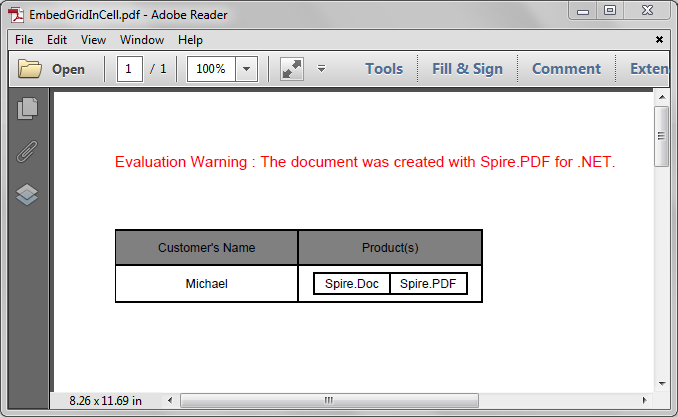
Embed a Grid into a Grid Cell in PDF in C#
Spire.PDF supports to embed image and grid into a grid cell. We've introduced how to embed an image into a grid cell in the article - How to Insert an Image to PDF Grid Cell in C#, this article is going to show you how to embed a grid into a grid cell in PDF using Spire.PDF.
Detail steps:
Step 1: Create a PDF document and add a page to it.
PdfDocument pdf = new PdfDocument();
PdfPageBase page = pdf.Pages.Add();
Step 2: Create a PDF grid.
//Create a grid
PdfGrid grid = new PdfGrid();

//Add two rows
PdfGridRow row1 = grid.Rows.Add();
PdfGridRow row2 = grid.Rows.Add();

//Set the Top and Bottom cell padding
grid.Style.CellPadding.Top = 5f;
grid.Style.CellPadding.Bottom = 5f;

//Add two columns
grid.Columns.Add(2);

//Set columns' width
grid.Columns[0].Width = 120f;
grid.Columns[1].Width = 120f;
Step 3: Create another PDF grid to embed.
//Create another grid
PdfGrid embedGrid = new PdfGrid();

//Add a row
PdfGridRow newRow = embedGrid.Rows.Add();

//Add two columns
embedGrid.Columns.Add(2);

//Set columns' width
embedGrid.Columns[0].Width = 50f;
embedGrid.Columns[1].Width = 50f;
Step 4: Assign values to the cells of the embed grid and the grid, and set formatting.
//Create a PDFStringFormat instance
PdfStringFormat stringFormat = new PdfStringFormat(PdfTextAlignment.Center, PdfVerticalAlignment.Middle);

//Assign values to the cells of the embedGrid and set formatting
newRow.Cells[0].Value = "Spire.Doc";
newRow.Cells[0].StringFormat = stringFormat;
newRow.Cells[1].Value = "Spire.PDF";
newRow.Cells[1].StringFormat = stringFormat;

//Assign values to the cells of the grid and set formatting
row1.Cells[0].Value = "Customer's Name";
row1.Cells[0].StringFormat = stringFormat;
row1.Cells[0].Style.BackgroundBrush = PdfBrushes.Gray;
row1.Cells[1].Value = "Product(s)";
row1.Cells[1].StringFormat = stringFormat;
row1.Cells[1].Style.BackgroundBrush = PdfBrushes.Gray;
row2.Cells[0].Value = "Michael";
row2.Cells[0].StringFormat = stringFormat;
//Assign the embedGrid to a cell of the grid
row2.Cells[1].Value = embedGrid;
row2.Cells[1].StringFormat = stringFormat;
Step 5: Draw the grid to the new added page.
grid.Draw(page, new PointF(0f, 50f));
Step 6: Save the document.
pdf.SaveToFile("EmbedGridInCell.pdf");
Screenshot:
Full code:
using Spire.Pdf.Grid;
using Spire.Pdf;
using System.Drawing;
using Spire.Pdf.Graphics;

namespace Embed_a_Grid_in_a_Grid_Cell_in_PDF
{
    class Program
    {
        static void Main(string[] args)
        {
            //Create a pdf document
            PdfDocument pdf = new PdfDocument();

            //Add a page
            PdfPageBase page = pdf.Pages.Add();

            //Create a pdf grid
            PdfGrid grid = new PdfGrid();

            //Add two rows
            PdfGridRow row1 = grid.Rows.Add();
            PdfGridRow row2 = grid.Rows.Add();

            //Set Top and Bottom cell padding of the grid
            grid.Style.CellPadding.Top = 5f;
            grid.Style.CellPadding.Bottom = 5f;

            //Add two columns
            grid.Columns.Add(2);

            //Set the columns’ width
            grid.Columns[0].Width = 120f;
            grid.Columns[1].Width = 120f;


            //Create another grid to embed
            PdfGrid embedGrid = new PdfGrid();

            //Add a row
            PdfGridRow newRow = embedGrid.Rows.Add();

            //Add two columns
            embedGrid.Columns.Add(2);

            //Set the columns’ width
            embedGrid.Columns[0].Width = 50f;
            embedGrid.Columns[1].Width = 50f;

            //Create a PDFStringFormat instance
            PdfStringFormat stringFormat = new PdfStringFormat(PdfTextAlignment.Center, PdfVerticalAlignment.Middle);

            //Assign values to the cells of the embedGrid and set formatting
            newRow.Cells[0].Value = "Spire.Doc";
            newRow.Cells[0].StringFormat = stringFormat;
            newRow.Cells[1].Value = "Spire.PDF";
            newRow.Cells[1].StringFormat = stringFormat;

            //Assign values to the cells of the grid and set formatting
            row1.Cells[0].Value = "Customer's Name";
            row1.Cells[0].StringFormat = stringFormat;
            row1.Cells[0].Style.BackgroundBrush = PdfBrushes.Gray;
            row1.Cells[1].Value = "Product(s)";
            row1.Cells[1].StringFormat = stringFormat;
            row1.Cells[1].Style.BackgroundBrush = PdfBrushes.Gray;
            row2.Cells[0].Value = "Michael";
            row2.Cells[0].StringFormat = stringFormat;
            //Assign the embedGrid to the cell of the grid
            row2.Cells[1].Value = embedGrid;
            row2.Cells[1].StringFormat = stringFormat;

            //Draw the grid to the new added page
            grid.Draw(page, new PointF(0f, 50f));

            //Save the pdf document
            pdf.SaveToFile("EmbedGridInCell.pdf");
        }
    }
}
Set Row Height in PDF Table in C#
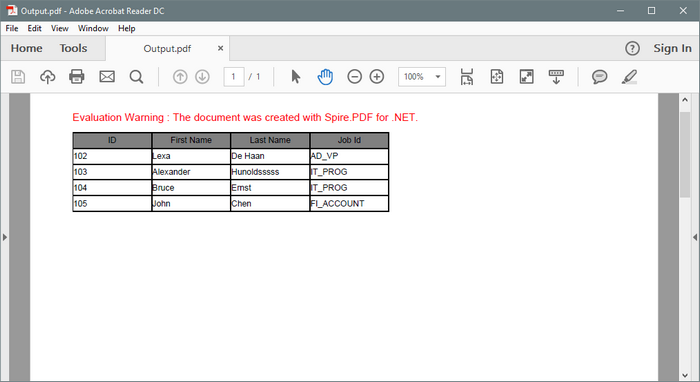
When creating a PDF table using PdfTable, there is no direct API available in this class that allows to change the row height of the table. However, it is possible to change the row height through BeginRowLayout event.
Step 1: Create a new PDF document.
PdfDocument doc = new PdfDocument();
PdfPageBase page = doc.Pages.Add();
Step 2: Initialize an instance of PdfTable class.
PdfTable table = new PdfTable();
Step 3: Create a DataTable.
DataTable dataTable = new DataTable();
dataTable.Columns.Add("ID");
dataTable.Columns.Add("First Name");
dataTable.Columns.Add("Last Name");
dataTable.Columns.Add("Job Id");
dataTable.Rows.Add(new string[] { "102", "Lexa", "De Haan","AD_VP" });
dataTable.Rows.Add(new string[] { "103", "Alexander", "Hunoldsssss","IT_PROG" });
dataTable.Rows.Add(new string[] { "104", "Bruce", "Ernst", "IT_PROG" });
dataTable.Rows.Add(new string[] { "105", "John", "Chen", "FI_ACCOUNT" })
Step 4: Assign data table as data source to the table.
table.DataSource = dataTable;
table.Style.ShowHeader = true;
Step 5: Subscribe to event.
table.BeginRowLayout += Table_BeginRowLayout;
Step 6: Draw the table on the page and save the document.
table.Draw(page, new RectangleF(0,20,300,90));
doc.SaveToFile("Output.pdf");
Step 7: Set the row height in the BeginRowLayout event.
private static void Table_BeginRowLayout(object sender, BeginRowLayoutEventArgs args)
{
    args.MinimalHeight = 15f;
}
Output:
Full Code:
using Spire.Pdf;
using Spire.Pdf.Graphics;
using Spire.Pdf.Tables;
using System.Data;
using System.Drawing;


namespace SetRowHeight
{
    class Program
    {
        static void Main(string[] args)
        {
            PdfDocument doc = new PdfDocument();
            PdfPageBase page = doc.Pages.Add();

            PdfTable table = new PdfTable();
            DataTable dataTable = new DataTable();
            dataTable.Columns.Add("ID");
            dataTable.Columns.Add("First Name");
            dataTable.Columns.Add("Last Name");
            dataTable.Columns.Add("Job Id");
            dataTable.Rows.Add(new string[] { "102", "Lexa", "De Haan", "AD_VP" });
            dataTable.Rows.Add(new string[] { "103", "Alexander", "Hunoldsssss", "IT_PROG" });
            dataTable.Rows.Add(new string[] { "104", "Bruce", "Ernst", "IT_PROG" });
            dataTable.Rows.Add(new string[] { "105", "John", "Chen", "FI_ACCOUNT" });
            table.DataSource = dataTable;
            table.Style.ShowHeader = true;

            foreach (PdfColumn col in table.Columns)
            {
                col.StringFormat = new PdfStringFormat(PdfTextAlignment.Left, PdfVerticalAlignment.Middle);
            }
            table.Style.HeaderStyle.StringFormat = new PdfStringFormat(PdfTextAlignment.Center, PdfVerticalAlignment.Middle);
            table.Style.HeaderStyle.BackgroundBrush = PdfBrushes.Gray;

            table.BeginRowLayout += Table_BeginRowLayout;
            table.Draw(page, new RectangleF(0, 20, 300, 90));
            doc.SaveToFile("Output.pdf");


            System.Diagnostics.Process.Start("Output.pdf");

        }
        private static void Table_BeginRowLayout(object sender, BeginRowLayoutEventArgs args)
        {
            args.MinimalHeight = 15f;
        }
    }
}
Set the Border Color of Table in PDF in C#
In order to format a table in PDF, Spire.PDF provides a PdfTableStyle class that represents parameters of PDF light table and a PdfCellStyle class that represents information about cell style. This article will introduce how to set the border color of a table including table border and cell border by using the two classes mentioned above.
Code Snippets:
Step 1: Define a multidimensional array of string.
string[][] dataSource =new string[5][] {new string[] {"Name", "Capital", "Continent", "Area", "Population"},
  new string[] {"Argentina","Buenos Aires", "South American", "2777815", "3230003"},
  new string[] {"Bolivia","La Paz","South America","1098575","7300000"},
  new string[] {"Brazil","Brasilia","South America","8511196","150400000"},
  new string[] {"Canada","Ottawa","North America","9976147","26500000"}
};
Step 2: Initialize a new instance of PdfDocument class and add a page to it.
PdfDocument pdf = new PdfDocument();
PdfPageBase page = pdf.Pages.Add();
Step 3: Initialize a new instance of PdfTbale class, filling the table with the data predefined.
PdfTable table = new PdfTable();
table.DataSource = dataSource;
Step 4: Initialize an instance of PdfTableStyle class, and set the color of table border as Blue, then apply the style to PdfTable.Style.
PdfTableStyle style = new PdfTableStyle();
style.BorderPen = new PdfPen(Color.Blue, 1f);
table.Style = style;
Step 5: The syntax to set style of cell border is much different from setting table border style, since PdfTable class doesn't contain a property of CellStyle. Instead, CellStyle is a property included in BeginRowLayoutEventArgs class, which is an argument of StratRowLayout event. Therefore we customize a method as below to set the color of cell border.
public static void table_BeginRowLayout(object sender, BeginRowLayoutEventArgs args)
{
    PdfCellStyle cellStyle = new PdfCellStyle();
    cellStyle.BorderPen = new PdfPen(Color.Red, 0.5f);
    args.CellStyle = cellStyle;
}
In the Main method, "table_BeginRowLayout" must be added to BeginRowLayout event to ensure the custom method will be invoked when the event occurs.
table.BeginRowLayout += new BeginRowLayoutEventHandler(table_BeginRowLayout);
Step 6: Draw the table on PDF page and save to file.
table.Draw(page, new PointF(0,40));
pdf.SaveToFile(@"SetBorderColor.pdf");
Output:

Full Code:
using Spire.Pdf;
using Spire.Pdf.Tables;
using Spire.Pdf.Graphics;
using System.Drawing;

namespace SetBorderColorOfTable
{
    class Program
    {
        static void Main(string[] args)
        {
            //input data
            string[][] dataSource =new string[5][] {new string[] {"Name", "Capital", "Continent", "Area", "Population"},
              new string[] {"Argentina","Buenos Aires", "South American", "2777815", "3230003"},
              new string[] {"Bolivia","La Paz","South America","1098575","7300000"},
              new string[] {"Brazil","Brasilia","South America","8511196","150400000"},
              new string[] {"Canada","Ottawa","North America","9976147","26500000"}
            };

            //initialize an instance of PdfDocument
            PdfDocument pdf = new PdfDocument();
            PdfPageBase page = pdf.Pages.Add();

            //initialize an instance of PdfTable
            PdfTable table = new PdfTable();
            table.DataSource = dataSource;

            //set the color of table border
            PdfTableStyle style = new PdfTableStyle();
            style.BorderPen = new PdfPen(Color.Blue, 1f);
            table.Style = style;

            //add custom method to BeginRowLayout event
            table.BeginRowLayout += new BeginRowLayoutEventHandler(table_BeginRowLayout);

            //draw table on PDF and save file
            table.Draw(page, new PointF(0,40));
            pdf.SaveToFile(@"SetBorderColor.pdf");
            System.Diagnostics.Process.Start(@"SetBorderColor.pdf");
        }
        //customize a method to set color of cell border
        public static void table_BeginRowLayout(object sender, BeginRowLayoutEventArgs args)
        {
            PdfCellStyle cellStyle = new PdfCellStyle();
            cellStyle.BorderPen = new PdfPen(Color.Red, 0.5f);
            args.CellStyle = cellStyle;
        }
    }
}
Merge cells in grid via Spire.PDF
Grid also offers more flexible resizing behavior than Table and lighter weight then a Table. It derives from the Panel element which is best used inside of forms. This article is mainly talk about how to merge cells in grid via Spire.PDF.
Prerequisite:
- Download Spire.PDF for .NET (or Spire.Office for .NET) and install it on your system.
- Add Spire.PDF.dll as reference in the downloaded Bin folder thought the below path: "..\Spire.PDF\Bin\NET4.0\ Spire.PDF.dll".
- Check the codes as below in C#:
Here are the detail steps:
Step 1: Create a new PDF document and add a new page.
PdfDocument doc = new PdfDocument();
PdfPageBase page = doc.Pages.Add();
Step 2: Add a new grid with 5 columns and 2 rows, and set height and width.
PdfGrid grid = new PdfGrid();
grid.Columns.Add(5);
float width = page.Canvas.ClientSize.Width - (grid.Columns.Count + 1);
for (int j = 0; j < grid.Columns.Count;j++)
{
  grid.Columns[j].Width = width * 0.20f;
}

 PdfGridRow row0 = grid.Rows.Add();
 PdfGridRow row1 = grid.Rows.Add();
 float height = 20.0f;
 for (int i = 0; i < grid.Rows.Count; i++)
 {
      grid.Rows[i].Height = height;
 }
Step 3: Draw the current grid.
grid.Draw(page, new PointF(0, 50));
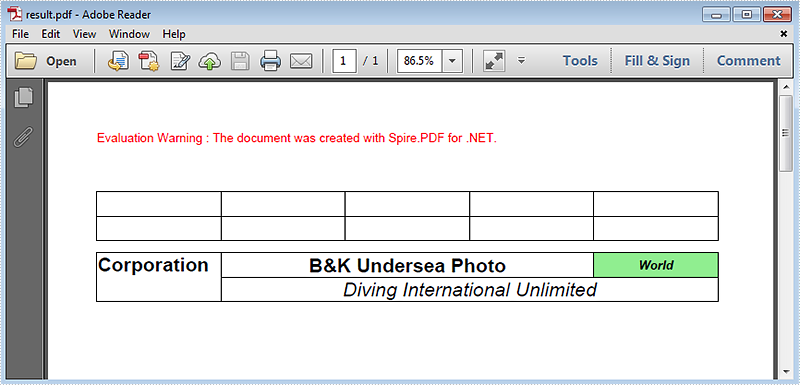
Step 4: Set the font of the grid and fill some content in the cells. Use RowSpan and ColumnSpan to merge certain cells vertically and horizontally.
row0.Style.Font = new PdfTrueTypeFont(new Font("Arial", 16f, FontStyle.Bold), true);
row1.Style.Font = new PdfTrueTypeFont(new Font("Arial", 16f, FontStyle.Italic), true);

row0.Cells[0].Value = "Corporation";
row0.Cells[0].RowSpan = 2;

row0.Cells[1].Value = "B&K Undersea Photo";
row0.Cells[1].StringFormat = new PdfStringFormat(PdfTextAlignment.Center, PdfVerticalAlignment.Middle);
row0.Cells[1].ColumnSpan = 3;

row0.Cells[4].Value = "World";
row0.Cells[4].Style.Font = new PdfTrueTypeFont(new Font("Arial", 10f, FontStyle.Bold | FontStyle.Italic), true);
row0.Cells[4].StringFormat = new PdfStringFormat(PdfTextAlignment.Center, PdfVerticalAlignment.Middle);
row0.Cells[4].Style.BackgroundBrush = PdfBrushes.LightGreen;

row1.Cells[1].Value = "Diving International Unlimited";
row1.Cells[1].StringFormat = new PdfStringFormat(PdfTextAlignment.Center, PdfVerticalAlignment.Middle);
row1.Cells[1].ColumnSpan = 4;
Step 5: Draw the new grid and save the file, the review it.
grid.Draw(page, new PointF(0, 100));

doc.SaveToFile("result.pdf");
System.Diagnostics.Process.Start("result.pdf");
Following is the result screenshot:
Full Code:
using Spire.Pdf;
using Spire.Pdf.Graphics;
using Spire.Pdf.Grid;
using System.Drawing;


namespace MergeCells
{
    class Program
    {
        static void Main(string[] args)
        {
            PdfDocument doc = new PdfDocument();
            PdfPageBase page = doc.Pages.Add();

            PdfGrid grid = new PdfGrid();
            grid.Columns.Add(5);
            float width = page.Canvas.ClientSize.Width - (grid.Columns.Count + 1);
            for (int j = 0; j < grid.Columns.Count; j++)
            {
                grid.Columns[j].Width = width * 0.20f;
            }

            PdfGridRow row0 = grid.Rows.Add();
            PdfGridRow row1 = grid.Rows.Add();
            float height = 20.0f;
            for (int i = 0; i < grid.Rows.Count; i++)
            {
                grid.Rows[i].Height = height;
            }

            grid.Draw(page, new PointF(0, 50));

            row0.Style.Font = new PdfTrueTypeFont(new Font("Arial", 16f, FontStyle.Bold), true);
            row1.Style.Font = new PdfTrueTypeFont(new Font("Arial", 16f, FontStyle.Italic), true);

            row0.Cells[0].Value = "Corporation";
            row0.Cells[0].RowSpan = 2;

            row0.Cells[1].Value = "B&K Undersea Photo";
            row0.Cells[1].StringFormat = new PdfStringFormat(PdfTextAlignment.Center, PdfVerticalAlignment.Middle);
            row0.Cells[1].ColumnSpan = 3;

            row0.Cells[4].Value = "World";
            row0.Cells[4].Style.Font = new PdfTrueTypeFont(new Font("Arial", 10f, FontStyle.Bold | FontStyle.Italic), true);
            row0.Cells[4].StringFormat = new PdfStringFormat(PdfTextAlignment.Center, PdfVerticalAlignment.Middle);
            row0.Cells[4].Style.BackgroundBrush = PdfBrushes.LightGreen;

            row1.Cells[1].Value = "Diving International Unlimited";
            row1.Cells[1].StringFormat = new PdfStringFormat(PdfTextAlignment.Center, PdfVerticalAlignment.Middle);
            row1.Cells[1].ColumnSpan = 4;

            grid.Draw(page, new PointF(0, 100));

            doc.SaveToFile("result.pdf");
            System.Diagnostics.Process.Start("result.pdf");
        }
    }
}
Set the Color of Grid Border in PDF in C#
The PdfBorders class in Spire.PDF mainly contains three properties - DashStyle, Color and Width. By setting the value of these properties, you're able to change the appearance of grid border. In this article, I'll take color as an example to explain how to design gird border with Spire.PDF in C#.
As is shown in the following screenshot, Spire.PDF enables programmers to add color to PDF grid border as well as making the border as invisible.
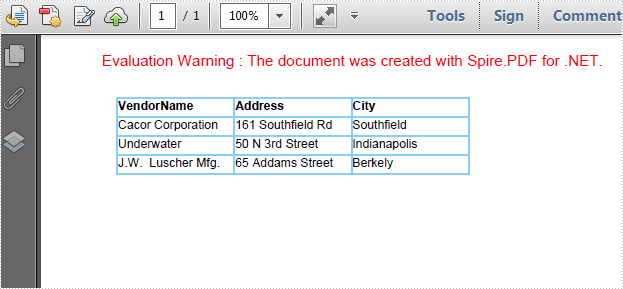
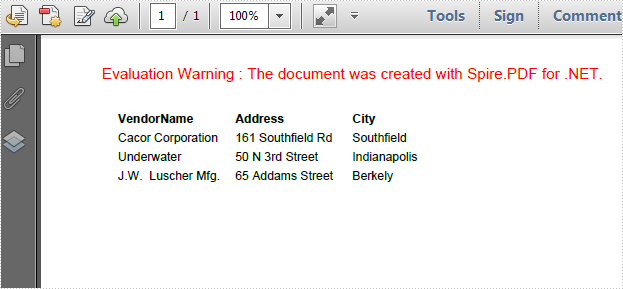
Code Snippets:
Step 1: Create a new PDF document.
PdfDocument document = new PdfDocument();
PdfPageBase page=document.Pages.Add();
Step 2: Create a string array, create a 4 rows x 3 columns grid according to the length of string array. Set column width and row height.
String[] data
    = {
         "VendorName;Address;City",
         "Cacor Corporation;161 Southfield Rd;Southfield",
         "Underwater;50 N 3rd Street;Indianapolis",
         "J.W.  Luscher Mfg.;65 Addams Street;Berkely"
       };
 PdfGrid grid = new PdfGrid();
 for (int r = 0; r < data.Length; r++)
 {
     PdfGridRow row = grid.Rows.Add();
 }
 grid.Columns.Add(3);
 float width = page.Canvas.ClientSize.Width - (grid.Columns.Count + 1);
 grid.Columns[0].Width = width*0.15f;
 grid.Columns[1].Width = width * 0.15f;
 grid.Columns[2].Width = width * 0.15f;
 float height=page.Canvas.ClientSize.Height-(grid.Rows.Count+1);
 grid.Rows[0].Height = 12.5f;
 grid.Rows[1].Height = 12.5f;
 grid.Rows[2].Height = 12.5f;
 grid.Rows[3].Height = 12.5f;
Step 3: Insert data into grid.
for (int r = 0; r < data.Length; r++)
 {
     String[] rowData = data[r].Split(';');
     for (int c = 0; c < rowData.Length; c++)
     {
         grid.Rows[r].Cells[c].Value = rowData[c];
     }
 }
Step 4: Initialize a new instance of PdfBorders and set color property as LightBlue or Transparent. Apply border style to PDF grid.
PdfBorders border = new PdfBorders();
border.All = new PdfPen(Color.LightBlue);

foreach (PdfGridRow pgr in grid.Rows)
{
    foreach (PdfGridCell pgc in pgr.Cells)
    {
        pgc.Style.Borders = border;
    }
}
Step 5: Draw the grid on PDF and save the file.
PdfLayoutResult result = grid.Draw(page, new PointF(10, 30));
document.SaveToFile("result.pdf");
System.Diagnostics.Process.Start("result.pdf");
Entire Code:
using Spire.Pdf;
using Spire.Pdf.Graphics;
using Spire.Pdf.Grid;
using System;
using System.Drawing;


namespace ChangeColorofGridBorder
{
    class Program
    {
        static void Main(string[] args)
        {
            PdfDocument document = new PdfDocument();
            PdfPageBase page = document.Pages.Add();

            String[] data
               = {
        "VendorName;Address;City",
        "Cacor Corporation;161 Southfield Rd;Southfield",
        "Underwater;50 N 3rd Street;Indianapolis",
        "J.W.  Luscher Mfg.;65 Addams Street;Berkely"
      };
            PdfGrid grid = new PdfGrid();
            for (int r = 0; r < data.Length; r++)
            {
                PdfGridRow row = grid.Rows.Add();
            }
            grid.Columns.Add(3);
            float width = page.Canvas.ClientSize.Width - (grid.Columns.Count + 1);
            grid.Columns[0].Width = width * 0.15f;
            grid.Columns[1].Width = width * 0.15f;
            grid.Columns[2].Width = width * 0.15f;
            float height = page.Canvas.ClientSize.Height - (grid.Rows.Count + 1);
            grid.Rows[0].Height = 12.5f;
            grid.Rows[1].Height = 12.5f;
            grid.Rows[2].Height = 12.5f;
            grid.Rows[3].Height = 12.5f;

            //insert data to grid
            for (int r = 0; r < data.Length; r++)
            {
                String[] rowData = data[r].Split(';');
                for (int c = 0; c < rowData.Length; c++)
                {
                    grid.Rows[r].Cells[c].Value = rowData[c];
                }
            }

            grid.Rows[0].Style.Font = new PdfTrueTypeFont(new Font("Arial", 8f, FontStyle.Bold), true);

            //Set borders color to LightBule
            PdfBorders border = new PdfBorders();
            border.All = new PdfPen(Color.LightBlue);

            foreach (PdfGridRow pgr in grid.Rows)
            {
                foreach (PdfGridCell pgc in pgr.Cells)
                {
                    pgc.Style.Borders = border;
                }
            }

            PdfLayoutResult result = grid.Draw(page, new PointF(10, 30));
            document.SaveToFile("result.pdf");
            System.Diagnostics.Process.Start("result.pdf");
        }
    }
}