Set Table Layout in PDF with C#/VB.NET
Table Layout decides how the table displays in PDF page. People always set PDF table layout in order to let the table perfectly fit PDF page according to their own like. In this section, I will introduce a solution to set table layout in PDF via this .NET PDF component Spire.PDF for .NET with C#, VB.NET. First let us view the target PDF file as below picture:
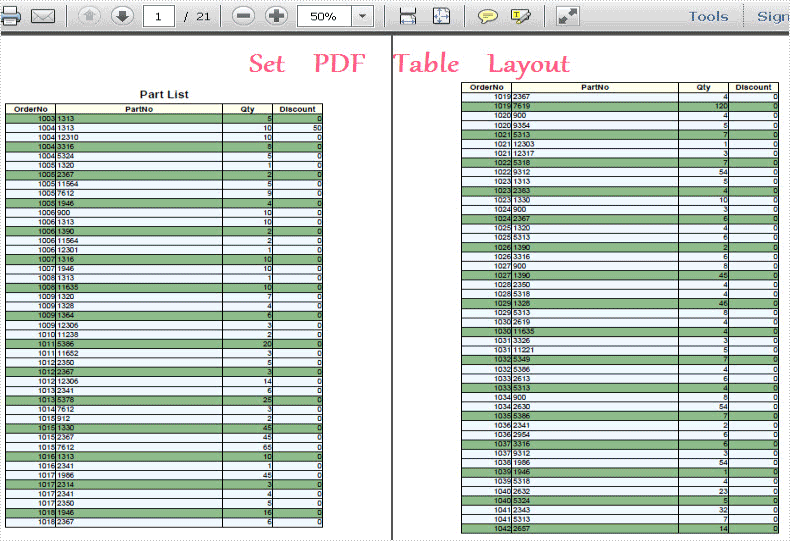
In Spire.PDF for .NET, there is a class called: Spire.Pdf.Tables.PdfTableLayoutFormat. By using this class, we can set table layout type and break type. Here Spire.PDF provided two layout types: Paginate and OnePage and two break type: FitElement and Fit Page. When you set the break type to be FitElement, PDF table will display according to the table length, while for FitPage choice, the table will automatically fit the PDF to every page ignoring table length.
Here let us see this method: PdfLayoutResult.Draw(PdfPageBase page, PointF location, PdfTextLayout format).There are three parameters passed. The first parameter determines the page size and margin. By setting the second parameter, we can set the horizontal and vertical distance between the table and PDF margin. While the last parameter is the table layout we just set. Obviously, we can set table layout by calling this method directly.
Now, you can download Spire.PDF for .NET and start table layout task by below key code:
table.BeginRowLayout += new BeginRowLayoutEventHandler(table_BeginRowLayout);
            PdfTableLayoutFormat tableLayout = new PdfTableLayoutFormat();
            tableLayout.Break = PdfLayoutBreakType.FitElement;
            tableLayout.Layout = PdfLayoutType.Paginate;
            PdfLayoutResult result = table.Draw(page, new PointF(0, y), tableLayout);
            y = result.Bounds.Bottom + 5;
table.BeginRowLayout += New BeginRowLayoutEventHandler(table_BeginRowLayout)
Dim tableLayout As New PdfTableLayoutFormat()
tableLayout.Break = PdfLayoutBreakType.FitElement
tableLayout.Layout = PdfLayoutType.Paginate
Dim result As PdfLayoutResult = table.Draw(page, New PointF(0, y), tableLayout)
y = result.Bounds.Bottom + 5
Spire.PDF for .NET is a PDF api that enables users to create, edit, read and handle PDF files in .NET applications.
Draw PDF Table in C#/VB.NET
PDF table is one of the best ways to display data information. Using it, all the data can be quickly and clearly read. This section will introduce a solution to draw PDF table via a .NET PDF component in C#, VB.NET.
Using Spire.PDF for .NET (a .NET PDF library for manipulating PDF files), you can draw PDF table through two simple steps. One is to draw all the data by a string array. Another step is to split these string array by string[] Split(params char[] separator); Thus, a PDF table has been drawn. From below picture, you can see the effect of the task:
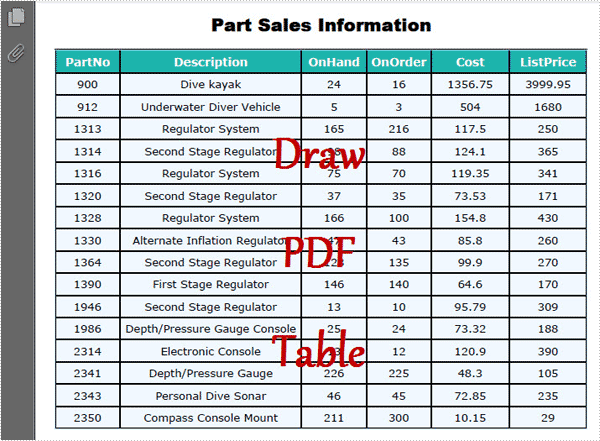
Here, you can download Spire.PDF for .NET and install it on your system. After adding the Spire.Pdf dll from your Bin folder, you can follow below key code to draw your PDF table in C#, VB.NET.
using Spire.Pdf;
using Spire.Pdf.Graphics;
using Spire.Pdf.Tables;
using System;
using System.Drawing;


namespace DrawPDFTable
{
    class Program
    {
        static void Main(string[] args)
        {
            //Create a pdf document.
            PdfDocument doc = new PdfDocument();
            PdfSection sec = doc.Sections.Add();
            sec.PageSettings.Width = PdfPageSize.A4.Width;
            PdfPageBase page = sec.Pages.Add();
            float y = 10;
            //title
            PdfBrush brush1 = PdfBrushes.Black;
            PdfTrueTypeFont font1 = new PdfTrueTypeFont(new Font("Arial", 16f, FontStyle.Bold));
            PdfStringFormat format1 = new PdfStringFormat(PdfTextAlignment.Center);
            page.Canvas.DrawString("Part Sales Information", font1, brush1, page.Canvas.ClientSize.Width / 2, y, format1);
            y = y + font1.MeasureString("Country List", format1).Height;
            y = y + 5;

            String[] data
         = {
   "PartNo;Description;OnHand;OnOrder;Cost;ListPrice",
   "900;Dive kayak;24;16;1356.75;3999.95",
   "912;Underwater Diver Vehicle;5;3;504;1680",
   "1313;Regulator System;165;216;117.5;250",
   "1314;Second Stage Regulator;98;88;124.1;365",
   "1316;Regulator System;75;70;119.35;341",
   "1320;Second Stage Regulator;37;35;73.53;171",
   "1328;Regulator System;166;100;154.8;430",
   "1330;Alternate Inflation Regulator;47;43;85.8;260",
   "1364;Second Stage Regulator;128;135;99.9;270",
   "1390;First Stage Regulator;146;140;64.6;170",
   "1946;Second Stage Regulator;13;10;95.79;309",
   "1986;Depth/Pressure Gauge Console;25;24;73.32;188",
   "2314;Electronic Console;13;12;120.9;390",
   "2341;Depth/Pressure Gauge;226;225;48.3;105",
   "2343;Personal Dive Sonar;46;45;72.85;235",
   "2350;Compass Console Mount;211;300;10.15;29"
       };
            String[][] dataSource
                = new String[data.Length][];
            for (int i = 0; i < data.Length; i++)
            {
                dataSource[i] = data[i].Split(';');
            }

            PdfTable table = new PdfTable();
            table.Style.CellPadding = 2;
            table.Style.BorderPen = new PdfPen(brush1, 0.75f);
            table.Style.HeaderStyle.StringFormat = new PdfStringFormat(PdfTextAlignment.Center);
            table.Style.HeaderSource = PdfHeaderSource.Rows;
            table.Style.HeaderRowCount = 1;
            table.Style.ShowHeader = true;
            table.Style.HeaderStyle.BackgroundBrush = PdfBrushes.CadetBlue;
            table.DataSource = dataSource;
            foreach (PdfColumn column in table.Columns)
            {
                column.StringFormat = new PdfStringFormat(PdfTextAlignment.Center, PdfVerticalAlignment.Middle);
            }
            table.Draw(page, new PointF(0, y));

            doc.SaveToFile("SimpleTable.pdf");
        }
    }
}
Imports Spire.Pdf
Imports Spire.Pdf.Graphics
Imports Spire.Pdf.Tables
Imports System.Drawing


Namespace DrawPDFTable
	Class Program
		Private Shared Sub Main(args As String())
			'Create a pdf document.
			Dim doc As New PdfDocument()
			Dim sec As PdfSection = doc.Sections.Add()
			sec.PageSettings.Width = PdfPageSize.A4.Width
			Dim page As PdfPageBase = sec.Pages.Add()
			Dim y As Single = 10
			'title
			Dim brush1 As PdfBrush = PdfBrushes.Black
			Dim font1 As New PdfTrueTypeFont(New Font("Arial", 16F, FontStyle.Bold))
			Dim format1 As New PdfStringFormat(PdfTextAlignment.Center)
			page.Canvas.DrawString("Part Sales Information", font1, brush1, page.Canvas.ClientSize.Width / 2, y, format1)
			y = y + font1.MeasureString("Country List", format1).Height
			y = y + 5

			Dim data As [String]() = {"PartNo;Description;OnHand;OnOrder;Cost;ListPrice", "900;Dive kayak;24;16;1356.75;3999.95", "912;Underwater Diver Vehicle;5;3;504;1680", "1313;Regulator System;165;216;117.5;250", "1314;Second Stage Regulator;98;88;124.1;365", "1316;Regulator System;75;70;119.35;341", _
				"1320;Second Stage Regulator;37;35;73.53;171", "1328;Regulator System;166;100;154.8;430", "1330;Alternate Inflation Regulator;47;43;85.8;260", "1364;Second Stage Regulator;128;135;99.9;270", "1390;First Stage Regulator;146;140;64.6;170", "1946;Second Stage Regulator;13;10;95.79;309", _
				"1986;Depth/Pressure Gauge Console;25;24;73.32;188", "2314;Electronic Console;13;12;120.9;390", "2341;Depth/Pressure Gauge;226;225;48.3;105", "2343;Personal Dive Sonar;46;45;72.85;235", "2350;Compass Console Mount;211;300;10.15;29"}
			Dim dataSource As [String]()() = New [String](data.Length - 1)() {}
			For i As Integer = 0 To data.Length - 1
				dataSource(i) = data(i).Split(";"C)
			Next

			Dim table As New PdfTable()
			table.Style.CellPadding = 2
			table.Style.BorderPen = New PdfPen(brush1, 0.75F)
			table.Style.HeaderStyle.StringFormat = New PdfStringFormat(PdfTextAlignment.Center)
			table.Style.HeaderSource = PdfHeaderSource.Rows
			table.Style.HeaderRowCount = 1
			table.Style.ShowHeader = True
			table.Style.HeaderStyle.BackgroundBrush = PdfBrushes.CadetBlue
			table.DataSource = dataSource
			For Each column As PdfColumn In table.Columns
				column.StringFormat = New PdfStringFormat(PdfTextAlignment.Center, PdfVerticalAlignment.Middle)
			Next
			table.Draw(page, New PointF(0, y))

			doc.SaveToFile("SimpleTable.pdf")
		End Sub
	End Class
End Namespace
Spire.PDF for .NET is a professional .NET PDF component which enables you to create, edit and handle PDF files in C#, VB.NET.
C#/VB.NET: Create Tables in PDF
A table provides fast and efficient access to data displayed in rows and columns in a visually appealing manner. When presented in a table, data has a greater impact than when just used as words and enables readers to easily compare and understand relationships between them. In this article, you will learn how to create a table in PDF in C# and VB.NET using Spire.PDF for .NET.
Spire.PDF for .NET offers the PdfTable and the PdfGrid class to work with the tables in a PDF document. The PdfTable class is used to quickly create simple, regular tables without too much formatting, while the PdfGrid class is used to create more complex tables.
The table below lists the differences between these two classes.
| PdfTable | PdfGrid | |
| Formatting | ||
| Row | Can be set through events. No API support. | Can be set through API. |
| Column | Can be set through API (StringFormat). | Can be set through API (StringFormat). |
| Cell | Can be set through events. No API support. | Can be set through API. |
| Others | ||
| Column span | Not support. | Can be set through API. |
| Row span | Can be set through events. No API support. | Can be set through API. |
| Nested table | Can be set through events. No API support. | Can be set through API. |
| Events | BeginCellLayout, EndCellLayout, BeginRowLayout, EndRowLayout, BeginPageLayout, EndPageLayout. | BeginPageLayout, EndPageLayout. |
The following sections demonstrate how to create a table in PDF using the PdfTable class and the PdfGrid class, respectively.
Install Spire.PDF for .NET
To begin with, you need to add the DLL files included in the Spire.PDF for.NET package as references in your .NET project. The DLL files can be either downloaded from this link or installed via NuGet.
PM> Install-Package Spire.PDF
Create a Table Using PdfTable Class
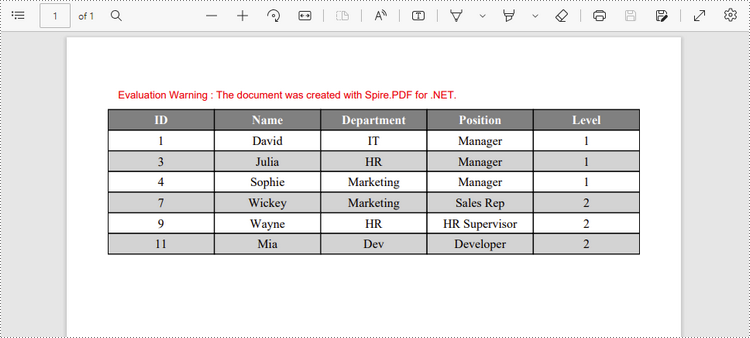
The following are the steps to create a table using the PdfTable class.
- Create a PdfDocument object.
- Add a page to it using PdfDocument.Pages.Add() method.
- Create a Pdftable object.
- Set the table style through PdfTable.Style property.
- Insert data to table through PdfTable.DataSource property.
- Set row height and row color through BeginRowLayout event.
- Draw table on the PDF page using PdfTable.Draw() method.
- Save the document to a PDF file using PdfDocument.SaveToFile() method.
- C#
- VB.NET
using System;
using System.Data;
using System.Drawing;
using Spire.Pdf;
using Spire.Pdf.Graphics;
using Spire.Pdf.Tables;

namespace CreateTable
{
    class Program
    {
        static void Main(string[] args)
        {
            //Create a PdfDocument object
            PdfDocument doc = new PdfDocument();

            //Add a page
            PdfPageBase page = doc.Pages.Add(PdfPageSize.A4, new PdfMargins(40));

            //Create a PdfTable object
            PdfTable table = new PdfTable();

            //Set font for header and the rest cells
            table.Style.DefaultStyle.Font = new PdfTrueTypeFont(new Font("Times New Roman", 12f, FontStyle.Regular), true);
            table.Style.HeaderStyle.Font = new PdfTrueTypeFont(new Font("Times New Roman", 12f, FontStyle.Bold), true);

            //Crate a DataTable
            DataTable dataTable = new DataTable();
            dataTable.Columns.Add("ID");
            dataTable.Columns.Add("Name");
            dataTable.Columns.Add("Department");
            dataTable.Columns.Add("Position");
            dataTable.Columns.Add("Level");
            dataTable.Rows.Add(new string[] { "1", "David", "IT", "Manager", "1" });
            dataTable.Rows.Add(new string[] { "3", "Julia", "HR", "Manager", "1" });
            dataTable.Rows.Add(new string[] { "4", "Sophie", "Marketing", "Manager", "1" });
            dataTable.Rows.Add(new string[] { "7", "Wickey", "Marketing", "Sales Rep", "2" });
            dataTable.Rows.Add(new string[] { "9", "Wayne", "HR", "HR Supervisor", "2" });
            dataTable.Rows.Add(new string[] { "11", "Mia", "Dev", "Developer", "2" });

            //Set the datatable as the data source of table
            table.DataSource = dataTable;

            //Show header(the header is hidden by default)
            table.Style.ShowHeader = true;

            //Set font color and backgroud color of header row
            table.Style.HeaderStyle.BackgroundBrush = PdfBrushes.Gray;
            table.Style.HeaderStyle.TextBrush = PdfBrushes.White;

            //Set text alignment in header row
            table.Style.HeaderStyle.StringFormat = new PdfStringFormat(PdfTextAlignment.Center, PdfVerticalAlignment.Middle);

            //Set text alignment in other cells
            for (int i = 0; i < table.Columns.Count; i++)
            {
                table.Columns[i].StringFormat = new PdfStringFormat(PdfTextAlignment.Center, PdfVerticalAlignment.Middle);
            }

            //Register with BeginRowLayout event
            table.BeginRowLayout += Table_BeginRowLayout;

            //Draw table on the page
            table.Draw(page, new PointF(0, 30));

            //Save the document to a PDF file
            doc.SaveToFile("PdfTable.pdf");
        }

        //Event handler
        private static void Table_BeginRowLayout(object sender, BeginRowLayoutEventArgs args)
        {
            //Set row height
            args.MinimalHeight = 20f;

            //Alternate row color
            if (args.RowIndex < 0)
            {
                return;
            }
            if (args.RowIndex % 2 == 1)
            {
                args.CellStyle.BackgroundBrush = PdfBrushes.LightGray;
            }
            else
            {
                args.CellStyle.BackgroundBrush = PdfBrushes.White;
            }
        }
    }
}
Create a Table Using PdfGrid Class
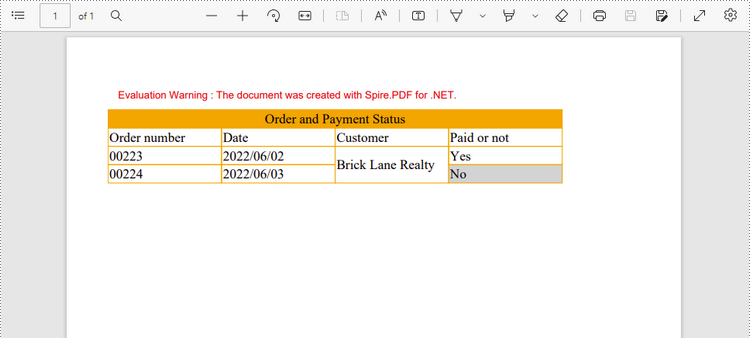
Below are the steps to create a table using the PdfGrid class.
- Create a PdfDocument object.
- Add a page to it using PdfDocument.Pages.Add() method.
- Create a PdfGrid object.
- Set the table style through PdfGrid.Style property.
- Add rows to the table using PdfGrid.Rows.Add() method.
- Insert data to specific cells through PdfGridRow.Cells[index].Value property.
- Span cells across columns or rows through PdfGridRow.RowSpan or PdfGridRow.ColumnSpan property.
- Set the formatting of a specific cell through PdfGridRow.Cells[index].StringFormat and PdfGridRow.Cells[index].Style properties.
- Draw table on the PDF page using PdfGrid.Draw() method.
- Save the document to a PDF file using PdfDocument.SaveToFile() method.
- C#
- VB.NET
using Spire.Pdf;
using Spire.Pdf.Graphics;
using Spire.Pdf.Grid;
using System.Drawing;

namespace CreateGrid
{
    class Program
    {
        static void Main(string[] args)
        {
            //Create a PdfDocument object
            PdfDocument doc = new PdfDocument();

            //Add a page
            PdfPageBase page = doc.Pages.Add(PdfPageSize.A4,new PdfMargins(40));

            //Create a PdfGrid
            PdfGrid grid = new PdfGrid();

            //Set cell padding
            grid.Style.CellPadding = new PdfPaddings(1, 1, 1, 1);

            //Set font
            grid.Style.Font = new PdfTrueTypeFont(new Font("Times New Roman", 13f, FontStyle.Regular), true);

            //Add rows
            PdfGridRow row1 = grid.Rows.Add();
            PdfGridRow row2 = grid.Rows.Add();
            PdfGridRow row3 = grid.Rows.Add();
            PdfGridRow row4 = grid.Rows.Add();
            grid.Columns.Add(4);

            //Set column width
            foreach (PdfGridColumn col in grid.Columns)
            {
                col.Width = 110f;
            }

            //Write data into specific cells
            row1.Cells[0].Value = "Order and Payment Status";
            row2.Cells[0].Value = "Order number";
            row2.Cells[1].Value = "Date";
            row2.Cells[2].Value = "Customer";
            row2.Cells[3].Value = "Paid or not";
            row3.Cells[0].Value = "00223";
            row3.Cells[1].Value = "2022/06/02";
            row3.Cells[2].Value = "Brick Lane Realty";
            row3.Cells[3].Value = "Yes";
            row4.Cells[0].Value = "00224";
            row4.Cells[1].Value = "2022/06/03";
            row4.Cells[3].Value = "No";

            //Span cell across columns
            row1.Cells[0].ColumnSpan = 4;

            //Span cell across rows
            row3.Cells[2].RowSpan = 2;

            //Set text alignment of specific cells
            row1.Cells[0].StringFormat = new PdfStringFormat(PdfTextAlignment.Center);
            row3.Cells[2].StringFormat = new PdfStringFormat(PdfTextAlignment.Left, PdfVerticalAlignment.Middle);

            //Set background color of specific cells
            row1.Cells[0].Style.BackgroundBrush = PdfBrushes.Orange;
            row4.Cells[3].Style.BackgroundBrush = PdfBrushes.LightGray;

            //Format cell border
            PdfBorders borders = new PdfBorders();
            borders.All = new PdfPen(Color.Orange, 0.8f);
            foreach (PdfGridRow pgr in grid.Rows)
            {
                foreach (PdfGridCell pgc in pgr.Cells)
                {
                    pgc.Style.Borders = borders;
                }
            }

            //Draw table on the page
            grid.Draw(page, new PointF(0, 30));

            //Save the document to a PDF file
            doc.SaveToFile("PdfGrid.pdf");
        }
    }
}
Apply for a Temporary License
If you'd like to remove the evaluation message from the generated documents, or to get rid of the function limitations, please request a 30-day trial license for yourself.