Java: Edit or Remove Comments in Excel
Comments in Excel are used to explain the contents in cells, or to offer reminders/notes to other users. Once a comment’s been added, Microsoft Excel allows users to show, hide, edit and delete the comments easily in a worksheet. This article will introduce how to edit existing comments as well as remove comments programmatically using Spire.XLS for Java.
Install Spire.XLS for Java
First of all, you're required to add the Spire.Xls.jar file as a dependency in your Java program. The JAR file can be downloaded from this link. If you use Maven, you can easily import the JAR file in your application by adding the following code to your project's pom.xml file.
<repositories>
    <repository>
        <id>com.e-iceblue</id>
        <name>e-iceblue</name>
        <url>https://repo.e-iceblue.com/nexus/content/groups/public/</url>
    </repository>
</repositories>
<dependencies>
    <dependency>
        <groupId>e-iceblue</groupId>
        <artifactId>spire.xls</artifactId>
        <version>16.8.4</version>
    </dependency>
</dependencies>
Edit Comments in Excel
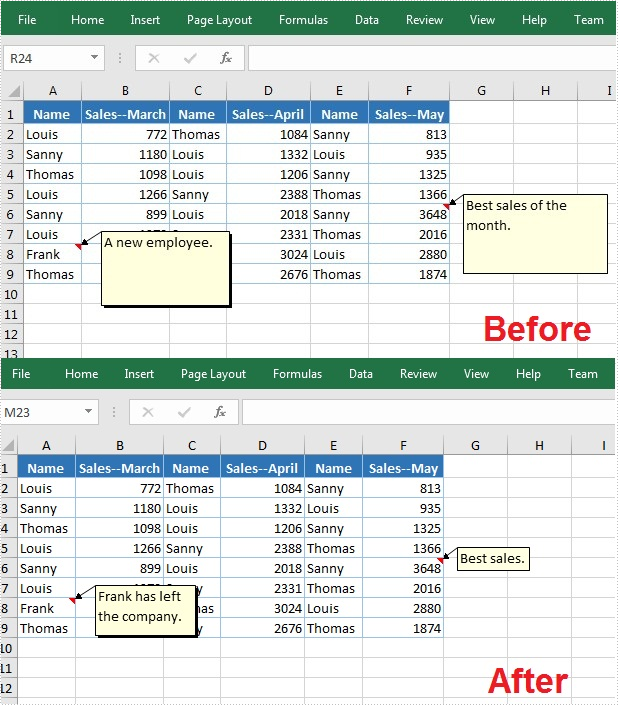
After adding comments to your Excel workbook, you may want to make changes to the added comments. The below table lists some of the core classes and methods used to get the existing comments and then set new text as well as formatting for the comments.
| Name | Description |
| ExcelCommentObject Class | Represents a comment in an Excel document. |
| CellRange.getComment() Method | Returns a comment object that represents a comment in a specific cell range. |
| ExcelCommentObject.setText() Method | Sets the comment text. |
| ExcelCommentObject.setHeight() Method | Sets height of a comment. |
| ExcelCommentObject.setWidth() Method | Sets width of a comment. |
| ExcelCommentObject.setAutoSize() Method | Sets whether the size of the specified object is changed automatically to fit text within its boundaries. |
The following are steps to edit comments in Excel:
- Create a Workbook instance.
- Load an Excel file using Workbook.loadFromFile() method.
- Get the first worksheet of the Excel file using WorksheetsCollection.get() method.
- Get a comment in a specific cell range using CellRange.getComment() method and then set new text and height/width or auto size for the existing comment using the methods offered by ExcelCommentObject class.
- Save the document to another file using Workbook.saveToFile() method.
- Java
import com.spire.xls.*;

public class ModifyComment {
    public static void main(String[] args) {

        //Create a Workbook instance
        Workbook wb = new Workbook();

        //Load an Excel file
        wb.loadFromFile("Comments.xlsx");

        //Get the first worksheet
        Worksheet sheet = wb.getWorksheets().get(0);

        //Get comments in specific cells and set new comments
        sheet.getRange().get("A8").getComment().setText("Frank has left the company.");
        sheet.getRange().get("F6").getComment().setText("Best sales.");

        //Set the height and width of the new comments
        sheet.getRange().get("A8").getComment().setHeight(50);
        sheet.getRange().get("A8").getComment().setWidth(100);
        sheet.getRange().get("F6").getComment().setAutoSize(true);

        //Save to file.
        wb.saveToFile("ModifyComment.xlsx",ExcelVersion.Version2013);
        wb.dispose();
    }
}
Remove Comments in Excel
The following are steps to remove a comment in Excel:
- Create a Workbook instance.
- Load an Excel file using Workbook.loadFromFile() method.
- Get the first worksheet of the Excel file using WorksheetsCollection.get() method.
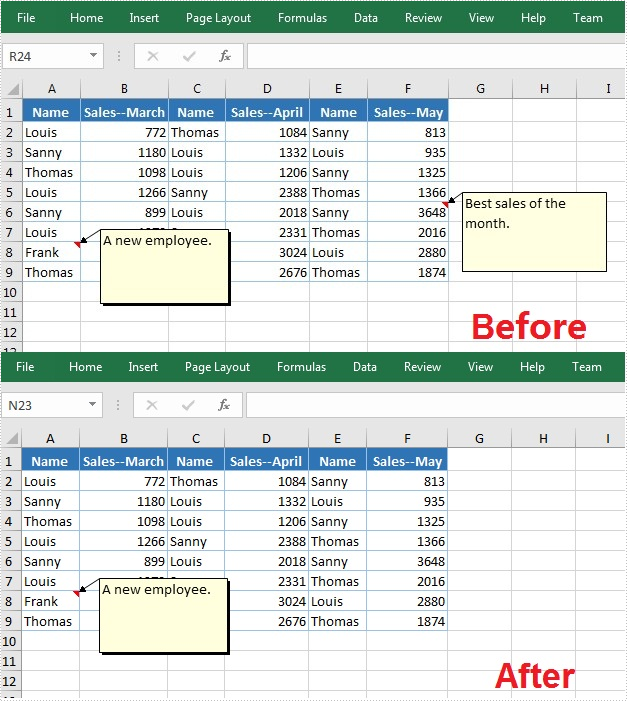
- Get a comment in a specific cell range using CellRange.getComment() method and then delete the comment using ExcelCommentObject.remove() method.
- Save the document to another file using Workbook.saveToFile() method.
- Java
import com.spire.xls.*;

public class DeleteComment {
    public static void main(String[] args) {

        //Create a Workbook instance
        Workbook wb = new Workbook();

        //Load an Excel file
        wb.loadFromFile("Comments.xlsx");

        //Get the first worksheet
        Worksheet sheet = wb.getWorksheets().get(0);

        //Get the comment in a specific cell and remove it
        sheet.getRange().get("F6").getComment().remove();

        //Save to file.
        wb.saveToFile("DeleteComment.xlsx", ExcelVersion.Version2013);
        wb.dispose();
    }
}
Apply for a Temporary License
If you'd like to remove the evaluation message from the generated documents, or to get rid of the function limitations, please request a 30-day trial license for yourself.
Add image comment to Excel in Java
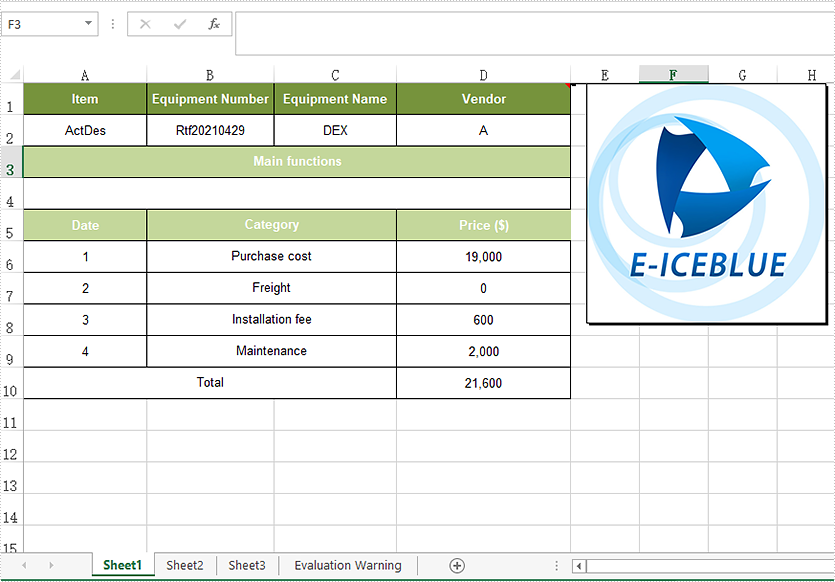
We have demonstrated how to add and read text comments in Excel in Java applications. This article will show you how to insert image comment to Excel with Spire.XLS for Java.
import com.spire.xls.*;
import javax.imageio.ImageIO;
import java.awt.image.BufferedImage;
import java.io.*;

public class Test {
    public static void main(String[] args)throws IOException {
        //Load the sample Excel file
        Workbook workbook = new Workbook();
        workbook.loadFromFile("Sample.xlsx");
        //Get the first worksheet
        Worksheet sheet = workbook.getWorksheets().get(0);

        //set the font
        ExcelFont font = workbook.createFont();
        font.setFontName("Arial");
        font.setSize(11);
        font.setKnownColor(ExcelColors.Orange);

        CellRange range = sheet.getCellRange("D1");
        //Add the commet
        ExcelComment comment = range.addComment();
        //Load the image
        BufferedImage bufferedImage = ImageIO.read(new File("Logo.jpg"));
        //Use the image to fill the comment
        comment.getFill().customPicture(bufferedImage, "Logo.jpg");

        //Set the height and width for the comment
        comment.setHeight(bufferedImage.getHeight());
        comment.setWidth(bufferedImage.getWidth());
        //Show the comment
        comment.setVisible(true);

        //Save the document to file
        workbook.saveToFile("output/setimageComment.xlsx", ExcelVersion.Version2013);

    }
}
Output:
Java: Hide or Show Comments in Excel
Comments in Excel are blocks of text that can be added to cells, mainly used to provide additional explanation or supplemental information about the cell contents. Users can add comments to the specific cells to better explain the data of worksheets. However, sometimes too many comments will cause visual clutter or obstruct other content. To avoid this issue, existing comments can be hidden programmatically to make the worksheet more organized and readable. Hidden comments can also be easily displayed when necessary. This article will show you how to hide or show comments in Excel using Spire.XLS for Java.
Install Spire.XLS for Java
First of all, you're required to add the Spire.Xls.jar file as a dependency in your Java program. The JAR file can be downloaded from this link. If you use Maven, you can easily import the JAR file in your application by adding the following code to your project's pom.xml file.
<repositories>
    <repository>
        <id>com.e-iceblue</id>
        <name>e-iceblue</name>
        <url>https://repo.e-iceblue.com/nexus/content/groups/public/</url>
    </repository>
</repositories>
<dependencies>
    <dependency>
        <groupId>e-iceblue</groupId>
        <artifactId>spire.xls</artifactId>
        <version>16.8.4</version>
    </dependency>
</dependencies>
Hide Comments in Excel
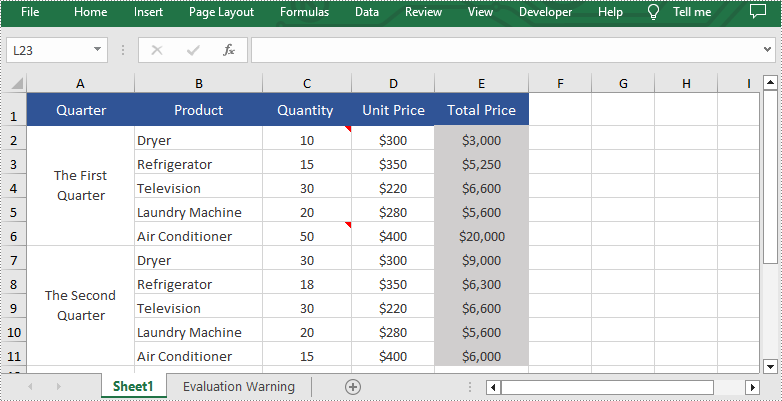
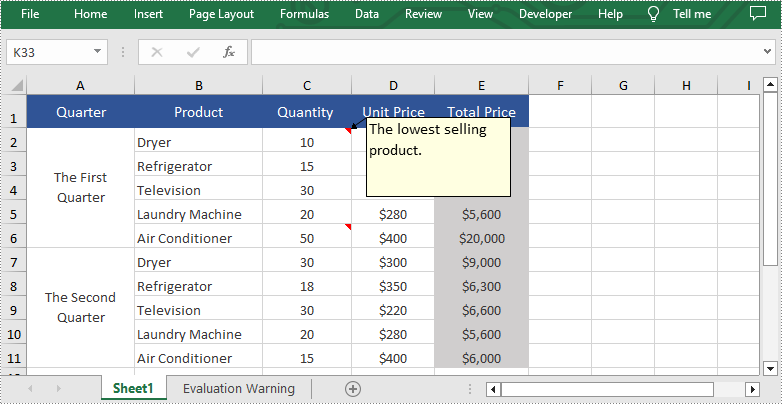
Spire.XLS for Java provides the Worksheet.getComments().get().isVisble() method to control the visibility of comments. You can easily hide existing comments by setting the parameter of this method to "false". The following are detailed steps to hide comments in excel.
- Create an object of Workbook class.
- Load a sample file from disk using Workbook.loadFromFile() method.
- Get the desired worksheet of this file by calling Workbook.getWorksheets().get() method.
- Hide the specific comments in this sheet by setting the parameter of the Worksheet.getComments().get().isVisble() method to "false".
- Finally, save the result file using Workbook.savaToFile() method.
- Java
import com.spire.xls.ExcelVersion;
import com.spire.xls.Workbook;
import com.spire.xls.Worksheet;

public class HideComment {
    public static void main(String[] args){

        //Create an object of Workbook class
        Workbook workbook = new Workbook();

        //Load a sample file from disk
        workbook.loadFromFile("Sample.xlsx");

        //Get the first worksheet in this file
        Worksheet sheet = workbook.getWorksheets().get(0);

        //Hide the first and the second comments in this sheet
        sheet.getComments().get(0).isVisible(false);
        sheet.getComments().get(1).isVisible(false);

        //Save the result file
        workbook.saveToFile("HideComment.xlsx", ExcelVersion.Version2013);
        workbook.dispose();
    }
}
Show Comments in Excel
Hidden comments can also be easily displayed when necessary. If you want to show them again, please set the parameter of the Worksheet.getComments().get().isVisble() method to "true". The following are detailed steps of showing hidden comments in excel.
- Create an object of Workbook class.
- Load a sample file from disk using Workbook.loadFromFile() method.
- Get the desired worksheet by calling Workbook.getWorksheets().get() method.
- Show the specific comment in this sheet by setting the parameter of the Worksheet.getComments().get().isVisble() method to "true".
- Finally, save the result file using Workbook.savaToFile() method.
- Java
import com.spire.xls.ExcelVersion;
import com.spire.xls.Workbook;
import com.spire.xls.Worksheet;

public class ShowComment {
    public static void main(String[] args){

        //Create an object of Workbook class
        Workbook workbook = new Workbook();

        //Load a sample file from disk
        workbook.loadFromFile("HideComment.xlsx");

        //Get the first worksheet in this file
        Worksheet sheet = workbook.getWorksheets().get(0);

        //Show the first comment in this sheet
        sheet.getComments().get(0).isVisible(true);

        //Save the result file
        workbook.saveToFile("ShowComment.xlsx", ExcelVersion.Version2013);
        workbook.dispose();
    }
}
Apply for a Temporary License
If you'd like to remove the evaluation message from the generated documents, or to get rid of the function limitations, please request a 30-day trial license for yourself.
Java: Insert or Format Comments in Excel
Comments in an Excel cell are commonly used for sharing extra information or reviews about the data inside the cell. Comments make it easy to remember, follow up, or reference the data in your worksheet. With Spire.XLS for Java, you can insert a comment to Excel as well as formatting a comment with easy. In this article, we will show you how to add a comment to your Excel spreadsheet in Java from the following three parts.
- Add Comments in an Excel Worksheet
- Apply Formatting to Comments in an Excel Worksheet
- Add Comment with Author in an Excel Worksheet
Install Spire.XLS for Java
First of all, you're required to add the Spire.Xls.jar file as a dependency in your Java program. The JAR file can be downloaded from this link. If you use Maven, you can easily import the JAR file in your application by adding the following code to your project's pom.xml file.
<repositories>
    <repository>
        <id>com.e-iceblue</id>
        <name>e-iceblue</name>
        <url>https://repo.e-iceblue.com/nexus/content/groups/public/</url>
    </repository>
</repositories>
<dependencies>
    <dependency>
        <groupId>e-iceblue</groupId>
        <artifactId>spire.xls</artifactId>
        <version>16.8.4</version>
    </dependency>
</dependencies>
Add Comments in an Excel Worksheet
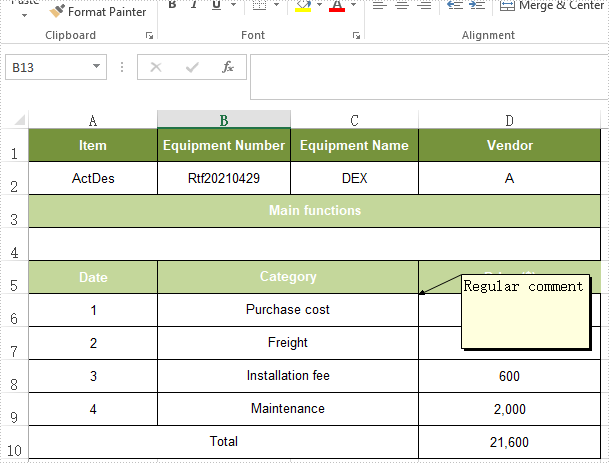
Spire.XLS offers the CellRange.addComment() method to insert the regular text comment to Excel worksheets.
- Create a Workbook instance.
- Load a sample Excel document using Workbook.loadFromFile() method.
- Get a specified worksheet using Workbook.getWorksheets().get() method.
- Add a comment in a specific cell range using CellRange.addComment() method and then set the comment text through the ExcelComment.setText() method.
- Save the document to another file using Workbook.saveToFile() method.
- Java
import com.spire.xls.*;

public class Excelcomment {
    public static void main(String[] args) throws Exception {

        //Load the sample document from file
        Workbook workbook = new Workbook();
        workbook.loadFromFile("Sample.xlsx");

        //Get the first worksheet
        Worksheet sheet = workbook.getWorksheets().get(0);

        //Add regular comment to specific cell range C6
        CellRange range = sheet.getCellRange("C6");
        ExcelComment comment = range.addComment();
        comment.setVisible(true);
        comment.setText("Regular comment");

        //Save the document to another file
        workbook.saveToFile("Addcomment.xlsx", ExcelVersion.Version2016);

    }
}
Apply Formatting to Comments in an Excel Worksheet
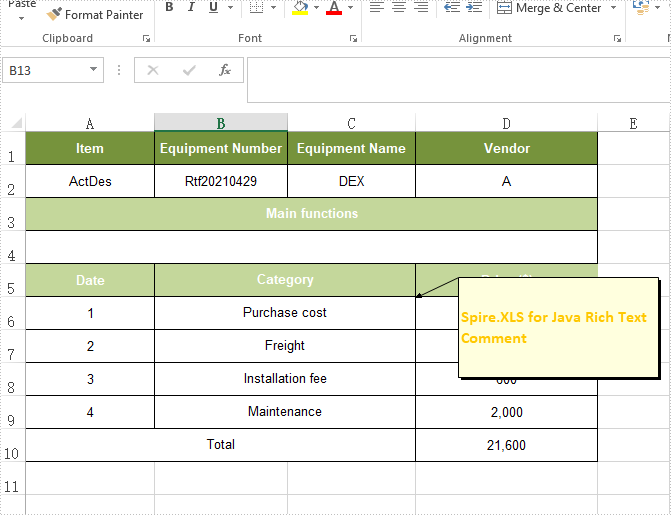
Spire.XLS offers the Comment.getRichText().setFont() method to apply font formatting for comments in Excel worksheets.
- Initialize an instance of Workbook class and load an Excel file using Workbook.loadFromFile() method.
- Get a specified worksheet using Workbook.getWorksheets().get() method.
- Add a comment in a specific cell range using CellRange.addComment() method and then set the comment text.
- Create an ExcelFont object and apply the font to the comment text using ExcelComment.getRichText.setFont() method.
- Save the document to another file using Workbook.saveToFile() method.
- Java
import com.spire.xls.*;

import java.awt.*;

public class Excelcomment {
    public static void main(String[] args) throws Exception {

        //Load the sample document from file
        Workbook workbook = new Workbook();
        workbook.loadFromFile("Sample.xlsx");

        //Get the first worksheet
        Worksheet sheet = workbook.getWorksheets().get(0);

        //Create font
        ExcelFont font = workbook.createFont();
        font.setFontName("Calibri");
        font.setSize(12);
        font.setColor(Color.orange);
        font.isBold(true);

        //Add regular comment to specific cell range C6
        CellRange range = sheet.getCellRange("C6");
        ExcelComment comment = range.addComment();
        comment.setVisible(true);
        comment.setHeight(100);
        comment.setWidth(200);
        comment.getRichText().setText("Spire.XLS for Java Rich Text Comment ");
        comment.getRichText().setFont(0, 40, font);
        comment.setTextRotation(TextRotationType.LeftToRight);

        //Set the alignment of text in Comment
        comment.setVAlignment(CommentVAlignType.Center);
        comment.setHAlignment(CommentHAlignType.Justified);


        //Save the document to another file
        workbook.saveToFile("AddRichTextcomment.xlsx", ExcelVersion.Version2016);

    }
}
Add Comment with Author in an Excel Worksheet
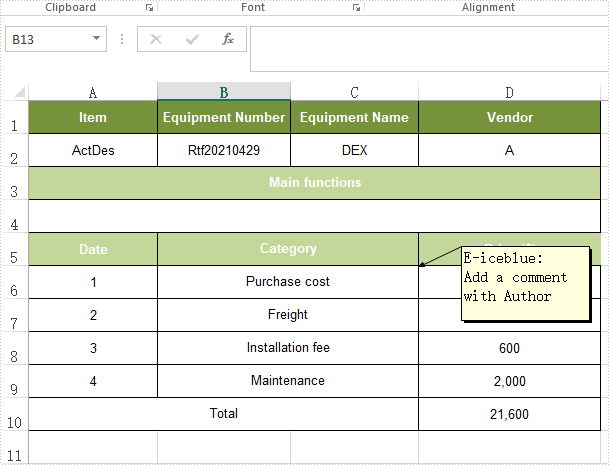
Spire.XLS offers the ExcelComment.setText() method to insert the comment with author to Excel worksheets.
- Create a Workbook instance.
- Load a sample Excel document using Workbook.loadFromFile() method.
- Get a specified worksheet using Workbook.getWorksheets().get() method.
- Add a comment in a specific cell range using CellRange.addComment() method.
- Define the comment text and author and then add them as the comment content through the ExcelComment.setText() method.
- Save the document to another file using Workbook.saveToFile() method.
- Java
import com.spire.xls.*;

public class Excelcomment {
    public static void main(String[] args) throws Exception {

        //Load the sample document from file
        Workbook workbook = new Workbook();
        workbook.loadFromFile("Sample.xlsx");

        //Get the first worksheet
        Worksheet sheet = workbook.getWorksheets().get(0);

        //Add regular comment to specific cell range C6
        CellRange range = sheet.getCellRange("C6");
        ExcelComment comment = range.addComment();
        comment.setVisible(true);

        //Set the author and comment content
        String text = "Add a comment with Author";
        String author = "E-iceblue:";
        comment.setText(author + "\r" + text);

        //Save the document to another file
        workbook.saveToFile("Addcomment.xlsx", ExcelVersion.Version2016);

    }
}
Apply for a Temporary License
If you'd like to remove the evaluation message from the generated documents, or to get rid of the function limitations, please request a 30-day trial license for yourself.