
Bookmark (5)
Bookmarks in PDF function as interactive table of contents, allowing users to quickly jump to specific sections within the document. Extracting these bookmarks not only provides a comprehensive overview of the document's structure, but also reveals its core parts or key information, providing users with a streamlined and intuitive method of accessing content. In this article, you will learn how to extract PDF bookmarks in Java using Spire.PDF for Java.
Install Spire.PDF for Java
First of all, you're required to add the Spire.Pdf.jar file as a dependency in your Java program. The JAR file can be downloaded from this link. If you use Maven, you can easily import the JAR file in your application by adding the following code to your project's pom.xml file.
<repositories>
    <repository>
        <id>com.e-iceblue</id>
        <name>e-iceblue</name>
        <url>https://repo.e-iceblue.com/nexus/content/groups/public/</url>
    </repository>
</repositories>
<dependencies>
    <dependency>
        <groupId>e-iceblue</groupId>
        <artifactId>spire.pdf</artifactId>
        <version>11.11.11</version>
    </dependency>
</dependencies>
Extract Bookmarks from PDF in Java
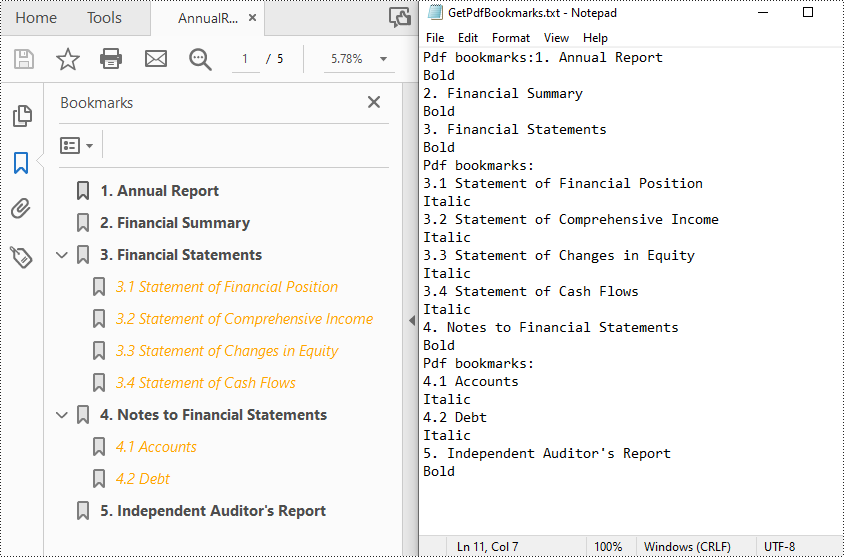
With Spire.PDF for Java, you can create custom methods GetBookmarks() and GetChildBookmark() to get the title and text styles of both parent and child bookmarks in a PDF file, then export them to a TXT file. The following are the detailed steps.
- Create a PdfDocument instance.
- Load a PDF file using PdfDocument.loadFromFile() method.
- Get bookmarks collection in the PDF file using PdfDocument.getBookmarks() method.
- Call custom methods GetBookmarks() and GetChildBookmark() to get the text content and text style of parent and child bookmarks.
- Export the extracted PDF bookmarks to a TXT file.
- Java
import com.spire.pdf.*;
import com.spire.pdf.bookmarks.*;
import java.io.*;

public class getAllPdfBookmarks {
    public static void main(String[] args) throws IOException{
        //Create a PdfDocument instance
        PdfDocument pdf = new PdfDocument();

        //Load a PDF file
        pdf.loadFromFile("AnnualReport.pdf");

        //Get bookmarks collections of the PDF file
        PdfBookmarkCollection bookmarks = pdf.getBookmarks();

        //Get the contents of bookmarks and save them to a TXT file
        GetBookmarks(bookmarks, "GetPdfBookmarks.txt");

    }

    private static void GetBookmarks(PdfBookmarkCollection bookmarks, String result) throws IOException {
        //create a StringBuilder instance
        StringBuilder content = new StringBuilder();

        //Get parent bookmarks information
        if (bookmarks.getCount() > 0) {
            content.append("Pdf bookmarks:");
            for (int i = 0; i < bookmarks.getCount(); i++) {
                PdfBookmark parentBookmark = bookmarks.get(i);
                content.append(parentBookmark.getTitle() + "\r\n");

                //Get the text style
                String textStyle = parentBookmark.getDisplayStyle().toString();
                content.append(textStyle + "\r\n");
                GetChildBookmark(parentBookmark, content);
            }
        }

        writeStringToTxt(content.toString(),result);
    }

    private static void GetChildBookmark(PdfBookmark parentBookmark, StringBuilder content)
    {
        //Get child bookmarks information
        if (parentBookmark.getCount() > 0)
        {
            content.append("Pdf bookmarks:" + "\r\n");
            for (int i = 0; i < parentBookmark.getCount(); i++)
            {
                PdfBookmark childBookmark = parentBookmark.get(i);
                content.append(childBookmark.getTitle() +"\r\n");

                //Get the text style
                String textStyle = childBookmark.getDisplayStyle().toString();
                content.append(textStyle +"\r\n");
                GetChildBookmark(childBookmark, content);
            }
        }
    }
    public static void writeStringToTxt(String content, String txtFileName) throws IOException {
        FileWriter fWriter = new FileWriter(txtFileName, true);
        try {
            fWriter.write(content);
        } catch (IOException ex) {
            ex.printStackTrace();
        } finally {
            try {
                fWriter.flush();
                fWriter.close();
            } catch (IOException ex) {
                ex.printStackTrace();
            }
        }
    }
}
Apply for a Temporary License
If you'd like to remove the evaluation message from the generated documents, or to get rid of the function limitations, please request a 30-day trial license for yourself.
This article will demonstrate how to expand or collapse the bookmarks when viewing the PDF files.
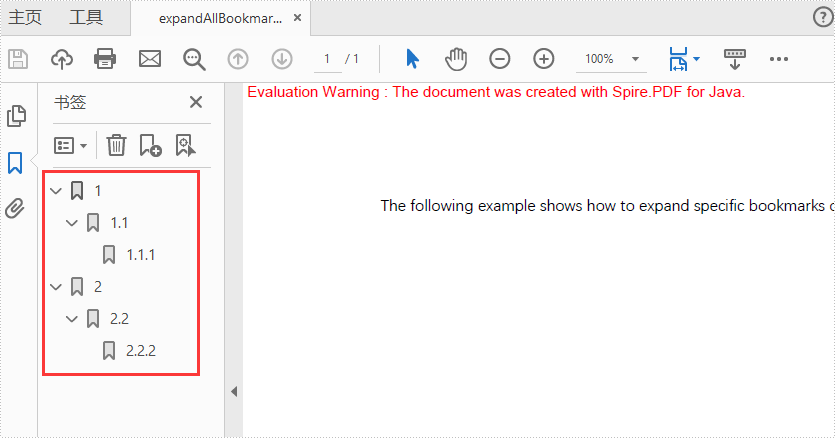
Expand all bookmarks on PDF
import com.spire.pdf.PdfDocument;

public class expandBookmarks {
    public static void main(String[] args) {

        PdfDocument doc = new PdfDocument();
        doc.loadFromFile("Sample.pdf");

        //Set true to expand all bookmarks; set false to collapse all bookmarks
        doc.getViewerPreferences().setBookMarkExpandOrCollapse(true);

        doc.saveToFile("output/expandAllBookmarks_out.pdf");
        doc.close();
    }
}
Output:
Expand specific bookmarks on PDF
import com.spire.pdf.PdfDocument;
import com.spire.pdf.bookmarks.*;

public class expandSpecificBookmarks {
    public static void main(String[] args) {

        PdfDocument doc = new PdfDocument();
        doc.loadFromFile("Sample.pdf");

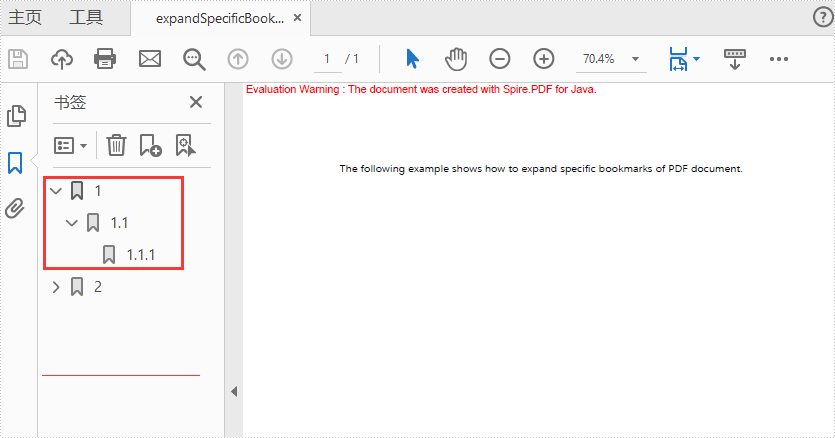
        //Set BookMarkExpandOrCollapse as "true" for the first bookmarks
        doc.getBookmarks().get(0).setExpandBookmark(true);

        //Set BookMarkExpandOrCollapse as "false" for the first level of the second bookmarks
        PdfBookmarkCollection pdfBookmark = doc.getBookmarks().get(1);
        pdfBookmark.get(0).setExpandBookmark(false);

        doc.saveToFile("output/expandSpecificBookmarks_out.pdf");
        doc.close();
    }
}
Only expand the first bookmarks
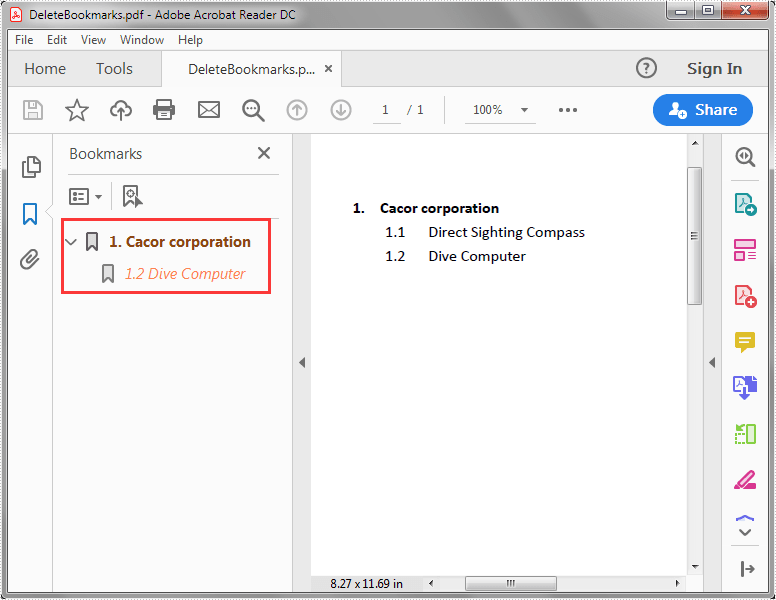
Spire.PDF for Java supports deleting a specific child bookmark, a parent bookmark along with its child bookmark(s) or delete all the bookmarks from a PDF file. In this article, you will learn how to delete PDF bookmarks using Spire.PDF for Java.
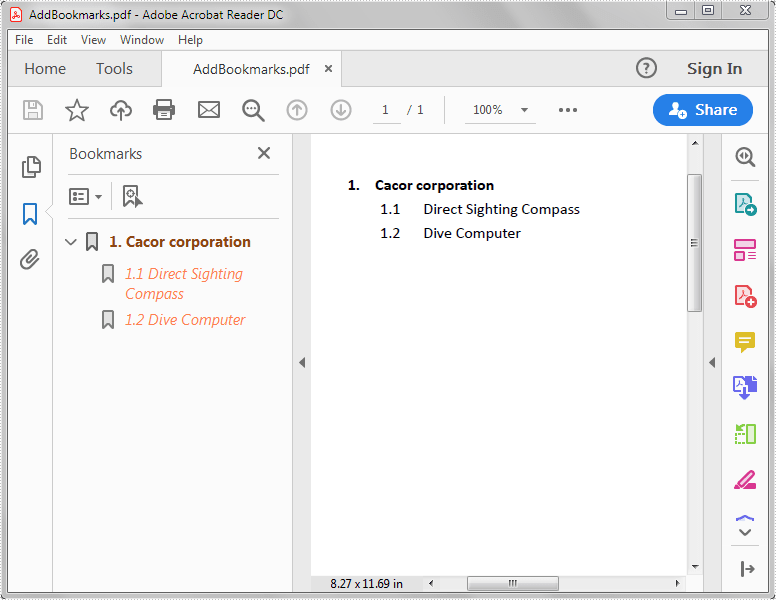
The input PDF file:
import com.spire.pdf.PdfDocument;

public class DeleteBookmarks {
    public static void main(String[] args) {
        //Create a PdfDocument instance
        PdfDocument pdf = new PdfDocument();
        //Load the PDF file
        pdf.loadFromFile("AddBookmarks.pdf");

        //Delete the first child bookmark
        pdf.getBookmarks().get(0).removeAt(0);

        //Delete the first bookmark along with its child bookmark
        //pdf.getBookmarks().removeAt(0);

        //Delete all the bookmarks
        //pdf.getBookmarks().clear();

        //Save the result file
        pdf.saveToFile("DeleteBookmarks.pdf");
    }
}
The output PDF file after deleting the first child bookmark:
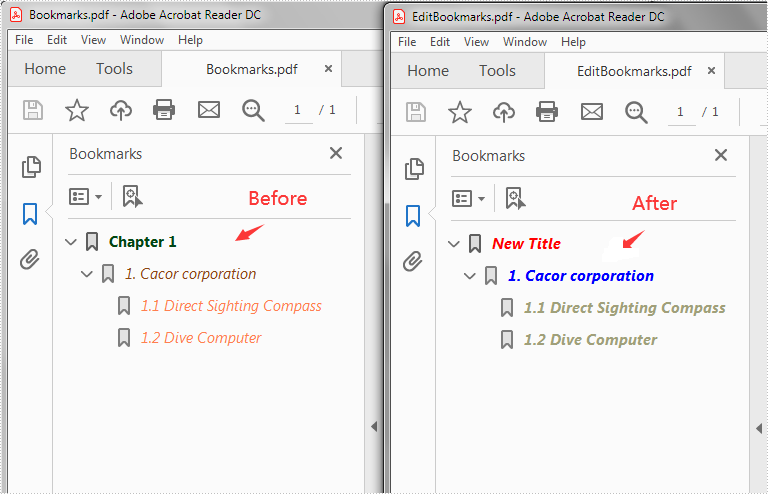
This article demonstrates how to edit the existing bookmarks in a PDF file, for example, change the bookmark title, font color and text style using Spire.PDF for Java.
import com.spire.pdf.PdfDocument;
import com.spire.pdf.bookmarks.PdfBookmark;
import com.spire.pdf.bookmarks.PdfTextStyle;
import com.spire.pdf.graphics.PdfRGBColor;

import java.awt.*;

public class EditBookmarks {
    public static void main(String[] args) {
        //Create a PdfDocument instance
        PdfDocument doc = new PdfDocument();
        //Load the PDF file
        doc.loadFromFile("Bookmarks.pdf");

        //Get the first bookmark
        PdfBookmark bookmark = doc.getBookmarks().get(0);
        //Change the title of the bookmark
        bookmark.setTitle("New Title");
        //Change the font color of the bookmark
        bookmark.setColor(new PdfRGBColor(new Color(255,0,0)));
        //Change the outline text style of the bookmark
        bookmark.setDisplayStyle(PdfTextStyle.Italic);

        //Edit child bookmarks of the first bookmark
        for (PdfBookmark childBookmark : (Iterable<PdfBookmark>) bookmark {
            childBookmark.setColor(new PdfRGBColor(new Color(0,0,255)));
            childBookmark.setDisplayStyle(PdfTextStyle.Bold);

            for (PdfBookmark childBookmark2 : (Iterable<PdfBookmark>) bookmark {
                childBookmark2.setColor(new PdfRGBColor(new Color(160,160,122)) );
                childBookmark2.setDisplayStyle(PdfTextStyle.Bold);
            }
        }

        //Save the result file
        doc.saveToFile("EditBookmarks.pdf");
        doc.close();
    }
}
Output:
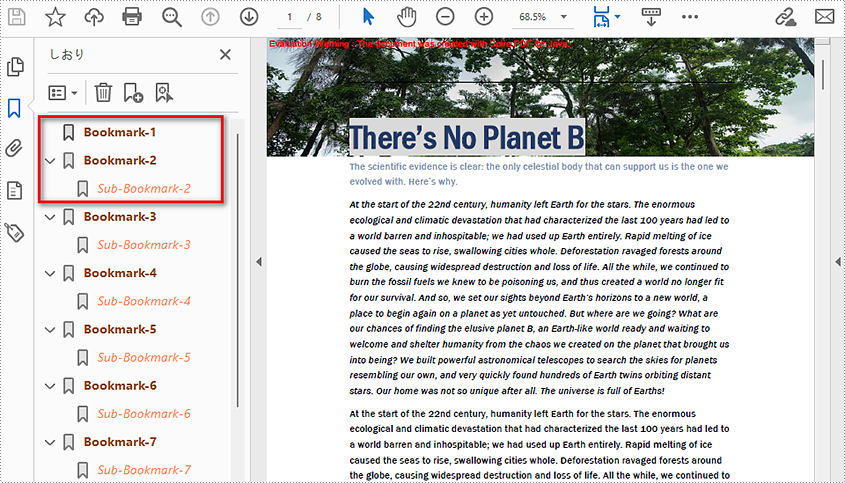
A bookmark in a PDF document consists of formatted text linking to a specific section of the document. Readers can navigate through pages by simply clicking on the bookmarks displayed on the side of the page instead of scrolling up and down, which is very helpful for those huge documents. Moreover, well-organized bookmarks can also serve as contents. When you create a PDF document with a lot of pages, it’s better to add bookmarks to link to significant content. This article is going to show how to add, modify, and remove bookmarks in PDF documents using Spire.PDF for Java through programming.
- Add Bookmarks to a PDF Document
- Edit Bookmarks in a PDF Document
- Delete Bookmarks from a PDF Document
Install Spire.PDF for Java
First of all, you're required to add the Spire.Pdf.jar file as a dependency in your Java program. The JAR file can be downloaded from this link. If you use Maven, you can easily import the JAR file in your application by adding the following code to your project's pom.xml file.
<repositories>
    <repository>
        <id>com.e-iceblue</id>
        <name>e-iceblue</name>
        <url>https://repo.e-iceblue.com/nexus/content/groups/public/</url>
    </repository>
</repositories>
<dependencies>
    <dependency>
        <groupId>e-iceblue</groupId>
        <artifactId>spire.pdf</artifactId>
        <version>11.11.11</version>
    </dependency>
</dependencies>
Add Bookmarks to a PDF Document
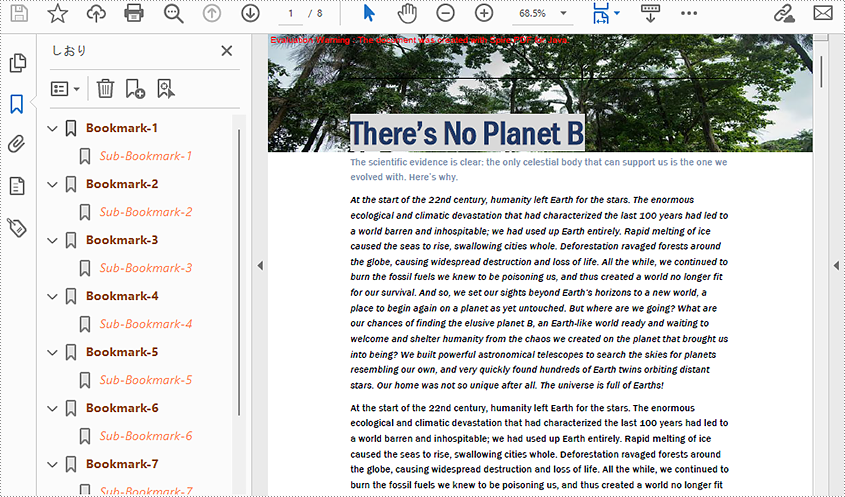
Spire.PDF for Java provides PdfDocument.getBookmarks().add() method to add bookmarks to a PDF document. In addition to adding primary bookmarks, we can use PdfBookmark.add() method to add a sub-bookmark to a primary bookmark. There are also many other methods under PdfBookmark class which are used to set the destination, text color, and text style of bookmarks. The detailed steps of adding bookmarks to a PDF document are as follows.
- Create a PdfDocument class instance.
- Load a PDF document using PdfDocument.loadFromFile() method.
- Loop through the pages in the PDF document to add bookmarks and set their styles.
- Add a primary bookmark to the document using PdfDocument.getBookmarks().add() method.
- Create a PdfDestination class object and set the destination of the primary bookmark using PdfBookmark.setAction() method.
- Set the text color of the primary bookmark using PdfBookmark.setColor() method.
- Set the text style of the Primary bookmark using PdfBookmark.setDisplayStyle() method.
- Add a sub-bookmark to the primary bookmark using PdfBookmark.add() method.
- Use the above methods to set the destination, text color, and text style of the sub-bookmark.
- Save the document using PdfDocument.saveToFile() method.
- Java
import com.spire.pdf.PdfDocument;
import com.spire.pdf.PdfPageBase;
import com.spire.pdf.actions.PdfGoToAction;
import com.spire.pdf.bookmarks.PdfBookmark;
import com.spire.pdf.bookmarks.PdfTextStyle;
import com.spire.pdf.general.PdfDestination;
import com.spire.pdf.graphics.PdfRGBColor;

import java.awt.*;
import java.awt.geom.Point2D;

public class addBookmark {
    public static void main(String[] args) {

        //Create a PdfDocument class instance
        PdfDocument pdf = new PdfDocument();

        //Load a PDF file
        pdf.loadFromFile("There's No Planet B.pdf");

        //Loop through the pages in the PDF file
        for(int i = 0; i< pdf.getPages().getCount();i++) {
            PdfPageBase page = pdf.getPages().get(i);
            //Add a bookmark
            PdfBookmark bookmark = pdf.getBookmarks().add(String.format("Bookmark-%s", i + 1));
            //Set the destination page and location
            PdfDestination destination = new PdfDestination(page, new Point2D.Float(0, 0));
            bookmark.setAction(new PdfGoToAction(destination));
            //Set the text color
            bookmark.setColor(new PdfRGBColor(new Color(139, 69, 19)));
            //Set the text style
            bookmark.setDisplayStyle(PdfTextStyle.Bold);
            //Add a child bookmark
            PdfBookmark childBookmark = bookmark.add(String.format("Sub-Bookmark-%s", i + 1));
            //Set the destination page and location
            PdfDestination childDestination = new PdfDestination(page, new Point2D.Float(0, 100));
            childBookmark.setAction(new PdfGoToAction(childDestination));
            //Set the text color
            childBookmark.setColor(new PdfRGBColor(new Color(255, 127, 80)));
            //Set the text style
            childBookmark.setDisplayStyle(PdfTextStyle.Italic);
        }

        //Save the result file
        pdf.saveToFile("AddBookmarks.pdf");
    }
}
Edit Bookmarks in a PDF Document
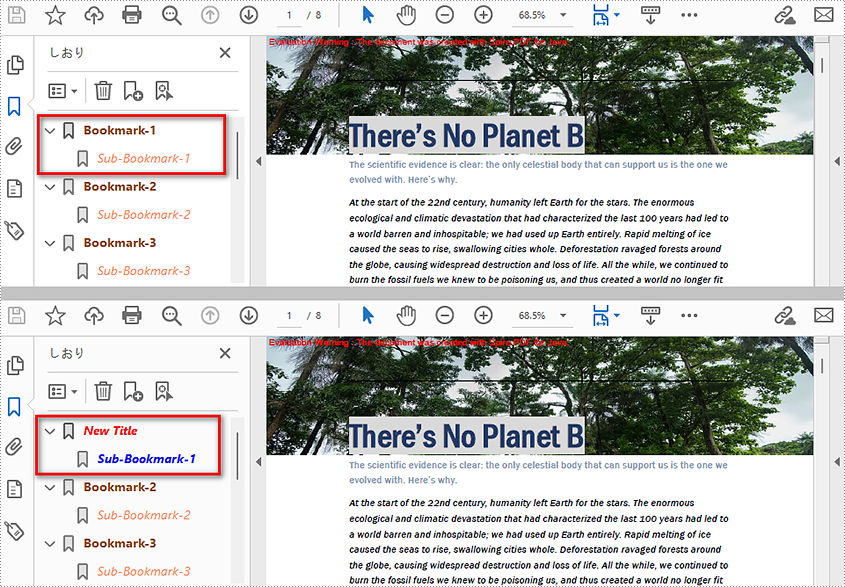
We can also use methods of PdfBookmark class in Spire.PDF for Java to edit existing PDF bookmarks. The detailed steps are as follows.
- Create a PdfDocument class instance.
- Load a PDF document using PdfDocument.loadFromFile() method.
- Get the first bookmark using PdfDocument.getBookmarks().get() method.
- Change the title of the bookmark using PdfBookmark.setTitle() method.
- Change the font color of the bookmark using PdfBookmark.setColor() method.
- Change the outline text style of the bookmark using PdfBookmark.setDisplayStyle() method.
- Change the text color and style of the sub-bookmark using the above methods.
- Save the document using PdfDocument.saveToFile() method.
- Java
import com.spire.pdf.PdfDocument;
import com.spire.pdf.bookmarks.PdfBookmark;
import com.spire.pdf.bookmarks.PdfTextStyle;
import com.spire.pdf.graphics.PdfRGBColor;

import java.awt.*;

public class editBookmarks {
    public static void main(String[] args) {

        //Create a PdfDocument class instance
        PdfDocument doc = new PdfDocument();

        //Load a PDF file
        doc.loadFromFile("AddBookmarks.pdf");

        //Get the first bookmark
        PdfBookmark bookmark = doc.getBookmarks().get(0);
        //Change the title of the bookmark
        bookmark.setTitle("New Title");
        //Change the font color of the bookmark
        bookmark.setColor(new PdfRGBColor(new Color(255,0,0)));
        //Change the outline text style of the bookmark
        bookmark.setDisplayStyle(PdfTextStyle.Italic);

        //Edit sub-bookmarks of the first bookmark
        for (PdfBookmark childBookmark : (Iterable) bookmark) {
            childBookmark.setColor(new PdfRGBColor(new Color(0,0,255)));
            childBookmark.setDisplayStyle(PdfTextStyle.Bold);
        }

        //Save the result file
        doc.saveToFile("EditBookmarks.pdf");
        doc.close();
    }
}
Delete Bookmarks from a PDF Document
We can use Spire.PDF for Java to delete any bookmark in a PDF document. PdfDocument.getBookmarks().removeAt() is used to remove a specific primary bookmark, PdfDocument.getBookmarks().clear() method is used to remove all bookmarks, and PdfBookmark.removeAt() method is used to remove a specific sub-bookmark of a primary bookmark. The detailed steps of removing bookmarks form a PDF document are as follows.
- Create PdfDocument class instance.
- Load a PDF document using PdfDocument.loadFromFile() method.
- Get the first bookmark using PdfDocument.getBookmarks().get() method.
- Remove the sub-bookmark of the first bookmark using PdfBookmark.removeAt() method.
- Save the document using PdfDocument.saveToFile() method.
- Java
import com.spire.pdf.PdfDocument;
import com.spire.pdf.bookmarks.PdfBookmark;

public class deleteBookmarks {
    public static void main(String[] args) {

        //Create a PdfDocument instance
        PdfDocument pdf = new PdfDocument();

        //Load the PDF file
        pdf.loadFromFile("AddBookmarks.pdf");

        //Get the first bookmark
        PdfBookmark pdfBookmark = pdf.getBookmarks().get(0);

        //Delete the sub-bookmark of the first bookmark
        pdfBookmark.removeAt(0);

        //Delete the first bookmark along with its child bookmark
        //pdf.getBookmarks().removeAt(0);

        //Delete all the bookmarks
        //pdf.getBookmarks().clear();

        //Save the result file
        pdf.saveToFile("DeleteBookmarks.pdf");
    }
}
Apply for a Temporary License
If you'd like to remove the evaluation message from the generated documents, or to get rid of the function limitations, please request a 30-day trial license for yourself.
