
Conversion (21)
In daily work, converting a Word document to other formats can be extremely frequent. For example, sometimes you may need to convert a Word document to XML to store and organize data; on some occasions, you may also need to convert Word to SVG for sharing graphics contents on the Internet. In this article, you will learn how to convert Word to XPS, XML, RTF, TXT and SVG using Spire.Doc for Java.
Install Spire.Doc for Java
First of all, you're required to add the Spire.Doc.jar file as a dependency in your Java program. The JAR file can be downloaded from this link. If you use Maven, you can easily import the JAR file in your application by adding the following code to your project's pom.xml file.
<repositories>
    <repository>
        <id>com.e-iceblue</id>
        <name>e-iceblue</name>
        <url>https://repo.e-iceblue.com/nexus/content/groups/public/</url>
    </repository>
</repositories>
<dependencies>
    <dependency>
        <groupId>e-iceblue</groupId>
        <artifactId>spire.doc</artifactId>
        <version>14.9.5</version>
    </dependency>
</dependencies>
Convert Word to XPS, XML, RTF, TXT and SVG
The following are the main steps to convert Word to XPS, XML, RTF, TXT and SVG.
- Create a Document object.
- Load the document using Document.loadFromFile() method.
- Use Document.saveToFile() method to save the document as SVG, RTF, XPS, XML and TXT respectively.
- Java
import com.spire.doc.Document;
import com.spire.doc.FileFormat;
import com.spire.doc.documents.ImageType;

import javax.imageio.ImageIO;
import java.awt.image.BufferedImage;
import java.io.File;
import java.io.IOException;

public class ConvertWordToOtherFormats {

    public static void main(String[] args) throws IOException {

        //Create a Document object.
        Document doc = new Document();

        //Load the Word document.
        doc.loadFromFile("C:\\Users\\Administrator\\Desktop\\sample.docx");

        //Save Word as SVG.
        doc.saveToFile("output/ToSVG.svg",FileFormat.SVG);

        //Save Word as RTF.
        doc.saveToFile("output/ToRTF.rtf",FileFormat.Rtf);

        //Save Word as XPS.
        doc.saveToFile("output/ToXPS.xps",FileFormat.XPS);

        //Save Word as XML.
        doc.saveToFile("output/ToXML.xml",FileFormat.Xml);

        //Save Word as TXT.
        doc.saveToFile("output/ToTXT.txt",FileFormat.Txt);
    }
}
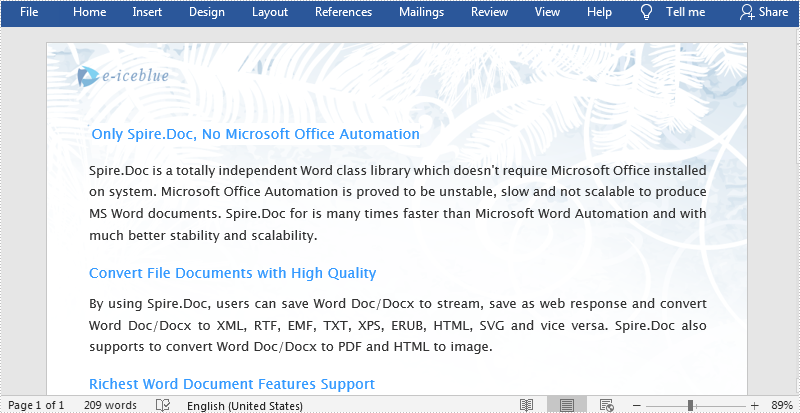
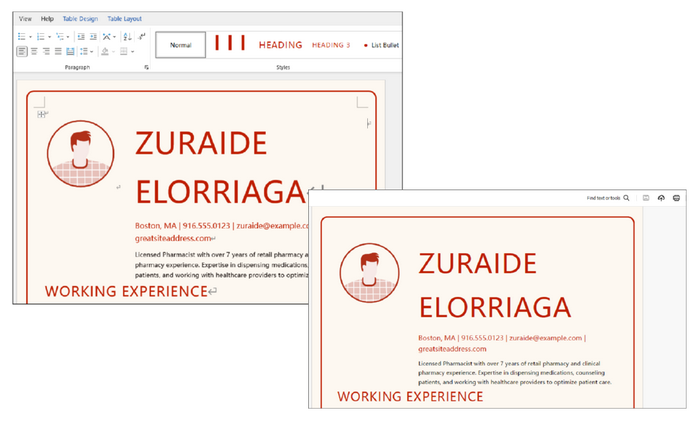
The original Word file:
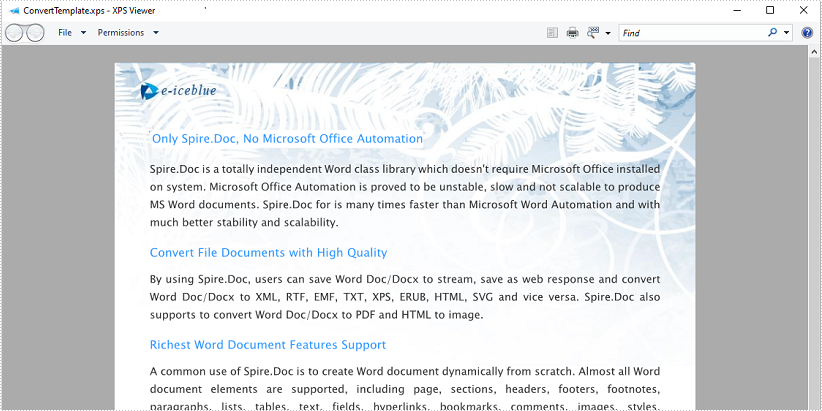
The generated XPS file:
Apply for a Temporary License
If you'd like to remove the evaluation message from the generated documents, or to get rid of the function limitations, please request a 30-day trial license for yourself.
An HTML (Hyper Text Markup Language) file is a webpage coded in HTML that can be displayed in a Web browser. It is widely used on the Web as most static webpages have an .html extension. In some cases, you need to convert some document formats (such as Word) to HTML. This tutorial will demonstrate how to convert Word to HTML using Spire.Doc for Java.
Install Spire.Doc for Java
First of all, you're required to add the Spire.Doc.jar file as a dependency in your Java program. The JAR file can be downloaded from this link. If you use Maven, you can easily import the JAR file in your application by adding the following code to your project's pom.xml file.
<repositories>
    <repository>
        <id>com.e-iceblue</id>
        <name>e-iceblue</name>
        <url>https://repo.e-iceblue.com/nexus/content/groups/public/</url>
    </repository>
</repositories>
<dependencies>
    <dependency>
        <groupId>e-iceblue</groupId>
        <artifactId>spire.doc</artifactId>
        <version>14.9.5</version>
    </dependency>
</dependencies>
Convert Word to HTML
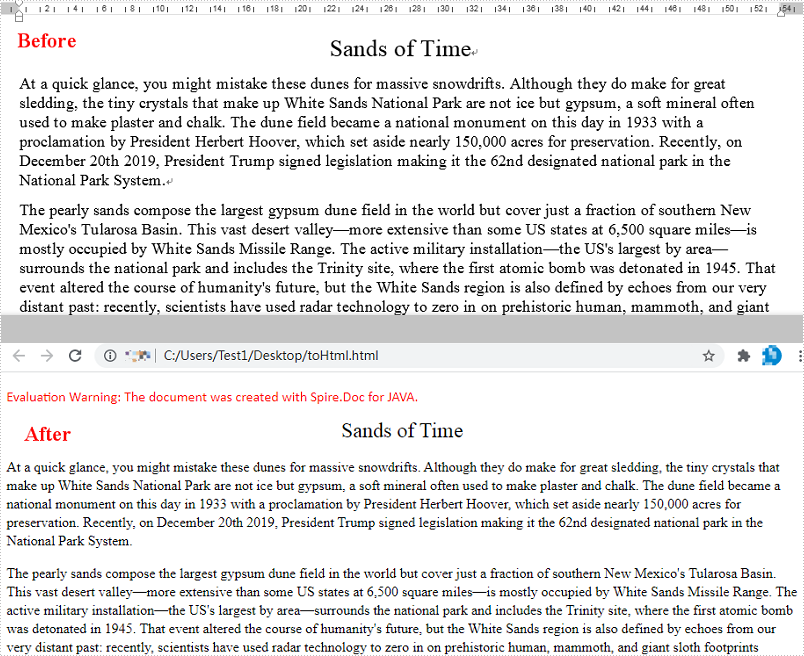
Spire.Doc for Java can easily convert Word to HTML using Document.saveToFile() method. You can find the steps as blow.
- Create a Document instance.
- Load a Word document using Document.loadFromFile() method.
- Save the document as an HTML file using Document.saveToFile() method.
- Java
import com.spire.doc.*;

public class WordToHtml {
    public static void main(String[] args) {
        //Create a Document instance
        Document document = new Document();
        //Load a Word document
        document.loadFromFile("C:\\Users\\Test1\\Desktop\\sample.docx");

        //Save the document as HTML
        document.saveToFile("output/toHtml.html", FileFormat.Html);
    }
}
Apply for a Temporary License
If you'd like to remove the evaluation message from the generated documents, or to get rid of the function limitations, please request a 30-day trial license for yourself.
TIFF (Tagged Image File Format) is a flexible file format for storing raster graphics images. It's popular and widely supported by image-manipulation, scanning, faxing and word processing applications etc. The ability to store image data in a lossless format makes a TIFF file to be a useful image archive. In some cases, developers may need to convert documents in other format like Word to TIFF. In this article, we will describe how to achieve this task in Java using Spire.Doc for Java.
Install Spire.Doc for Java
First of all, you're required to add the Spire.Doc.jar file as a dependency in your Java program. The JAR file can be downloaded from this link. If you use Maven, you can easily import the JAR file in your application by adding the following code to your project's pom.xml file.
<repositories>
    <repository>
        <id>com.e-iceblue</id>
        <name>e-iceblue</name>
        <url>https://repo.e-iceblue.com/nexus/content/groups/public/</url>
    </repository>
</repositories>
<dependencies>
    <dependency>
        <groupId>e-iceblue</groupId>
        <artifactId>spire.doc</artifactId>
        <version>14.9.5</version>
    </dependency>
</dependencies>
Convert Word to TIFF
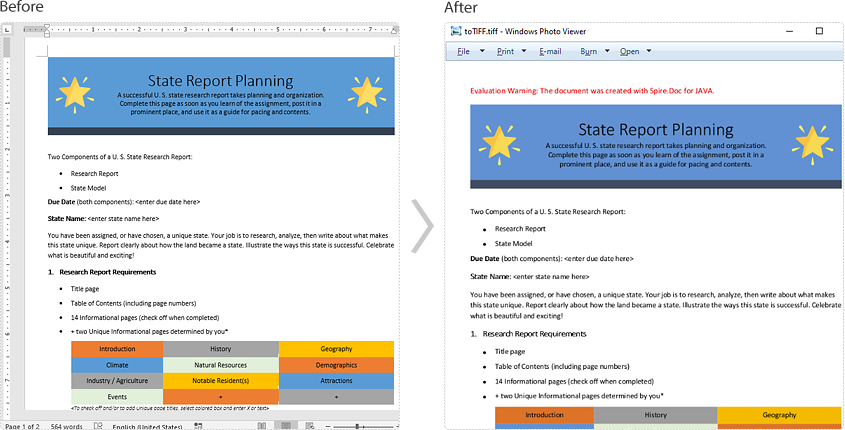
Spire.Doc for Java provides the Document.saveToTiff() method for converting Word to TIFF. This method accepts a String parameter which specifies the file path of the converted TIFF.
You can follow the steps below to convert a Word document to TIFF format:
- Create a Document instance.
- Load a Word document using Document.loadFromFile() method.
- Save the document to TIFF using Document.saveToTiff() method.
- Java
import com.spire.doc.Document;

public class ConvertWordToTiff {
    public static void main(String[] args){

        //Create a Document instance
        Document document = new Document();
        //Load a Word document
        document.loadFromFile("Sample.docx");

        //Save the document as multi-page TIFF
        document.saveToTiff("toTIFF.tiff");
    }
}
Apply for a Temporary License
If you'd like to remove the evaluation message from the generated documents, or to get rid of the function limitations, please request a 30-day trial license for yourself.
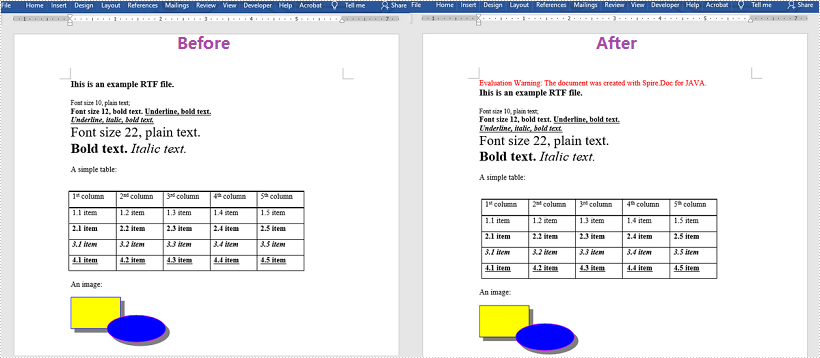
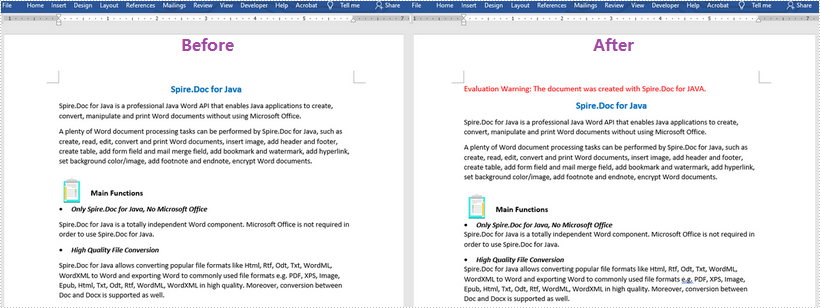
RTF, short for Rich Text Format, is created by Microsoft in 1987 for the purpose of cross-platform document interchange. It is supported by many word processing applications, and the most popular one among them is Microsoft Word. In certain circumstances, you may need to convert an RTF document to Word Doc/Docx format or convert a Word Doc/Docx document to RTF. In this article, you will learn how to accomplish this task using Spire.Doc for Java.
Install Spire.Doc for Java
First of all, you're required to add the Spire.Doc.jar file as a dependency in your Java program. The JAR file can be downloaded from this link. If you use Maven, you can easily import the JAR file in your application by adding the following code to your project's pom.xml file.
<repositories>
    <repository>
        <id>com.e-iceblue</id>
        <name>e-iceblue</name>
        <url>https://repo.e-iceblue.com/nexus/content/groups/public/</url>
    </repository>
</repositories>
<dependencies>
    <dependency>
        <groupId>e-iceblue</groupId>
        <artifactId>spire.doc</artifactId>
        <version>14.9.5</version>
    </dependency>
</dependencies>
Convert RTF to Word Doc/Docx
The following are the steps to convert an RTF document to Word Doc/Docx using Spire.Doc for Java:
- Create a Document instance.
- Load an RTF document using Document.loadFromFile(String, FileFormat) method.
- Save the RTF to Doc/Docx format using Document.saveToFile(String, FileFormat) method.
- Java
import com.spire.doc.Document;
import com.spire.doc.FileFormat;

public class RtfToDocDocx {
    public static void main(String[] args){
        //Create a Document instance
        Document document = new Document();

        //Load a RTF document
        document.loadFromFile("Input.rtf", FileFormat.Rtf);

        //Save the document to Doc
        document.saveToFile("toDoc.doc", FileFormat.Doc);

        //Save the document to Docx
        document.saveToFile("toDocx.docx", FileFormat.Docx_2013);
    }
}
Convert Word Doc/Docx to RTF
The steps to convert a Word Doc/Docx document to RTF is very similar with that of the above example:
- Create a Document instance.
- Load a Doc or Docx document using Document.loadFromFile(String) method.
- Save the Doc/Docx document to RTF using Document.saveToFile(String, FileFormat) method.
- Java
import com.spire.doc.Document;
import com.spire.doc.FileFormat;

public class DocDocxToRtf {
    public static void main(String[] args){
        //Create a Document instance
        Document document = new Document();

        //Load a Docx document
        document.loadFromFile("input.docx");

        //Load a Doc document
        //document.loadFromFile("sample.doc");

        //Save the document to RTF
        document.saveToFile("toRTF.rtf", FileFormat.Rtf);
    }
}
Apply for a Temporary License
If you'd like to remove the evaluation message from the generated documents, or to get rid of the function limitations, please request a 30-day trial license for yourself.
When processing HTML file, you may sometimes find them render differently depending on the browser and screen size. By converting HTML to PDF, you can maintain the layout and formatting of your HTML files, ensuring that the content looks consistent across devices and platforms. In this article, you will learn how to convert a HTML file or a HTML string to PDF in Java using Spire.Doc for Java.
Install Spire.Doc for Java
First of all, you're required to add the Spire.Doc.jar file as a dependency in your Java program. The JAR file can be downloaded from this link. If you use Maven, you can easily import the JAR file in your application by adding the following code to your project's pom.xml file.
<repositories>
    <repository>
        <id>com.e-iceblue</id>
        <name>e-iceblue</name>
        <url>https://repo.e-iceblue.com/nexus/content/groups/public/</url>
    </repository>
</repositories>
<dependencies>
    <dependency>
        <groupId>e-iceblue</groupId>
        <artifactId>spire.doc</artifactId>
        <version>14.9.5</version>
    </dependency>
</dependencies>
Convert an HTML File to PDF in Java
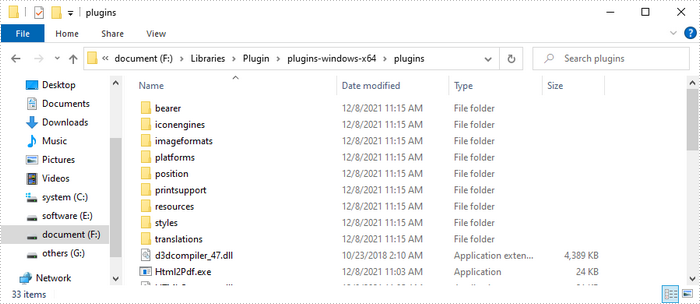
You can load an HTML file and then save it as a PDF file using the Document.saveToFile() method. The following are the detailed steps.
- Create a Document object.
- Load an HTML file using Document.loadFromFile() method.
- Convert the HTML file to PDF using Document.saveToFile(String fileName, FileFormat.PDF) method.
- Java
import com.spire.doc.*;
import com.spire.doc.documents.XHTMLValidationType;

public class htmlFileToPdf {
    public static void main(String[] args) {

        // Create a Document object
        Document document = new Document();

        // Load an HTML file into the document object
        document.loadFromFile("sample1.html", FileFormat.Html, XHTMLValidationType.None);

        // Save the HTML file to a PDF file
        document.saveToFile("htmlFileToPdf.pdf", FileFormat.PDF);
        document.dispose();
    }
}
Convert an HTML String to PDF in Java
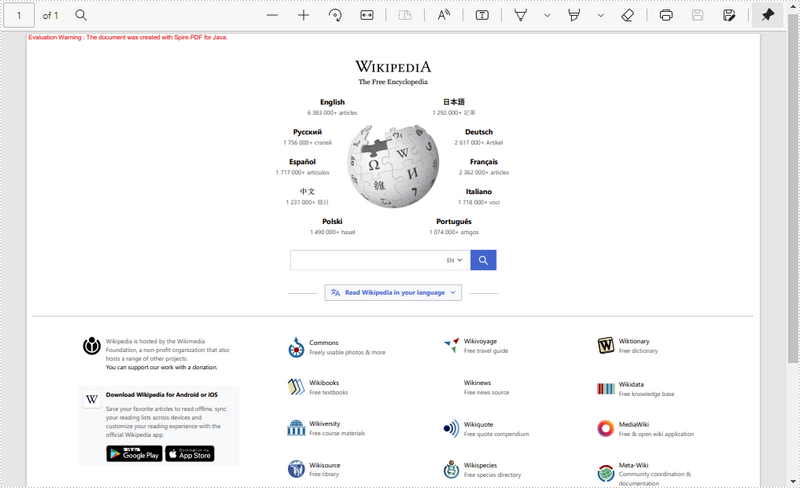
To convert an HTML string to PDF, you first need to add the HTML string to a paragraph in Word through the Paragraph.appendHTML() method, and then save the it as a PDF file. The following are the detailed steps.
- Create a Document object.
- Add a section using Document.addSection() method.
- Add a paragraph using Section.addParagraph() method.
- Specify the HTML string, and then add the HTML string to the paragraph using Paragraph.appendHTML() method.
- Save the document as a PDF file using Document.saveToFile(String fileName, FileFormat.PDF) method.
- Java
import com.spire.doc.*;
import com.spire.doc.documents.Paragraph;

import java.io.*;

public class htmlStringToPdf {
    public static void main(String[] args) throws IOException {

        // Create a Document object
        Document document = new Document();

        // Add a section to the document
        Section sec = document.addSection();

        // Add a paragraph to the section
        Paragraph paragraph = sec.addParagraph();

        // Specify the HTML string
        String htmlString = "<html><head><title>HTML to Word Example</title><style>, body {font-family: 'Calibri';}, h1 {color: #FF5733; font-size: 24px; margin-bottom: 20px;}, " +
                "p {color: #333333; font-size: 16px; margin-bottom: 10px;} ul {list-style-type: disc; margin-left: 20px; margin-bottom: 15px;}, " +
                "li {font-size: 14px; margin-bottom: 5px;}, table {border-collapse: collapse; width: 100%; margin-bottom: 20px;}" +
                "th, td {border: 1px solid #CCCCCC; padding: 8px; text-align: left;}, th {background-color: #F2F2F2; font-weight: bold;}, td {color: #0000FF;}</style></head>" +
                "<body><h1>This is a Heading</h1><p>This is a paragraph demonstrating the conversion of HTML to Word document.</p>" +
                "<p>Here's an example of an unordered list:</p><ul><li>Item 1</li><li>Item 2</li><li>Item 3</li></ul> " +
                "<p>Here's a table:</p><table><tr><th>Product</th><th>Quantity</th><th>Price</th></tr><tr><td>Jacket</td>" +
                "<td>30</td><td>$150</td></tr><tr><td>Sweater</td><td>25</td><td>$99</td></tr></table></body></html>";

        // Append the HTML string to the paragraph
        paragraph.appendHTML(htmlString);

        // Save the HTML string to a pdf file
        document.saveToFile("htmlStringToPDF.pdf", FileFormat.PDF);
        document.dispose();
    }
}
Apply for a Temporary License
If you'd like to remove the evaluation message from the generated documents, or to get rid of the function limitations, please request a 30-day trial license for yourself.
Convert Word to PDF Using Java – Complete Guide with Sample Code
2024-07-05 07:54:00 Written by AdministratorTo better understand the process, watch this short video demonstrating how to convert Word documents to PDF in Java before following the step-by-step guide below.
Converting Word documents (doc or .docx) to PDF is a common requirement in many Java-based applications, especially those involving documentation, report generation, or digital archiving. In this tutorial, we'll show you how to convert Word to PDF in Java using reliable and easy-to-implement libraries like Spire.Doc for Java. This guide will walk you through all the code examples from code library integration to converting Word files to PDF format seamlessly.
After reading this guide, you will learn:
- Specific Steps of How to Convert Doc/Docx Files to PDF Format with Spire.Doc for Java
- Advanced Settings When Converting Word Files to PDF
- How to Adjust Word Files When Converting Word to PDF with Java Code
Let's dive into the Java code for Word to PDF conversion and help your application automate document processing with just a few lines of code.
Specific Steps of How to Convert Doc/Docx Files to PDF Format with Spire.Doc for Java
Before going through the sample code, you should know one of the best Word Java library known as Spire.Doc for Java. It supports not only Word file format conversion, but more advanced settings including page size adjustment, font embed, specific area conversion, etc. It is a one time download for long-term benefits.
Follow the steps below to learn how you can convert Word files to PDF format with Spire.Doc for Java.
Step 1. Install Spire.Doc for Java
Before converting, you should add the Spire.Doc.jar file as a dependency in your Java program. You can download the JAR file from the official download page.
If you are using Maven, you can easily import the JAR file in your application by adding the following code to your project's pom.xml file directly:
<repositories>
    <repository>
        <id>com.e-iceblue</id>
        <name>e-iceblue</name>
        <url>https://repo.e-iceblue.com/nexus/content/groups/public/</url>
    </repository>
</repositories>
<dependencies>
    <dependency>
        <groupId>e-iceblue</groupId>
        <artifactId>spire.doc</artifactId>
        <version>14.9.5</version>
    </dependency>
</dependencies>
Step 2. Convert Word to PDF with Java Code
After library integration, now, it's time to convert your Word files. Copy the code below to your Java program:
import com.spire.doc.Document;
import com.spire.doc.FileFormat;

public class ConvertWordToPdf {

    public static void main(String[] args) {

        // Create a Document object
        Document doc = new Document();

        // Load a Word document
        doc.loadFromFile("C:\\Users\\Administrator\\Desktop\\Input.docx");

        // Save the document to PDF
        doc.saveToFile("ToPDF.pdf", FileFormat.PDF);

        // Dispose resources
        doc.dispose();
    }
}
RESULT:
Advanced Settings When Converting Word Files to PDF
Except for simply converting Word to PDF files, Spire.Doc for Java provides more options beyond simply conversion. For example, you can set a password to protect your PDF data with simple code during the conversion. You have no need to look for other tutorials. The following list is a preview of these settings, and you can directly jump to the corresponding part.
- Convert Word files to PDF/A Format with Java Code
- Convert Word Files to Password-Protected PDF in Java
- Convert a Specific Area in Word to PDF in Java
Convert Word files to PDF/A Format with Java Code
Spire.Doc for Java allows you to set the conformance level as Pdf/A-1a. To apply these customized settings, pass the ToPdfParameterList object as a parameter to the Document.saveToFile() method.
Copy the code below to convert your doc/docx to PDF/A files with Java:
import com.spire.doc.Document;
import com.spire.doc.ToPdfParameterList;
import com.spire.doc.PdfConformanceLevel;

public class ConvertWordToPdfa {

    public static void main(String[] args) {

        // Create a Document object
        Document doc = new Document();

        // Load a Word document
        doc.loadFromFile("C:\\Users\\Administrator\\Desktop\\input.docx");

        // Create a ToPdfParameterList object
        ToPdfParameterList parameters  = new ToPdfParameterList();

        // Set the conformance level for PDF
        parameters.setPdfConformanceLevel(PdfConformanceLevel.Pdf_A_1_A);

        // Save the document to a PDF file
        doc.saveToFile("C:\\Users\\Administrator\\Desktop\\ToPdfA.pdf", parameters);

        // Dispose resources
        doc.dispose();
    }
}
Convert Word Files to Password-Protected PDF in Java
To protect your data, you may need to set a password for the converted PDF file. In this part, you can encrypt the converted PDF documents with password during the conversion process without any hassle. By passing the ToPdfParameterList object as a parameter to the Document.saveToFile() method, these encryption settings will be applied during the saving process.
Copy the code below to encrypt converted PDF files during conversion with Java:
import com.spire.doc.Document;
import com.spire.doc.PdfPermissionsFlags;
import com.spire.doc.ToPdfParameterList;

public class ConvertWordToPasswordProtectedPdf {

    public static void main(String[] args) {

        // Create a Document object
        Document doc = new Document();

        // Load a Word document
        doc.loadFromFile("C:\\Users\\Administrator\\Desktop\\Input.docx");

        // Create a ToPdfParameterList object
        ToPdfParameterList parameters = new ToPdfParameterList();

        // Set open password and permission password for PDF
        parameters.getPdfSecurity().encrypt("openPsd", PdfPermissionsFlags.valueOf("permissionPsd"));

        // Save the document to PDF
        doc.saveToFile("PasswordProtected.pdf", parameters);

        // Dispose resources
        doc.dispose();
    }
}
Convert a Specific Area in Word to PDF in Java
The third section is that you can create a copy of a certain section with Spire.Doc's Section.deepClone() method and use the SectionCollection.add() method to add the copied section to the section collection of another document.
You can easily create a document containing the desired section from the source document with the following Java code:
import com.spire.doc.Document;
import com.spire.doc.FileFormat;
import com.spire.doc.Section;

public class ConvertSectionToPdf {

    public static void main(String[] args) {

        // Create a Document object
        Document doc = new Document();

        // Load a Word document
        doc.loadFromFile("C:\\Users\\Administrator\\Desktop\\Input.docx");

        // Get a specific section of the document
        Section section = doc.getSections().get(1);

        // Create a new document object
        Document newDoc = new Document();

        // Clone the default style to the new document
        doc.cloneDefaultStyleTo(newDoc);

        // Clone the section to the new document
        newDoc.getSections().add(section.deepClone());

        // Save the new document to PDF
        newDoc.saveToFile("SectionToPDF.pdf", FileFormat.PDF);

        // Dispose resources
        doc.dispose();
        newDoc.dispose();
    }
}
How to Adjust Word Files When Converting Word to PDF with Java Code
To get the best conversion result, you can make more adjustment to your Word documents during the conversion process. For example, you can embed fonts, adjust page size, set image quality, create bookmarks, or modify hyperlink with Java code.
Here, I will take one adjustment as an example to show you how to manage it. If you need to apply other adjustments, you can directly click the link above and jump to the corresponding page.
Example: Set Image Quality During Word to PDF Conversion
Image quality is a vital element when converting DOC/DOCX files to PDF format. It may influence the conversion speed and play an important role in the conversion result. With Spire.Doc for Java, you can set the image quality according to your specific needs to ensure the highest efficiency.
Copy the following code in your Java program to adjust picture quality:
import com.spire.doc.Document;
import com.spire.doc.FileFormat;

public class SetImageQualityDuringConversion {

    public static void main(String[] args) {

        // Create a Document object
        Document doc = new Document();

        // Load a Word document
        doc.loadFromFile("C:\\Users\\Administrator\\Desktop\\Input.docx");

        // Set the image quality to 50% of the original quality
        doc.setJPEGQuality(50);

        // Preserve original image quality
        // doc.setJPEGQuality(100);

        // Save the document to PDF
        doc.saveToFile("SetImageQuality.pdf", FileFormat.PDF);

        // Dispose resources
        doc.dispose();
    }
}
Final Words
Converting Word to PDF in Java is simple and efficient with Spire.Doc for Java. From basic conversion to advanced options like password protection, section export, and image quality settings, you can handle it all with just a few lines of code.
If you'd like to access all features without limitations and remove the evaluation watermark, please request a 30-day trial license for yourself.
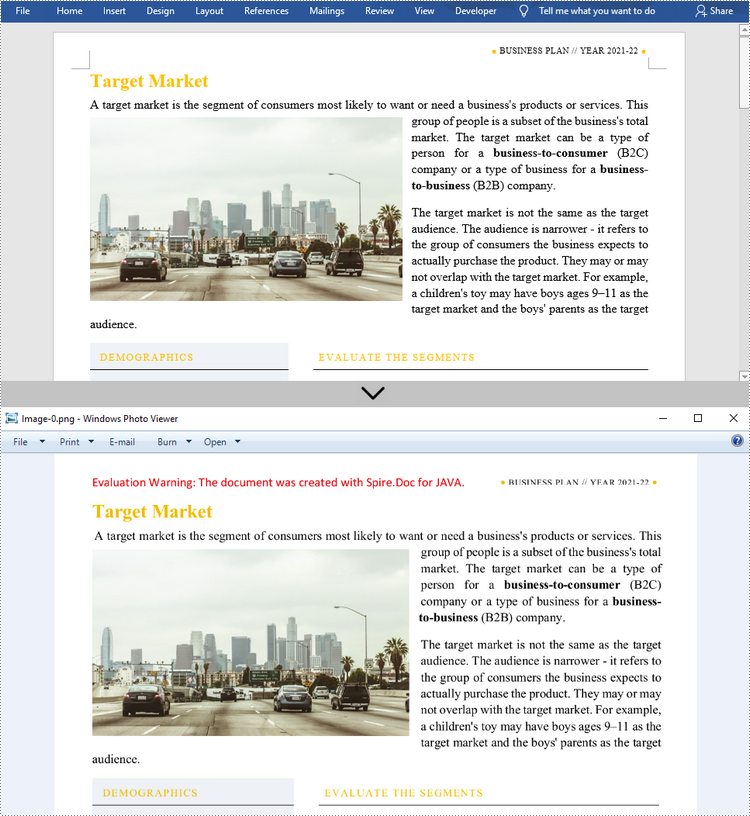
There are many reasons why you might need to convert Word documents to images. For example, a lot of devices can open and display images directly without any special software, and when images are transmitted their content is difficult to be tampered with. In this article, you will learn how to convert Word to popular image formats such as JPG, PNG and SVG using Spire.Doc for Java.
- Convert Word to JPG in Java
- Convert Word to SVG in Java
- Convert Word to PNG with Customized Resolution
Install Spire.Doc for Java
First, you're required to add the Spire.Doc.jar file as a dependency in your Java program. The JAR file can be downloaded from this link. If you use Maven, you can easily import the JAR file in your application by adding the following code to your project's pom.xml file.
<repositories>
    <repository>
        <id>com.e-iceblue</id>
        <name>e-iceblue</name>
        <url>https://repo.e-iceblue.com/nexus/content/groups/public/</url>
    </repository>
</repositories>
<dependencies>
    <dependency>
        <groupId>e-iceblue</groupId>
        <artifactId>spire.doc</artifactId>
        <version>14.9.5</version>
    </dependency>
</dependencies>
Convert Word to JPG in Java
Spire.Doc for Java offers the Document.saveToImages() method to convert a whole Word document into individual BufferedImage images. Then, each BufferedImage can be saved as a BMP, EMF, JPEG, PNG, GIF, or WMF file. The following are the steps to convert Word to JPG using this library.
- Create a Document object.
- Load a Word document using Document.loadFromFile() method.
- Convert the document to BufferedImage images using Document.saveToImages() method.
- Loop through the image collection to get the specific one.
- Re-write the image with different color space.
- Write the BufferedImage to a JPG file.
- Java
import com.spire.doc.Document;
import com.spire.doc.documents.ImageType;
import javax.imageio.ImageIO;
import java.awt.image.BufferedImage;
import java.io.File;
import java.io.IOException;

public class ConvertWordToJPG {

    public static void main(String[] args) throws IOException {

        //Create a Document object
        Document doc = new Document();

        //Load a Word document
        doc.loadFromFile("C:\\Users\\Administrator\\Desktop\\ConvertTemplate.docx");

        //Convert the whole document into individual buffered images
        BufferedImage[] images = doc.saveToImages(ImageType.Bitmap);

        //Loop through the images
        for (int i = 0; i < images.length; i++) {

            //Get the specific image
            BufferedImage image = images[i];

            //Re-write the image with a different color space
            BufferedImage newImg = new BufferedImage(image.getWidth(), image.getHeight(), BufferedImage.TYPE_INT_RGB);
            newImg.getGraphics().drawImage(image, 0, 0, null);

            //Write to a JPG file
            File file = new File("C:\\Users\\Administrator\\Desktop\\Images\\" + String.format(("Image-%d.jpg"), i));
            ImageIO.write(newImg, "JPEG", file);
        }
    }
}
Convert Word to SVG in Java
Using Spire.Doc for Java, you can save a Word document as a list of byte arrays. Each byte array can then be written as a SVG file. The detailed steps to convert Word to SVG are as follows.
- Create a Document object.
- Load a Word file using Document.loadFromFile() method.
- Save the document as a list of byte arrays using Document.saveToSVG() method.
- Loop through the items in the list to get a specific byte array.
- Write the byte array to a SVG file.
- Java
import com.spire.doc.Document;
import java.io.FileOutputStream;
import java.io.IOException;
import java.util.List;

public class ConvertWordToSVG {

    public static void main(String[] args) throws IOException {

        //Create a Document object
        Document doc = new Document();

        //Load a Word document
        doc.loadFromFile("C:\\Users\\Administrator\\Desktop\\ConvertTemplate.docx");

        //Save the document as a list of byte arrays
        List<byte[]> svgBytes = doc.saveToSVG();

        //Loop through the items in the list
        for (int i = 0; i < svgBytes.size(); i++)
        {
            //Get a specific byte array
            byte[] byteArray = svgBytes.get(i);

            //Specify the output file name
            String outputFile = String.format("Image-%d.svg", i);

            //Write the byte array to a SVG file
            try (FileOutputStream stream = new FileOutputStream("C:\\Users\\Administrator\\Desktop\\Images\\" + outputFile)) {
                stream.write(byteArray);
            }
        }
    }
}
Convert Word to PNG with Customized Resolution
An image with higher resolution is generally more clear. You can customize the image resolution while converting Word to PNG by following the following steps.
- Create a Document object.
- Load a Word file using Document.loadFromFile() method.
- Convert the document to BufferedImage images with the specified resolution using Document.saveToImages() method.
- Loop through the image collection to get the specific one and save it as a PNG file.
- Java
import com.spire.doc.Document;
import com.spire.doc.documents.ImageType;
import javax.imageio.ImageIO;
import java.awt.image.BufferedImage;
import java.io.File;
import java.io.IOException;

public class ConvertWordToPNG {

    public static void main(String[] args) throws IOException {

        //Create a Document object
        Document doc = new Document();

        //Load a Word document
        doc.loadFromFile("C:\\Users\\Administrator\\Desktop\\ConvertTemplate.docx");

        //Convert the whole document into individual buffered images with customized resolution
        BufferedImage[] images = doc.saveToImages(0, doc.getPageCount(), ImageType.Bitmap, 150, 150);

        //Loop through the images
        for (int i = 0; i < images.length; i++) {

            //Get the specific image
            BufferedImage image = images[i];

            //Write to a PNG file
            File file = new File("C:\\Users\\Administrator\\Desktop\\Images\\" + String.format(("Image-%d.png"), i));
            ImageIO.write(image, "PNG", file);
        }
    }
}
Apply for a Temporary License
If you'd like to remove the evaluation message from the generated documents, or to get rid of the function limitations, please request a 30-day trial license for yourself.
