
Worksheet (16)
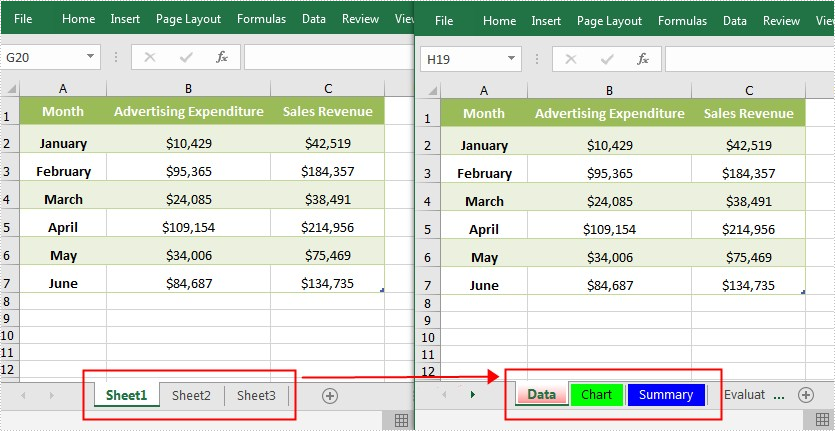
Usually, an Excel document may contain several worksheets with similar names such as Sheet1, Sheet2, Sheet3. In order to make the document more organized and at the same time facilitate your search, it is advisable to rename these worksheets and set different tab colors. In this article, you will learn how to achieve this task programmatically using Spire.XLS for Java.
Install Spire.XLS for Java
First of all, you're required to add the Spire.Xls.jar file as a dependency in your Java program. The JAR file can be downloaded from this link. If you use Maven, you can easily import the JAR file in your application by adding the following code to your project's pom.xml file.
<repositories>
    <repository>
        <id>com.e-iceblue</id>
        <name>e-iceblue</name>
        <url>https://repo.e-iceblue.com/nexus/content/groups/public/</url>
    </repository>
</repositories>
<dependencies>
    <dependency>
        <groupId>e-iceblue</groupId>
        <artifactId>spire.xls</artifactId>
        <version>16.10.1</version>
    </dependency>
</dependencies>
Rename Excel Worksheets and Set Tab Colors
The detailed steps are as follows:
- Create a Workbook object.
- Load a sample Excel document using Workbook.loadFromFile() method.
- Get a specified worksheet using Workbook.getWorksheets().get() method.
- Rename the specified worksheet using Worksheet.setName() method.
- Set tab color for the specified worksheet using Worksheet.setTabColor() method.
- Save the document to another file using Workbook.saveToFile() method.
- Java
import com.spire.xls.*;
import java.awt.*;

public class RenameSheetandSetTabColor {
    public static void main(String[] args) {
        //Create a Workbook object
        Workbook workbook = new Workbook();

        // Load a sample Excel document
        workbook.loadFromFile("input.xlsx");

        //Get the first worksheet
        Worksheet worksheet = workbook.getWorksheets().get(0);
        //Rename the first worksheet and set its tab color
        worksheet.setName("Data");
        worksheet.setTabColor(Color.red);

        //Get the second worksheet
        worksheet = workbook.getWorksheets().get(1);
        //Rename the second worksheet and set its tab color
        worksheet.setName("Chart");
        worksheet.setTabColor(Color.green);

        //Get the third worksheet
        worksheet = workbook.getWorksheets().get(2);
        //Rename the third worksheet and set its tab color
        worksheet.setName("Summary");
        worksheet.setTabColor(Color.blue);

        //Save the document to file
        workbook.saveToFile("RenameSheet.xlsx", ExcelVersion.Version2010);
    }
}
Apply for a Temporary License
If you'd like to remove the evaluation message from the generated documents, or to get rid of the function limitations, please request a 30-day trial license for yourself.
Worksheets are essential components of spreadsheets, primarily used for storing and managing data. In daily work, we often need to perform certain operations on worksheets in Excel. For instance, we may need to add new worksheets to an existing Excel file to append related contents to the file or divide existing data into different types or labels, which is conducive to organizing and managing the spreadsheet well. Likewise, we can also delete unnecessary or invalid worksheets to save storage space and make the file clearer. Adding or removing worksheets programmatically can avoid the inconvenience of manual operations and allow for efficient handling of large workbooks in a short time. This article introduces how to add or remove worksheets in Excel using Spire.XLS for Java.
Install Spire.XLS for Java
First of all, you're required to add the Spire.Xls.jar file as a dependency in your Java program. The JAR file can be downloaded from this link. If you use Maven, you can easily import the JAR file in your application by adding the following code to your project's pom.xml file.
<repositories>
    <repository>
        <id>com.e-iceblue</id>
        <name>e-iceblue</name>
        <url>https://repo.e-iceblue.com/nexus/content/groups/public/</url>
    </repository>
</repositories>
<dependencies>
    <dependency>
        <groupId>e-iceblue</groupId>
        <artifactId>spire.xls</artifactId>
        <version>16.10.1</version>
    </dependency>
</dependencies>
Add a Worksheet to an Existing Workbook in Java
Spire.XLS for Java provides Workbook.getWorksheets().add() method to add new worksheets to an existing workbook. The following are the detailed steps for this operation.
- Specify input and output paths.
- Create a Workbook object.
- Load a sample Excel file using Workbook.loadFromFile() method.
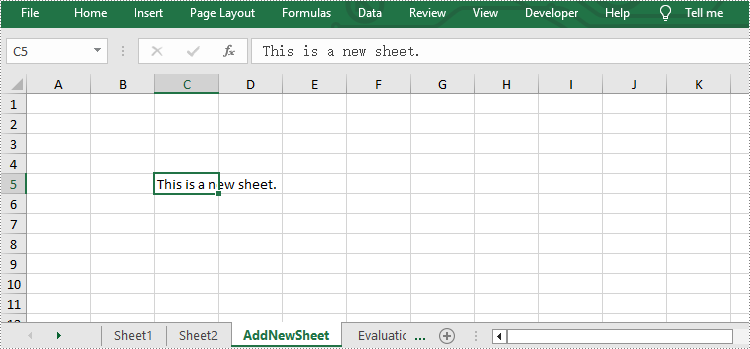
- Add a new worksheet named "AddNewSheet" to the Excel file using Workbook.getWorksheets().add() method.
- Call Worksheet.getCellRange().setText() method to write text to the specific cell of the new sheet.
- Save the result file using Workbook.saveToFile() method.
- Java
import com.spire.xls.*;

public class AddWorksheet {
    public static void main(String[] args) throws Exception {

        //Specify input and output paths
        String inputFile = "sample.xlsx";
        String outputFile = "output/AddWorksheet.xlsx";

        //Create a workbook and load a file
        Workbook workbook = new Workbook();

        //Load a sample Excel file
        workbook.loadFromFile(inputFile);

        //Add a new worksheet named “AddNewSheet”
        Worksheet sheet = workbook.getWorksheets().add("AddNewSheet");

        //Write text to the cell C5 of the new worksheet
        sheet.getCellRange("C5").setText("This is a new sheet.");

        //Save the Excel file
        workbook.saveToFile(outputFile, ExcelVersion.Version2010);
        workbook.dispose();
    }
}
Remove a Worksheet from the Workbook in Java
Removing unnecessary worksheets from an Excel file can reduce the file size. Spire.XLS for Java provides Worksheet.remove() method to remove worksheets from an existing workbook. The following are the detailed steps.
- Specify input and output paths.
- Create a Workbook object.
- Load a sample Excel file using Workbook.loadFromFile() method.
- Get the second worksheet of this file using Workbook.getWorksheets().get() method.
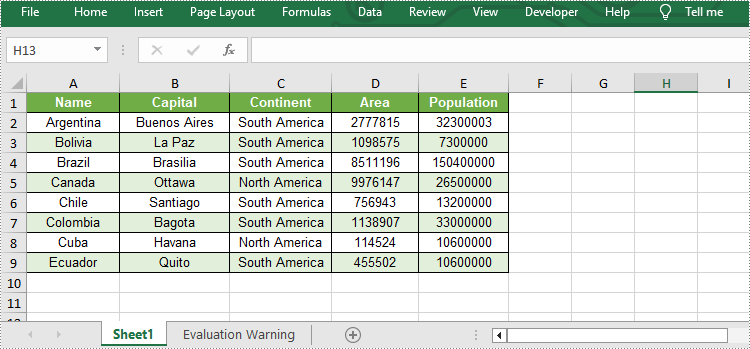
- Remove it from the file using Worksheet.remove() method.
- Save the result file using Workbook.saveToFile() method.
- Java
import com.spire.xls.*;

public class RemoveWorksheet {
    public static void main(String[] args) throws Exception {

        //Specify input and output paths
        String inputFile = "sample.xlsx";
        String outputFile = "output/RemoveWorksheet.xlsx";

        //Create a workbook
        Workbook workbook = new Workbook();

        //Load a sample Excel file
        workbook.loadFromFile(inputFile);

        //Get the second worksheet and remove it
        Worksheet sheet1 = workbook.getWorksheets().get(1);
        sheet1.remove();

        //Save the Excel file
        workbook.saveToFile(outputFile, ExcelVersion.Version2010);
        workbook.dispose();
    }
}
Apply for a Temporary License
If you'd like to remove the evaluation message from the generated documents, or to get rid of the function limitations, please request a 30-day trial license for yourself.
