In Microsoft Excel, each worksheet acts as a unique space for organizing distinct sets of data, projects, or analyses. Efficient management of these worksheets is crucial for quick navigation and effective data handling. By renaming worksheets, users can create intuitive labels that clearly indicate the content of each sheet, making it easier to locate specific information. Furthermore, customizing tab colors enhances visual organization, allowing users to differentiate between various sections or categories at a glance.
In this article, we will demonstrate how to change worksheet names and set tab colors in Excel using Python and the Spire.XLS for Python library.
Install Spire.XLS for Python
This scenario requires Spire.XLS for Python and plum-dispatch v1.7.4. They can be easily installed in your Windows through the following pip command.
pip install Spire.XLS
If you are unsure how to install, please refer to this tutorial: How to Install Spire.XLS for Python on Windows
Change Worksheet Names in Excel in Python
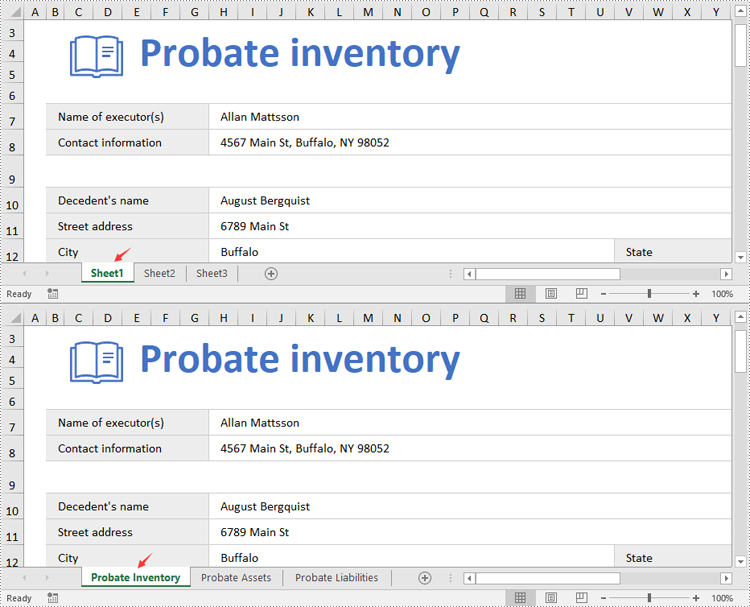
Spire.XLS for Python provides the Worksheet.Name property to rename a worksheet in an Excel file. The detailed steps are as follows.
- Create an object of the Workbook class.
- Load a sample Excel file using the Workbook.LoadFromFile() method.
- Get the desired worksheet using the Worbook.Worksheets[] property.
- Rename the worksheet using the Worksheet.Name property.
- Save the result file using the Workbook.SaveToFile() method.
- Python
from spire.xls import *
from spire.xls.common import *

# Specify the input and output file paths
inputFile = "Sample1.xlsx"
outputFile = "RenameWorksheets.xlsx"

# Create an object of the Workbook class
workbook = Workbook()
# Load a sample Excel file
workbook.LoadFromFile(inputFile)

# Rename the first worksheet
sheet = workbook.Worksheets[0]
sheet.Name = "Probate Inventory"

# Rename the second worksheet
sheet = workbook.Worksheets[1]
sheet.Name = "Probate Assets"

# Rename the third worksheet
sheet = workbook.Worksheets[2]
sheet.Name = "Probate Liabilities"

# Save the result file
workbook.SaveToFile(outputFile, ExcelVersion.Version2013)
workbook.Dispose()
Set Worksheet Tab Colors in Excel in Python
The Worksheet.TabColor property allows setting a tab color for a worksheet in an Excel file. The detailed steps are as follows.
- Create an object of the Workbook class.
- Load a sample Excel file using the Workbook.LoadFromFile() method.
- Get the desired worksheet using the Worbook.Worksheets[] property.
- Rename the worksheet using the Worksheet.TabColor property.
- Save the result file using the Workbook.SaveToFile() method.
- Python
from spire.xls import *
from spire.xls.common import *

# Specify the input and output file paths
inputFile = "Sample2.xlsx"
outputFile = "SetTabColor.xlsx"

# Create an object of the Workbook class
workbook = Workbook()
# Load a sample Excel file
workbook.LoadFromFile(inputFile)

# Set the tab color for the first worksheet
worksheet = workbook.Worksheets[0]
worksheet.TabColor = Color.get_Red()

# Set the tab color for the second worksheet
worksheet = workbook.Worksheets[1]
worksheet.TabColor = Color.get_Green()

# Set the tab color for the third worksheet
worksheet = workbook.Worksheets[2]
worksheet.TabColor = Color.get_LightBlue()

# Save the result file
workbook.SaveToFile(outputFile, ExcelVersion.Version2013)
workbook.Dispose()

Get a Free License
To fully experience the capabilities of Spire.XLS for Python without any evaluation limitations, you can request a free 30-day trial license.