
Spire.PDFViewer for .NET (19)

Spire.PDFViewer for .NET is a powerful PDF Viewer library for .NET. It allows developers to load PDF document from stream, file and byte array. Spire.PDFViewer is available on viewing PDF/A-1B, PDF/X1A and enables to open and read encrypted PDF files. This PDF Viewer control supports multiple printing orientation including landscape, portrait and automatic.
Furthermore, it can export PDFs to popular image formats like .bmp, .png and .jpeg. When viewing PDF document through Spire.PDFViewer, users can set display as fit page, page down/up, zoom in/out, etc. Spire.PDFViewer is a totally independent .NET library which designed for viewing PDF files from .NET application. It does NOT require Adobe Reader or any other 3rd party software/library installed on system.


We have already demonstrated how to view the PDF file on the web with the help of Spire.PDFViewer for ASP.NET. This article we will demonstrate how to use three PDFViewer Control to view multiple PDF files on One Web Form in C#.
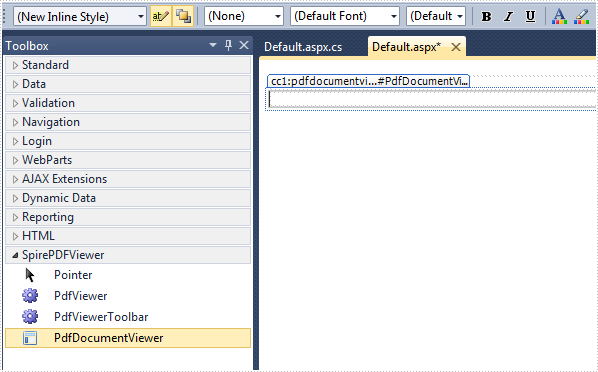
Before started, we need to create a new ASP.NET Empty Web Application in Visual Studio and add the Spire.PDFViewer.Asp dll file as the references. Then add the PDFViewer control and the PDFDocumentViewer control into toolbox.
Usually, we can Right-click Default.aspx, select view designer, and then drag the PDFViewer control from toolbox into Deafault.aspx to view one PDF file from web. This article we will use the code to add the PDFViewer control to one Web Form.
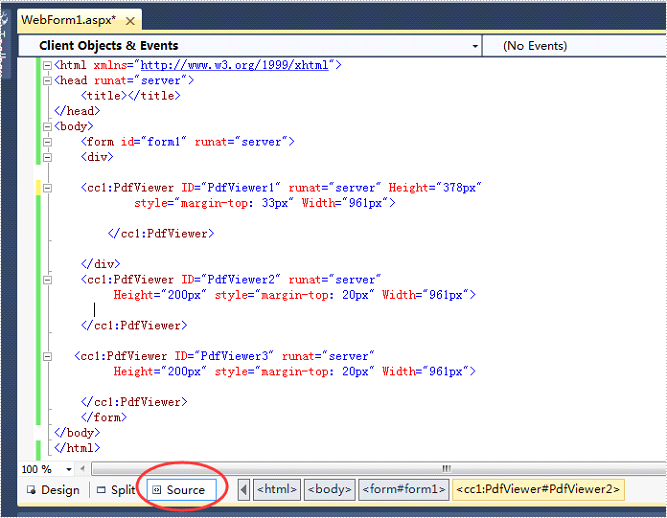
Step 1: Right-click Default.aspx, click the “Source” and use the following code to add three PDFViewer control from toolbox into Deafault.aspx. We can set the size for each PDFViewer control.
<div>

<cc1:PdfViewer ID="PdfViewer1" runat="server" Height="378px"
        style="margin-top: 33px" Width="961px">

</cc1:PdfViewer>

</div>

<cc1:PdfViewer ID="PdfViewer2" runat="server"
     Height="200px" style="margin-top: 20px" Width="961px">

</cc1:PdfViewer>

<cc1:PdfViewer ID="PdfViewer3" runat="server"
     Height="200px" style="margin-top: 20px" Width="961px">

</cc1:PdfViewer>
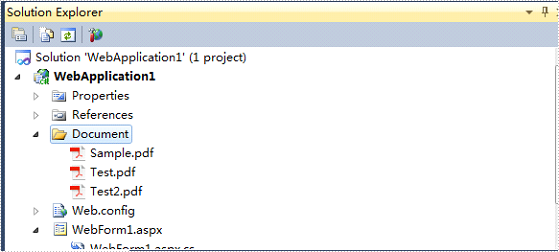
Step 2: Add a new folder under the projects and add the sample PDF files need to view on the web.
Step 3: Double-click Default.aspx.cs, add the code below to load a PDF file.
this.PdfViewer1.LoadFromFile("Document/Test.pdf");
this.PdfViewer2.LoadFromFile("Document/Sample.pdf");
this.PdfViewer3.LoadFromFile("Document/Test2.pdf");
After clicking the debug button, we will view the three PDF files on web.
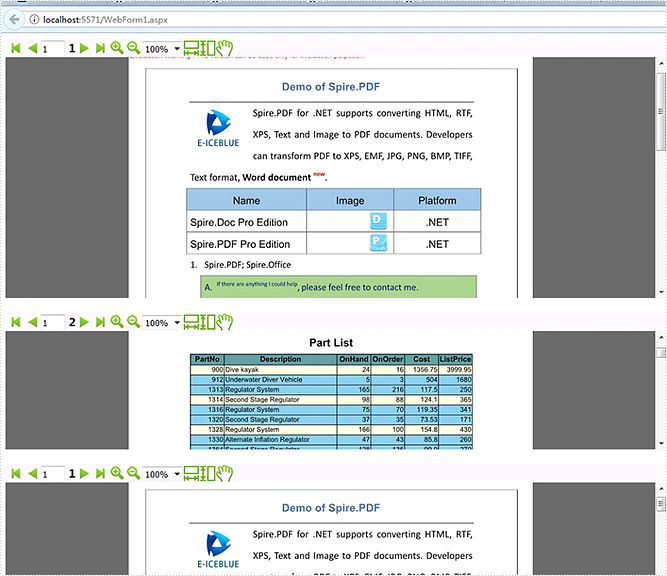
Turning to the previous page, the next page, the first page, the last page, or even switch to any existing target page is the frequently used manipulation, which helps us to save a lot of time on viewing a PDF document with multiple pages on website.
How can we achieve this function programmatically in ASP.NET? Spire.PDFViewer for ASP.NET provides developers the feature of paging which allows users to turn page according to their requirements. This article will demonstrate how to realize paging with Spire.PDFViewer for ASP.NET.
Note: Please download Spire.PDFViewer for ASP.NET and install it correctly.
Then follow the detail steps below:
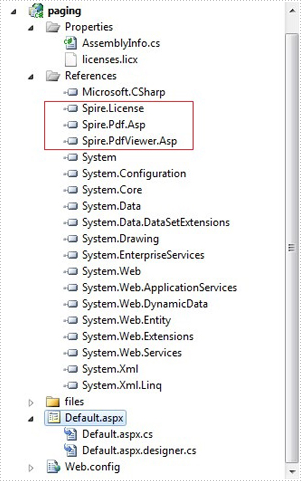
Step 1: create a new project and add the .dll files from bin folder of Spire.PDFViewer as references.
Step 2: Add the PDFDocumentViewer control of Spire.PDFViewer into toolbox and drag it into Deafault.aspx.
Step 3: Paging.
Main code:
Section 1: Call the LoadFromFile() method of PdfDocumentViewer to load a sample PDF file in Default.aspx.cs. Note that you have to add the following if statement and !IsPostBack property before loading the pdf file.
protected void Page_Load(object sender, EventArgs e)
        {
            if (!IsPostBack)
            {
                //load the sample PDF file
                this.PdfDocumentViewer1.CacheInterval = 1000;
                this.PdfDocumentViewer1.CacheTime = 1200;
                this.PdfDocumentViewer1.CacheNumberImage = 1000;
                this.PdfDocumentViewer1.ScrollInterval = 300;
                this.PdfDocumentViewer1.ZoomFactor = 1f;
                this.PdfDocumentViewer1.CustomErrorMessages = "";
                this.PdfDocumentViewer1.LoadFromFile("files/PDFViewer.pdf");
            }
        }
Section 2: Drag four buttons and a textbox from toolbox into Deafault.aspx, set their properties as below.
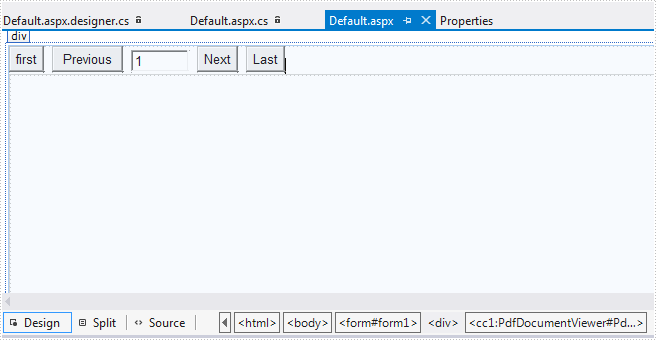
The generated source code in Deafault.aspx:
<div>
        <input type="button" id="btnFirst" value="first" onclick="pdfdocumentviewer1.FirstPage()" />
        <input type="button" id="btnPrevious" value="Previous" onclick="pdfdocumentviewer1.PreviousPage()" />
        <input type="text" id="PdfDocumentViewer1_PdfViewerCurrentPage" value="1" style="width: 50px;" />
        <span id="PdfDocumentViewer1_PdfViwerCountPage"></span>
        <input type="button" id="btnNext" value="Next" onclick="pdfdocumentviewer1.NextPage()" />
        <input type="button" id="btnLast" value="Last" onclick="pdfdocumentviewer1.LastPage()" />

        <cc1:PdfDocumentViewer id="PdfDocumentViewer1" runat="server">
        </cc1:PdfDocumentViewer>
</div>
Run the project and you'll get the following output:
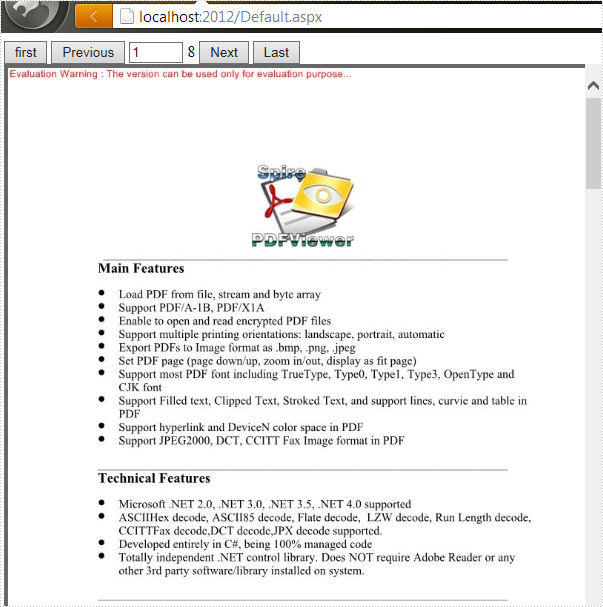
Spire.PDFViewer for ASP.NET contains two controls: PDFViewer and PDFDocumentViewer. Generally, PDFDocumentViewer is used for loading and viewing PDF files on website. But actually, it can also achieve other features such as zoom, fit and page after a simple design.
We've introduced the usage of PDFViewer in the previous article, so this article will illustrate how to zoom PDF File via PDFDocumentViewer in ASP.NET.
Before start, download Spire.PDFViewer for ASP.NET and install it on your system.
Step 1: Create a new ASP.NET Empty Web Application in Visual Studio. Add a new web Form to the project.
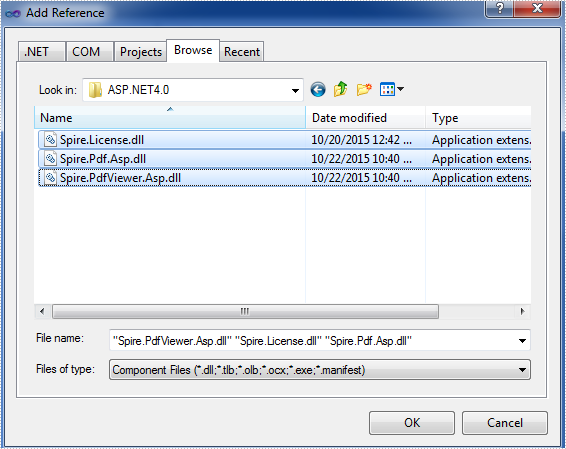
Step 2: Add the .dll files from the bin folder as the references of this project.
Step 3: Add the PDFDocumentViewer control into toolbox and drag it into Deafault.aspx.
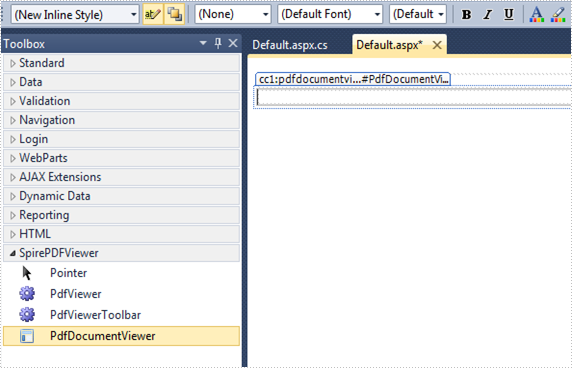
(Detail manipulations of step 1, 2, 3 refer to this article: How to use Spire.PDFViewer for ASP.NET)
Step 4: Zoom PDF file via Spire. PDFDocumentViewer. Zoom feature is divided into three types in this article:
- Zoom: choose the zoom percentage manually.
- Zoom in: Increase the display page page zoom factor by ten percent.
- Zoom out: decrease the display page page zoom factor by ten percent.
Main codes
Section 1: Call the LoadFromFile() method of PdfDocumentViewer to load a sample PDF file in Default.aspx.cs. Note that you have to add the following if statement and !IsPostBack property before loading the pdf file.
protected void Page_Load(object sender, EventArgs e)
        {
            if (!IsPostBack)
            {
                //load the sample PDF file
                this.PdfDocumentViewer1.CacheInterval = 1000;
                this.PdfDocumentViewer1.CacheTime = 1200;
                this.PdfDocumentViewer1.CacheNumberImage = 1000;
                this.PdfDocumentViewer1.ScrollInterval = 300;
                this.PdfDocumentViewer1.ZoomFactor = 1f;
                this.PdfDocumentViewer1.CustomErrorMessages = "";
                this.PdfDocumentViewer1.LoadFromFile("files/PDFViewer.pdf");
            }
        }
Section 2: Design, Drag a DropDownList and two buttons from toolbox into Deafault.aspx, set the properties like "ID", "text" etc. as below.
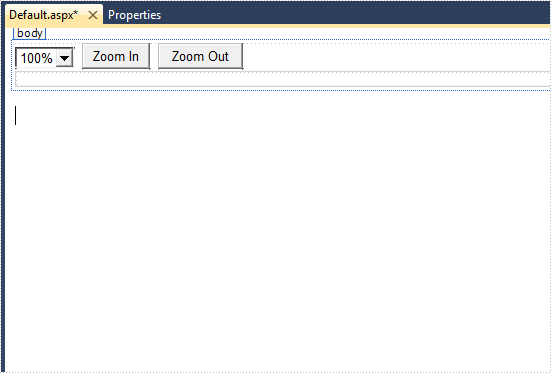
Generated source code is shown here:
<select id="PdfDocumentViewer1_SelectCurrentZoomLevel" name="PdfDocumentViewer1_SelectCurrentZoomLevel" onchange="pdfdocumentviewer1.SelectDropdownBox(this.value)">
            <option value="0.5">50%</option>
            <option value="0.75">75%</option>
            <option value="1" selected="selected">100%</option>
            <option value="1.5">150%</option>
            <option value="2">200%</option>
            <option value="4">400%</option>
        </select>
        <input type="button" id="btnZoomIn" value="Zoom In" onclick="pdfdocumentviewer1.ZoomPage()" />
        <input type="button" id="btnZoomOut" value="Zoom Out" onclick="pdfdocumentviewer1.NarrowPage()" />
Effect screenshot after designing:
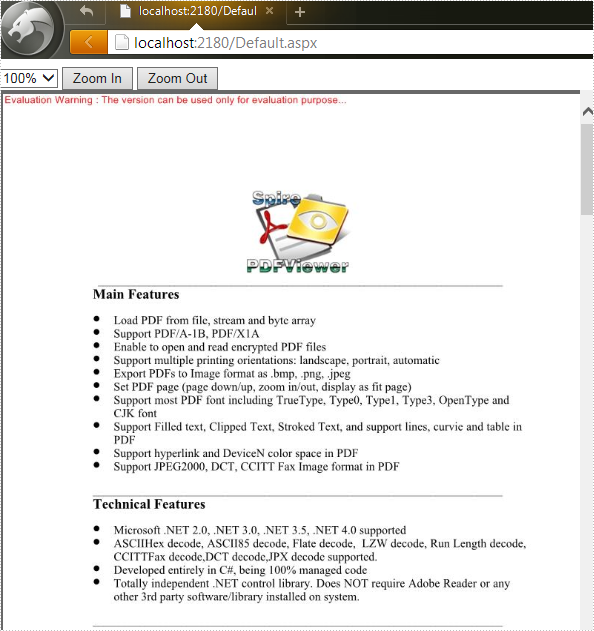
Spire.PDFViewer is a powerful and independent ASP.NET library, by which users can easily achieve functions such as load and view pdf files on website, switch to target page, fit page, page down/up, zoom in/out pdf files etc.
Then how to use Spire.PDFViewer for ASP.NET? This article will introduce the usage of Spire.PDFViewer for ASP.NET to you.
Before start, please download Spire.PDFViewer for ASP.NET and install it on your system.
Detail steps overview:
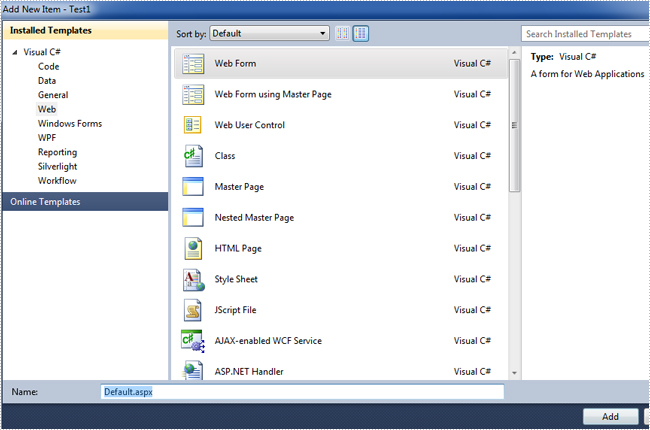
Step 1: Create a new ASP.NET Empty Web Application in Visual Studio.
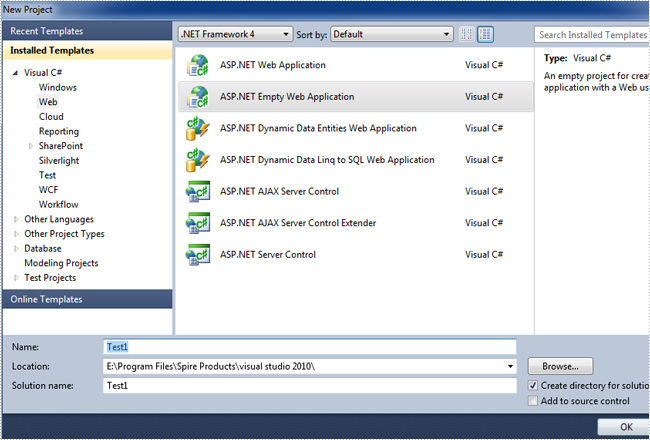
Add a new web Form to Test1.
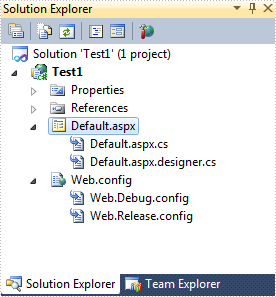
Then add the .dll files from the bin folder as the references of Test1.
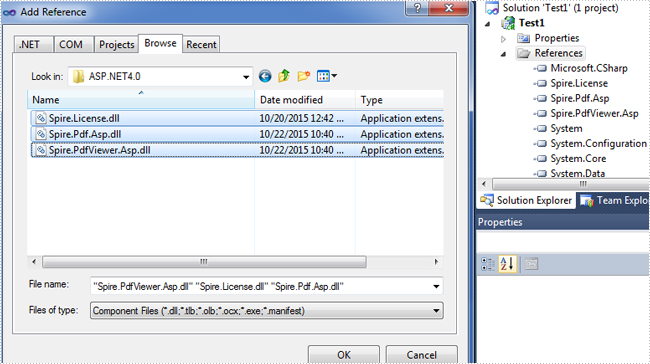
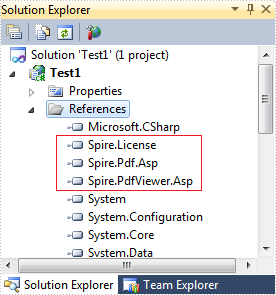
Now the three .dll files have been added into the References.
Step 2: Add the PDFViewer control and the PDFDocumentViewer control into toolbox.
First, right-click toolbox, select add tab to add a new tab named SpirePDFViewer.
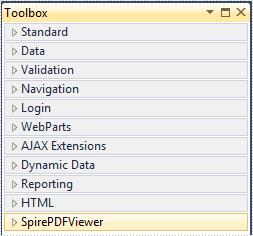
Second, add the PDFViewer control and the PDFDocumentViewer control into SpirePDFViewer.
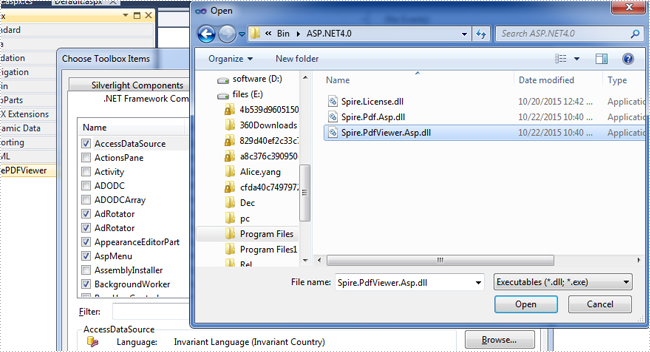
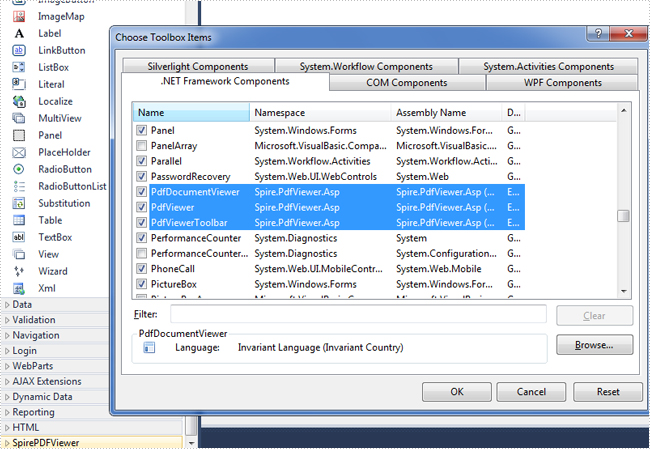
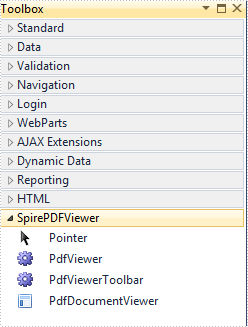
Now all of the controls have been added into SpirePDFViewer.
Step 3: Right-click Default.aspx, select view designer, and then drag the PDFViewer control from toolbox into Deafault.aspx.
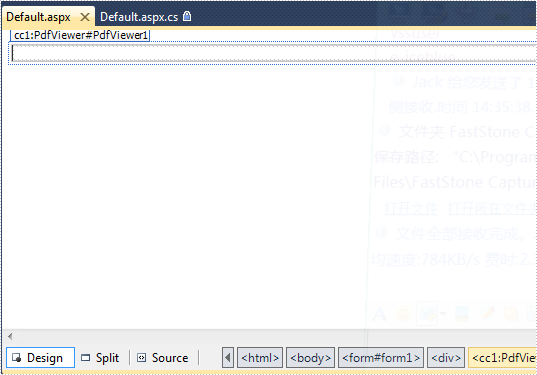
Step 4: Double-click Default.aspx.cs, add the code below to load a PDF file, Note that you have to add the following if statement and !IsPostBack property before loading the pdf file.
protected void Page_Load(object sender, EventArgs e)
        {
            if (!IsPostBack)
            {
                //load the sample PDF file
                this.pdfViewer1.CacheInterval = 1000;
                this.pdfViewer1.CacheTime = 1200;
                this.pdfViewer1.CacheNumberImage = 1000;
                this.pdfViewer1.ScrollInterval = 300;
                this.pdfViewer1.ZoomFactor = 1f;
                this.pdfViewer1.CustomErrorMessages = "";
                this.pdfViewer1.LoadFromFile("PDF file/Test.pdf");
            }
        }
Effect screenshot:

More...
