Set Character Formatting in Word with JavaScript in React
Character formatting decides what text looks like on the page — which font it uses, how large it is, what color it is, and whether it is bold, slanted, underlined or struck through. In Word's Open XML structure these properties hang off the run, not the paragraph: every run in a sentence can carry a set of its own. Spire.Doc for JavaScript maps that structure onto the TextRange.CharacterFormat object and reads and writes it directly in the browser via WebAssembly, with no backend server required.
This article covers two core features:
For installation and project setup, refer to Integrating Spire.Doc for JavaScript in a React Project. The examples below assume Spire.Doc is installed and the WebAssembly module is initialized.
Set Character Formatting
After Document.AddSection() creates a section, section.AddParagraph() gives you a paragraph and paragraph.AppendText() appends text to it — the return value of AppendText is a TextRange object, and once you hold it you can set CharacterFormat on it directly. To break the line without starting a new paragraph, call paragraph.AppendBreak(wasmModule.BreakType.LineBreak).
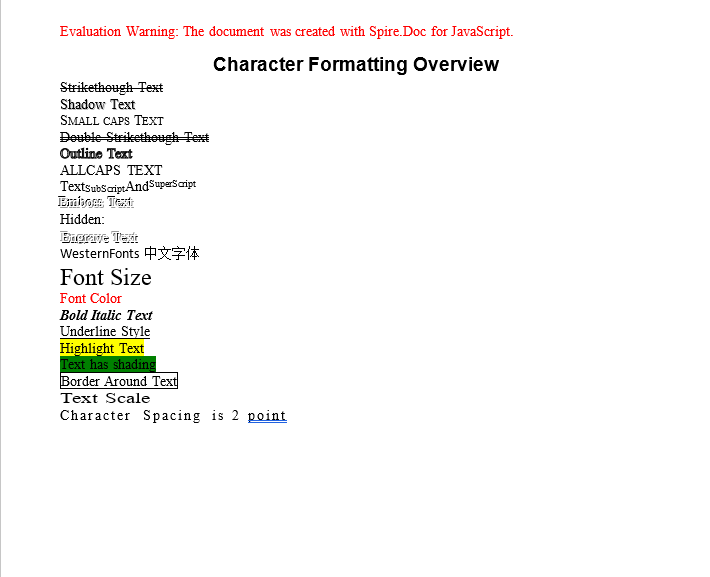
The sample below walks through the common character formats one by one. Each line of text changes exactly one property, so the effect can be read straight off the result. One line is the exception: the font-name example deliberately mixes a Chinese word into its text, because only East Asian characters are read from the Far-East font slot that the line sets.
function App() {
  const CharacterFormatting = async () => {
    const docModule = window.wasmModule?.spiredoc;
    if (!docModule) {
      alert('Spire.Doc is not ready yet');
      return;
    }

    // Create the document and the section
    let doc = new docModule.Document();
    let sec = doc.AddSection();

    // The title paragraph takes the built-in "Title" style
    let titleParagraph = sec.AddParagraph();
    titleParagraph.AppendText("Character Formatting Overview");
    titleParagraph.ApplyStyle({ builtinStyle: docModule.BuiltinStyle.Title });

    let paragraph = sec.AddParagraph();

    // Strikeout
    let tr = paragraph.AppendText("Strikethough Text");
    tr.CharacterFormat.IsStrikeout = true;

    // Shadow
    paragraph.AppendBreak(docModule.BreakType.LineBreak);
    tr = paragraph.AppendText("Shadow Text");
    tr.CharacterFormat.IsShadow = true;

    // Small caps
    paragraph.AppendBreak(docModule.BreakType.LineBreak);
    tr = paragraph.AppendText("Small caps Text");
    tr.CharacterFormat.IsSmallCaps = true;

    // Double strikeout
    paragraph.AppendBreak(docModule.BreakType.LineBreak);
    tr = paragraph.AppendText("Double Strikethough Text");
    tr.CharacterFormat.DoubleStrike = true;

    // Outline
    paragraph.AppendBreak(docModule.BreakType.LineBreak);
    tr = paragraph.AppendText("Outline Text");
    tr.CharacterFormat.IsOutLine = true;

    // All caps
    paragraph.AppendBreak(docModule.BreakType.LineBreak);
    tr = paragraph.AppendText("AllCaps Text");
    tr.CharacterFormat.AllCaps = true;

    // Subscript and superscript
    paragraph.AppendBreak(docModule.BreakType.LineBreak);
    tr = paragraph.AppendText("Text");
    tr = paragraph.AppendText("SubScript");
    tr.CharacterFormat.SubSuperScript = docModule.SubSuperScript.SubScript;
    tr = paragraph.AppendText("And");
    tr = paragraph.AppendText("SuperScript");
    tr.CharacterFormat.SubSuperScript = docModule.SubSuperScript.SuperScript;

    // Emboss, with a white text color so the effect shows up better
    paragraph.AppendBreak(docModule.BreakType.LineBreak);
    tr = paragraph.AppendText("Emboss Text");
    tr.CharacterFormat.Emboss = true;
    tr.CharacterFormat.TextColor = docModule.Color.get_White();

    // Hidden text
    paragraph.AppendBreak(docModule.BreakType.LineBreak);
    tr = paragraph.AppendText("Hidden:");
    tr = paragraph.AppendText("Hidden Text");
    tr.CharacterFormat.Hidden = true;

    // Engrave
    paragraph.AppendBreak(docModule.BreakType.LineBreak);
    tr = paragraph.AppendText("Engrave Text");
    tr.CharacterFormat.Engrave = true;
    tr.CharacterFormat.TextColor = docModule.Color.get_White();

    // The Western, non-Far-East and Far-East font names are set separately
    paragraph.AppendBreak(docModule.BreakType.LineBreak);
    tr = paragraph.AppendText("WesternFonts中文字体");
    tr.CharacterFormat.FontNameAscii = "Calibri";
    tr.CharacterFormat.FontNameNonFarEast = "Calibri";
    tr.CharacterFormat.FontNameFarEast = "Simsun";

    // Font size
    paragraph.AppendBreak(docModule.BreakType.LineBreak);
    tr = paragraph.AppendText("Font Size");
    tr.CharacterFormat.FontSize = 20;

    // Font color
    paragraph.AppendBreak(docModule.BreakType.LineBreak);
    tr = paragraph.AppendText("Font Color");
    tr.CharacterFormat.TextColor = docModule.Color.get_Red();

    // Bold + italic
    paragraph.AppendBreak(docModule.BreakType.LineBreak);
    tr = paragraph.AppendText("Bold Italic Text");
    tr.CharacterFormat.Bold = true;
    tr.CharacterFormat.Italic = true;

    // Underline
    paragraph.AppendBreak(docModule.BreakType.LineBreak);
    tr = paragraph.AppendText("Underline Style");
    tr.CharacterFormat.UnderlineStyle = docModule.UnderlineStyle.Single;

    // Highlight (background)
    paragraph.AppendBreak(docModule.BreakType.LineBreak);
    tr = paragraph.AppendText("Highlight Text");
    tr.CharacterFormat.HighlightColor = docModule.Color.get_Yellow();

    // Character shading
    paragraph.AppendBreak(docModule.BreakType.LineBreak);
    tr = paragraph.AppendText("Text has shading");
    tr.CharacterFormat.TextBackgroundColor = docModule.Color.get_Green();

    // Border around the characters
    paragraph.AppendBreak(docModule.BreakType.LineBreak);
    tr = paragraph.AppendText("Border Around Text");
    tr.CharacterFormat.Border.BorderType = docModule.BorderStyle.Single;

    // Character scaling at 150%
    paragraph.AppendBreak(docModule.BreakType.LineBreak);
    tr = paragraph.AppendText("Text Scale");
    tr.CharacterFormat.TextScale = 150;

    // Character spacing of 2 points
    paragraph.AppendBreak(docModule.BreakType.LineBreak);
    tr = paragraph.AppendText("Character Spacing is 2 point");
    tr.CharacterFormat.CharacterSpacing = 2;

    // Define the output file name
    const outputFileName = "CharacterFormatting-result.docx";

    // Save the document to the given path
    doc.SaveToFile({ fileName: outputFileName, fileFormat: docModule.FileFormat.Docx2013 });
    // Release resources
    doc.Dispose();

    // Read the saved file back and wrap it as a Blob
    const modifiedFileArray = window.dotnetRuntime.Module.FS.readFile(outputFileName);
    const blob = new Blob([modifiedFileArray], {type: "application/vnd.openxmlformats-officedocument.wordprocessingml.document"});
    const url = URL.createObjectURL(blob);
    const a = document.createElement('a');
    a.href = url;
    a.download = outputFileName;
    a.click();
    URL.revokeObjectURL(url);
  };

  return (
    <div style={{ textAlign: 'center', height: '300px' }}>
      <h1>Set Various Character Formats</h1>
      <button onClick={CharacterFormatting}>Generate</button>
    </div>
  );
}
export default App;
Every line of the generated document shows the matching character effect, and can be compared with the code line by line
Apply Several Character Formats in One Paragraph
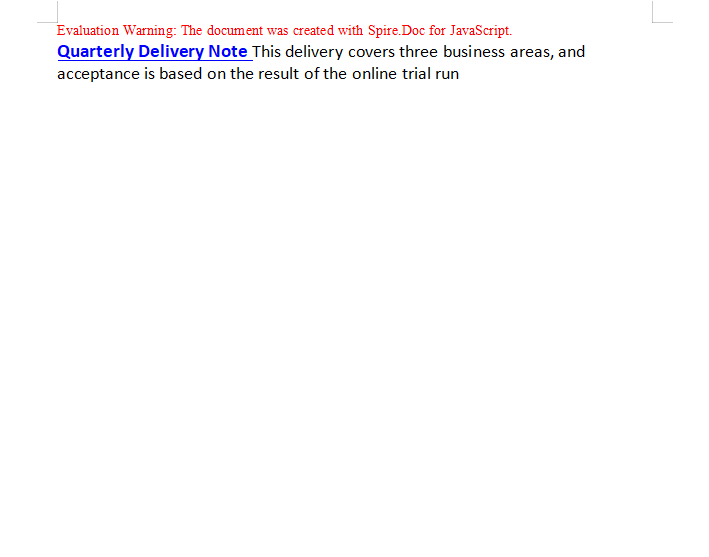
One paragraph can hold several TextRange objects, and each of them has its own CharacterFormat. That means layouts such as "the first half in bold blue, the second half back at a regular size" do not need to be split into two paragraphs — just call AppendText again; the format only applies to the text appended by that one call.
function App() {
  const MultiStylesInAParagraph = async () => {
    const docModule = window.wasmModule?.spiredoc;
    if (!docModule) {
      alert('Spire.Doc is not ready yet');
      return;
    }

    // Create the document and the section
    let doc = new docModule.Document();
    let section = doc.AddSection();

    // Add a new paragraph
    let para = section.AddParagraph();

    // The first TextRange: Calibri 16 pt, blue, bold, single underline
    let range = para.AppendText("Quarterly Delivery Note ");
    range.CharacterFormat.FontName = "Calibri";
    range.CharacterFormat.FontSize = 16;
    range.CharacterFormat.TextColor = docModule.Color.get_Blue();
    range.CharacterFormat.Bold = true;
    range.CharacterFormat.UnderlineStyle = docModule.UnderlineStyle.Single;

    // The second TextRange: still the same paragraph, now Calibri 15 pt regular
    range = para.AppendText("This delivery covers three business areas, and acceptance is based on the result of the online trial run");
    range.CharacterFormat.FontName = "Calibri";
    range.CharacterFormat.FontSize = 15;

    // Define the output file name
    const outputFileName = "MultiStylesInAParagraph-result.docx";

    // Save the document to the given path
    doc.SaveToFile({ fileName: outputFileName, fileFormat: docModule.FileFormat.Docx2013 });
    // Release resources
    doc.Dispose();

    // Read the saved file back and wrap it as a Blob
    const modifiedFileArray = window.dotnetRuntime.Module.FS.readFile(outputFileName);
    const blob = new Blob([modifiedFileArray], {type: "application/vnd.openxmlformats-officedocument.wordprocessingml.document"});
    const url = URL.createObjectURL(blob);
    const a = document.createElement('a');
    a.href = url;
    a.download = outputFileName;
    a.click();
    URL.revokeObjectURL(url);
  };

  return (
    <div style={{ textAlign: 'center', height: '300px' }}>
      <h1>Apply Multiple Character Formats in One Paragraph</h1>
      <button onClick={MultiStylesInAParagraph}>Generate</button>
    </div>
  );
}
export default App;
The first half of the paragraph is bold, blue and underlined; the second half is back to a regular weight
FAQ
FontName is set, but the Chinese text does not change
Cause: CharacterFormat.FontName only writes to the Western (ascii/hAnsi) font slots, while Chinese characters are taken from the separate "East Asian" slot. The two are stored independently, so setting one leaves the other exactly as it was.
Solution: Set the font used by each script separately — FontNameAscii / FontNameNonFarEast for the Western text, FontNameFarEast for the Chinese:
tr.CharacterFormat.FontNameAscii = "Calibri";
tr.CharacterFormat.FontNameNonFarEast = "Calibri";
tr.CharacterFormat.FontNameFarEast = "Simsun";
Emboss and Engrave show no visible effect
Cause: Both effects rely on a light-and-shadow contrast, and the default black text on a white background has almost no visual difference to work with.
Solution: Set the text color to white, so that the characters are shaped by their highlight and shadow alone:
tr.CharacterFormat.Emboss = true;
tr.CharacterFormat.TextColor = wasmModule.Color.get_White();
The downloaded Word document cannot be opened, or is reported as corrupted
Cause: The MIME type was wrong when the Blob was created, so the browser cannot identify the file format correctly.
Solution: Make sure the exact docx MIME type is used:
const modifiedFile = new Blob([modifiedFileArray], {
  type: "application/vnd.openxmlformats-officedocument.wordprocessingml.document"
});
Get a Free License
Spire.Doc for JavaScript offers a 30-day full-featured free trial license with no functional limitations. Apply here to evaluate before purchasing.
Find and Highlight Text in Word with JavaScript in React
When reviewing a long document, the find and highlight feature allows users to quickly locate specific information. For example, if there are multiple people working on a research paper, the find and highlight feature can be used to flag important points or areas that need attention, making it easier for others to focus on those specific parts. This article will demonstrate how to find and highlight text in a Word document in React using Spire.Doc for JavaScript.
- Find and Highlight the First Instance of Specified Text in Word
- Find and Highlight All Instances of Specified Text in Word
Install the JavaScript Library
To get started with inserting images in Word in a React application, you can either download Spire.Doc for JavaScript from our website or install it via npm with the following command:
npm i spire.officeThe downloaded product package integrates Spire.Doc for JavaScript, Spire.XLS for JavaScript, Spire.PDF for JavaScript, and Spire.Presentation for JavaScript. To use the features of Spire.Doc for JavaScript, you need to copy the corresponding files (spire.doc.js, Spire.Doc.Wasm.zip, spire.common.js, Spire.Common.Wasm.zip, and the _framework folder) to the public folder of your project. To ensure proper text rendering, you can add relevant font files with a custom path. In the following example, the font is added to the path: public\static\font.
For more details, refer to the documentation: How to Integrate Spire.Doc for JavaScript in a React Project
Find and Highlight the First Instance of Specified Text in Word in JavaScript
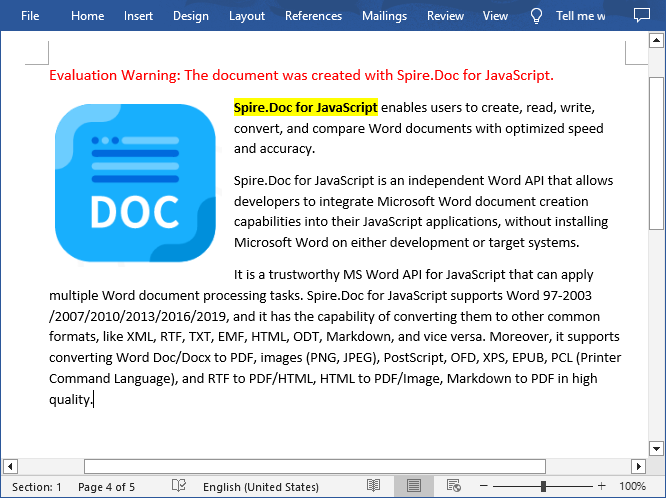
The Document.FindString() method allows to find the first instance of a specified text and then you can set a highlight color for it through the TextRange.CharacterFormat.HighlightColor property. The following are the main steps:
- Create a new document using the new wasmModule.Document() method.
- Load a Word document using the Document.LoadFromFile() method.
- Find the first instance of a specific text using the Document.FindString() method.
- Get the instance as a single text range using the TextSelection.GetAsOneRange() method, and then highlight the text range with a background color using the TextRange.CharacterFormat.HighlightColor property.
- Save the result document using Document.SaveToFile() method.
- JavaScript
import React, { useState, useEffect } from 'react';

function App() {
  const [wasmModule, setWasmModule] = useState(null);
  // Load Spire.Doc
  useEffect(() => {
    (async () => {
      try {
        const publicUrl = process.env.PUBLIC_URL || '';
        const spireModule = await import(/* webpackIgnore: true */ `${publicUrl}/spire.doc.js`);
        const rawModule = spireModule.default || spireModule;
        window.wasmModule = typeof rawModule === 'function'
          ? await rawModule({ locateFile: p => p.endsWith('.wasm') ? `${publicUrl}/${p}` : p })
          : rawModule;
        setWasmModule(window.wasmModule);
      } catch (error) {
        console.error('Failed to load spire.doc.js WASM module:', error);
      }
    })();
  }, []);

  // Function to find and higlight a specified text in Word
  const FindHighlightFirst  = async () => {
    const wasmModule = window.wasmModule.spiredoc;

    if (wasmModule) {
      // Load the font files into the virtual file system (VFS)
      await window.spire.FetchFileToVFS('Arial.ttf', '/Library/Fonts/', `${process.env.PUBLIC_URL}/static/font/`);

      // Specify the input file name and the output file name
      const inputFileName = 'input.docx';
      const outputFileName = 'FindHighlightFirst.docx';

      // Fetch the input file and add it to the VFS
      await window.spire.FetchFileToVFS(inputFileName, '', `${process.env.PUBLIC_URL}/static/data/`);

      // Create an instance of the Document class
      const doc = new wasmModule.Document();

      // Load the Word document
      doc.LoadFromFile(inputFileName);

      // Find the first instance of a specific text
      let textSelection = doc.FindString('Spire.Doc for JavaScript', false, true);

      // Get the instance as a single text range
      let textRange = textSelection.GetAsOneRange();

      // Set highlight color
      textRange.CharacterFormat.HighlightColor = wasmModule.Color.get_Yellow();

      // Save the result document
      doc.SaveToFile({ fileName: outputFileName, fileFormat: wasmModule.FileFormat.Docx2013 });

      // Release resources
      doc.Dispose();

      // Read the generated Word file from VFS
      const modifiedFileArray = window.dotnetRuntime.Module.FS.readFile(outputFileName);

      // Create a Blob object from the Word file
      const modifiedFile = new Blob([modifiedFileArray], { type: "application/vnd.openxmlformats-officedocument.wordprocessingml.document" });

      // Create a URL for the Blob
      const url = URL.createObjectURL(modifiedFile);

      // Create an anchor element to trigger the download
      const a = document.createElement("a");
      a.href = url;
      a.download = outputFileName;
      document.body.appendChild(a);
      a.click();
      document.body.removeChild(a);
      URL.revokeObjectURL(url);
    }
  };

  return (
    <div style={{ textAlign: 'center', height: '300px' }}>
      <h1>Find and Highlight Specified Text in Word Using JavaScript in React</h1>
      <button onClick={FindHighlightFirst} disabled={!wasmModule}>
      Execute
      </button>
    </div>
 );
}

export default App;
Run the code to launch the React app at localhost:3000. Once it's running, click on the "Execute" button to download the result file:
The result file:
Find and Highlight All Instances of Specified Text in Word in JavaScript
Spire.Doc for JavaScript also provides the Document.FindAllString() method to find all instances of a specified text in a Word document. Then you can iterate through these instances and highlight each one with a background color. The following are the main steps:
- Create a new document using the new wasmModule.Document() method.
- Load a Word document using the Document.LoadFromFile() method.
- Find all instances of a specific text in the document using the Document.FindAllString() method.
- Iterate through each found instance and get it as a single text range using the TextSelection.GetAsOneRange() method, then highlight each text range with a bright color using the TextRange.CharacterFormat.HighlightColor property.
- Save the result document using Document.SaveToFile() method.
- JavaScript
import React, { useState, useEffect } from 'react';

function App() {
  const [wasmModule, setWasmModule] = useState(null);
  // Load Spire.Doc
  useEffect(() => {
    (async () => {
      try {
        const publicUrl = process.env.PUBLIC_URL || '';
        const spireModule = await import(/* webpackIgnore: true */ `${publicUrl}/spire.doc.js`);
        const rawModule = spireModule.default || spireModule;
        window.wasmModule = typeof rawModule === 'function'
          ? await rawModule({ locateFile: p => p.endsWith('.wasm') ? `${publicUrl}/${p}` : p })
          : rawModule;
        setWasmModule(window.wasmModule);
      } catch (error) {
        console.error('Failed to load spire.doc.js WASM module:', error);
      }
    })();
  }, []);

  // Function to find and higlight a specified text in Word
  const FindAndHighlightAll   = async () => {
    const wasmModule = window.wasmModule.spiredoc;

    if (wasmModule) {
      // Load the font files into the virtual file system (VFS)
      await window.spire.FetchFileToVFS('Arial.ttf', '/Library/Fonts/', `${process.env.PUBLIC_URL}/static/font/`);

      // Specify the input file name and the output file name
      const inputFileName = 'input.docx';
      const outputFileName = 'FindAndHighlight.docx';

      // Fetch the input file and add it to the VFS
      await window.spire.FetchFileToVFS(inputFileName, '', `${process.env.PUBLIC_URL}/static/data/`);

      // Create an instance of the Document class
      const doc = new wasmModule.Document();

      // Load the Word document
      doc.LoadFromFile(inputFileName);

      // Find all occurrences of the specified text in the document
      let textSelections = doc.FindAllString('Spire.Doc for JavaScript', false, true);

      // Iterate through all found text selections
      for (let i = 0; i < textSelections.length; i++) {
        let selection = textSelections[i];

        // Set highlight color
        selection.GetAsOneRange().CharacterFormat.HighlightColor = wasmModule.Color.get_Yellow();
      }

      // Save the result document
      doc.SaveToFile({ fileName: outputFileName, fileFormat: wasmModule.FileFormat.Docx2013 });

      // Release resources
      doc.Dispose();

      // Read the generated Word file from VFS
      const modifiedFileArray = window.dotnetRuntime.Module.FS.readFile(outputFileName);

      // Create a Blob object from the Word file
      const modifiedFile = new Blob([modifiedFileArray], { type: "application/vnd.openxmlformats-officedocument.wordprocessingml.document" });

      // Create a URL for the Blob
      const url = URL.createObjectURL(modifiedFile);

      // Create an anchor element to trigger the download
      const a = document.createElement("a");
      a.href = url;
      a.download = outputFileName;
      document.body.appendChild(a);
      a.click();
      document.body.removeChild(a);
      URL.revokeObjectURL(url);
    }
  };

  return (
    <<div style={{ textAlign: 'center', height: '300px' }}>
      <<h1>Find and Highlight Specified Text in Word Using JavaScript in React<</h1>
      <<button onClick={FindAndHighlightAll} disabled={!wasmModule}>
      Execute
      <</button>
    </div>
 );
}

export default App;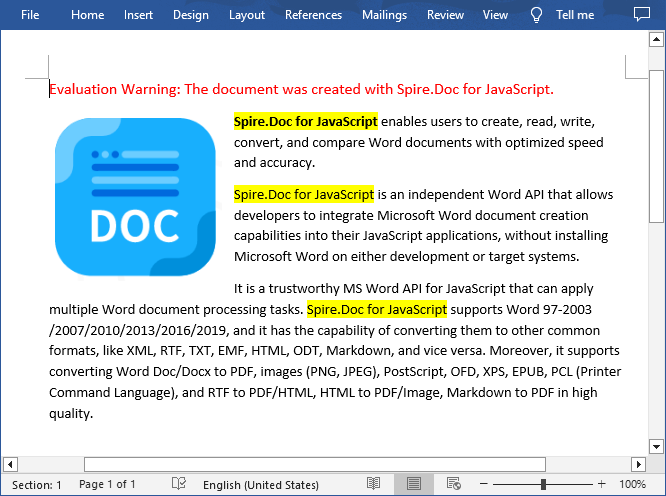
Get a Free License
To fully experience the capabilities of Spire.Doc for JavaScript without any evaluation limitations, you can request a free 30-day trial license.
Extract Text from Word Documents with JavaScript in React
The seamless integration of document processing capabilities into web applications has become increasingly vital for enhancing user experience and streamlining workflows. For developers working within the React ecosystem, the ability to extract text from Word documents using JavaScript allows for the dynamic presentation of content, enabling users to easily import, edit, and interact with text data directly within a web interface. In this article, we will explore how to use Spire.Doc for JavaScript to extract text from Word documents in React applications.
- Extract All Text from a Word Document Using JavaScript
- Extract Text from Specific Sections or Paragraphs in a Word Document
- Extract Text from a Word Document Based on Paragraph Styles
Install Spire.Doc for JavaScript
To get started with extracting text from Word documents in a React application, you can either download Spire.Doc for JavaScript from our website or install it via npm with the following command:
npm i spire.officeThe downloaded product package integrates Spire.Doc for JavaScript, Spire.XLS for JavaScript, Spire.PDF for JavaScript, and Spire.Presentation for JavaScript. To use the features of Spire.Doc for JavaScript, you need to copy the corresponding files (spire.doc.js, Spire.Doc.Wasm.zip, spire.common.js, Spire.Common.Wasm.zip, and the _framework folder) to the public folder of your project. To ensure proper text rendering, you can add relevant font files with a custom path. In the following example, the font is added to the path: public\static\font.
For more details, refer to the documentation: How to Integrate Spire.Doc for JavaScript in a React Project
Extract All Text from a Word Document Using JavaScript
To extract the complete text content from a Word document, Spire.Doc for JavaScript offers the Document.GetText() method. This method retrieves all the text in a document and returns it as a string, enabling efficient access to the content. The implementation steps are as follows:
- Load the spire.doc.js file to initialize the WebAssembly module.
- Load the Word file into the virtual file system using the window.spire.FetchFileToVFS method.
- Create a Document instance in the WebAssembly module using the new wasmModule.Document() method.
- Load the Word document into the Document instance with the Document.LoadFromFile() method.
- Retrieve the document's text as a string using the Document.GetText() method.
- Process the extracted text, such as downloading it as a text file or performing additional operations.
- JavaScript
import React, { useState, useEffect } from 'react';

function App() {
  const [wasmModule, setWasmModule] = useState(null);
  // Load Spire.Doc
  useEffect(() => {
    (async () => {
      try {
        const publicUrl = process.env.PUBLIC_URL || '';
        const spireModule = await import(/* webpackIgnore: true */ `${publicUrl}/spire.doc.js`);
        const rawModule = spireModule.default || spireModule;
        window.wasmModule = typeof rawModule === 'function'
          ? await rawModule({ locateFile: p => p.endsWith('.wasm') ? `${publicUrl}/${p}` : p })
          : rawModule;
        setWasmModule(window.wasmModule);
      } catch (error) {
        console.error('Failed to load spire.doc.js WASM module:', error);
      }
    })();
  }, []);

  // Function to extract all text from a Word document
  const ExtractAllTextFromWord = async () => {
    const wasmModule = window.wasmModule.spiredoc;

    if (wasmModule) {
      // Load the font files into the virtual file system (VFS)
      await window.spire.FetchFileToVFS('Arial.ttf', '/Library/Fonts/', `${process.env.PUBLIC_URL}/static/font/`);

      // Specify the input file name and the output file name
      const inputFileName = 'Sample.docx';
      const outputFileName = 'ExtractWordText.txt';

      // Fetch the input file and add it to the VFS
      await window.spire.FetchFileToVFS(inputFileName, '', `${process.env.PUBLIC_URL}/static/data/`);

      // Create an instance of the Document class
      const doc = new wasmModule.Document();

      // Load the Word document
      doc.LoadFromFile({ fileName: inputFileName });

      // Get all text from the document
      const documentText = doc.GetText();

      // Release resources
      doc.Dispose();

      // Generate a Blob from the extracted text and trigger a download
      const blob = new Blob([documentText], { type: 'text/plain' });
      const url = URL.createObjectURL(blob);
      const a = document.createElement("a");
      a.href = url;
      a.download = outputFileName;
      document.body.appendChild(a);
      a.click();
      document.body.removeChild(a);
      URL.revokeObjectURL(url);
    }
  };

  return (
      <div style={{ textAlign: 'center', height: '300px' }}>
        <h1>Extract All Text from Word Documents Using JavaScript in React</h1>
        <button onClick={ExtractAllTextFromWord} disabled={!wasmModule}>
          Convert and Download
        </button>
      </div>
  );
}

export default App;
Extract Text from Specific Sections or Paragraphs in a Word Document
When only specific sections or paragraphs of a Word document are needed, Spire.Doc for JavaScript offers the Section.Paragraphs.get_Item(index).Text method to extract text from individual paragraphs. The following steps outline the process:
- Load the spire.doc.js file to initialize the WebAssembly module.
- Use the window.spire.FetchFileToVFS method to load the Word file into the virtual file system.
- Create a Document instance using the new wasmModule.Document() method.
- Load the Word document into the Document instance with the Document.LoadFromFile() method.
- Access a specific section using the Document.Sections.get_Item() method.
- Extract text from a specific paragraph with the Section.Paragraphs.get_Item().Text property.
- To retrieve all text within a section, iterate through the section's paragraphs and concatenate their text into a single string.
- Process the extracted text, such as saving it to a file or performing further analysis.
- JavaScript
import React, { useState, useEffect } from 'react';

function App() {
  const [wasmModule, setWasmModule] = useState(null);
  // Load Spire.Doc
  useEffect(() => {
    (async () => {
      try {
        const publicUrl = process.env.PUBLIC_URL || '';
        const spireModule = await import(/* webpackIgnore: true */ `${publicUrl}/spire.doc.js`);
        const rawModule = spireModule.default || spireModule;
        window.wasmModule = typeof rawModule === 'function'
          ? await rawModule({ locateFile: p => p.endsWith('.wasm') ? `${publicUrl}/${p}` : p })
          : rawModule;
        setWasmModule(window.wasmModule);
      } catch (error) {
        console.error('Failed to load spire.doc.js WASM module:', error);
      }
    })();
  }, []);

  // Function to extract text from a specific part of a Word document
  const ExtractTextFromWordPart = async () => {
    const wasmModule = window.wasmModule.spiredoc;

    if (wasmModule) {
      // Load the font files into the virtual file system (VFS)
      await window.spire.FetchFileToVFS('Arial.ttf', '/Library/Fonts/', `${process.env.PUBLIC_URL}/static/font/`);

      // Specify the input file name and the output file name
      const inputFileName = 'Sample.docx';
      const outputFileName = 'ExtractWordText.txt';

      // Fetch the input file and add it to the VFS
      await window.spire.FetchFileToVFS(inputFileName, '', `${process.env.PUBLIC_URL}/static/data/`);

      // Create an instance of the Document class
      const doc = new wasmModule.Document();

      // Load the Word document
      doc.LoadFromFile({ fileName: inputFileName });

      // Get a specific section from the document
      const section = doc.Sections.get_Item(1);

      // Get the text of a specific paragraph in the section
      //const paragraphText = section.Paragraphs.get_Item(1).Text;

      // Extract all text from the section
      let sectionText = "";
      for (let i = 0; i < section.Paragraphs.Count; i++) {
        // Extract the text from the paragraphs
        const text = section.Paragraphs.get_Item(i).Text;
        sectionText += text + "\n";
      }

      // Release resources
      doc.Dispose();

      // Generate a Blob from the extracted text and trigger a download
      const blob = new Blob([sectionText], { type: 'text/plain' });
      const url = URL.createObjectURL(blob);
      const a = document.createElement("a");
      a.href = url;
      a.download = outputFileName;
      document.body.appendChild(a);
      a.click();
      document.body.removeChild(a);
      URL.revokeObjectURL(url);
    }
  };

  return (
      <div style={{ textAlign: 'center', height: '300px' }}>
        <h1>Extract Text from a Specific Part of a Word Document Using JavaScript in React</h1>
        <button onClick={ExtractTextFromWordPart} disabled={!wasmModule}>
          Convert and Download
        </button>
      </div>
  );
}

export default App;
Extract Text from a Word Document Based on Paragraph Styles
When extracting text formatted with specific paragraph styles, the Paragraph.StyleName property can be utilized to identify and filter paragraphs by their styles. This approach is beneficial for structured documents with distinct headings or other styled elements. The implementation process is as follows:
- Load the spire.doc.js file to initialize the WebAssembly module.
- Load the Word file into the virtual file system using the window.spire.FetchFileToVFS() method.
- Create a Document instance in the WebAssembly module with the new wasmModule.Document() method.
- Load the Word document into the Document instance using the Document.LoadFromFile() method.
- Define the target style name or retrieve one from the document.
- Iterate through the document's sections and their paragraphs:
- Use the Paragraph.StyleName property to identify each paragraph's style.
- Compare the paragraph's style name with the target style. If they match, retrieve the paragraph's text using the Paragraph.Text property.
- Process the retrieved text, such as saving it to a file or using it for further operations.
- JavaScript
import React, { useState, useEffect } from 'react';

function App() {
  const [wasmModule, setWasmModule] = useState(null);
  // Load Spire.Doc
  useEffect(() => {
    (async () => {
      try {
        const publicUrl = process.env.PUBLIC_URL || '';
        const spireModule = await import(/* webpackIgnore: true */ `${publicUrl}/spire.doc.js`);
        const rawModule = spireModule.default || spireModule;
        window.wasmModule = typeof rawModule === 'function'
          ? await rawModule({ locateFile: p => p.endsWith('.wasm') ? `${publicUrl}/${p}` : p })
          : rawModule;
        setWasmModule(window.wasmModule);
      } catch (error) {
        console.error('Failed to load spire.doc.js WASM module:', error);
      }
    })();
  }, []);

  // Function to extract text from a Word document based on paragraph styles
  const ExtractTextByParagraphStyle = async () => {
    const wasmModule = window.wasmModule.spiredoc;

    if (wasmModule) {
      // Load the font files into the virtual file system (VFS)
      await window.spire.FetchFileToVFS('Arial.ttf', '/Library/Fonts/', `${process.env.PUBLIC_URL}/static/font/`);

      // Specify the input file name and the output file name
      const inputFileName = 'Sample.docx';
      const outputFileName = 'ExtractWordText.txt';

      // Fetch the input file and add it to the VFS
      await window.spire.FetchFileToVFS(inputFileName, '', `${process.env.PUBLIC_URL}/static/data/`);

      // Create an instance of the Document class
      const doc = new wasmModule.Document();

      // Load the Word document
      doc.LoadFromFile({ fileName: inputFileName });

      // Define the style name or get the style name of the target paragraph style
      const styleName = 'Heading2';
      // const styleName = doc.Sections.get_Item(2).Paragraphs.get_Item(2).StyleName;

      // Array to store extracted text
      let paragraphStyleText = [];
      // Iterate through the sections in the document
      for (let sectionIndex = 0; sectionIndex < doc.Sections.Count; sectionIndex++) {
        // Get the current section
        const section = doc.Sections.get_Item(sectionIndex);
        // Iterate through the paragraphs in the section
        for (let paragraphIndex = 0; paragraphIndex < section.Paragraphs.Count; paragraphIndex++) {
          // Get the current paragraph
          const paragraph = section.Paragraphs.get_Item(paragraphIndex);
          // Get the style name of the paragraph
          const paraStyleName = paragraph.StyleName;
          // Check if the style name matches the target style
          if (paraStyleName === styleName) {
            // Extract the text from the paragraph
            const paragraphText = paragraph.Text;
            console.log(paragraphText);
            // Append the extracted text to the array
            paragraphStyleText.push(paragraphText);
          }
        }
      }

      // Release resources
      doc.Dispose();

      // Generate a Blob from the extracted text and trigger a download
      const text = paragraphStyleText.join('\n');
      const blob = new Blob([text], { type: 'text/plain' });
      const url = URL.createObjectURL(blob);
      const a = document.createElement("a");
      a.href = url;
      a.download = outputFileName;
      document.body.appendChild(a);
      a.click();
      document.body.removeChild(a);
      URL.revokeObjectURL(url);
    }
  };

  return (
    <div style={{ textAlign: 'center', height: '300px' }}>
      <h1>Extract Text from Word Documents by Paragraph Style Using JavaScript in React</h1>
      <button onClick={ExtractTextByParagraphStyle} disabled={!wasmModule}>
        Convert and Download
      </button>
    </div>
  );
}

export default App;
Get a Free License
To fully experience the capabilities of Spire.Doc for JavaScript without any evaluation limitations, you can request a free 30-day trial license.