Convert SVG to PDF in React with JavaScript
The charts, flow diagrams, and logos exported on the web are mostly SVG, yet printing, archiving, or an approval workflow usually asks for PDF. Saving them one by one in office software takes a person sitting through it, and batch-converting on a server means uploading the files first.
This article uses Spire.PDF for JavaScript to bridge SVG and PDF. It is built on WebAssembly, loading and saving documents in the browser, and it reads and writes files through a virtual file system (VFS), with no backend involved. There are two paths: turn an SVG into a PDF file on its own, or draw the SVG as vector graphics onto a chosen page of an existing PDF.
This article covers two core features:
For installation and project configuration, refer to Integrate Spire.PDF for JavaScript in a React Project. The examples below assume Spire.PDF is already installed and the WebAssembly module is initialized.
Convert an SVG to PDF
Spire.PDF for JavaScript provides the PdfDocument.LoadFromSvg method, which loads an SVG as a PDF document. The loaded document has a single page, and the page size is taken from the width/height on the SVG root element.
The steps are as follows:
- Get the Spire.PDF WASM module and make sure it is ready.
- Read the SVG file into the virtual file system (VFS).
- Create a
PdfDocumentobject and load the SVG with theLoadFromSvg()method. - Use the
PdfDocument.SaveToFile()method to save the result file. - Read the result file from the VFS and trigger a browser download.
The code to convert an SVG to PDF is as follows:
function App() {
  const convertSvgToPdf = async () => {
    // Get the Spire.PDF WASM module
    const pdfModule = window.wasmModule?.spirepdf;

    // Check if the module is ready
    if (!pdfModule) {
      alert('Spire.PDF is not ready yet');
      return;
    }

    // Load the SVG to convert into the VFS
    const inputFileName = 'VectorChart.svg';
    await window.spire.FetchFileToVFS(inputFileName, '', `${process.env.PUBLIC_URL}/data/`);

    // Load the SVG: the document has a single page, the size of the SVG
    let doc = new pdfModule.PdfDocument();
    doc.LoadFromSvg({ fileName: inputFileName });

    // Save the result file
    const outputFileName = 'VectorChart.pdf';
    doc.SaveToFile(outputFileName);
    doc.Close();

    // Read the generated file from the VFS and trigger the download
    const fileArray = window.dotnetRuntime.Module.FS.readFile(outputFileName);
    const blob = new Blob([fileArray], { type: 'application/pdf' });
    const url = URL.createObjectURL(blob);
    const a = document.createElement('a');
    a.href = url;
    a.download = outputFileName;
    a.click();
    URL.revokeObjectURL(url);
  };

  return (
    <div style={{ textAlign: 'center', height: '300px' }}>
      <h1>Convert SVG to PDF</h1>
      <button onClick={convertSvgToPdf}>
        Convert to PDF
      </button>
    </div>
  );
}

export default App;
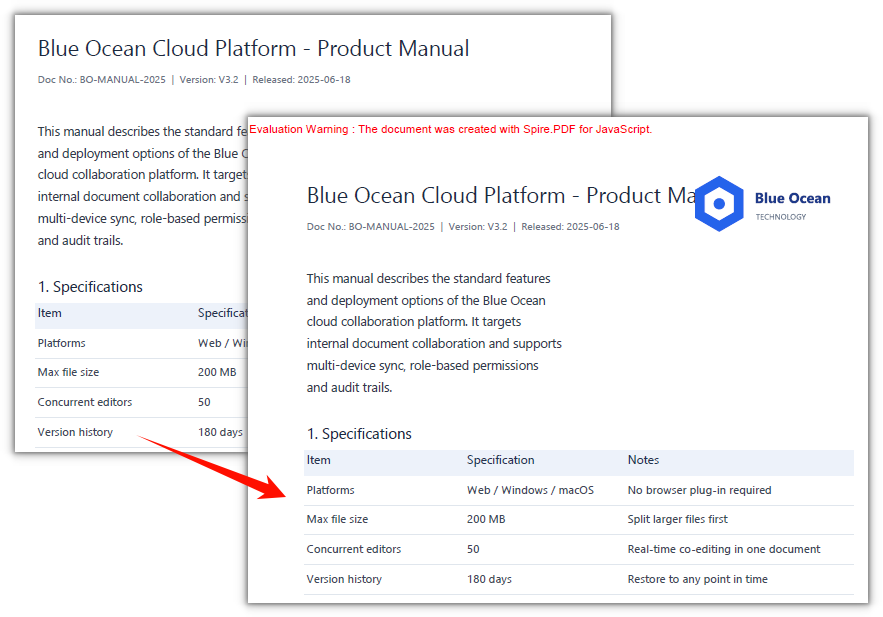
The result is a single-page PDF whose page size matches the SVG:
Draw an SVG onto an Existing PDF
Spire.PDF for JavaScript also provides the PdfPageBase.CreateTemplate method and the PdfCanvas.DrawTemplate method, which overlay an SVG onto an already laid-out PDF. Load the SVG, turn its single page into a template, then draw it onto the target page at a chosen position and size — the original document's page count, page size, and existing content are untouched.
The steps are as follows:
- Get the Spire.PDF WASM module and make sure it is ready.
- Read the existing PDF and the SVG logo into the virtual file system (VFS).
- Create a
PdfDocumentobject for each and load the existing PDF and the SVG. - Use the
CreateTemplate()method to turn the SVG's first page into a template, then draw it onto the target page with theCanvas.DrawTemplate()method, at a given position and size. - Use the
SaveToFile()method to save the PDF that was drawn on, then read the result file from the VFS and trigger a browser download.
The code to draw an SVG onto an existing PDF is as follows:
function App() {
  const drawSvgOnPdf = async () => {
    // Get the Spire.PDF WASM module
    const pdfModule = window.wasmModule?.spirepdf;

    // Check if the module is ready
    if (!pdfModule) {
      alert('Spire.PDF is not ready yet');
      return;
    }

    // Load both the existing PDF and the SVG logo into the VFS
    const pdfFileName = 'ProductManual.pdf';
    const svgFileName = 'VectorLogo.svg';
    await window.spire.FetchFileToVFS(pdfFileName, '', `${process.env.PUBLIC_URL}/data/`);
    await window.spire.FetchFileToVFS(svgFileName, '', `${process.env.PUBLIC_URL}/data/`);

    // Load the existing PDF
    let existingPdf = new pdfModule.PdfDocument();
    existingPdf.LoadFromFile(pdfFileName);

    // Load the SVG and turn its single page into a template
    let svgDoc = new pdfModule.PdfDocument();
    svgDoc.LoadFromSvg({ fileName: svgFileName });
    const template = svgDoc.Pages.get_Item(0).CreateTemplate();

    // Draw the template on page 1: position and size are in points, origin at the top-left of the page
    const location = new pdfModule.PointF(390, 50);
    const size = new pdfModule.SizeF(130, 60);
    existingPdf.Pages.get_Item(0).Canvas.DrawTemplate({ template, location, size });

    // Save the PDF that was drawn on
    const outputFileName = 'ProductManual_WithLogo.pdf';
    existingPdf.SaveToFile(outputFileName);
    svgDoc.Close();
    existingPdf.Close();

    // Read the generated file from the VFS and trigger the download
    const fileArray = window.dotnetRuntime.Module.FS.readFile(outputFileName);
    const blob = new Blob([fileArray], { type: 'application/pdf' });
    const url = URL.createObjectURL(blob);
    const a = document.createElement('a');
    a.href = url;
    a.download = outputFileName;
    a.click();
    URL.revokeObjectURL(url);
  };

  return (
    <div style={{ textAlign: 'center', height: '300px' }}>
      <h1>Draw SVG on Existing PDF</h1>
      <button onClick={drawSvgOnPdf}>
        Insert SVG
      </button>
    </div>
  );
}

export default App;
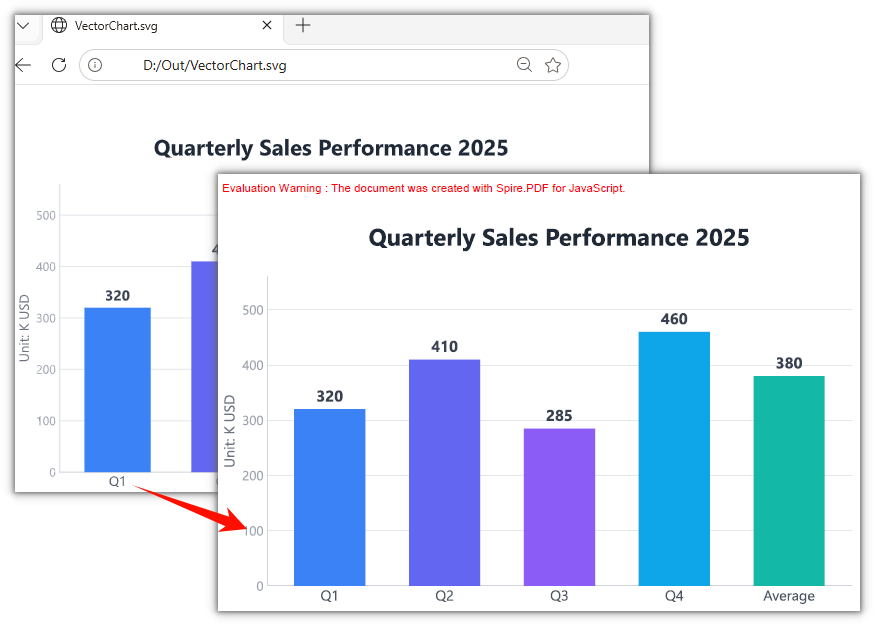
The original manual content is unchanged, with a vector logo added at the top right:
Frequently Asked Questions
Why isn't the output PDF A4-sized
Cause: When LoadFromSvg creates the page it takes the width/height from the SVG root element, converting pixels to points at 75%. In the example, a 760 × 520 SVG becomes a single page of 570 × 390 points — nothing to do with A4.
Solution: To use another size, change the width, height, or viewBox on the SVG root element and convert again.
How do I draw the SVG on another page or at another position
Cause: Which page DrawTemplate draws on is decided by how the page is fetched, and which corner it lands in is decided by location; both are passed in explicitly by the caller.
Solution: Switch pages with Pages.get_Item(index) (0-based), change the position via PointF, and the size via SizeF — all in points, with the origin at the top-left of the page:
// Draw on page 2, bottom left, at a size of 100 × 46 points
existingPdf.Pages.get_Item(1).Canvas.DrawTemplate({
  template: template,
  location: new pdfModule.PointF(40, 760),
  size: new pdfModule.SizeF(100, 46),
});
Is the inserted SVG vector or a bitmap
Cause: What CreateTemplate returns is a PDF template corresponding to the SVG content, and DrawTemplate draws it into the page as vectors, without going through a bitmap.
Solution: Nothing extra to set. Zoom in on the page afterwards and the logo's edges stay crisp; it prints without blurring either.
Get a Free License
If you would like to remove the evaluation message from the result document or lift feature restrictions, please contact sales for a 30-day temporary license.
Convert PDF to SVG in React with JavaScript
When charts and diagrams inside a PDF are reused on the web, the usual approach is to render them to PNG first — a bitmap blurs when scaled up, and a different resolution means taking a new screenshot. Web illustrations, vector icons, and print layouts that need to scale to any size really call for SVG.
This article uses Spire.PDF for JavaScript to convert PDF to SVG. It loads and saves PDF documents in the browser on top of WebAssembly, and the whole conversion runs locally: files are read and written through a virtual file system (VFS), with no backend involved. Output has two forms — the whole document merged into one SVG, or one SVG per page.
This article covers two core features:
For installation and project configuration, refer to Integrate Spire.PDF for JavaScript in a React Project. The examples below assume Spire.PDF is already installed and the WebAssembly module is initialized.
Convert the Whole PDF to a Single SVG
Spire.PDF for JavaScript provides the PdfDocument.ConvertOptions.OutputToOneSvg property, which decides whether the whole document is written to one SVG or to one file per page. It defaults to false, so each page becomes its own file; set it to true and the pages are stacked vertically on a single canvas in their original order, then written out by SaveToFile with FileFormat.SVG.
The steps are as follows:
- Get the Spire.PDF WASM module and make sure it is ready.
- Load the sample PDF and the Arial font, create a
PdfDocumentobject, and load the file. - Set
PdfDocument.ConvertOptions.OutputToOneSvgtotrueso all pages go into one SVG. - Use the
PdfDocument.SaveToFile()method to save the result file. - Read the result file from the VFS and trigger a browser download.
The code to convert the whole PDF to a single SVG is as follows:
function App() {
  const convertPdfToOneSvg = async () => {
    // Get the Spire.PDF WASM module
    const pdfModule = window.wasmModule?.spirepdf;

    // Check if the module is ready
    if (!pdfModule) {
      alert('Spire.PDF is not ready yet');
      return;
    }

    // Converting to SVG restores the page text, so put the Arial font into the VFS font directory first
    await window.spire.FetchFileToVFS('ARIAL.TTF', '/Library/Fonts/', `${process.env.PUBLIC_URL}/font/`);

    // Load the PDF to convert into the VFS
    const inputFileName = 'Chapter_Document.pdf';
    await window.spire.FetchFileToVFS(inputFileName, '', `${process.env.PUBLIC_URL}/data/`);

    // Output file name: the whole document merged into one SVG
    const outputFileName = 'Chapter_Document.svg';

    // Load the PDF and send all pages into a single SVG
    let doc = new pdfModule.PdfDocument();
    doc.LoadFromFile(inputFileName);
    doc.ConvertOptions.OutputToOneSvg = true;
    doc.SaveToFile(outputFileName, pdfModule.FileFormat.SVG);
    doc.Close();

    // Read the generated file from the VFS and trigger download
    const fileArray = window.dotnetRuntime.Module.FS.readFile(outputFileName);
    const blob = new Blob([fileArray], { type: 'image/svg+xml' });
    const url = URL.createObjectURL(blob);
    const a = document.createElement('a');
    a.href = url;
    a.download = outputFileName;
    a.click();
    URL.revokeObjectURL(url);
  };

  return (
    <div style={{ textAlign: 'center', height: '300px' }}>
      <h1>Convert PDF to SVG</h1>
      <button onClick={convertPdfToOneSvg}>
        Convert to a single SVG
      </button>
    </div>
  );
}

export default App;
The result is a single SVG file with the five pages joined top to bottom:
Convert Each PDF Page to a Separate SVG
Spire.PDF for JavaScript also provides the PdfToSvgConverter class, which converts a document to SVG page by page. It is a second, equivalent entry point to PdfDocument, and SvgOptions carries OutputToOneSvg as well. This section keeps the default per-page output and downloads the files one by one.
The steps are as follows:
- Get the Spire.PDF WASM module and make sure it is ready.
- Load the sample PDF and the Arial font.
- Create a
PdfToSvgConverterobject, passing the path of the PDF to convert. - Use the
PdfToSvgConverter.Convert()method to convert page by page, one SVG per page. - Read each page's file from the VFS and trigger a download for each.
The code to convert each PDF page to a separate SVG is as follows:
function App() {
  const convertPdfPagesToSvg = async () => {
    // Get the Spire.PDF WASM module
    const pdfModule = window.wasmModule?.spirepdf;

    // Check if the module is ready
    if (!pdfModule) {
      alert('Spire.PDF is not ready yet');
      return;
    }

    // Converting to SVG restores the page text, so put the Arial font into the VFS font directory first
    await window.spire.FetchFileToVFS('ARIAL.TTF', '/Library/Fonts/', `${process.env.PUBLIC_URL}/font/`);

    // Load the PDF to convert into the VFS
    const inputFileName = 'Chapter_Document.pdf';
    await window.spire.FetchFileToVFS(inputFileName, '', `${process.env.PUBLIC_URL}/data/`);

    // Output file name prefix: pages are written as Chapter_Document_1.svg, Chapter_Document_2.svg, ...
    const outputFileName = 'Chapter_Document.svg';

    // Convert page by page with the converter
    const converter = new pdfModule.PdfToSvgConverter(inputFileName);
    converter.Convert(outputFileName);

    // Read each page's file from the VFS and trigger a download for each
    const fs = window.dotnetRuntime.Module.FS;
    const prefix = outputFileName.replace(/\.svg$/i, '_');
    const pageFiles = fs.readdir('/').filter((name) => name.startsWith(prefix) && name.endsWith('.svg'));

    for (const pageFile of pageFiles) {
      const blob = new Blob([fs.readFile(pageFile)], { type: 'image/svg+xml' });
      const url = URL.createObjectURL(blob);
      const a = document.createElement('a');
      a.href = url;
      a.download = pageFile;
      a.click();
      URL.revokeObjectURL(url);
    }
  };

  return (
    <div style={{ textAlign: 'center', height: '300px' }}>
      <h1>Convert PDF to SVG</h1>
      <button onClick={convertPdfPagesToSvg}>
        Convert page by page
      </button>
    </div>
  );
}

export default App;
Each page becomes its own SVG file, named with the page number:
Set the SVG Size
The converter also exposes the SvgOptions.ScaleX and ScaleY properties, which scale the output size by a factor; both default to 1. Setting them to 2 doubles the size. The SVG content is vector, so — unlike a bitmap — it stays sharp when scaled.
// Scale the output size up by 2x
const converter = new pdfModule.PdfToSvgConverter('Chapter_Document.pdf');
converter.SvgOptions.ScaleX = 2;
converter.SvgOptions.ScaleY = 2;
converter.Convert('Chapter_Document.svg');
Frequently Asked Questions
Why do I get a bunch of xxx_1.svg, xxx_2.svg files instead of one .svg
Cause: When PdfDocument.SaveToFile converts to SVG it writes page by page, and ConvertOptions.OutputToOneSvg defaults to false, so the file name becomes "prefix_page.svg". A single-page PDF hides the difference; with more pages it shows up.
Solution: To get a single file, turn the property on before saving:
doc.ConvertOptions.OutputToOneSvg = true;
doc.SaveToFile('Chapter_Document.svg', pdfModule.FileFormat.SVG);
With PdfToSvgConverter, the matching switch is converter.SvgOptions.OutputToOneSvg — the two entry points use an equivalent switch and produce identical output.
How do I fix the error Cannot found font(Arial) installed on the system.
Cause: Converting to SVG restores page text as <text> elements, and the converter looks the font up by name in /Library/Fonts/ of the virtual file system. If that directory is empty, it throws this error.
Solution: Put the font into the VFS before LoadFromFile:
await window.spire.FetchFileToVFS('ARIAL.TTF', '/Library/Fonts/', `${process.env.PUBLIC_URL}/font/`);
Arial and Arial Unicode MS are two different files; supplying only the latter still raises the same error.
Is the text in the converted SVG still selectable
Cause: <text> and stroked paths are different things. The converter keeps page text as <text> elements and turns only graphics and lines into vector paths (<path>), so the text stays selectable and searchable.
Solution: No extra settings. Open the generated SVG in an editor and you will see <text> nodes; zoom it in a browser and neither the text nor the lines blur.
What if I only want to convert a few pages
Cause: SaveToFile also has an overload that takes a page range, working on the same per-page files that are saved in the VFS.
Solution: Pass the start and end page indexes; the index is 0-based and inclusive:
// Write only pages 1 and 2, producing first_two_pages_1.svg and first_two_pages_2.svg
doc.SaveToFile('first_two_pages.svg', 0, 1, pdfModule.FileFormat.SVG);
Get a Free License
If you would like to remove the evaluation message from the result document or lift feature restrictions, please contact sales for a 30-day temporary license.
Convert TXT Text to PDF in React Using JavaScript
TXT files are everywhere — exported logs, body text pasted out of Word, reports a system generates in bulk. To hand one to someone else you usually convert it to PDF first: a TXT has no notion of layout or paper, it just runs on and on, and the same file looks different on every device and in every editor. In the past you either opened it in a desktop program and saved as, or uploaded it to a server to convert — the former doesn't fit into a web flow, and the latter means the document leaves the user's machine.
This article shows how to convert TXT text to PDF with Spire.PDF for JavaScript. It runs on WebAssembly to generate and save PDF documents directly in the browser; the whole conversion happens locally, reading and writing files through a virtual file system (VFS), with no backend involved.
For installation and project setup, see Integrate Spire.PDF for JavaScript in a React project. The example below assumes Spire.PDF is installed and the WebAssembly module has been initialized.
Convert TXT Text to PDF
Spire.PDF for JavaScript provides PdfTextWidget to place a whole block of plain text onto a PDF page. Font, line spacing and alignment go to PdfStringFormat; when the text fills the current page, PdfTextLayout wraps and starts a new page on its own, so a long TXT needs no manual pagination.
function App() {
  const convertTxtToPdf = async () => {
    // Get the Spire.PDF WASM module
    const pdfModule = window.wasmModule?.spirepdf;

    // Check that the module is ready
    if (!pdfModule) {
      alert('Spire.PDF is not ready yet');
      return;
    }

    // Load a TrueType font into the virtual file system for the body text
    await window.spire.FetchFileToVFS('ARIAL UNICODE MS.TTF', '/Library/Fonts/', `${process.env.PUBLIC_URL}/font/`);

    // Load the TXT file to convert into the VFS
    const inputFileName = 'Product_Introduction.txt';
    await window.spire.FetchFileToVFS(inputFileName, "", `${process.env.PUBLIC_URL}/data/`);

    // Read the TXT bytes from the VFS and decode them to a string
    const textBytes = window.dotnetRuntime.Module.FS.readFile(inputFileName);
    const text = new TextDecoder('utf-8').decode(textBytes);

    // Create the document, section and page
    let doc = new pdfModule.PdfDocument();
    let section = doc.Sections.Add();
    let page = section.Pages.Add();

    // Use the embedded TrueType font for the body, and set line spacing and left alignment
    let font = new pdfModule.PdfTrueTypeFont({ fontFile: '/Library/Fonts/ARIAL UNICODE MS.TTF', size: 12 });
    let format = new pdfModule.PdfStringFormat();
    format.LineSpacing = 20;
    format.Alignment = pdfModule.PdfTextAlignment.Left;

    // Break to a new page when the page is full, so the overflow flows onto new pages
    let textLayout = new pdfModule.PdfTextLayout();
    textLayout.Break = pdfModule.PdfLayoutBreakType.FitPage;
    textLayout.Layout = pdfModule.PdfLayoutType.Paginate;

    // Start the text at the top-left of the page, leaving 20 points of room at the top
    let bounds = new pdfModule.RectangleF({
      location: new pdfModule.PointF(0, 20),
      size: page.Canvas.ClientSize
    });

    // Hold the whole text in a PdfTextWidget and hand it to the layout engine
    let textWidget = new pdfModule.PdfTextWidget({
      text: text,
      font: font,
      brush: pdfModule.PdfBrushes.get_Black()
    });
    textWidget.StringFormat = format;

    let layoutWidget = new pdfModule.PdfLayoutWidget(textWidget.H);
    layoutWidget.Draw({ page: page, layoutRectangle: bounds, format: textLayout });

    // Save the document
    const outputFileName = 'Product_Introduction.pdf';
    doc.SaveToFile(outputFileName);
    doc.Close();

    // Read the generated file from the VFS and trigger the download
    const fileArray = window.dotnetRuntime.Module.FS.readFile(outputFileName);
    const blob = new Blob([fileArray], { type: 'application/pdf' });
    const url = URL.createObjectURL(blob);
    const a = document.createElement('a');
    a.href = url;
    a.download = outputFileName;
    a.click();
    URL.revokeObjectURL(url);
  };

  return (
    <div style={{ textAlign: 'center', height: '300px' }}>
      <h1>Convert TXT Text to PDF</h1>
      <button onClick={convertTxtToPdf}>
        Start
      </button>
    </div>
  );
}

export default App;
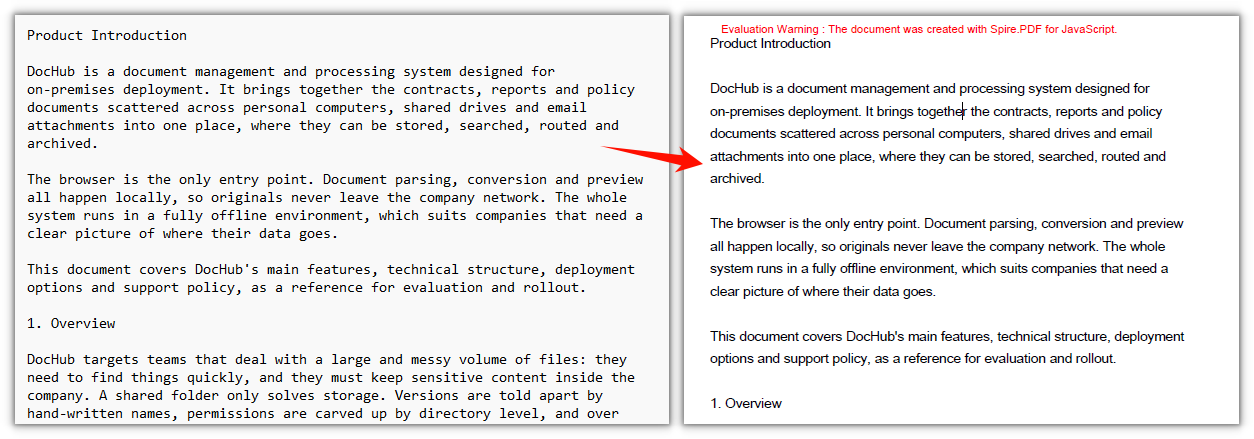
The generated PDF spreads the long TXT text across pages automatically:
FAQ
Chinese characters show up as boxes or blank after conversion
Cause: the Helvetica font PdfTextWidget uses by default is a PDF built-in Western font with Latin glyphs only. When it meets a Chinese character it has no glyph to use, and the character shows up blank or as a box on the page.
Solution: switch to PdfTrueTypeFont loaded from a font file that contains Chinese glyphs, and put that file into the VFS /Library/Fonts/ first:
// Read the font from the project's static directory into the VFS
await window.spire.FetchFileToVFS('ARIAL UNICODE MS.TTF', '/Library/Fonts/', `${process.env.PUBLIC_URL}/font/`);

// Point fontFile at the font path in the VFS
let font = new pdfModule.PdfTrueTypeFont({ fontFile: '/Library/Fonts/ARIAL UNICODE MS.TTF', size: 12 });
Long text doesn't paginate and only fills one page
Cause: PdfTextWidget only draws inside the rectangle you pass in, and content that overflows is not moved to the next page by itself — whether it paginates is decided by PdfTextLayout.Layout.
Solution: set PdfTextLayout.Layout to PdfLayoutType.Paginate and Break to PdfLayoutBreakType.FitPage, then pass that object as the format argument to Draw:
let textLayout = new pdfModule.PdfTextLayout();
textLayout.Break = pdfModule.PdfLayoutBreakType.FitPage;   // break as soon as a page is full
textLayout.Layout = pdfModule.PdfLayoutType.Paginate;      // paginate automatically

layoutWidget.Draw({ page: page, layoutRectangle: bounds, format: textLayout });
Tab indents in the TXT don't line up in the PDF
Cause: the text you read out is plain characters, and a tab is just a \t with no information about how many character widths it spans. During layout every \t is treated as the same width, so indentation that lined up through \t or extra spaces in the original no longer lines up in the PDF.
Solution: for table-like content that needs exact alignment, pad it out with spaces or draw it as a table instead; for plain prose meant to be read, output it as is.
Get a Free License
If you want to remove the evaluation message from the result document, or lift the feature limits, contact sales for a temporary license valid for 30 days.
Convert PDF to PCL in React with JavaScript
Many printers and print services only speak PCL (Printer Command Language). When the contract or manual at hand is a PDF, the old routes were to install a driver and save the file under a new format from desktop software, or to hand the file to a server that does the conversion — the first cannot be folded into a web workflow, and the second means the document leaves the user's device.
This article shows how to convert a PDF to PCL with Spire.PDF for JavaScript. Built on WebAssembly, it loads and saves PDF documents directly in the browser, so the whole conversion stays local and files are read and written through a virtual file system (VFS) with no backend service required.
For installation and project configuration, refer to Integrating Spire.PDF for JavaScript in a React Project. The following example assumes Spire.PDF is installed and the WebAssembly module has been initialized.
Convert PDF to PCL
To hand a document to a print pipeline that only accepts PCL, use PdfDocument.SaveToFile to write the whole document out as a PCL file — pass FileFormat.PCL as the second argument and the output is HP-PCL XL (PCL6).
function App() {
  const convertPdfToPcl = async () => {
    // Get the Spire.PDF WASM module
    const pdfModule = window.wasmModule?.spirepdf;

    // Check whether the module is ready
    if (!pdfModule) {
      alert('Spire.PDF is not ready yet');
      return;
    }

    // The conversion needs the Arial Unicode MS font, load it into the VFS first
    await window.spire.FetchFileToVFS('ARIAL UNICODE MS.TTF', '/Library/Fonts/', `${process.env.PUBLIC_URL}/font/`);

    // Load the PDF file to be converted into the VFS
    const inputFileName = 'Business_Data_Overview.pdf';
    await window.spire.FetchFileToVFS(inputFileName, "", `${process.env.PUBLIC_URL}/data/`);

    // Define the output file name
    const outputFileName = 'Business_Data_Overview.pcl';

    // Load the PDF document and pass FileFormat.PCL to write out a PCL file
    let doc = new pdfModule.PdfDocument();
    doc.LoadFromFile(inputFileName);
    doc.SaveToFile(outputFileName, pdfModule.FileFormat.PCL);
    doc.Close();

    // Read the generated file from the VFS and trigger the download
    const fileArray = window.dotnetRuntime.Module.FS.readFile(outputFileName);
    const blob = new Blob([fileArray], { type: 'application/octet-stream' });
    const url = URL.createObjectURL(blob);
    const a = document.createElement('a');
    a.href = url;
    a.download = outputFileName;
    a.click();
    URL.revokeObjectURL(url);
  };

  return (
    <div style={{ textAlign: 'center', height: '300px' }}>
      <h1>Convert PDF to PCL</h1>
      <button onClick={convertPdfToPcl}>
        Start Converting
      </button>
    </div>
  );
}

export default App;
The generated PCL file, whose header states the PCL-XL language:
FAQ
The output file name ends with .pcl, so why is the file still a PDF
Reason: The single-argument overload SaveToFile(fileName) always writes in PDF format — the extension takes no part in deciding the format, so a file whose name ends with .pcl still comes out as a document whose content is PDF.
Solution: Pass the output format explicitly as the second argument:
// Single argument: writes PDF
doc.SaveToFile(outputFileName);

// FileFormat.PCL: writes a real PCL file
doc.SaveToFile(outputFileName, pdfModule.FileFormat.PCL);
What to do about Cannot found font(Arial) installed on the system.
Reason: Converting to PCL means turning the text on the page into font subsetting instructions a printer can read, and the converter looks for fonts in /Library/Fonts/ in the virtual file system — an empty directory raises this error.
Solution: Send the font into the VFS before loading the PDF:
// Placed before LoadFromFile, the font is already in the VFS when the conversion runs
await window.spire.FetchFileToVFS('ARIAL UNICODE MS.TTF', '/Library/Fonts/', `${process.env.PUBLIC_URL}/font/`);
What format is the generated PCL file, and how do I open it
Reason: The output is PCL-XL (PCL6), and the file begins with ESC%-12345X@PJL ENTER LANGUAGE = PCLXL, followed by binary HP-PCL XL;2;0 data. It is not text, so opening it in an editor only shows garbage.
Solution: Hand it straight to a printer or print service that supports PCL; there is no need to open it by hand. To confirm the format is right, read the PJL declaration at the start of the file.
Get a Free License
If you wish to remove the evaluation message from the result document or remove feature limitations, please contact sales to obtain a temporary license valid for 30 days.
Convert PDF to Grayscale or Linearized PDF in React with JavaScript
Color documents burn ink when printed, and once filed away that color is of no use; a PDF also stores its objects in the order they were written, so a reader has to download the whole file before it can render the first page — open a manual that runs to tens of megabytes and you stare at a blank screen first. Both jobs used to need desktop software, one file at a time, with no way into a web workflow.
This article uses Spire.PDF for JavaScript to convert PDF documents into grayscale and into linearized PDF files. Grayscaling changes the colors on the page, while linearization only changes how the objects are arranged inside the file, so the two do not affect each other. The library is built on WebAssembly and loads, modifies and saves PDF documents directly in the browser, reading and writing files through a virtual file system (VFS) with no backend service required.
This article covers two core features:
For installation and project configuration, refer to Integrating Spire.PDF for JavaScript in a React Project. The following examples assume Spire.PDF is installed and the WebAssembly module has been initialized.
Convert PDF to Grayscale
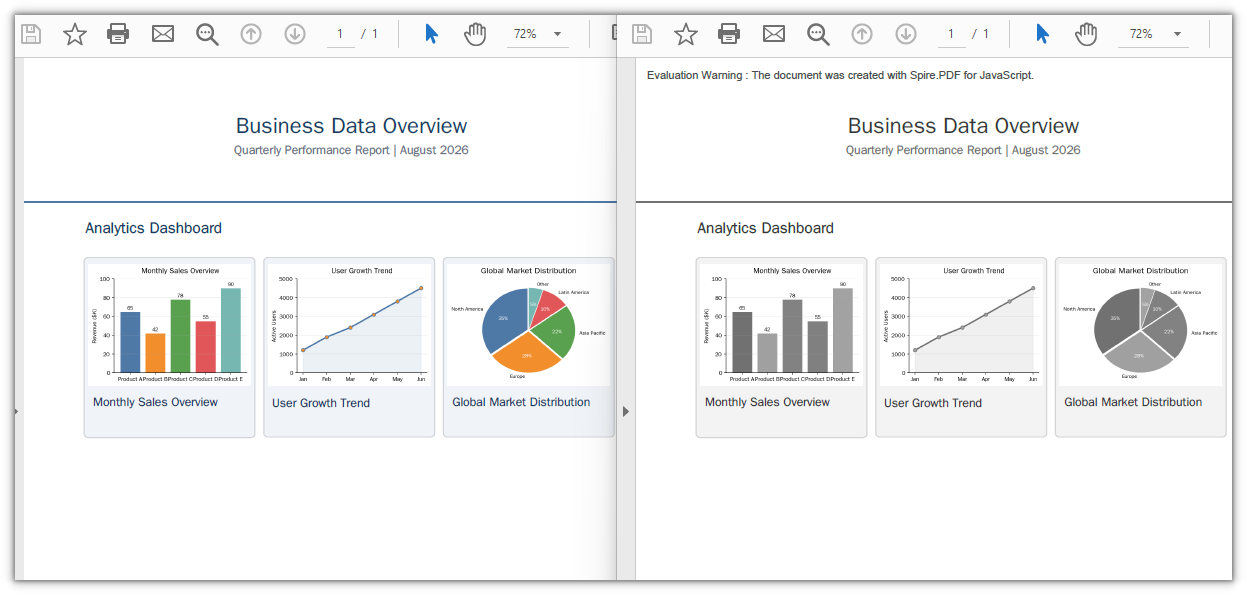
Grayscaling a document before printing or archiving saves color ink. Pass the input file to the PdfGrayConverter constructor and call ToGrayPdf to write out the grayscale document — the color images on the page are re-encoded as grayscale, and the text stays searchable.
function App() {
  const convertToGrayscale = async () => {
    // Get the Spire.PDF WASM module
    const pdfModule = window.wasmModule?.spirepdf;

    // Check whether the module is ready
    if (!pdfModule) {
      alert('Spire.PDF is not ready yet');
      return;
    }

    // Load the PDF file to be converted into the VFS
    const inputFileName = 'Business_Data_Overview.pdf';
    await window.spire.FetchFileToVFS(inputFileName, "", `${process.env.PUBLIC_URL}/data/`);

    // Define the output file name
    const outputFileName = 'GrayscaleDocument.pdf';

    // Construct the grayscale converter from the input file and write out the grayscale document
    const converter = new pdfModule.PdfGrayConverter({ filePath: inputFileName });
    converter.ToGrayPdf({ filePath: outputFileName });
    converter.Dispose();

    // Read the generated file from the VFS and trigger the download
    const fileArray = window.dotnetRuntime.Module.FS.readFile(outputFileName);
    const blob = new Blob([fileArray], { type: 'application/pdf' });
    const url = URL.createObjectURL(blob);
    const a = document.createElement('a');
    a.href = url;
    a.download = outputFileName;
    a.click();
    URL.revokeObjectURL(url);
  };

  return (
    <div style={{ textAlign: 'center', height: '300px' }}>
      <h1>Convert PDF to Grayscale</h1>
      <button onClick={convertToGrayscale}>
        Start Converting
      </button>
    </div>
  );
}

export default App;
The sample document after grayscaling, with the color charts turned to grayscale
Linearize a PDF
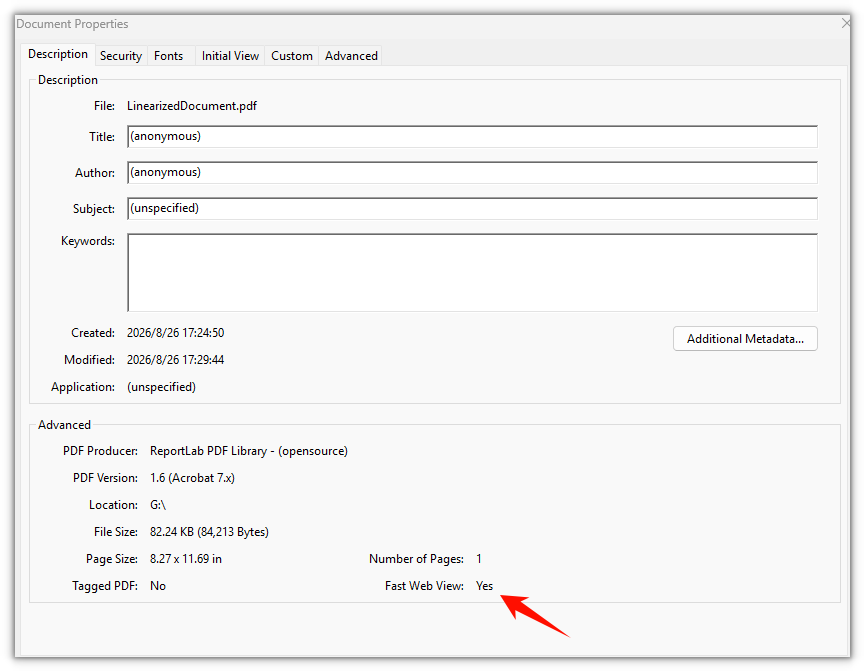
Linearization is what fast web view is built on: a reader does not have to wait for the whole file to arrive before it renders the first page. The usage is the same as in the first feature — pass the input file to the PdfToLinearizedPdfConverter constructor and call ToLinearizedPdf to write out the result, and the document keeps its appearance and content unchanged.
function App() {
  const convertToLinearized = async () => {
    // Get the Spire.PDF WASM module
    const pdfModule = window.wasmModule?.spirepdf;

    // Check whether the module is ready
    if (!pdfModule) {
      alert('Spire.PDF is not ready yet');
      return;
    }

    // Load the PDF file to be converted into the VFS
    const inputFileName = 'Business_Data_Overview.pdf';
    await window.spire.FetchFileToVFS(inputFileName, "", `${process.env.PUBLIC_URL}/data/`);

    // Define the output file name
    const outputFileName = 'LinearizedDocument.pdf';

    // Construct the linearization converter from the input file and write out the linearized document
    const converter = new pdfModule.PdfToLinearizedPdfConverter({ filePath: inputFileName });
    converter.ToLinearizedPdf({ filePath: outputFileName });
    converter.Dispose();

    // Read the generated file from the VFS and trigger the download
    const fileArray = window.dotnetRuntime.Module.FS.readFile(outputFileName);
    const blob = new Blob([fileArray], { type: 'application/pdf' });
    const url = URL.createObjectURL(blob);
    const a = document.createElement('a');
    a.href = url;
    a.download = outputFileName;
    a.click();
    URL.revokeObjectURL(url);
  };

  return (
    <div style={{ textAlign: 'center', height: '300px' }}>
      <h1>Linearize a PDF</h1>
      <button onClick={convertToLinearized}>
        Start Converting
      </button>
    </div>
  );
}

export default App;
The linearized document looks no different on the page, the change is inside the file structure
FAQ
Why does the converted document contain an extra Evaluation Warning line
Reason: An unlicensed Spire.PDF inserts a line Evaluation Warning : The document was created with Spire.PDF for JavaScript. into the output document. It is appended per call — convert the same file twice and the warning appears twice.
Solution: Request a temporary 30-day license and the output document no longer carries the warning. See "Get a Free License" at the end of this article.
Why is the grayscale file smaller
Reason: Grayscaling works by re-encoding color images as single-channel DeviceGray images, and the space they take drops along with the channel count. The color images in the sample document were 3-channel PNGs totaling about 66 KB, and come out at about 31 KB; the whole file went from 82 KB down to 44 KB.
Solution: This is the normal result of image re-encoding and needs no extra handling. The page count and the text content are unchanged, the text is still searchable and copyable, and only the colors are rewritten.
Get a Free License
If you wish to remove the evaluation message from the result document or remove feature limitations, please contact sales to obtain a temporary license valid for 30 days.
Convert PDF to Images and Vice Versa with JavaScript in React
Images are one of the most intuitive forms of content presentation and distribution, while PDF documents preserve the original layout and are widely used for the storage and transmission of formal files. When displaying PDF content on web pages, mini programs, social platforms, or emails, distributing PDF files directly is often inconvenient — converting them to image formats such as PNG or JPEG first enables quick preview and sharing. Conversely, consolidating scanned documents or image assets into PDF makes batch archiving and cross-platform distribution easier. Real-world business often requires flexible switching between the two forms: converting PDF contracts to images for online preview and quick sharing, or converting scanned image assets to PDF for unified archiving and circulation.
Spire.PDF for JavaScript performs bidirectional conversion between PDF and images entirely in the browser via WebAssembly, managing input and output files through a virtual file system (VFS) with no backend server required.
This article covers two core features:
For installation and project setup, refer to Integrating Spire.PDF for JavaScript in a React Project. The examples below assume Spire.PDF is installed and the WebAssembly module is initialized.
Convert PDF to Image
The core of PDF-to-image conversion is to render the content, fonts, and graphics elements of every page in a PDF document into independent bitmap data. Spire.PDF for JavaScript generates an image stream for each page through the PdfDocument object's SaveAsImage method, loops through all Pages.Count pages and saves each page as a PNG image with stream.Save, then bundles the images into a ZIP file with JSZip for a one-click download, without needing to handle pixel and page coordinate mapping manually.
import JSZip from "jszip";

function App() {
  const convertToImage = async () => {
    // Get the Spire.PDF WASM module
    const pdfModule = window.wasmModule?.spirepdf;

    // Check if the WASM module is ready
    if (!pdfModule) {
      alert('Spire.PDF is not ready yet');
      return;
    }

    // Load the PDF file and fonts into VFS
    await window.spire.FetchFileToVFS('ARIAL.TTF', '/Library/Fonts/', `${process.env.PUBLIC_URL}/font/`);
    const inputFileName = 'Flowers.pdf';
    await window.spire.FetchFileToVFS(inputFileName, "", `${process.env.PUBLIC_URL}/data/`);

    // Create PdfDocument object and load the PDF document
    let doc = new pdfModule.PdfDocument();
    doc.LoadFromFile(inputFileName);

    // Create an output directory to hold the converted images
    let outputDirectoryName = "ImagesFolders/";
    window.dotnetRuntime.Module.FS.mkdirTree(outputDirectoryName);

    // Loop through each page and save it as an image
    for (let i = 0; i < doc.Pages.Count; i++) {
      const outputFileName = outputDirectoryName + "ConvertedImages_" + i + ".png";
      let stream = doc.SaveAsImage({ pageIndex: i });
      stream.Save(outputFileName);
      stream.Dispose();
    }

    doc.Dispose();

    // Read the converted files from VFS and trigger download
    const zip = new JSZip();
    let items = await window.dotnetRuntime.Module.FS.readdir(outputDirectoryName);
    items = items.filter((item) => item !== "."

      && item !== "..");
    for (const item of items) {
      const itemPath = `${outputDirectoryName}/${item}`;
      const fileData = await window.dotnetRuntime.Module.FS.readFile(itemPath);
      zip.file(item, fileData);
    }

    // Convert the ZIP to a Blob and trigger the browser download
    const zipBlob = await zip.generateAsync({ type: "blob" });
    const url = URL.createObjectURL(zipBlob);
    const a = document.createElement('a');
    a.href = url;
    a.download = 'ImagesFolders';
    a.click();
    URL.revokeObjectURL(url);
  };

  return (
    <div style={{ textAlign: 'center', height: '300px' }}>
      <h1>Convert PDF To Image</h1>
      <button onClick={convertToImage}>
        Generate
      </button>
    </div>
  );
}

export default App;
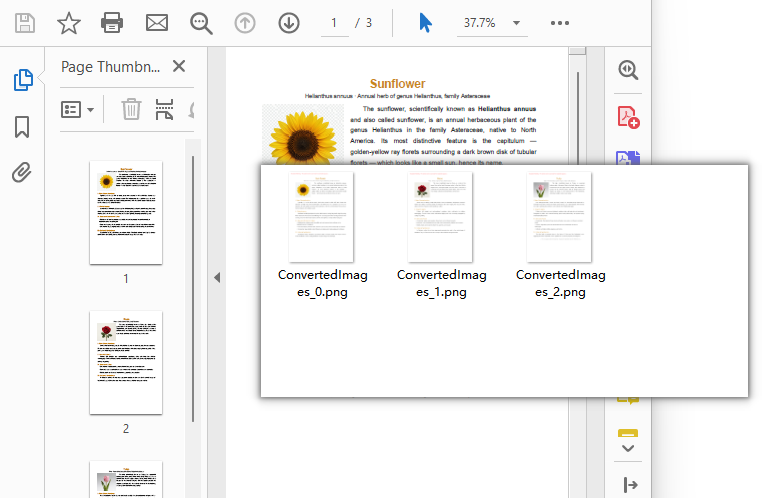
Each page of the PDF exported as a PNG image via SaveAsImage and bundled into a ZIP file for download
Adjust the DPI Resolution of Exported Images
When exporting images with the
SaveAsImagemethod, the default resolution is 96 DPI, which is suitable for screen preview, but text and lines may appear jagged or blurry when zoomed in. For sharper images, specify the resolution via thedpiXanddpiYparameters ofSaveAsImage, for example set it to 150 DPI:
// Export each page as an image at 150 DPI
for (let i = 0; i < doc.Pages.Count; i++) {
  let stream = doc.SaveAsImage({ pageIndex: i, dpiX: 150, dpiY: 150 });
  stream.Save(outputDirectoryName + "highres_" + i + ".png");
  stream.Dispose();
}
The higher the DPI value, the sharper the exported image, but the larger the file size. Choose a balance between clarity and file size based on your actual use case.
Convert Image to PDF
Image-to-PDF conversion is commonly used to consolidate scanned documents or design assets into PDF for archiving. Spire.PDF for JavaScript creates a new document with the PdfDocument object, loads the image with the PdfImage.FromFile method, adds a page via Pages.Add, draws the image onto the page at its original size with the Canvas.DrawImage method, and finally saves it as a standard PDF with the SaveToFile method using the FileFormat.PDF enum value.
function App() {
  const convertImageToPDF = async () => {
    // Get the Spire.PDF WASM module
    const pdfModule = window.wasmModule?.spirepdf;

    // Check if the WASM module is ready
    if (!pdfModule) {
      alert('Spire.PDF is not ready yet');
      return;
    }

    // Load the image file into VFS
    const inputFileName = 'Scenery.png';
    await window.spire.FetchFileToVFS(inputFileName, "", `${process.env.PUBLIC_URL}/data/`);

    // Create a PdfDocument object
    let doc = new pdfModule.PdfDocument();

    // Add a page
    let page = doc.Pages.Add();

    // Load the image
    let image = pdfModule.PdfImage.FromFile(inputFileName);

    // Calculate the scale ratio so the image fits the page completely
    let widthFitRate = image.PhysicalDimension.Width / page.Canvas.ClientSize.Width;
    let heightFitRate = image.PhysicalDimension.Height / page.Canvas.ClientSize.Height;
    let fitRate = Math.max(widthFitRate, heightFitRate);

    // Calculate the scaled dimensions of the image
    let fitWidth = image.PhysicalDimension.Width / fitRate;
    let fitHeight = image.PhysicalDimension.Height / fitRate;

    // Draw the image onto the page
    page.Canvas.DrawImage({ image: image, x: 0, y: 30, width: fitWidth, height: fitHeight });

    const outputFileName = 'ImageToPDF.pdf';

    // Save as PDF format
    doc.SaveToFile({ fileName: outputFileName, fileFormat: pdfModule.FileFormat.PDF });
    doc.Close();

    // Read the converted file from VFS and trigger download
    const fileArray = window.dotnetRuntime.Module.FS.readFile(outputFileName);
    const blob = new Blob([fileArray], { type: 'application/pdf' });
    const url = URL.createObjectURL(blob);
    const a = document.createElement('a');
    a.href = url;
    a.download = outputFileName;
    a.click();
    URL.revokeObjectURL(url);
  };

  return (
    <div style={{ textAlign: 'center', height: '300px' }}>
      <h1>Convert Image To PDF</h1>
      <button onClick={convertImageToPDF}>
        Generate
      </button>
    </div>
  );
}

export default App;
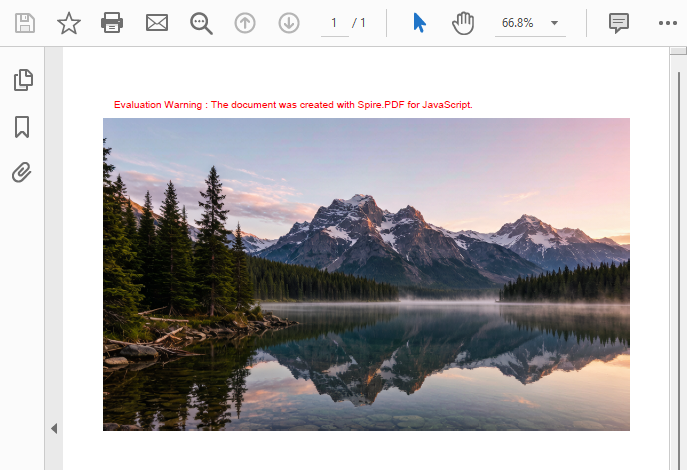
PDF document generated after loading an image via PdfImage.FromFile and drawing it with Canvas.DrawImage
Load Images from a Memory Stream
Besides loading directly from a file with
PdfImage.FromFile, images can also be loaded from a memory stream via thePdfImage.FromStreammethod. This approach suits scenarios where the image data comes from an API response or a database field, or where bytes need to be read before processing. See the code below:
// Read image bytes from VFS and build a memory stream
let bytes = window.dotnetRuntime.Module.FS.readFile(inputFileName);
let stream = new pdfModule.Stream(bytes);

// Load the image from the memory stream
let image = pdfModule.PdfImage.FromStream(stream);
The image can then be drawn onto a PDF page with the page.Canvas.DrawImage method and saved as a standard PDF using SaveToFile.
FAQ
Garbled text in the converted image
Reason: PDF relies on font embedding to ensure consistent cross-platform rendering. If the input PDF uses non-embedded fonts and the corresponding font files are not loaded in the VFS, text may appear garbled after conversion.
Solution: Make sure the required TrueType font files (e.g., ARIALUNI.TTF) are loaded into the /Library/Fonts/ directory in VFS before calling the conversion. ARIALUNI.TTF covers common CJK characters and is the recommended font for ensuring conversion quality.
Which image formats are supported for conversion?
Reason: Different business scenarios require different bitmap formats. For example, PNG is commonly used for web preview and JPEG for photos.
Solution: Spire.PDF for JavaScript can render PDF pages to common bitmap formats such as PNG, JPEG, and BMP. After generating the image stream with SaveAsImage, simply replace the file extension of the output file name with the target format (e.g., .jpg, .bmp, .png) in stream.Save to output the corresponding image format.
Get a Free License
If you want to remove the evaluation messages in the resulting documents or get rid of functional limitations, contact sales to obtain a 30-day temporary license.
Convert PDF to XPS and Vice Versa with JavaScript in React
XPS (XML Paper Specification) is a fixed-layout document format introduced by Microsoft, widely used in electronic document printing, archiving, and distribution scenarios, with native support in the Windows platform ecosystem. XPS describes document structure based on XML, offering advantages such as clear structure, easy validation, and digital signing. Meanwhile, PDF remains indispensable as an internationally recognized document format for cross-platform distribution. Real-world business often requires flexible switching between the two formats: converting existing PDF contracts to XPS for printing and archiving in Windows environments, or converting XPS documents to PDF for cross-platform distribution and collaboration.
Spire.PDF for JavaScript performs bidirectional conversion between PDF and XPS entirely in the browser via WebAssembly, managing input and output files through a virtual file system (VFS) with no backend server required.
This article covers two core features:
For installation and project setup, refer to Integrating Spire.PDF for JavaScript in a React Project. The examples below assume Spire.PDF is installed and the WebAssembly module is initialized.
Convert PDF to XPS
The core of PDF-to-XPS conversion is to re-encode the page content, fonts, and graphics elements from a PDF document into an XML description structure compliant with the XPS standard. Spire.PDF for JavaScript accomplishes this in one step through the PdfDocument object's SaveToFile method with the FileFormat.XPS enum value, eliminating the need to handle underlying format differences manually.
function App() {
  const convertToXPS = async () => {
    // Get the Spire.PDF WASM module
    const pdfModule = window.wasmModule?.spirepdf;

    // Check if the WASM module is ready
    if (!pdfModule) {
      alert('Spire.PDF is not ready yet');
      return;
    }

    // Load fonts and PDF file into VFS
    await window.spire.FetchFileToVFS('ARIAL.TTF', '/Library/Fonts/', `${process.env.PUBLIC_URL}/font/`);
    const inputFileName = 'Reading_EN.pdf';
    await window.spire.FetchFileToVFS(inputFileName, "", `${process.env.PUBLIC_URL}/data/`);

    // Create PdfDocument object and load the PDF document
    let doc = new pdfModule.PdfDocument();
    doc.LoadFromFile(inputFileName);

    // Define the output file name for XPS format
    const outputFileName = 'OutputXPS.xps';

    // Save as XPS format
    doc.SaveToFile({ fileName: outputFileName, fileFormat: pdfModule.FileFormat.XPS });
    doc.Close();

    // Read the converted file from VFS and trigger download
    const fileArray = window.dotnetRuntime.Module.FS.readFile(outputFileName);
    const blob = new Blob([fileArray], { type: 'application/vnd.ms-xpsdocument' });
    const url = URL.createObjectURL(blob);
    const a = document.createElement('a');
    a.href = url;
    a.download = outputFileName;
    a.click();
    URL.revokeObjectURL(url);
  };

  return (
    <div style={{ textAlign: 'center', height: '300px' }}>
      <h1>Convert PDF To XPS</h1>
      <button onClick={convertToXPS}>
        Generate
      </button>
    </div>
  );
}

export default App;
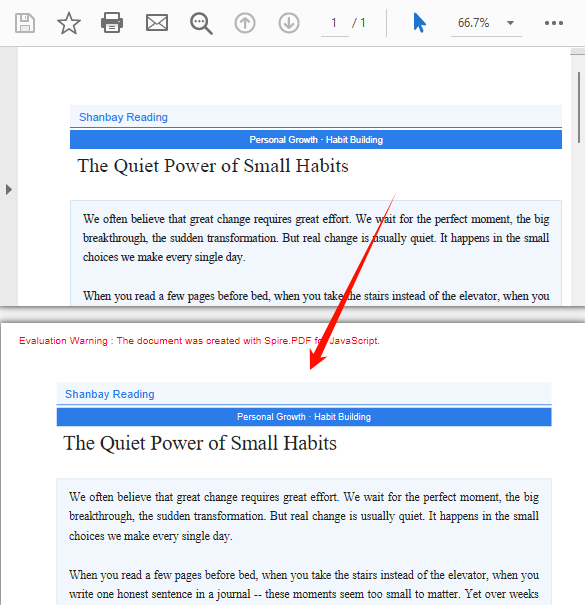
XPS output generated after conversion via SaveToFile with FileFormat.XPS
Convert XPS to PDF
XPS-to-PDF conversion is a common requirement in document cross-platform distribution scenarios. Spire.PDF for JavaScript loads XPS fixed-layout documents through the PdfDocument object's LoadFromXPS method and then exports them as standard PDF files via the SaveToFile method with the FileFormat.PDF enum value, preserving the original document's layout and visual appearance.
function App() {
  const convertXPSToPDF = async () => {
    // Get the Spire.PDF WASM module
    const pdfModule = window.wasmModule?.spirepdf;

    // Check if the WASM module is ready
    if (!pdfModule) {
      alert('Spire.PDF is not ready yet');
      return;
    }

    // Load the XPS file into VFS
    const inputFileName = 'Lease_Agreement_EN.xps';
    await window.spire.FetchFileToVFS(inputFileName, "", `${process.env.PUBLIC_URL}/data/`);

    // Create PdfDocument object and load the XPS document
    let doc = new pdfModule.PdfDocument();
    doc.LoadFromXPS(inputFileName);

    // Define the output file name for PDF format
    const outputFileName = 'OutputPDF.pdf';

    // Save as PDF format
    doc.SaveToFile({ fileName: outputFileName, fileFormat: pdfModule.FileFormat.PDF });
    doc.Close();

    // Read the converted file from VFS and trigger download
    const fileArray = window.dotnetRuntime.Module.FS.readFile(outputFileName);
    const blob = new Blob([fileArray], { type: 'application/pdf' });
    const url = URL.createObjectURL(blob);
    const a = document.createElement('a');
    a.href = url;
    a.download = outputFileName;
    a.click();
    URL.revokeObjectURL(url);
  };

  return (
    <div style={{ textAlign: 'center', height: '300px' }}>
      <h1>Convert XPS To PDF</h1>
      <button onClick={convertXPSToPDF}>
        Generate
      </button>
    </div>
  );
}

export default App;
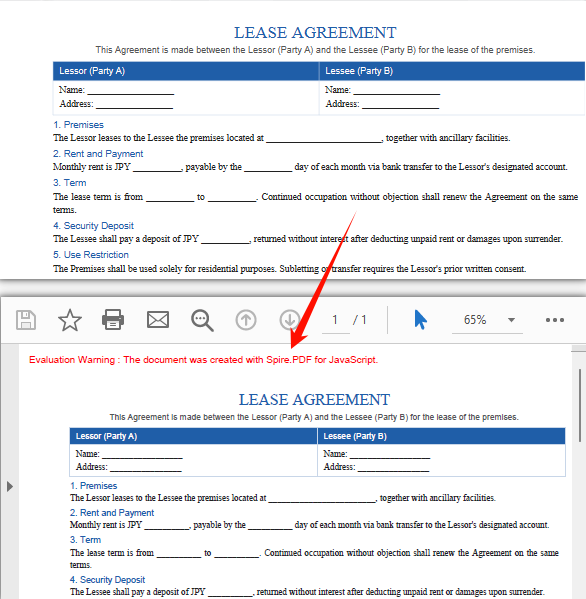
PDF document generated after loading XPS via the PdfDocument LoadFromXPS method and converting
FAQ
Can encrypted PDFs be converted to XPS?
Password-protected encrypted PDFs cannot be saved as XPS directly via SaveToFile — the document must be decrypted first.
Solution: Provide the password when loading the PDF via the second parameter of LoadFromFile, then save as XPS:
// Load a password-protected PDF document
let doc = new pdfModule.PdfDocument();
doc.LoadFromFile(inputFileName, "password");

// Save as XPS format
doc.SaveToFile({ fileName: outputFileName, fileFormat: pdfModule.FileFormat.XPS });
doc.Close();
Get a Free License
If you want to remove the evaluation messages in the resulting documents or get rid of functional limitations, contact sales to obtain a 30-day temporary license.
Convert PDF to OFD and Vice Versa with JavaScript in React
OFD (Open Fixed-layout Document) is a national standard fixed-layout document format widely used in e-invoices, e-certificates, administrative approvals, and other government and financial scenarios. OFD describes document structure based on XML, offering advantages such as independent control and information security. Meanwhile, PDF remains indispensable as an internationally recognized document format for cross-platform distribution. Real-world business often requires flexible switching between the two formats: receiving OFD-format e-invoices and converting them to PDF for printing and distribution, or converting existing PDF contracts to OFD to meet government platform upload requirements.
Spire.PDF for JavaScript performs bidirectional conversion between PDF and OFD entirely in the browser via WebAssembly, managing input and output files through a virtual file system (VFS) with no backend server required.
This article covers two core features:
For installation and project setup, refer to Integrating Spire.PDF for JavaScript in a React Project. The examples below assume Spire.PDF is installed and the WebAssembly module is initialized.
Convert PDF to OFD
The core of PDF-to-OFD conversion is to re-encode the page content, fonts, and graphics elements from a PDF document into an XML description structure compliant with the OFD standard. Spire.PDF for JavaScript accomplishes this in one step through the PdfDocument object's SaveToFile method with the FileFormat.OFD enum value, eliminating the need to handle underlying format differences manually.
function App() {
  const convertToOFD = async () => {
    // Get the Spire.PDF WASM module
    const pdfModule = window.wasmModule?.spirepdf;

    // Check if the WASM module is ready
    if (!pdfModule) {
      alert('Spire.PDF is not ready yet');
      return;
    }

    // Load fonts and PDF file into VFS
    await window.spire.FetchFileToVFS('ARIAL.TTF', '/Library/Fonts/', `${process.env.PUBLIC_URL}/font/`);
    const inputFileName = 'TemplateIntroduction-en.pdf';
    await window.spire.FetchFileToVFS(inputFileName, "", `${process.env.PUBLIC_URL}/data/`);

    // Create PdfDocument object and load the PDF document
    let doc = new pdfModule.PdfDocument();
    doc.LoadFromFile(inputFileName);

    // Define the output file name for OFD format
    const outputFileName = 'OutputOFD.ofd';

    // Save as OFD format
    doc.SaveToFile({ fileName: outputFileName, fileFormat: pdfModule.FileFormat.OFD });
    doc.Close();

    // Read the converted file from VFS and trigger download
    const fileArray = window.dotnetRuntime.Module.FS.readFile(outputFileName);
    const blob = new Blob([fileArray], { type: 'application/ofd' });
    const url = URL.createObjectURL(blob);
    const a = document.createElement('a');
    a.href = url;
    a.download = outputFileName;
    a.click();
    URL.revokeObjectURL(url);
  };

  return (
    <div style={{ textAlign: 'center', height: '300px' }}>
      <h1>Convert PDF To OFD</h1>
      <button onClick={convertToOFD}>
        Generate
      </button>
    </div>
  );
}

export default App;
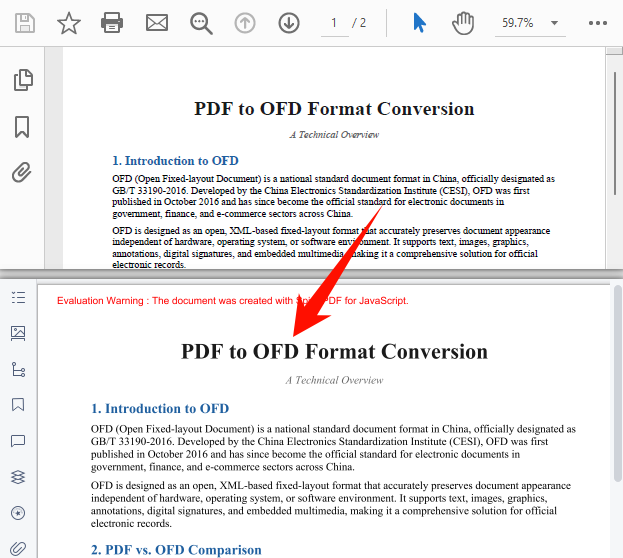
OFD output generated after conversion via SaveToFile with FileFormat.OFD
Convert OFD to PDF
OFD-to-PDF conversion is a common requirement in government electronic document distribution scenarios. Spire.PDF for JavaScript provides the OfdConverter component, which is specifically designed to parse OFD fixed-layout documents and export them as standard PDF files while preserving the original document's layout and visual appearance.
function App() {
  const convertOFDToPDF = async () => {
    // Get the Spire.PDF WASM module
    const pdfModule = window.wasmModule?.spirepdf;

    // Check if the WASM module is ready
    if (!pdfModule) {
      alert('Spire.PDF is not ready yet');
      return;
    }

    // Load fonts and OFD file into VFS
    await window.spire.FetchFileToVFS('Arial.TTF', '/Library/Fonts/', `${process.env.PUBLIC_URL}/font/`);
    const inputFileName = 'Invoice_EN.ofd';
    await window.spire.FetchFileToVFS(inputFileName, "", `${process.env.PUBLIC_URL}/data/`);

    // Create OfdConverter object and pass the OFD file path
    let converter = new pdfModule.OfdConverter(inputFileName);

    // Define the output file name for PDF format
    const outputFileName = 'OutputPDF.pdf';

    // Convert to PDF format
    converter.ToPdf(outputFileName);
    converter.Dispose();

    // Read the converted file from VFS and trigger download
    const fileArray = window.dotnetRuntime.Module.FS.readFile(outputFileName);
    const blob = new Blob([fileArray], { type: 'application/pdf' });
    const url = URL.createObjectURL(blob);
    const a = document.createElement('a');
    a.href = url;
    a.download = outputFileName;
    a.click();
    URL.revokeObjectURL(url);
  };

  return (
    <div style={{ textAlign: 'center', height: '300px' }}>
      <h1>Convert OFD To PDF</h1>
      <button onClick={convertOFDToPDF}>
        Generate
      </button>
    </div>
  );
}

export default App;
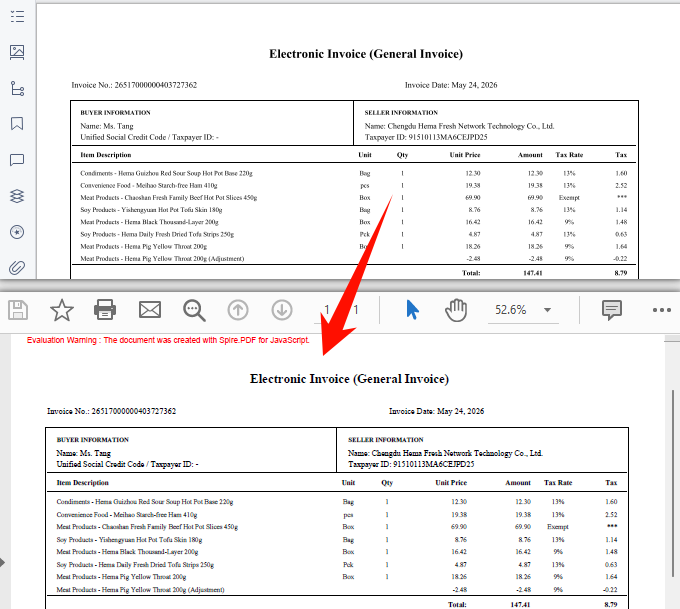
Standard PDF output generated after conversion via OfdConverter
FAQ
Can encrypted PDFs be converted to OFD?
Password-protected encrypted PDFs cannot be saved as OFD directly via SaveToFile — the document must be decrypted first.
Solution: Provide the password when loading the PDF via the second parameter of LoadFromFile, then save as OFD:
// Load a password-protected PDF document
let doc = new pdfModule.PdfDocument();
doc.LoadFromFile(inputFileName, "password");

// Save as OFD format
doc.SaveToFile({ fileName: outputFileName, fileFormat: pdfModule.FileFormat.OFD });
doc.Close();
Garbled text in the converted OFD document
OFD relies on font embedding to ensure consistent cross-platform rendering. If the input PDF uses non-embedded fonts and the corresponding font files are not loaded in the VFS, text may appear garbled after conversion.
Solution: Make sure the required TrueType font files (e.g., ARIALUNI.TTF) are loaded into the /Library/Fonts/ directory in VFS before calling the conversion. ARIALUNI.TTF covers common CJK characters and is the recommended font for ensuring conversion quality.
Get a Free License
Spire.PDF for JavaScript offers a 30-day full-featured free trial license with no functional limitations. Apply here to evaluate before purchasing.
Convert PDF to PDF/A and Vice Versa with JavaScript in React
PDF/A is an ISO-standardized long-term archival format that embeds fonts, color profiles, and metadata into a unified compliance level, ensuring documents remain faithfully reproducible for decades regardless of the PDF reader used. In contrast, standard PDF offers greater flexibility for everyday editing and content extraction. Real-world business often requires switching between these two formats: converting contracts to PDF/A for regulatory compliance during archiving, and restoring them to standard PDF for text extraction during audit review.
Spire.PDF for JavaScript performs bidirectional PDF/PDF/A conversion entirely in the browser via WebAssembly, managing input and output files through a virtual file system (VFS) with no backend server required.
This article covers two core features:
For installation and project setup, refer to Integrating Spire.PDF for JavaScript in a React Project. The examples below assume Spire.PDF is installed and the WebAssembly module is initialized.
Convert PDF to PDF/A
The core of PDF/A archival conversion is to consolidate fonts, color profiles, and metadata in a standard PDF into ISO-compliant levels. Spire.PDF handles this in one step through the PdfStandardsConverter component, supporting multiple compliance levels including PDF/A-1a, PDF/A-1b, PDF/A-2a, PDF/A-2b, PDF/A-3a, and PDF/A-3b.
The conversion standards supported by PdfStandardsConverter and their use cases are as follows:
| Method | Standard | Description |
|---|---|---|
ToPdfA1B |
PDF/A-1b | Based on PDF 1.4, guarantees visual appearance reproducibility only — the most commonly used archival level |
ToPdfA1A |
PDF/A-1a | Requires document tags and structure information on top of 1b, supports accessible reading |
ToPdfA2A |
PDF/A-2a | Based on PDF 1.7, requires tags and structure info, supports layers and transparency |
ToPdfA2B |
PDF/A-2b | PDF/A-2 basic conformance level, allows transparency, layers, and embedded OLE objects |
ToPdfA3A |
PDF/A-3a | Allows embedding XML, Excel, and other arbitrary format files as attachments on top of 2a |
ToPdfA3B |
PDF/A-3b | PDF/A-3 basic conformance level, supports embedding arbitrary format attachments |
ToPdfX1A2001 |
PDF/X-1a:2001 | Print exchange standard, suitable for publishing and printing workflows |
The following example demonstrates converting a PDF to PDF/A-2B using ToPdfA2B:
function App() {
  const convertToPDFA = async () => {
    // Get the Spire.PDF WASM module
    const pdfModule = window.wasmModule?.spirepdf;

    // Check if the WASM module is ready
    if (!pdfModule) {
      alert('Spire.PDF is not ready yet');
      return;
    }

    // Load fonts and PDF file into VFS
    await window.spire.FetchFileToVFS('arial.ttf', '/Library/Fonts/', `${process.env.PUBLIC_URL}/font/`);
    const inputFileName = 'MovieCatalog.pdf';
    await window.spire.FetchFileToVFS(inputFileName, "", `${process.env.PUBLIC_URL}/data/`);

    // Create PdfStandardsConverter
    let converter = new pdfModule.PdfStandardsConverter({ filePath: inputFileName });

    // Convert to PDF/A-2B format
    const outputFileName = 'ToPDFA_result.pdf';
    converter.ToPdfA2B({ filePath: outputFileName });

    // // Convert to PDF/A-1a
    // converter.ToPdfA1A({ filePath: outputFileName });

    // // Convert to PDF/A-2a
    // converter.ToPdfA2A({ filePath: outputFileName });

    // // Convert to PDF/A-2b
    // converter.ToPdfA2B({ filePath: outputFileName });

    // // Convert to PDF/A-3a
    // converter.ToPdfA3A({ filePath: outputFileName });

    // // Convert to PDF/A-3b
    // converter.ToPdfA3B({ filePath: outputFileName });

    // // Convert to PDF/X-1a:2001
    // converter.ToPdfX1A2001({ filePath: outputFileName });

    // Read the converted file from VFS and trigger download
    const fileArray = window.dotnetRuntime.Module.FS.readFile(outputFileName);
    const blob = new Blob([fileArray], { type: 'application/pdf' });
    const url = URL.createObjectURL(blob);
    const a = document.createElement('a');
    a.href = url;
    a.download = outputFileName;
    a.click();
    URL.revokeObjectURL(url);

    // Release resources
    converter.Dispose();
  };

  return (
    <div style={{ textAlign: 'center', height: '300px' }}>
      <h1>Convert PDF To PDF/A</h1>
      <button onClick={convertToPDFA}>
        Generate
      </button>
    </div>
  );
}

export default App;
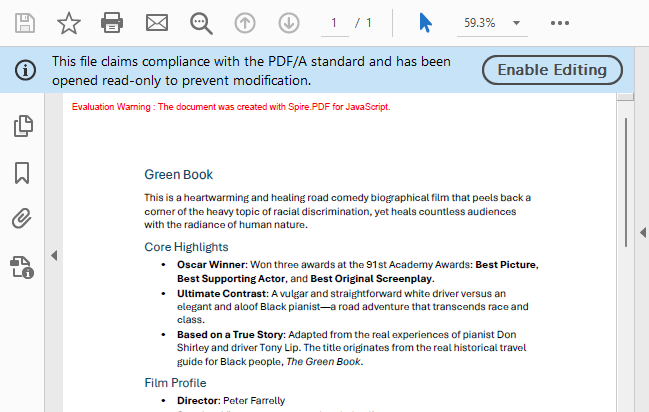
PDF/A output generated after conversion via PdfStandardsConverter
Convert PDF/A to PDF
PDF/A is the standard format for long-term archiving, but in everyday editing and content extraction scenarios, you may need to restore PDF/A back to standard PDF. Spire.PDF for JavaScript achieves this reverse conversion by loading the PDF/A document and copying content page by page into a new document, ensuring the output standard PDF is free of PDF/A compliance constraints.
function App() {
  const convertToNormalPDF = async () => {
    // Get the Spire.PDF WASM module
    const pdfModule = window.wasmModule?.spirepdf;

    // Check if the WASM module is ready
    if (!pdfModule) {
      alert('Spire.PDF is not ready yet');
      return;
    }

    // Load fonts and PDF file into VFS
    await window.spire.FetchFileToVFS('arial.ttf', '/Library/Fonts/', `${process.env.PUBLIC_URL}/font/`);
    const inputFileName = 'PDFA_Sample.pdf';
    await window.spire.FetchFileToVFS(inputFileName, "", `${process.env.PUBLIC_URL}/data/`);

    // Create PdfDocument object
    let doc = new pdfModule.PdfDocument();
    doc.LoadFromFile(inputFileName);

    // Create a new PDF document to draw content onto
    let newDoc = new pdfModule.PdfNewDocument();
    newDoc.CompressionLevel = pdfModule.PdfCompressionLevel.None;

    // Iterate through each page in the original document
    for (let i = 0; i < doc.Pages.Count; i++) {
      let page = doc.Pages.get_Item(i);
      // Get the current page size
      let size = page.Size;

      // Add a new page with the same size and no margins
      let newPage = newDoc.Pages.Add({ size: size, margins: new pdfModule.PdfMargins() });

      // Draw the original page content onto the new page
      let template = page.CreateTemplate();
      let layoutWidget = new pdfModule.PdfLayoutWidget(template.H);
      layoutWidget.Draw({ page: newPage, x: 0, y: 0 });
      // page.CreateTemplate().Draw({page: newPage, x: 0, y: 0});
    }

    // Define the output file name
    const outputFileName = "PDFAToPdf_result.pdf";

    // Save the document to the specified path
    newDoc.Save(outputFileName);

    // Read the generated file from VFS and trigger download
    const fileArray = window.dotnetRuntime.Module.FS.readFile(outputFileName);
    const blob = new Blob([fileArray], { type: 'application/pdf' });
    const url = URL.createObjectURL(blob);
    const a = document.createElement('a');
    a.href = url;
    a.download = outputFileName;
    a.click();
    URL.revokeObjectURL(url);

    // Release resources
    newDoc.Dispose();
    doc.Dispose();
  };

  return (
    <div style={{ textAlign: 'center', height: '300px' }}>
      <h1>Convert PDF/A To Normal PDF</h1>
      <button onClick={convertToNormalPDF}>
        Generate
      </button>
    </div>
  );
}

export default App;
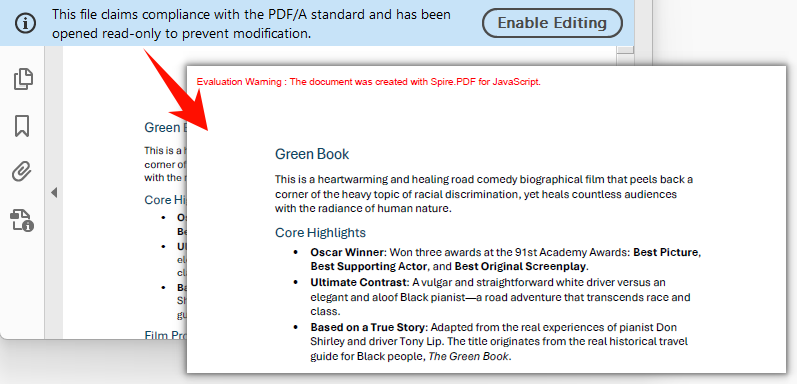
Standard PDF output generated by creating a new document and copying pages
FAQ
Converted PDF/A file size is much larger than the original
PDF/A requires all fonts used in the document to be fully embedded to ensure correct rendering on any device. If the original document uses non-embedded system fonts, the font data will be written completely into the output file during conversion, resulting in a larger file size. This is an inherent requirement of PDF/A compliance. To minimize file size, consider using font subsetting (embedding only the characters actually used) or compressing image content before generating the source PDF.
Can encrypted PDFs be converted to PDF/A?
Encrypted PDFs that require a password to open cannot be processed directly by PdfStandardsConverter. The password must be provided when loading the document.
The PdfStandardsConverter constructor supports a password parameter for converting password-protected PDFs to PDF/A:
// Create PdfStandardsConverter with password
let converter = new pdfModule.PdfStandardsConverter({ filePath: inputFileName, password: "123456" });
converter.ToPdfA2A({ filePath: outputFileName });
converter.Dispose();
"File not found" or "Invalid PDF format" error when loading PDF/A
PDF/A documents must first be converted via PdfStandardsConverter, or properly loaded into the virtual file system (VFS) via FetchFileToVFS. Common mistakes include passing the wrong file name or path, or executing subsequent operations before the file has finished loading. Verify that the file has been loaded into VFS via FetchFileToVFS and that the file name (including extension) matches exactly. Use await to ensure the file is ready before proceeding.
Get a Free License
Spire.PDF for JavaScript offers a 30-day full-featured free trial license with no functional limitations. Apply here to evaluate before purchasing.
Add, Replace, Delete, or Extract Images in PDF with JavaScript in React
Product images, screenshots, charts, and stamps in a PDF often need to be updated or reused: inserting new images into a PDF, replacing an old Logo with a new Logo, deleting outdated illustrations, or extracting images from a PDF for use in other documents. Because the PDF layout is fixed, directly modifying these images with an editor is often very difficult.
Spire.PDF for JavaScript processes PDF documents directly in the browser via WebAssembly, managing input and output files through a virtual file system (VFS) with no backend server required. With PdfImage, the DrawImage method of the page canvas, and the PdfImageHelper helper class, you can easily add, replace, delete, and extract images in PDFs.
This article covers four core features:
For installation and project setup, refer to Integrating Spire.PDF for JavaScript in a React Project. The examples below assume Spire.PDF is installed and the WebAssembly module is initialized.
Add Images to a PDF
Adding images is one of the most common image operations. The core idea is: first load the image file with the PdfImage.FromFile method, then use the DrawImage method of the page canvas to draw the image at a specified position and size on the page. The x and y parameters determine the coordinates of the top-left corner of the image, and the width and height parameters determine the display size of the image. You can add an image to a specified page of an existing document, or draw the image in a new blank document as in the example below.
function App() {
  const addImageToPdf = async () => {
    // Get the Spire.PDF WASM module
    const pdfModule = window.wasmModule?.spirepdf;

    // Check if the WASM module is ready
    if (!pdfModule) {
      alert('Spire.PDF is not ready yet');
      return;
    }

    // Load the image into VFS
    const inputImageName = 'TreePic.png';
    await window.spire.FetchFileToVFS(inputImageName, "", `${process.env.PUBLIC_URL}/data/`);

    // Create a PdfDocument object
    let doc = new pdfModule.PdfDocument();

    // Add a page
    let page = doc.Pages.Add();

    // Load the image and scale its display size proportionally
    let image = pdfModule.PdfImage.FromFile(inputImageName);
    let width = image.Width * 0.6;
    let height = image.Height * 0.6;

    // Calculate the horizontal center position and set the vertical position
    let x = (page.Canvas.ClientSize.Width - width) / 2;
    let y = 60;

    // Draw the image at the specified position on the page
    page.Canvas.DrawImage({ image: image, x: x, y: y, width: width, height: height });

    // Define the output file name in PDF format
    const outputFileName = 'AddImage.pdf';

    // Save as PDF format
    doc.SaveToFile({ fileName: outputFileName });
    doc.Close();

    // Read the generated PDF file from VFS and trigger download
    const fileArray = window.dotnetRuntime.Module.FS.readFile(outputFileName);
    const blob = new Blob([fileArray], { type: 'application/pdf' });
    const url = URL.createObjectURL(blob);
    const a = document.createElement('a');
    a.href = url;
    a.download = outputFileName;
    a.click();
    URL.revokeObjectURL(url);
  };

  return (
    <div style={{ textAlign: 'center', height: '300px' }}>
      <h1>Add Image To PDF</h1>
      <button onClick={addImageToPdf}>
        Generate
      </button>
    </div>
  );
}

export default App;
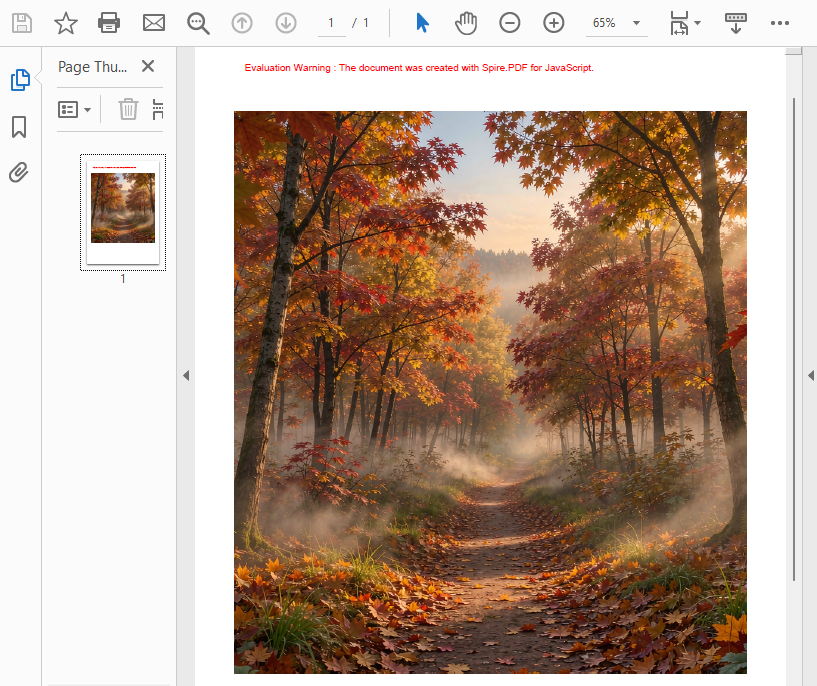
PDF document generated after adding an image
Replace Images in a PDF
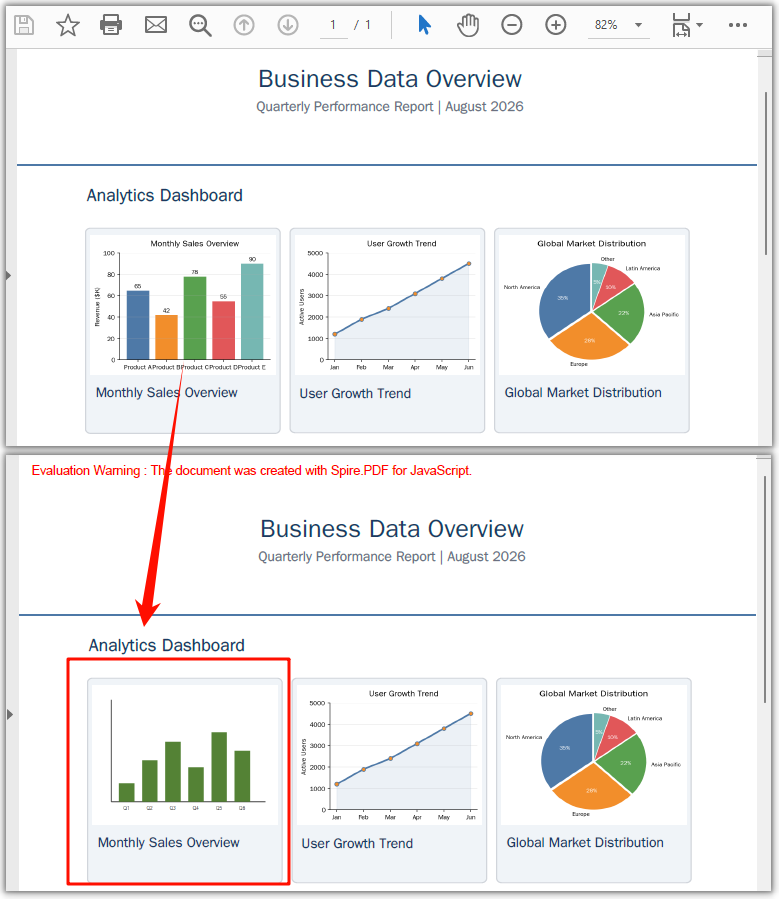
Replacing an image means replacing the content of an image on the page with a new image while keeping the original position and placeholder size unchanged. First, use the GetImagesInfo method of PdfImageHelper to get the array of image information on the page, then load the new image, and call the ReplaceImage method to replace the image at the specified index with the new image. After replacement, the new image automatically inherits the original image's position and size on the page, so the overall layout remains unchanged.
function App() {
  const replaceImageInPdf = async () => {
    // Get the Spire.PDF WASM module
    const pdfModule = window.wasmModule?.spirepdf;

    // Check if the WASM module is ready
    if (!pdfModule) {
      alert('Spire.PDF is not ready yet');
      return;
    }

    // Load the PDF file into VFS
    const inputFileName = 'Business_Data_Overview.pdf';
    await window.spire.FetchFileToVFS(inputFileName, "", `${process.env.PUBLIC_URL}/data/`);

    // Load the new image used for replacement into VFS
    const newImageName = 'ChartImage.png';
    await window.spire.FetchFileToVFS(newImageName, "", `${process.env.PUBLIC_URL}/data/`);

    // Create a PdfDocument object and load the PDF document
    let doc = new pdfModule.PdfDocument();
    doc.LoadFromFile(inputFileName);

    // Get the first page
    let page = doc.Pages.get_Item(0);

    // Create a PdfImageHelper object and get the image information on the page
    let helper = new pdfModule.PdfImageHelper();
    let images = helper.GetImagesInfo(page);

    // Load the new image and replace the first image on the page
    let newImage = pdfModule.PdfImage.FromFile(newImageName);
    helper.ReplaceImage(images[0], newImage);

    // Define the output file name in PDF format
    const outputFileName = 'ReplaceImage.pdf';

    // Save as PDF format
    doc.SaveToFile({ fileName: outputFileName });
    doc.Close();

    // Read the generated PDF file from VFS and trigger download
    const fileArray = window.dotnetRuntime.Module.FS.readFile(outputFileName);
    const blob = new Blob([fileArray], { type: 'application/pdf' });
    const url = URL.createObjectURL(blob);
    const a = document.createElement('a');
    a.href = url;
    a.download = outputFileName;
    a.click();
    URL.revokeObjectURL(url);
  };

  return (
    <div style={{ textAlign: 'center', height: '300px' }}>
      <h1>Replace Image In PDF</h1>
      <button onClick={replaceImageInPdf}>
        Generate
      </button>
    </div>
  );
}

export default App;
PDF document generated after replacing an image
Delete Images from a PDF
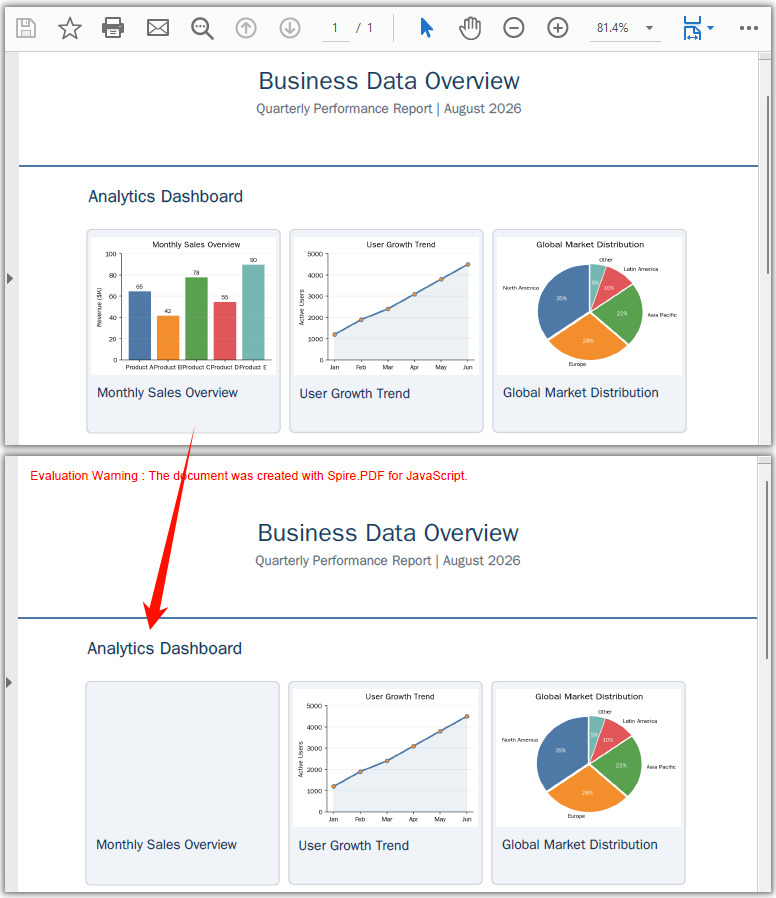
Deleting an image removes an image object that is no longer needed from the page. Similar to replacement, first use the GetImagesInfo method of PdfImageHelper to get the array of image information on the page, then call the DeleteImage method and pass in the corresponding image information object to delete the image. After deletion, the original position is left blank, and the text, graphics, and overall layout on the page are unaffected.
function App() {
  const deleteImageFromPdf = async () => {
    // Get the Spire.PDF WASM module
    const pdfModule = window.wasmModule?.spirepdf;

    // Check if the WASM module is ready
    if (!pdfModule) {
      alert('Spire.PDF is not ready yet');
      return;
    }

    // Load the PDF file into VFS
    const inputFileName = 'Business_Data_Overview.pdf';
    await window.spire.FetchFileToVFS(inputFileName, "", `${process.env.PUBLIC_URL}/data/`);

    // Create a PdfDocument object and load the PDF document
    let doc = new pdfModule.PdfDocument();
    doc.LoadFromFile(inputFileName);

    // Get the first page
    let page = doc.Pages.get_Item(0);

    // Create a PdfImageHelper object and get the image information on the page
    let helper = new pdfModule.PdfImageHelper();
    let images = helper.GetImagesInfo(page);

    // Delete the first image on the page
    helper.DeleteImage({ imageInfo: images[0] });

    // Define the output file name in PDF format
    const outputFileName = 'DeleteImage.pdf';

    // Save as PDF format
    doc.SaveToFile({ fileName: outputFileName });
    doc.Close();

    // Read the generated PDF file from VFS and trigger download
    const fileArray = window.dotnetRuntime.Module.FS.readFile(outputFileName);
    const blob = new Blob([fileArray], { type: 'application/pdf' });
    const url = URL.createObjectURL(blob);
    const a = document.createElement('a');
    a.href = url;
    a.download = outputFileName;
    a.click();
    URL.revokeObjectURL(url);
  };

  return (
    <div style={{ textAlign: 'center', height: '300px' }}>
      <h1>Delete Image From PDF</h1>
      <button onClick={deleteImageFromPdf}>
        Generate
      </button>
    </div>
  );
}

export default App;
PDF document generated after deleting an image
Extract Images from a PDF
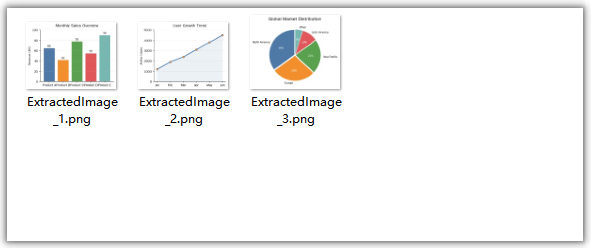
Extracting images exports existing images from PDF pages as separate image files, making them easy to reuse in other documents or systems. After getting the array of image information with the GetImagesInfo method of PdfImageHelper, access the Image property of each image information object one by one, call its Save method to save the image to VFS, then read the file from VFS and trigger download. Extraction is a read-only operation and does not modify the original PDF document.
function App() {
  const extractImagesFromPdf = async () => {
    // Get the Spire.PDF WASM module
    const pdfModule = window.wasmModule?.spirepdf;

    // Check if the WASM module is ready
    if (!pdfModule) {
      alert('Spire.PDF is not ready yet');
      return;
    }

    // Load the PDF file into VFS
    const inputFileName = 'Business_Data_Overview.pdf';
    await window.spire.FetchFileToVFS(inputFileName, "", `${process.env.PUBLIC_URL}/data/`);

    // Create a PdfDocument object and load the PDF document
    let doc = new pdfModule.PdfDocument();
    doc.LoadFromFile(inputFileName);

    // Get the first page
    let page = doc.Pages.get_Item(0);

    // Create a PdfImageHelper object and get the image information on the first page
    let helper = new pdfModule.PdfImageHelper();
    let images = helper.GetImagesInfo(page);

    // Iterate through the images on the page, save each as a separate image file, and trigger download
    for (let i = 0; i < images.length; i++) {
      const outputFileName = `ExtractedImage_${i + 1}.png`;
      images[i].Image.Save({ fileName: outputFileName });

      // Read the extracted image file from VFS and trigger download
      const fileArray = window.dotnetRuntime.Module.FS.readFile(outputFileName);
      const blob = new Blob([fileArray], { type: 'image/png' });
      const url = URL.createObjectURL(blob);
      const a = document.createElement('a');
      a.href = url;
      a.download = outputFileName;
      a.click();
      URL.revokeObjectURL(url);
    }

    doc.Close();
  };

  return (
    <div style={{ textAlign: 'center', height: '300px' }}>
      <h1>Extract Images From PDF</h1>
      <button onClick={extractImagesFromPdf}>
        Generate
      </button>
    </div>
  );
}

export default App;
Image files extracted from the PDF
FAQ
How to identify which image to replace or delete
Reason: GetImagesInfo returns an array of information for all images on the page; the order of the array is related to how the images are arranged on the page.
Solution: You can access a specific image through the array index, for example images[0] represents the first image on the page; you can also read the Bounds property of the image information object to determine the region where the image is located, and then filter out the target image based on the position. The following example demonstrates how to delete images based on the region they occupy:
// Get the image information on the page
let helper = new pdfModule.PdfImageHelper();
let images = helper.GetImagesInfo(page);

// Iterate through the images and delete those within the specified region
for (let i = 0; i < images.length; i++) {
  let rect = new pdfModule.RectangleF({ x: 100, y: 300, width: 30, height: 40 });
  if (images[i].Bounds.IntersectsWith({ rect: rect })) {
    helper.DeleteImage({ imageInfo: images[i] });
  }
}
How to precisely control the position and size of an image when adding it
Reason: The coordinate and size parameters of DrawImage directly determine how the image is displayed on the page.
Solution: x and y are the coordinates of the top-left corner of the image, and width and height are the display size. To scale by the original proportion, first read image.Width and image.Height, then multiply by a scale factor to calculate the target size; to center the image, read page.Canvas.ClientSize.Width to calculate the horizontal coordinate, for example x = (page.Canvas.ClientSize.Width - width) / 2.
Will replacing or deleting images affect the text and other content in the PDF?
Reason: The replace and delete operations only act on the image objects themselves.
Solution: When replacing an image, the new image inherits the original image's position and placeholder size, and the rest of the page remains unchanged; after deleting an image, the original position is left blank, and the other text, graphics, and layout on the page are unaffected. Extracting images is a read-only operation and does not modify the original document.
Get a Free License
If you want to remove the evaluation messages in the resulting documents or get rid of functional limitations, contact sales to obtain a 30-day temporary license.