Set PDF Image Transparency with JavaScript in React
When a contract or report needs a supporting image or a logo, a fully opaque image covers the body text, so it gets pushed into a corner. If an image has already been placed and needs to be faded, the usual fix is to go back to the source file and redo the layout, and without that file you are stuck with what is on the page. Both tasks are manual in desktop software and hard to fit into a batch Web workflow; handled on a server, the file has to leave the user's device first.
This article uses Spire.PDF for JavaScript to do the work in the browser. A new image is drawn at a given alpha with PdfCanvas.SetTransparency(); images already on the page are located with PdfImageHelper, deleted, and redrawn semi-transparent inside their original bounds. The library runs on WebAssembly and reads and writes PDF files through a virtual file system (VFS), so no backend is required.
This article covers two core features:
- Add an image with transparency to a PDF document
- Adjust the transparency of existing images on a PDF page
For installation and project setup, see How to Integrate Spire.PDF for JavaScript in a React Project. The examples below assume Spire.PDF is installed and the WebAssembly module has been initialized.
Add an Image with Transparency to a PDF Document
Spire.PDF for JavaScript provides the PdfCanvas.SetTransparency() method to set transparency on the canvas. When only alpha is passed, fill and stroke share that value. It ranges from 0 to 1: 0 is fully transparent and 1 is fully opaque. The setting applies to all drawing that follows the call, so wrap it in Save() and Restore() to keep other page content from fading as well.
Follow these steps:
- Get the Spire.PDF WebAssembly module and confirm it is ready.
- Load the PDF file and the image into the VFS.
- Create a
PdfDocumentobject, load the PDF, take the first page, and load the image withPdfImage.FromFile(). - Save the canvas state with
PdfCanvas.Save(), callSetTransparency(), and draw the image withDrawImage(). - Restore the canvas state with
Restore(), save the result withSaveToFile(), and trigger the download.
The code for adding a semi-transparent image:
function App() {
  const addTransparentImage = async () => {
    // Get the Spire.PDF WebAssembly module
    const pdfModule = window.wasmModule?.spirepdf;

    // Check that the module is ready
    if (!pdfModule) {
      alert('Spire.PDF is not ready yet');
      return;
    }

    // Load the PDF and the image into the VFS
    const inputFileName = 'Business_Data_Overview.pdf';
    const imageFileName = 'scenery.jpg';
    await window.spire.FetchFileToVFS(inputFileName, "", `${process.env.PUBLIC_URL}/data/`);
    await window.spire.FetchFileToVFS(imageFileName, "", `${process.env.PUBLIC_URL}/data/`);

    // Create a PdfDocument object and load the PDF
    let doc = new pdfModule.PdfDocument();
    doc.LoadFromFile(inputFileName);

    // Take the first page and load the image to draw
    let page = doc.Pages.get_Item(0);
    let image = pdfModule.PdfImage.FromFile(imageFileName);

    // Save the canvas state so the transparency applies only to this block
    const state = page.Canvas.Save();

    // An alpha of 0.35 makes the image semi-transparent while the content below stays visible
    page.Canvas.SetTransparency({ alpha: 0.35 });
    page.Canvas.DrawImage({ image: image, x: 145, y: 400, width: 300, height: 173 });

    // Restore the canvas state so later drawing is not affected
    page.Canvas.Restore({ state: state });

    // Save the result file
    const outputFileName = 'TransparentImage.pdf';
    doc.SaveToFile(outputFileName);
    doc.Close();

    // Read the generated file from the VFS and trigger the download
    const fileArray = window.dotnetRuntime.Module.FS.readFile(outputFileName);
    const blob = new Blob([fileArray], { type: 'application/pdf' });
    const url = URL.createObjectURL(blob);
    const a = document.createElement('a');
    a.href = url;
    a.download = outputFileName;
    a.click();
    URL.revokeObjectURL(url);
  };

  return (
    <div style={{ textAlign: 'center', height: '300px' }}>
      <h1>Add a Semi-Transparent Image</h1>
      <button onClick={addTransparentImage}>
        Add Image
      </button>
    </div>
  );
}

export default App;
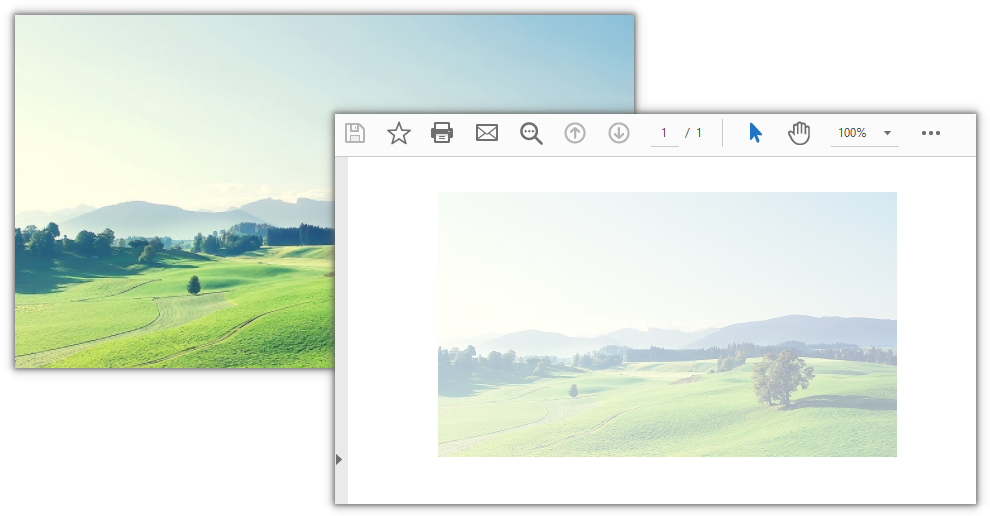
With the image drawn at 35% opacity, the content underneath still shows through:
Adjust the Transparency of Existing Images on a PDF Page
Spire.PDF for JavaScript also provides the PdfImageHelper class to read, delete, and replace images on a page. GetImagesInfo() returns the bounds and image stream of each image. Recreate a PdfImage from each stream, delete the original with DeleteImage(), and redraw it at the specified transparency inside its Bounds.
Follow these steps:
- Get the Spire.PDF WebAssembly module and confirm it is ready.
- Load the PDF file into the VFS.
- Create a
PdfDocumentobject, load the PDF, get the page, and read all images on it withPdfImageHelper.GetImagesInfo(). - Recreate each image from
PdfImageInfo.ImagewithPdfImage.FromStream()and record itsBounds. - Delete all original images with
DeleteImage(), redraw them at the specified transparency inside their original bounds, then save withSaveToFile()and trigger the download.
The code for adjusting the transparency of existing images:
function App() {
  const adjustImageTransparency = async () => {
    // Get the Spire.PDF WebAssembly module
    const pdfModule = window.wasmModule?.spirepdf;

    // Check that the module is ready
    if (!pdfModule) {
      alert('Spire.PDF is not ready yet');
      return;
    }

    // Load the PDF into the VFS
    const inputFileName = 'Business_Data_Overview.pdf';
    await window.spire.FetchFileToVFS(inputFileName, "", `${process.env.PUBLIC_URL}/data/`);

    // Create a PdfDocument object and load the PDF
    let doc = new pdfModule.PdfDocument();
    doc.LoadFromFile(inputFileName);

    // Take the first page and read the image information on it
    let page = doc.Pages.get_Item(0);
    let helper = new pdfModule.PdfImageHelper();
    let images = helper.GetImagesInfo(page);

    // Collect each image stream and bounds first, for redrawing after deletion
    let items = [];
    for (let i = 0; i < images.length; i++) {
      items.push({
        info: images[i],
        image: pdfModule.PdfImage.FromStream(images[i].Image),
        bounds: images[i].Bounds
      });
    }

    // Delete all original images first, then redraw them together; redrawing right after each delete gets overwritten by the next delete
    for (let i = 0; i < items.length; i++) {
      helper.DeleteImage({ imageInfo: items[i].info });
    }

    // Redraw each image at 40% opacity inside its original bounds
    for (let i = 0; i < items.length; i++) {
      const { image, bounds } = items[i];
      const state = page.Canvas.Save();
      page.Canvas.SetTransparency({ alpha: 0.4 });
      page.Canvas.DrawImage({
        image: image,
        x: bounds.X,
        y: bounds.Y,
        width: bounds.Width,
        height: bounds.Height
      });
      page.Canvas.Restore({ state: state });
    }

    // Save the result file
    const outputFileName = 'ExistingImageTransparency.pdf';
    doc.SaveToFile(outputFileName);
    doc.Close();

    // Read the generated file from the VFS and trigger the download
    const fileArray = window.dotnetRuntime.Module.FS.readFile(outputFileName);
    const blob = new Blob([fileArray], { type: 'application/pdf' });
    const url = URL.createObjectURL(blob);
    const a = document.createElement('a');
    a.href = url;
    a.download = outputFileName;
    a.click();
    URL.revokeObjectURL(url);
  };

  return (
    <div style={{ textAlign: 'center', height: '300px' }}>
      <h1>Adjust Existing Image Transparency</h1>
      <button onClick={adjustImageTransparency}>
        Adjust Transparency
      </button>
    </div>
  );
}

export default App;
The three images on the page are redrawn at their original positions with 40% opacity, while the body text is unaffected:

FAQ
Why does content drawn after the image also become semi-transparent?
Cause: Transparency is part of the canvas state. Every drawing call after SetTransparency() keeps using that value until the state is restored or set again.
Solution: Wrap the setting in Save() and Restore() so the transparency applies only to the drawing in between:
const state = page.Canvas.Save();
page.Canvas.SetTransparency({ alpha: 0.35 });
page.Canvas.DrawImage({ image: image, x: 145, y: 400, width: 300, height: 173 });
page.Canvas.Restore({ state: state });
When adjusting existing images, why does only the last image become transparent?
Cause: DeleteImage() rewrites the page content stream. If you redraw right after each delete, the next delete overwrites the previous drawing, and often only the last image remains.
Solution: Split the work into three passes: read every image stream and bounds, delete all original images, then redraw them all.
// Delete all original images first
for (let i = 0; i < items.length; i++) {
  helper.DeleteImage({ imageInfo: items[i].info });
}

// Then redraw all of them
for (let i = 0; i < items.length; i++) {
  const { image, bounds } = items[i];
  const state = page.Canvas.Save();
  page.Canvas.SetTransparency({ alpha: 0.4 });
  page.Canvas.DrawImage({
    image: image,
    x: bounds.X,
    y: bounds.Y,
    width: bounds.Width,
    height: bounds.Height
  });
  page.Canvas.Restore({ state: state });
}
How do I adjust only one image on the page?
Cause: GetImagesInfo() returns all images on the page in order, each as a PdfImageInfo whose bounds are available from Bounds.
Solution: Skip the loop and process only the item you need. The following adjusts just the first image:
let images = helper.GetImagesInfo(page);
let info = images[0];
let image = pdfModule.PdfImage.FromStream(info.Image);
let bounds = info.Bounds;

helper.DeleteImage({ imageInfo: info });

const state = page.Canvas.Save();
page.Canvas.SetTransparency({ alpha: 0.4 });
page.Canvas.DrawImage({ image: image, x: bounds.X, y: bounds.Y, width: bounds.Width, height: bounds.Height });
page.Canvas.Restore({ state: state });
What do alpha values of 0 and 1 do?
Cause: alpha represents opacity and takes a linear value from 0 to 1.
Solution: At 0 the image is fully transparent and invisible on the page; at 1 it is fully opaque and looks exactly like a direct draw. For a faded effect, 0.2 to 0.5 is the usual range.
Get a Free License
If you want to remove the evaluation message from result documents or lift feature limits, contact sales for a temporary 30-day license.
Add, Replace, Delete, or Extract Images in PDF with JavaScript in React
Product images, screenshots, charts, and stamps in a PDF often need to be updated or reused: inserting new images into a PDF, replacing an old Logo with a new Logo, deleting outdated illustrations, or extracting images from a PDF for use in other documents. Because the PDF layout is fixed, directly modifying these images with an editor is often very difficult.
Spire.PDF for JavaScript processes PDF documents directly in the browser via WebAssembly, managing input and output files through a virtual file system (VFS) with no backend server required. With PdfImage, the DrawImage method of the page canvas, and the PdfImageHelper helper class, you can easily add, replace, delete, and extract images in PDFs.
This article covers four core features:
For installation and project setup, refer to Integrating Spire.PDF for JavaScript in a React Project. The examples below assume Spire.PDF is installed and the WebAssembly module is initialized.
Add Images to a PDF
Adding images is one of the most common image operations. The core idea is: first load the image file with the PdfImage.FromFile method, then use the DrawImage method of the page canvas to draw the image at a specified position and size on the page. The x and y parameters determine the coordinates of the top-left corner of the image, and the width and height parameters determine the display size of the image. You can add an image to a specified page of an existing document, or draw the image in a new blank document as in the example below.
function App() {
  const addImageToPdf = async () => {
    // Get the Spire.PDF WASM module
    const pdfModule = window.wasmModule?.spirepdf;

    // Check if the WASM module is ready
    if (!pdfModule) {
      alert('Spire.PDF is not ready yet');
      return;
    }

    // Load the image into VFS
    const inputImageName = 'TreePic.png';
    await window.spire.FetchFileToVFS(inputImageName, "", `${process.env.PUBLIC_URL}/data/`);

    // Create a PdfDocument object
    let doc = new pdfModule.PdfDocument();

    // Add a page
    let page = doc.Pages.Add();

    // Load the image and scale its display size proportionally
    let image = pdfModule.PdfImage.FromFile(inputImageName);
    let width = image.Width * 0.6;
    let height = image.Height * 0.6;

    // Calculate the horizontal center position and set the vertical position
    let x = (page.Canvas.ClientSize.Width - width) / 2;
    let y = 60;

    // Draw the image at the specified position on the page
    page.Canvas.DrawImage({ image: image, x: x, y: y, width: width, height: height });

    // Define the output file name in PDF format
    const outputFileName = 'AddImage.pdf';

    // Save as PDF format
    doc.SaveToFile({ fileName: outputFileName });
    doc.Close();

    // Read the generated PDF file from VFS and trigger download
    const fileArray = window.dotnetRuntime.Module.FS.readFile(outputFileName);
    const blob = new Blob([fileArray], { type: 'application/pdf' });
    const url = URL.createObjectURL(blob);
    const a = document.createElement('a');
    a.href = url;
    a.download = outputFileName;
    a.click();
    URL.revokeObjectURL(url);
  };

  return (
    <div style={{ textAlign: 'center', height: '300px' }}>
      <h1>Add Image To PDF</h1>
      <button onClick={addImageToPdf}>
        Generate
      </button>
    </div>
  );
}

export default App;
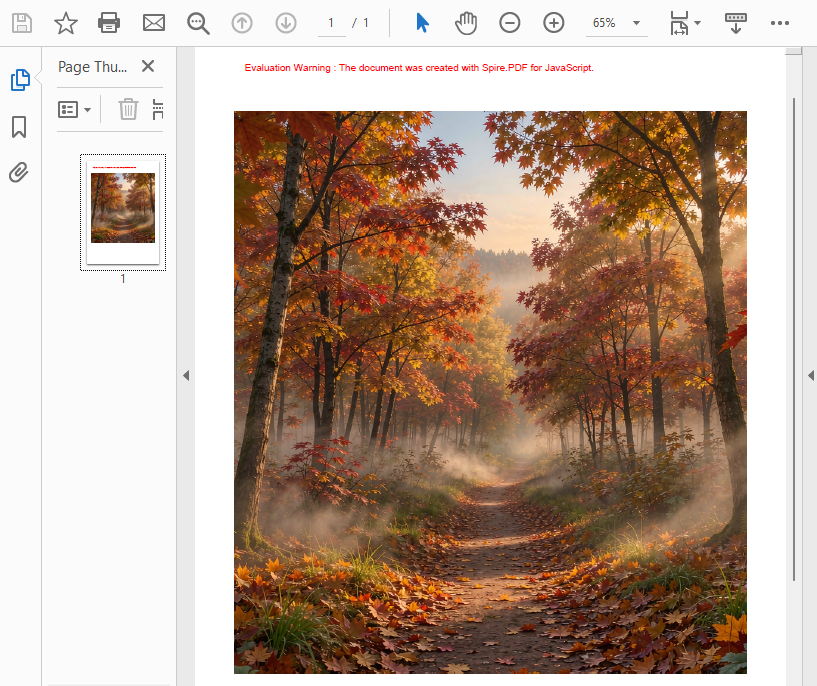
PDF document generated after adding an image
Replace Images in a PDF
Replacing an image means replacing the content of an image on the page with a new image while keeping the original position and placeholder size unchanged. First, use the GetImagesInfo method of PdfImageHelper to get the array of image information on the page, then load the new image, and call the ReplaceImage method to replace the image at the specified index with the new image. After replacement, the new image automatically inherits the original image's position and size on the page, so the overall layout remains unchanged.
function App() {
  const replaceImageInPdf = async () => {
    // Get the Spire.PDF WASM module
    const pdfModule = window.wasmModule?.spirepdf;

    // Check if the WASM module is ready
    if (!pdfModule) {
      alert('Spire.PDF is not ready yet');
      return;
    }

    // Load the PDF file into VFS
    const inputFileName = 'Business_Data_Overview.pdf';
    await window.spire.FetchFileToVFS(inputFileName, "", `${process.env.PUBLIC_URL}/data/`);

    // Load the new image used for replacement into VFS
    const newImageName = 'ChartImage.png';
    await window.spire.FetchFileToVFS(newImageName, "", `${process.env.PUBLIC_URL}/data/`);

    // Create a PdfDocument object and load the PDF document
    let doc = new pdfModule.PdfDocument();
    doc.LoadFromFile(inputFileName);

    // Get the first page
    let page = doc.Pages.get_Item(0);

    // Create a PdfImageHelper object and get the image information on the page
    let helper = new pdfModule.PdfImageHelper();
    let images = helper.GetImagesInfo(page);

    // Load the new image and replace the first image on the page
    let newImage = pdfModule.PdfImage.FromFile(newImageName);
    helper.ReplaceImage(images[0], newImage);

    // Define the output file name in PDF format
    const outputFileName = 'ReplaceImage.pdf';

    // Save as PDF format
    doc.SaveToFile({ fileName: outputFileName });
    doc.Close();

    // Read the generated PDF file from VFS and trigger download
    const fileArray = window.dotnetRuntime.Module.FS.readFile(outputFileName);
    const blob = new Blob([fileArray], { type: 'application/pdf' });
    const url = URL.createObjectURL(blob);
    const a = document.createElement('a');
    a.href = url;
    a.download = outputFileName;
    a.click();
    URL.revokeObjectURL(url);
  };

  return (
    <div style={{ textAlign: 'center', height: '300px' }}>
      <h1>Replace Image In PDF</h1>
      <button onClick={replaceImageInPdf}>
        Generate
      </button>
    </div>
  );
}

export default App;
PDF document generated after replacing an image

Delete Images from a PDF
Deleting an image removes an image object that is no longer needed from the page. Similar to replacement, first use the GetImagesInfo method of PdfImageHelper to get the array of image information on the page, then call the DeleteImage method and pass in the corresponding image information object to delete the image. After deletion, the original position is left blank, and the text, graphics, and overall layout on the page are unaffected.
function App() {
  const deleteImageFromPdf = async () => {
    // Get the Spire.PDF WASM module
    const pdfModule = window.wasmModule?.spirepdf;

    // Check if the WASM module is ready
    if (!pdfModule) {
      alert('Spire.PDF is not ready yet');
      return;
    }

    // Load the PDF file into VFS
    const inputFileName = 'Business_Data_Overview.pdf';
    await window.spire.FetchFileToVFS(inputFileName, "", `${process.env.PUBLIC_URL}/data/`);

    // Create a PdfDocument object and load the PDF document
    let doc = new pdfModule.PdfDocument();
    doc.LoadFromFile(inputFileName);

    // Get the first page
    let page = doc.Pages.get_Item(0);

    // Create a PdfImageHelper object and get the image information on the page
    let helper = new pdfModule.PdfImageHelper();
    let images = helper.GetImagesInfo(page);

    // Delete the first image on the page
    helper.DeleteImage({ imageInfo: images[0] });

    // Define the output file name in PDF format
    const outputFileName = 'DeleteImage.pdf';

    // Save as PDF format
    doc.SaveToFile({ fileName: outputFileName });
    doc.Close();

    // Read the generated PDF file from VFS and trigger download
    const fileArray = window.dotnetRuntime.Module.FS.readFile(outputFileName);
    const blob = new Blob([fileArray], { type: 'application/pdf' });
    const url = URL.createObjectURL(blob);
    const a = document.createElement('a');
    a.href = url;
    a.download = outputFileName;
    a.click();
    URL.revokeObjectURL(url);
  };

  return (
    <div style={{ textAlign: 'center', height: '300px' }}>
      <h1>Delete Image From PDF</h1>
      <button onClick={deleteImageFromPdf}>
        Generate
      </button>
    </div>
  );
}

export default App;
PDF document generated after deleting an image

Extract Images from a PDF
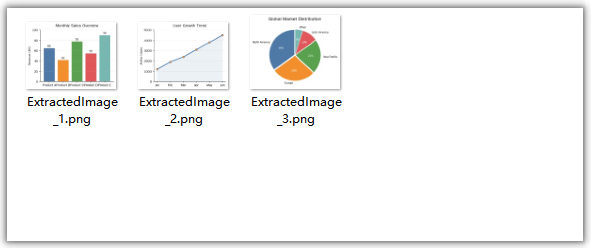
Extracting images exports existing images from PDF pages as separate image files, making them easy to reuse in other documents or systems. After getting the array of image information with the GetImagesInfo method of PdfImageHelper, access the Image property of each image information object one by one, call its Save method to save the image to VFS, then read the file from VFS and trigger download. Extraction is a read-only operation and does not modify the original PDF document.
function App() {
  const extractImagesFromPdf = async () => {
    // Get the Spire.PDF WASM module
    const pdfModule = window.wasmModule?.spirepdf;

    // Check if the WASM module is ready
    if (!pdfModule) {
      alert('Spire.PDF is not ready yet');
      return;
    }

    // Load the PDF file into VFS
    const inputFileName = 'Business_Data_Overview.pdf';
    await window.spire.FetchFileToVFS(inputFileName, "", `${process.env.PUBLIC_URL}/data/`);

    // Create a PdfDocument object and load the PDF document
    let doc = new pdfModule.PdfDocument();
    doc.LoadFromFile(inputFileName);

    // Get the first page
    let page = doc.Pages.get_Item(0);

    // Create a PdfImageHelper object and get the image information on the first page
    let helper = new pdfModule.PdfImageHelper();
    let images = helper.GetImagesInfo(page);

    // Iterate through the images on the page, save each as a separate image file, and trigger download
    for (let i = 0; i < images.length; i++) {
      const outputFileName = `ExtractedImage_${i + 1}.png`;
      images[i].Image.Save({ fileName: outputFileName });

      // Read the extracted image file from VFS and trigger download
      const fileArray = window.dotnetRuntime.Module.FS.readFile(outputFileName);
      const blob = new Blob([fileArray], { type: 'image/png' });
      const url = URL.createObjectURL(blob);
      const a = document.createElement('a');
      a.href = url;
      a.download = outputFileName;
      a.click();
      URL.revokeObjectURL(url);
    }

    doc.Close();
  };

  return (
    <div style={{ textAlign: 'center', height: '300px' }}>
      <h1>Extract Images From PDF</h1>
      <button onClick={extractImagesFromPdf}>
        Generate
      </button>
    </div>
  );
}

export default App;
Image files extracted from the PDF
FAQ
How to identify which image to replace or delete
Reason: GetImagesInfo returns an array of information for all images on the page; the order of the array is related to how the images are arranged on the page.
Solution: You can access a specific image through the array index, for example images[0] represents the first image on the page; you can also read the Bounds property of the image information object to determine the region where the image is located, and then filter out the target image based on the position. The following example demonstrates how to delete images based on the region they occupy:
// Get the image information on the page
let helper = new pdfModule.PdfImageHelper();
let images = helper.GetImagesInfo(page);

// Iterate through the images and delete those within the specified region
for (let i = 0; i < images.length; i++) {
  let rect = new pdfModule.RectangleF({ x: 100, y: 300, width: 30, height: 40 });
  if (images[i].Bounds.IntersectsWith({ rect: rect })) {
    helper.DeleteImage({ imageInfo: images[i] });
  }
}
How to precisely control the position and size of an image when adding it
Reason: The coordinate and size parameters of DrawImage directly determine how the image is displayed on the page.
Solution: x and y are the coordinates of the top-left corner of the image, and width and height are the display size. To scale by the original proportion, first read image.Width and image.Height, then multiply by a scale factor to calculate the target size; to center the image, read page.Canvas.ClientSize.Width to calculate the horizontal coordinate, for example x = (page.Canvas.ClientSize.Width - width) / 2.
Will replacing or deleting images affect the text and other content in the PDF?
Reason: The replace and delete operations only act on the image objects themselves.
Solution: When replacing an image, the new image inherits the original image's position and placeholder size, and the rest of the page remains unchanged; after deleting an image, the original position is left blank, and the other text, graphics, and layout on the page are unaffected. Extracting images is a read-only operation and does not modify the original document.
Get a Free License
If you want to remove the evaluation messages in the resulting documents or get rid of functional limitations, contact sales to obtain a 30-day temporary license.