Insert a Paragraph to Word Document in WPF with C#, VB.NET
Using Spire.Doc for WPF, programmers can easily create, open, modify and save Word documents in WPF applications. In this article, we’ll introduce how to insert a paragraph to desired position in an existing Word document.
To begin with, you need to download Spire.Doc for WPF and add the Spire.Doc.Wpf.dll and Spire.License.dll as the references to your WPF project. Then add a button in MainWindow and double click the button to write code.
Here are code snippets in the button click event:
Step 1: Initialize a new instance of Document class and load the sample Word document.
Document document = new Document();
document.LoadFromFile("sample.docx", FileFormat.Docx);
Step 2: Initialize a new instance of Paragraph class and append some text to it.
Paragraph paraInserted = new Paragraph(document);
TextRange textRange1 = paraInserted.AppendText("Hello, this is a new paragraph.");
Step 3: Set the text formatting of the paragraph.
textRange1.CharacterFormat.TextColor = System.Drawing.Color.Purple;
textRange1.CharacterFormat.FontSize = 11;
textRange1.CharacterFormat.FontName = "Calibri Light";
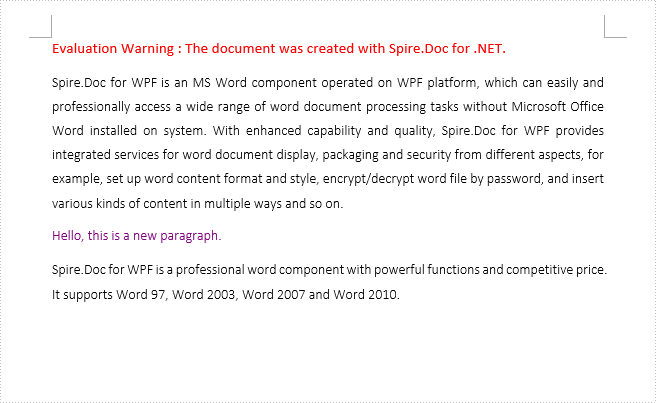
Step 4: Insert the paragraph at the first section at index 1, which indicates the position of the second paragraph in the section.
document.Sections[0].Paragraphs.Insert(1, paraInserted);
Step 5: Save the file.
document.SaveToFile("result.docx", FileFormat.Docx);
Output:
Full Code:
using Spire.Doc;
using Spire.Doc.Documents;
using Spire.Doc.Fields;
using System.Windows;

namespace WpfApplication1
{
    public partial class MainWindow : Window
    {
        public MainWindow()
        {
            InitializeComponent();
        }
        private void button1_Click(object sender, RoutedEventArgs e)
        {
            Document document = new Document();
            document.LoadFromFile("sample.docx", FileFormat.Docx);

            Paragraph paraInserted = new Paragraph(document);
            TextRange textRange1 = paraInserted.AppendText("Hello, this is a new paragraph.");
            textRange1.CharacterFormat.TextColor = System.Drawing.Color.Purple;
            textRange1.CharacterFormat.FontSize = 11;
            textRange1.CharacterFormat.FontName = "Calibri Light";

            document.Sections[0].Paragraphs.Insert(1, paraInserted);
            document.SaveToFile("result.docx", FileFormat.Docx);
        }


    }
}
Imports Spire.Doc
Imports Spire.Doc.Documents
Imports Spire.Doc.Fields
Imports System.Windows

Namespace WpfApplication1
	Public Partial Class MainWindow
		Inherits Window
		Public Sub New()
			InitializeComponent()
		End Sub
		Private Sub button1_Click(sender As Object, e As RoutedEventArgs)
			Dim document As New Document()
			document.LoadFromFile("sample.docx", FileFormat.Docx)

			Dim paraInserted As New Paragraph(document)
			Dim textRange1 As TextRange = paraInserted.AppendText("Hello, this is a new paragraph.")
			textRange1.CharacterFormat.TextColor = System.Drawing.Color.Purple
			textRange1.CharacterFormat.FontSize = 11
			textRange1.CharacterFormat.FontName = "Calibri Light"

			document.Sections(0).Paragraphs.Insert(1, paraInserted)
			document.SaveToFile("result.docx", FileFormat.Docx)
		End Sub


	End Class
End Namespace
How to Create, Write and Save Word Document in WPF
This article is going to introduce how to create, write and save word document in WPF via Spire.Doc for WPF.
Spire.Doc for WPF enables users to do a large range of manipulations (such as create, write, open, edit, convert and save, etc.) on word with high performance and efficiency. In addition, as a powerful and independent library, it doesn’t require Microsoft Office or any other 3rd party tools to be installed on system.
Note: please download and install Spire.Doc correctly and add the dll file from the installation folder as reference.
First, let’s begin to create a word document in WPF.
Use namespace:
using System.Windows;
using Spire.Doc;
using Spire.Doc.Documents;
Step 1: Create a new word document instance, next add a section and a paragraph to it.
//Create New Word
Document doc = new Document();
//Add Section
Section section = doc.AddSection();
//Add Paragraph
Paragraph Para = section.AddParagraph();
Second, we’re going to write something into the document.
Step 2: Append some text to it.
//Append Text
Para.AppendText("Hello! "
+ "I was created by Spire.Doc for WPF, it's a professional .NET Word component "
+ "which enables developers to perform a large range of tasks on Word document (such as create, open, write, edit, save and convert "
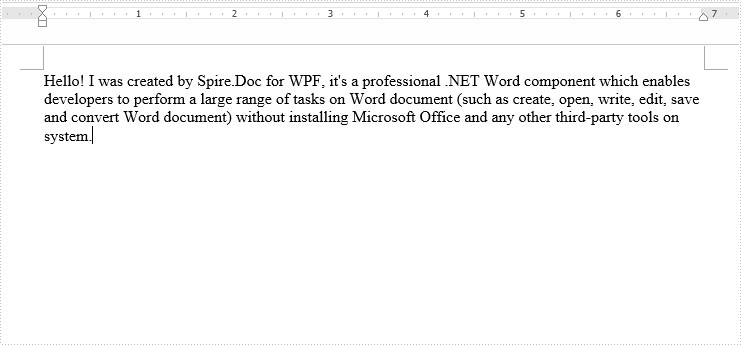
+ "Word document) without installing Microsoft Office and any other third-party tools on system.");
Third, save the generated document.
Step 3: Save and launch the document.
//Save and launch
doc.SaveToFile("MyWord.docx", FileFormat.Docx);
System.Diagnostics.Process.Start("MyWord.docx");
Output:
Full codes:
using Spire.Doc;
using Spire.Doc.Documents;
using System.Windows;

namespace WpfApplication1
{
    public partial class MainWindow : Window
    {
        public MainWindow()
        {
            InitializeComponent();
        }
        private void button1_Click(object sender, RoutedEventArgs e)
        {
            //Create New Word
            Document doc = new Document();
            //Add Section
            Section section = doc.AddSection();
            //Add Paragraph
            Paragraph Para = section.AddParagraph();
            //Append Text
            Para.AppendText("Hello! "
            + "I was created by Spire.Doc for WPF, it's a professional .NET Word component "
            + "which enables developers to perform a large range of tasks on Word document (such as create, open, write, edit, save and convert "
            + "Word document) without installing Microsoft Office and any other third-party tools on system.");
            //Save and launch
            doc.SaveToFile("MyWord.docx", Spire.Doc.FileFormat.Docx);
            System.Diagnostics.Process.Start("MyWord.docx");
        }

    }
}
Add Column to Word in WPF
Adding column(s) in Word is a way to set page layout, which separates the whole document or selected sections into two or more columns. You can also set the column width and the spacing between columns to have the satisfied layout. This article is aimed at introducing how to add a column to Word in WPF using Spire.Doc for WPF.
Create a new project by choosing WPF Application in Visual Studio, add a button in MainWindow. Add Spire.Doc.Wpf.dll as reference to your project, then double click the button to write code.
Step 1: Initialize a new instance of Document class and load a sample Word file.
Document document = new Document();
document.LoadFromFile("sample.docx");
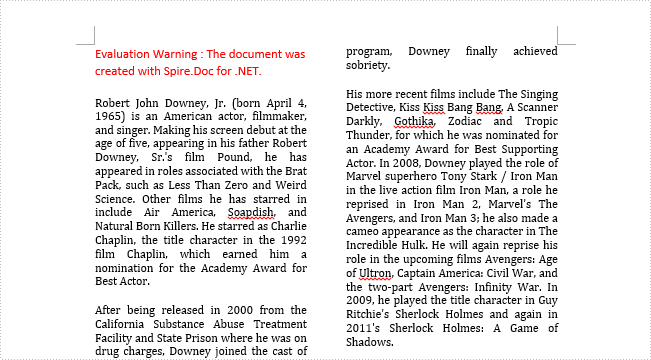
Step 2: Add a column to section one, set the two parameters in AddColumn() method, which stand for the width of columns and the spacing between columns.
document.Sections[0].AddColumn(200f, 20f);
Step 3: Save and launch the file.
document.SaveToFile("result.docx");
System.Diagnostics.Process.Start("result.docx");
Output:
Entire Code:
using Spire.Doc;
using System.Windows;

namespace WpfApplication1
{
    public partial class MainWindow : Window
    {
        public MainWindow()
        {
            InitializeComponent();
        }
        private void button1_Click(object sender, RoutedEventArgs e)
        {

            Document document = new Document();
            document.LoadFromFile("sample.docx");

            document.Sections[0].AddColumn(200f, 20f);

            document.SaveToFile("result.docx");
            System.Diagnostics.Process.Start("result.docx");
        }


    }
}
How to Convert Word to PDF in WPF
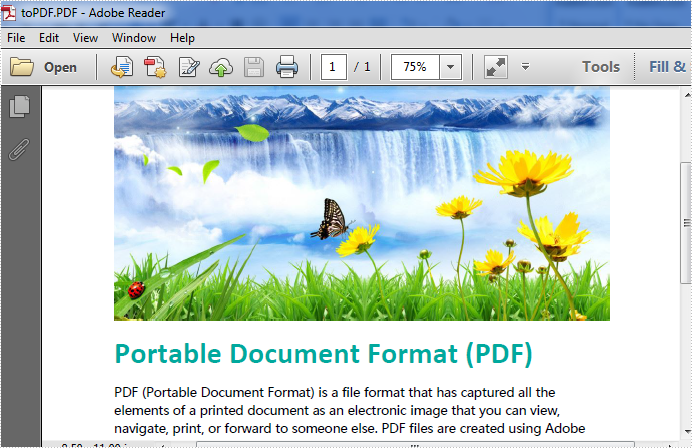
PDF and Word are the two most commonly used files in our daily life, however, sometimes we need to do conversion between them due to their own advantages, disadvantages or our different requirements. Spire.Doc for WPF as a professional word component enables developers to convert Word to PDF easily by invoking the document.SaveToFile() method.
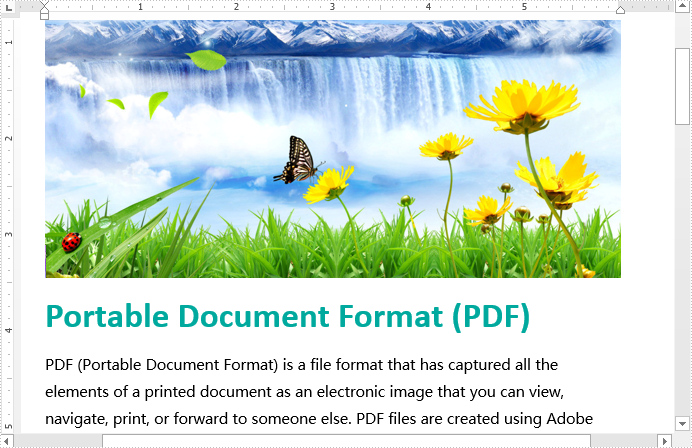
This is the screenshot of the original word document:
Now follow the steps below:
First, please download and install Spire.Doc correctly, then create a WPF application project and add the Spire.Doc.Wpf.dll as the reference of your project.
Second, drag a button to the MainWindow, double click the button to add following codes to convert Word to PDF.
//Load document
Document document = new Document();
document.LoadFromFile("sample.docx");

//convert to PDF
document.SaveToFile("toPDF.PDF",FileFormat.PDF);

//Launch the file
System.Diagnostics.Process.Start("toPDF.PDF");
'Load document
Dim document As New Document()
document.LoadFromFile("sample.docx")

'convert to PDF
document.SaveToFile("toPDF.PDF",FileFormat.PDF)

'Launch the file
System.Diagnostics.Process.Start("toPDF.PDF")
Effective screenshot:
Encrypt and decrypt word document for WPF applications
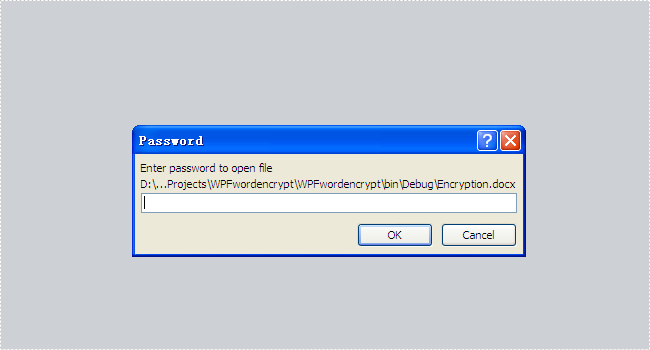
With the help of Spire.Doc for WPF, developers can create and edit word documents easily and flexibly for their WPF applications. Sometimes developers need to protect their word documents for being read and edit by others. They may need to add password for the word files to protect them confidential. Then others have to enter the password to open the view the encrypted word documents. Spire.Doc for WPF offers a method of Document.Encrypt(); to enable developers to set the password for word documents and Document.RemoveEncryption(); to remove the encryption for word documents.
This article will demonstrate how to encrypt and word documents with password and decrypt the word documents in C# for WPF applications.
Note: Before Start, please download the latest version of Spire.Doc and add Spire.Doc.Wpf.dll in the bin folder as the reference of Visual Studio.
Here comes to the code snippets:
Step 1: Create a new word document and load the document from file.
Document document = new Document();
document.LoadFromFile("Sample.docx");
Step 2: Encrypt the document with password.
document.Encrypt("eiceblue");
Step 3: Save the encrypted document to file.
document.SaveToFile("Encryption.docx", FileFormat.Docx);
Step 4: Create a second new word document and load the encrypted document from file with the password.
Document document2 = new Document();
document2.LoadFromFile("Encryption.docx",FileFormat.Docx,"eiceblue");
Step 5: Decrypted the word document.
document2.RemoveEncryption();
Step 6: Save the decrypted document to file.
document2.SaveToFile("Decrytion.docx", FileFormat.Docx);
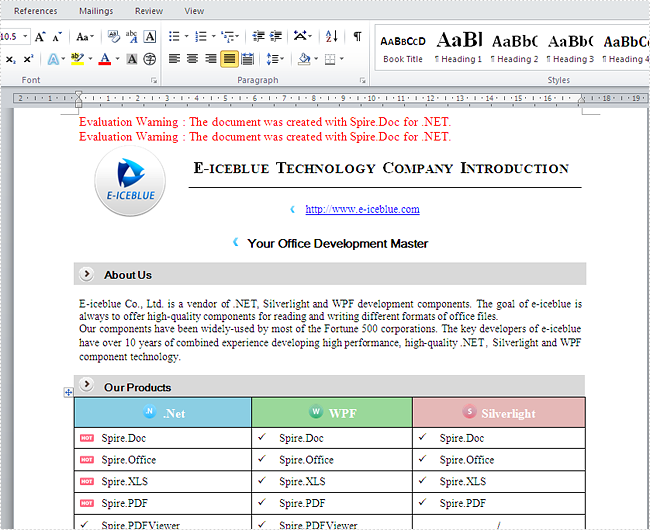
Please check the effective screenshots of the encrypted word document and the decrypted word documents as below:
Encrypted document with password:
Decrypted word document:
Full codes:
using Spire.Doc;
using System.Windows;

namespace WpfApplication1
{
    public partial class MainWindow : Window
    {
        public MainWindow()
        {
            InitializeComponent();
        }
        private void button1_Click(object sender, RoutedEventArgs e)
        {
            Document document = new Document();
            document.LoadFromFile("Sample.docx");

            document.Encrypt("eiceblue");

            document.SaveToFile("Encryption.docx", FileFormat.Docx);

            Document document2 = new Document();
            document2.LoadFromFile("Encryption.docx", FileFormat.Docx, "eiceblue");
            document2.RemoveEncryption();

            document2.SaveToFile("Decrytion.docx", FileFormat.Docx);

        }
    }
}
Convert Word to Image in WPF
In some circumstances, we may need to convert or save Word documents as pictures. For one reason, a picture is difficult to edit; for another, compared with Word, pictures are much easier to be published for browsing. This article is aimed to explore how we can convert .doc/.docx to popular image formats such as Jpg, Png, Gif and Bmp in WPF using Spire.Doc.
Spire.Doc for WPF, as a professional Word component, provides a plenty of useful methods to manipulate Word documents in your WPF applications. Using Spire.Doc, developers are able to export Word documents as images with high quality. Here comes the method:
Step 1: Create a new project by choosing WPF Application in Visual Studio, add a button in MainWindow, double click the button to write code.
public partial class MainWindow : Window
    public partial class MainWindow : Window
    {
        public MainWindow()
        {
            InitializeComponent();
        }

        private void button1_Click(object sender, RoutedEventArgs e)
        {

        }
Step 2: Initialize a new instance of Spire.Doc.Document class and load the sample Word file.
Document doc = new Document("sample.docx", FileFormat.Docx2010);
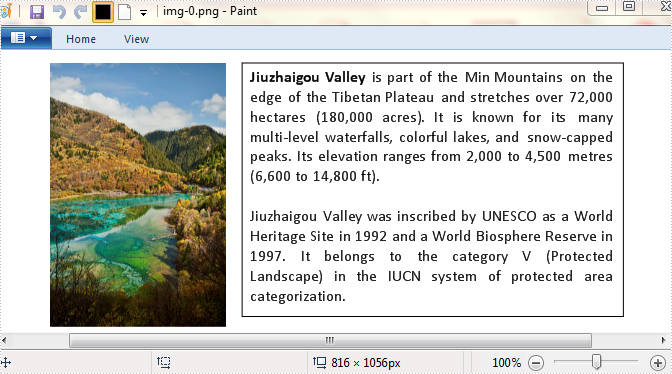
Step 3: To convert Word to image in WPF, we need firstly save Word as BitmapSource by calling the method Document.SaveAsImage(ImageType type), then convert BitmapSource to Bitmap, then save the Bitmap as image with a specified format using Image.Save(). Here, I saved Bitmap as .Png.
       BitmapSource[] bss = doc.SaveToImages(ImageType.Bitmap);
            for (int i = 0; i < bss.Length; i++)
            {
                SourceToBitmap(bss[i]).Save(string.Format("img-{0}.png", i));
            }
        }

        private Bitmap SourceToBitmap(BitmapSource source)
        {

            Bitmap bmp;
            using (MemoryStream ms = new MemoryStream())
            {
                PngBitmapEncoder encoder = new PngBitmapEncoder();
                encoder.Frames.Add(BitmapFrame.Create(source));
                encoder.Save(ms);
                bmp = new Bitmap(ms);
            }
            return bmp;
        }
Output of the first page:
Entire Code:
using Spire.Doc;
using Spire.Doc.Documents;

namespace Word2Image
{
    ///
    /// Interaction logic for MainWindow.xaml
    ///
    public partial class MainWindow : Window
    {
        public MainWindow()
        {
            InitializeComponent();
        }

        private void button1_Click(object sender, RoutedEventArgs e)
        {
            Document doc = new Document("sample.docx", FileFormat.Docx2010);
            BitmapSource[] bss = doc.SaveToImages(ImageType.Bitmap);
            for (int i = 0; i < bss.Length; i++)
            {
                SourceToBitmap(bss[i]).Save(string.Format("img-{0}.png", i));
            }
        }

        private Bitmap SourceToBitmap(BitmapSource source)
        {

            Bitmap bmp;
            using (MemoryStream ms = new MemoryStream())
            {
                PngBitmapEncoder encoder = new PngBitmapEncoder();
                encoder.Frames.Add(BitmapFrame.Create(source));
                encoder.Save(ms);
                bmp = new Bitmap(ms);
            }
            return bmp;
        }
    }
}
Convert RTF to HTML in WPF
This section will show you a detail solution to easily convert RTF to HTML in your WPF application via a .NET Word component. Only two lines of core code in total will be used to realize your RTF to HTML task in this solution.
Spire.Doc for WPF, as a professional MS Word component on WPF, enables you to accomplish RTF to HTML task through following two methods: Document.LoadFromFile(string fileName, FileFormat fileFormat) called to load your RTF file from system and Document. SaveToFile(string ilename, FileFormat fileFormat) is used to save the RTF file as HTML.
Now, you can download Spire.Doc for WPF and then, view the effect of RTF to HTML task as below picture:

Sample Code:
using Spire.Doc;
using Spire.Doc.Documents;

namespace wpfrtftohtml
{
    public partial class MainWindow : Window
    {
        public MainWindow()
        {
            InitializeComponent();
        }

        private void button1_Click(object sender, RoutedEventArgs e)
        {
            //Load RTF file
            Document document = new Document();
            document.LoadFromFile(@"..\wpfrtftohtml.rtf", FileFormat.Rtf);
            //Convert rtf to html
            document.SaveToFile("rtftohtml.html", FileFormat.Html);
        }
    }
}
Imports Spire.Doc
Imports Spire.Doc.Documents

Namespace wpfrtftohtml

    Public Class MainWindow
        Inherits Window
        Public Sub New()
            MyBase.New
            InitializeComponent
        End Sub

        Private Sub button1_Click(ByVal sender As Object, ByVal e As RoutedEventArgs)
            'Load RTF file
            Dim document As Document = New Document
            document.LoadFromFile("..\wpfrtftohtml.rtf", FileFormat.Rtf)
            'Convert rtf to html
            document.SaveToFile("rtftohtml.html", FileFormat.Html)
        End Sub
    End Class
End Namespace
Insert Image in Word Document in WPF
Word Image can make one document more interesting and impressive. Sometimes, image can be used explain contents. For example, if one document focuses on describing appearance one kind of birds, readers can learn more clearly with a bird picture.
Spire.Doc for WPF, a professional component to manipulate Word documents with WPF, enables users to insert image in Word with WPF. And this guide will show a method about how to insert image Word in WPF quickly.
Users can invoke paragraph.AppendPicture(image) method to insert image in Word directly. If you want to set image height/width to make picture display appropriately in document, you can use Height and Width property provided by DocPicture class which Spire.Doc for .NET offers. Below, there is the result after inserting image in Word.

Download and install Spire.Doc for WPF. Then, add a button in MainWindow. Double click this button and use the following code to insert image in Word.
Code Sample:
          //Create Document
            Document document = new Document();
            Section section = document.AddSection();
            Paragraph Imageparagraph = section.AddParagraph();

            //Insert Image
            Image image = Image.FromFile(@"E:\work\Documents\Image\street.jpg");
            DocPicture picture =Imageparagraph.AppendPicture(image);

            //Set Image
            picture.Height = 360;
            picture.Width = 525;
        'Create Document
        Dim document As New Document()
        Dim section As Section = document.AddSection()
        Dim Imageparagraph As Paragraph = section.AddParagraph()

        'Insert Image
        Dim image As Image = image.FromFile("E:\work\Documents\Image\street.jpg")
        Dim picture As DocPicture = Imageparagraph.AppendPicture(image)

        'Set Image
        picture.Height = 360
        picture.Width = 525
Spire.Doc is a Microsoft Word component, which enables users to perform a wide range of Word document processing tasks directly, such as generate, read, write and modify Word document in WPF, .NET and Silverlight.
Clearly Convert RTF to PDF in WPF
Whatever solution you use to convert RTF to PDF before, the solution that will be introduced is the easiest method to clearly realize your RTF to PDF conversion task. The whole process can be accomplished through three lines of key code in your WPF application via a Word component Spire.Doc for WPF.
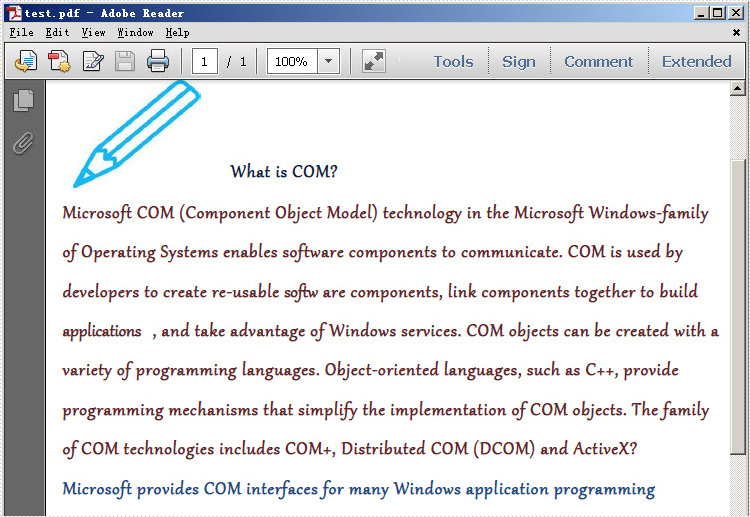
Now, please download Spire.Doc for WPF and convert your RTF to PDF by the code below:
using Spire.Doc;
namespace WPFRTFtoPDF
{
      public partial class MainWindow : Window
    {
        public MainWindow()
        {
            InitializeComponent();
        }

        private void button1_Click(object sender, RoutedEventArgs e)
        {
            Document doc = new Document();
            doc.LoadFromFile(@"..\WPFRTFtoPDF.rtf", FileFormat.Rtf);
            doc.SaveToFile("test.pdf", FileFormat.PDF);
        }
    }
}
Imports Spire.Doc
Namespace WPFRTFtoPDF

	Public Partial Class MainWindow
		Inherits Window
		Public Sub New()
			InitializeComponent()
		End Sub

		Private Sub button1_Click(sender As Object, e As RoutedEventArgs)
			Dim doc As New Document()
			doc.LoadFromFile("..\WPFRTFtoPDF.rtf", FileFormat.Rtf)
			doc.SaveToFile("test.pdf", FileFormat.PDF)
		End Sub
	End Class
End Namespace
For comparison, I put the original RTF file below:
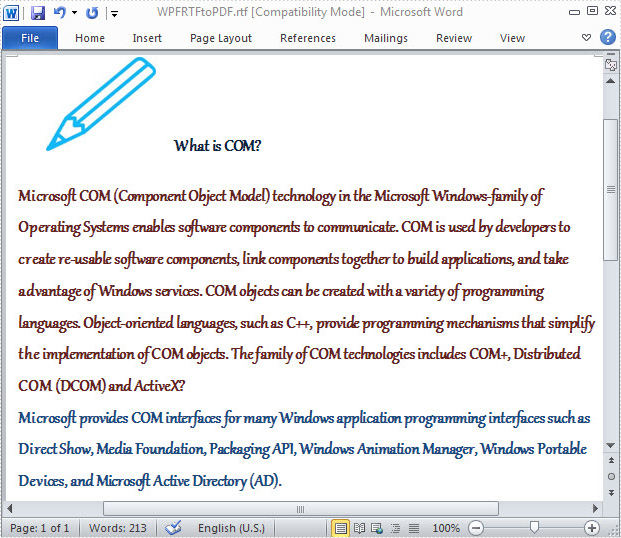
Spire.Doc is a standalone word component, which enables users to perform a wide range of word document processing tasks in WPF, .NET and Silverlight without installing MS Word on system.
Find and Highlight Text in Word in WPF
Word Find function can enable users to search for specific text or phrase quickly. Generally speaking, the found text will be highlighted automatically in order to distinguish from other contents. Also, users can format found text, such as set it as italic, bold etc.
Spire.Doc for WPF, a professional WPF component on manipulating Word, enables users to find and highlight text in Word with WPF. With this Word WPF component, developers can invoke doc.FindAllString(text string, bool caseSensitive, bool wholeWord) method directly to find text in Word. And for highlighting found text, developers need Firstly, use TextSelection, the class Spire.Doc for WPF provides, to save found string. Then, use foreach sentence to get each selection in this TextSelection. Finally, set HighlightColor, one properties of TextRange.CharacterFormat, for text in selection.
Below, the screenshot shows a Word document whose specified text has be found and highlighted.

Download and install Spire.Doc for WPF and then use the codes below to Find and Highlight Text in Word
Code Sample:
using Spire.Doc;
using Spire.Doc.Documents;
using System.Drawing;
using System.Windows;

namespace WpfApplication1
{
    public partial class MainWindow : Window
    {
        public MainWindow()
        {
            InitializeComponent();
        }
        private void button1_Click(object sender, RoutedEventArgs e)
        {

            //Load Document
            Document doc = new Document();
            doc.LoadFromFile(@"E:\work\Documents\A GOOD MAN IS HARD TO FIND.docx");

            //Find Text
            TextSelection[] textSelections = doc.FindAllString("Bailey", true, true);

            //Highlight Text
            foreach (TextSelection selection in textSelections)
            {
                selection.GetAsOneRange().CharacterFormat.HighlightColor = Color.Green;
            }

            //Save Document
            doc.SaveToFile("FindText.docx", FileFormat.Docx2010);
            System.Diagnostics.Process.Start("FindText.docx");
        }


    }
}
Imports Spire.Doc
Imports Spire.Doc.Documents
Imports System.Drawing
Imports System.Windows

Namespace WpfApplication1
	Public Partial Class MainWindow
		Inherits Window
		Public Sub New()
			InitializeComponent()
		End Sub
		Private Sub button1_Click(sender As Object, e As RoutedEventArgs)

			'Load Document
			Dim doc As New Document()
			doc.LoadFromFile("E:\work\Documents\A GOOD MAN IS HARD TO FIND.docx")

			'Find Text
			Dim textSelections As TextSelection() = doc.FindAllString("Bailey", True, True)

			'Highlight Text
			For Each selection As TextSelection In textSelections
				selection.GetAsOneRange().CharacterFormat.HighlightColor = Color.Green
			Next

			'Save Document
			doc.SaveToFile("FindText.docx", FileFormat.Docx2010)
			System.Diagnostics.Process.Start("FindText.docx")
		End Sub


	End Class
End Namespace
Spire.Doc is a Microsoft Word component, which enables users to perform a wide range of Word document processing tasks directly, such as generate, read, write and modify Word document in WPF, .NET and Silverlight.