How to Convert Word to OFD in C++: A Practical Guide

Converting Word documents to OFD (Open Fixed-layout Document) is a common requirement in many C++ applications, especially for projects serving the Chinese market, where OFD is a national standard for fixed-layout electronic documents in China (GB/T 33190). Whether you're building backend services, report generators, or document processing systems, implementing reliable C++ conversion Word to OFD functionality helps ensure documents can be shared, archived, or submitted to government systems while preserving their original formatting. However, implementing this feature isn't always easy. Traditional solutions often depend on Microsoft Office automation, which can introduce deployment issues and isn't ideal for server-side environments.
In this article, we'll demonstrate how to use Spire.Doc for C++ to convert Word to OFD programmatically. We'll cover basic document conversion as well as more advanced scenarios such as exporting specific pages to OFD format.
- Why Convert Word to OFD?
- Why Choose Spire.Doc for C++
- Setting Up Spire.Doc for C++
- Basic Word to OFD Conversion in C++
- Advanced Word to OFD Conversion Settings
- Frequently Asked Questions
Why Convert Word to OFD?
Although Word documents are convenient for editing, OFD is often preferred for official document archiving and distribution in China. Converting Word to OFD offers several advantages:
- National standard compliance: OFD is China's national standard for fixed-layout electronic documents, making it essential for government submissions and official archives.
- Consistent layout: OFD preserves the original formatting, ensuring the document looks the same across devices and operating systems.
- Document standardization: OFD files are designed to ensure consistent rendering across different platforms and viewers.
- Long-term archiving: OFD is well-suited for archiving and official record-keeping, making it ideal for legal and financial records.
- Improved document integrity: OFD files support digital signatures and document integrity protection, making them more resistant to tampering.
- Automation support: Applications can convert Word to OFD programmatically in document workflows.
Why Choose Spire.Doc for C++
There are a few ways to approach converting Word to OFD in C++ - COM automation, shelling out to external tools, or parsing the .docx format manually. Each comes with trade-offs: platform lock-in, environment dependencies, or significant implementation overhead.
Spire.Doc for C++ sidesteps most of these issues:
- No Office installation required - the library handles conversion internally, which makes it viable for server-side deployment
- Cross-platform - works on both Windows and Linux, which matters if your service runs in a containerized or Linux-based environment
- Faithful formatting - tables, images, headers, footers, and font styles are preserved reliably in the output OFD
- Straightforward API - the core conversion logic is concise, without needing to understand the full document object model upfront
- Support several Word document formats - including DOC, DOCX, DOCM, DOTX / DOTM.
It's not a perfect tool for every edge case, but for most production conversion needs, it covers the ground well.
Setting Up Spire.Doc for C++
Before starting the conversion, make sure your development environment and project are properly configured.
Install via NuGet Package Manager
- Open your project in Visual Studio.
- Go to Tools -> NuGet Package Manager -> Manage NuGet Packages for Solution...
- Search for "Spire.Doc.Cpp".
- Click "Install".
Manual Installation
- Download the latest version of Spire.Doc for C++ from the official website.
- Unzip the package.
- Configure your Visual Studio project to include the Include directory path and link the lib directory. Ensure the DLL files are placed in the same directory as your executable or in a system path.
For detailed installation instructions, see: Integrate Spire.Doc for C++ in a C++ Application
Basic C++ Project Setup
Once installed, make sure the following are in place before writing any code:
Include the header:
#include "Spire.Doc.o.h"
Add the required using namespace:
using namespace Spire::Doc;
Basic Word to OFD Conversion in C++
Once the project is ready, converting a Word document to OFD only requires a few lines of code.
Here is a complete C++ example:
#include "Spire.Doc.o.h"
#include <iostream>

using namespace Spire::Doc;

int main()
{
    Document* document = new Document();

    try {
        document->LoadFromFile(L"C:\\Users\\Tommy\\Desktop\\BusinessReport.docx");

        document->SaveToFile(L"C:\\Users\\Tommy\\Desktop\\BusinessReport.ofd", FileFormat::OFD);

        document->Close();

        std::cout << "success!" << std::endl;

    }
    catch (const std::exception& ex) {
        std::cerr << "error: " << ex.what() << std::endl;
        delete document;
        return -1;
    }

    delete document;
    return 0;
}
Key Code Explanations:
- Create a Document object.
- LoadFromFile() loads the Word document.
- SaveToFile() converts and saves the document as an OFD file using FileFormat::OFD.
Word to OFD conversion result:

Advanced Word to OFD Conversion Settings
Beyond basic Word-to-OFD conversion, Spire.Doc for C++ also provides options for more specific needs. For example, you can export specific pages to OFD or customize the conversion process by adjusting image compression and embedding fonts.
Convert Specific Pages to OFD
In some workflows, you may only need to convert specific pages of a Word document to OFD format. The following example demonstrates how to extract specific pages and save them as a separate OFD file.
Code example:
#include "Spire.Doc.o.h"
#include <iostream>

using namespace Spire::Doc;

int main()
{
    intrusive_ptr<Document> document = new Document();

    try {
        document->LoadFromFile(L"C:\\Users\\Tommy\\Desktop\\Agreement.docx");

        // Extract pages 1-3 (page index starts from 0)
        intrusive_ptr<Document> newDoc = document->ExtractPages(0, 3);

        newDoc->SaveToFile(L"C:\\Users\\Tommy\\Desktop\\Agreement_Partial.ofd", FileFormat::OFD);

        document->Close();
        newDoc->Close();

        std::cout << "Partial OFD Success!" << std::endl;

    }
    catch (const std::exception& ex) {
        std::cerr << "error: " << ex.what() << std::endl;
        return -1;
    }

    return 0;
}
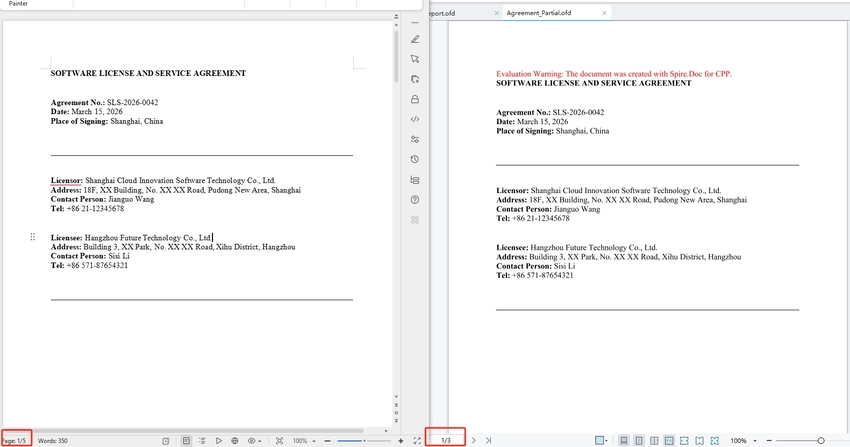
Code Explanation:
- intrusive_ptr is a smart pointer that automatically manages the memory of the Document object, ensuring it is properly destroyed when no longer needed, which helps prevent memory leaks and simplifies code.
- ExtractPages(0, 3) — Extracts pages 1-3 (0-based index) into a new Document.
- Saving the new document with FileFormat::OFD generates an OFD file containing only the selected pages.
Customize OFD Conversion Settings
In some situations, you may want to adjust conversion settings-for example, to reduce the size of the generated OFD or ensure fonts display correctly across different systems. Spire.Doc for C++ provides options for customizing the export process.
The code below shows how to enable image compression and font embedding during conversion.
#include "Spire.Doc.o.h"
#include <iostream>

using namespace Spire::Doc;

int main()
{
    intrusive_ptr<Document> document = new Document();

        try {
            document->LoadFromFile(L"C:\\Users\\Tommy\\Desktop\\MarketingProposal.docx");

            document->SetJPEGQuality(75);

            intrusive_ptr<ToPdfParameterList> parameters = new ToPdfParameterList();
            parameters->SetIsEmbeddedAllFonts(true);

            document->SaveToFile(L"C:\\Users\\Tommy\\Desktop\\MarketingProposal.ofd", FileFormat::OFD);
            document->Close();

            std::cout << "success" << std::endl;
        }
        catch (const std::exception& ex) {
            std::cerr << "error: " << ex.what() << std::endl;
            return -1;
        }
        return 0;
}

- SetJPEGQuality(75) sets the compression quality of JPEG images in the document to 75%. (value range 0-100).
- SetIsEmbeddedAllFonts(true) embeds all fonts used in the document, ensuring the OFD displays correctly even if the viewer's system does not have those fonts installed.
Frequently Asked Questions
Q1. Do I need Microsoft Word installed to perform the conversion?
A: No. Spire.Doc for C++ works independently of Microsoft Office and does not require Word to be installed on the system.
Q2. How can I convert only specific pages of a Word document to OFD?
A: As mentioned previously, you can extract the required pages from the document using intrusive_ptr<Document> newDoc = document->ExtractPages();, and then save the extracted content as an OFD file. Alternatively, you can copy the desired sections into a new document and then perform the conversion.
Q3. Why do some fonts appear different in the converted OFD?
A: This usually happens when the required fonts are not installed on the system. You can enable this by calling SetIsEmbeddedAllFonts(true) before saving the document.
Q4. How can I reduce the size of the generated OFD?
A: You can enable image compression or lower the JPEG quality (SetJPEGQuality(75))during the conversion process to reduce the file size.
Q5. What is the difference between OFD and PDF?
A: OFD (Open Fixed-layout Document) is China's national standard for electronic documents, while PDF is an international standard. OFD is widely adopted in China for e-government and official document workflows. Both formats preserve document layout and formatting.
Conclusion
Implementing a C++ conversion of Word documents to OFD is essential for applications that require reliable document sharing, archiving, or compliance with Chinese national standards. With Spire.Doc for C++, developers can perform Word-to-OFD conversion programmatically without relying on Microsoft Office automation. As demonstrated in this guide, the library supports not only full document conversion but also advanced scenarios such as exporting specific pages and customizing conversion settings, making it a practical solution for C++ document processing tasks.
C++: Convert HTML to Images (JPG, PNG, BMP)
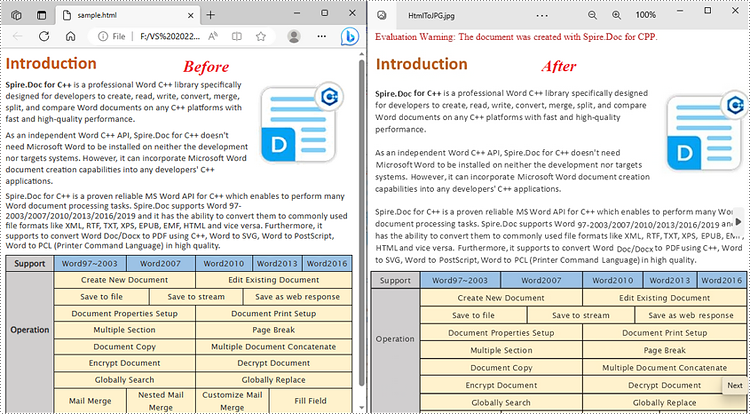
HTML is a markup language for creating websites or other web applications. In daily work, you might need to convert HTML to images for various reasons, such as creating thumbnails of web pages to use in search engine results pages or social media posts, generating snapshots of your html files for archiving or other purposes, and so on. In this article, you will learn how to convert Html to JPG, PNG, or BMP images in C++ using Spire.Doc for C++.
Install Spire.Doc for C++
There are two ways to integrate Spire.Doc for C++ into your application. One way is to install it through NuGet, and the other way is to download the package from our website and copy the libraries into your program. Installation via NuGet is simpler and more recommended. You can find more details by visiting the following link.
Integrate Spire.Doc for C++ in a C++ Application
Convert HTML to JPG, PNG and BMP Images in C++
To complete the task, you’ll need to load an HTML file first and then convert it to images using Document->SaveImageToStreams() method. These images can also be further saved as JPEG, PNG, BMP, EMF, GIF or WMF image formats. The following are the detailed steps.
- Create a Document instance.
- Load a sample html file using Document->LoadFromFile(LPCWSTR_S filename, FileFormat::Html, XHTMLValidationType::None) method.
- Convert the html file to an image stream using Document->SaveImageToStreams() method.
- Convert the image stream to an Image object using Image::FromStream(intrusive_ptr<Stream> stream) method.
- Save the Image object as a JPEG, PNG, BMP, or other image formats using Image->Save(LPCWSTR_S filename, ImageFormat format) method.
- C++
#include "Spire.Doc.o.h"

using namespace std;
using namespace Spire::Doc;

int main() {
	//Specify the input file path
	wstring inputFile = L"Data\\sample.html";

	//Create a Document instance
	intrusive_ptr<Document> document = new Document();

	//Load a sample html file from disk
	document->LoadFromFile(inputFile.c_str(), FileFormat::Html, XHTMLValidationType::None);

	//Convert the html to image streams
	intrusive_ptr<Stream> imageStream = document->SaveImageToStreams(0,ImageType::Bitmap);

	//Save the image stream as a PNG, JPG or BMP image
	intrusive_ptr<Image> image = Image::FromStream(imageStream);
	image->Save(L"HtmlToPNG.png", ImageFormat::GetPng());
	image->Save(L"HtmlToJPG.jpg", ImageFormat::GetJpeg());
	image->Save(L"HtmlToImage.bmp", ImageFormat::GetBmp());
	document->Close();
	imageStream->Dispose();
}
Apply for a Temporary License
If you'd like to remove the evaluation message from the generated documents, or to get rid of the function limitations, please request a 30-day trial license for yourself.
C++: Convert Word Documents to Images (JPEG, PNG, BMP, SVG)
Converting a Word document to images can have several benefits. Firstly, it enables you to preserve the original formatting and layout of the document, which is especially useful when sharing the document on different devices or systems. Secondly, it prevents unauthorized changes to the content, which ensures the document's integrity. Lastly, converting a Word document to images makes the content accessible for people who do not have access to Microsoft Word. In this article, we will explain how to convert Word documents to images in C++ using Spire.Doc for C++.
- Convert a Word Document to JPEG, PNG or BMP Images in C++
- Convert a Specific Page of a Word Document to IPEG, PNG or BMP Images in C++
- Convert a Word Document to SVG Images in C++
Install Spire.Doc for C++
There are two ways to integrate Spire.Doc for C++ into your application. One way is to install it through NuGet, and the other way is to download the package from our website and copy the libraries into your program. Installation via NuGet is simpler and more recommended. You can find more details by visiting the following link.
Integrate Spire.Doc for C++ in a C++ Application
Convert a Word Document to JPEG, PNG or BMP Images in C++
Spire.Doc for C++ offers the Document->SaveImageToStreams(ImageType type) method which enables you to convert a Word document to a vector of image streams. Then you can iterate through the vector of image streams, and save each image stream to an image file such as a JPEG file, a PNG file, or a BMP file. The detailed steps are as follows:
- Initialize an instance of the Document class.
- Load a Word document using the Document->LoadFromFile(LPCWSTR_S fileName) method.
- Convert the Word document to a vector of image streams using the Document->SaveImageToStreams(ImageType type) method.
- Iterate through the vector of image streams.
- Convert each image stream to an Image object using the Image::FromStream(intrusive_ptr<Stream> stream) method.
- Save the Image object to a JPEG, PNG, BMP, or another type of image file using the Image->Save(LPCWSTR_S filename, intrusive_ptr<ImageFormat> format) method.
- C++
#include "Spire.Doc.o.h";

using namespace Spire::Doc;
using namespace std;

int main()
{
	//Initialize an instance of the Document class
	intrusive_ptr<Document> document = new Document();
	//Load a Word document
	document->LoadFromFile(L"Input.docx");

	//Convert the Word document to image streams and store the result in a vector
	std::vector<intrusive_ptr<Stream>> images = document->SaveImageToStreams(ImageType::Bitmap);

	//Iterate through the vector of image streams
	for (int i = 0; i < images.size(); i++)
	{
		//Save each image stream to a PNG image
		std::vector<byte> imgBytes = images[i]->ToArray();
		std::ofstream outFile(L"Document\\" + to_wstring(i) + L".png", std::ios::binary);
		if (outFile.is_open())
		{
			outFile.write(reinterpret_cast<const char*>(imgBytes.data()), imgBytes.size());
			outFile.close();
		}

	}

	document->Close();
}

Convert a Specific Page of a Word Document to JPEG, PNG or BMP Images in C++
In addition to converting a whole Word document to images, Spire.Doc for C++ also enables you to convert a specific page of a Word document to an image by using the Document->SaveImageToStreams(int pageIndex, ImageType type) method. The detailed steps are as follows:
- Initialize an instance of the Document class.
- Load a Word document using the Document->LoadFromFile(LPCWSTR_S fileName) method.
- Convert a specific page of the Word document to an image stream using the Document->SaveImageToStreams(int pageIndex, ImageType type) method.
- Convert the image stream to an Image object using the Image::FromStream(intrusive_ptr<Stream> stream) method.
- Save the Image object to a JPEG, PNG, BMP, or another type of image file using the Image->Save(LPCWSTR_S filename, intrusive_ptr<ImageFormat> format) method.
- C++
#include "Spire.Doc.o.h";

using namespace Spire::Doc;
using namespace std;

int main()
{
	//Initialize an instance of the Document class
	intrusive_ptr<Document> document = new Document();
	//Load a Word document
	document->LoadFromFile(L"Input.docx");

	//Convert the first page of the Word document to a image stream
	intrusive_ptr<Stream> imageStream = document->SaveImageToStreams(0, ImageType::Bitmap);

	//Obtain image data in the default format of png, you can use it to convert other image format
	std::vector<byte> imgBytes = imageStream->ToArray();
	std::ofstream outFile(L"Page\\ToImage.png", std::ios::binary);
	if (outFile.is_open())
	{
		outFile.write(reinterpret_cast<const char*>(imgBytes.data()), imgBytes.size());
		outFile.close();
	}

	document->Close();
	imageStream->Dispose();
}

Convert a Word Document to SVG Images in C++
You can convert a Word document to SVG images easily by using the Document->SaveToFile(LPCWSTR_S fileName, FileFormat fileFormat) method. The detailed steps are as follows:
- Initialize an instance of the Document class.
- Load a Word document using the Document->LoadFromFile(LPCWSTR_S fileName) method.
- Save the document to SVG images using the Document->SaveToFile(LPCWSTR_S fileName, FileFormat fileFormat) method.
- C++
#include "Spire.Doc.o.h";

using namespace Spire::Doc;
using namespace std;

int main()
{
	//Initialize an instance of the Document class
	intrusive_ptr<Document> document = new Document();
	//Load a Word document
	document->LoadFromFile(L"Input.docx");

	wstring fileName = L"SVG\\ToSvg.svg";
	//Save the document to SVG images
	document->SaveToFile(fileName.c_str(), FileFormat::SVG);
	document->Close();
}

Apply for a Temporary License
If you'd like to remove the evaluation message from the generated documents, or to get rid of the function limitations, please request a 30-day trial license for yourself.
C++: Convert Word to PDF
PDF is one of the most versatile, universal and feature-rich file formats in use today. Compared to Word, PDF documents are less likely to lose formatting when they’re opened on various devices. Additionally, PDF has absolute advantages over Word in terms of document security, archiving and transmission. These are some of the reasons why we should convert Word to PDF. In this article, you will learn how to convert Word to PDF and how to set conversion options in C++ using Spire.Doc for C++.
- Convert Doc or Docx to PDF
- Convert Word to PDF with Bookmarks
- Convert Word to PDF with Fonts Embedded
- Set Image Quality When Converting Word to PDF
Install Spire.Doc for C++
There are two ways to integrate Spire.Doc for C++ into your application. One way is to install it through NuGet, and the other way is to download the package from our website and copy the libraries into your program. Installation via NuGet is simpler and more recommended. You can find more details by visiting the following link.
Integrate Spire.Doc for C++ in a C++ Application
Convert Doc or Docx to PDF in C++
The Document->SaveToFile(LPCWSTR_S fileName, FileFormat fileFormat) method provided by Spire.Doc for C++ allows to save Word as PDF, XPS, HTML, RTF, etc. If you just want to save your Word documents as regular PDFs without additional settings, follow the steps below.
- Create a Document object.
- Load a sample Word file using Document->LoadFromFile() method.
- Save the document to PDF using Doucment->SaveToFile() method.
- C++
#include "Spire.Doc.o.h";

using namespace Spire::Doc;
using namespace std;

int main() {

 //Specify input file path
 wstring inputFilePath = L"C:\\Users\\Administrator\\Desktop\\sample.docx";

 //Specify output file path and name
 wstring outputPath = L"Output\\";
 wstring outputFile = outputPath + L"ToPDF.pdf";

 //Create a Document object
 intrusive_ptr<Document> document = new Document();

 //Load a Word file
 document->LoadFromFile(inputFilePath.c_str());

 //Save the document to PDF
 document->SaveToFile(outputFile.c_str(), FileFormat::PDF);
 document->Close();
}

Convert Word to PDF with Bookmarks in C++
Bookmarks can enhance the readability of a document. When generating PDF from Word, you may would like to preserve existing bookmarks of the Word document or create bookmarks from the headings. The following are the steps to convert Word to PDF with bookmarks.
- Create a Document object.
- Load a sample Word file using Document->LoadFromFile() method.
- Create a ToPdfParameterList object, which is used to set conversion options.
- Create bookmarks in PDF from the headings in Word using ToPdfParameterList.SetCreateWordBookmarksUsingHeadings() method.
- Save the document to PDF with bookmarks using Doucment->SaveToFile(LPCWSTR_S fileName, ToPdfParameterList* paramList) method.
- C++
#include "Spire.Doc.o.h";

using namespace Spire::Doc;
using namespace std;

int main() {

 //Specify input file path
 wstring inputFilePath = L"C:\\Users\\Administrator\\Desktop\\sample.docx";

 //Specify output file path and name
 wstring outputPath = L"Output\\";
 wstring outputFile = outputPath + L"ToPDF.pdf";

 //Create a Document object
 intrusive_ptr<Document> document = new Document();

 //Load a Word file
 document->LoadFromFile(inputFilePath.c_str());

 //Create a ToPdfParameterList object
 intrusive_ptr<ToPdfParameterList> parameters = new ToPdfParameterList();

 //Create bookmarks from Word headings
 parameters->SetCreateWordBookmarksUsingHeadings(true);

 //Create bookmarks in PDF from existing bookmarks in Word
 //parameters->SetCreateWordBookmarks(true);

 //Save the document to PDF
 document->SaveToFile(outputFile.c_str(), parameters);
 document->Close();
}

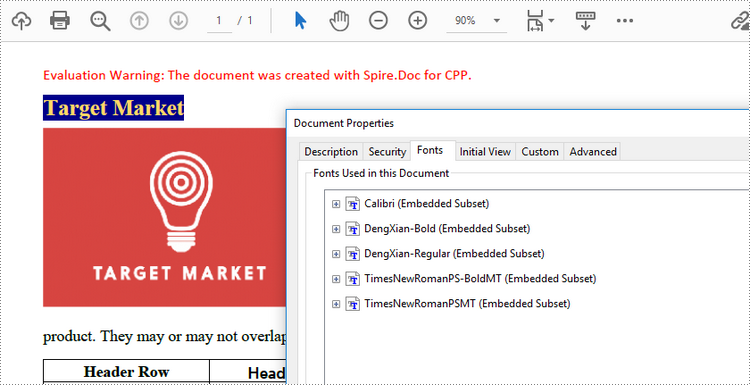
Convert Word to PDF with Fonts Embedded in C++
By embedding fonts used in a Word document into the PDF document, you ensure that the PDF document looks the same on any device that does not have the appropriate fonts installed. The steps to embed fonts in PDF during conversion are as follows.
- Create a Document object.
- Load a sample Word file using Document->LoadFromFile() method.
- Create a ToPdfParameterList object, which is used to set conversion options.
- Embed fonts in generated PDF using ToPdfParameterList.SetIsEmbeddedAllFonts() method.
- Save the document to PDF using Doucment->SaveToFile(LPCWSTR_S fileName, ToPdfParameterList* paramList) method.
- C++
#include "Spire.Doc.o.h";

using namespace Spire::Doc;
using namespace std;

int main() {

 //Specify input file path
 wstring inputFilePath = L"C:\\Users\\Administrator\\Desktop\\sample.docx";

 //Specify output file path and name
 wstring outputPath = L"Output\\";
 wstring outputFile = outputPath + L"ToPDF.pdf";

 //Create a Document object
 intrusive_ptr<Document> document = new Document();

 //Load a Word file
 document->LoadFromFile(inputFilePath.c_str());

 //Create a ToPdfParameterList object
 intrusive_ptr<ToPdfParameterList> parameters = new ToPdfParameterList();

 //Embed fonts used in Word in generated PDF
 parameters->SetIsEmbeddedAllFonts(true);

 //Save the document to PDF
 document->SaveToFile(outputFile.c_str(), parameters);
 document->Close();
}
Set Image Quality When Converting Word to PDF in C++
A document containing a large number of high-quality images will often be large in size. When you convert Word to PDF, you can decide whether to compress the image quality or not. The following are the detailed steps.
- Create a Document object.
- Load a sample Word file using Document->LoadFromFile() method.
- Set the image quality using Document->SetJPEGQuality() mehtod
- Save the document to PDF using Doucment->SaveToFile() method.
- C++
#include "Spire.Doc.o.h";

using namespace Spire::Doc;
using namespace std;

int main() {

 //Specify input file path
 wstring inputFilePath = L"C:\\Users\\Administrator\\Desktop\\sample.docx";

 //Specify output file path and name
 wstring outputPath = L"Output\\";
 wstring outputFile = outputPath + L"ToPDF.pdf";

 //Create a Document object
 intrusive_ptr<Document> document = new Document();

 //Load a Word file
 document->LoadFromFile(inputFilePath.c_str());

 //Compress image to 40% of the original quality
 document->SetJPEGQuality(40);

 //Preserve original image quality
 //document->SetJPEGQuality(100);

 //Save the document to PDF
 document->SaveToFile(outputFile.c_str(), FileFormat::PDF);
 document->Close();
}
Apply for a Temporary License
If you'd like to remove the evaluation message from the generated documents, or to get rid of the function limitations, please request a 30-day trial license for yourself.