C++: Insert Images into Word Documents
Images can add visual variety to documents and convey information that is hard to express through text alone, such as complex concepts or emotions. They are a powerful tool to make your document easier to understand, more engaging, and more memorable. Whether you are designing a report or creating a marketing document, inserting images can enhance your communication with your readers and leave a lasting impression on them. In this article, you will learn how to insert images into Word documents in C++ using Spire.Doc for C++.
- Insert an Image in a Word Document in C++
- Insert an Image at a Specified Location in a Word Document in C++
Install Spire.Doc for C++
There are two ways to integrate Spire.Doc for C++ into your application. One way is to install it through NuGet, and the other way is to download the package from our website and copy the libraries into your program. Installation via NuGet is simpler and more recommended. You can find more details by visiting the following link.
Integrate Spire.Doc for C++ in a C++ Application
Insert an Image in a Word Document in C++
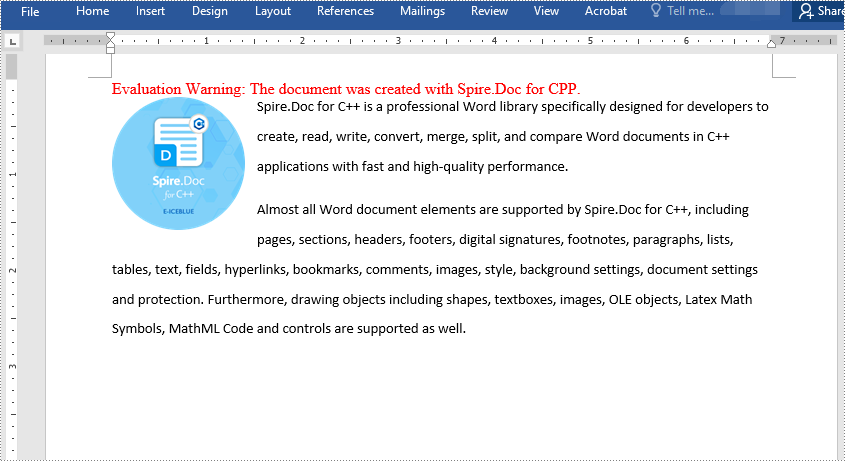
Spire.Doc for C++ offers the Paragraph->AppendPicture() method to insert an image into a Word document. The detailed steps are as follows:
- Initialize an instance of the Document class.
- Add a section using Document->AddSection() method.
- Add two paragraphs to the section using Section->AddParagraph() method.
- Add text to the paragraphs using Paragraph->AppendText() method and set formatting.
- Load an image using Image::FromFile() method.
- Add the image to the first paragraph using Paragraph->AppendPicture() method.
- Set width and height for the image using DocPicture->SetWidth() and DocPicture->SetHeight() methods.
- Set a text wrapping style for the image using DocPicture->SetTextWrappingStyle() method.
- Save the result document using Document->SaveToFile() method.
- C++
#include "Spire.Doc.o.h"

using namespace Spire::Doc;

int main()
{
 //Initialize an instance of the Document class
 intrusive_ptr<Document> document = new Document();

 //Add a section
 intrusive_ptr<Section> section = document->AddSection();

 //Add the first paragraph
 intrusive_ptr<Paragraph> paragraph1 = section->AddParagraph();
 //Add text to the paragraph and set formatting
 intrusive_ptr <TextRange> tr = paragraph1->AppendText(L"Spire.Doc for C++ is a professional Word library specifically designed for developers to create, read, write, convert, merge, split, and compare Word documents in C++ applications with fast and high-quality performance.");
 tr->GetCharacterFormat()->SetFontName(L"Calibri");
 tr->GetCharacterFormat()->SetFontSize(11.0f);
 paragraph1->GetFormat()->SetLineSpacing(20.0f);
 paragraph1->GetFormat()->SetAfterSpacing(10.0f);

 //Add the second paragraph
 intrusive_ptr<Paragraph> paragraph2 = section->AddParagraph();
 //Add text to the paragraph and set formatting
 tr = paragraph2->AppendText(L"Almost all Word document elements are supported by Spire.Doc for C++, including pages, sections, headers, footers, digital signatures, footnotes, paragraphs, lists, tables, text, fields, hyperlinks, bookmarks, comments, images, style, background settings, document settings and protection. Furthermore, drawing objects including shapes, textboxes, images, OLE objects, Latex Math Symbols, MathML Code and controls are supported as well.");
 tr->GetCharacterFormat()->SetFontName(L"Calibri");
 tr->GetCharacterFormat()->SetFontSize(11.0f);
 paragraph2->GetFormat()->SetLineSpacing(20.0f);

 //Add the image to the first paragraph
 intrusive_ptr<DocPicture> picture = paragraph1->AppendPicture(L"Spire.Doc.png");
 //Set image width and height
 picture->SetWidth(100);
 picture->SetHeight(100);
 //Set text wrapping style for the image
 picture->SetTextWrappingStyle(TextWrappingStyle::Tight);

 //Save the result document
 document->SaveToFile(L"InsertImage.docx", FileFormat::Docx2013);
 document->Close();
}
Insert an Image at a Specified Location in a Word document in C++
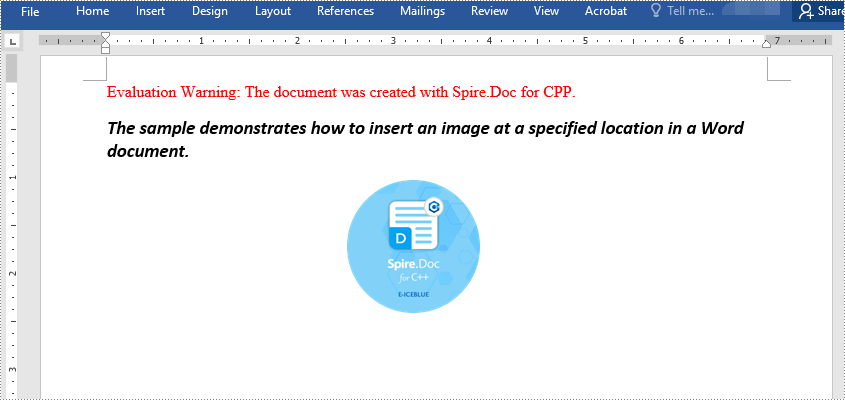
Spire.Doc for C++ enables you to insert an image into a Word document and set its position by using the DocPicture->SetHorizontalPosition() and DocPicture->SetVerticalPosition() methods. The detailed steps are as follows:
- Initialize an instance of the Document class.
- Add a section using Document->AddSection() method.
- Add a paragraph to the section using Section->AddParagraph() method.
- Add text to the paragraph using Paragraph->AppendText() method and set formatting.
- Load an image using Image::FromFile() method.
- Add the image to the paragraph using Paragraph->AppendPicture() method.
- Set width and height for the image using DocPicture->SetWidth() and DocPicture->SetHeight() methods.
- Set the horizontal position and vertical position for the image using DocPicture->SetHorizontalPosition() and DocPicture->SetVerticalPosition() methods.
- Set a text wrapping style for the image using DocPicture->SetTextWrappingStyle() method (note that the position settings are not applicable when the text wrapping style is Inline).
- Save the result document using Document->SaveToFile() method.
- C++
#include "Spire.Doc.o.h"

using namespace Spire::Doc;

int main()
{
 //Initialize an instance of the Document class
 intrusive_ptr<Document> document = new Document();

 //Add a section
 intrusive_ptr<Section> section = document->AddSection();

 //Add a paragraph to the section
 intrusive_ptr<Paragraph> paragraph = section->AddParagraph();

 //Add text to the paragraph and set formatting
 intrusive_ptr<TextRange> tr = paragraph->AppendText(L"The sample demonstrates how to insert an image at a specified location in a Word document.");
 tr->GetCharacterFormat()->SetFontName(L"Calibri");
 paragraph->ApplyStyle(BuiltinStyle::Heading2);

 //Add the image to the paragraph
 intrusive_ptr<DocPicture> picture = paragraph->AppendPicture(L"Spire.Doc.png");

 //Set image size
 picture->SetWidth(100);
 picture->SetHeight(100);

 //Set image position
 picture->SetHorizontalPosition(180.0F);
 picture->SetVerticalPosition(60.0F);

 //Set a text wrapping style for the image (note that the position settings are not applicable when the text wrapping style is Inline)
 picture->SetTextWrappingStyle(TextWrappingStyle::Through);

 //Save the result document
 document->SaveToFile(L"InsertImageAtSpecifiedLocation.docx", FileFormat::Docx);
 document->Close();
}
Apply for a Temporary License
If you'd like to remove the evaluation message from the generated documents, or to get rid of the function limitations, please request a 30-day trial license for yourself.
C++: Create Tables in Word Documents
A table is a powerful tool for organizing and presenting data. It arranges data into rows and columns, making it easier for authors to illustrate the relationships between different data categories and for readers to understand and analyze complex data. In this article, you will learn how to programmatically create tables in Word documents in C++ using Spire.Doc for C++.
Install Spire.Doc for C++
There are two ways to integrate Spire.Doc for C++ into your application. One way is to install it through NuGet, and the other way is to download the package from our website and copy the libraries into your program. Installation via NuGet is simpler and more recommended. You can find more details by visiting the following link.
Integrate Spire.Doc for C++ in a C++ Application
Create a Table in Word in C++
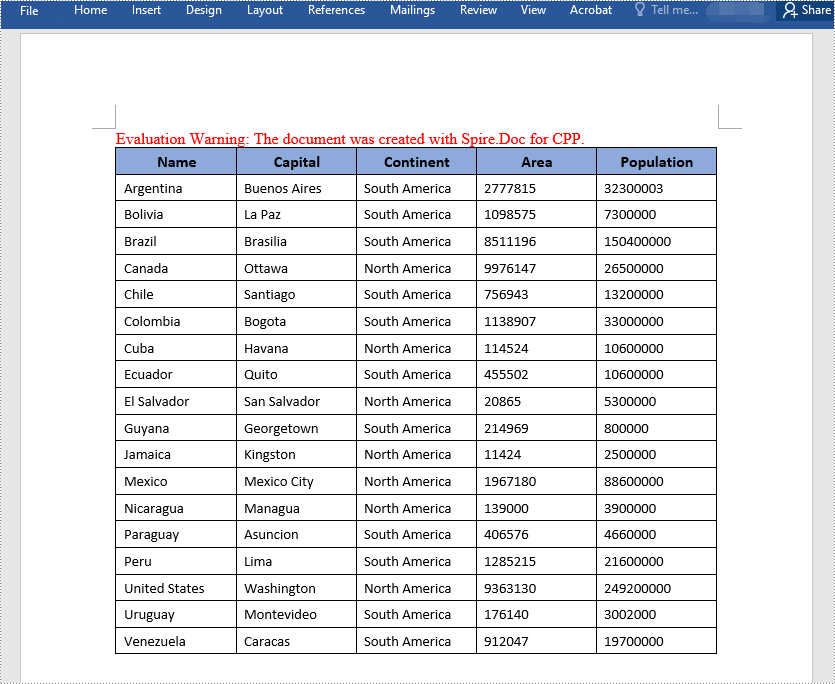
Spire.Doc for C++ offers the Section->AddTable() method to add a table to a section of a Word document. The detailed steps are as follows:
- Initialize an instance of the Document class.
- Add a section to the document using Document->AddSection() method.
- Define the data for the header row and remaining rows, storing them in a one-dimensional vector and a two-dimensional vector respectively.
- Add a table to the section using Section->AddTable() method.
- Specify the number of rows and columns in the table using Table->ResetCells(int, int) method.
- Add data in the one-dimensional vector to the header row and set formatting.
- Add data in the two-dimensional vector to the remaining rows and set formatting.
- Save the result document using Document->SaveToFile() method.
- C++
#include "Spire.Doc.o.h"

using namespace Spire::Doc;
using namespace std;

int main()
{
	//Initialize an instance of the Document class
	intrusive_ptr<Document> doc = new Document();

	//Add a section to the document
	intrusive_ptr<Section> section = doc->AddSection();

	//Set page margins for the section
	section->GetPageSetup()->GetMargins()->SetAll(72);

	//Define the data for the header row
	vector<wstring> header = { L"Name", L"Capital", L"Continent", L"Area", L"Population" };
	//Define the data for the remaining rows
	vector<vector<wstring>> data =
	{
		{L"Argentina", L"Buenos Aires", L"South America", L"2777815", L"32300003"},
		{L"Bolivia", L"La Paz", L"South America", L"1098575", L"7300000"},
		{L"Brazil", L"Brasilia", L"South America", L"8511196", L"150400000"},
		{L"Canada", L"Ottawa", L"North America", L"9976147", L"26500000"},
		{L"Chile", L"Santiago", L"South America", L"756943", L"13200000"},
		{L"Colombia", L"Bogota", L"South America", L"1138907", L"33000000"},
		{L"Cuba", L"Havana", L"North America", L"114524", L"10600000"},
		{L"Ecuador", L"Quito", L"South America", L"455502", L"10600000"},
		{L"El Salvador", L"San Salvador", L"North America", L"20865", L"5300000"},
		{L"Guyana", L"Georgetown", L"South America", L"214969", L"800000"},
		{L"Jamaica", L"Kingston", L"North America", L"11424", L"2500000"},
		{L"Mexico", L"Mexico City", L"North America", L"1967180", L"88600000"},
		{L"Nicaragua", L"Managua", L"North America", L"139000", L"3900000"},
		{L"Paraguay", L"Asuncion", L"South America", L"406576", L"4660000"},
		{L"Peru", L"Lima", L"South America", L"1285215", L"21600000"},
		{L"United States", L"Washington", L"North America", L"9363130", L"249200000"},
		{L"Uruguay", L"Montevideo", L"South America", L"176140", L"3002000"},
		{L"Venezuela", L"Caracas", L"South America", L"912047", L"19700000"}
	};

	//Add a table to the section
	intrusive_ptr<Table> table = section->AddTable(true);
	//Specify the number of rows and columns for the table
	table->ResetCells(data.size() + 1, header.size());

	//Set the first row as the header row
	intrusive_ptr<TableRow> row = table->GetRows()->GetItemInRowCollection(0);
	row->SetIsHeader(true);

	//Set height and background color for the header row
	row->SetHeight(20);
	row->SetHeightType(TableRowHeightType::Exactly);
	for (int i = 0; i < row->GetCells()->GetCount(); i++)
	{
		row->GetCells()->GetItemInCellCollection(i)->GetCellFormat()->GetShading()->SetBackgroundPatternColor(Color::FromArgb(142, 170, 219));
	}

	//Add data to the header row and set formatting
	for (size_t i = 0; i < header.size(); i++)
	{
		//Add a paragraph
		intrusive_ptr<Paragraph> p1 = row->GetCells()->GetItemInCellCollection(i)->AddParagraph();
		//Set alignment
		p1->GetFormat()->SetHorizontalAlignment(HorizontalAlignment::Center);
		row->GetCells()->GetItemInCellCollection(i)->GetCellFormat()->SetVerticalAlignment(VerticalAlignment::Middle);
		//Add data
		intrusive_ptr<TextRange> tR1 = p1->AppendText(header[i].c_str());
		//Set data formatting
		tR1->GetCharacterFormat()->SetFontName(L"Calibri");
		tR1->GetCharacterFormat()->SetFontSize(12);
		tR1->GetCharacterFormat()->SetBold(true);
	}

	//Add data to the remaining rows and set formatting
	for (size_t r = 0; r < data.size(); r++)
	{
		//Set height for the remaining rows
		intrusive_ptr<TableRow> dataRow = table->GetRows()->GetItemInRowCollection(r + 1);
		dataRow->SetHeight(20);
		dataRow->SetHeightType(TableRowHeightType::Exactly);

		for (size_t c = 0; c < data[r].size(); c++)
		{
			//Add a paragraph
			intrusive_ptr<Paragraph> p2 = dataRow->GetCells()->GetItemInCellCollection(c)->AddParagraph();
			//Set alignment
			dataRow->GetCells()->GetItemInCellCollection(c)->GetCellFormat()->SetVerticalAlignment(VerticalAlignment::Middle);
			//Add data
			intrusive_ptr<TextRange> tR2 = p2->AppendText(data[r][c].c_str());
			//Set data formatting
			tR2->GetCharacterFormat()->SetFontName(L"Calibri");
			tR2->GetCharacterFormat()->SetFontSize(11);
		}
	}

	//Save the result document
	doc->SaveToFile(L"CreateTable.docx", FileFormat::Docx2013);
	doc->Close();
}
Create a Nested Table in Word in C++
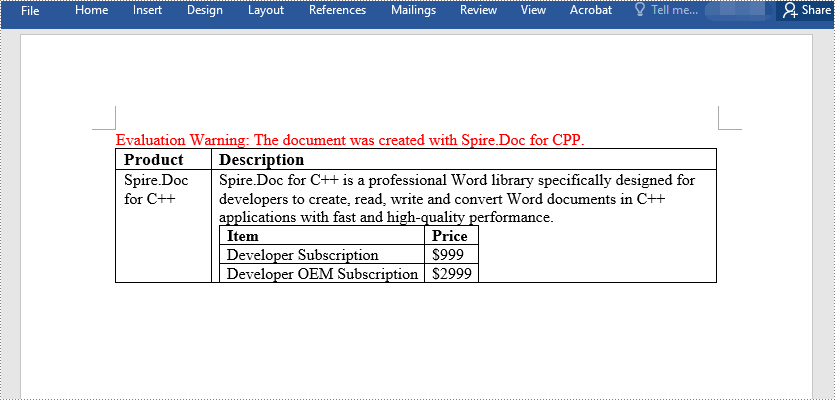
Spire.Doc for C++ offers the TableCell->AddTable() method to add a nested table to a specific table cell. The detailed steps are as follows:
- Initialize an instance of the Document class.
- Add a section to the document using Document->AddSection() method.
- Add a table to the section using Section.AddTable() method.
- Specify the number of rows and columns in the table using Table->ResetCells(int, int) method.
- Get the rows of the table and add data to the cells of each row.
- Add a nested table to a specific table cell using TableCell->AddTable() method.
- Specify the number of rows and columns in the nested table.
- Get the rows of the nested table and add data to the cells of each row.
- Save the result document using Document->SaveToFile() method.
- C++
#include "Spire.Doc.o.h"

using namespace Spire::Doc;
using namespace std;

int main()
{
	//Initialize an instance of the Document class
	intrusive_ptr<Document> doc = new Document();
	//Add a section to the document
	intrusive_ptr<Section> section = doc->AddSection();

	//Set page margins for the section
	section->GetPageSetup()->GetMargins()->SetAll(72);

	//Add a table to the section
	intrusive_ptr<Table> table = section->AddTable(true);
	//Set the number of rows and columns in the table
	table->ResetCells(2, 2);

	//Autofit the table width to window
	table->AutoFit(AutoFitBehaviorType::AutoFitToWindow);

	//Get the table rows
	intrusive_ptr<TableRow> row1 = table->GetRows()->GetItemInRowCollection(0);
	intrusive_ptr<TableRow> row2 = table->GetRows()->GetItemInRowCollection(1);

	//Add data to cells of the table
	intrusive_ptr<TableCell> cell1 = row1->GetCells()->GetItemInCellCollection(0);
	intrusive_ptr<TextRange> tR = cell1->AddParagraph()->AppendText(L"Product");
	tR->GetCharacterFormat()->SetFontSize(13);
	tR->GetCharacterFormat()->SetBold(true);
	intrusive_ptr<TableCell> cell2 = row1->GetCells()->GetItemInCellCollection(1);
	tR = cell2->AddParagraph()->AppendText(L"Description");
	tR->GetCharacterFormat()->SetFontSize(13);
	tR->GetCharacterFormat()->SetBold(true);
	intrusive_ptr<TableCell> cell3 = row2->GetCells()->GetItemInCellCollection(0);
	cell3->AddParagraph()->AppendText(L"Spire.Doc for C++");
	intrusive_ptr<TableCell> cell4 = row2->GetCells()->GetItemInCellCollection(1);
	cell4->AddParagraph()->AppendText(L"Spire.Doc for C++ is a professional Word "
		L"library specifically designed for developers to create, "
		L"read, write and convert Word documents in C++ "
		L"applications with fast and high-quality performance.");

	//Add a nested table to the fourth cell
	intrusive_ptr<Table> nestedTable = cell4->AddTable(true);
	//Set the number of rows and columns in the nested table
	nestedTable->ResetCells(3, 2);

	//Autofit the table width to content
	nestedTable->AutoFit(AutoFitBehaviorType::AutoFitToContents);

	//Get table rows
	intrusive_ptr<TableRow> nestedRow1 = nestedTable->GetRows()->GetItemInRowCollection(0);
	intrusive_ptr<TableRow> nestedRow2 = nestedTable->GetRows()->GetItemInRowCollection(1);
	intrusive_ptr<TableRow> nestedRow3 = nestedTable->GetRows()->GetItemInRowCollection(2);

	//Add data to cells of the nested table
	intrusive_ptr<TableCell> nestedCell1 = nestedRow1->GetCells()->GetItemInCellCollection(0);
	tR = nestedCell1->AddParagraph()->AppendText(L"Item");
	tR->GetCharacterFormat()->SetBold(true);
	intrusive_ptr<TableCell> nestedCell2 = nestedRow1->GetCells()->GetItemInCellCollection(1);
	tR = nestedCell2->AddParagraph()->AppendText(L"Price");
	tR->GetCharacterFormat()->SetBold(true);
	intrusive_ptr<TableCell> nestedCell3 = nestedRow2->GetCells()->GetItemInCellCollection(0);
	nestedCell3->AddParagraph()->AppendText(L"Developer Subscription");
	intrusive_ptr<TableCell> nestedCell4 = nestedRow2->GetCells()->GetItemInCellCollection(1);
	nestedCell4->AddParagraph()->AppendText(L"$999");
	intrusive_ptr<TableCell> nestedCell5 = nestedRow3->GetCells()->GetItemInCellCollection(0);
	nestedCell5->AddParagraph()->AppendText(L"Developer OEM Subscription");
	intrusive_ptr<TableCell> nestedCell6 = nestedRow3->GetCells()->GetItemInCellCollection(1);
	nestedCell6->AddParagraph()->AppendText(L"$2999");

	//Save the result document
	doc->SaveToFile(L"CreateNestedTable.docx", FileFormat::Docx2013);
	doc->Close();
}
Apply for a Temporary License
If you'd like to remove the evaluation message from the generated documents, or to get rid of the function limitations, please request a 30-day trial license for yourself.
C++: Add Background Color or Picture to Word Documents
A background color or picture can help make a document more aesthetically pleasing and attention-grabbing. If you are creating a document for marketing, education, or presentation purposes, adding an attractive background color or picture would be very useful. In this article, we will demonstrate how to programmatically add background color or picture to Word documents in C++ using Spire.Doc for C++.
- Add a Background Color to Word in C++
- Add a Gradient Background to Word in C++
- Add a Background Picture to Word in C++
Install Spire.Doc for C++
There are two ways to integrate Spire.Doc for C++ into your application. One way is to install it through NuGet, and the other way is to download the package from our website and copy the libraries into your program. Installation via NuGet is simpler and more recommended. You can find more details by visiting the following link.
Integrate Spire.Doc for C++ in a C++ Application
Add a Background Color to Word in C++
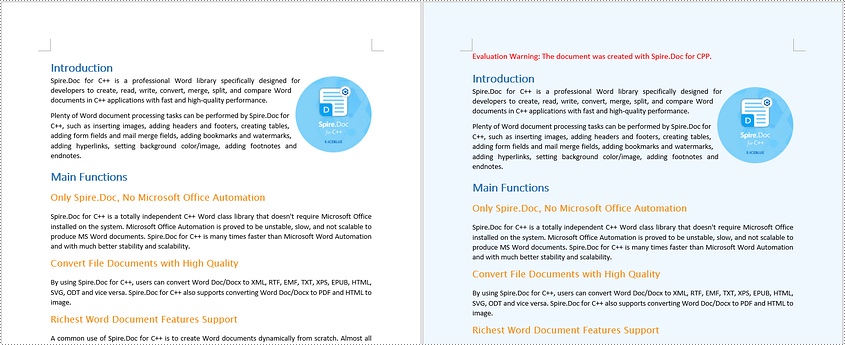
Adding a background color to a Word document is very straightforward using Spire.Doc for C++. You just need to set the document’s background type as color and then specify a color as the background. The detailed steps are as follows.
- Initialize an instance of the Document class.
- Load a Word document using Document->LoadFromFile() method.
- Get the document's background using Document->GetBackground() method.
- Set the background type as color using Background->SetType(BackgroundType::Color) method.
- Set the background color using Background->SetColor() method.
- Save the result document using Document->SaveToFile() method.
- C++
#include "Spire.Doc.o.h"

using namespace Spire::Doc;

int main()
{
	//Initialize an instance of the Document class
	intrusive_ptr<Document> document = new Document();
	//Load a Word document
	document->LoadFromFile(L"Sample.docx");

	//Get the document's background
	intrusive_ptr <Background> background = document->GetBackground();
	//Set the background type as color
	background->SetType(BackgroundType::Color);
	//Set the background color
	background->SetColor(Color::GetAliceBlue());

	//Save the result document
	document->SaveToFile(L"AddBackgroundColor.docx", FileFormat::Docx2013);
	document->Close();
}
Add a Gradient Background to Word in C++
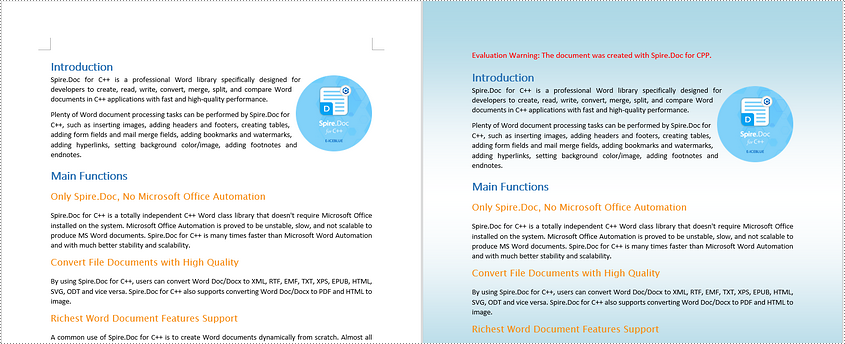
To add a gradient background, you need to set the background type as gradient, specify the gradient color and then set the gradient shading variant and style. The detailed steps are as follows.
- Initialize an instance of the Document class.
- Load a Word document using Document->LoadFromFile() method.
- Get the document's background using Document->GetBackground() method.
- Set the background type as gradient using Background->SetType(BackgroundType::Gradient) method.
- Specify two gradient colors using Background->GetGradient()->SetColor1() and Background->GetGradient()->SetColor2() methods.
- Set gradient shading variant and style using Background->GetGradient()->SetShadingVariant() and Background->GetGradient()->SetShadingStyle() methods.
- Save the result document using Document->SaveToFile() method.
- C++
#include "Spire.Doc.o.h"

using namespace Spire::Doc;

int main()
{
	//Initialize an instance of the Document class
	intrusive_ptr <Document> document = new Document();
	//Load a Word document
	document->LoadFromFile(L"Sample.docx");

	//Get the document's background
	intrusive_ptr <Background> background = document->GetBackground();
	//Set the background type as gradient
	background->SetType(BackgroundType::Gradient);

	//Specify two gradient colors
	background->GetGradient()->SetColor1(Color::GetWhite());
	background->GetGradient()->SetColor2(Color::GetLightBlue());

	//Set gradient shading variant and style
	background->GetGradient()->SetShadingVariant(GradientShadingVariant::ShadingDown);
	background->GetGradient()->SetShadingStyle(GradientShadingStyle::Horizontal);

	//Save the result document
	document->SaveToFile(L"AddGradientBackground.docx", FileFormat::Docx2013);
	document->Close();
}
Add a Background Picture to Word in C++
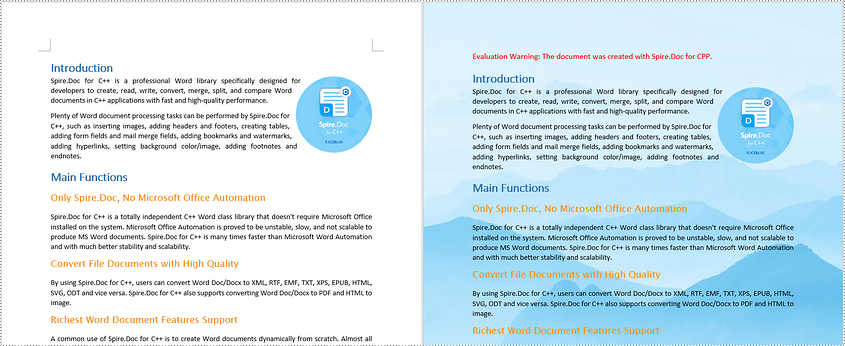
To add a background image to a Word document, you need to set the background type as picture, and then insert a picture as the background. The detailed steps are as follows.
- Initialize an instance of the Document class.
- Load a Word document using Document->LoadFromFile() method.
- Get the document's background using Document->GetBackground() method.
- Set the background type as picture using Background->SetType(BackgroundType::Picture) method.
- Set the background picture using Background->SetPicture() method.
- Save the result document using Document->SaveToFile() method.
- C++
#include "Spire.Doc.o.h"

using namespace Spire::Doc;

int main()
{
	//Initialize an instance of the Document class
	intrusive_ptr <Document> document = new Document();
	//Load a Word document
	document->LoadFromFile(L"Sample.docx");

	//Get the document's background
	intrusive_ptr <Background> background = document->GetBackground();
	//Set the background type as picture
	background->SetType(BackgroundType::Picture);

	//Set the background picture
	background->SetPicture(L"background.png");

	//Save the result document
	document->SaveToFile(L"AddBackgroundPicture.docx", FileFormat::Docx2013);
	document->Close();
}
Apply for a Temporary License
If you'd like to remove the evaluation message from the generated documents, or to get rid of the function limitations, please request a 30-day trial license for yourself.
C++: Create or Edit Word Documents
Word documents are files created with Microsoft Word or other word-processing programs. They are used by almost all types of businesses around the world. A wide variety of professional documents, such as business contracts, essays, brochures, letters, resumes, and reports, are created and saved in the form of Word documents. In this article, you will learn how to create or edit Word documents programmatically in C++ using Spire.Doc for C++ library.
Install Spire.Doc for C++
There are two ways to integrate Spire.Doc for C++ into your application. One way is to install it through NuGet, and the other way is to download the package from our website and copy the libraries into your program. Installation via NuGet is simpler and more recommended. You can find more details by visiting the following link.
Integrate Spire.Doc for C++ in a C++ Application
Create a Word Document in C++
Using Spire.Doc for C++, you can create a Word document with one or more sections and add various elements to it, such as paragraphs, tables, images, lists, hyperlinks, watermarks, headers, footers, content controls, and comments.
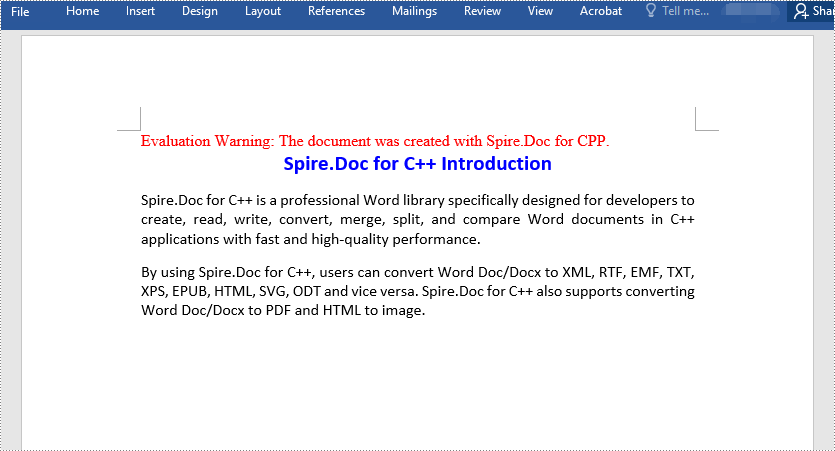
The following steps show you how to create a simple Word document with a section and three paragraphs:
- Initialize an instance of the Document class.
- Add a section to the document using Document->AddSection() method.
- Set page margins for the section.
- Add three paragraphs to the section using Section->AddParagraph() method.
- Add text to the paragraphs using Paragraph->AppendText() method.
- Initialize two instances of the ParagraphStyle class to create two paragraph styles, and then apply the styles to the paragraphs respectively using Paragraph->ApplyStyle() method.
- Save the result document to a Word file using Document->SaveToFile() method.
- C++
#include "Spire.Doc.o.h"

using namespace Spire::Doc;

int main()
{
    //Initialize an instance of the Document class
    intrusive_ptr<Document> doc = new Document();
    //Add a section to the document
    intrusive_ptr<Section> section = doc->AddSection();

    //Set page margins
    section->GetPageSetup()->GetMargins()->SetAll(72);

    //Add a title paragraph to the section
    intrusive_ptr<Paragraph> titlePara = section->AddParagraph();
    //Add text to the paragraph
    titlePara->AppendText(L"Spire.Doc for C++ Introduction");

    //Add a body paragraph to the section
    intrusive_ptr<Paragraph> bodyPara1 = section->AddParagraph();
    //Add text to the paragraph
    bodyPara1->AppendText(L"Spire.Doc for C++ is a professional Word library specifically designed for developers to create, read, write, convert, merge, split, and compare Word documents in C++ applications with fast and high-quality performance.");

    //Add a body paragraph to the section
    intrusive_ptr<Paragraph> bodyPara2 = section->AddParagraph();
    //Add text to the paragraph
    bodyPara2->AppendText(L"By using Spire.Doc for C++, users can convert Word Doc/Docx to XML, RTF, EMF, TXT, XPS, EPUB, HTML, SVG, ODT and vice versa. Spire.Doc for C++ also supports converting Word Doc/Docx to PDF and HTML to image.");

    //Create a style and apply it to the title paragraph
    intrusive_ptr<ParagraphStyle> style1 = new ParagraphStyle(doc);
    style1->SetName(L"titleStyle");
    style1->GetCharacterFormat()->SetBold(true);
    style1->GetCharacterFormat()->SetTextColor(Color::GetBlue());
    style1->GetCharacterFormat()->SetFontName(L"Calibri");
    style1->GetCharacterFormat()->SetFontSize(16);
    doc->GetStyles()->Add(style1);
    titlePara->ApplyStyle(L"titleStyle");

    //Create a style and apply it to the body paragraphs
    intrusive_ptr<ParagraphStyle> style2 = new ParagraphStyle(doc);
    style2->SetName(L"paraStyle");
    style2->GetCharacterFormat()->SetFontName(L"Calibri");
    style2->GetCharacterFormat()->SetFontSize(12);
    doc->GetStyles()->Add(style2);
    bodyPara1->ApplyStyle(L"paraStyle");
    bodyPara2->ApplyStyle(L"paraStyle");

    //Set horizontal alignment for the title and body paragraphs
    titlePara->GetFormat()->SetHorizontalAlignment(HorizontalAlignment::Center);
    bodyPara1->GetFormat()->SetHorizontalAlignment(HorizontalAlignment::Justify);
    bodyPara2->GetFormat()->SetHorizontalAlignment(HorizontalAlignment::Justify);

    //Set spacing after the title and body paragraphs
    titlePara->GetFormat()->SetAfterSpacing(10);
    bodyPara1->GetFormat()->SetAfterSpacing(10);

    //Save the result document
    doc->SaveToFile(L"CreateWord.docx", FileFormat::Docx2013);
    doc->Dispose();
}
Edit an Existing Word Document in C++
Apart from creating Word documents from scratch, Spire.Doc for C++ also enables you to edit existing Word documents. For example, you can modify existing elements in the document or add new elements to the document.
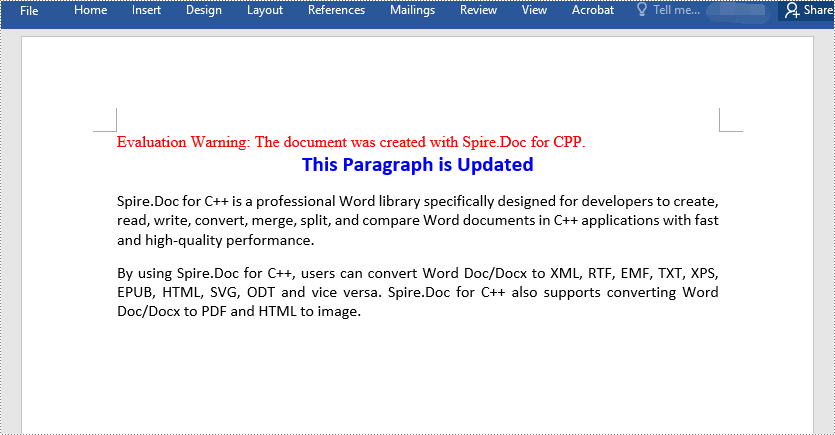
The following steps show you how to modify the text of a specific paragraph in a Word document:
- Initialize an instance of the Document class.
- Load the Word document using Document->LoadFromFile() method.
- Access a specific section in the document by its index using Document->GetSections()->GetItem(int index) method.
- Access a specific paragraph in the section by its index using Section->GetParagraphs()->GetItem(int index) method.
- Modify the paragraph text using Paragraph->SetText() method.
- Save the result document using Document->SaveToFile() method.
- C++
#include "Spire.Doc.o.h"

using namespace Spire::Doc;

int main()
{
    //Initialize an instance of the Document class
    intrusive_ptr<Document> doc = new Document();
    //Load a Word document
    doc->LoadFromFile(L"CreateWord.docx");

    //Access the first section in the document
    intrusive_ptr<Section> section = doc->GetSections()->GetItemInSectionCollection(0);

    //Access the second paragraph in the first section
    intrusive_ptr<Paragraph> para = section->GetParagraphs()->GetItemInParagraphCollection(1);
    //Modify the paragraph text
    para->SetText(L"This Paragraph is Updated");

    //Save the result document
    doc->SaveToFile(L"EditWord.docx", FileFormat::Docx2013);
    doc->Dispose();
}
Apply for a Temporary License
If you'd like to remove the evaluation message from the generated documents, or to get rid of the function limitations, please request a 30-day trial license for yourself.