C++: Find and Highlight Text in Word
In a large document, it is inevitable to use the find function when you want to quickly locate specific key information. At the same time, highlighting them with a bright color is also an effective way to make them stand out to grab the reader's attention. In this article, you will learn how to programmatically find and highlight text in a Word document using Spire.Doc for C++.
- Find and Highlight All Instances of a Specified Text in Word
- Find and Highlight the First Instance of a Specified Text in Word
Install Spire.Doc for C++
There are two ways to integrate Spire.Doc for C++ into your application. One way is to install it through NuGet, and the other way is to download the package from our website and copy the libraries into your program. Installation via NuGet is simpler and more recommended. You can find more details by visiting the following link.
Integrate Spire.Doc for C++ in a C++ Application
Find and Highlight All Instances of a Specified Text in Word in C++
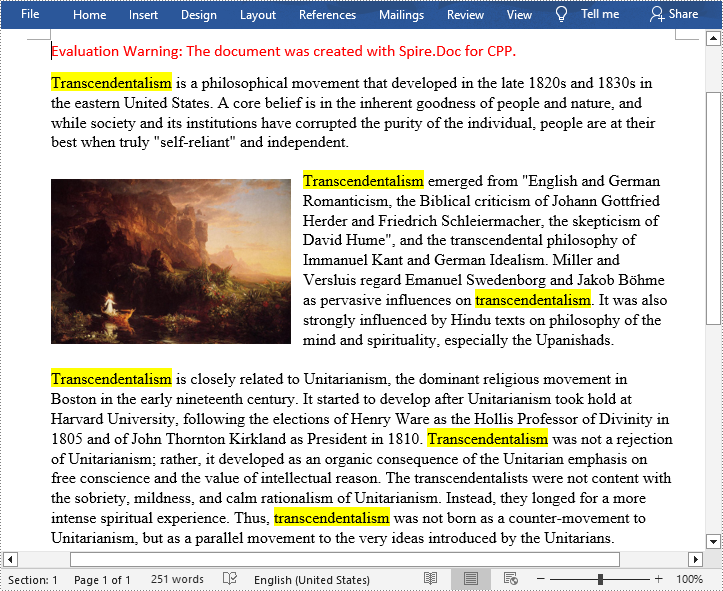
Spire.Doc for C++ offers the Document->FindAllString(LPCWSTR_S matchString, bool caseSensitive, bool wholeWord) method to find all instances of a specified text string, and then you can iterate through these instances to highlight them with a bright color. The following are the detailed steps.
- Create a Document instance.
- Load a Word document using Document->LoadFromFile() method.
- Find all matching text in the document using Document->FindAllString() method.
- Loop through all matching text in the document.
- Get the text range of a specific matching text using TextSelection->GetAsOneRange() method, and then set its highlight color using TextRange->GetCharacterFormat()->SetHighlightColor() method.
- Save the result document using Document->SaveToFile() method.
- C++
#include "Spire.Doc.o.h"

using namespace Spire::Doc;

int main() {
 //Specify the input and output file paths
 std::wstring inputFile = L"Data\\input1.docx";
 std::wstring outputFile = L"Output\\FindAndHighlightAll.docx";

 //Create a Document instance
 intrusive_ptr<Document> document = new Document();

 //Load a Word document from disk
 document->LoadFromFile(inputFile.c_str());

 //Find all matching text in the document
 std::vector<intrusive_ptr<TextSelection>> textSelections = document->FindAllString(L"Transcendentalism", false, true);

 //Loop through all matching text and set highlight color for them
 for (auto selection : textSelections)
 {
  selection->GetAsOneRange()->GetCharacterFormat()->SetHighlightColor(Color::GetYellow());
 }

 //Save the result document
 document->SaveToFile(outputFile.c_str(), FileFormat::Docx);
 document->Close();
}
Find and Highlight the First Instance of a Specified Text in Word in C++
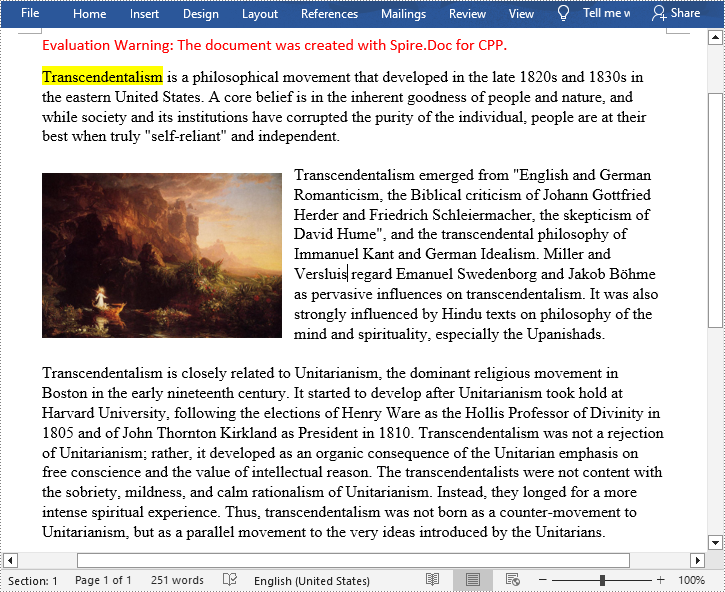
You can also use the Document->FindString(LPCWSTR_S matchString, bool caseSensitive, bool wholeWord) method to find only the first instance of a specified text string and then set highlight color for it. The following are the detailed steps.
- Create a Document instance.
- Load a Word document using Document->LoadFromFile() method.
- Find the first matching text using Document->FindString() method.
- Get the text range of the first matching text using TextSelection->GetAsOneRange() method, and then set its highlight color using TextRange->GetCharacterFormat()->SetHighlightColor() method.
- Save the result document using Document->SaveToFile() method.
- C++
#include "Spire.Doc.o.h"

using namespace Spire::Doc;
int main() {
 //Specify the input and output file paths
 std::wstring inputFile = L"Data\\input1.docx";
 std::wstring outputFile = L"Output\\FindAndHighlight.docx";

 //Create a Document instance
 intrusive_ptr<Document> document = new Document();

 //Load a Word document from disk
 document->LoadFromFile(inputFile.c_str());

 //Find the first matching text
 intrusive_ptr<TextSelection> textSelection = document->FindString(L"Transcendentalism", false, true);

 //Set highlight color for the text
 textSelection->GetAsOneRange()->GetCharacterFormat()->SetHighlightColor(Color::GetYellow());

 //Save the result document
 document->SaveToFile(outputFile.c_str(), FileFormat::Docx);
 document->Close();
}
Apply for a Temporary License
If you'd like to remove the evaluation message from the generated documents, or to get rid of the function limitations, please request a 30-day trial license for yourself.
C++: Find and Replace Text in Word Documents
The find and replace feature in Microsoft Word is an essential tool when editing documents. It enables you to quickly find a specific word or phrase in a Word document and lets you replace all instances of it at once. This is especially helpful in situations where you need to update information or correct misspelled words in large Word documents. In this article, you will learn how to find and replace text in Word documents in C++ using Spire.Doc for C++.
- Find Text and Replace All Its Instances with New Text
- Find Text and Replace Its First Instance with New Text
- Find and Replace Text Using a Regular Expression
- Find and Replace Text with an Image
Install Spire.Doc for C++
There are two ways to integrate Spire.Doc for C++ into your application. One way is to install it through NuGet, and the other way is to download the package from our website and copy the libraries into your program. Installation via NuGet is simpler and more recommended. You can find more details by visiting the following link.
Integrate Spire.Doc for C++ in a C++ Application
Find Text and Replace All Its Instances with New Text
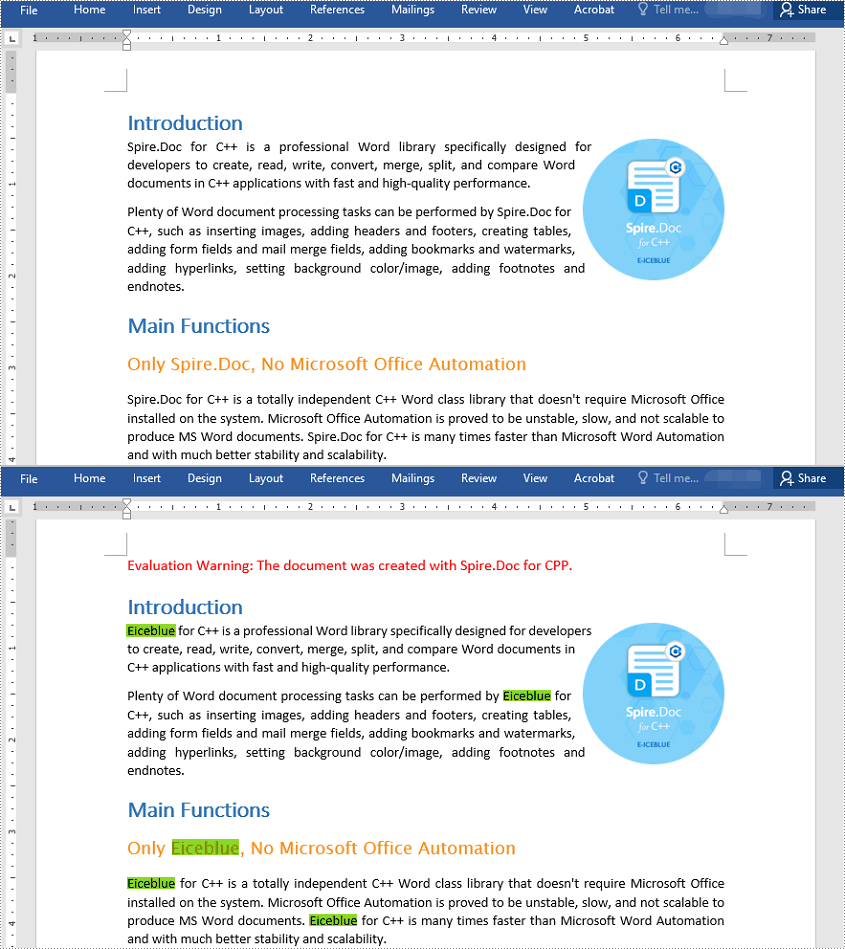
You can find a text and replace all its instances with another text easily using the Document->Replace() method. The detailed steps are as follows:
- Initialize an instance of the Document class.
- Load a Word document using Document->LoadFromFile() method.
- Find a specific text and replace all its instances with another text using Document->Replace() method.
- Save the result document using Document->SaveToFile() method.
- C++
#include "Spire.Doc.o.h"

using namespace Spire::Doc;
using namespace std;

int main()
{
 //Initialize an instance of the Document class
 intrusive_ptr<Document> document = new Document();

 //Load a Word document
 document->LoadFromFile(L"Input.docx");

 //Find a specific text and replace all its instances with another text
 document->Replace(L"Spire.Doc", L"Eiceblue", false, true);

 //Save the result document
 document->SaveToFile(L"ReplaceAllInstances.docx", FileFormat::Docx2013);
 document->Close();
}
Find Text and Replace Its First Instance with New Text
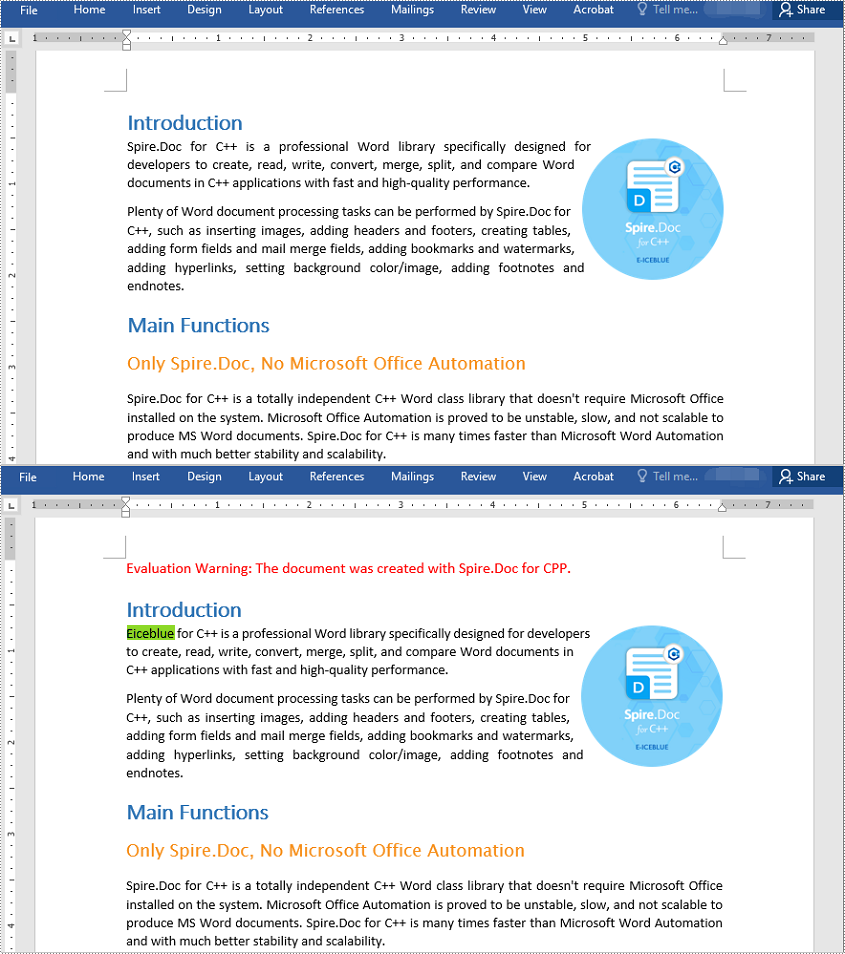
Spire.Doc for C++ provides the Document->SetReplaceFirst() method which enables you to change the replacement mode from replacing all instances to replacing the first instance. The following steps explain how to find a text and replace its first instance:
- Initialize an instance of the Document class.
- Load a Word document using Document->LoadFromFile() method.
- Change the replacement mode to replace the first instance using Document->SetReplaceFirst(true) method.
- Replace the first instance of a text with another text using Document->Replace() method.
- Save the result document using Document->SaveToFile() method.
- C++
#include "Spire.Doc.o.h"

using namespace Spire::Doc;
using namespace std;

int main()
{
 //Initialize an instance of the Document class
 intrusive_ptr<Document> document = new Document();

 //Load a Word document
 document->LoadFromFile(L"Input.docx");

 //Change the replacement mode to replace the first match
 document->SetReplaceFirst(true);

 //Replace the first instance of a text with another text
 document->Replace(L"Spire.Doc", L"Eiceblue", false, true);

 //Save the result document
 document->SaveToFile(L"ReplaceFirstInstance.docx", FileFormat::Docx2013);
 document->Close();
}
Find and Replace Text Using a Regular Expression
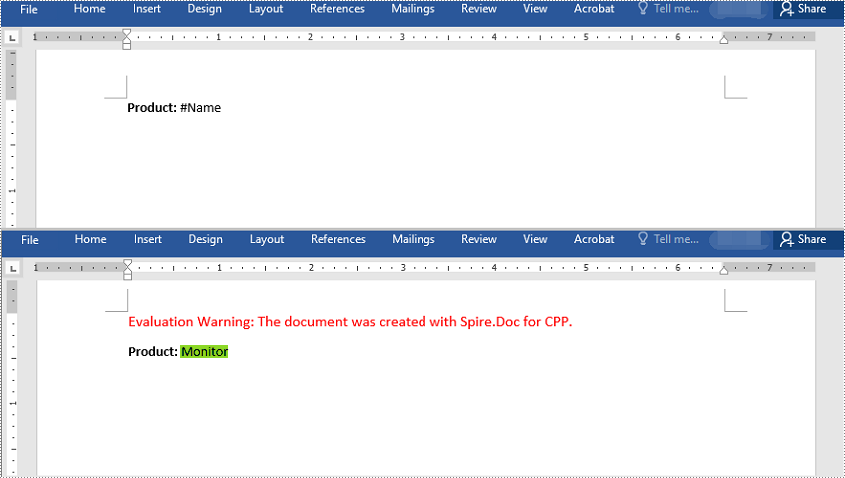
You can replace a text matching a regular expression with new text using the Document->Replace() method and passing a Regex instance and the new text to the method as parameters. The detailed steps are as follows:
- Initialize an instance of the Document class.
- Load a Word document using Document->LoadFromFile() method.
- Initialize an instance of the Regex class to create a regular expression.
- Find the text matching the regex and replace it with another text using Document->Replace() method.
- Save the result document using Document->SaveToFile() method.
- C++
#include "Spire.Doc.o.h"

using namespace Spire::Doc;
using namespace std;

int main()
{
 //Initialize an instance of the Document class
 intrusive_ptr<Document> doc = new Document();
 //Load a Word document
 doc->LoadFromFile(L"Input1.docx");

 //Create a regex to match the text that starts with #
 intrusive_ptr<Regex> regex = new Regex(L"\\#\\w+\\b");

 //Find the text matching the regex and replace it with another text
 doc->Replace(regex, L"Monitor");

 //Save the result document
 doc->SaveToFile(L"ReplaceWithRegex.docx", FileFormat::Docx2013);
 doc->Close();;
}
Find and Replace Text with an Image
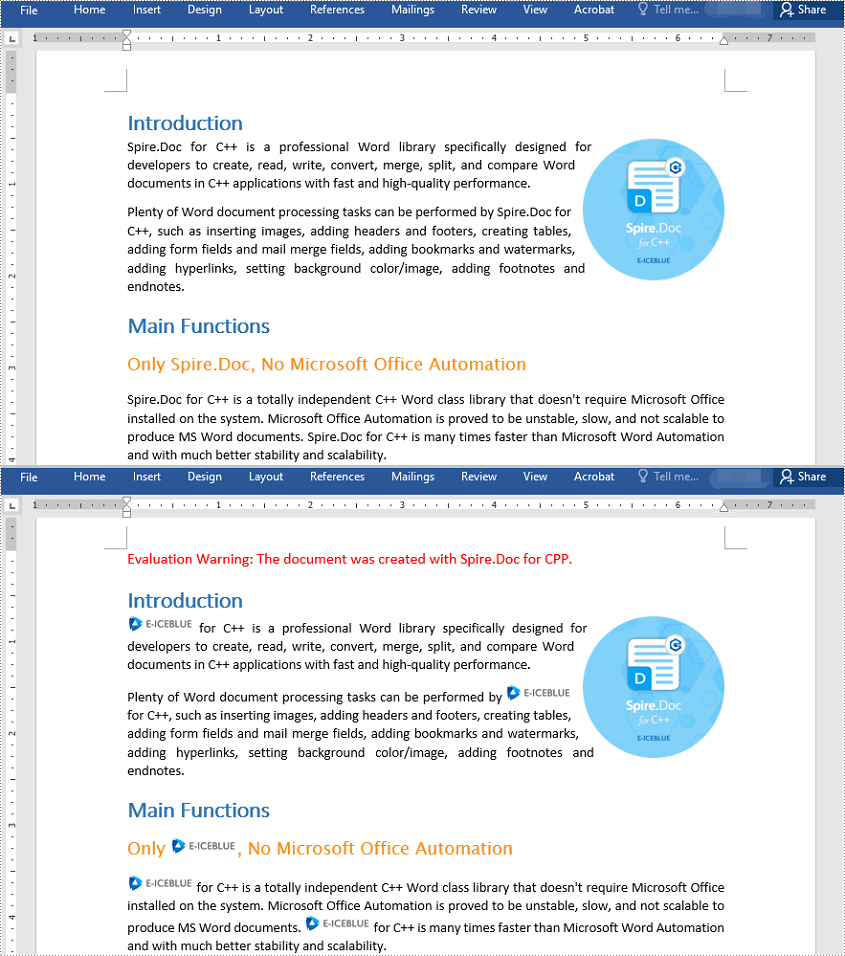
Spire.Doc for C++ doesn't offer a direct method to replace text with image, but you can achieve this by inserting the image at the position of the text and then removing the text from the document. The detailed steps are as follows:
- Initialize an instance of the Document class.
- Load a Word document using Document->LoadFromFile() method.
- Find a specific text using Document->FindAllString() method and put the found text into a vector.
- Iterate through the found text in the vector.
- Initialize an instance of DocPicture class and load an image using DocPicture->LoadImageSpire() method.
- Get the found text as a single text range and then get the index of the text range in its owner paragraph.
- Insert an image at the position of the text range and then remove the text range from the document.
- Save the result document using Document->SaveToFile() method.
- C++
#include "Spire.Doc.o.h"

using namespace Spire::Doc;
using namespace std;

int main()
{
 //Initialize an instance of the Document class
 intrusive_ptr<Document> doc = new Document();

 //Load a Word document
 doc->LoadFromFile(L"Input.docx");

 //Find a text in the document and put the found results into a vector
 vector<intrusive_ptr<TextSelection>> selections = doc->FindAllString(L"Spire.Doc", true, true);

 int index = 0;
 intrusive_ptr<TextRange> range = nullptr;

 //Iterate through the found text in the vector
 for (auto selection : selections)
 {
  //Load an image
  intrusive_ptr<DocPicture> pic = new DocPicture(doc);
  pic->LoadImageSpire(L"img.jpg");
  //Get the found text as a single text range
  range = selection->GetAsOneRange();
  //Get the index of the text range in its owner paragraph
  index = range->GetOwnerParagraph()->GetChildObjects()->IndexOf(range);
  //Insert an image at the index
  range->GetOwnerParagraph()->GetChildObjects()->Insert(index, pic);
  //Remove the text range
  range->GetOwnerParagraph()->GetChildObjects()->Remove(range);
 }

 //Save the result document
 doc->SaveToFile(L"ReplaceWithImage.docx", FileFormat::Docx2013);
 doc->Close();
}
Apply for a Temporary License
If you'd like to remove the evaluation message from the generated documents, or to get rid of the function limitations, please request a 30-day trial license for yourself.
C++: Extract Text and Images from Word Documents
Extracting text and images is a common requirement while working with Word documents. This will help you to save useful content out of the original document to re-use in a new document or for other purposes. In this article, you will learn how to extract text or images from a Word document using Spire.Doc for C++.
Install Spire.Doc for C++
There are two ways to integrate Spire.Doc for C++ into your application. One way is to install it through NuGet, and the other way is to download the package from our website and copy the libraries into your program. Installation via NuGet is simpler and more recommended. You can find more details by visiting the following link.
Integrate Spire.Doc for C++ in a C++ Application
Extract Text from a Word Document in C++
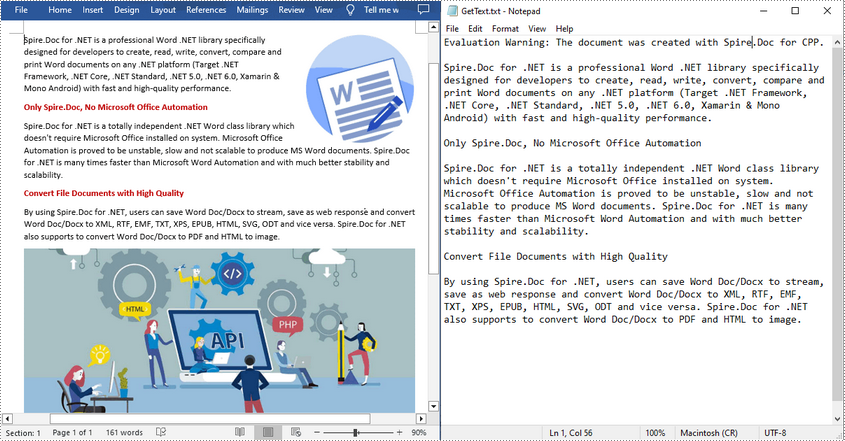
To extract the text content from an existing Word document, Spire.Doc for C++ provides the Document->GetText() method. The following are steps to extract text and save in a TXT file.
- Create a Document instance.
- Load a sample Word document using Document->LoadFromFile() method.
- Get text from the document using Document->GetText() method.
- Create a new txt file and write the extracted text to the file.
- C++
#include "Spire.Doc.o.h"

using namespace Spire::Doc;

int main() {
 //Specify input file path and name
 std::wstring data_path = L"Data\\";
 std::wstring inputFile = data_path + L"input.docx";

 //Specify output file path and name
 std::wstring outputPath = L"Output\\";
 std::wstring outputFile = outputPath + L"GetText.txt";

 //Create a Document instance
 intrusive_ptr<Document> document = new Document();

 //Load a sample Word document from disk
 document->LoadFromFile(inputFile.c_str());

 //Get text from the document
 std::wstring text = document->GetText();

 //Create a new TXT File to save the extracted text
 std::wofstream write(outputFile);
 write << text;
 write.close();
 document->Close();
}
Extract Images from a Word Document in C++
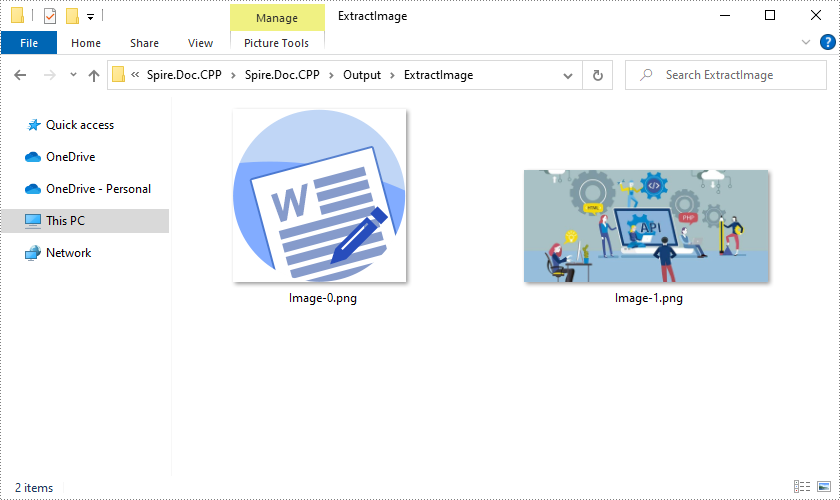
For a Word document with a lot of images, manually saving these images one by one is quite time-consuming. Below are steps to extract all images at once using Spire.Doc for C++.
- Load a sample Word document using Document->LoadFromFile() method.
- Append the document to the end of the deque, and then create a vector of images list.
- Traverse through all child objects of the document.
- Determine whether the object type is picture. If yes, get each image using DocPicture->GetImage() method and add it to the list.
- Save the extracted images out of the document in a specified output file path.
- C++
#include "Spire.Doc.o.h"
#include <deque>

using namespace Spire::Doc;

int main() {
 //Specify input file path and name
 std::wstring data_path = L"Data\\";
 std::wstring inputFile = data_path + L"input.docx";

 //Specify output file path and name
 std::wstring outputPath = L"Output\\";
 std::wstring outputFile = outputPath + L"ExtractImage/";

 //Load a sample Word document
 intrusive_ptr<Document> document = new Document();
 document->LoadFromFile(inputFile.c_str());

 //Append the document to the end of the deque
 std::deque<intrusive_ptr<ICompositeObject>> nodes;
 nodes.push_back(document);

 //Create a vector of images list
 std::vector<std::vector<byte>> images;

 //Traverse through all child objects of the document
 while (nodes.size() > 0)
 {
  intrusive_ptr<ICompositeObject> node = nodes.front();
  nodes.pop_front();
  for (int i = 0; i < node->GetChildObjects()->GetCount(); i++)
  {
   intrusive_ptr<IDocumentObject> child = node->GetChildObjects()->GetItem(i);
   if (child->GetDocumentObjectType() == DocumentObjectType::Picture)
   {
    intrusive_ptr<DocPicture> picture = Object::Dynamic_cast<DocPicture>(child);
    std::vector<byte> imageByte = picture->GetImageBytes();
    images.push_back(imageByte);
   }
   else if (Object::CheckType<ICompositeObject>(child))
   {
    nodes.push_back(boost::dynamic_pointer_cast<ICompositeObject>(child));
   }
  }
 }
 //Save the images out of the document
 for (size_t i = 0; i < images.size(); i++)
 {
  std::wstring fileName = L"Image-" + std::to_wstring(i) + L".png";
  std::ofstream outFile(fileName, std::ios::binary);
  if (outFile.is_open())
  {
   outFile.write(reinterpret_cast<const char*>(images[i].data()), images[i].size());
   outFile.close();
  }
 }
 document->Close();
}
Apply for a Temporary License
If you'd like to remove the evaluation message from the generated documents, or to get rid of the function limitations, please request a 30-day trial license for yourself.