Add different headers/footers for odd and even pages on Word
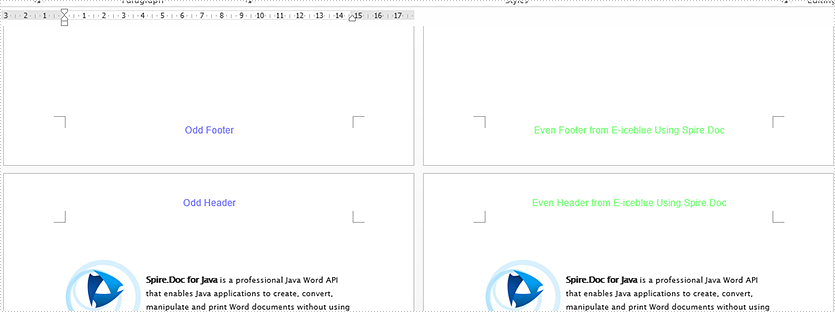
We have demonstrated how to add text and image header footer to Word document by using Spire.Doc for Java. This article will show you how to create different headers/footers for odd and even pages on Word document in Java applications.
import com.spire.doc.*;
import com.spire.doc.documents.*;
import com.spire.doc.fields.*;
import java.awt.*;

public class oddAndEvenHeaderFooter {
    public static void main(String[] args) throws Exception {

        String input = "multiPages.docx";
        String output = "output/oddAndEvenHeaderFooter.docx";

        //load the document
        Document doc = new Document();
        doc.loadFromFile(input);

        //get the first section
        Section section = doc.getSections().get(0);

        //set the DifferentOddAndEvenPagesHeaderFooter property as true
        section.getPageSetup().setDifferentOddAndEvenPagesHeaderFooter(true);

        //add odd header
        Paragraph P3 = section.getHeadersFooters().getOddHeader().addParagraph();
        TextRange OH = P3.appendText("Odd Header");
        P3.getFormat().setHorizontalAlignment(HorizontalAlignment.Center);
        OH.getCharacterFormat().setFontName("Arial");
        OH.getCharacterFormat().setFontSize(14);
        OH.getCharacterFormat().setTextColor(Color.BLUE);

        //add even header
        Paragraph P4 = section.getHeadersFooters().getEvenHeader().addParagraph();
        TextRange EH = P4.appendText("Even Header from E-iceblue Using Spire.Doc");
        P4.getFormat().setHorizontalAlignment(HorizontalAlignment.Center);
        EH.getCharacterFormat().setFontName("Arial");
        EH.getCharacterFormat().setFontSize(14);
        EH.getCharacterFormat().setTextColor(Color.GREEN);

        //add odd footer
        Paragraph P2 = section.getHeadersFooters().getOddFooter().addParagraph();
        TextRange OF = P2.appendText("Odd Footer");
        P2.getFormat().setHorizontalAlignment(HorizontalAlignment.Center);
        OF.getCharacterFormat().setFontName("Arial");
        OF.getCharacterFormat().setFontSize(14);
        OF.getCharacterFormat().setTextColor(Color.BLUE);

        //add even footer
        Paragraph P1 = section.getHeadersFooters().getEvenFooter().addParagraph();
        TextRange EF = P1.appendText("Even Footer from E-iceblue Using Spire.Doc");
        EF.getCharacterFormat().setFontName("Arial");
        EF.getCharacterFormat().setFontSize(14);
        P1.getFormat().setHorizontalAlignment(HorizontalAlignment.Center);
        EF.getCharacterFormat().setTextColor(Color.GREEN);

        //save the document
        doc.saveToFile(output, FileFormat.Docx);

    }
}
Output:
Java: Remove Headers and Footers from Word Documents
Headers and footers of Word documents are placed at the top and bottom of document pages respectively to show information such as page numbers, document titles, and author names. However, when the documents are printed or shared online, it may be desirable to delete this information to protect privacy. Moreover, headers and footers take up extra valuable space on printed pages and may interfere with the overall formatting of documents. Removing them can free up page space and ensure the document formatting doesn't become cluttered. This article will demonstrate how to delete headers and footers with Java programs using Spire.Doc for Java.
Install Spire.Doc for Java
First of all, you're required to add the Spire.Doc.jar file as a dependency in your Java program. The JAR file can be downloaded from this link. If you use Maven, you can easily import the JAR file in your application by adding the following code to your project's pom.xml file.
<repositories>
    <repository>
        <id>com.e-iceblue</id>
        <name>e-iceblue</name>
        <url>https://repo.e-iceblue.com/nexus/content/groups/public/</url>
    </repository>
</repositories>
<dependencies>
    <dependency>
        <groupId>e-iceblue</groupId>
        <artifactId>spire.doc</artifactId>
        <version>14.8.4</version>
    </dependency>
</dependencies>
Remove Headers and Footers by Their Types
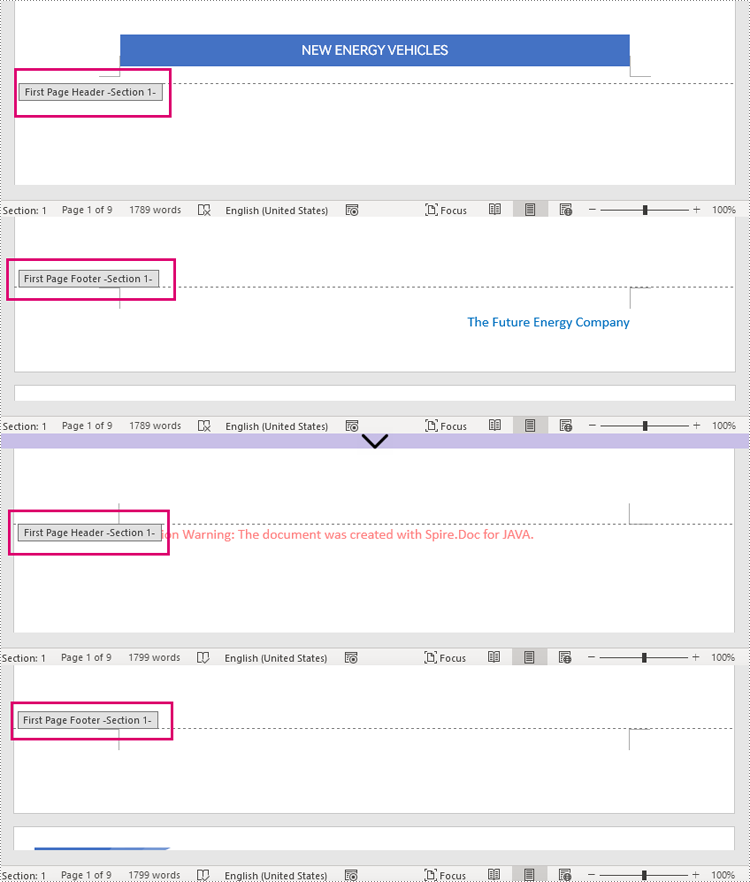
In Word documents, you can set different headers and footers for the first page, odd pages, and even pages. These types of headers and footers can be obtained through the HeaderFooter.getByHeaderFooterType(hfType) method and can be removed using the HeaderFooter.getChildObjects().clear() method.
Here is a list of the Enums and the types of headers and footers they represent.
| Enum | Description |
| HeaderFooterType.Header_First_Page | Represents first-page header |
| HeaderFooterType.Footer_First_Page | Represents first-page footer |
| HeaderFooterType.Header_Odd | Represents odd-page header |
| HeaderFooterType.Footer_Odd | Represents odd-page footer |
| HeaderFooterType.Header_Even | Represents even-page header |
| HeaderFooterType.Footer_Even | Represents even-page footer |
The detailed steps are as follows:
- Create an object of Document class.
- Load a Word document using Doucment.loadFromFile() method.
- Get the first section of the document using Document.getSections().get() method.
- Get the first-page header using Section.getHeadersFooters().getByHeaderFooterType() method and remove it using HeaderFooter.getChildObjects().clear() method.
- Remove the first-page footer using the same methods. The odd-page and even-page headers and footers can also be removed with these methods.
- Save the document using Document.saveToFile() method.
- Java
import com.spire.doc.Document;
import com.spire.doc.FileFormat;
import com.spire.doc.HeaderFooter;
import com.spire.doc.Section;
import com.spire.doc.documents.HeaderFooterType;

public class removeHeaderFooter {
    public static void main(String[] args) {
        //Create an object of Document class
        Document doc = new Document();

        //Load a Word document
        doc.loadFromFile("Sample.docx");

        //Get the first section of the document
        Section section = doc.getSections().get(0);

        //Get the header of the first page and remove it
        HeaderFooter header = section.getHeadersFooters().getByHeaderFooterType(HeaderFooterType.Header_First_Page);
        header.getChildObjects().clear();

        //Get the footer of the first page and remove it
        HeaderFooter footer = section.getHeadersFooters().getByHeaderFooterType(HeaderFooterType.Footer_First_Page);
        footer.getChildObjects().clear();

        //Get the headers and the footers of the odd pages and remove them
        //HeaderFooter header1 = section.getHeadersFooters().getByHeaderFooterType(HeaderFooterType.Header_Odd);
        //header1.getChildObjects().clear();
        //HeaderFooter footer1 = section.getHeadersFooters().getByHeaderFooterType(HeaderFooterType.Footer_Odd);
        //footer1.getChildObjects().clear();

        //Get the headers and the footers of the even pages and remove them
        //HeaderFooter header2 = section.getHeadersFooters().getByHeaderFooterType(HeaderFooterType.Header_Even);
        //header2.getChildObjects().clear();
        //HeaderFooter footer2 = section.getHeadersFooters().getByHeaderFooterType(HeaderFooterType.Footer_Even);
        //footer2.getChildObjects().clear();

        //Save the document
        doc.saveToFile("RemoveByType.docx", FileFormat.Auto);
        doc.dispose();
    }
}
Remove Headers and Footers by Sections
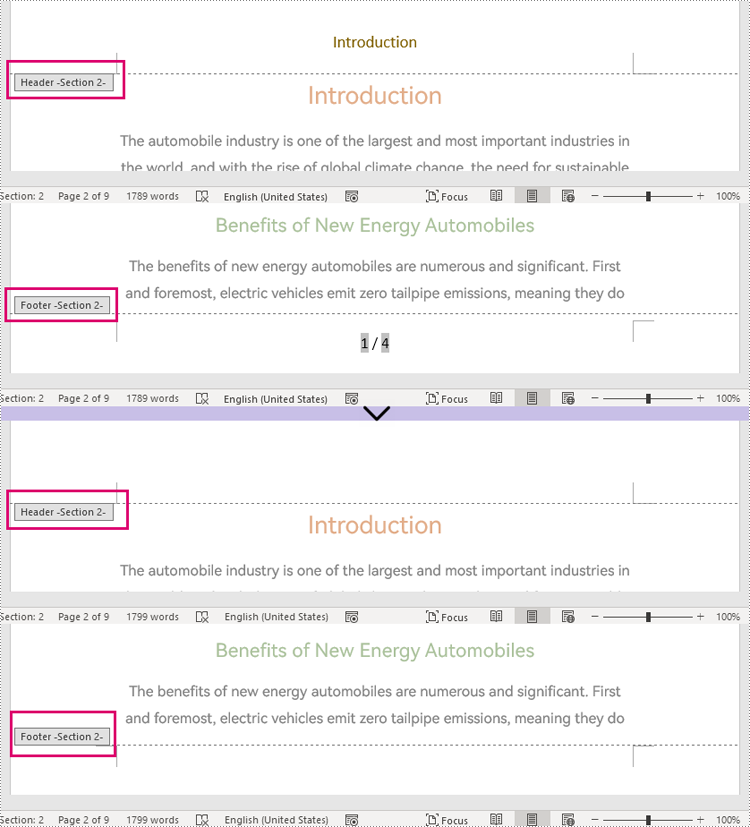
Different sections may have different headers and footers. To remove the headers and footers of a certain section, use Document.getSections().get() method to get the section and remove the headers and footers within it using HeaderFooter.getChildObjects().clear() method.
It is important to be aware that after deleting the content of the header and footer in a section, they will be automatically changed to those of the previous section. Therefore, it is necessary to add a blank paragraph to the header and footer after deleting them to prevent them from changing automatically.
The detailed steps are as follows:
- Create an object of Document class.
- Load a Word document using Doucment.loadFromFile() method.
- Get the second section of the document using Document.getSections().get() method.
- Get the header of the second section using Section.getHeadersFooters().getHeader() method, remove the content using HeaderFooter.getChildObjects().clear() method, and add an empty paragraph to it using HeaderFooter.addParagraph() method.
- Get the footer of the second section using Section.getHeadersFooters().getFooter() method, remove the content using HeaderFooter.getChildObjects().clear() method, and add an empty paragraph to it using HeaderFooter.addParagraph() method.
- Save the document using Document.saveToFile() method.
- Java
import com.spire.doc.Document;
import com.spire.doc.HeaderFooter;
import com.spire.doc.Section;

public class removeHeaderFooterSection {
    public static void main(String[] args) {
        //Create an object of Document class
        Document doc = new Document();

        //Load a Word document
        doc.loadFromFile("Sample1.docx");

        //Get the second section
        Section section = doc.getSections().get(1);

        //Get the header of the second section, remove the content, and add an empty paragraph
        HeaderFooter header1 = section.getHeadersFooters().getHeader();
        header1.getChildObjects().clear();
        header1.addParagraph();

        //Get the footer of the second section, remove the content, and add an empty paragraph
        HeaderFooter footer1 = section.getHeadersFooters().getFooter();
        footer1.getChildObjects().clear();
        footer1.addParagraph();

        //Save the document
        doc.saveToFile("RemoveBySection.docx");
        doc.dispose();
    }
}
Apply for a Temporary License
If you'd like to remove the evaluation message from the generated documents, or to get rid of the function limitations, please request a 30-day trial license for yourself.
Adjust the Header and Footer Distance in Word in Java
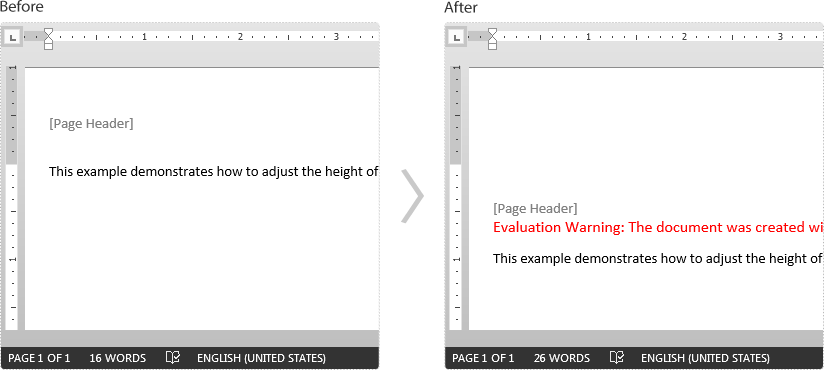
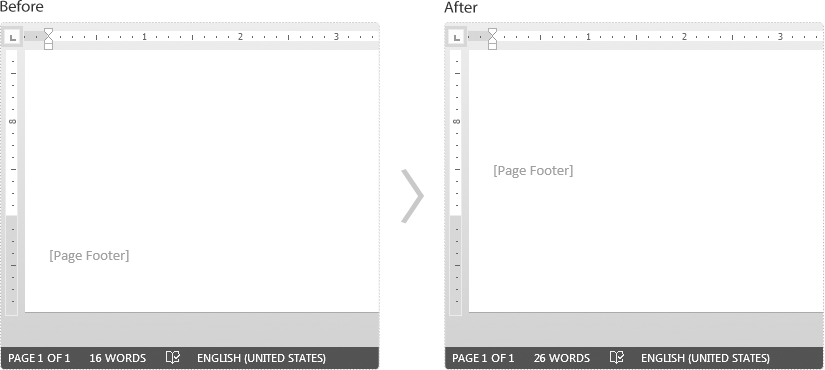
This article demonstrates how to adjust the header and footer distance in a Word document using Spire.Doc for Java.
import com.spire.doc.Document;
import com.spire.doc.FileFormat;
import com.spire.doc.Section;

public class AdjustHeaderFooterDistance {
    public static void main(String[] args){
        //Create a Document instance
        Document doc = new Document();
        //Load a Word document
        doc.loadFromFile("Headers and Footers.docx");

        //Get the first section
        Section section = doc.getSections().get(0);

        //Adjust the header distance
        section.getPageSetup().setHeaderDistance(100);

        //Adjust the footer distance
        section.getPageSetup().setFooterDistance(100);

        //Save the result document
        doc.saveToFile("Output.docx", FileFormat.Docx);
    }
}
Screenshot
Header:
Footer:
Java: Insert Headers and Footers into Word Documents
Headers are text or pictures on the top of pages in Word documents while footers are at the bottom. People usually use headers and footers to display some important information about documents, such as copyright, author information, and page numbers or just to make the document more good-looking and professional. They can be inserted into a Word document on every page, only on the first page, or differently on odd pages and even pages. This article will show how to insert headers and footers into Word documents programmatically using Spire.Doc for Java.
- Insert Headers and Footers into a Word Document
- Insert a Header and a Footer Only into the First Page of a Word Document
- Insert Different Headers and Footers into Odd Pages and Even Pages
Install Spire.Doc for Java
First of all, you're required to add the Spire.Doc.jar file as a dependency in your Java program. The JAR file can be downloaded from this link. If you use Maven, you can easily import the JAR file in your application by adding the following code to your project's pom.xml file.
<repositories>
    <repository>
        <id>com.e-iceblue</id>
        <name>e-iceblue</name>
        <url>https://repo.e-iceblue.com/nexus/content/groups/public/</url>
    </repository>
</repositories>
<dependencies>
    <dependency>
        <groupId>e-iceblue</groupId>
        <artifactId>spire.doc</artifactId>
        <version>14.8.4</version>
    </dependency>
</dependencies>
Insert Headers and Footers into a Word Document
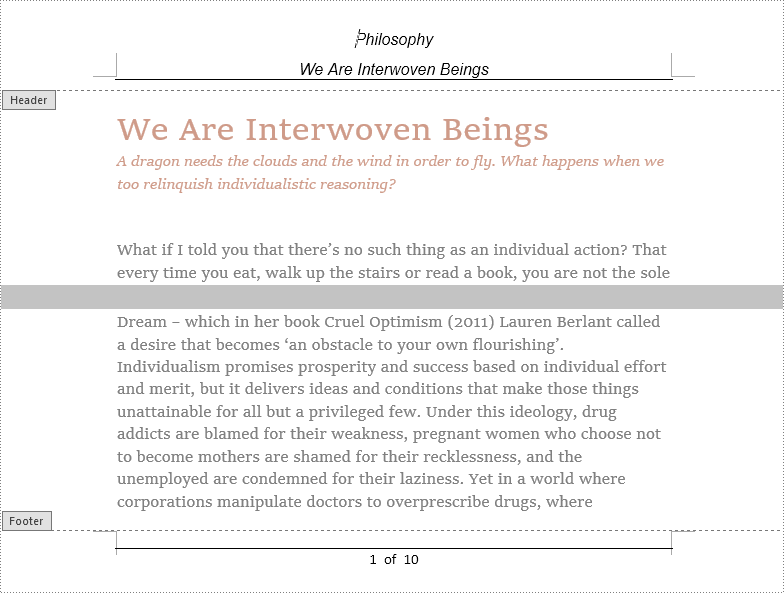
To insert a header or a footer into a Word document using Spire.Doc for Java, you need to use Section.getHeadersFooters().getHeader() and Section.getHeadersFooters().getFooter() methods to get them and then add paragraphs to them to insert pictures, text, or page number fields.
The detailed steps for inserting headers and footers are as follows:
- Create an instance of Document class.
- Load a Word document using Document.loadFromFIle() method.
- Get the first section using Document.getSections().get() method.
- Call the custom method insertHeaderAndFooter() to insert a header and a footer into the section.
- Save the document using Document.saveToFile() method.
- Java
import com.spire.doc.*;
import com.spire.doc.documents.*;
import com.spire.doc.fields.TextRange;

public class insertHeaderAndFooter {

    public static void main(String[] args) {

        //Create a Document class instance
        Document document = new Document();

        //Load a Word document
        document.loadFromFile("We Are Interwoven Beings.docx");

        //Get the first section
        Section section = document.getSections().get(0);

        //Call the custom method insertHeaderAndFooter() to insert headers and footers to the section
        insertHeaderAndFooter(section);

        //Save the document
        document.saveToFile("HeaderAndFooter.docx", FileFormat.Docx);
    }

    private static void insertHeaderAndFooter(Section section) {


        //Get header and footer from a section
        HeaderFooter header = section.getHeadersFooters().getHeader();
        HeaderFooter footer = section.getHeadersFooters().getFooter();

        //Add a paragraph to the header
        Paragraph headerParagraph = header.addParagraph();

        //Add text to the header paragraph
        TextRange text = headerParagraph.appendText("Philosophy\rWe Are Interwoven Beings");
        text.getCharacterFormat().setFontName("Arial");
        text.getCharacterFormat().setFontSize(12);
        text.getCharacterFormat().setItalic(true);
        headerParagraph.getFormat().setHorizontalAlignment(HorizontalAlignment.Center);

        //Set the bottom border style of the header paragraph
        headerParagraph.getFormat().getBorders().getBottom().setBorderType(BorderStyle.Single);
        headerParagraph.getFormat().getBorders().getBottom().setLineWidth(1f);

        //Add a paragraph to the footer
        Paragraph footerParagraph = footer.addParagraph();

        //Add Field_Page and Field_Num_Pages fields to the footer paragraph
        footerParagraph.appendField("Page Number", FieldType.Field_Page);
        footerParagraph.appendText(" of ");
        footerParagraph.appendField("Number of Pages", FieldType.Field_Num_Pages);
        footerParagraph.getFormat().setHorizontalAlignment(HorizontalAlignment.Center);

        //Set the top border style of the footer paragraph
        footerParagraph.getFormat().getBorders().getTop().setBorderType(BorderStyle.Single);
        footerParagraph.getFormat().getBorders().getTop().setLineWidth(1f);
    }
}
Insert a Header and a Footer Only into the First Page of a Word Document
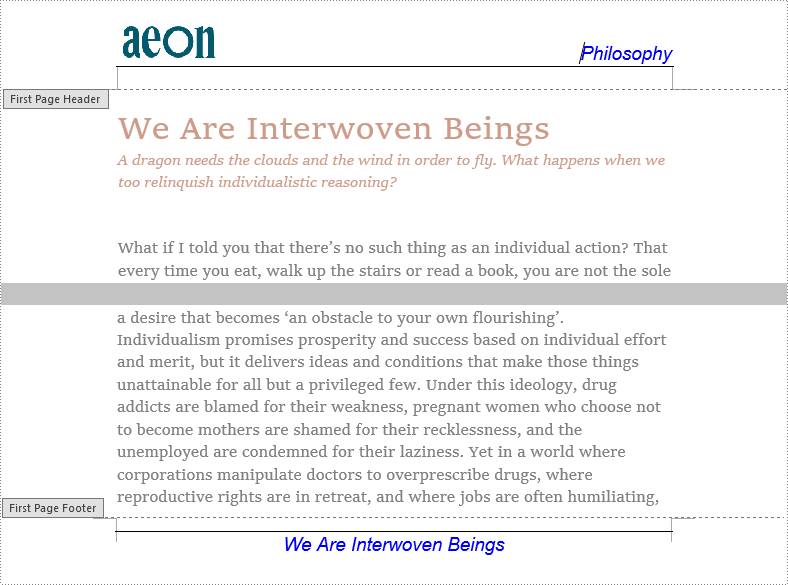
Sometimes we only need to insert a header and a footer into the first page, which can be realized by Spire.Doc for Java as well. We can use Section.getPageSetup().setDifferentFirstPageHeaderFooter() method to make the headers and footers of the first page different from other pages.
The detailed steps for inserting header and footer only into the first page are as follows:
- Create a Document class instance.
- Load a Word document using Document.loadFromFile() method.
- Get the first section using Document.getSections().get() method.
- Make the headers and footers of the first page different from other pages using Section.getPageSetup().setDifferentFirstPageHeaderFooter() method.
- Call the custom method insertHeaderAndFooterFirst() to insert a header and a footer into the first page.
- Save the document using Document.saveToFile() method.
- Java
import com.spire.doc.*;
import com.spire.doc.documents.*;
import com.spire.doc.fields.DocPicture;
import com.spire.doc.fields.TextRange;

import java.awt.*;

public class insertHeaderAndFooter {

    public static void main(String[] args) {

        //Create a Document class instance
        Document document = new Document();

        //Load a Word document
        document.loadFromFile("We Are Interwoven Beings.docx");

        //Get the first section
        Section section = document.getSections().get(0);

        //Make the headers and footers of the first page different from other pages
        section.getPageSetup().setDifferentFirstPageHeaderFooter(true);

        //Call the custom method insertHeaderAndFooterFirst() to insert a header and a footer into the first page
        insertHeaderAndFooterFirst(section);

        //Save the document
        document.saveToFile("FirstPageHeaderAndFooter.docx", FileFormat.Docx);
    }

    private static void insertHeaderAndFooterFirst(Section section) {

        //Get header and footer of the first page
        HeaderFooter header = section.getHeadersFooters().getFirstPageHeader();
        HeaderFooter footer = section.getHeadersFooters().getFirstPageFooter();

        //Add a paragraph to the header
        Paragraph headerParagraph = header.addParagraph();

        //Add text to the header paragraph
        TextRange text = headerParagraph.appendText("Philosophy");
        text.getCharacterFormat().setFontName("Arial");
        text.getCharacterFormat().setFontSize(14);
        text.getCharacterFormat().setTextColor(Color.blue);
        text.getCharacterFormat().setItalic(true);
        headerParagraph.getFormat().setHorizontalAlignment(HorizontalAlignment.Right);

        //Insert a picture into the header paragraph and set its position
        DocPicture headerPicture = headerParagraph.appendPicture("Header.png");
        headerPicture.setHorizontalAlignment(ShapeHorizontalAlignment.Left);
        headerPicture.setVerticalOrigin(VerticalOrigin.Top_Margin_Area);
        headerPicture.setVerticalAlignment(ShapeVerticalAlignment.Center);

        //Set text wrapping style to Behind
        headerPicture.setTextWrappingStyle(TextWrappingStyle.Behind);

        //Set the bottom border style of the header paragraph
        headerParagraph.getFormat().getBorders().getBottom().setBorderType(BorderStyle.Single);
        headerParagraph.getFormat().getBorders().getBottom().setLineWidth(1f);

        //Add a paragraph to the footer
        Paragraph footerParagraph = footer.addParagraph();

        //Add text to the footer paragraph
        TextRange text1 = footerParagraph.appendText("We Are Interwoven Beings");
        text1.getCharacterFormat().setFontName("Arial");
        text1.getCharacterFormat().setFontSize(14);
        text1.getCharacterFormat().setTextColor(Color.BLUE);
        text1.getCharacterFormat().setItalic(true);
        footerParagraph.getFormat().setHorizontalAlignment(HorizontalAlignment.Center);

        //Set the top border style of the footer paragraph
        footerParagraph.getFormat().getBorders().getTop().setBorderType(BorderStyle.Single);
        footerParagraph.getFormat().getBorders().getTop().setLineWidth(1f);
    }
}
Insert Different Headers and Footers into Odd Pages and Even Pages
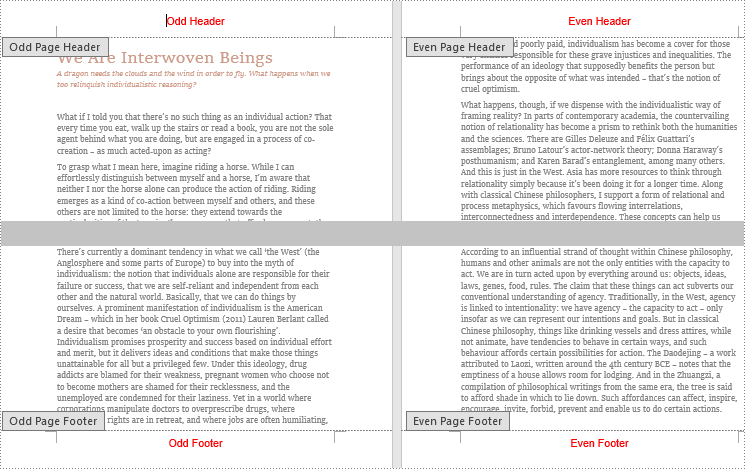
We may also encounter situations where we need to insert different headers and footers into odd pages and even pages. Spire.Doc for Java provides a method Section.getPageSetup().setDifferentOddAndEvenPagesHeaderFooter(), which can make headers and footers different on odd pages and even pages, to meet such needs.
The detailed steps for inserting different headers and footers into odd pages and even pages are as follows:
- Create an object of Document class.
- Load a Word document using Document.loadFromFile() method.
- Get the first section using Document.getSections().get() method.
- Make the headers and footers of odd pages and even pages different using Section.getPageSetup().setDifferentOddAndEvenPagesHeaderFooter() method.
- Call the custom method insertHeaderAndFooterOddEven() to insert different headers and footers into odd pages and even pages.
- Save the document using Document.saveToFile() method.
- Java
import com.spire.doc.*;
import com.spire.doc.documents.*;
import com.spire.doc.fields.TextRange;

import java.awt.*;

public class insertHeaderAndFooter {

    public static void main(String[] args) {

        //Create a Document class instance
        Document document = new Document();

        //Load a Word document
        document.loadFromFile("We Are Interwoven Beings.docx");

        //Get the first section
        Section section = document.getSections().get(0);

        //Make the headers and footers of odd pages and even pages different
        section.getPageSetup().setDifferentOddAndEvenPagesHeaderFooter(true);

        //Call the custom method insertHeaderAndFooterOddEven() to insert different headers and footers into odd pages and even pages
        insertHeaderAndFooterOddEven(section);

        //Save the document
        document.saveToFile("OddEvenHeaderAndFooter.docx", FileFormat.Docx);
    }

    private static void insertHeaderAndFooterOddEven(Section section) {

        //Insert odd header
        Paragraph P1 = section.getHeadersFooters().getOddHeader().addParagraph();
        TextRange OH = P1.appendText("Odd Header");
        P1.getFormat().setHorizontalAlignment(HorizontalAlignment.Center);
        OH.getCharacterFormat().setFontName("Arial");
        OH.getCharacterFormat().setFontSize(16);
        OH.getCharacterFormat().setTextColor(Color.RED);

        //Insert even header
        Paragraph P2 = section.getHeadersFooters().getEvenHeader().addParagraph();
        TextRange EH = P2.appendText("Even Header");
        P2.getFormat().setHorizontalAlignment(HorizontalAlignment.Center);
        EH.getCharacterFormat().setFontName("Arial");
        EH.getCharacterFormat().setFontSize(16);
        EH.getCharacterFormat().setTextColor(Color.RED);

        //Insert odd footer
        Paragraph P3 = section.getHeadersFooters().getOddFooter().addParagraph();
        TextRange OF = P3.appendText("Odd Footer");
        P3.getFormat().setHorizontalAlignment(HorizontalAlignment.Center);
        OF.getCharacterFormat().setFontName("Arial");
        OF.getCharacterFormat().setFontSize(16);
        OF.getCharacterFormat().setTextColor(Color.RED);

        //Insert even footer
        Paragraph P4 = section.getHeadersFooters().getEvenFooter().addParagraph();
        TextRange EF = P4.appendText("Even Footer");
        EF.getCharacterFormat().setFontName("Arial");
        EF.getCharacterFormat().setFontSize(16);
        P4.getFormat().setHorizontalAlignment(HorizontalAlignment.Center);
        EF.getCharacterFormat().setTextColor(Color.RED);
    }
}
Apply for a Temporary License
If you'd like to remove the evaluation message from the generated documents, or to get rid of the function limitations, please request a 30-day trial license for yourself.