C++: Split a PDF File into Multiple PDFs
When dealing with large PDF files, splitting them into multiple separate files is a useful operation to streamline your work. By doing this, you can get the specific parts you need, or get smaller PDF files that are easy to upload to a website, send via email, etc. In this article, you will learn how to split a PDF into multiple files in C++ using Spire.PDF for C++.
Install Spire.PDF for C++
There are two ways to integrate Spire.PDF for C++ into your application. One way is to install it through NuGet, and the other way is to download the package from our website and copy the libraries into your program. Installation via NuGet is simpler and more recommended. You can find more details by visiting the following link.
Integrate Spire.PDF for C++ in a C++ Application
Split a PDF File into Multiple Single-Page PDFs in C++
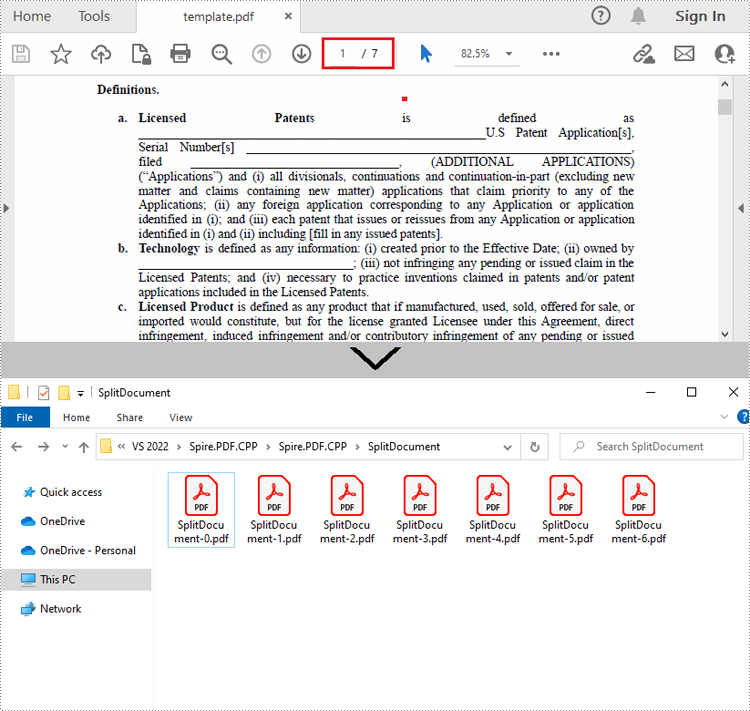
Spire.PDF for C++ offers the PdfDocument->Split() method to divide a multipage PDF document into multiple single-page files. The following are the detailed steps.
- Create a PdfDcoument instance.
- Load a sample PDF document using PdfDocument->LoadFromFile() method.
- Split the document into one-page PDFs using PdfDocument->Split() method.
- C++
#include "Spire.Pdf.o.h";

using namespace Spire::Pdf;


int main()
{
	//Specify the input and output files
	std::wstring inputFile = L"Data\\template.pdf";
	std::wstring outputFile = L"SplitDocument/";
	std::wstring pattern = outputFile + L"SplitDocument-{0}.pdf";

	//Create a PdfDocument instance
	intrusive_ptr<PdfDocument> pdf = new PdfDocument();

	//Load a sample PDF file
	pdf->LoadFromFile(inputFile.c_str());

	//Split the PDF to one-page PDFs
	pdf->Split(pattern.c_str());
	pdf->Close();

}
Split a PDF File by Page Ranges in C++
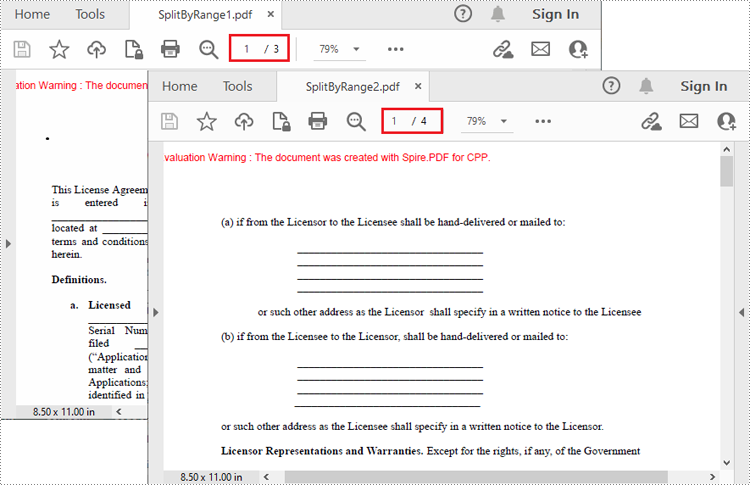
There's no straightforward way to split PDF documents by page ranges. To do so, you can create two or more new PDF documents and then use the PdfPageBase->CreateTemplate()->Draw() method to draw the contents of the specified pages in the input PDF file onto the pages of the new PDFs. The following are the detailed steps.
- Create a PdfDocument instance and load a sample PDF file.
- Create a new PDF document, and then Initialize a new instance of PdfPageBase class.
- Iterate through the first several pages in the sample PDF file.
- Create a new page with specified size and margins in the new PDF document
- Get the specified page in the sample PDF using PdfDocument->GetPages()->GetItem() method, and then draw the contents of the specified page onto the new page using PdfPageBase->CreateTemplate()->Draw() method.
- Save the first new PDF document using PdfDocument->SaveToFile() method.
- Create another new PDF document and then draw the remaining pages of the sample PDF file into it.
- Save the second new PDF document.
- C++
#include "Spire.Pdf.o.h";

using namespace Spire::Pdf;

int main()
{
	//Create a PdfDocument instance and load a sample PDF file
	intrusive_ptr<PdfDocument> oldPdf = new PdfDocument();
	oldPdf->LoadFromFile(L"Data\\template.pdf");

	//Create a new PDF document
	intrusive_ptr<PdfDocument> newPdf1 = new PdfDocument();

	//Initialize a new instance of PdfPageBase class
	intrusive_ptr<PdfPageBase> page;

	//Draw the first three pages of the sample file into the new PDF document
	for (int i = 0; i < 3; i++)
	{
		//Create a new page with specified size and margin in the new PDF document
		intrusive_ptr<PdfMargins> tempVar = new PdfMargins(0);
		page = newPdf1->GetPages()->Add(oldPdf->GetPages()->GetItem(i)->GetSize(), tempVar);

		//Draw the contents of a specified page in the sample file onto the new page
		oldPdf->GetPages()->GetItem(i)->CreateTemplate()->Draw(page, new PointF(0, 0));
	}

	//Save the first PDF document
	newPdf1->SaveToFile(L"SplitByRange1.pdf");
	newPdf1->Close();

	//Create another new PDF document
	intrusive_ptr<PdfDocument> newPdf2 = new PdfDocument();

	//Draw the rest pages of the sample file into the new PDF document
	for (int i = 3; i < oldPdf->GetPages()->GetCount(); i++)
	{
		//Create a new page with specified size and margin in the new PDF document
		intrusive_ptr<PdfMargins> tempVar = new PdfMargins(0);
		page = newPdf2->GetPages()->Add(oldPdf->GetPages()->GetItem(i)->GetSize(), tempVar);

		// Draw the contents of a specified page in the sample file onto the new page
		oldPdf->GetPages()->GetItem(i)->CreateTemplate()->Draw(page, new PointF(0, 0));
	}

	//Save the second PDF document
	newPdf2->SaveToFile(L"SplitByRange2.pdf");
	newPdf2->Close();
}
Apply for a Temporary License
If you'd like to remove the evaluation message from the generated documents, or to get rid of the function limitations, please request a 30-day trial license for yourself.
C++: Create a PDF Document from Scratch
PDF documents generated through code are consistent in terms of formatting, layout, and content, ensuring a professional look. Automating the creation of PDF documents reduces the time and effort required to produce them manually. Nowadays, most invoices, receipts and other financial documents are generated programmatically. In this article, you will learn how to create PDF documents from scratch in C++ using Spire.PDF for C++.
Install Spire.PDF for C++
There are two ways to integrate Spire.PDF for C++ into your application. One way is to install it through NuGet, and the other way is to download the package from our website and copy the libraries into your program. Installation via NuGet is simpler and more recommended. You can find more details by visiting the following link.
Integrate Spire.PDF for C++ in a C++ Application
Background Knowledge
A page in Spire.PDF for C++ (represented by PdfPageBase class) consists of client area and margins all around. The content area is for users to write various contents, and the margins are usually blank edges.
As shown in the figure below, the origin of the coordinate system on the page is located at the top left corner of the client area, with the x-axis extending horizontally to the right and the y-axis extending vertically down. All elements added to the client area must be based on the specified coordinates.

In addition, the following table lists the important classes and methods, which can help you easily understand the code snippet provided in the following section.
| Member | Description |
| PdfDocument class | Represents a PDF document model. |
| PdfPageBase class | Represents a page in a PDF document. |
| PdfSolidBrush class | Represents a brush that fills any object with a solid color. |
| PdfTrueTypeFont class | Represents a true type font. |
| PdfStringFormat class | Represents text format information, such as alignment, characters spacing and indent. |
| PdfTextWidget class | Represents the text area with the ability to span several pages. |
| PdfTextLayout class | Represents the text layout information. |
| PdfDocument->GetPages()->Add() method | Adds a page to a PDF document. |
| PdfPageBase->GetCanvas()->DrawString() method | Draws string on a page at the specified location with specified font and brush objects. |
| PdfLayoutWidget->Draw() method | Draws widget on a page at the specified location. |
| PdfDocument->Save() method | Saves the document to a PDF file. |
Create a PDF Document from Scratch in C++
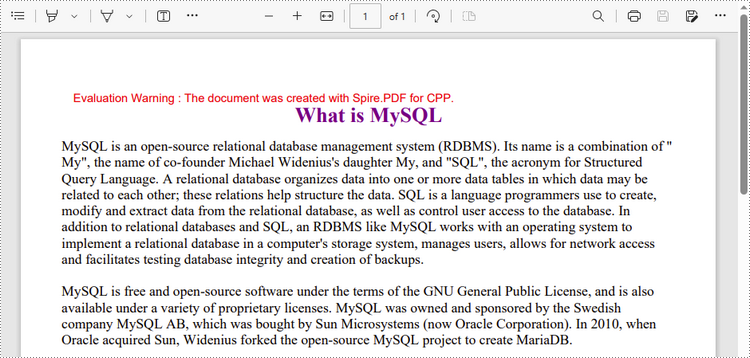
Despite the fact that Spire.PDF for C++ enables users to add various elements to PDF documents, this article demonstrates how to create a simple PDF document with only plain text. The following are the detailed steps.
- Create a PdfDocument object.
- Add a page using PdfDocument->GetPages()->Add() method.
- Create brush and font objects.
- Draw string on the page at a specified coordinate using PdfPageBase->GetCanvas()->DrawString() method.
- Create a PdfTextWidget object to hold a chunk of text.
- Convert the text widget to an object of PdfLayoutWidget class and draw it on the page using PdfLayoutWidget->Draw() method
- Save the document to a PDF file using PdfDocument->Save() method.
- C++
#include "Spire.Pdf.o.h";

using namespace Spire::Pdf;
using namespace std;

wstring readFileIntoWstring(const string& path) {

    ifstream input_file(path);
    if (!input_file.is_open()) {
        cerr << "Could not open the file - '"
            << path << "'" << endl;
        exit(EXIT_FAILURE);
    }
    string s1 = string((std::istreambuf_iterator<char>(input_file)), std::istreambuf_iterator<char>());
    wstring ws(s1.begin(), s1.end());
    return ws;
}

int main() {

    //Create a PdfDocument object
    intrusive_ptr<PdfDocument> doc = new PdfDocument();

    //Add a page
    intrusive_ptr<PdfPageBase> page = doc->GetPages()->Add(PdfPageSize::A4(), new PdfMargins(35));

    //Specify title text
    wstring titleText = L"What is MySQL";

    //Create solid brushes
    intrusive_ptr<PdfSolidBrush> titleBrush = new PdfSolidBrush(new PdfRGBColor(Color::GetPurple()));
    intrusive_ptr<PdfSolidBrush> paraBrush = new PdfSolidBrush(new PdfRGBColor(Color::GetBlack()));

    //Create true type fonts
    intrusive_ptr<PdfTrueTypeFont> titleFont = new PdfTrueTypeFont(L"Times New Roman", 18, PdfFontStyle::Bold, true);
    intrusive_ptr<PdfTrueTypeFont> paraFont = new PdfTrueTypeFont(L"Times New Roman", 12, PdfFontStyle::Regular, true);

    //Set the text alignment via PdfStringFormat class
    intrusive_ptr<PdfStringFormat> format = new PdfStringFormat();
    format->SetAlignment(PdfTextAlignment::Center);

    //Draw title on the page
    page->GetCanvas()->DrawString(titleText.c_str(), titleFont, titleBrush, page->GetClientSize()->GetWidth() / 2, 20, format);

    //Get paragraph text from a .txt file
    wstring paraText = readFileIntoWstring("C:\\Users\\Administrator\\Desktop\\content.txt");

    //Create a PdfTextWidget object to hold the paragraph content
    intrusive_ptr<PdfTextWidget> widget = new PdfTextWidget(paraText.c_str(), paraFont, paraBrush);

    //Create a rectangle where the paragraph content will be placed
    intrusive_ptr<RectangleF> rect = new RectangleF(0, 50, (float)page->GetClientSize()->GetWidth(), (float)page->GetClientSize()->GetHeight());

    //Set the PdfLayoutType to Paginate to make the content paginated automatically
    intrusive_ptr<PdfTextLayout> layout = new PdfTextLayout();
    layout->SetLayout(PdfLayoutType::Paginate);

    //Draw paragraph text on the page
    Object::Convert<PdfLayoutWidget>(widget)->Draw(page, rect, layout);

    //Save to file
    doc->SaveToFile(L"output/CreatePdfDocument.pdf");
    doc->Dispose();
}
Apply for a Temporary License
If you'd like to remove the evaluation message from the generated documents, or to get rid of the function limitations, please request a 30-day trial license for yourself.
C++: Insert, Replace or Delete Images in PDF
Inserting images into a document is a great way to enhance its visual appearance and make it more understandable for readers. For example, if you are creating a product guide for a piece of furniture that has complex assembly steps, including images of each step can help users understand how to assemble the product quickly. In this article, you will learn how to insert images into PDF documents along with how to replace and delete images in PDF documents in C++ using Spire.PDF for C++.
- Insert an Image into a PDF Document
- Replace an Image with Another Image in a PDF Document
- Delete an Image from a PDF Document
Install Spire.PDF for C++
There are two ways to integrate Spire.PDF for C++ into your application. One way is to install it through NuGet, and the other way is to download the package from our website and copy the libraries into your program. Installation via NuGet is simpler and more recommended. You can find more details by visiting the following link.
Integrate Spire.PDF for C++ in a C++ Application
Insert an Image into a PDF Document in C++
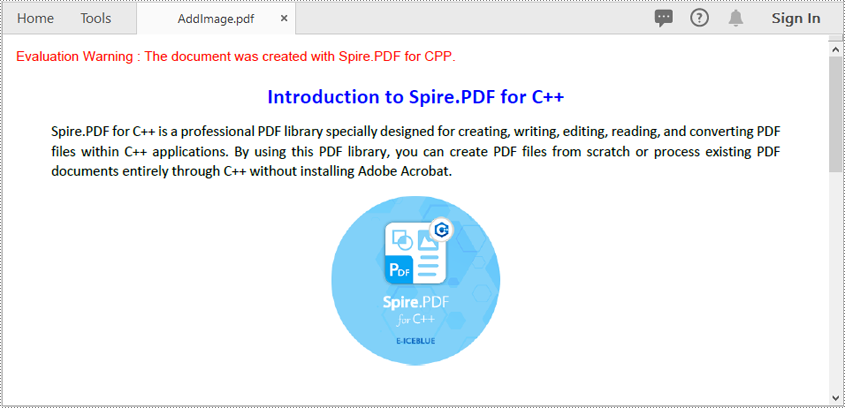
Spire.PDF for C++ offers the PdfPageBase->GetCanvas()->DrawImage(intrusive_ptr<PdfImage> image, float x, float y, float width, float height) method to add an image to a specific page in a PDF document. The detailed steps are as follows:
- Initialize an instance of the PdfDocument class.
- Load a PDF document using the PdfDocument->LoadFromFile(LPCWSTR_S filename) method.
- Get a specific page of the PDF document using the PdfDocument->GetPages()->GetItem(int index) method.
- Initialize an instance of the PdfImage class.
- Load an image using the PdfImage->FromFile(LPCWSTR_S filename) method.
- Draw the image to a specific location on the page using the PdfPageBase->GetCanvas()->DrawImage(intrusive_ptr<PdfImage> image, float x, float y, float width, float height) method.
- Save the result document using the PdfDocument->SaveToFile(LPCWSTR_S filename) method.
- C++
#include "Spire.Pdf.o.h"

using namespace Spire::Pdf;

int main()
{
    //Initialize an instance of the PdfDocument class
    intrusive_ptr<PdfDocument> pdf = new PdfDocument();
    //Load a PDF file
    pdf->LoadFromFile(L"Input.pdf");

    //Get the first page of the PDF file
    intrusive_ptr<PdfPageBase> page = pdf->GetPages()->GetItem(0);

    //Initialize an instance of the PdfImage class
    intrusive_ptr<PdfImage> image = new PdfImage();
    //Load an image
    image = image->FromFile(L"PDF-CPP.png");
    float width = image->GetWidth() * 0.5;
    float height = image->GetHeight() * 0.5;
    float x = (page->GetCanvas()->GetClientSize()->GetWidth() - width) / 2;

    //Draw the image to a specific location on the page
    page->GetCanvas()->DrawImage(image, x, 120, width, height);

    //Save the result file
    pdf->SaveToFile(L"AddImage.pdf");
    pdf->Close();
}
Replace an Image with Another Image in a PDF Document in C++
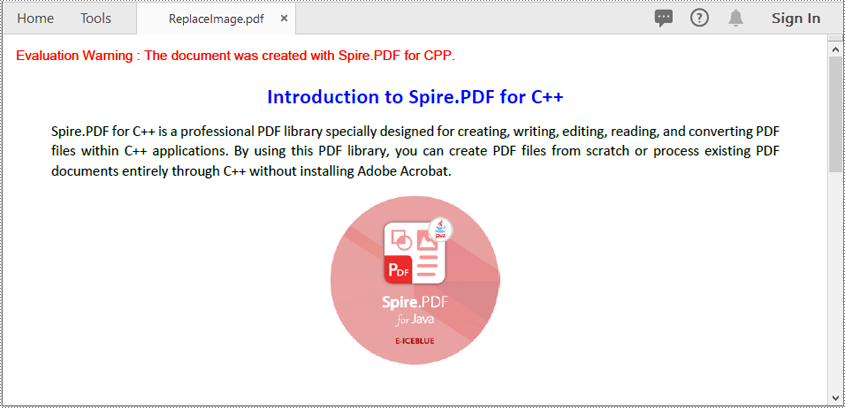
You can use the PdfImageHelper->ReplaceImage(intrusive_ptr<Utilities_PdfImageInfo> imageInfo,intrusive_ptr<PdfImage>image) method to replace an existing image on a PDF page with another image. The detailed steps are as follows:
- Initialize an instance of the PdfDocument class.
- Load a PDF document using the PdfDocument->LoadFromFile(LPCWSTR_S filename) method.
- Get a specific page of the PDF document using the PdfDocument->GetPages()->GetItem(int index) method.
- Create an instance of the PdfImageHelper class.
- Get images of the page using the PdfImageHelper->GetImagesInfo(intrusive_ptr<PdfPageBase> page) method.
- Initialize an instance of the PdfImage class.
- Load an image using the PdfImage->FromFile(LPCWSTR_S filename) method.
- Replace a specific image on the page with the loaded image using the PdfImageHelper->ReplaceImage(intrusive_ptr<Utilities_PdfImageInfo> imageInfo,intrusive_ptr<PdfImage>image) method.
- Save the result document using the PdfDocument->SaveToFile(LPCWSTR_S filename) method.
- C++
#include "Spire.Pdf.o.h"

using namespace Spire::Pdf;

int main()
{
	//Initialize an instance of the PdfDocument class
	intrusive_ptr<PdfDocument> pdf = new PdfDocument();

	//Load a PDF file
	pdf->LoadFromFile(L"AddImage.pdf");

	//Get the first page of the PDF file
	intrusive_ptr<PdfPageBase> page = pdf->GetPages()->GetItem(0);

	//Create a PdfImageHelper object
	intrusive_ptr<PdfImageHelper>  imagehelper = new PdfImageHelper();

	//Get image information from the page
	std::vector<intrusive_ptr<Utilities_PdfImageInfo> >  imageInfo = imagehelper->GetImagesInfo(page);

	//Initialize an instance of the PdfImage class
	intrusive_ptr<PdfImage>  image = new PdfImage();

	//Load an image
	image = image->FromFile(L"PDF-java.png");

	//Replace the first image on the first page
	imagehelper->ReplaceImage(imageInfo[0], image);

	//Save the result file
	pdf->SaveToFile(L"ReplaceImage.pdf");
	pdf->Close();
}
Delete an Image from a PDF Document in C++
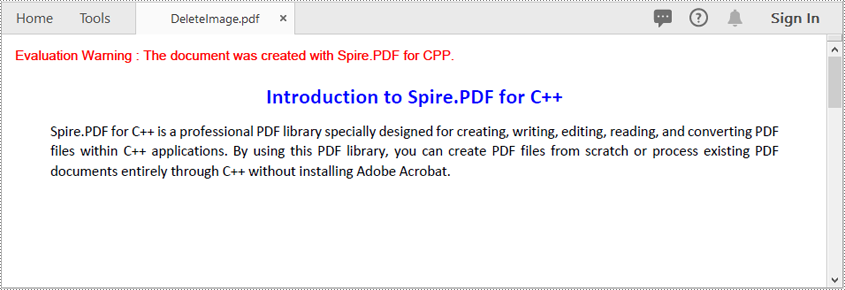
You can use the PdfImageHelper->DeleteImage(intrusive_ptr<Utilities_PdfImageInfo> imageInfo) method to delete a specific image from a PDF page. The detailed steps are as follows:
- Initialize an instance of the PdfDocument class.
- Load a PDF document using the PdfDocument->LoadFromFile(LPCWSTR_S filename) method.
- Get a specific page of the PDF document using the PdfDocument->GetPages()->GetItem(int index) method.
- Create an instance of the PdfImageHelper class.
- Get images of the page using the PdfImageHelper->GetImagesInfo(intrusive_ptr<PdfPageBase> page) method.
- Delete a specific image on the page using the PdfImageHelper->DeleteImage(intrusive_ptr<Utilities_PdfImageInfo> imageInfo) method.
- Save the result document using the PdfDocument->SaveToFile(LPCWSTR_S filename) method.
- C++
#include "Spire.Pdf.o.h"

using namespace Spire::Pdf;

int main()
{
	//Initialize an instance of the PdfDocument class
	intrusive_ptr<PdfDocument> pdf = new PdfDocument();

	//Load a PDF file
	pdf->LoadFromFile(L"AddImage.pdf");

	//Get the first page of the PDF file
	intrusive_ptr<PdfPageBase> page = pdf->GetPages()->GetItem(0);

	//Create a PdfImageHelper object
	intrusive_ptr<PdfImageHelper> imagehelper = new PdfImageHelper();

	//Get image information from the page
	std::vector<intrusive_ptr<Utilities_PdfImageInfo>> imageInfo = imagehelper->GetImagesInfo(page);

	//Delete the first image on the first page
	imagehelper->DeleteImage(imageInfo[0]);

	//Save the result file
	pdf->SaveToFile(L"DeleteImage.pdf");
	pdf->Close();
}
Apply for a Temporary License
If you'd like to remove the evaluation message from the generated documents, or to get rid of the function limitations, please request a 30-day trial license for yourself.
C++: Create, Fill or Remove Form Fields in PDF
PDF form fields are digital elements that allow users to input and manipulate data within a PDF document. PDF form fields enable users to complete forms, surveys, questionnaires, and other types of documents electronically, which streamlines the process of data collection and eliminates the need for paper-based methods. In this article, you will learn how to create, fill, or remove form fields in a PDF document in C++ using Spire.PDF for C++.
Install Spire.PDF for C++
There are two ways to integrate Spire.PDF for C++ into your application. One way is to install it through NuGet, and the other way is to download the package from our website and copy the libraries into your program. Installation via NuGet is simpler and more recommended. You can find more details by visiting the following link.
Integrate Spire.PDF for C++ in a C++ Application
Create Form Fields in PDF in C++
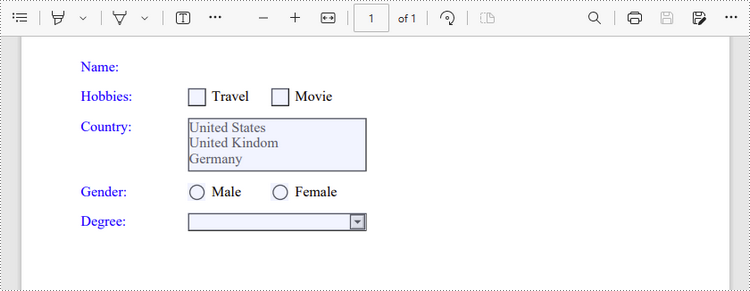
Spire.PDF for C++ offers a set of useful classes that allow developers to create and edit various types of form fields in PDF, including text box, check box, combo box, list box, and radio button. The table below lists some of the core classes involved in this tutorial.
| Class | Description |
| PdfForm | Represents interactive form of the PDF document. |
| PdfField | Represents field of the PDF document's interactive form. |
| PdfTextBoxField | Represents text box field in the PDF form. |
| PdfCheckBoxField | Represents check box field in the PDF form. |
| PdfComboBoxField | Represents combo box field in the PDF Form. |
| PdfListBoxField | Represents list box field of the PDF form. |
| PdfListFieldItem | Represents an item of a list field. |
| PdfRadioButtonListField | Represents radio button field in the PDF form. |
| PdfRadioButtonListItem | Represents an item of a radio button list. |
| PdfButtonField | Represents button field in the PDF form. |
| PdfSignatureField | Represents signature field in the PDF form. |
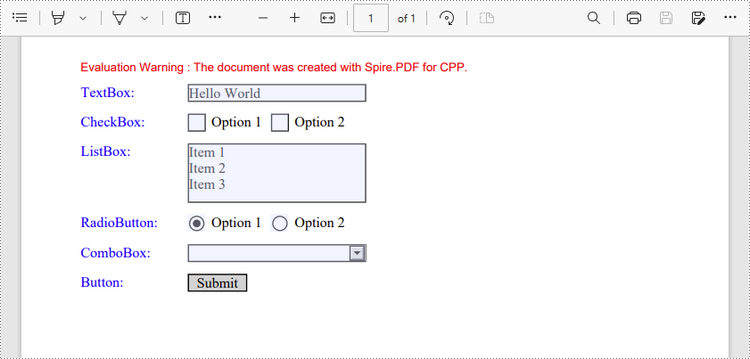
To create a field, initialize an instance of the corresponding class. Specify its size and position in the document using SetBounds() method, and then add it to the PDF form using PdfForm->GetFields()->Add() method. The following are the steps to create various types of form fields in a PDF document using Spire.PDF for C++.
- Create a PdfDocument object.
- Add a page using PdfDocument->GetPages()->Add() method.
- Create a PdfTextBoxField object, set the properties of the field including Bounds, Font and Text, and then add it to the document using PdfForm->GetFields()->Add() method.
- Repeat the step 3 to add check boxes, combo boxes, list boxes, radio buttons, and buttons to the document.
- Save the document to a PDF file using PdfDocument->SaveToFile() method.
- C++
#include "Spire.Pdf.o.h";

using namespace Spire::Pdf;
using namespace std;

int main() {

    //Create a PdfDocument object
    PdfDocument* doc = new PdfDocument();

    //Add a page
    intrusive_ptr<PdfPageBase> page = doc->GetPages()->Add();

    //Initialize x and y coordinates
    float baseX = 100;
    float baseY = 30;

    //Create two brush objects
    PdfSolidBrush* brush1 = new PdfSolidBrush(new PdfRGBColor(Spire::Pdf::Color::GetBlue()));
    PdfSolidBrush* brush2 = new PdfSolidBrush(new PdfRGBColor(Spire::Pdf::Color::GetBlack()));

    //Create a font
    PdfFont * font = new PdfFont(PdfFontFamily::TimesRoman, 12.0f, PdfFontStyle::Regular);

    //Add a textbox
    page->GetCanvas()->DrawString(L"TextBox:", font, brush1, 10, baseY);
    RectangleF* tbxBounds = new RectangleF(baseX, baseY, 150, 15);
    PdfTextBoxField* textBox = new PdfTextBoxField(page, L"textbox");
    textBox->SetBounds(tbxBounds);
    textBox->SetText(L"Hello World");
    textBox->SetFont(font);
    doc->GetForm()->GetFields()->Add(textBox);
    baseY += 25;

    //add two checkboxes
    page->GetCanvas()->DrawString(L"CheckBox:", font, brush1, 10, baseY);
    RectangleF* checkboxBound1 = new RectangleF(baseX, baseY, 15, 15);
    PdfCheckBoxField* checkBoxField1 = new PdfCheckBoxField(page, L"checkbox1");
    checkBoxField1->SetBounds(checkboxBound1);
    checkBoxField1->SetChecked(false);
    page->GetCanvas()->DrawString(L"Option 1", font, brush2, baseX + 20, baseY);

    RectangleF* checkboxBound2 = new RectangleF(baseX + 70, baseY, 15, 15);
    PdfCheckBoxField* checkBoxField2 = new PdfCheckBoxField(page, L"checkbox2");
    checkBoxField2->SetBounds(checkboxBound2);
    checkBoxField2->SetChecked(false);
    page->GetCanvas()->DrawString(L"Option 2", font, brush2, baseX + 90, baseY);
    doc->GetForm()->GetFields()->Add(checkBoxField1);
    doc->GetForm()->GetFields()->Add(checkBoxField2);
    baseY += 25;

    //Add a listbox
    page->GetCanvas()->DrawString(L"ListBox:", font, brush1, 10, baseY);
    RectangleF* listboxBound = new RectangleF(baseX, baseY, 150, 50);
    PdfListBoxField* listBoxField = new PdfListBoxField(page, L"listbox");
    listBoxField->GetItems()->Add(new PdfListFieldItem(L"Item 1", L"item1"));
    listBoxField->GetItems()->Add(new PdfListFieldItem(L"Item 2", L"item2"));
    listBoxField->GetItems()->Add(new PdfListFieldItem(L"Item 3", L"item3")); ;
    listBoxField->SetBounds(listboxBound);
    listBoxField->SetFont(font);
    listBoxField->SetSelectedIndex(0);
    doc->GetForm()->GetFields()->Add(listBoxField);
    baseY += 60;

    //Add two radio buttons
    page->GetCanvas()->DrawString(L"RadioButton:", font, brush1, 10, baseY);
    PdfRadioButtonListField* radioButtonListField = new PdfRadioButtonListField(page, L"radio");
    PdfRadioButtonListItem* radioItem1 = new PdfRadioButtonListItem(L"option1");
    RectangleF* radioBound1 = new RectangleF(baseX, baseY, 15, 15);
    radioItem1->SetBounds(radioBound1);
    page->GetCanvas()->DrawString(L"Option 1", font, brush2, baseX + 20, baseY);

    PdfRadioButtonListItem* radioItem2 = new PdfRadioButtonListItem(L"option2");
    RectangleF* radioBound2 = new RectangleF(baseX + 70, baseY, 15, 15);
    radioItem2->SetBounds(radioBound2);
    page->GetCanvas()->DrawString(L"Option 2", font, brush2, baseX + 90, baseY);
    radioButtonListField->GetItems()->Add(radioItem1);
    radioButtonListField->GetItems()->Add(radioItem2);
    radioButtonListField->SetSelectedIndex(0);
    doc->GetForm()->GetFields()->Add(radioButtonListField);
    baseY += 25;

    //Add a combobox
    page->GetCanvas()->DrawString(L"ComboBox:", font, brush1, 10, baseY);
    RectangleF* cmbBounds = new RectangleF(baseX, baseY, 150, 15);
    PdfComboBoxField* comboBoxField = new PdfComboBoxField(page, L"combobox");
    comboBoxField->SetBounds(cmbBounds);
    comboBoxField->GetItems()->Add(new PdfListFieldItem(L"Item 1", L"item1"));
    comboBoxField->GetItems()->Add(new PdfListFieldItem(L"Item 2", L"itme2"));
    comboBoxField->GetItems()->Add(new PdfListFieldItem(L"Item 3", L"item3"));
    comboBoxField->GetItems()->Add(new PdfListFieldItem(L"Item 4", L"item4"));
    comboBoxField->SetSelectedIndex(0);
    comboBoxField->SetFont(font);
    comboBoxField->SetEditable(true);
    doc->GetForm()->GetFields()->Add(comboBoxField);
    baseY += 25;

    //Add a button
    page->GetCanvas()->DrawString(L"Button:", font, brush1, 10, baseY);
    RectangleF* btnBounds = new RectangleF(baseX, baseY, 50, 15);
    PdfButtonField* buttonField = new PdfButtonField(page, L"button");
    buttonField->SetBounds(btnBounds);
    buttonField->SetText(L"Submit");
    buttonField->SetFont(font);
    PdfSubmitAction* submitAction = new PdfSubmitAction(L"https://www.e-iceblue.com/getformvalues.php");
    buttonField->GetActions()->SetMouseDown(submitAction);
    doc->GetForm()->GetFields()->Add(buttonField);

    //Save to file
    doc->SaveToFile(L"Output/FillableForm.pdf", FileFormat::PDF);
    doc->Close();
    delete doc;
}
Fill Form Fields in PDF in C++
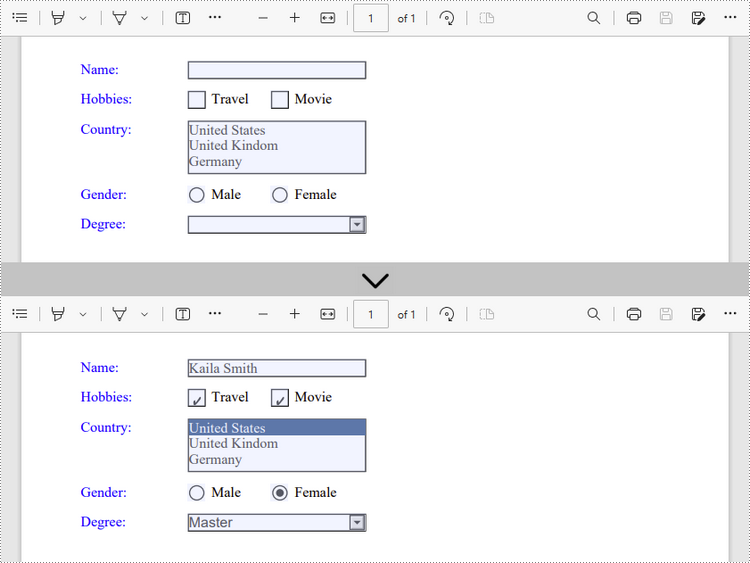
In order to fill out a form, you need first get all the form fields from the PDF document, determine the type of a certain field, and then input a value or select a value from a predefined list. The following are the steps to fill form fields in an existing PDF document using Spire.PDF for C++.
- Create a PdfDocument object.
- Load a sample PDF document using PdfDocument->LoadFromFile() method.
- Get the form from the document using PdfDocument->GetForm() method.
- Get the form field widget collection using PdfFormWidget->GetFieldsWidget() method.
- Loop through the field widget collection to get a specific PdfField.
- Determine if the PdfField is a certain field type such as text box. If yes, set the text of the text box using PdfTextBoxFieldWidget->SetText() method.
- Repeat the step above to fill radio button, check box, combo box, and list box with values.
- Save the document to a PDF file using PdfDocument->SaveToFile() method.
- C++
#include "Spire.Pdf.o.h";

using namespace Spire::Pdf;
using namespace std;

int main() {

    //Create a PdfDocument object
    PdfDocument* doc = new PdfDocument();

    //Load a PDF file containing form fields
    doc->LoadFromFile(L"C:\\Users\\Administrator\\Desktop\\Form.pdf");

    //Get the form from the document
    intrusive_ptr<PdfFormWidget> form = Object::Convert<PdfFormWidget>(doc->GetForm());

    //Get the form widget collection
    intrusive_ptr<PdfFormFieldWidgetCollection> formWidgetCollection = form->GetFieldsWidget();

    //Loop through the widgets
    for (int i = 0; i < formWidgetCollection->GetCount(); i++)
    {
        //Get a specific field
        intrusive_ptr<PdfField> field = formWidgetCollection->GetItem(i);

        //Determine if the field is a text box
        wchar_t nm_w1[100];
        swprintf(nm_w1, 100, L"%hs", typeid(PdfTextBoxFieldWidget).name());
        LPCWSTR_S newName1 = nm_w1;
        if (wcscmp(newName1, field->GetInstanceTypeName()) == 0)
        {
            intrusive_ptr<PdfTextBoxFieldWidget> textBoxField = Object::Convert<PdfTextBoxFieldWidget>(field);
            wstring str = textBoxField->GetName();
            if (str == L"name")
            {
                //Set the text of text box
                textBoxField->SetText(L"Kaila Smith");
            }
        }

        //Determine if the field is a check box
        wchar_t nm_w2[100];
        swprintf(nm_w2, 100, L"%hs", typeid(PdfCheckBoxWidgetFieldWidget).name());
        LPCWSTR_S newName2 = nm_w2;
        if (wcscmp(newName2, field->GetInstanceTypeName()) == 0)
        {
            intrusive_ptr<PdfCheckBoxWidgetFieldWidget> checkBoxField = Object::Convert<PdfCheckBoxWidgetFieldWidget>(field);
            wstring str = checkBoxField->GetName();
            if (str == L"travel")
            {
                //Set the "Checked" status of check box
                checkBoxField->SetChecked(true);
            }
            else if (str == L"movie")
            {
                checkBoxField->SetChecked(true);
            }
        }

        //Determine if the field is a combo box
        wchar_t nm_w3[100];
        swprintf(nm_w3, 100, L"%hs", typeid(PdfListBoxWidgetFieldWidget).name());
        LPCWSTR_S newName3 = nm_w3;
        if (wcscmp(newName3, field->GetInstanceTypeName()) == 0)
        {
            intrusive_ptr<PdfListBoxWidgetFieldWidget> listBoxField = Object::Convert<PdfListBoxWidgetFieldWidget>(field);
            wstring str = listBoxField->GetName();
            if (str == L"country")
            {
                //Set the selected index of combo box
                vector<int> item = { 0 };
                listBoxField->SetSelectedIndex(item);
            }
        }

        //Determine if the field is a radio button
        wchar_t nm_w4[100];
        swprintf(nm_w4, 100, L"%hs", typeid(PdfRadioButtonListFieldWidget).name());
        LPCWSTR_S newName4 = nm_w4;
        if (wcscmp(newName4, field->GetInstanceTypeName()) == 0)
        {
            intrusive_ptr<PdfRadioButtonListFieldWidget> radioButtonListField = Object::Convert<PdfRadioButtonListFieldWidget>(field);
            wstring str = radioButtonListField->GetName();
            if (str == L"gender")
            {
                //Set the selected index of radio button
                radioButtonListField->SetSelectedIndex(1);
            }
        }

        //Determine if the field is a list box
        wchar_t nm_w5[100];
        swprintf(nm_w5, 100, L"%hs", typeid(PdfComboBoxWidgetFieldWidget).name());
        LPCWSTR_S newName5 = nm_w5;
        if (wcscmp(newName5, field->GetInstanceTypeName()) == 0)
        {
            intrusive_ptr<PdfComboBoxWidgetFieldWidget> comBoxField = Object::Convert<PdfComboBoxWidgetFieldWidget>(field);
            wstring str = comBoxField->GetName();
            if (str == L"degree")
            {
                //Set the selected index of list box
                vector<int> item = { 1 };
                comBoxField->SetSelectedIndex(item);
            }
        }
    }

    //Save to file
    doc->SaveToFile(L"Output/FillFormFields.pdf", FileFormat::PDF);
    doc->Close();
    delete doc;
}
Remove Form Fields from PDF in C++
A form field in a PDF document can be accessed by its index or name and removed by PdfFieldCollection->Remove() method. The following are the steps to remove a particular field or all fields from a PDF document using Sprie.PDF for C++.
- Create a PdfDocument object.
- Load a sample PDF document using PdfDocument->LoadFromFile() method.
- Get the form from the document using PdfDocument->GetForm() method.
- Get the form field widget collection using PdfFormWidget->GetFieldsWidget() method.
- Get a specific field using PdfFormFieldWidgetCollection->GetItem() method, and remove it using PdfFieldCollection->Remove() method.
- To remove all fields at once, use PdfFieldCollection->Clear() method.
- Save the document to a PDF file using PdfDocument->SaveToFile() method.
- C++
#include "Spire.Pdf.o.h";

using namespace Spire::Pdf;
using namespace std;

int main() {

    //Create a PdfDocument object
    PdfDocument* doc = new PdfDocument();

    //Load a PDF file
    doc->LoadFromFile(L"C:\\Users\\Administrator\\Desktop\\Form.pdf");

    //Get the form from the document
    intrusive_ptr<PdfFormWidget> form = Object::Convert<PdfFormWidget>(doc->GetForm());

    //Get form widgets from the form
    intrusive_ptr<PdfFormFieldWidgetCollection> widgets = form->GetFieldsWidget();

    //Get a specific field by its name
    intrusive_ptr<PdfField> field = widgets->GetItem(L"name");

    //Remove the field
    widgets->Remove(field);

    //Remove all fields
    //widgets->Clear();

    //Save to file
    doc->SaveToFile(L"Output/DeleteFields.pdf", FileFormat::PDF);
    doc->Close();
    delete doc;
}
Apply for a Temporary License
If you'd like to remove the evaluation message from the generated documents, or to get rid of the function limitations, please request a 30-day trial license for yourself.
C++: Extract Text and Images from PDF
Extracting text and images from PDF files enables you to quickly reuse these contents in other types of files, such as Word documents, web pages, or presentations. This approach can help you save a significant amount of time and effort, as it eliminates the tedious and time-consuming process of re-typing information from scratch. In this article, you will learn how to extract text and images from a PDF file in C++ using Spire.PDF for C++.
- Extract Text from a PDF File in C++
- Extract Text from a Specific Page Area in a PDF File in C++
- Extract Images from a PDF File in C++
Install Spire.PDF for C++
There are two ways to integrate Spire.PDF for C++ into your application. One way is to install it through NuGet, and the other way is to download the package from our website and copy the libraries into your program. Installation via NuGet is simpler and more recommended. You can find more details by visiting the following link.
Integrate Spire.PDF for C++ in a C++ Application
Extract Text from a PDF File in C++
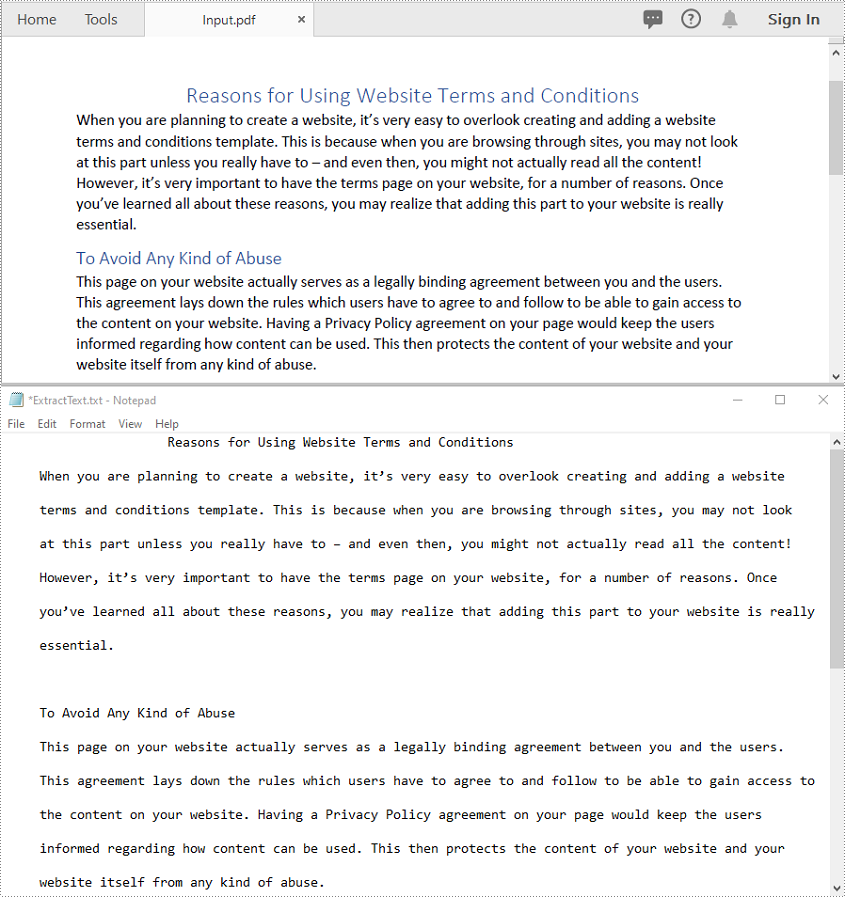
Spire.PDF for C++ provides the PdfTextExtractor class to extract text from PDF pages. The detailed steps are as follows:
- Initialize an instance of the PdfDocument class.
- Load a PDF file using PdfDocument->LoadFromFile() method.
- Iterate through all pages in the file.
- For each page, create a PdfTextExtractor object and use its ExtractText() method to extract the text content.
- Save the extracted text to a .txt file.
- C++
#include "Spire.Pdf.o.h"

using namespace std;
using namespace Spire::Pdf;

int main()
{
	// Create a new instance of PdfDocument
	intrusive_ptr<PdfDocument> doc = new PdfDocument();

	// Load the PDF document from the input file
	doc->LoadFromFile(L"Input.pdf");

	// Variable to hold the extracted text
	wstring buffer = L"";

	// Iterate through all pages in the file
	for (int i = 0; i < doc->GetPages()->GetCount(); i++)
	{
		// Get the current page
		intrusive_ptr<PdfPageBase> page = doc->GetPages()->GetItem(i);

		// Create a text extractor for the specified page
		intrusive_ptr<PdfTextExtractor> textExtractor = new PdfTextExtractor(page);

		// Create options for text extraction
		intrusive_ptr<PdfTextExtractOptions> textExtractorOption = new PdfTextExtractOptions();

		// Extract text from the page
		buffer += textExtractor->ExtractText(textExtractorOption);
	}

	// Save the extracted text to a .txt file
	wofstream write(L"ExtractText.txt");
	auto LocUtf8 = locale(locale(""), new std::codecvt_utf8<wchar_t>);
	write.imbue(LocUtf8);
	write << buffer;
	write.close();
	doc->Close();
}
Extract Text from a Specific Page Area in a PDF File in C++
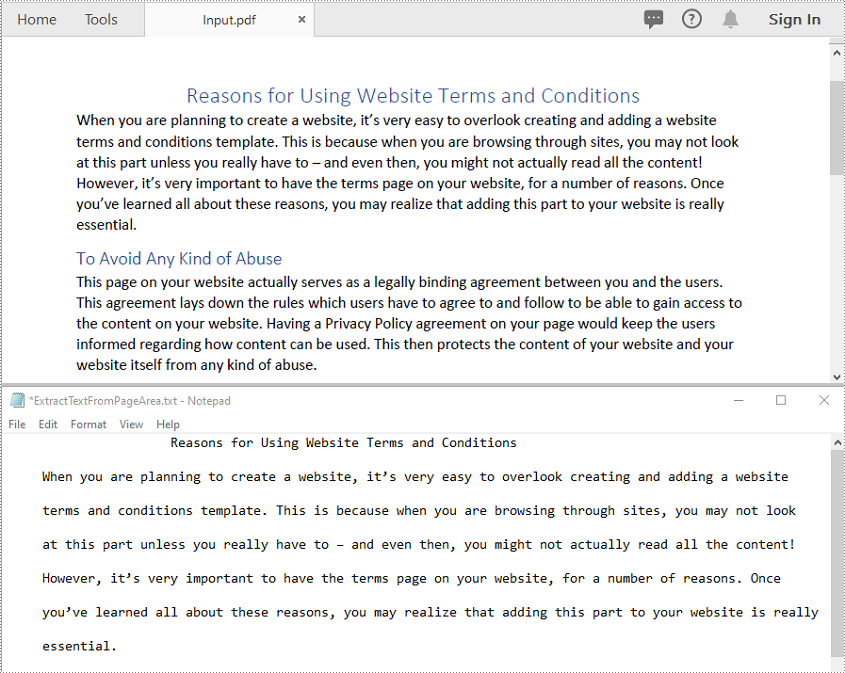
You can extract text from a specific rectangular area of a PDF page using the PdfTextExtractor class and PdfTextExtractOptions in Spire.PDF for C++. The detailed steps are as follows:
- Initialize an instance of the PdfDocument class.
- Load a PDF file using PdfDocument->LoadFromFile() method.
- Iterate through all pages in the document or access a specific page using its index.
- Create a PdfTextExtractor object for the specified page.
- Define a rectangular area using RectangleF and set it in PdfTextExtractOptions using the SetExtractArea() method.
- Extract text from the specified area using the PdfTextExtractor->ExtractText() method
- Save the extracted text to a .txt file.
- C++
#include "Spire.Pdf.o.h"

using namespace Spire::Pdf;
using namespace std;

int main()
{
	// Create a new instance of PdfDocument
	intrusive_ptr<PdfDocument> doc = new PdfDocument();

	// Load the PDF document from the input file
	doc->LoadFromFile(L"Input.pdf");

	// Variable to hold the extracted text
	wstring buffer = L"";

	// Iterate through all pages in the file
	for (int i = 0; i < doc->GetPages()->GetCount(); i++)
	{
		// Get the current page
		intrusive_ptr<PdfPageBase> page = doc->GetPages()->GetItem(i);

		// Create a text extractor for the specified page
		intrusive_ptr<PdfTextExtractor> textExtractor = new PdfTextExtractor(page);

		// Create options for text extraction
		intrusive_ptr<PdfTextExtractOptions> textExtractorOption = new PdfTextExtractOptions();
		textExtractorOption->SetExtractArea(new RectangleF(0, 0, 600, 200));

		// Extract text from the page
		buffer += textExtractor->ExtractText(textExtractorOption);
	}

	// Save the extracted text to a .txt file
	wofstream write(L"ExtractTextFromPageArea.txt");
	auto LocUtf8 = locale(locale(""), new std::codecvt_utf8<wchar_t>);
	write.imbue(LocUtf8);
	write << buffer;
	write.close();
	doc->Close();
}
Extract Images from a PDF File in C++
You can use the PdfImageHelper class to extract images from the pages in a PDF file. The detailed steps are as follows:
- Initialize an instance of the PdfDocument class.
- Load a PDF file using PdfDocument->LoadFromFile() method.
- Initialize an instance of the PdfImageHelper class to assist with image extraction
- Iterate through all pages in the document.
- For each page, retrieve information about all images on the page using the PdfImageHelper->GetImagesInfo() method
- Iterate through the extracted images and save them to PNG files
- C++
#include "Spire.Pdf.o.h"

using namespace Spire::Pdf;
using namespace std;

int main()
{
	// Create a new instance of PdfDocument
	intrusive_ptr<PdfDocument> doc = new PdfDocument();

	// Load the PDF document from the input file
	doc->LoadFromFile(L"Sample.pdf");

	// Initialize an image helper to extract images from the page
	intrusive_ptr<PdfImageHelper> imagehelper = new PdfImageHelper();

	int imageIndex = 0;

	// Iterate through all pages in the file
	for (int i = 0; i < doc->GetPages()->GetCount(); i++)
	{
		// Get the current page
		intrusive_ptr<PdfPageBase> page = doc->GetPages()->GetItem(i);

		// Retrieve information about all images on the page
		vector<intrusive_ptr<Utilities_PdfImageInfo>> exImages = imagehelper->GetImagesInfo(page);

		// Iterate through images and save them
		for (auto image : exImages)
		{
			std::wstring imageFileName = L"Image\\Image-" + to_wstring(imageIndex) + L".png";
			image->GetImage()->Save(imageFileName.c_str());
			imageIndex++;
		}
	}
}

Apply for a Temporary License
If you'd like to remove the evaluation message from the generated documents, or to get rid of the function limitations, please request a 30-day trial license for yourself.
C++: Add or Delete Attachments in PDF Documents
Adding documents as attachments to PDF brings you a lot of convenience. For example, you can transfer multiple documents as a single document; you can open another file inside a PDF document without needing to find the document from other places; you reduce the possibility of losing documents referenced in the PDF document.
Spire.PDF for C++ allows you to attach files in two ways:
- Document Level Attachment (or Regular Attachment): A document-level attachment refers to the attachment that’s added to the Attachment tab and cannot be found on a specific page.
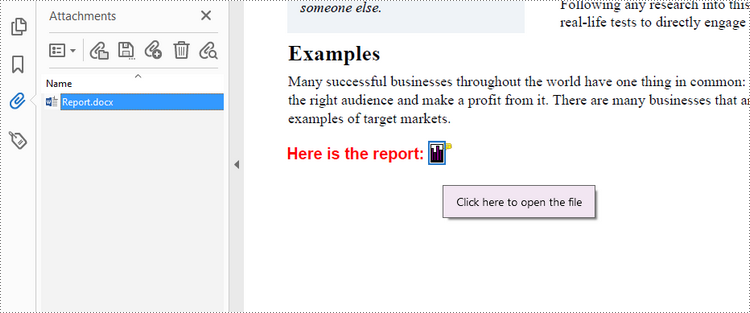
- Annotation Attachment: An annotation attachment refers to the attachment that’s added to a specific position of a page. Annotation attachments are shown as a paper clip icon on the page; reviewers can double-click the icon to open the file.
This article will show you how to add or delete regular attachments and annotation attachments in a PDF document in C++ using Spire.PDF for C++.
- Add a Regular Attachment to PDF in C++
- Add an Annotation Attachment to PDF in C++
- Delete Regular Attachments in PDF in C++
- Delete Annotation Attachments in PDF in C++
Install Spire.PDF for C++
There are two ways to integrate Spire.PDF for C++ into your application. One way is to install it through NuGet, and the other way is to download the package from our website and copy the libraries into your program. Installation via NuGet is simpler and more recommended. You can find more details by visiting the following link.
Integrate Spire.PDF for C++ in a C++ Application
Add a Regular Attachment to PDF in C++
To add a regular attachment, use PdfDocument->GetAttachments()->Add() method. The following are the detailed steps.
- Create a PdfDocument object.
- Load a PDF document using PdfDocument->LoadFromFile() method.
- Create a PdfAttachment object based on an external file.
- Add the attachment to PDF using PdfDocument->GetAttachments()->Add() method.
- Save the document to another PDF file using PdfDocument.SaveToFile() method.
- C++
#include "Spire.Pdf.o.h";

using namespace Spire::Pdf;
using namespace std;

int main() {

    //Specify input file path
    wstring inputPdfPath = L"C:\\Users\\Administrator\\Desktop\\Sample.pdf";
    wstring inputFilePath = L"C:\\Users\\Administrator\\Desktop\\Data.xlsx";

    //Specify output file path
    wstring outputFilePath = L"Output\\Attachment.pdf";

    //Create a PdfDocument object
    PdfDocument* doc = new PdfDocument();

    //Load a sample PDF file
    doc->LoadFromFile(inputPdfPath.c_str());

    //Create a PdfAttachment object based on an external file
    PdfAttachment* attachment = new PdfAttachment(inputFilePath.c_str());

    //Add the attachment to PDF
    doc->GetAttachments()->Add(attachment);

    //Save to file
doc->SaveToFile(outputFilePath.c_str());
delete doc;
}

Add an Annotation Attachment to PDF in C++
An annotation attachment is represented by the PdfAttachmentAnnotation class. You need to create an instance of the class based on an external file, and then add it to a specific page using PdfPageBase->GetAnnotationsWidget()->Add() method. The following are the detailed steps.
- Create a PdfDocument object.
- Load a PDF document using PdfDocument->LoadFromFile() method.
- Get a specific page to add annotation using PdfDocument->GetPages()->GetItem() method.
- Create a PdfAttachmentAnnotation object based on an external file.
- Add the annotation attachment to the page using PdfPageBase->GetAnnotationsWidget->Add() method.
- Save the document using PdfDocument->SaveToFile() method.
- C++
#include "Spire.Pdf.o.h";

using namespace Spire::Pdf;
using namespace std;

int main() {

    //Specify input file path
    wstring inputPdfPath = L"C:\\Users\\Administrator\\Desktop\\Attachment.pdf";
    wstring inputFilePath = L"C:\\Users\\Administrator\\Desktop\\Report.docx";

    //Specify output file path
    wstring outputFilePath = L"Output\\AnnotationAttachment.pdf";

    //Create a PdfDocument object
    PdfDocument* doc = new PdfDocument();

    //Load a sample PDF file
    doc->LoadFromFile(inputPdfPath.c_str());

    //Get a specific page
    boost::intrusive_ptr<PdfPageBase> page = doc->GetPages()->GetItem(0);

    //Draw a label on PDF
    wstring label = L"Here is the report:";
    PdfTrueTypeFont* font = new PdfTrueTypeFont(L"Arial", 13.0f, PdfFontStyle::Bold, true);
    float x = 35;
    float y = doc->GetPages()->GetItem(0)->GetActualSize()->GetHeight() - 220;
    page->GetCanvas()->DrawString(label.c_str(), font, PdfBrushes::GetRed(), x, y);

    //Convert the file to be attached to stream
    ifstream is1(inputFilePath.c_str(), ifstream::in | ios::binary);
    is1.seekg(0, is1.end);
    int length1 = is1.tellg();
    is1.seekg(0, is1.beg);
    char* buffer1 = new  char[length1];
    is1.read(buffer1, length1);
    Stream* stream = new Spire::Pdf::Stream((unsigned char*)buffer1, length1);
    boost::intrusive_ptr <SizeF> size = font->MeasureString(label.c_str());
    RectangleF* bounds = new RectangleF((float)(x + size->GetWidth() + 5), (float)y, 10, 15);

    //Create a PdfAttachmentAnnotation object based on the file
    PdfAttachmentAnnotation* annotation = new PdfAttachmentAnnotation(bounds, L"Report.docx", stream);
    annotation->SetColor(new PdfRGBColor(Spire::Pdf::Color::GetDarkOrange()));
    annotation->SetFlags(PdfAnnotationFlags::ReadOnly);
    annotation->SetIcon(PdfAttachmentIcon::Graph);
    annotation->SetText(L"Click here to open the file");

    //Add the attachment annotation to PDF
    page->GetAnnotationsWidget()->Add(annotation);

    //Save to file
    doc->SaveToFile(outputFilePath.c_str());
    delete doc;
}
Delete Regular Attachments in PDF in C++
The PdfDocument->GetAttachments() method returns a collection of regular attachments of a PDF document. A specific attachment or all attachments can be removed by using PdfAttachmentCollection->RemoveAt() method or PdfAttachmentCollection->Clear() method. The detailed steps are as follows.
- Create a PdfDocument object.
- Load a PDF document using PdfDocument->LoadFromFile() method.
- Get the attachment collection from the document using PdfDocument->GetAttachments() method.
- Remove a specific attachment using PdfAttachmentCollection->RemoveAt() method. To remove all attachments at once, use PdfAttachmentCollection->Clear() method.
- Save the document using PdfDocument->SaveToFile() method.
- C++
#include "Spire.Pdf.o.h";

using namespace Spire::Pdf;
using namespace std;

int main() {

	//Specify input file path
	wstring inputPdfPath = L"C:\\Users\\Administrator\\Desktop\\Sample.pdf";

	//Specify output file path
	wstring outputFilePath = L"Output\\DeleteAttachments.pdf";

	//Create a PdfDocument object
	PdfDocument* doc = new PdfDocument();

	//Load a PDF file
	doc->LoadFromFile(inputPdfPath.c_str());

	//Get all attachments
	boost::intrusive_ptr<PdfAttachmentCollection> attachments = doc->GetAttachments();

	//Delete all attachments
	attachments->Clear();

	//Delete a specific attachment
	//attachments->RemoveAt(0);

	//Save the document
	doc->SaveToFile(outputFilePath.c_str());
	doc->Close();
	delete doc;
}
Delete Annotation Attachments in PDF in C++
The annotation is a page-based element. You can get annotations from a specific page using PdfPageBase->GetAnnotationsWidget() method, and determine if a certain annotation is an annotation attachment. After that, remove the annotation attachment from the annotation collection using PdfAnnotationCollection->Remove() method. The following are the detailed steps.
- Create a PdfDocument object.
- Load a PDF document using PdfDocument->LoadFromFile() method.
- Get the annotation collection from a specific page using PdfPageBase->GetAnnotationsWidget() method.
- Determine if an annotation is an instance of PdfAttachmentAnnotationWidget. If yes, remove the annotation attachment using PdfAnnotationCollection->Remove() method.
- Save the document using PdfDocument->SaveToFile() method.
- C++
#include "Spire.Pdf.o.h";

using namespace Spire::Pdf;
using namespace std;

int main() {

    //Specify input file path
    wstring inputPdfPath = L"C:\\Users\\Administrator\\Desktop\\AnnotationAttachment.pdf";

    //Specify output file path
    wstring outputFilePath = L"Output\\DeleteAnnotationAttachments.pdf";

    //Create a PdfDocument object
    PdfDocument* doc = new PdfDocument();

    //Load a PDF file
    doc->LoadFromFile(inputPdfPath.c_str());

    //Loop through the pages
    for (int i = 0; i < doc->GetPages()->GetCount(); i++)
    {
        //Get the annotation collection
        boost::intrusive_ptr <PdfAnnotationCollection> annotationCollection = doc->GetPages()->GetItem(i)->GetAnnotationsWidget();


        //Loop through the annotations
        for (int j = 0; j < annotationCollection->GetCount(); j++)
        {
            //Get a specific annotation
            boost::intrusive_ptr <PdfAnnotation> annotation = annotationCollection->GetItem(j);

            //Determine if the annotation is an instance of PdfAttachmentAnnotationWidget
            wstring content;
            wchar_t nm_w[100];
            swprintf(nm_w, 100, L"%hs", typeid(PdfAttachmentAnnotationWidget).name());
            LPCWSTR_S newName = nm_w;
            if (wcscmp(newName, annotation->GetInstanceTypeName()) == 0) {

                //Remove the annotation attachment
                annotationCollection->RemoveAt(j);
            }
        }
    }

    //Save the document
    doc->SaveToFile(outputFilePath.c_str());
    doc->Close();
    delete doc;
}
Apply for a Temporary License
If you'd like to remove the evaluation message from the generated documents, or to get rid of the function limitations, please request a 30-day trial license for yourself.
C++: Merge Multiple PDF Files into a Single PDF
Merging multiple PDF files into a single PDF can help you reduce clutter and let you read, print, and share the files more easily. After merging, you only need to deal with one file instead of multiple files. In this article, you will learn how to merge multiple PDF files into a single PDF in C++ using Spire.PDF for C++.
- Merge Multiple PDF Files into a Single PDF in C++
- Merge Multiple PDF Files from Streams in C++
- Merge Selected Pages of PDF Files into a Single PDF in C++
Install Spire.PDF for C++
There are two ways to integrate Spire.PDF for C++ into your application. One way is to install it through NuGet, and the other way is to download the package from our website and copy the libraries into your program. Installation via NuGet is simpler and more recommended. You can find more details by visiting the following link.
Integrate Spire.PDF for C++ in a C++ Application
Merge Multiple PDF Files into a Single PDF in C++
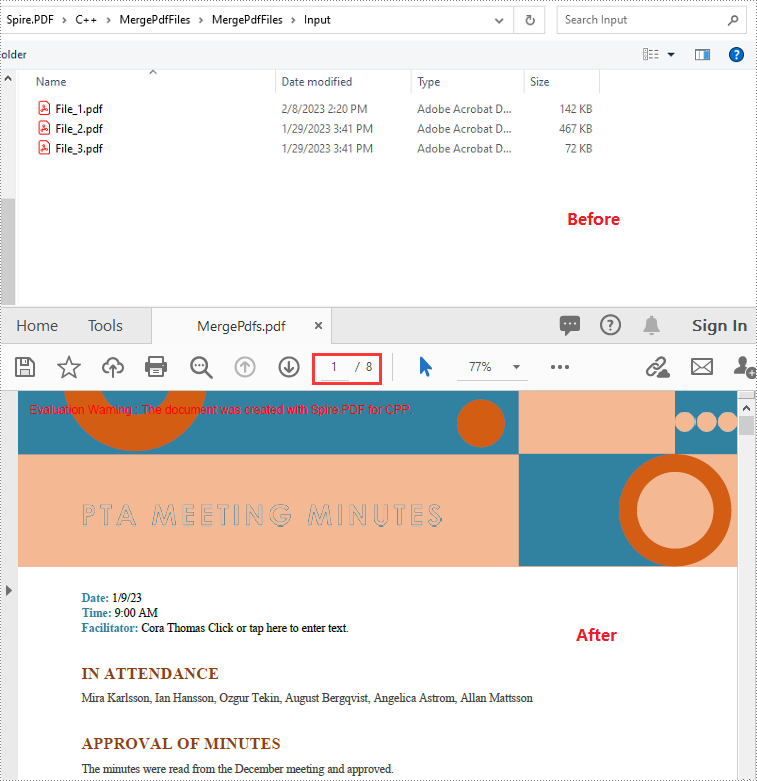
Spire.PDF for C++ offers a static method - PdfDocument::MergeFiles(std::vector<LPCWSTR_S> inputFiles) which enables you to merge multiple PDF files into a single PDF file easily. The following are the detailed steps:
- Put the input PDF files' paths into a vector.
- Merge the PDF files specified by the paths in the vector using PdfDocument::MergeFiles(std::vector<LPCWSTR_S> inputFiles) method.
- Specify the output file path.
- Save the result PDF file using PdfDocumentBase->Save() method.
- C++
#include "Spire.Pdf.o.h"

using namespace Spire::Pdf;
using namespace std;

int main() {
	//Put the input PDF files' paths into a vector
	std::vector<LPCWSTR_S> files = { L"Input\\File_1.pdf", L"Input\\File_2.pdf", L"Input\\File_3.pdf" };

	//Merge the PDF files specified by the paths in the vector
    boost::intrusive_ptr <PdfDocumentBase>  doc = PdfDocument::MergeFiles(files);"

	//Specify the output file path
	wstring outputFile = L"Output\\MergePdfs.pdf";

	//Save the result PDF file
	doc->Save(outputFile.c_str(), FileFormat::PDF);
	doc->Close();
}
Merge Multiple PDF Files from Streams in C++
You can use the PdfDocument::MergeFiles(std::vector< Stream*> streams) method to merge multiple PDF streams into a single PDF. The following are the detailed steps:
- Read the input PDF files into streams.
- Put the streams into a vector.
- Merge the PDF streams using PdfDocument::MergeFiles(std::vector< Stream*> streams) method.
- Save the result PDF file using PdfDocumentBase->Save() method.
- C++
#include "Spire.Pdf.o.h"

using namespace Spire::Pdf;
using namespace std;

int main() {
	//Read the input PDF files into streams
	Stream* stream1 = new Stream(L"Input\\File_1.pdf");
	Stream* stream2 = new Stream(L"Input\\File_2.pdf");
	Stream* stream3 = new Stream(L"Input\\File_3.pdf");

    //Put the streams into a vector
	std::vector<boost::intrusive_ptr<Stream>> streams = { stream1, stream2, stream3 };
	//Merge the PDF streams
	boost::intrusive_ptr<PdfDocumentBase> doc = PdfDocument::MergeFiles(streams);


	//Specify the output file path
	wstring outputFile = L"Output\\MergePdfs.pdf";

	//Save the result PDF file
	doc->Save(outputFile.c_str(), FileFormat::PDF);
	doc->Close();
}
Merge Selected Pages of PDF Files into a Single PDF in C++
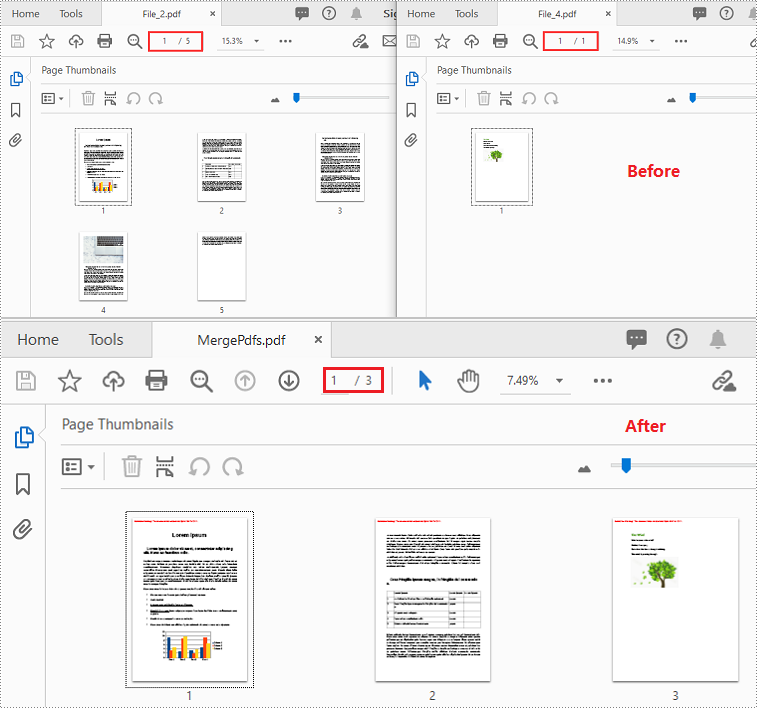
You can merge a specific page or a range of pages of multiple PDF files into a single PDF file using PdfDocument->InsertPage(PdfDocument ldDoc, int pageIndex) or PdfDocument->InsertPageRange(PdfDocument ldDoc, int startIndex, int endIndex) method. The following are the detailed steps:
- Put the input PDF files' paths into a vector.
- Create a vector of PdfDocument objects.
- Iterate through the paths in the vector.
- Load the PDF files specified by the paths using PdfDocument->LoadFromFile() method.
- Initialize an instance of PdfDocument class to create a new PDF document.
- Insert a specific page or a range of pages from the loaded PDF files into the new PDF using PdfDocument->InsertPage(PdfDocument ldDoc, int pageIndex) or PdfDocument->InsertPageRange(PdfDocument ldDoc, int startIndex, int endIndex) method.
- Save the result PDF using PdfDocument->SaveToFile() method.
- C++
#include "Spire.Pdf.o.h"

using namespace Spire::Pdf;
using namespace std;
using namespace Spire::Common;

int main() {

	//Put the input PDF files' paths into a vector
	std::vector<std::wstring> files = { L"Input\\File_2.pdf", L"Input\\File_4.pdf" };

	//Create a vector of PdfDocument objects
	std::vector<PdfDocument*> docs(files.size());

	//Iterate through the paths in the vector
	for (int i = 0; i < files.size(); i++)
	{
		//Load the PDF files specified by the paths
		docs[i] = new PdfDocument();
		docs[i]->LoadFromFile(files[i].c_str());
	}

	//Create a new PDF document
	PdfDocument* newDoc = new PdfDocument();

	//Insert pages 1-2 of the first PDF into the new PDF
	newDoc->InsertPageRange(docs[0], 0, 1);
	//Insert page 1 of the second PDF into the new PDF
	newDoc->InsertPage(docs[1], 0);

	//Specify the output file path
	wstring outputFile = L"Output\\MergePdfs.pdf";

	//Save the result pdf file
	newDoc->SaveToFile(outputFile.c_str());

	//Close the PdfDocument objects
	newDoc->Close();
	for (auto doc : docs)
	{
		doc->Close();
	}
}
Apply for a Temporary License
If you'd like to remove the evaluation message from the generated documents, or to get rid of the function limitations, please request a 30-day trial license for yourself.