Extract Images from PDF in Java – Preserve Quality & Filter Noise
When dealing with PDF documents that contain images—such as scanned reports, digital brochures, or design portfolios—you may need to extract these images for reuse or analysis. In this article, we'll show you how to extract images from PDF in Java, covering both basic usage and advanced image extracting techniques using the Spire.PDF for Java library.
Whether you're creating a PDF image extractor in Java or simply looking to extract images from a PDF file using Java code, this guide will walk you through the process step by step.
Guide Outline
- Getting Started – Tools and Setup
- Extract All Images from a PDF in Java
- Advanced Tips for More Precise Image Extraction
- Frequently Asked Questions
- Conclusion
Getting Started – Tools and Setup
Extracting images from PDF files in Java can be challenging without third-party libraries. While PDFs may contain valuable image assets—such as scanned pages, charts, or embedded graphics—these elements are often encoded or compressed in ways that native Java APIs can’t handle directly.
Spire.PDF for Java provides a high-level, reliable way to locate and extract embedded or inline images from PDF files. Whether you’re building an automation tool or a document parser, this library helps you extract image content efficiently and with full quality.
Before getting started, make sure you have the following development tools ready:
- Java Development Kit (JDK) 1.6 or above
- Spire.PDF for Java (Free or commercial version)
- An IDE (e.g., IntelliJ IDEA, Eclipse)
Maven Dependency:
<repositories>
    <repository>
        <id>com.e-iceblue</id>
        <name>e-iceblue</name>
        <url>https://repo.e-iceblue.com/nexus/content/groups/public/</url>
    </repository>
</repositories>
<dependencies>
    <dependency>
        <groupId>e-iceblue</groupId>
        <artifactId>spire.pdf</artifactId>
        <version>12.10.0</version>
    </dependency>
</dependencies>
You can use Free Spire.PDF for Java for smaller tasks.
Extract All Images from a PDF in Java
The most straightforward way to extract images from a PDF is by using the PdfImageHelper class in Spire.PDF for Java. This utility scans each page, locates embedded or inline images, and returns both the image data and metadata such as size and position.
Code Example: Basic Image Extraction
import com.spire.pdf.PdfDocument;
import com.spire.pdf.PdfPageBase;
import com.spire.pdf.utilities.PdfImageHelper;
import com.spire.pdf.utilities.PdfImageInfo;

import javax.imageio.ImageIO;
import java.awt.image.BufferedImage;
import java.io.File;
import java.io.IOException;

public class ExtractAllImagePDF {
    public static void main(String[] args) throws IOException {
        // Create a PdfDocument instance
        PdfDocument pdf = new PdfDocument();
        pdf.loadFromFile("input.pdf");

        // Create an image helper instance
        PdfImageHelper imageHelper = new PdfImageHelper();

        // Loop through each page to extract images
        for (int i = 0; i < pdf.getPages().getCount(); i++) {
            PdfPageBase page = pdf.getPages().get(i);
            PdfImageInfo[] imagesInfo = imageHelper.getImagesInfo(page);

            for (int j = 0; j < imagesInfo.length; j++) {
                BufferedImage image = imagesInfo[j].getImage();
                File file = new File("output/Page" + i + "_Image" + j + ".png");
                ImageIO.write(image, "png", file);
            }
        }

        pdf.close();
    }
}
Make sure the output folder exists before running the code to avoid IOException.
How It Works
-
PdfDocument loads and holds the structure of the input PDF.
-
PdfPageBase represents a single page inside the PDF.
-
PdfImageHelper.getImagesInfo(PdfPageBase) scans a specific page and returns an array of PdfImageInfo, each containing a detected image.
-
Each PdfImageInfo includes:
- The image itself as a BufferedImage
- Metadata like size, DPI, and page index
-
ImageIO.write() supports common formats like "png", "jpg", and "bmp" — you can change the format string as needed.
After running the extraction code, you’ll get a folder containing the exported images from the PDF, each saved in a separate file.

These high-level abstractions save you from manually decoding image XObjects or parsing raw streams—making PDF image extraction in Java easier and cleaner.
To save full PDF pages as images instead of just extracting embedded images, follow our guide on saving PDF pages as images in Java.
Advanced Tips for More Precise Image Extraction
Extracting images from a PDF is not always a one-size-fits-all operation. Some files contain layout elements like background layers, small decorative icons, or embedded metadata images. The following advanced tips help you refine your extraction logic for better results:
Skip Background Images (Optional)
Some PDF files include background images, such as watermarks or decorative layers. When these are defined using standard PDF background settings, they are typically extracted as the first image on the page. To focus on meaningful content, simply skip the first extracted image per page.
for (int i = 1; i < imagesInfo.length; i++) {  // Skip background image
    BufferedImage image = imagesInfo[i].getImage();
    ImageIO.write(image, "PNG", new File("output/image_" + (i - 1) + ".png"));
}
You can also check the getBounds() property to assess image dimensions and placement before deciding to skip.
Filter by Image Size (Ignore Small Icons)
To exclude small elements like buttons or logos, add a size threshold before saving:
BufferedImage image = imagesInfo[i].getImage();
if (image.getWidth() > 200 && image.getHeight() > 200) {
    ImageIO.write(image, "PNG", new File("output/image_" + i + ".png"));
}
This helps keep the output folder clean and focused on relevant image content.
Export Images in Various Formats or Streams
You can output images in various formats or streams depending on your use case:
ImageIO.write(image, "JPEG", new File("output/image_" + i + ".jpg"));  // compressed
ImageIO.write(image, "BMP", new File("output/image_" + i + ".bmp"));  // high-quality
- Use PNG or BMP for lossless quality (e.g., archival or OCR).
- Use JPEG for web or lower storage usage.
You can also write images to a ByteArrayOutputStream or other output streams for further processing:
ByteArrayOutputStream stream = new ByteArrayOutputStream();
ImageIO.write(image, "PNG", stream);
Also Want to Extract Images from PDF Attachments?
If your PDF contains embedded file attachments like .jpg or .png images, you'll need a different approach. See our guide here:
How to Extract Attachments from PDF in Java
FAQ for Image Extraction from PDF in Java
Can I extract images from a PDF file using Java?
Yes. Using Spire.PDF for Java, you can easily extract embedded or inline images from any PDF page with a few lines of code.
Will extracted images retain their original quality?
Absolutely. Images are extracted in their original resolution and encoding. You can save them in PNG or BMP format to preserve full quality.
What’s the difference between image extraction and rendering PDF as an image?
Rendering a PDF page creates a bitmap version of the entire page (including text and layout), while image extraction pulls out only the embedded image objects that were originally inserted in the file.
Does this work for scanned PDFs?
Yes. Many scanned PDFs contain full-page raster images (e.g., JPGs or TIFFs). These are extracted just like any other embedded image.
Conclusion
Extracting images from PDF files using Java is fast and efficient with Spire.PDF. Whether you're analyzing marketing materials, scanned reports, or design portfolios, this Java PDF image extractor solution helps you programmatically access and save high-quality images embedded in your documents.
For more advanced cases—such as excluding layout images or processing attachments—the API offers enough flexibility to customize your approach.
To fully unlock the capabilities of Spire.PDF for Java without any evaluation limitations, you can apply for a free temporary license.
PDF to Text in Java: Extract Text from PDFs (Text-Based & Scanned)
Extracting text from PDF files is a common task for Java developers working on document processing, data extraction, search indexing, and automation. PDFs often contain text in two formats: digital text embedded in the file or scanned images of text. Extracting content from these requires different approaches.
This article explains how to extract text from both text-based PDFs and scanned (image-based) PDFs using Java, complete with detailed code examples and explanations. Whether you need to process reports, invoices, or scanned documents, this guide will help you get started quickly and efficiently.
Table of Contents
- Why Extract Text from PDFs in Java?
- Difference Between Text-Based and Scanned PDFs
- How to Extract Text from Text-Based PDFs in Java
- How to Extract Text from Scanned PDFs Using Java & OCR
- Common Challenges and Best Practices for PDF Text Extraction
- Conclusion
- Frequently Asked Questions
Why Extract Text from PDFs in Java?
PDF files are designed for consistent visual formatting across platforms. However, extracting the underlying text lets developers:
- Enable full-text search
- Automate form and invoice processing
- Feed text into AI models
- Convert content for analysis or reporting
- Repurpose documents into other formats (HTML, Markdown, CSV)
Difference Between Text-Based and Scanned PDFs
Before extracting text, it’s important to understand the PDF type because the extraction approach differs:
Text-Based PDFs
- Contain embedded, selectable text stored in the document structure
- Text can be extracted directly by parsing the PDF’s text objects
- Typically created by exporting from word processors, reports, or digital sources
Scanned PDFs
- Are images of pages, often created by scanning paper documents
- Do not contain embedded text—only images of text
- Require Optical Character Recognition (OCR) to convert images into machine-readable text
Knowing your PDF type determines the extraction method and tools you need.
How to Extract Text from Text-Based PDFs in Java
Text-based PDFs allow direct extraction of text content. With libraries like Spire.PDF for Java, you can extract text from an entire PDF, specific pages, or designated rectangular areas. This is useful for a variety of tasks, such as content indexing, document analysis, and data processing.
Key Features
- Extract text from full documents or individual pages
- Target specific rectangular regions within a page
- Preserve original layout
- Support for multi-language text extraction
Maven Dependency
To begin, add the following Maven dependency for Spire.PDF to your pom.xml:
<repositories>
    <repository>
        <id>com.e-iceblue</id>
        <name>e-iceblue</name>
        <url>https://repo.e-iceblue.com/nexus/content/groups/public/</url>
    </repository>
</repositories>
<dependencies>
    <dependency>
        <groupId>e-iceblue</groupId>
        <artifactId>spire.pdf</artifactId>
        <version>11.7.5</version>
    </dependency>
</dependencies>
Extract All Text from a PDF
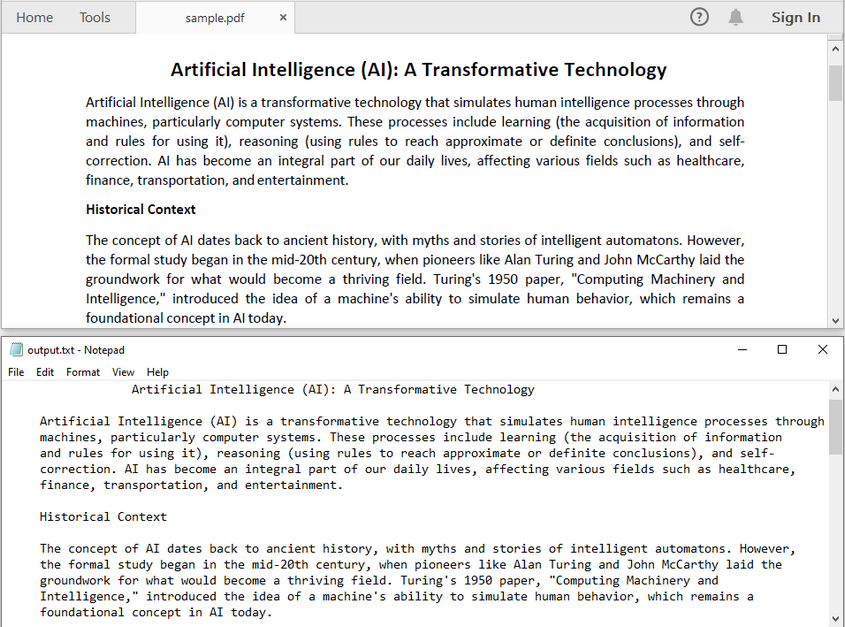
If you want to convert an entire PDF to plain text, you can iterate through all the pages and use the extract method provided by the PdfTextExtractor class to retrieve text from each page in sequence. This method returns a string containing the textual content of the page and preserves the original layout, including spacing, line breaks, and paragraph structure as much as possible.
import com.spire.pdf.PdfDocument;
import com.spire.pdf.PdfPageBase;
import com.spire.pdf.texts.PdfTextExtractOptions;
import com.spire.pdf.texts.PdfTextExtractor;


import java.io.BufferedWriter;
import java.io.FileWriter;
import java.io.IOException;

public class ExtractAllTextFromPDF {
    public static void main(String[] args){
        // Create a PdfDocument instance and load the PDF file
        PdfDocument doc = new PdfDocument();
        doc.loadFromFile("sample.pdf");

        // Create a StringBuilder to store extracted text from all pages
        StringBuilder fullText = new StringBuilder();

        // Loop through each page in the PDF
        for (int i = 0; i < doc.getPages().getCount(); i++) {
            // Get the current page
            PdfPageBase page = doc.getPages().get(i);
            // Create a text extractor for the page
            PdfTextExtractor extractor = new PdfTextExtractor(page);
            // Extract text using default options
            String text = extractor.extract(new PdfTextExtractOptions());
            // Append extracted text and add spacing between pages
            fullText.append(text).append("\n\n\n\n");
        }

        // Write the extracted text to a .txt file
        try (BufferedWriter writer = new BufferedWriter(new FileWriter("output.txt"))) {
            writer.write(fullText.toString());
        } catch (IOException e) {
            // Print any file I/O errors
            e.printStackTrace();
        }

        // Close the PDF document to free resources
        doc.close();
    }
}
Note: You need to modify the PDF file path as needed.
Extract Text from a Page
When working with multi-page PDFs, you may only need to extract content from a specific page—for example, a summary, cover sheet, or signature page. In such cases, you can access the target page by its index and use the extract method from the PdfTextExtractor class to retrieve text from that individual page.
import com.spire.pdf.PdfDocument;
import com.spire.pdf.PdfPageBase;
import com.spire.pdf.texts.PdfTextExtractOptions;
import com.spire.pdf.texts.PdfTextExtractor;

import java.io.BufferedWriter;
import java.io.FileWriter;
import java.io.IOException;

public class ExtractTextFromSelectedPage {
    public static void main(String[] args){
        // Create a PdfDocument instance and load the PDF file
        PdfDocument doc = new PdfDocument();
        doc.loadFromFile("sample.pdf");

        // Define the target page index (e.g., 0 for the first page)
        int pageIndex = 0;

        // Check if the specified page exists in the document
        if (pageIndex >= 0 && pageIndex < doc.getPages().getCount()) {
            // Get the specified page
            PdfPageBase page = doc.getPages().get(pageIndex);
            // Create a text extractor for the page
            PdfTextExtractor extractor = new PdfTextExtractor(page);
            // Extract text from the page
            String text = extractor.extract(new PdfTextExtractOptions());

            // Write the extracted text to a .txt file
            try (BufferedWriter writer = new BufferedWriter(new FileWriter("output.txt"))) {
                writer.write(text);
            } catch (IOException e) {
                // Print any file I/O errors
                e.printStackTrace();
            }
        } else {
            System.out.println("Invalid page index.");
        }

        // Close the PDF document to free resources
        doc.close();
    }
}
Note: You need to change the page index according to your needs.
Extract Text from a Page Area (Rectangular Region)
To extract text from a specific area of a PDF page, first define the rectangular region using a Rectangle2D object, then use the setExtractArea method of the PdfTextExtractOptions class to limit extraction to that area. This helps isolate relevant content and exclude unrelated text outside the defined region.
import com.spire.pdf.PdfDocument;
import com.spire.pdf.PdfPageBase;
import com.spire.pdf.texts.PdfTextExtractOptions;
import com.spire.pdf.texts.PdfTextExtractor;

import java.awt.geom.Rectangle2D;
import java.io.BufferedWriter;
import java.io.FileWriter;
import java.io.IOException;

public class ExtractTextFromSelectedPage {
    public static void main(String[] args){
        // Create a PdfDocument instance and load the PDF file
        PdfDocument doc = new PdfDocument();
        doc.loadFromFile("sample.pdf");

        // Define the target page index (0-based, 0 means first page)
        int pageIndex = 0;

        // Check if the specified page exists in the document
        if (pageIndex >= 0 && pageIndex < doc.getPages().getCount()) {
            // Get the specified page
            PdfPageBase page = doc.getPages().get(pageIndex);

            // Define the rectangular region (x, y, width, height)
            // Coordinates are relative to the PDF page coordinate system in the top-left corner
            Rectangle2D region = new Rectangle2D.Float(100, 150, 300, 100);

            // Initialize a text extractor for the page
            PdfTextExtractor extractor = new PdfTextExtractor(page);

            // Create extraction options and set the region to extract text from
            PdfTextExtractOptions options = new PdfTextExtractOptions();
            options.setExtractArea(region);

            // Extract text from the defined rectangular area
            String text = extractor.extract(options);

            // Write the extracted text to a text file
            try (BufferedWriter writer = new BufferedWriter(new FileWriter("output.txt"))) {
                writer.write(text);
            } catch (IOException e) {
                // Print any errors during file writing
                e.printStackTrace();
            }
        } else {
            // Inform if the specified page index is invalid
            System.out.println("Invalid page index.");
        }

        // Close the PDF document to free resources
        doc.close();
    }
}
Tip: Coordinates are relative to the PDF page, with the origin (0,0) at the top-left corner. The X-axis increases to the right, and the Y-axis increases downward. Learn more about PDF coordinate positioning in our guide: Generate PDF Files in Java (Developer Tutorial).
How to Extract Text from Scanned PDFs Using Java & OCR
Scanned PDFs do not contain embedded, selectable text; instead, they store images of the document pages. To extract text from such PDFs, you need to:
- Convert each PDF page into an image using a PDF processing library (e.g., Spire.PDF).
- Use an OCR (Optical Character Recognition) engine (e.g., Spire.OCR) to recognize and convert text from these images into machine-readable format.
Maven Dependencies
Add the following repositories and dependencies to your pom.xml to include the required libraries in your Java project:
<repositories>
    <repository>
        <id>com.e-iceblue</id>
        <name>e-iceblue</name>
        <url>https://repo.e-iceblue.com/nexus/content/groups/public/</url>
    </repository>
</repositories>

<dependencies>
    <dependency>
        <groupId>e-iceblue</groupId>
        <artifactId>spire.pdf</artifactId>
        <version>11.7.5</version>
    </dependency>
    <dependency>
        <groupId>e-iceblue</groupId>
        <artifactId>spire.ocr</artifactId>
        <version>1.9.22</version>
    </dependency>
</dependencies>
Download OCR Model
Spire.OCR for Java requires downloading a language model compatible with your operating system:
After downloading, extract the package to a directory accessible by your application. You'll reference its path in your code.
Java Code Example for OCR Text Extraction from Scanned PDF
The code below demonstrates how to extract text from scanned PDFs that contain only images. Each page is first converted into an image using saveAsImage(). Then, the OCR engine (OcrScanner) reads the image and extracts the text. The recognized text from all pages is saved to a .txt file.
import com.spire.ocr.ConfigureOptions;
import com.spire.ocr.OCRImageFormat;
import com.spire.ocr.OcrException;
import com.spire.ocr.OcrScanner;
import com.spire.pdf.PdfDocument;

import javax.imageio.ImageIO;
import java.awt.image.BufferedImage;
import java.io.*;

public class ExtractTextFromScannedPDF {
    public static void main(String[] args) throws IOException, OcrException {
        // Load a scanned PDF
        PdfDocument pdf = new PdfDocument();
        pdf.loadFromFile("sample.pdf");

        // Create a StringBuilder to store all extracted text
        StringBuilder allText = new StringBuilder();

        // Loop through each page
        for (int i = 0; i < pdf.getPages().getCount(); i++) {
            // Convert current page to image
            BufferedImage image = pdf.saveAsImage(i);

            // Convert image to input stream
            ByteArrayOutputStream os = new ByteArrayOutputStream();
            ImageIO.write(image, "PNG", os);
            InputStream imageStream = new ByteArrayInputStream(os.toByteArray());

            // Configure OCR options
            OcrScanner scanner = new OcrScanner();
            ConfigureOptions options = new ConfigureOptions();
            // Set the language for OCR engine
            // Supported languages include: English, Chinese, Chinesetraditional, French, German, Japanese, and Korean.
            options.setLanguage("English");
            // Se the path to OCR model folder
            options.setModelPath("E:\\win-x64");
            scanner.ConfigureDependencies(options);

            // Perform OCR and collect text
            scanner.Scan(imageStream, OCRImageFormat.Png);
            String text = scanner.getText().toString();
            allText.append(text).append(System.lineSeparator()).append(System.lineSeparator());
        }

        // Save all extracted text to a .txt file
        try (FileWriter writer = new FileWriter("OCR_ExtractedText.txt")) {
            writer.write(allText.toString());
        } catch (IOException e) {
            System.out.println("Failed to save extracted text.");
            e.printStackTrace();
        }

        // Close the PDF document to free resources
        pdf.close();
    }
}
Note: The model path should point to the folder that contains the OCR model and language data. Make sure the folder is accessible in your environment.
Common Challenges and Best Practices for PDF Text Extraction
When extracting text from PDFs, developers often face several common challenges; the following table outlines these issues along with practical tips to help overcome them effectively.
| Challenge | Description | Tips |
|---|---|---|
| Formatting Loss | Extracted text might lose original layout | Use libraries supporting layout retention |
| OCR Accuracy | Low-quality scans reduce recognition accuracy | Use high-resolution images and appropriate models |
| Multilingual Support | Scanned PDFs might contain languages other than English | Use corresponding OCR language models |
Conclusion
Converting PDF files to text in Java enables efficient document processing, search, and automation. Spire.PDF for Java simplifies text extraction from digital PDFs, while Spire.OCR for Java provides a reliable solution for handling scanned and image-based PDFs. By combining these tools, developers can build robust, end-to-end PDF text extraction systems tailored to any business need.
Frequently Asked Questions
Q1: Can I extract text from scanned PDFs in Java?
A1: Yes. You’ll need to convert each page to an image and then use OCR (Optical Character Recognition) to recognize and extract the text from the image.
Q2: How can I tell if a PDF is scanned or text-based?
A2: Open the PDF and try selecting the text with your mouse. If you can select and copy text, it’s text-based. If not, it's likely a scanned image.
Q3: Can I extract text from a password-protected PDF in Java?
A3: Yes. If the password is known, the PDF can be decrypted before extracting text using a supported library like Spire.PDF.
Q4: Can I extract tables or structured data from PDFs using Java?
A4: Yes. Some Java PDF libraries support extracting tables or structured content by detecting text alignment, cell boundaries, or using region-based extraction. For more accurate results, tools that offer table recognition features - such as Spire.PDF for Java - can help simplify the process.