Compress High-resolution Images in PDF in Java
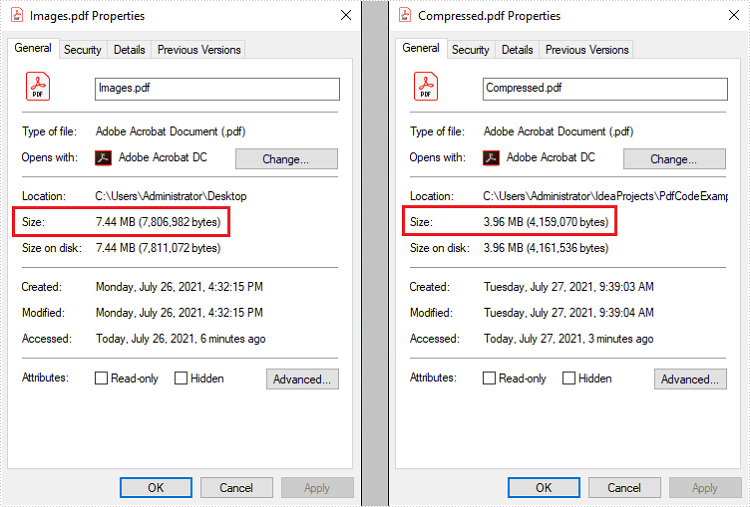
This article demonstrates how to compress high-resolution images of a PDF document using Spire.PDF for Java. Images in low-resolution will not be compressed anymore.
public static void main(String[] args) throws Exception {
        //Load the sample PDF document
        PdfDocument doc = new PdfDocument("C:\\Users\\Administrator\\Desktop\\Images.pdf");

        //Set IncrementalUpdate to false
        doc.getFileInfo().setIncrementalUpdate(false);

        //Declare a PdfPageBase variable
        PdfPageBase page;

        // Create the PdfImageHelper object
        PdfImageHelper imageHelper = new PdfImageHelper();

        //Loop through the pages
        for (int i = 0; i < doc.getPages().getCount(); i++) {

            //Get the specific page
            page = doc.getPages().get(i);
            if (page != null) {

                if(page.getImagesInfo() != null){

                    //Loop through the images in the page
                    for (PdfImageInfo info : imageHelper.getImagesInfo(page))

                        //Use tryCompressImage method the compress high-resolution images
                        info.tryCompressImage();
                    }
                }
            }
        //Save to file
        doc.saveToFile("output/Compressed.pdf");
        }
Java: Get Coordinates of Text or Images in PDF
Getting the coordinates of text or images in a PDF helps accurately identify elements, making it easier to extract content. This is especially important for data analysis, where specific information needs to be pulled from complicated layouts. Additionally, knowing these coordinates allows users to add notes, marks, or stamps in the right places, improving document interactivity and collaboration by letting them highlight important sections or add comments exactly where they're needed.
In this article, you will learn how to get coordinates of the specified text or image in a PDF document using Java and Spire.PDF for Java library.
Install Spire.PDF for Java
First of all, you're required to add the Spire.Pdf.jar file as a dependency in your Java program. The JAR file can be downloaded from this link. If you use Maven, you can easily import the JAR file in your application by adding the following code to your project's pom.xml file.
<repositories>
    <repository>
        <id>com.e-iceblue</id>
        <name>e-iceblue</name>
        <url>https://repo.e-iceblue.com/nexus/content/groups/public/</url>
    </repository>
</repositories>
<dependencies>
    <dependency>
        <groupId>e-iceblue</groupId>
        <artifactId>spire.pdf</artifactId>
        <version>12.9.0</version>
    </dependency>
</dependencies>
Coordinate System in Spire.PDF
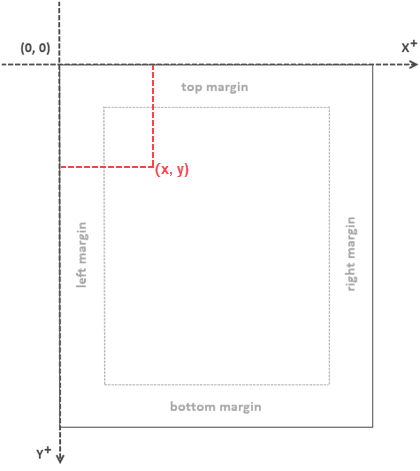
When utilizing Spire.PDF for Java to work with an existing PDF document, it's important to note that the coordinate system's origin is positioned at the top-left corner of the page. The x-axis extends to the right, and the y-axis extends downward, as illustrated below.
Get Coordinates of the Specified Text in PDF
To start, you can use the PdfTextFinder.find() method to search for all occurrences of the specified text on the page, which results in a list of PdfTextFragment. After that, you can retrieve the coordinates of the first occurrence of the text using the PdfTextFragment.getPositions() method.
The steps to get coordinates of the specified text in PDF are as follows:
- Create a PdfDocument object.
- Load a PDF file using PdfDocument.loadFromFile() method.
- Get a specific page using PdfDocument.getPages().get() method.
- Search for all occurrences of the specified text on the page using PdfTextFinder.find() method and return results in a list of PdfTextFragment.
- Access a specific PdfTextFragment in the list, and get the coordinates of the fragment using PdfTextFragment.getPositions() method.
- Java
import com.spire.pdf.PdfDocument;
import com.spire.pdf.PdfPageBase;
import com.spire.pdf.texts.PdfTextFindOptions;
import com.spire.pdf.texts.PdfTextFinder;
import com.spire.pdf.texts.PdfTextFragment;
import com.spire.pdf.texts.TextFindParameter;

import java.awt.geom.Point2D;
import java.util.EnumSet;
import java.util.List;

public class GetTextCoordinates {

    public static void main(String[] args) {

        // Create a PdfDocument object
        PdfDocument doc = new PdfDocument();

        // Load a PDF file
        doc.loadFromFile("C:\\Users\\Administrator\\Desktop\\Input.pdf");

        // Get a specific page
        PdfPageBase page = doc.getPages().get(0);

        // Create a PdfTextFinder object
        PdfTextFinder finder = new PdfTextFinder(page);

        // Set the find options
        PdfTextFindOptions options = new PdfTextFindOptions();
        options.setTextFindParameter(EnumSet.of(TextFindParameter.IgnoreCase));
        finder.setOptions(options);

        // Find all instances of the text
        List fragments = finder.find("Personal Data");

        // Get a specific text fragment
        PdfTextFragment fragment = (PdfTextFragment)fragments.get(0);


        // Get the positions of the text (If the text spans multiple lines, there will be more than one position)
        Point2D[] positions = fragment.getPositions();

        // Get its first position
        double x = positions[0].getX();
        double y = positions[0].getY();

        // Print result
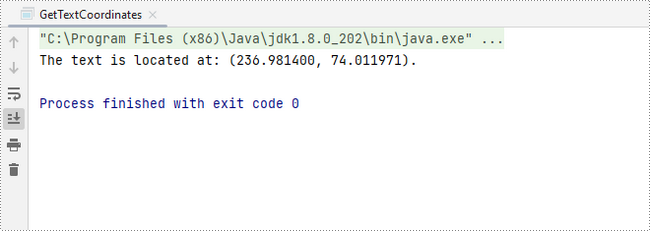
        System.out.println(String.format("The text is located at: (%f, %f).",x,y));
    }
}
Get Coordinates of the Specified Image in PDF
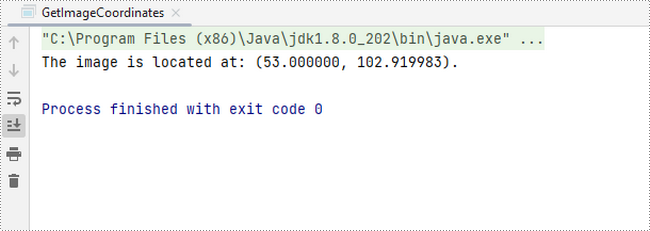
To begin, you can use the PdfImageHelper.getImagesInfo() method to retrieve information about all images on the specified page, storing the results in an array of PdfImageInfo. Next, you can obtain the X and Y coordinates of a specific image using the PdfImageInfo.getBounds().getX() and PdfImageInfo.getBounds().getY() methods.
The steps to get coordinates of the specified image in PDF are as follows:
- Create a PdfDocument object.
- Load a PDF file using PdfDocument.loadFromFile() method.
- Get a specific page using PdfDocument.getPages().get() method.
- Retrieve all the image information on the page using PdfImageHelper.getImagesInfo() method and return results in an array of PdfImageInfo.
- Get X and Y coordinates of a specific image using PdfImageInfo.getBounds().getX() and PdfImageInfo.getBounds().getY() methods
- Java
import com.spire.pdf.PdfDocument;
import com.spire.pdf.PdfPageBase;
import com.spire.pdf.utilities.PdfImageHelper;
import com.spire.pdf.utilities.PdfImageInfo;

public class GetImageCoordinates {

    public static void main(String[] args) {

        // Create a PdfDocument object
        PdfDocument doc = new PdfDocument();

        // Load a PDF file
        doc.loadFromFile("C:\\Users\\Administrator\\Desktop\\Input2.pdf");

        // Get a specific page
        PdfPageBase page = doc.getPages().get(0);

        // Create a PdfImageHelper object
        PdfImageHelper helper = new PdfImageHelper();

        // Get image information from the page
        PdfImageInfo[] imageInfo = helper.getImagesInfo(page);

        // Get X, Y coordinates of the first image
        double x = imageInfo[0].getBounds().getX();
        double y = imageInfo[0].getBounds().getY();

        // Print result
        System.out.println(String.format("The image is located at: (%f, %f).",x,y));
    }
}
Apply for a Temporary License
If you'd like to remove the evaluation message from the generated documents, or to get rid of the function limitations, please request a 30-day trial license for yourself.
Java: Insert, Replace or Delete Images in PDF
Images play a vital role in various documents. They are helpful in conveying complex information that is difficult to present in plain text and making documents more visually appealing. In this article, we will focus on how to insert, replace or delete images in PDF documents in Java using Spire.PDF for Java.
- Insert an Image into a PDF Document
- Replace an Image with Another Image in a PDF Document
- Delete a Specific Image in a PDF Document
Install Spire.PDF for Java
First of all, you're required to add the Spire.Pdf.jar file as a dependency in your Java program. The JAR file can be downloaded from this link. If you use Maven, you can easily import the JAR file in your application by adding the following code to your project's pom.xml file.
<repositories>
    <repository>
        <id>com.e-iceblue</id>
        <name>e-iceblue</name>
        <url>https://repo.e-iceblue.com/nexus/content/groups/public/</url>
    </repository>
</repositories>
<dependencies>
    <dependency>
        <groupId>e-iceblue</groupId>
        <artifactId>spire.pdf</artifactId>
        <version>12.9.0</version>
    </dependency>
</dependencies>
Insert an Image into a PDF Document in Java
The following steps demonstrate how to insert an image into an existing PDF document:
- Initialize an instance of the PdfDocument class.
- Load a PDF document using PdfDocument.loadFromFile() method.
- Get the desired page in the PDF document using PdfDocument.getPages().get() method.
- Load an image using PdfImage.fromFile() method.
- Specify the width and height of the image area on the page.
- Specify the X and Y coordinates to start drawing the image.
- Draw the image on the page using PdfPageBase.getCanvas().drawImage() method.
- Save the result document using PdfDocument.saveToFile() method.
- Java
import com.spire.pdf.FileFormat;
import com.spire.pdf.PdfDocument;
import com.spire.pdf.PdfPageBase;
import com.spire.pdf.graphics.*;

public class AddImage {
    public static void main(String []args){
        //Create a PdfDocument instance
        PdfDocument pdf = new PdfDocument();
        pdf.loadFromFile("Input.pdf");

        //Get the first page in the PDF document
        PdfPageBase page = pdf.getPages().get(0);

        //Load an image
        PdfImage image = PdfImage.fromFile("image.jpg");

        //Specify the width and height of the image area on the page
        float width = image.getWidth() * 0.50f;
        float height = image.getHeight() * 0.50f;

        //Specify the X and Y coordinates to start drawing the image
        float x = 100f;
        float y = 60f;

        //Draw the image at a specified location on the page
        page.getCanvas().drawImage(image, x, y, width, height);

        //Save the result document
        pdf.saveToFile("AddImage.pdf", FileFormat.PDF);
    }
}

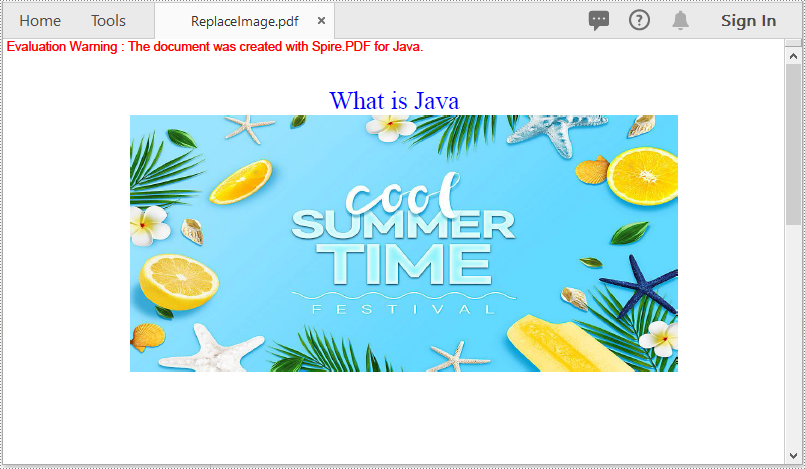
Replace an Image with Another Image in a PDF Document in Java
The following steps demonstrate how to replace an image with another image in a PDF document:
- Initialize an instance of the PdfDocument class.
- Load a PDF document using PdfDocument.loadFromFile() method.
- Get the desired page in the PDF document using PdfDocument.getPages().get() method.
- Load an image using PdfImage.fromFile() method.
- Create the PdfImageHelper class.
- Use the PdfImageHelper. getImagesInfo() method to obtain a collection of all images on the page.
- Use the PdfImageHelper. replaceImage() method to replace the specified index of images in the collection.
- Save the result document using PdfDocument.saveToFile() method.
- Java
import com.spire.pdf.*;
import com.spire.pdf.graphics.PdfImage;
import com.spire.pdf.utilities.PdfImageHelper;
import com.spire.pdf.utilities.PdfImageInfo;

public class ReplaceImage
{
    public static void main(String []args)
    {
        //Create a PdfDocument instance
        PdfDocument doc = new PdfDocument();
        //Load a PDF document
        doc.loadFromFile("AddImage.pdf");

        //Get the first page
        PdfPageBase page = doc.getPages().get(0);

        //Load an image
        PdfImage image = PdfImage.fromFile("image1.jpg");

        // Get the image information from the page
        PdfImageHelper imageHelper = new PdfImageHelper();
        PdfImageInfo[] imageInfos = imageHelper.getImagesInfo(page);

        // Replace Image
        imageHelper.replaceImage(imageInfos[0], image);

        //Save the result document
        doc.saveToFile("ReplaceImage.pdf", FileFormat.PDF);

        //Dispose the document
        doc.dispose();
    }
}
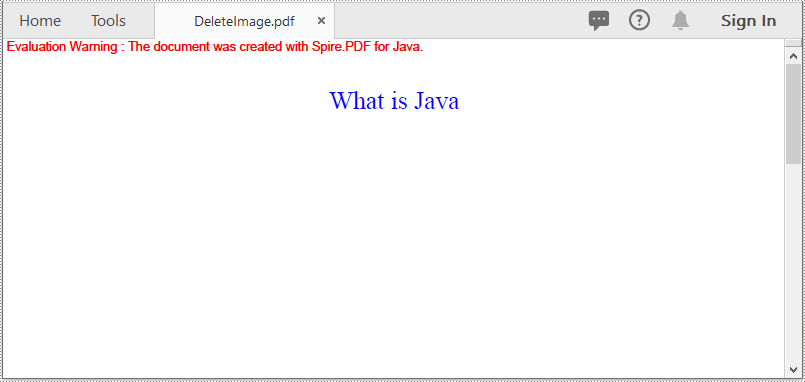
Delete a Specific Image in a PDF Document in Java
The following steps demonstrate how to delete an image from a PDF document:
- Initialize an instance of the PdfDocument class.
- Load a PDF document using PdfDocument.loadFromFile() method.
- Get the desired page in the PDF document using PdfDocument.getPages().get() method.
- Create the PdfImageHelper class.
- Use the PdfImageHelper. getImagesInfo() method to obtain a collection of all images on the page.
- Use the PdfImageHelper. deleteImage() method to delete specific images on the page.
- Save the result document using PdfDocument.saveToFile() method.
- Java
import com.spire.pdf.*;
import com.spire.pdf.utilities.PdfImageHelper;
import com.spire.pdf.utilities.PdfImageInfo;

public class DeleteImage
{
    public static void main(String []args)
    {
        //Create a PdfDocument instance
        PdfDocument pdf = new PdfDocument();
        //Load a PDF document
        pdf.loadFromFile("AddImage.pdf");

        //Get the first page
        PdfPageBase page = pdf.getPages().get(0);

        // Get the image information from the page
        PdfImageHelper imageHelper = new PdfImageHelper();
        PdfImageInfo[] imageInfos = imageHelper.getImagesInfo(page);

        //Delete the first image on the page
        imageHelper.deleteImage(imageInfos[0]);

        //Save the result document
        pdf.saveToFile("DeleteImage.pdf", FileFormat.PDF);

        //Dispose the document
        pdf.dispose();
    }
}
Apply for a Temporary License
If you'd like to remove the evaluation message from the generated documents, or to get rid of the function limitations, please request a 30-day trial license for yourself.
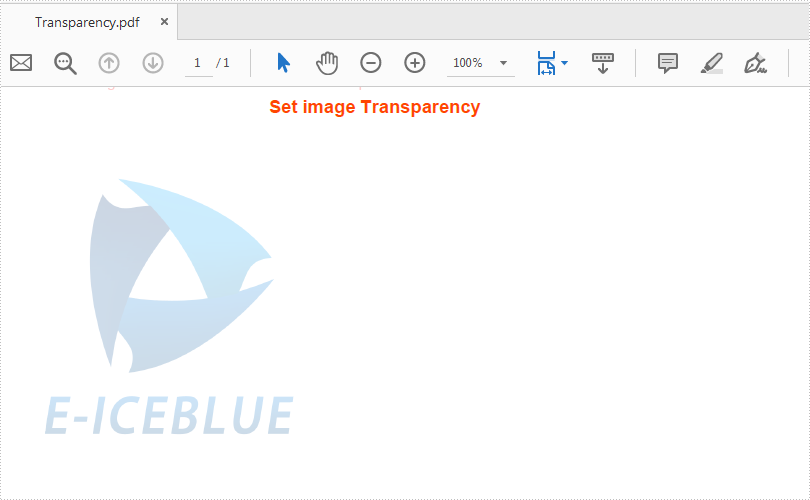
Set image transparency on PDF file in Java
This article demonstrates how to set the transparency of image on a PDF file using Spire.PDF for Java.
import com.spire.pdf.*;
import com.spire.pdf.graphics.*;
import java.awt.geom.*;
import java.awt.*;

public class ImageTransparency {
    public static void main(String[] args) {

        //Create a PDFDocument
        PdfDocument doc = new PdfDocument();
        //Add a section
        PdfSection section = doc.getSections().add();

        // Load image and set its width and height
        PdfImage image = PdfImage.fromFile("logo.png");
        double imageWidth = image.getPhysicalDimension().getWidth() / 3;
        double imageHeight = image.getPhysicalDimension().getHeight() / 3;

        //Add a page
        PdfPageBase page = section.getPages().add();
        float pageWidth = (float) page.getCanvas().getClientSize().getWidth();
        float y = 10;

        //Draw Title and set the font and format
        y = y + 5;
        PdfBrush brush = new PdfSolidBrush(new PdfRGBColor(new Color(255,69,0)));
        PdfTrueTypeFont font = new PdfTrueTypeFont(new Font("Arial", Font.BOLD,12));
        PdfStringFormat format = new PdfStringFormat(PdfTextAlignment.Center);
        String text = String.format(" Set image Transparency ");
        page.getCanvas().drawString(text, font, brush, pageWidth / 2, y, format);
        Dimension2D size = font.measureString(text, format);
        y = y + (float) size.getHeight() + 6;

        //Set image transparency
        page.getCanvas().setTransparency(0.2f, 0.2f, PdfBlendMode.Normal);

        //Add image to the page
        page.getCanvas().drawImage(image, 0, y, imageWidth, imageHeight);
        page.getCanvas().save();

        // Save pdf file.
        doc.saveToFile("output/Transparency.pdf");
        // Close pdf file
        doc.close();
    }
}
Effective screenshot after adding the image to PDF and set the image transparency: