Convert PowerPoint to Markdown in Python
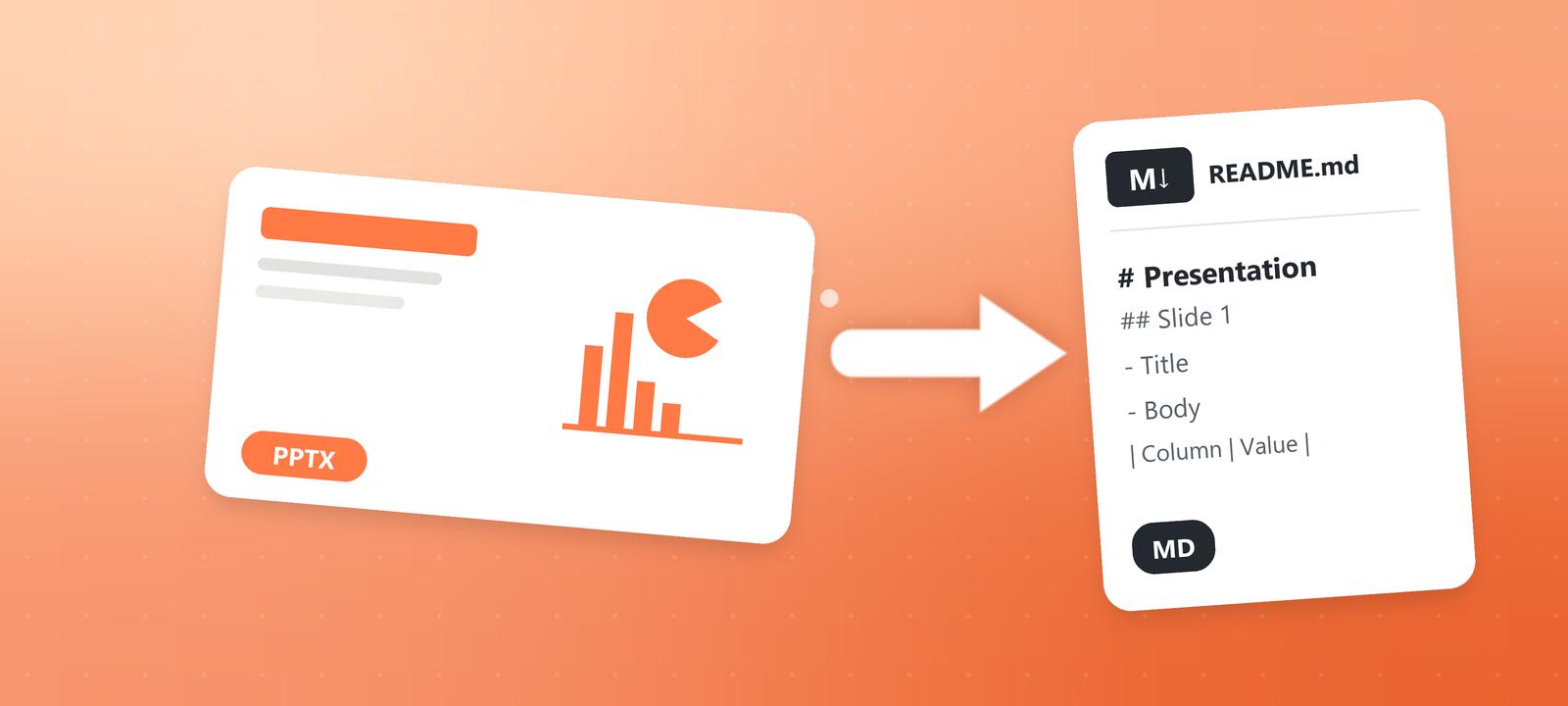
PowerPoint locks content inside slides. Each page is a canvas, and titles and body text sit in separate shape frames. To move that content into documents, a knowledge base, or a large language model, you first need to turn it back into editable plain text. Markdown works well for that layer, and in a Git repository it also shows line-by-line diffs.
This article uses Spire.Presentation for Python to convert PowerPoint presentations to Markdown. You can also export only one slide, or export several slides in a loop. The process runs without Microsoft PowerPoint installed.
This article covers:
- Install the Python PowerPoint to Markdown library
- Convert a whole PowerPoint presentation to Markdown
- Export a specific slide to Markdown
- Summary
- FAQ
Install the Python PowerPoint to Markdown Library
Install Command
Before converting, install the library with pip:
pip install Spire.Presentation
For installation help, see How to Install Spire.Presentation for Python in VS Code.
Convert a Whole PowerPoint Presentation to Markdown
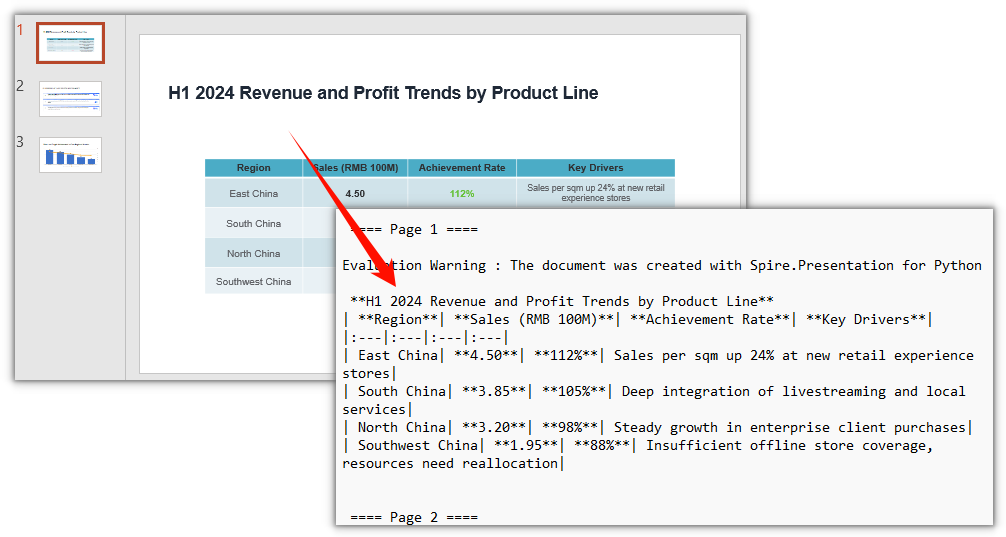
Presentation.SaveToFile with FileFormat.Markdown converts a whole PowerPoint presentation to Markdown in one call. Titles, paragraphs and tables keep their original hierarchy, and slides are separated by ==== Page N ==== page markers.
Steps:
- Create a
Presentationobject. - Load the PPT/PPTX file with
Presentation.LoadFromFile. - Save the whole presentation as Markdown with
Presentation.SaveToFileandFileFormat.Markdown. - Release resources.
from spire.presentation import *

# Create a Presentation object
presentation = Presentation()

# Load the PowerPoint file
presentation.LoadFromFile("DataBriefing.pptx")

# Save the whole presentation as a Markdown file
presentation.SaveToFile("DataBriefing.md", FileFormat.Markdown)

# Release resources
presentation.Dispose()
The Markdown file produced by converting the whole PowerPoint presentation:
Export a Specific Slide to Markdown
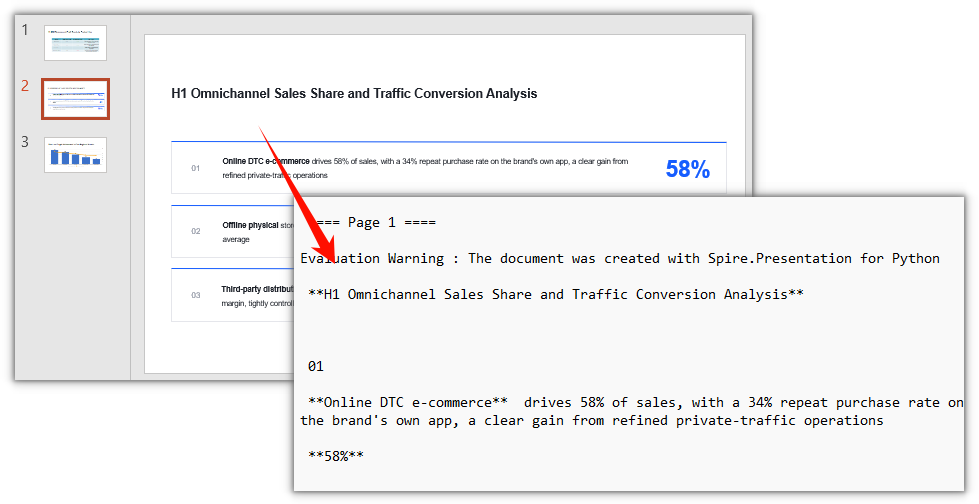
When you need just one page, there is no need to export the whole deck and trim it afterward. ISlide.SaveToFile exports a specific slide to Markdown: get the target page with Slides[index], then save it as Markdown on its own.
Steps:
- Create a
Presentationobject. - Load the PPT/PPTX file with
Presentation.LoadFromFile. - Get the target slide with
Presentation.Slides[index]. - Save that slide as Markdown with
ISlide.SaveToFileandFileFormat.Markdown. - Release resources.
from spire.presentation import *

# Create a Presentation object
presentation = Presentation()

# Load the PowerPoint file
presentation.LoadFromFile("DataBriefing.pptx")

# Get the second slide (index starts at 0)
slide = presentation.Slides[1]

# Save the specified slide as a Markdown file
slide.SaveToFile("Slide-2.md", FileFormat.Markdown)

# Release resources
presentation.Dispose()
The Markdown file produced by exporting a specific slide:
Export Multiple Slides to Markdown at Once
When you need more than one page, put the slide indexes in a loop and call Slides[index].SaveToFile page by page. Each slide is saved as its own Markdown file:
from spire.presentation import *

# Create a Presentation object
presentation = Presentation()

# Load the PowerPoint file
presentation.LoadFromFile("DataBriefing.pptx")

# Export the first and second slides in order
for index in (0, 1):
    slide = presentation.Slides[index]
    slide.SaveToFile(f"Slide-{index + 1}.md", FileFormat.Markdown)

# Release resources
presentation.Dispose()
Each slide is exported separately, so page numbers in the Markdown restart from Page 1.
Summary
Whole-deck conversion and single-slide export both work on the same Presentation object. LoadFromFile reads the file, FileFormat.Markdown sets the output format, and SaveToFile writes it out. Export the whole deck directly when that is what you need. To take only a few pages, pull out the target slides and save them individually, or put them in a loop.
FAQ
Do I need Microsoft PowerPoint installed to convert
Reason: Spire.Presentation for Python parses the PPT/PPTX file structure itself and does not call Office components.
Solution: No. Install the Python library and the conversion runs.
Can I convert multiple PowerPoint files at once
Reason: One Presentation object maps to one presentation, so it handles one file at a time.
Solution: Put the conversion logic in a loop and process each PPT/PPTX in a directory:
import os
from spire.presentation import *

for name in os.listdir("presentations"):
    if name.endswith(".pptx"):
        presentation = Presentation()
        presentation.LoadFromFile(os.path.join("presentations", name))
        base = os.path.splitext(name)[0]
        presentation.SaveToFile(os.path.join("markdown", base + ".md"), FileFormat.Markdown)
        presentation.Dispose()
Why does each page in the exported Markdown start with a warning line
Reason: Without a license applied, Spire.Presentation for Python inserts an Evaluation Warning line into the exported content.
Solution: Apply a temporary license and the line no longer appears. See "Get a Free License" below.
Get a Free License
If you want to remove the evaluation message from the result document or lift the feature limits, contact sales for a temporary license valid for 30 days.
Python: Convert PPS and PPT to PPTX
Converting between presentation documents is a common task, especially when dealing with different versions of Microsoft PowerPoint. PPS is used to display presentations directly as finalized documents. PPT is an older format compatible with PowerPoint 97-2003. PPTX, the default editable format in the latest version of PowerPoint, offers better data recovery capabilities, smaller file sizes, and enhanced security.
Whether you need to edit PPS documents or ensure compatibility with modern tools and features, converting them to PPTX is essential. This article will demonstrate how to convert PPS and PPT to PPTX documents using Python with Spire.Presentation for Python. Read on to learn more.
Install Spire.Presentation
This scenario requires Spire.Presentation for Python and plum-dispatch v1.7.4. They can be easily installed in your Windows through the following pip commands.
pip install Spire.Presentation
If you are unsure how to install, please refer to this tutorial: How to Install Spire.Presentation for Python on Windows.
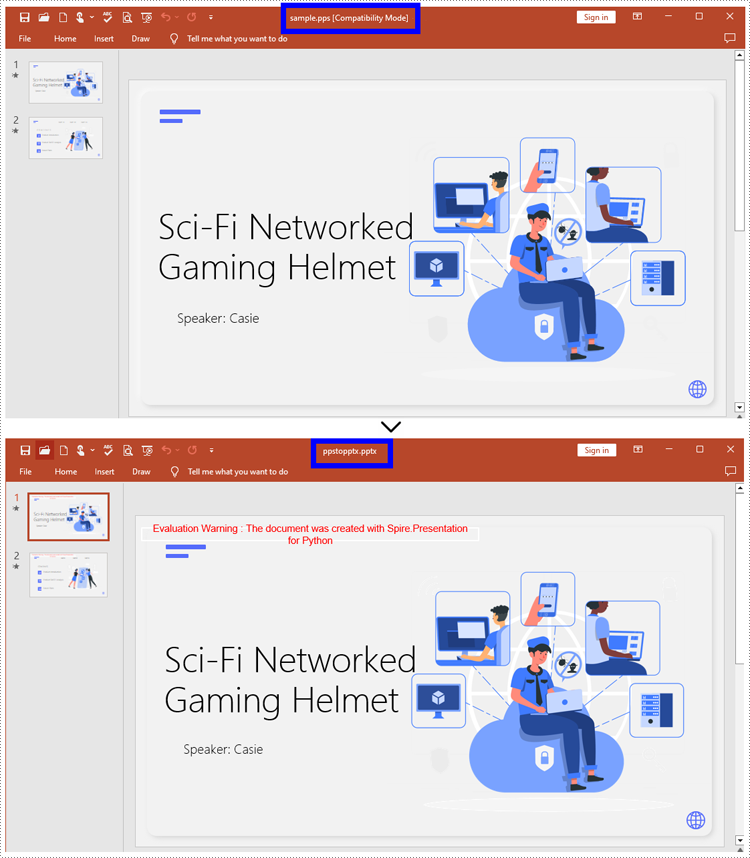
How to Convert PPS to PPTX with Python
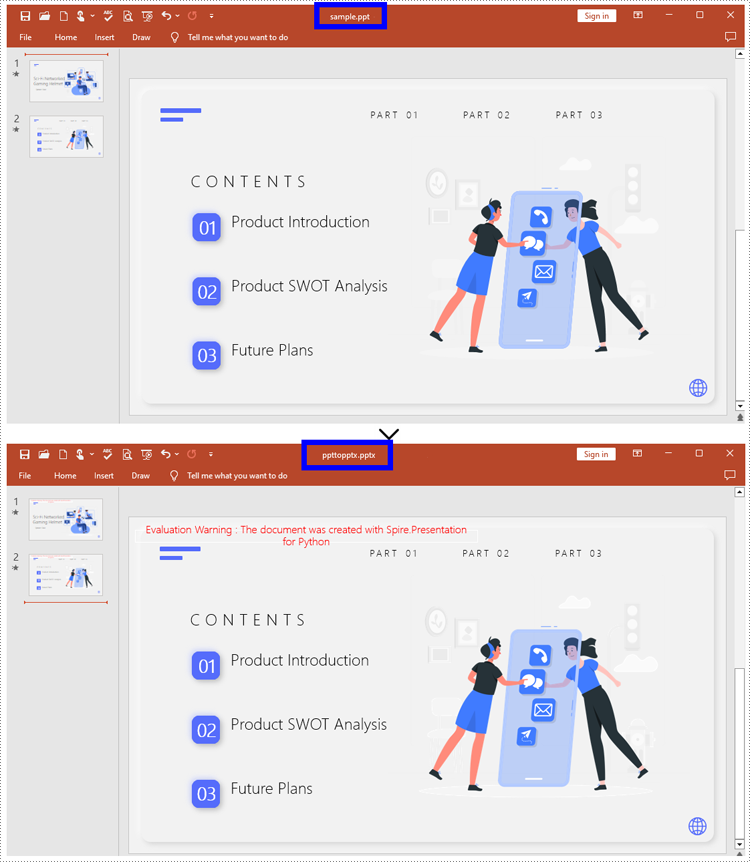
To convert PPS to PPTX format, you can call Document.SaveToFile() method offered by Spire.Presentation for Python. It supports converting various formats to PPT(X), such as PPS and PPT, as well as converting PPT documents to other formats like PDF and images (PNG, JPG, BMP, SVG).
Steps to convert PPS to PPTX:
- Create an object for the Presentation class.
- Import the document to be converted with Document.LoadFromFile() method.
- Convert it to a PPTX document using Document.SaveToFile() method.
Here is the code example for you:
- Python
from spire.presentation.common import *
from spire.presentation import *
# Create a Presentation document object
pre = Presentation()
# Load the file from the disk
pre.LoadFromFile("input/sample.pps")
# Save the document as PPTX
pre.SaveToFile("ppstopptx.pptx", FileFormat.Pptx2010)
pre.Dispose()
How to Convert PPT to PPTX with Python
Compared with PPT, PPTX has many advantages. Despite being mentioned above, it supports inserting more multimedia content and advanced formats, thereby improving the overall quality and performance of presentations. Spire.Presentation for Python provides Document.SaveToFile() to convert PPT to PPTX without data loss.
Steps to convert PPT to PPTX:
- Instantiate a new Presentation object.
- Load the document from the files with Document.LoadFromFile().
- Save the PPT document as a PPTX document by Document.SaveToFile().
Below is the code example to refer to:
- Python
from spire.presentation.common import *
from spire.presentation import *

# Create an instance of the Presentation class
pre = Presentation()

# Load the file to be converted
pre.LoadFromFile("input/Sample1.ppt")

# Convert the document to PPTX format
pre.SaveToFile("ppttopptx.pptx", FileFormat.Pptx2010)

pre.Dispose()
Apply for a Temporary License
If you'd like to remove the evaluation message from the generated documents, or to get rid of the function limitations, please request a 30-day trial license for yourself.
Python: Convert PowerPoint to HTML
Converting PowerPoint to Html is a way to share your presentations with others online. By converting to Html, you can publish the document content on a web page, making it universally accessible and appealing to diverse audiences. In this article, you will learn how to convert PowerPoint presentations to HTML format in Python using Spire.Presentation for Python.
Install Spire.Presentation for Python
This scenario requires Spire.Presentation for Python and plum-dispatch v1.7.4. They can be easily installed in your Windows through the following pip command.
pip install Spire.Presentation
If you are unsure how to install, please refer to this tutorial: How to Install Spire.Presentation for Python on Windows
Convert a PowerPoint Presentation to HTML in Python
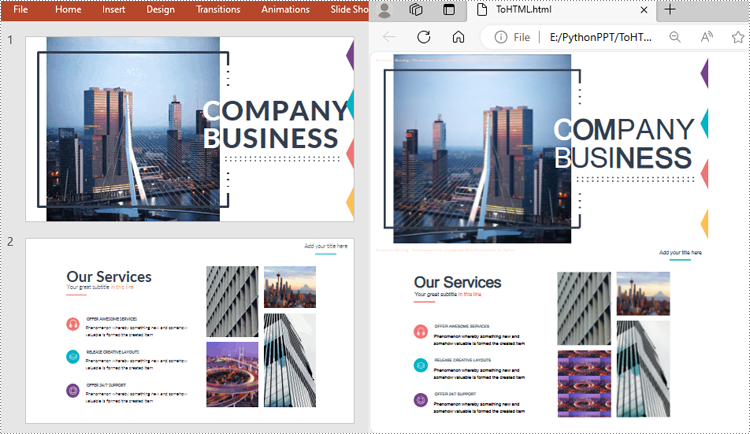
The Presentation.SaveToFile() method offered by Spire.Presentation for Python supports converting a PowerPoint presentation to HTML format. The following are the detailed steps:
- Create a Presentation instance.
- Load a PowerPoint document using Presentation.LoadFromFile() method.
- Save the PowerPoint document to HTML format using Presentation.SaveToFile() method.
- Python
from spire.presentation.common import *
from spire.presentation import *

inputFile ="Input.pptx"
outputFile = "ToHTML.html"

# Create a Presentation instance
ppt = Presentation()

# Load a PowerPoint document
ppt.LoadFromFile(inputFile)

#Save the document to HTML format
ppt.SaveToFile(outputFile, FileFormat.Html)
ppt.Dispose()
Convert a Specific PowerPoint Slide to HTML in Python
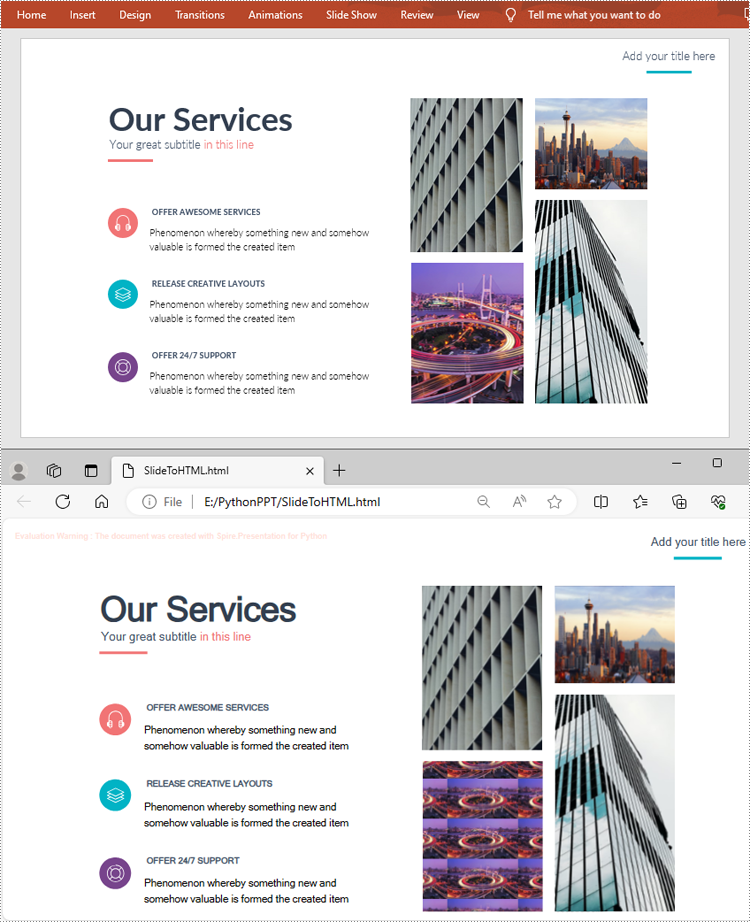
If you only need to convert a specific presentation slide to HTML, you can use the ISlide.SaveToFile(String, FileFormat) method. The following are the detailed steps.
- Create a Presentation instance.
- Load a PowerPoint document using Presentation.LoadFromFile() method.
- Get a specific slide by its index using Presentation.Slides[] property.
- Save the presentation slide to HTML format using ISlide.SaveToFile() method.
- Python
from spire.presentation.common import *
from spire.presentation import *

inputFile ="Input.pptx"
outputFile = "SlideToHTML.html"

# Create a Presentation instance
ppt = Presentation()

# Load a PowerPoint document
ppt.LoadFromFile(inputFile)

# Get the second slide
slide = ppt.Slides[1]

# Save the slide to HTML format
slide.SaveToFile(outputFile, FileFormat.Html)
ppt.Dispose()
Apply for a Temporary License
If you'd like to remove the evaluation message from the generated documents, or to get rid of the function limitations, please request a 30-day trial license for yourself.
Python: Convert PowerPoint to Images (PNG, JPG, BMP, SVG)
Images are universally compatible and can be easily shared across various platforms, devices, and applications. By converting PowerPoint slides to images, you can distribute your content effortlessly via email, messaging apps, websites, or social media platforms. This makes your presentation accessible to a wider audience and ensures that it can be viewed by anyone, regardless of the software or device they are using. In this article, we will explain how to convert PowerPoint to images in Python using Spire.Presentation for Python.
- Convert PowerPoint Presentation to JPG, PNG or BMP Images
- Convert PowerPoint Presentation to JPG, PNG or BMP Images with a Specific Size
- Convert PowerPoint Presentation to SVG Images
Install Spire.Presentation for Python
This scenario requires Spire.Presentation for Python and plum-dispatch v1.7.4. They can be easily installed in your Windows through the following pip command.
pip install Spire.Presentation
If you are unsure how to install, please refer to this tutorial: How to Install Spire.Presentation for Python on Windows
Convert PowerPoint Presentation to JPG, PNG or BMP Images in Python
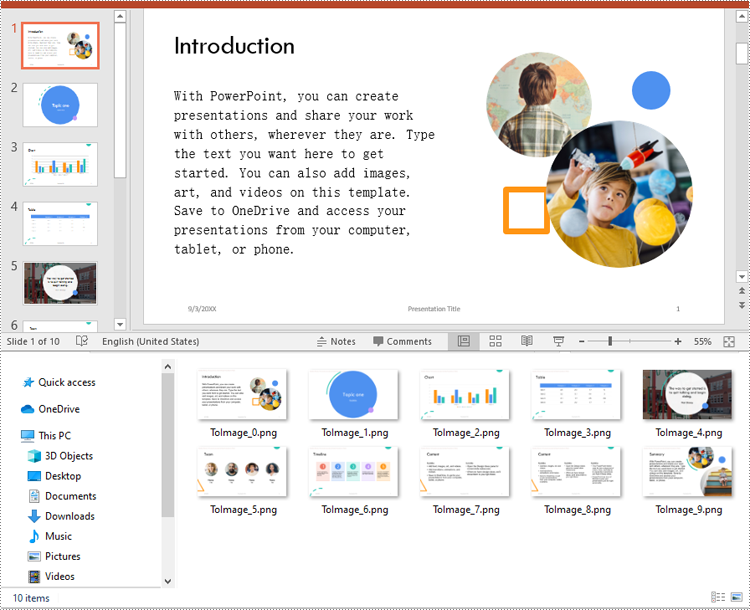
Spire.Presentation for Python offers the ISlide.SaveAsImage() method which enables you to convert the slides in a PowerPoint presentation to image files in formats like PNG, JPG or BMP with ease. The detailed steps are as follows:
- Create a Presentation object.
- Load a PowerPoint presentation using Presentation.LoadFromFile() method.
- Loop through the slides in the presentation.
- Save each slide to an image stream using ISlide.SaveAsImage() method.
- Save the image stream to a JPG, PNG or BMP file using Stream.Save() method.
- Python
from spire.presentation.common import *
from spire.presentation import *

# Create a Presentation object
presentation = Presentation()

# Load a PowerPoint presentation
presentation.LoadFromFile("Sample.pptx")

# Loop through the slides in the presentation
for i, slide in enumerate(presentation.Slides):
    # Specify the output file name
    fileName ="Output/ToImage_" + str(i) + ".png"
    # Save each slide as a PNG image
    image = slide.SaveAsImage()
    image.Save(fileName)
    image.Dispose()

presentation.Dispose()
Convert PowerPoint Presentation to JPG, PNG or BMP Images with a Specific Size in Python
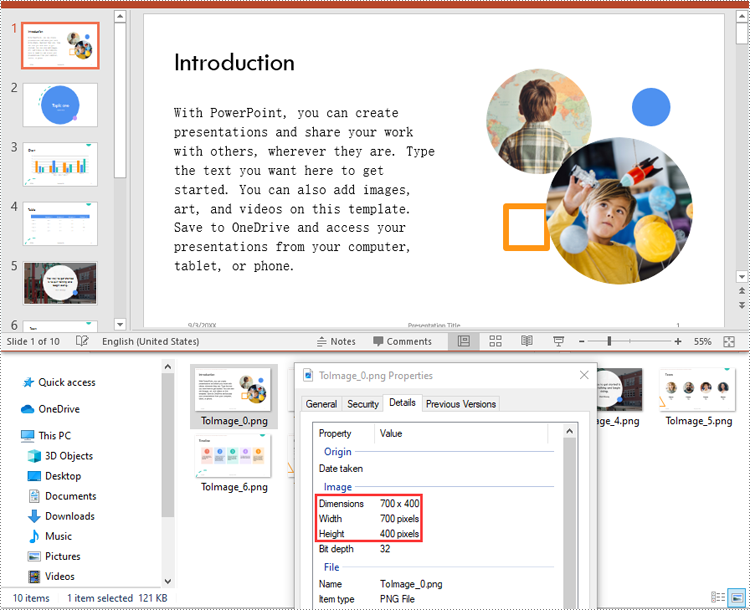
You can convert the slides in a PowerPoint presentation to images with a specific size using ISlide.SaveAsImageByWH() method. The detailed steps are as follows:
- Create a Presentation object.
- Load a PowerPoint presentation using Presentation.LoadFromFile() method.
- Loop through the slides in the presentation.
- Save each slide to an image stream using ISlide.SaveAsImageByWH() method.
- Save the image stream to a JPG, PNG or BMP file using Stream.Save() method.
- Python
from spire.presentation.common import *
from spire.presentation import *

# Create a Presentation object
presentation = Presentation()

# Load a PowerPoint presentation
presentation.LoadFromFile("Sample.pptx")

# Loop through the slides in the presentation
for i, slide in enumerate(presentation.Slides):
    # Specify the output file name
    fileName ="Output/ToImage_" + str(i) + ".png"
    # Save each slide to a PNG image with a size of 700 * 400 pixels
    slide1 = (ISlide)(slide)
    image = slide1.SaveAsImageByWH(700, 400)
    image.Save(fileName)
    image.Dispose()

presentation.Dispose()
Convert PowerPoint Presentation to SVG Images in Python
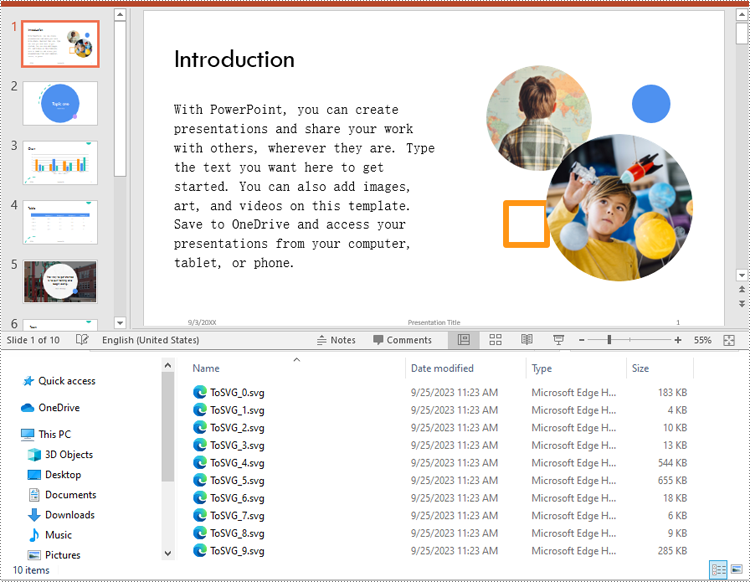
To convert the slides in a PowerPoint presentation to SVG images, you can use the ISlide.SaveToSVG() method. The detailed steps are as follows:
- Create a Presentation object.
- Load a PowerPoint presentation using Presentation.LoadFromFile() method.
- Enable the Presentation.IsNoteRetained property to retain notes when converting the presentation to SVG files.
- Loop through the slides in the presentation.
- Save each slide to an SVG stream using ISlide.SaveToSVG() method.
- Save the SVG stream to an SVG file using Stream.Save() method.
- Python
from spire.presentation.common import *
from spire.presentation import *

# Create a Presentation object
presentation = Presentation()

# Load a PowerPoint presentation
presentation.LoadFromFile("Sample.pptx")

# Enable the IsNoteRetained property to retain notes when converting the presentation to SVG files
presentation.IsNoteRetained = True

# Loop through the slides in the presentation
for i, slide in enumerate(presentation.Slides):
    # Specify the output file name
    fileName = "SVG/ToSVG_" + str(i) + ".svg"
    # Save each slide to an SVG image
    slide1 = (ISlide)(slide)
    svgStream = slide1.SaveToSVG()
    svgStream.Save(fileName)

presentation.Dispose()
Apply for a Temporary License
If you'd like to remove the evaluation message from the generated documents, or to get rid of the function limitations, please request a 30-day trial license for yourself.
Convert PowerPoint PPT or PPTX to PDF in Python: A Comprehensive Guide
Looking to convert PowerPoint PPT or PPTX files to PDF using Python? This comprehensive guide walks you through the process of converting PowerPoint to PDF with ease. You'll learn how to perform quick conversions using default settings, as well as explore advanced features such as exporting specific slides, adjusting slide size for optimal output, including hidden slides, and generating PDF/A-compliant files for archival use.
- Why Convert PowerPoint to PDF
- Python PowerPoint to PDF Converter Library Installation
- Convert PowerPoint to PDF with Default Settings
- Export PowerPoint to PDF with Advanced Settings
- Conclusion
- FAQs
Why Convert PowerPoint to PDF?
Converting PowerPoint files to PDF offers several advantages:
- Universal Compatibility: PDF files can be opened on virtually any device or operating system without needing PowerPoint installed.
- Preserved Formatting: Unlike PowerPoint files, PDFs lock in layout, fonts, and images to avoid rendering inconsistencies.
- Enhanced Security: PDF files can be encrypted, making them ideal for sharing confidential information.
- Reduced File Size: PDFs often have a smaller file size than PowerPoint presentations, making them easier to share via email or upload online.
Python PowerPoint to PDF Converter Library Installation
To convert PowerPoint presentations to PDF in Python, you can use Spire.Presentation for Python. This powerful library allows you to create, read, modify, and convert PowerPoint PPTX and PPT files without needing Microsoft PowerPoint installed.
Why Choose Spire.Presentation for Python?
- High Fidelity: Ensures accurate conversion while preserving formatting and layout.
- User-Friendly: Simple API makes it easy to implement in your projects.
- Versatile: Supports a wide range of PowerPoint features and formats.
Install Spire.Presentation for Python
Before starting with the conversion process, install Spire.Presentation via pip using the following command:
pip install Spire.Presentation
Need help with installation? Refer to this detailed documentation: How to Install Spire.Presentation for Python on Windows
Convert PowerPoint to PDF with Default Settings
Spire.Presentation makes it easy to convert PowerPoint files to PDF with just a few lines of code.
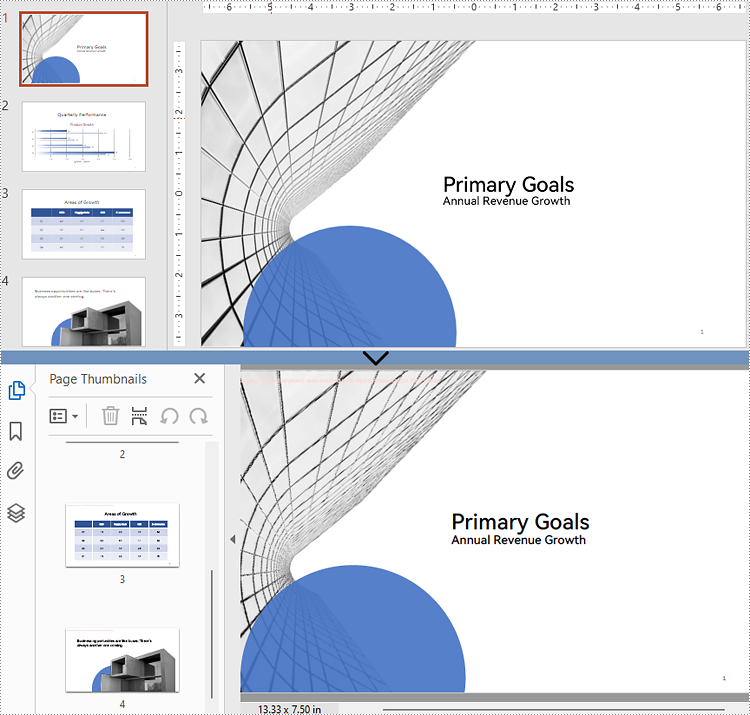
The example below shows how to load a .pptx or .ppt file and export it to PDF using default settings - ideal for quick conversions where no customization is needed.
from spire.presentation import *

# Create a Presentation object
presentation = Presentation()

# Load a PPTX file
presentation.LoadFromFile("Input.pptx")
# Or load a PPT file
# presentation.LoadFromFile("Input.ppt")

# Save the file as a PDF
presentation.SaveToFile("Basic_conversion.pdf", FileFormat.PDF)
presentation.Dispose()
Export PowerPoint to PDF with Advanced Settings
Spire.Presentation provides a range of advanced settings that give you control over how the PDF output is generated, making it ideal for both professional use and archival purposes. For example, you can:
- Export a Particular Slide to PDF
- Adjust Slide Size for Optimal PDF Output
- Include Hidden Slides in the Converted PDF
- Generate PDF/A-compliant Files from PowerPoint
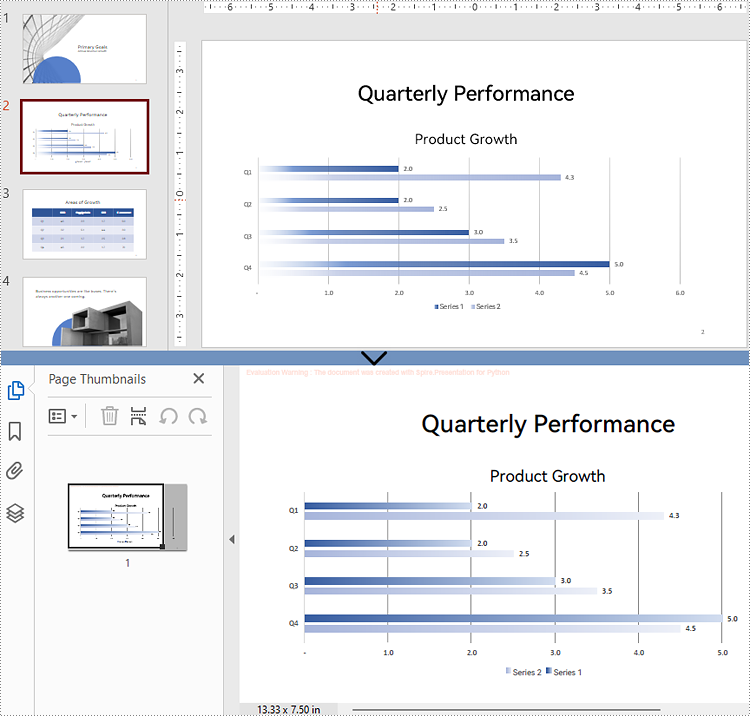
Export a Particular Slide to PDF
If you only need to share a specific part of your presentation, Spire.Presentation allows you to extract and convert individual slides to a PDF. This is especially useful for generating slide-specific reports or handouts.
from spire.presentation import *

# Create a Presentation object
presentation = Presentation()

# Load the PowerPoint file
presentation.LoadFromFile("Input.pptx")

# Get the desired slide (e.g., the second slide)
slide = presentation.Slides.get_Item(1)

# Save the slide as a PDF
slide.SaveToFile("Single_slide.pdf", FileFormat.PDF)
presentation.Dispose()
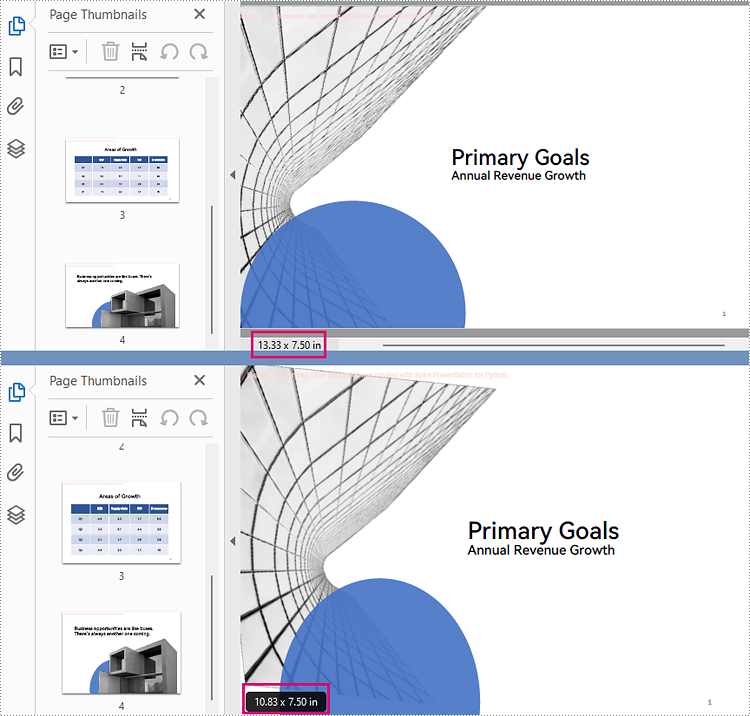
Adjust Slide Size for Optimal PDF Output
To ensure that your PDF meets printing or layout requirements, you can adjust the slide dimensions before conversion. Spire.Presentation lets you set standard slide sizes as well as custom slide dimensions so the output aligns with your document formatting needs.
from spire.presentation import *

# Create a Presentation object
presentation = Presentation()
# Load the PowerPoint file
presentation.LoadFromFile("Input.pptx")

# Set the slide size to a standard slide size like A4
presentation.SlideSize.Type = SlideSizeType.A4

# # Or you can set custom slide size (e.g., 720x540 points)
# presentation.SlideSize.Size = SizeF(720.0, 540.0)

# Fit content to the new slide size
presentation.SlideSizeAutoFit = True

# Save the presentation as a PDF
presentation.SaveToFile("Resized_output.pdf", FileFormat.PDF)
presentation.Dispose()
Include Hidden Slides in the Converted PDF
By default, hidden slides are excluded from conversion. However, if your workflow requires complete documentation, Spire.Presentation enables you to include hidden slides in the output PDF.
from spire.presentation import *

# Create a Presentation object
presentation = Presentation()

# Load the PowerPoint file
presentation.LoadFromFile("Input.pptx")

# Get the SaveToPdfOption object
option = presentation.SaveToPdfOption

# Enable ContainHiddenSlides option
option.ContainHiddenSlides = True

# Save the presentation as a PDF
presentation.SaveToFile("Include_hidden_slides.pdf", FileFormat.PDF)
presentation.Dispose()
Generate PDF/A-compliant Files from PowerPoint
PDF/A is a specialized format intended for long-term digital preservation. If your organization needs to archive presentations in a standards-compliant format, Spire.Presentation allows you to export PDF/A files that conform to archival best practices.
from spire.presentation import *

# Create a Presentation object
presentation = Presentation()

# Load the PowerPoint file
presentation.LoadFromFile("Input.pptx")

# Get the SaveToPdfOption object
option = presentation.SaveToPdfOption

# Set PDF compliance to PDF/A-1a
option.PdfConformanceLevel = PdfConformanceLevel.Pdf_A1A

# Save the presentation as a PDF
presentation.SaveToFile("Pdf_a_output.pdf", FileFormat.PDF)
presentation.Dispose()
Conclusion
Spire.Presentation for Python offers a robust set of features for converting PowerPoint files to PDF with minimal effort and maximum flexibility. Whether you require simple conversions or advanced customization options, this library gives developers full control over the process. From exporting individual slides to generating archival-quality outputs, it’s a comprehensive tool for PowerPoint-to-PDF conversion workflows in Python.
FAQs
Q1: Can I convert PPTX and PPT files without installing Microsoft PowerPoint?
A1: Yes, Spire.Presentation is a standalone library and does not require Microsoft Office or PowerPoint to be installed.
Q2: Does the library support batch conversion of multiple PowerPoint files?
A2: Yes, you can write scripts to loop through multiple files and convert each to PDF programmatically.
Q3: Is PDF/A-1a the only compliance level supported for PPT to PDF/A conversion?
A3: No, Spire.Presentation supports multiple compliance levels for PPT to PDF/A conversion, including PDF/A-1a, PDF/A-2a, PDF/A-3a, PDF/A-1b, PDF/A-2b, and PDF/A-3b.
Get a Free License
To fully experience the capabilities of Spire.Presentation for Python without any evaluation limitations, you can request a free 30-day trial license.