Python: Insert, Extract, or Remove OLE Objects in PowerPoint Presentations
Incorporating external content into PowerPoint presentations can significantly enhance their impact and relevance. OLE (Object Linking and Embedding) objects provide an efficient way to embed or link various types of external files, such as Excel spreadsheets, Word documents, and PDF files, directly into PowerPoint slides. This functionality not only allows for seamless integration of dynamic data but also enables users to maintain a live connection to the original files. In this article, we will introduce how to insert, extract, or remove OLE objects in PowerPoint presentations in Python using Spire.Presentation for Python.
- Insert OLE Objects into a PowerPoint Presentation
- Extract OLE Objects from a PowerPoint Presentation
- Remove OLE Objects from a PowerPoint Presentation
Install Spire.Presentation for Python
This scenario requires Spire.Presentation for Python and plum-dispatch v1.7.4. They can be easily installed in your Windows through the following pip command.
pip install Spire.Presentation
If you are unsure how to install, please refer to this tutorial: How to Install Spire.Presentation for Python on Windows
Insert OLE Objects into a PowerPoint Presentation in Python
Spire.Presentation for Python provides the ISlide.Shapes.AppendOleObject() method, which allows you to insert various external files (such as Word documents, Excel spreadsheets, PDF files, PowerPoint presentations, and ZIP archives) as OLE objects into PowerPoint slides. The detailed steps are as follows.
- Create an object of the Presentation class.
- Access the desired slide using the Presentation.Slides[index] property.
- Add an OLE object to the slide using the ISlide.Shapes.AppendOleObject() method.
- Set the icon for the OLE object using the IOleObject.SubstituteImagePictureFillFormat.Picture.EmbedImage property.
- Specify the object type using the IOleObject.ProgId property.
- Save the presentation using the Presentation.SaveToFile() method.
- Python
from spire.presentation.common import *
from spire.presentation import *

# Create an object of the Presentation class
ppt = Presentation()

try:
    # Get the first slide
    slide = ppt.Slides[0]

    # Initialize the top position for the first object
    currentTop = 60
    # Spacing between OLE objects
    verticalSpacing = 20

    # Add an Excel icon to the presentation
    excelImageStream = Stream("icons/excel-icon.png")
    oleImage = ppt.Images.AppendStream(excelImageStream)
    # Define the position of the Excel OLE object
    excelRec = RectangleF.FromLTRB(100, currentTop, oleImage.Width + 100, currentTop + oleImage.Height)
    # Add an Excel file to the slide as an OLE object
    oleStream = Stream("Budget.xlsx")
    oleObject = slide.Shapes.AppendOleObject("excel", oleStream, excelRec)
    oleObject.SubstituteImagePictureFillFormat.Picture.EmbedImage = oleImage
    oleObject.ProgId = "Excel.Sheet.12"

    # Update the top position for the next object
    currentTop += oleImage.Height + verticalSpacing

    # Add a Word icon to the presentation
    wordImageStream = Stream("icons/word-icon.png")
    wordOleImage = ppt.Images.AppendStream(wordImageStream)
    # Define the position of the Word OLE object
    wordRec = RectangleF.FromLTRB(100, currentTop, wordOleImage.Width + 100, currentTop + wordOleImage.Height)
    # Add a Word file to the slide as an OLE object
    wordStream = Stream("Document.docx")
    wordOleObject = slide.Shapes.AppendOleObject("word", wordStream, wordRec)
    wordOleObject.SubstituteImagePictureFillFormat.Picture.EmbedImage = wordOleImage
    wordOleObject.ProgId = "Word.Document.12"

    # Update the top position for the next object
    currentTop += wordOleImage.Height + verticalSpacing

    # Add a PDF icon to the presentation
    pdfImageStream = Stream("icons/pdf-icon.png")
    pdfOleImage = ppt.Images.AppendStream(pdfImageStream)
    # Define the position of the PDF OLE object
    pdfRec = RectangleF.FromLTRB(100, currentTop, pdfOleImage.Width + 100, currentTop + pdfOleImage.Height)
    # Add a PDF file to the slide as an OLE object
    pdfStream = Stream("Report.pdf")
    pdfOleObject = slide.Shapes.AppendOleObject("pdf", pdfStream, pdfRec)
    pdfOleObject.SubstituteImagePictureFillFormat.Picture.EmbedImage = pdfOleImage
    pdfOleObject.ProgId = "Acrobat.Document"

    # Update the top position for the next object
    currentTop += pdfOleImage.Height + verticalSpacing

    # Add a zip package icon to the presentation
    zipImageStream = Stream("icons/zip-icon.png")
    zipOleImage = ppt.Images.AppendStream(zipImageStream)
    # Define the position of the zip package OLE object
    zipRec = RectangleF.FromLTRB(100, currentTop, zipOleImage.Width + 100, currentTop + zipOleImage.Height)
    # Add a zip file to the slide as an OLE object
    zipOleStream = Stream("Example.zip")
    zipOleObject = slide.Shapes.AppendOleObject("zip", zipOleStream, zipRec)
    zipOleObject.ProgId = "Package"
    zipOleObject.SubstituteImagePictureFillFormat.Picture.EmbedImage = zipOleImage

    # Save the PowerPoint presentation
    ppt.SaveToFile("AddOLEObjects.pptx", FileFormat.Pptx2010)

finally:
    excelImageStream.Close()
    oleStream.Close()
    wordImageStream.Close()
    wordStream.Close()
    pdfImageStream.Close()
    pdfStream.Close()
    zipImageStream.Close()
    zipOleStream.Close()
    ppt.Dispose()

Extract OLE Objects from a PowerPoint Presentation in Python
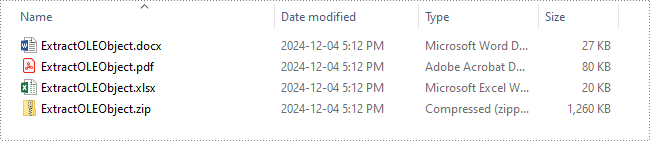
Spire.Presentation for Python enables you to extract the embedded OLE objects from a PowerPoint presentation and save them for further use. The detailed steps are as follows.
- Create an object of the Presentation class.
- Load a PowerPoint presentation using the Presentation.LoadFromFile() method.
- Iterate through all slides in the presentation and all shapes on each slide.
- Check if the shape is an OLE object.
- Get the data of the OLE object using the IOleObject.Data property.
- Identify the type of the OLE object using the IOleObject.ProgId property and save the OLE object data to its original format.
- Python
from spire.presentation.common import *
from spire.presentation import *

# Create an object of the Presentation class
presentation = Presentation()

try:
    # Load the PowerPoint presentation
    presentation.LoadFromFile("AddOLEObjects.pptx")

    # Define output file paths for different types of OLE objects
    output_files = {
        "Acrobat.Document": "ExtractedOLEs/ExtractOLEObject.pdf",
        "Excel.Sheet.12": "ExtractedOLEs/ExtractOLEObject.xlsx",
        "Word.Document.12": "ExtractedOLEs/ExtractOLEObject.docx",
        "Package": "ExtractedOLEs/ExtractOLEObject.zip"
    }

    # Iterate through each slide in the presentation
    for slide in presentation.Slides:
        # Iterate through each shape in the slide
        for shape in slide.Shapes:
            # Check if the shape is an OLE object
            if isinstance(shape, IOleObject):
                ole_object = shape
                # Retrieve the data of the OLE object
                ole_data_stream = ole_object.Data

                # Determine the appropriate output file based on the OLE object's ProgId
                output_file = output_files.get(ole_object.ProgId)
                if output_file:
                    # Save the OLE object data to the corresponding output file
                    ole_data_stream.Save(output_file)
                    # Close stream
                    ole_data_stream.Close()

finally:
    presentation.Dispose()
Remove OLE Objects from a PowerPoint Presentation in Python
If you need to remove unwanted OLE objects from a PowerPoint presentation to streamline your slides, you can use the ISlide.Shapes.Remove() method. The detailed steps are as follows.
- Create an object of the Presentation class.
- Load a PowerPoint presentation using the Presentation.LoadFromFile() method.
- Iterate through all slides in the presentation and all shapes on each slide.
- Check if the shape is an OLE object.
- Store the OLE objects in a list and then remove them from the slide using the ISlide.Shapes.Remove() method.
- Save the presentation using the Presentation.SaveToFile() method.
- Python
from spire.presentation.common import *
from spire.presentation import *

# Create an object of the Presentation class
presentation = Presentation()

try:
    # Load the PowerPoint presentation
    presentation.LoadFromFile("AddOLEObjects.pptx")

    # Iterate through each slide in the presentation
    for slide in presentation.Slides:
        # Create a list to store shapes that are OLE objects
        ole_shapes = []

        # Iterate through each shape in the slide
        for shape in slide.Shapes:
            # Check if the shape is an OLE object
            if isinstance(shape, IOleObject):
                ole_shapes.append(shape)

        # Remove all OLE objects from the slide
        for ole_object in ole_shapes:
            slide.Shapes.Remove(ole_object)

    # Save the modified PowerPoint presentation
    presentation.SaveToFile("RemoveOLEObjects.pptx", FileFormat.Pptx2010)

finally:
    presentation.Dispose()
Apply for a Temporary License
If you'd like to remove the evaluation message from the generated documents, or to get rid of the function limitations, please request a 30-day trial license for yourself.
Python: Add, Modify, or Remove Footers from PowerPoint Documents
In a PowerPoint document, the footer is an area located at the bottom of each slide, typically containing textual information such as page numbers, dates, authors, and more. By adding a footer, you can give your slides a professional look and provide important information. Modifying the footer allows you to adjust the displayed content, style, and position to meet specific needs or styles. Removing the footer can clear the bottom content when extra information is not needed or to maintain a clean appearance. This article will introduce how to use Spire.Presentation for Python to add, modify, or remove footers in PowerPoint documents within a Python project.
- Python Add Footers in PowerPoint Documents
- Python Modify Footers in PowerPoint Documents
- Python Remove Footers in PowerPoint Documents
Install Spire.Presentation for Python
This scenario requires Spire.Presentation for Python and plum-dispatch v1.7.4. They can be easily installed in your Windows through the following pip command.
pip install Spire.Presentation
If you are unsure how to install, please refer to this tutorial: How to Install Spire.Presentation for Python on Windows
Python Add Footers in PowerPoint Documents
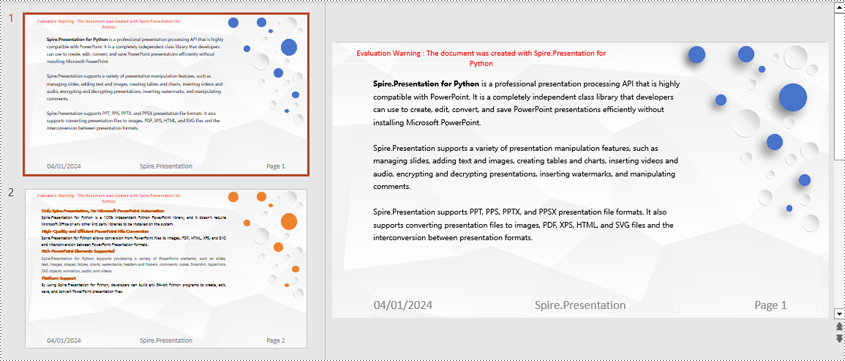
Using Spire.Presentation, you can add footers, page numbers, and time information to the bottom of each page in a PowerPoint document, ensuring consistent footer content across all pages. Here are the detailed steps:
- Create a Presentation object.
- Load a PowerPoint document using the Presentation.LoadFromFile() method.
- Set the footer visible using Presentation.FooterVisible = true and set the footer text.
- Set the slide number visible using Presentation.SlideNumberVisible = true, iterate through each slide, check for the lisence of a page number placeholder, and modify the text to the "Page X" format if found.
- Set the date visible using Presentation.DateTimeVisible = true.
- Set the format of the date using the Presentation.SetDateTime() method.
- Save the document using the Presentation.SaveToFile() method.
- Python
from spire.presentation.common import *
from spire.presentation import *

# Create a Presentation object
presentation = Presentation()

# Load the presentation from a file
presentation.LoadFromFile("Sample1.pptx")

# Set the footer visible
presentation.FooterVisible = True

# Set the footer text to "Spire.Presentation"
presentation.SetFooterText("Spire.Presentation")

# Set the slide number visible
presentation.SlideNumberVisible = True

# Iterate through each slide in the presentation
for slide in presentation.Slides:
    for shape in slide.Shapes:
        if shape.IsPlaceholder:
            # If it is a slide number placeholder
            if shape.Placeholder.Type == PlaceholderType.SlideNumber:
                autoShape = shape if isinstance(shape, IAutoShape) else None
                if autoShape is not None:
                    text = autoShape.TextFrame.TextRange.Paragraph.Text

                    # Modify the slide number text to "Page X"
                    autoShape.TextFrame.TextRange.Paragraph.Text = "Page " + text

# Set the date and time visible
presentation.DateTimeVisible = True

# Set the date and time format
presentation.SetDateTime(DateTime.get_Now(), "MM/dd/yyyy")

# Save the modified presentation to a file
presentation.SaveToFile("AddFooter.pptx", FileFormat.Pptx2016)

# Dispose of the Presentation object resources
presentation.Dispose()
Python Modify Footers in PowerPoint Documents
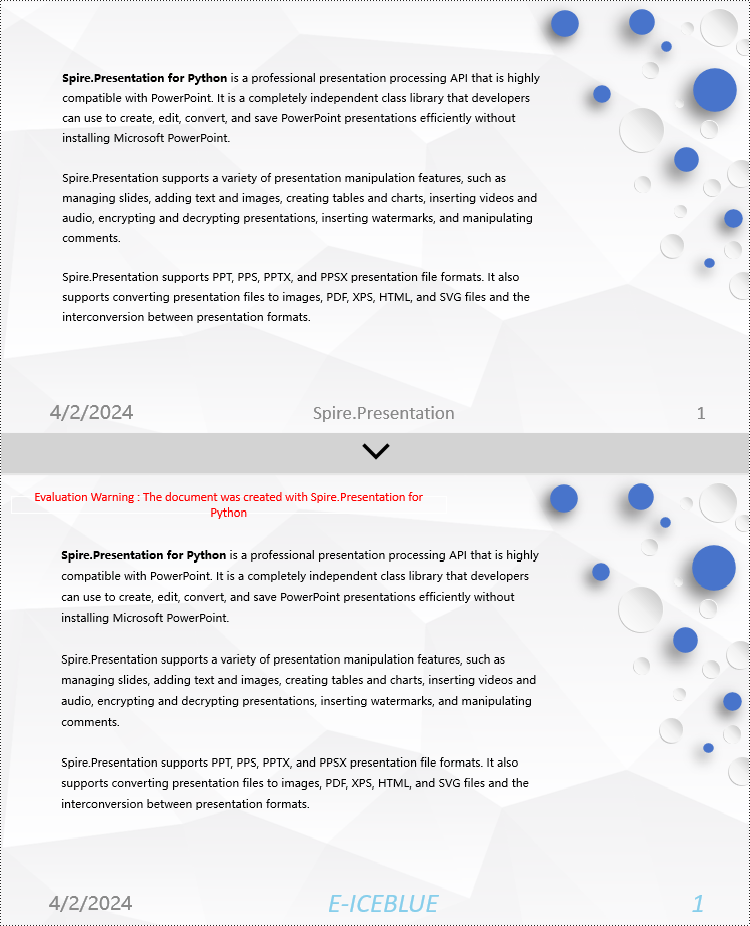
To modify the footer in a PowerPoint document, you first need to inspect the elements of each slide to locate footer and page number placeholders. Then, for each type of placeholder, set the desired content and format to ensure consistent and compliant footers throughout the document. Here are the detailed steps:
- Create a Presentation object.
- Load a PowerPoint document using the Presentation.LoadFromFile() method.
- Use the Presentation.Slides[index] property to retrieve a slide.
- Iterate through the shapes in the slide using a for loop, check each shape to determine if it is a placeholder such as a footer or page number placeholder, and then modify its content or format accordingly.
- Save the document using the Presentation.SaveToFile() method.
- Python
from spire.presentation.common import *
from spire.presentation import *

def change_font(paragraph):
    for textRange in paragraph.TextRanges:
        # Set the text style to italic
        textRange.IsItalic = TriState.TTrue

        # Set the text font
        textRange.EastAsianFont = TextFont("Times New Roman")

        # Set the text font size to 12
        textRange.FontHeight = 34

        # Set the text color
        textRange.Fill.FillType = FillFormatType.Solid
        textRange.Fill.SolidColor.Color = Color.get_SkyBlue()

# Create a Presentation object
presentation = Presentation()

# Load a presentation from a file
presentation.LoadFromFile("Sample2.pptx")

# Get the first slide
slide = presentation.Slides[0]

# Iterate through the shapes on the slide
for shape in slide.Shapes:
   # Check if the shape is a placeholder
   if shape.Placeholder is not None:
       # Get the placeholder type
       type = shape.Placeholder.Type

       # If it is a footer placeholder
       if type == PlaceholderType.Footer:
           # Convert the shape to IAutoShape type
            autoShape = shape if isinstance(shape, IAutoShape) else None
            if autoShape is not None:
                # Set the text content to "E-ICEBLUE"
                autoShape.TextFrame.Text = "E-ICEBLUE"

                # Modify the text font
                change_font(autoShape.TextFrame.Paragraphs[0])

       # If it is a slide number placeholder
       if type == PlaceholderType.SlideNumber:
            # Convert the shape to IAutoShape type
            autoShape = shape if isinstance(shape, IAutoShape) else None
            if autoShape is not None:
                # Modify the text font
                change_font(autoShape.TextFrame.Paragraphs[0])

# Save the modified presentation to a file
presentation.SaveToFile("ModifiedFooter.pptx", FileFormat.Pptx2016)

# Release the resources of the Presentation object
presentation.Dispose()
Python Remove Footers in PowerPoint Documents
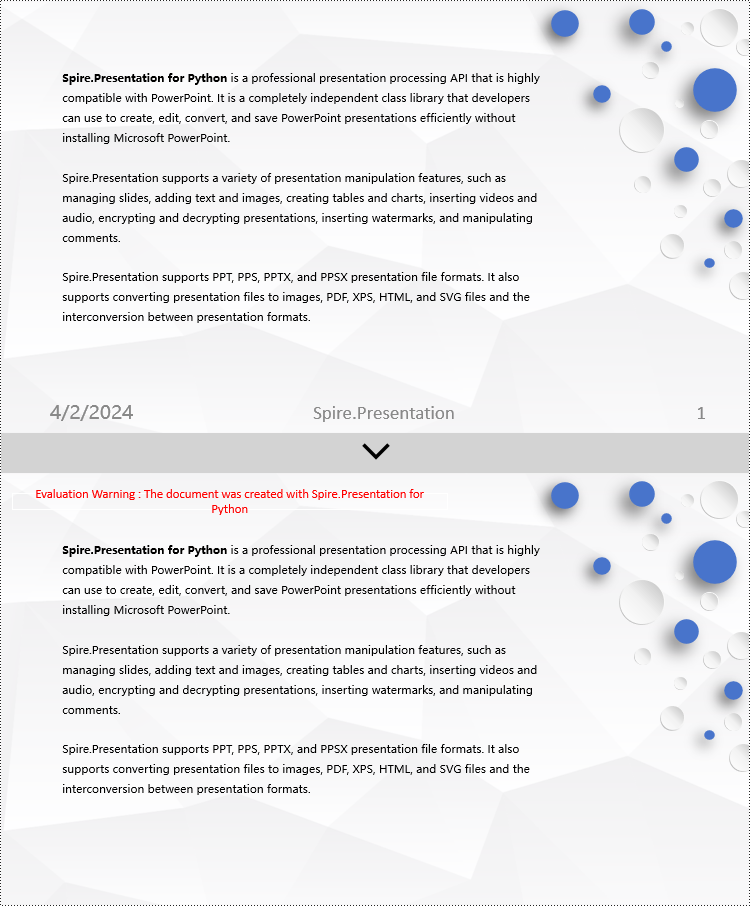
To delete footers in a PowerPoint document, you first need to locate placeholders such as footers, page numbers, and time in the slides, and then remove them from the collection of shapes in the slide to ensure complete removal of footer content. Here are the detailed steps:
- Create a Presentation object.
- Load a PowerPoint document using the Presentation.LoadFromFile() method.
- Use the Presentation.Slides[index] property to retrieve a slide.
- Iterate through the shapes in the slide using a for loop, check if they are placeholders, and if they are footer placeholders, page number placeholders, or time placeholders, remove them from the slide.
- Save the document using the Presentation.SaveToFile() method.
- Python
from spire.presentation.common import *
from spire.presentation import *

# Create a Presentation object
presentation = Presentation()

# Load a presentation from a file
presentation.LoadFromFile("Sample2.pptx")

# Get the first slide
slide = presentation.Slides[0]

# Iterate through the shapes on the slide
for i in range(len(slide.Shapes) - 1, -1, -1):
    # Check if the shape is a placeholder
    if slide.Shapes[i].Placeholder is not None:
        # Get the placeholder type
        type = slide.Shapes[i].Placeholder.Type

        # If it is a footer placeholder
        if type == PlaceholderType.Footer:
            # Remove it from the slide
            slide.Shapes.RemoveAt(i)

        # If it is a slide number placeholder
        if type == PlaceholderType.SlideNumber:
            # Remove it from the slide
            slide.Shapes.RemoveAt(i)

        # If it is a date and time placeholder
        if type == PlaceholderType.DateAndTime:
            # Remove it from the slide
            slide.Shapes.RemoveAt(i)

# Save the modified presentation to a file
presentation.SaveToFile("RemovedFooter.pptx", FileFormat.Pptx2016)

# Release the resources of the Presentation object
presentation.Dispose()
Apply for a Temporary License
If you'd like to remove the evaluation message from the generated documents, or to get rid of the function limitations, please request a 30-day trial license for yourself.