How to Convert PowerPoint Document to TIFF Image in C#, VB.NET
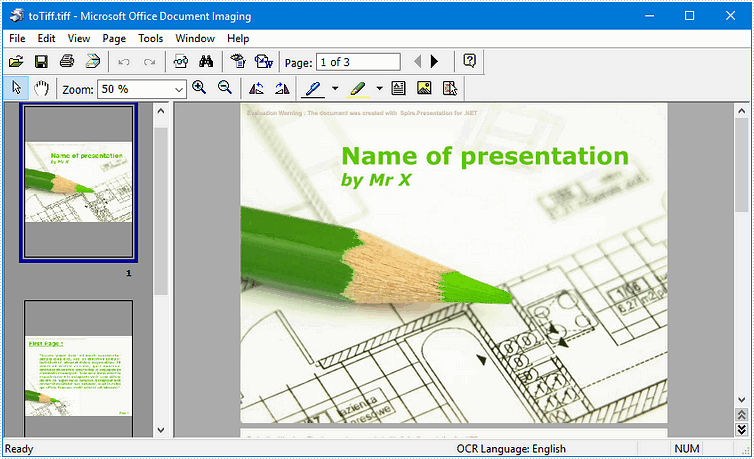
Conversion from PowerPoint to TIFF may be useful in order to fax the presentation files or send them off for printing. Spire.Presentation provides straightforward method SaveToFile to do the conversion, which automatically detects presentation slides and convert them to TIFF image (one image per slide).
Step 1: Create an instance of Presentation class.
Presentation ppt = new Presentation();
Step 2: Load a PowerPoint file.
ppt.LoadFromFile("template.pptx");
Step 3: Save to TIFF format file.
ppt.SaveToFile("toTIFF.tiff", FileFormat.Tiff);
Output:
Full Code:
using Spire.Presentation;
namespace PPTtoTIFF
{
    class Program
    {
        static void Main(string[] args)
        {
            Presentation ppt = new Presentation();
            ppt.LoadFromFile("template.pptx");
            ppt.SaveToFile("toTIFF.tiff", FileFormat.Tiff);
        }
    }
}
Imports Spire.Presentation
Namespace PPTtoTIFF
	Class Program
		Private Shared Sub Main(args As String())
			Dim ppt As New Presentation()
			ppt.LoadFromFile("template.pptx")
			ppt.SaveToFile("toTIFF.tiff", FileFormat.Tiff)
		End Sub
	End Class
End Namespace
How to convert PowerPoint to PPTX in C#?
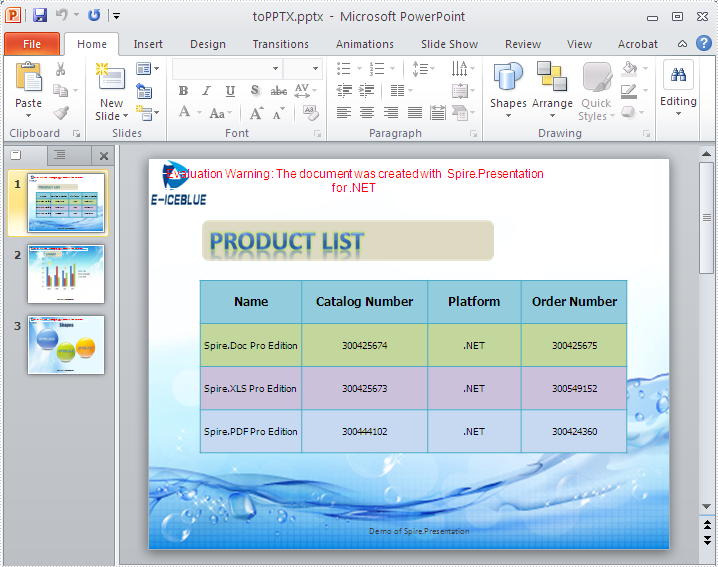
PPT is the file format used by Microsoft PowerPoint Presentation 97 - 2003, while PPTX is created by PowerPoint Presentation 2007, 2010. PPTX file format enjoys the advantages of smaller size, higher security, and higher integration with other file formats. But the Microsoft Office version under 2007 cannot open PPTX PowerPoint presentation directly. This article will show you how to convert PPT file format to PPTX in C# with only three lines of code.
Make sure Spire.Presentation for .NET has been installed correctly and then add Spire.Presentation.dll as reference in the downloaded Bin folder though the below path: "..\Spire.Presentation\Bin\NET4.0\ Spire. Presentation.dll". Here comes to the details of how to output PPT to PPTX:
Step 1: Create a presentation document.
Presentation presentation = new Presentation();
Step 2: Load the PPT file from disk.
presentation.LoadFromFile(@"..\..\..\..\..\..\Data\sample4.ppt");
Step 3: Save the PPT document to PPTX file format.
presentation.SaveToFile("ToPPTX.pptx", FileFormat.Pptx2010);
Step4: Launch and view the resulted PPTX file.
System.Diagnostics.Process.Start("ToPPTX.pptx");
Full codes:
namespace Spire.Presentation.Demo
{
    public partial class Form1 : Form
    {
        public Form1()
        {
            InitializeComponent();
        }

        private void btnRun_Click(object sender, EventArgs e)
        {
            //create PPT document
            Presentation presentation = new Presentation();

            //load the PPT file from disk
            presentation.LoadFromFile(@"..\..\..\..\..\..\Data\sample4.ppt");

            //save the PPT document to PPTX file format
            presentation.SaveToFile("ToPPTX.pptx", FileFormat.Pptx2010);
            System.Diagnostics.Process.Start("ToPPTX.pptx");
        }
    }
}
Target screenshot:
C#: Convert PowerPoint to PDF
Converting PowerPoint presentations to PDF offers portability, compatibility, and secure sharing capabilities. By transforming dynamic slides into a static, universally accessible format, users ensure seamless viewing across different devices and platforms.
This article explains how to convert PowerPoint presentations to PDFs using C# and Spire.Presentation for .NET. You'll learn to customize the conversion, including options like including hidden slides, securing PDFs with passwords, and enforcing compliance standards.
- Convert PowerPoint to PDF in C#
- Convert PowerPoint to PDF/A in C#
- Convert PowerPoint to Password-Protected PDF in C#
- Convert PowerPoint to PDF with Hidden Slides in C#
- Convert PowerPoint to PDF with Custom Slide Size in C#
- Convert a Specific Slide in PowerPoint to PDF in C#
Install Spire.Presentation for .NET
To begin with, you need to add the DLL files included in the Spire.Presentation for.NET package as references in your .NET project. The DLL files can be either downloaded from this link or installed via NuGet.
PM> Install-Package Spire.Presentation
Convert PowerPoint to PDF in C#
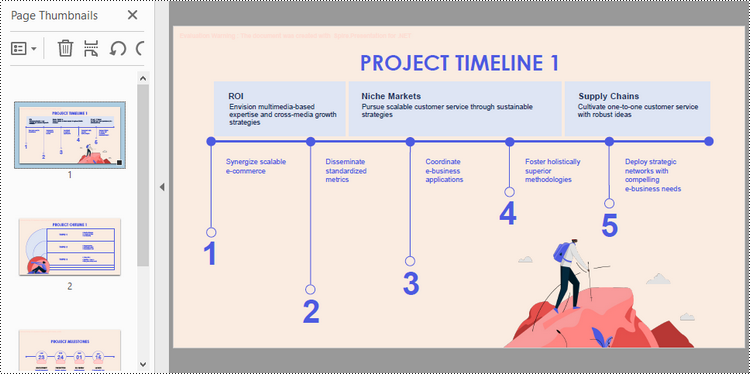
To convert a PowerPoint document to PDF without any customization, you can first load the document using the Presentation.LoadFromFile() method, and then save it as a PDF file using the Presentation.SaveToFile() method.
The steps to convert a PowerPoint document to PDF using C# are as follows:
- Create a Presentation object.
- Load a PowerPoint document using Presetation.LoadFromFile() method.
- Convert it to PDF using Presentation.SaveToFile() method.
- C#
using Spire.Presentation;

namespace ConvertPowerPointToPdf
{
    class Program
    {
        static void Main(string[] args)
        {
            // Create a Presentation object
            Presentation presentation = new Presentation();

            // Load a PowerPoint file
            presentation.LoadFromFile("C:\\Users\\Administrator\\Desktop\\Input.pptx");

            // Save it to PDF
            presentation.SaveToFile("ToPdf.pdf", FileFormat.PDF);

            // Dispose resources
            presentation.Dispose();
        }
    }
}
Convert PowerPoint to PDF/A in C#
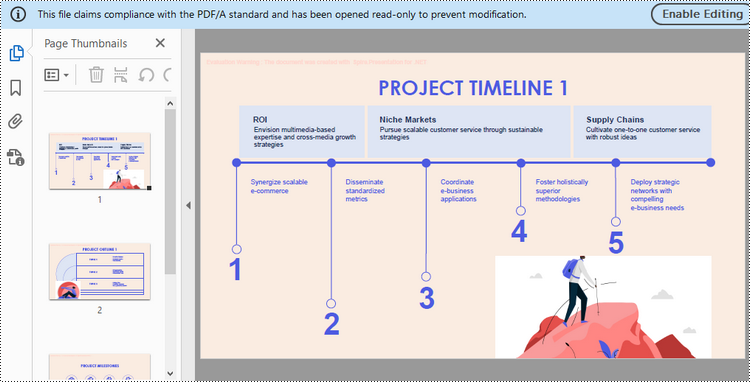
Spire.Presentation provides the SaveToPdfOption class, which allows you to configure the options for PowerPoint-to-PDF conversion. For instance, you can set the conformance level of the generated PDF document to Pdf/A-1a.
The steps to convert a PowerPoint presentation to a PDF/A document using C# are as follows:
- Create a Presentation object.
- Load a PowerPoint document using Presetation.LoadFromFile() method.
- Get the SaveToPdfOption object using Presentation.SaveToPdfOption property.
- Set the conformance level to Pdf_A1A using SaveToPdfOption.PdfConformanceLevel property.
- Convert the presentation to PDF using Presentation.SaveToFile() method.
- C#
using Spire.Presentation;
using Spire.Presentation.External.Pdf;

namespace ConvertPowerPointToPdfa
{
    class Program
    {
        static void Main(string[] args)
        {
            // Create a Presentation object
            Presentation presentation = new Presentation();

            // Load a PowerPoint file
            presentation.LoadFromFile("C:\\Users\\Administrator\\Desktop\\Input.pptx");

            // Get the SaveToPdfOption object
            SaveToPdfOption options = presentation.SaveToPdfOption;

            // Set the pdf conformance level to pdf_a1a
            options.PdfConformanceLevel = PdfConformanceLevel.Pdf_A1A;

            // Save the presentation to PDF
            presentation.SaveToFile("ToPdfa.pdf",FileFormat.PDF);

            // Dispose resources
            presentation.Dispose();
        }
    }
}
Convert PowerPoint to Password-Protected PDF in C#
The SaveToPdfOption class offers the PdfSecurity.Encrypt() method, which enables you to protect the generated PDF document with a password and set document processing permissions, such as allowing printing and filling form fields.
The steps to convert a PowerPoint presentation to a password-protected PDF using C# are as follows.
- Create a Presentation object.
- Load a PowerPoint document using Presetation.LoadFromFile() method.
- Get the SaveToPdfOption object using Presentation.SaveToPdfOption property.
- Encrypt the generated PDF with a password using SaveToPdfOption.PdfSecurity.Encrypt() method.
- Convert the presentation to PDF using Presentation.SaveToFile() method.
- C#
using Spire.Presentation;
using Spire.Presentation.External.Pdf;

namespace ConvertPowerPointToPasswordProtectedPdf
{
    class Program
    {
        static void Main(string[] args)
        {
            // Create a Presentation object
            Presentation presentation = new Presentation();

            // Load a PowerPoint file
            presentation.LoadFromFile("C:\\Users\\Administrator\\Desktop\\Input.pptx");

            // Get the SaveToPdfOption object
            SaveToPdfOption option = presentation.SaveToPdfOption;

            // Encrypt the generated document with a password
            option.PdfSecurity.Encrypt("abc-123",PdfPermissionsFlags.Print | PdfPermissionsFlags.FillFields);

            // Save the presentation to PDF
            presentation.SaveToFile("ToEncryptedPdf.pdf", FileFormat.PDF);

            // Dispose resources
            presentation.Dispose();
        }
    }
}
Convert PowerPoint to PDF with Hidden Slides in C#
When converting a PowerPoint document to PDF, you can include any hidden slides by setting the SaveToPdfOption.ContainHiddenSlides property to true.
The following are the steps to convert PowerPoint to PDF with hidden slides using C#.
- Create a Presentation object.
- Load a PowerPoint document using Presetation.LoadFromFile() method.
- Get the SaveToPdfOption object using Presentation.SaveToPdfOption property.
- Set the SaveToPdfOption.ContainHiddenSlides property to true to include hidden when converting PowerPoint to PDF.
- Convert the presentation to PDF using Presentation.SaveToFile() method.
- C#
using Spire.Presentation;

namespace ConvertPowerPointToPdfWithHiddenSlides
{
    class Program
    {
        static void Main(string[] args)
        {
            // Create a Presentation object
            Presentation presentation = new Presentation();

            // Load a PowerPoint file
            presentation.LoadFromFile("C:\\Users\\Administrator\\Desktop\\Input.pptx");

            // Get the SaveToPdfOption object
            SaveToPdfOption option = presentation.SaveToPdfOption;

            // Enable ContainHiddenSlides option
            option.ContainHiddenSlides = true;

            // Save the presentation to PDF
            presentation.SaveToFile("ToPdfWithHiddenSlides.pdf", FileFormat.PDF);

            // Dispose resources
            presentation.Dispose();
        }
    }
}
Convert PowerPoint to PDF with Custom Slide Size in C#
Customizing the slide size allows you to optimize the PDF for printing on specific paper sizes, like A4, Letter, or even custom sizes. This can be achieved by adjusting the Presentation.SlideSize.Type and Presentation.SlideSize.Size properties.
The steps to convert PowerPoint to PDF with custom slide size are as follows.
- Create a Presentation object.
- Load a PowerPoint document using Presetation.LoadFromFile() method.
- Change the slide size using Presentation.SlideSize.Type and Presentation.SlideSize.Size properties.
- Auto fit content to the slide by setting Presentation.SlideSizeAutoFit to true.
- Convert the presentation to PDF using Presentation.SaveToFile() method.
- C#
using Spire.Presentation;
using System.Drawing;

namespace ConvertPowerPointToPdfWithCustomSlideSize
{
    class Program
    {
        static void Main(string[] args)
        {
            // Create a Presentation object
            Presentation presentation = new Presentation();

            // Load a PowerPoint file
            presentation.LoadFromFile("C:\\Users\\Administrator\\Desktop\\Input.pptx");

            // Set the slide size type as custom
            presentation.SlideSize.Type = SlideSizeType.Custom;

            // Set the custom slide size
            presentation.SlideSize.Size = new SizeF(750, 500);

            // Or, you can set the slide size to a standard slide size like A4
            // presentation.SlideSize.Type = SlideSizeType.A4;

            // Fit content to the new size of slide
            presentation.SlideSizeAutoFit = true;

            // Save the presentation to PDF
            presentation.SaveToFile("ToPdfWithCustomSlideSize.pdf", FileFormat.PDF);

            // Dispose resources
            presentation.Dispose();
        }
    }
}
Convert a Specific Slide in PowerPoint to PDF in C#
To convert a specific slide in a PowerPoint document into a PDF file, you can use the ISlide.SaveToFile() method. Here are the detailed steps.
- Create a Presentation object.
- Load a PowerPoint document using Presetation.LoadFromFile() method.
- Get a specific slide using Presentation.Slides[index] property.
- Convert it to PDF using ISlide.SaveToFile() method.
- C#
using Spire.Presentation;

namespace ConvertSpecificSlideToPdf
{
    class Program
    {
        static void Main(string[] args)
        {
            // Create a Presentation object
            Presentation presentation = new Presentation();

            // Load a PowerPoint file
            presentation.LoadFromFile("C:\\Users\\Administrator\\Desktop\\Input.pptx");

            // Get a specific slide
            ISlide slide = presentation.Slides[1];

            // Save it to PDF
            slide.SaveToFile("SlideToPdf.pdf", FileFormat.PDF);

            // Dispose resources
            presentation.Dispose();
        }
    }
}

Apply for a Temporary License
If you'd like to remove the evaluation message from the generated documents, or to get rid of the function limitations, please request a 30-day trial license for yourself.
C#/VB.NET: Convert PowerPoint to Images (PNG, JPG, TIFF, EMF, SVG)
You may need to convert PowerPoint documents to images for various purposes, such as preventing other users from editing the contents of the PowerPoint documents, generating thumbnails for the PowerPoint documents, or sharing the PowerPoint documents on social media. In this article, you will learn how to convert PowerPoint documents to various image formats in C# and VB.NET using Spire.Presentation for .NET.
- Convert PowerPoint Documents to JPG or PNG Images
- Convert PowerPoint Documents to TIFF Images
- Convert PowerPoint Documents to EMF Images
- Convert PowerPoint Documents to SVG Images
Install Spire.Presentation for .NET
To begin with, you need to add the DLL files included in the Spire.Presentation for.NET package as references in your .NET project. The DLL files can be either downloaded from this link or installed via NuGet.
PM> Install-Package Spire.Presentation
Convert PowerPoint Documents to JPG or PNG Images in C# and VB.NET
The following are the main steps to convert a PowerPoint document to JPG or PNG image:
- Initialize an instance of Presentation class.
- Load a PowerPoint document using Presentation.LoadFromFile() method.
- Iterate through all slides in the PowerPoint document.
- Save each slide as System.Drawing.Image object using ISlide.SaveAsImage() method.
- Save the image object to PNG or JPG file using Image.Save() method.
- C#
- VB.NET
using Spire.Presentation;
using System.Drawing;

namespace ConvertPowerPointToJpgOrPngImage
{
    class Program
    {
        static void Main(string[] args)
        {
            //Create a Presentation instance
            Presentation presentation = new Presentation();
            //Load a PowerPoint document
            presentation.LoadFromFile(@"Sample.pptx");

            int i = 0;
            //Iterate through all slides in the PowerPoint document
            foreach(ISlide slide in presentation.Slides)
            {
                //Save each slide as PNG image
                Image image = slide.SaveAsImage();
                string fileName = string.Format("ToImage-img-{0}.png", i);
                image.Save(fileName, System.Drawing.Imaging.ImageFormat.Png);
                i++;
            }
        }
    }
}

Convert PowerPoint Documents to TIFF Images in C# and VB.NET
The following are the steps to convert a PowerPoint document to TIFF image:
- Initialize an instance of Presentation class.
- Load a PowerPoint document using Presentation.LoadFromFile() method.
- Convert the PowerPoint document to TIFF image using Presentation.SaveToFile(string, FileFormat) method.
- C#
- VB.NET
using Spire.Presentation;

namespace ConvertPowerPointToTiffImage
{
    class Program
    {
        static void Main(string[] args)
        {
            //Create a Presentation instance
            Presentation presentation = new Presentation();
            //Load a PowerPoint document
            presentation.LoadFromFile(@"Sample.pptx");

            //Convert the PowerPoint document to TIFF image
            presentation.SaveToFile("toTIFF.tiff", FileFormat.Tiff);
        }
    }
}

Convert PowerPoint Documents to EMF Images in C# and VB.NET
The following are the steps to convert a PowerPoint document to EMF image:
- Initialize an instance of Presentation class.
- Load a PowerPoint document using Presentation.LoadFromFile() method.
- Iterate through all slides in the PowerPoint document.
- Save each slide to EMF image using ISlide.SaveAsEMF() method.
- C#
- VB.NET
using Spire.Presentation;

namespace ConvertPowerPointToEmfImage
{
    class Program
    {
        static void Main(string[] args)
        {
            //Create a Presentation instance
            Presentation presentation = new Presentation();
            //Load a PowerPoint document
            presentation.LoadFromFile(@"Sample.pptx");

            int i = 0;
            //Iterate through all slides in the PowerPoint document
            foreach (ISlide slide in presentation.Slides)
            {
                string fileName = string.Format("ToEmf-{0}.emf", i);
                //Save each slide to EMF image
                slide.SaveAsEMF(fileName);
                //Save each slide to EMF image with specified width and height
                //slide.SaveAsEMF(fileName, 1075, 710);
                i++;
            }
        }
    }
}

Convert PowerPoint Documents to SVG Images in C# and VB.NET
The following are the steps to convert a PowerPoint document to SVG images:
- Initialize an instance of Presentation class.
- Load a PowerPoint document using Presentation.LoadFromFile() method.
- Convert the PowerPoint document to SVG and save the results into a queue of byte arrays using Presentation.SaveToSVG() method.
- Iterate through the byte arrays in the queue.
- At each iteration, remove and return the byte array at the beginning of the queue using Queue.Dequeue() method.
- Initialize an instance of FileStream class and save the byte array to an SVG file using FileStream.Write() method.
- C#
- VB.NET
using Spire.Presentation;
using System.Collections.Generic;
using System.IO;

namespace ConvertPowerPointToSvgImage
{
    class Program
    {
        static void Main(string[] args)
        {
            //Create a Presentation instance
            Presentation presentation = new Presentation();
            //Load a PowerPoint document
            presentation.LoadFromFile(@"Sample.pptx");

            //Convert the PowerPoint document to SVG and save the results into a queue of byte arrays
            Queue<byte[]> svgBytes = presentation.SaveToSVG();
            int count = svgBytes.Count;
            //Iterate through the byte arrays in the queue
            for (int i = 0; i < count; i++)
            {
                //Remove and return the byte array at the beginning of the queue
                byte[] bt = svgBytes.Dequeue();
                //Specify the output file name
                string fileName = string.Format("ToSVG-{0}.svg", i);
                //Create a FileStream instance
                FileStream fs = new FileStream(fileName, FileMode.Create);
                //Save the byte array to a SVG file
                fs.Write(bt, 0, bt.Length);
            }
        }
    }
}

Apply for a Temporary License
If you'd like to remove the evaluation message from the generated documents, or to get rid of the function limitations, please request a 30-day trial license for yourself.