How to Get the Titles of All Slides with C#
There can be many types of titles such as centered title, subtitle and title on PowerPoint slides. This article demonstrates how to get such titles from all the slides of a PowerPoint document by using Spire.Presentation and C#.
This is a PowerPoint document which contains a centered title and a subtitle on the first slide and a title on the second slide.
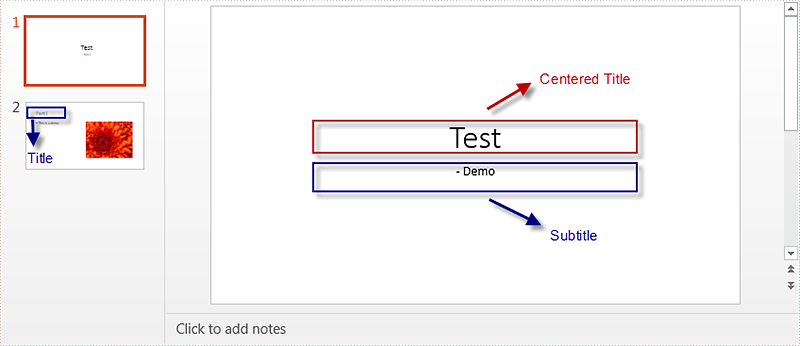
Follow below steps to get the titles:
Step 1: Instantiate a Presentation object and load the PowerPoint document.
Presentation ppt = new Presentation();
ppt.LoadFromFile("test.pptx");
Step 2: Instantiate a list of IShape objects.
List<IShape> shapelist = new List<IShape>();
Step 3: Loop through all sildes in the document and all shapes on each slide, add the shape which placeholder type is title or centered title or subtitle to the list.
foreach (ISlide slide in ppt.Slides)
{
    foreach (IShape shape in slide.Shapes)
    {
        if (shape.Placeholder != null)
        {
            switch (shape.Placeholder.Type)
            {
                case PlaceholderType.Title:
                    shapelist.Add(shape);
                    break;
                case PlaceholderType.CenteredTitle:
                    shapelist.Add(shape);
                    break;
                case PlaceholderType.Subtitle:
                    shapelist.Add(shape);
                    break;
            }
        }
    }
}
Step 4: Loop through the list and print out the inner text of all shapes in the list.
for (int i = 0; i < shapelist.Count; i++)
{
    IAutoShape shape1 = shapelist[i] as IAutoShape;
    Console.WriteLine(shape1.TextFrame.Text);
}
Output:

Full code:
using System;
using System.Collections.Generic;
using Spire.Presentation;

namespace Get_the_Titles_of_All_Slides
{
    class Program
    {
        static void Main(string[] args)
        {
            Presentation ppt = new Presentation();
            ppt.LoadFromFile("test.pptx");
            List<IShape> shapelist = new List<IShape>();
            foreach (ISlide slide in ppt.Slides)
            {
                foreach (IShape shape in slide.Shapes)
                {
                    if (shape.Placeholder != null)
                    {
                        switch (shape.Placeholder.Type)
                        {
                            case PlaceholderType.Title:
                                shapelist.Add(shape);
                                break;
                            case PlaceholderType.CenteredTitle:
                                shapelist.Add(shape);
                                break;
                            case PlaceholderType.Subtitle:
                                shapelist.Add(shape);
                                break;
                        }
                    }
                }
            }
            for (int i = 0; i < shapelist.Count; i++)
            {
                IAutoShape shape1 = shapelist[i] as IAutoShape;
                Console.WriteLine(shape1.TextFrame.Text);
            }
            Console.ReadKey();
        }
    }
}
How to set the presentation show type as kiosk (full screen) in C#, VB.NET
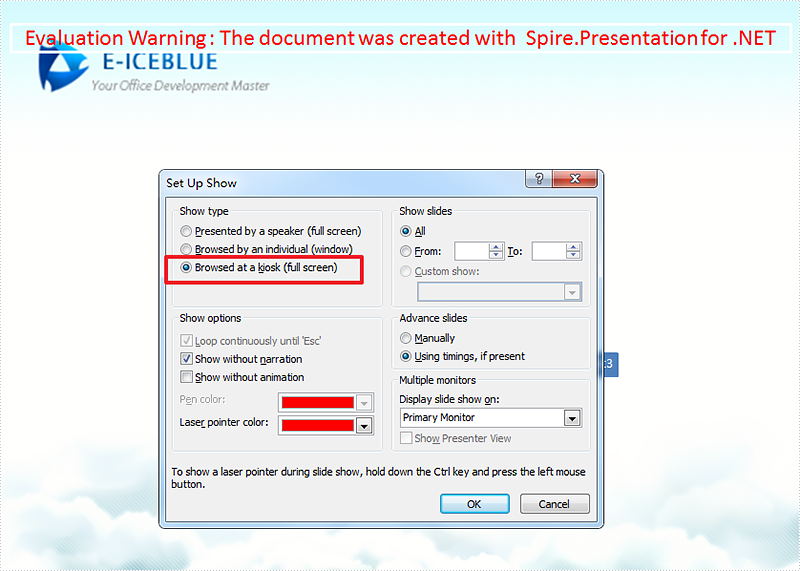
Browsed at a kiosk (full screen) is one kind of the slide show types in PowerPoint, if users choose this option, the Slide Show is full screen but they cannot navigate from slide to slide, for example, move to the next or previous slides.
The following part will demonstrate how to set the presentation show type as kiosk in C# and VB.NET using Spire.Presentation.
Detail steps:
Step 1: Instantiate a Presentation object and load the PPT file.
Presentation presentation = new Presentation();
presentation.LoadFromFile("Sample.pptx");
Step 2: Specify the presentation show type as kiosk.
presentation.ShowType = SlideShowType.Kiosk;
Step 3: Save the file.
presentation.SaveToFile("Result.pptx", FileFormat.Pptx2013);
Output:
Full code:
using Spire.Presentation;

namespace Set_Presentation_show_type_as_ kiosk
{
    class Program
    {
        static void Main(string[] args)
        {
            Presentation presentation = new Presentation();
            presentation.LoadFromFile("Sample.pptx");
            presentation.ShowType = SlideShowType.Kiosk;
            presentation.SaveToFile("Result.pptx", FileFormat.Pptx2013);
        }
    }
}
Imports Spire.Presentation

Namespace Set_Presentation_show_type_as_ kiosk
	Class Program
		Private Shared Sub Main(args As String())
			Dim presentation As New Presentation()
			presentation.LoadFromFile("Sample.pptx")
			presentation.ShowType = SlideShowType.Kiosk
			presentation.SaveToFile("Result.pptx", FileFormat.Pptx2013)
		End Sub
	End Class
End Namespace
How to Loop a PowerPoint Presentation in C#, VB.NET
A looping slideshow displays each slide automatically for a certain amount of time. Once the slideshow reaches the end, it repeats from the beginning. This article will introduce how to programmatically set a PowerPoint document to keep looping when presenting.
Code Snippet:
Step 1: Initialize an instance of Presentation class. Load a sample PowerPoint document to it.
Presentation ppt = new Presentation();
ppt.LoadFromFile(@"C:\Users\Administrator\Desktop\sample.pptx");
Step 2: Set the Boolean value of ShowLoop as true, which makes the slideshow repeat with continuous looping.
ppt.ShowLoop = true;
Step 3: Set the PowerPoint document to show animation and narration. Use slide transition timings to advance slide.
ppt.ShowAnimation = true;
ppt.ShowNarration = true;
ppt.UseTimings = true;
Step 4: Save the file.
ppt.SaveToFile("LoopEnding.pptx", FileFormat.Pptx2010);
Full Code:
using Spire.Presentation;
namespace LoopPPT
{
    class Program
    {
        static void Main(string[] args)
        {
            Presentation ppt = new Presentation();
            ppt.LoadFromFile(@"C:\Users\Administrator\Desktop\sample.pptx");

            ppt.ShowLoop = true;
            ppt.ShowAnimation = true;
            ppt.ShowNarration = true;
            ppt.UseTimings = true;

            ppt.SaveToFile("LoopEnding.pptx", FileFormat.Pptx2010);
            }
        }
    }
Imports Spire.Presentation
Namespace LoopPPT
	Class Program
		Private Shared Sub Main(args As String())
			Dim ppt As New Presentation()
			ppt.LoadFromFile("C:\Users\Administrator\Desktop\sample.pptx")

			ppt.ShowLoop = True
			ppt.ShowAnimation = True
			ppt.ShowNarration = True
			ppt.UseTimings = True

			ppt.SaveToFile("LoopEnding.pptx", FileFormat.Pptx2010)
		End Sub
	End Class
End Namespace
C#/VB.NET: Hide or Unhide Slides in PowerPoint
Microsoft PowerPoint lets you hide specific slides so they won’t appear during the slide show. You can also unhide the hidden slides at any time if you wish them to be visible in future presentations. In this article, you will learn how to hide or unhide slides in PowerPoint in C# and VB.NET using Spire.Presentation for .NET library.
Install Spire.Presentation for .NET
To begin with, you need to add the DLL files included in the Spire.Presentation for.NET package as references in your .NET project. The DLL files can be either downloaded from this link or installed via NuGet.
PM> Install-Package Spire.Presentation
Hide or Unhide Slides in PowerPoint in C# and VB.NET
The following are the steps to hide or unhide a slide in PowerPoint:
- Create an instance of Presentation class.
- Load a PowerPoint document using Presentation.LoadFromFile() method.
- Get the slide that you want to hide or unhide by its index using Presentation.Slides[index] property.
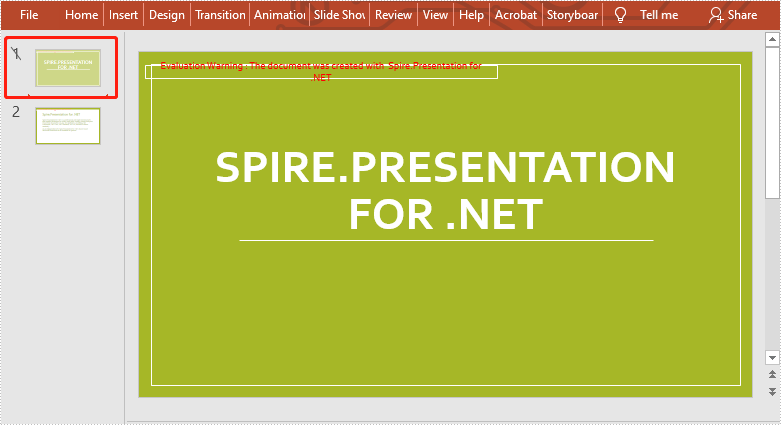
- Hide or unhide the slide by setting the ISlide.Hidden property as true or false.
- Save the result document using Presentation.SaveToFile() method.
- C#
- VB.NET
using Spire.Presentation;

namespace HideOrUnhideSlides
{
    class Program
    {
        static void Main(string[] args)
        {
            //Create a Presentation instance
            Presentation ppt = new Presentation();
            //Load a PowerPoint document
            ppt.LoadFromFile("Sample.pptx");

            //Get the first slide
            ISlide slide = ppt.Slides[0];

            //Hide the slide
            slide.Hidden = true;
            //Unhide the slide
            //slide.Hidden = false;

            //Save the result document
            ppt.SaveToFile("Result.pptx", FileFormat.Pptx2013);
        }
    }
}
The following is the result document after hiding the first slide:
Apply for a Temporary License
If you'd like to remove the evaluation message from the generated documents, or to get rid of the function limitations, please request a 30-day trial license for yourself.
How to Mark a Presentation as Final using Spire.Presentation in C#, VB.NET
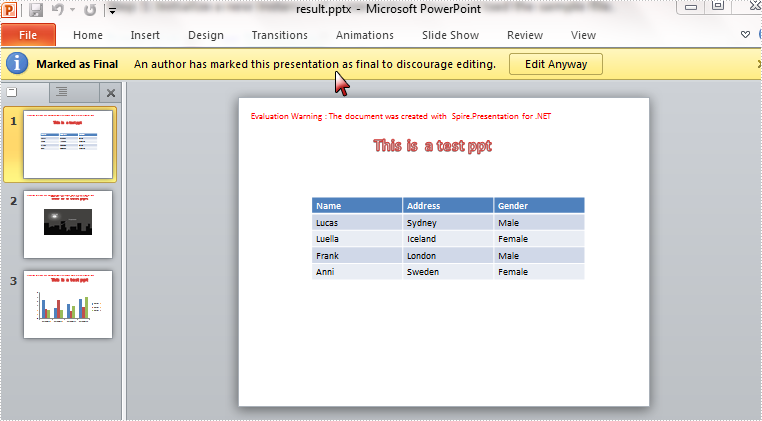
The Mark as Final command makes a presentation read-only and prevents changes to the document. When you share a presentation that is marked as final, you're telling viewers the presentation is final and no changes on it are wanted. In this article, I'll make a brief introduction about how to mark a presentation as final using Spire.Presentation in C#, VB.NET.
In Spire.Presentation, the presentation class contains a property of DocumentProperty which enables developers to set document properties easily. Here in this case, you are able to mark a presentation as final by setting the Boolean value of MarkAsFinal as true.
Code Snippet:
Step 1: Initialize a new instance of presentation class and load the sample file.
Presentation ppt = new Presentation();
ppt.LoadFromFile("sample.pptx",FileFormat.Pptx2010);
Step 2: Set the value of MarkAsFinal property as true.
ppt.DocumentProperty["_MarkAsFinal"] =true;
Step 3: Save and launch the file.
ppt.SaveToFile("result.pptx",FileFormat.Pptx2010);
System.Diagnostics.Process.Start("result.pptx");
Effect:
Full Code:
using Spire.Presentation;
namespace MarkPPT
{
    class Program
    {
        static void Main(string[] args)
        {
            Presentation ppt = new Presentation();
            ppt.LoadFromFile("sample.pptx", FileFormat.Pptx2010);

            ppt.DocumentProperty["_MarkAsFinal"] = true;

            ppt.SaveToFile("result.pptx", FileFormat.Pptx2010);
            System.Diagnostics.Process.Start("result.pptx");
            System.Diagnostics.Process.Start("result.pptx");

            }
        }
    }
Imports Spire.Presentation
Namespace MarkPPT
	Class Program
		Private Shared Sub Main(args As String())
			Dim ppt As New Presentation()
			ppt.LoadFromFile("sample.pptx", FileFormat.Pptx2010)

			ppt.DocumentProperty("_MarkAsFinal") = True

			ppt.SaveToFile("result.pptx", FileFormat.Pptx2010)
			System.Diagnostics.Process.Start("result.pptx")
			System.Diagnostics.Process.Start("result.pptx")

		End Sub
	End Class
End Namespace
Merge Selected Slides to a Single Presentation in C#, VB.NET
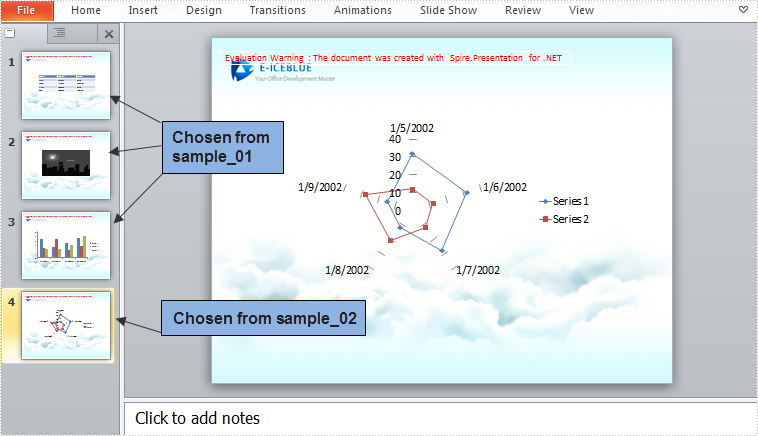
Slide cloning feature provided by Spire.Presentation enables developers to clone one or several slides within one PowerPoint presentation or among multiple presentations. By cloning slide from source presentation to target document, we can easily split a large presentation into small ones and merge multiple presentations to one presentation in reverse. This article presents how to merge selected slides from multiple PowerPoint presentations into one single presentation.
Main Steps
Step 1: Create a new PowerPoint document and remove the default blank slide.
Presentation ppt = new Presentation();
ppt.Slides.RemoveAt(0);
Step 2: Initialize two instances of Presentation class and load the sample PowerPoint file respectively.
Presentation ppt1 = new Presentation("sample_01.pptx",FileFormat.Pptx2010);
Presentation ppt2 = new Presentation("sample_02.pptx", FileFormat.Pptx2010);
Step 3: Append all slides in sample_01 to the new PowerPoint document using method Append(ISlide slide).
for (int i = 0; i < ppt1.Slides.Count; i++)
{
    ppt.Slides.Append(ppt1.Slides[i]);
}
Step 4: Append the second slide in sample_02 to the new presentation.
ppt.Slides.Append(ppt2.Slides[1]);
Step 5: Save and launch the file.
ppt.SaveToFile("result.pptx", FileFormat.Pptx2010);
System.Diagnostics.Process.Start("result.pptx");
Output
Entire Code
using Spire.Presentation;
namespace MergeSlides
{
    class Program
    {
        static void Main(string[] args)
        {
            Presentation ppt = new Presentation();
            Presentation ppt1 = new Presentation("sample_01.pptx", FileFormat.Pptx2010);
            Presentation ppt2 = new Presentation("sample_02.pptx", FileFormat.Pptx2010);
            ppt.Slides.RemoveAt(0);
            //append all slides in ppt1 to ppt
            for (int i = 0; i < ppt1.Slides.Count; i++)
            {
                ppt.Slides.Append(ppt1.Slides[i]);
            }
            //append the second slide in ppt2 to ppt
            ppt.Slides.Append(ppt2.Slides[1]);
            //save and launch the file
            ppt.SaveToFile("result.pptx", FileFormat.Pptx2010);
            System.Diagnostics.Process.Start("result.pptx");

            }
        }
    }
Imports Spire.Presentation
Namespace MergeSlides
	Class Program
		Private Shared Sub Main(args As String())
			Dim ppt As New Presentation()
			Dim ppt1 As New Presentation("sample_01.pptx", FileFormat.Pptx2010)
			Dim ppt2 As New Presentation("sample_02.pptx", FileFormat.Pptx2010)
			ppt.Slides.RemoveAt(0)
			'append all slides in ppt1 to ppt
			For i As Integer = 0 To ppt1.Slides.Count - 1
				ppt.Slides.Append(ppt1.Slides(i))
			Next
			'append the second slide in ppt2 to ppt
			ppt.Slides.Append(ppt2.Slides(1))
			'save and launch the file
			ppt.SaveToFile("result.pptx", FileFormat.Pptx2010)
			System.Diagnostics.Process.Start("result.pptx")

		End Sub
	End Class
End Namespace
C#: Copy Slides in PowerPoint Presentations
If you are preparing a large number of presentations, cloning slides can help you save resources. Instead of creating new slides from scratch for each presentation, it is more efficient and less time-consuming to modify existing slides. In this article, you will learn how to copy slides in PowerPoint presentations in C# using Spire.Presentation for .NET.
Install Spire.Presentation for .NET
To begin with, you need to add the DLL files included in the Spire.Presentation for.NET package as references in your .NET project. The DLL files can be either downloaded from this link or installed via NuGet.
PM> Install-Package Spire.Presentation
Copy Slides Within the Same Presentation in C#
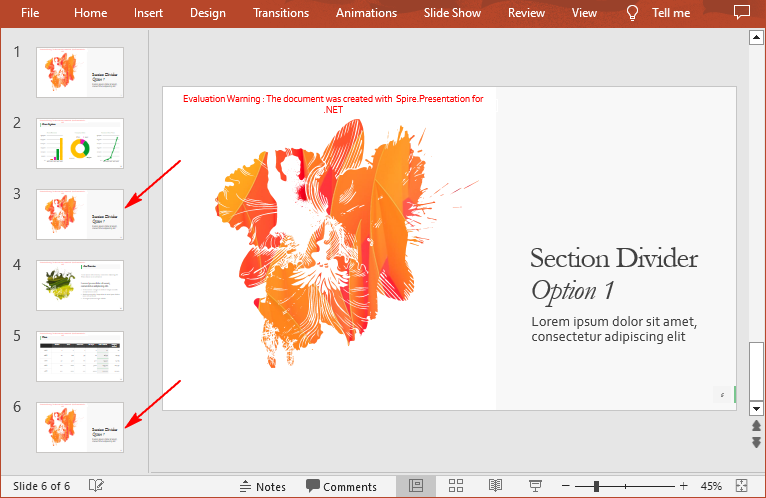
You can clone a slide either at a specified location or at the end of a PowerPoint presentation through the Presentation.Slides.Insert(intIndex, ISlide slide) or Presentation.Slides.Append(ISlide slide) methods. The following are the detailed steps.
- Create a Presentation instance.
- Load a PowerPoint presentation using Presentation.LoadFromFile() method.
- Get a specified slide using Prenstion.Slides[] property.
- Clone the slide to the end of the same presentation using Presentation.Slides.Append() method.
- Clone the slide to a specific position within the same presentation using Presentation.Slides.Insert() method.
- Save the result file using Presentation.SaveToFile() method.
- C#
using Spire.Presentation;

namespace CopySlides
{
    class Program
    {
        static void Main(string[] args)
        {
            //Create a Presentation instance
            Presentation ppt = new Presentation();

            //Load a PowerPoint presentation
            ppt.LoadFromFile("Input1.pptx");

            //Get the first slide in the presentation
            ISlide slide = ppt.Slides[0];

            //Clone the slide to the end of the presentation
            ppt.Slides.Append(slide);

            //Clone the slide to the third position within the presentation
            ppt.Slides.Insert(2, slide);

            //Save the result file
            ppt.SaveToFile("CloneSlidesWithinTheSame.pptx", FileFormat.Pptx2013);

        }
    }
}
Copy Slides to Another Presentation in C#
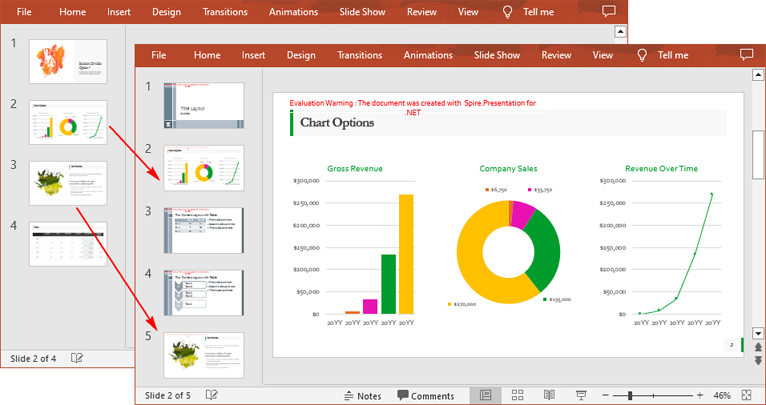
Spire.Presentation for .NET also allows you to load two PowerPoint files and then clone the slides from one presentation to another presentation. The following are the detailed steps.
- Create a Presentation instance.
- Load two PowerPoint presentations using Presentation.LoadFromFile() method.
- Get two slides in the first presentation using Prenstion.Slides[] property.
- Clone the first slide to a specific position in the second presentation using Presentation.Slides.Insert() method.
- Clone the second slide to the end of the second presentation using Presentation.Slides.Append() method.
- Save the result file using Presentation.SaveToFile() method.
- C#
using Spire.Presentation;

namespace CopySlidesToAnother
{
    class Program
    {
        static void Main(string[] args)
        {
            //Load the first PowerPoint presentation
            Presentation sourcePPT = new Presentation();
            sourcePPT.LoadFromFile("Input1.pptx");

            //Load the second PowerPoint presentation
            Presentation destPPT = new Presentation();
            destPPT.LoadFromFile("Input2.pptx");

            //Get two slides in the first presentation
            ISlide slide1 = sourcePPT.Slides[1];
            ISlide slide2 = sourcePPT.Slides[2];

            //Clone slide1 to the second position in the second presentation
            destPPT.Slides.Insert(1, slide1);

            //Clone slide2 to the end of the second presentation
            destPPT.Slides.Append(slide2);

            //Save the result file
            destPPT.SaveToFile("CloneSlidesToAnother.pptx", FileFormat.Pptx2013);

        }
    }
}
Apply for a Temporary License
If you'd like to remove the evaluation message from the generated documents, or to get rid of the function limitations, please request a 30-day trial license for yourself.
C#: Split PowerPoint Presentations
PowerPoint presentations are a fundamental tool for communication across various fields. As these presentations grow in size and complexity, managing them effectively becomes crucial. One practical solution is to split larger presentations into smaller and more manageable ones. Whether for adapting presentations to specific audiences, breaking down training modules, or optimizing file sizes for distribution, the ability to split PowerPoint presentations using C# in .NET significantly enhances workflow efficiency. This article will show how to split PowerPoint presentations by slides, slide ranges, and sections with C# using Spire.Presentation for .NET.
- Split PowerPoint Presentations by Slides using C#
- Split PowerPoint Presentations by Slide Ranges using C#
- Split PowerPoint Presentations by Sections using C#
Install Spire.Presentation for .NET
To begin with, you need to add the DLL files included in the Spire.Presentation for.NET package as references in your .NET project. The DLL files can be either downloaded from this link or installed via NuGet.
PM> Install-Package Spire.Presentation
Split PowerPoint Presentations by Slides using C#
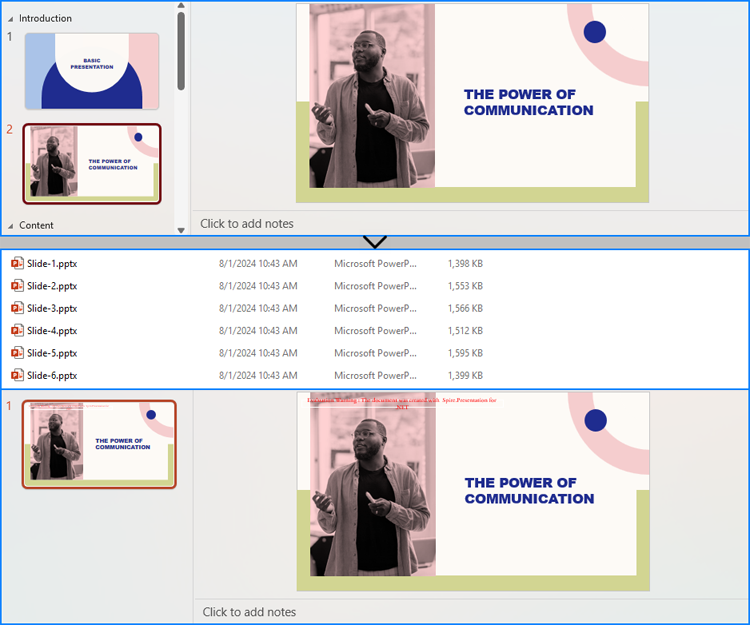
Using Spire.Presentation for .NET, developers can split a presentation into individual slide presentations by iterating through the slides in the original presentation, adding each slide to a new presentation, and then saving it.
Here are the detailed steps:
- Create an instance of Presentation class.
- Load a PowerPoint file using Presentation.LoadFromFile() method.
- Iterate through the slides in the presentation:
- Get a slide through Presentation.Slides[] property.
- Create a new instance of Presentation class and remove the default slide using Presentation.Slides.RemoveAt(0) method.
- Append the slide to the new presentation using Presentation.Slides.Append() method.
- Save the new presentation using ISlide.SaveToFile() method.
- C#
using Spire.Presentation;

namespace SplitPresentationSlide
{
    class Program
    {
        static void Main(string[] args)
        {
            // Create an instance of Presentation class
            Presentation presentation = new Presentation();

            // Load a PowerPoint presentation
            presentation.LoadFromFile("Sample.pptx");

            // Iterate through all slides
            for (int i = 0; i < presentation.Slides.Count; i++)
            {
                // Get a slide
                ISlide slide = presentation.Slides[i];
                // Create a new presentation and remove the default slide
                Presentation newPresentation = new Presentation();
                newPresentation.Slides.RemoveAt(0);
                // Append the slide to the new presentation
                newPresentation.Slides.Append(slide);
                // Save the new presentation
                newPresentation.SaveToFile("output/Presentations/Slide-" + (i +1).ToString() + ".pptx", FileFormat.Pptx2013);
                newPresentation.Dispose();
            }
            presentation.Dispose();
        }
    }
}
Split PowerPoint Presentations by Slide Ranges using C#
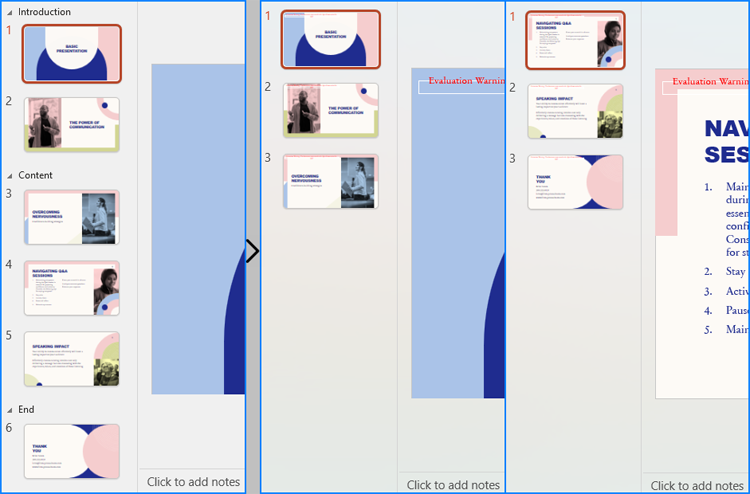
In addition to splitting PowerPoint presentations into individual slide presentations, developers can also split presentations into slide ranges by copying specified ranges of slides to new presentations and saving them.
Here are the detailed steps:
- Create an instance of Presentation class.
- Load a PowerPoint presentation using Presentation.LoadFromFile() method.
- Create new instances of Presentation class and remove the default slides.
- Append specified ranges of slides to the new presentations using Presentation.Slides.Append() method.
- Save the new presentations using Presentation.SaveToFile() method.
- C#
using Spire.Presentation;

namespace SplitPresentationSlide
{
    class Program
    {
        static void Main(string[] args)
        {
            // Create an instance of Presentation class
            Presentation presentation = new Presentation();

            // Load the original PowerPoint presentation
            presentation.LoadFromFile("Sample.pptx");

            // Create two new instances of Presentation class
            Presentation presentation1 = new Presentation();
            Presentation presentation2 = new Presentation();

            // Remove the default blank slides
            presentation1.Slides.RemoveAt(0);
            presentation2.Slides.RemoveAt(0);

            // Append specific ranges of slides to the new presentations
            for (int i = 0; i < 3; i++)
            {
                presentation1.Slides.Append(presentation.Slides[i]);
            }
            for (int i = 3; i < presentation.Slides.Count; i++)
            {
                presentation2.Slides.Append(presentation.Slides[i]);
            }

            // Save the new presentation
            presentation1.SaveToFile("output/Presentations/SLideRange1.pptx", FileFormat.Pptx2013);
            presentation2.SaveToFile("output/Presentations/SLideRange2.pptx", FileFormat.Pptx2013);

            presentation1.Dispose();
            presentation2.Dispose();
            presentation.Dispose();
        }
    }
}
Split PowerPoint Presentations by Sections using C#
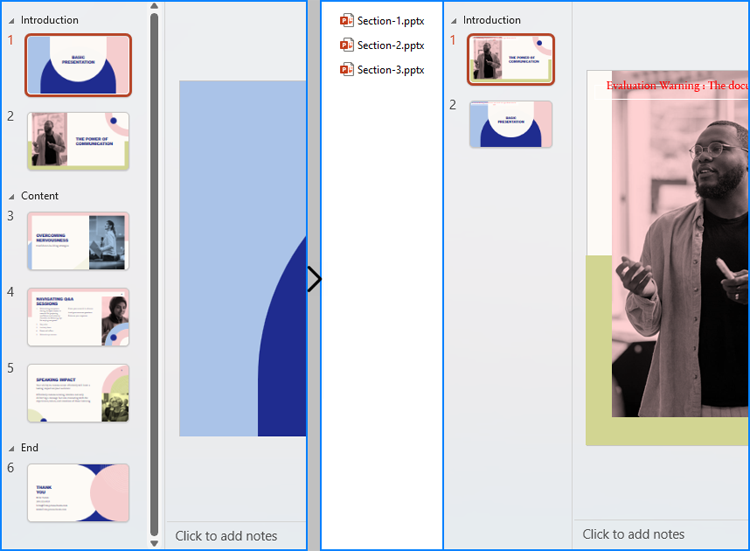
Developers also can split a presentation into sections by iterating through the sections in the presentation, adding each slide within those sections to a new PowerPoint presentation, and then saving it.
Here are the detailed steps:
- Create an instance of Presentation class and load a PowerPoint presentation using Presentation.LoadFromFile() method.
- Iterate through the sections in the presentation:
- Get a section through Presentation.SectionList[] property.
- Create a new Presentation instance and remove the default slide.
- Add a section to the new presentation with the same name using Presentation.SectionList.Append() method.
- Get the slides in the original section using Section.GetSlides() method.
- Iterate through the slides and add them to the new section using Presentation.SectionList[].Insert() method.
- Save the new presentation using Presentation.SaveToFile() method.
- C#
using Spire.Presentation;

namespace SplitPresentationSlide
{
    class Program
    {
        static void Main(string[] args)
        {
            // Create an instance of Presentation class
            Presentation presentation = new Presentation();

            // Load a PowerPoint presentation
            presentation.LoadFromFile("Sample.pptx");

            for (int i = 0; i < presentation.SectionList.Count; i++)
            {
                // Get the current section
                Section section = presentation.SectionList[i];
                // Create a new instance of Presentation class and remove the default slide
                Presentation newPresentation = new Presentation();
                newPresentation.Slides.RemoveAt(0);
                // Add a section to the new presentation
                newPresentation.SectionList.Append(section.Name);
                // Get the slides in the section
                ISlide[] slides = section.GetSlides();
                foreach (ISlide slide in slides)
                {
                    // Insert the slide to the new section in the new presentation
                    newPresentation.SectionList[0].Insert(0, slide);
                }
                // Save the new presentation
                newPresentation.SaveToFile("output/Presentations/Section-" + (i + 1).ToString() + ".pptx", FileFormat.Pptx2019);
                newPresentation.Dispose();
            }
            presentation.Dispose();
        }
    }
}
Apply for a Temporary License
If you'd like to remove the evaluation message from the generated documents, or to get rid of the function limitations, please request a 30-day trial license for yourself.
How to set the layout of the slide in .NET
Layout of PPT concerns visual effect directly. PPT Viewer may have different feelings and thoughts such as tense, confused or anxious about different layouts. We can make our PPT files show main information and weaken minor information. This article will show how to set the layout for your slide via Spire.Presentation. Here are the steps:
Step 1: Create a PPT document.
Presentation ppt = new Presentation();
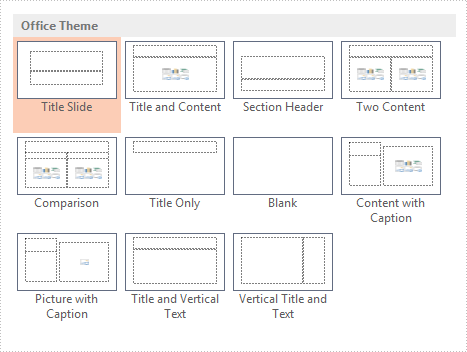
Step2: Set the layout for slide. Spire.Presentation offers 11 kinds of layout just as Microsoft PowerPoint supports.
ISlide slide = ppt.Slides.Append(SlideLayoutType.Title);
Step 3: Add content for Title and Text.
IAutoShape shape = slide.Shapes[0] as IAutoShape;
shape.TextFrame.Text = "Hello Wolrd! –> This is title";

shape = slide.Shapes[1] as IAutoShape;
shape.TextFrame.Text = "E-iceblue Support Team -> This is content";
Step 4: Save and review.
ppt.SaveToFile("Result.PPTx", FileFormat.PPTx2010);
System.Diagnostics.Process.Start("Result.PPTx");
Here is the result:

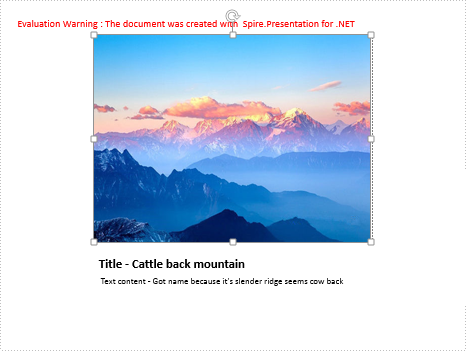
Then change another layout (Picture With Caption) to show: PictureAndCaption
Use function AppendEmbedImage to add image, and notice the order of the shape in PictureAndCaption is Shapes[1], Shapes[0] and Shapes[2].
Full code:
using Spire.Presentation;
namespace SetLayout
{
    class Program
    {
        static void Main(string[] args)
        {
            Presentation ppt = new Presentation();
            ISlide slide = ppt.Slides.Append(SlideLayoutType.PictureAndCaption);

            string ImageFile2 = "1.jpg";
            IAutoShape shape0 = slide.Shapes[1] as IAutoShape;

            slide.Shapes.AppendEmbedImage(ShapeType.Rectangle, ImageFile2, shape0.Frame.Rectangle);


            IAutoShape shape = slide.Shapes[0] as IAutoShape;
            shape.TextFrame.Text = "Title - Cattle back mountain";

            IAutoShape shape2 = slide.Shapes[2] as IAutoShape;
            shape2.TextFrame.Text = " Text content - Got name because it's slender ridge seems cow back";


            ppt.SaveToFile("Sample.pptx", FileFormat.Pptx2010);
            System.Diagnostics.Process.Start("Sample.PPTx");


        }
    }
}
Result:
How to set Transitions for Powerpoint files in C#
The transition of Slide can make presentation of PPT files more attractive. Spire.Presentation for .NET allows developers to manage or customize the slide transition of the slides. Developers can not only apply different slide transitions on the slides, but also customize the behavior of these transition.
To create simple slide transition and set speed and sound mode for transition, follow the steps below:
Step 1: Download Spire.Presentation and add references in VS.
Step 2: Create an instance of Presentation and add a new presentation file.
Presentation ppt = new Presentation();
ppt.LoadFromFile(fp.TestPath + "first_quarter_business_upd.ppt");
Step 3: There are 23 transition types can be set by Spire.Presentation, such as Circle, Cover, Plus, Push, etc. These transitions can be found in TransitionType enum.
ppt.Slides[0].SlideShowTransition.Type = TransitionType.Push;

Step 4: We just applied a simple transition on the slide. Now, to make that even better and controlled, we can set the speed of the transition to create a more customized effect. Spire.Presentation offers Fast, Medium, None, Slow 4 options.
ppt.Slides[0].SlideShowTransition.Speed = TransitionSpeed.Slow;
Step 5: Set the transition sound mode such as None, StartSound, StopPreviousSound.
ppt.Slides[0].SlideShowTransition.SoundMode = TransitionSoundMode.StartSound;
Step 6: Finally write the modified presentation as a PPTX file.
ppt.SaveToFile("setTransitons.pptx", FileFormat.Pptx2010);