C++: Add, Move or Delete Worksheets in Excel
When creating or editing Excel files, users may need to manipulate worksheets to make the files fit their specific needs. For instance, they might need to add new worksheets to record data for different categories, move or rearrange worksheets to ensure that the data is displayed in a logical order, or delete worksheets containing unnecessary information or errors. In this article, we will explain how to add, move or delete worksheets in Excel in C++ using Spire.XLS for C++.
- Add a Worksheet to an Excel File in C++
- Move a Worksheet to Another Location in an Excel File in C++
- Delete a Worksheet from an Excel File in C++
Install Spire.XLS for C++
There are two ways to integrate Spire.XLS for C++ into your application. One way is to install it through NuGet, and the other way is to download the package from our website and copy the libraries into your program. Installation via NuGet is simpler and more recommended. You can find more details by visiting the following link.
Integrate Spire.XLS for C++ in a C++ Application
Add a Worksheet to an Excel File in C++
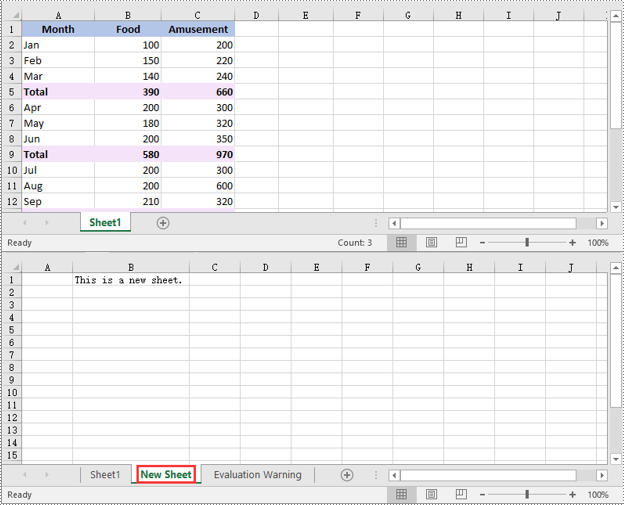
You can use the Workbook->GetWorksheets()->Add(LPCWSTR_S name) method to add a new worksheet to an Excel file. The detailed steps are as follows:
- Initialize an instance of the Workbook class.
- Load an Excel file using the Workbook->LoadFromFile(LPCWSTR_S fileName) method.
- Add a new worksheet with a specific name to the Excel file using the Workbook->GetWorksheets()->Add(LPCWSTR_S name) method.
- Add text to a specific cell of the worksheet using the Worksheet->GetCellRange(LPCWSTR_S name)->SetText(LPCWSTR_S value) method.
- Save the result file to a specific location using the Workbook->SaveToFile(LPCWSTR_S fileName, ExcelVersion version) method.
- C++
#include "Spire.Xls.o.h";

using namespace Spire::Xls;

int main()
{
	//Initialize an instance of the Workbook class
	intrusive_ptr<Workbook> workbook = new Workbook();
	//Load an Excel file
	workbook->LoadFromFile(L"Sample.xlsx");

	//Add a new worksheet with a specific name to the file
	intrusive_ptr<Worksheet> sheet = dynamic_pointer_cast<Worksheet>(workbook->GetWorksheets()->Add(L"New Sheet"));
	//Add text to the worksheet
	dynamic_pointer_cast<CellRange>(sheet->GetRange(L"B1"))->SetText(L"This is a new sheet.");
	//Autofit the width of the second column
	sheet->AutoFitColumn(2);

	//Save the result file to a specific location
	workbook->SaveToFile(L"AddWorksheet.xlsx", ExcelVersion::Version2013);
	workbook->Dispose();
}
Move a Worksheet to Another Location in an Excel File in C++
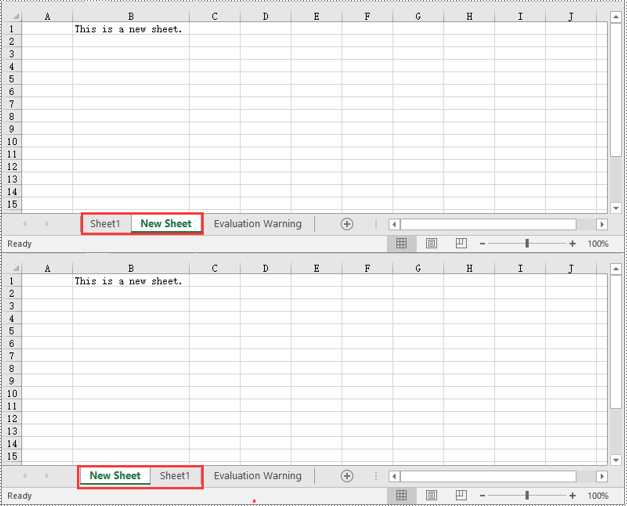
Spire.XLS for C++ provides the XlsWorksheet->MoveWorksheet(int destIndex) method which allows you to move a worksheet to from one location to another in an Excel file with ease. The detailed steps are as follows:
- Initialize an instance of the Workbook class.
- Load an Excel file using the Workbook->LoadFromFile(LPCWSTR_S fileName) method.
- Get the worksheet that you want to move using the Workbook->GetWorksheets()->Get(int index) method.
- Move the worksheet to a specific position in the Excel file using the XlsWorksheet->MoveWorksheet(int destIndex) method.
- Save the result file to a specific location using the Workbook->SaveToFile(LPCWSTR_S fileName, ExcelVersion version) method.
- C++
#include "Spire.Xls.o.h";

using namespace Spire::Xls;

int main()
{
	//Initialize an instance of the Workbook class
	intrusive_ptr<Workbook> workbook = new Workbook();
	//Load an Excel file
	workbook->LoadFromFile(L"AddWorksheet.xlsx");

	//Get the second worksheet
	intrusive_ptr<Worksheet> sheet = dynamic_pointer_cast<Worksheet>(workbook->GetWorksheets()->Get(1));

	//Move the worksheet to the first position in the Excel file
	sheet->MoveWorksheet(0);

	//Save the result file to a specific location
	workbook->SaveToFile(L"MoveWorksheet.xlsx", ExcelVersion::Version2013);
	workbook->Dispose();
}
Delete a Worksheet from an Excel File in C++
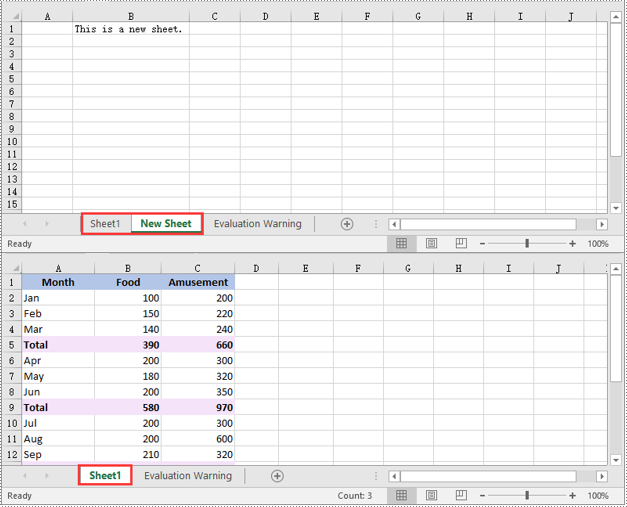
Deleting a worksheet from an Excel file is also very simple, you just need to call the Workbook->GetWorksheets()->RemoveAt(int index) method. The detailed steps are as follows:
- Initialize an instance of the Workbook class.
- Load an Excel file using the Workbook->LoadFromFile(LPCWSTR_S fileName) method.
- Delete a specific worksheet from the Excel file by its index using the Workbook->GetWorksheets()->RemoveAt(int index) method.
- Save the result file to a specific location using the Workbook->SaveToFile(LPCWSTR_S fileName, ExcelVersion version) method.
- C++
#include "Spire.Xls.o.h";

using namespace Spire::Xls;

int main()
{
	//Initialize an instance of the Workbook class
	intrusive_ptr<Workbook> workbook = new Workbook();
	//Load an Excel file
	workbook->LoadFromFile(L"AddWorksheet.xlsx");

	//Delete the second worksheet from the Excel file using its sheet index
	workbook->GetWorksheets()->RemoveAt(1);

	//Save the result file to another location
	workbook->SaveToFile(L"DeleteWorksheet.xlsx", ExcelVersion::Version2013);
	workbook->Dispose();
}
Apply for a Temporary License
If you'd like to remove the evaluation message from the generated documents, or to get rid of the function limitations, please request a 30-day trial license for yourself.
C++: Copy Worksheets in Excel
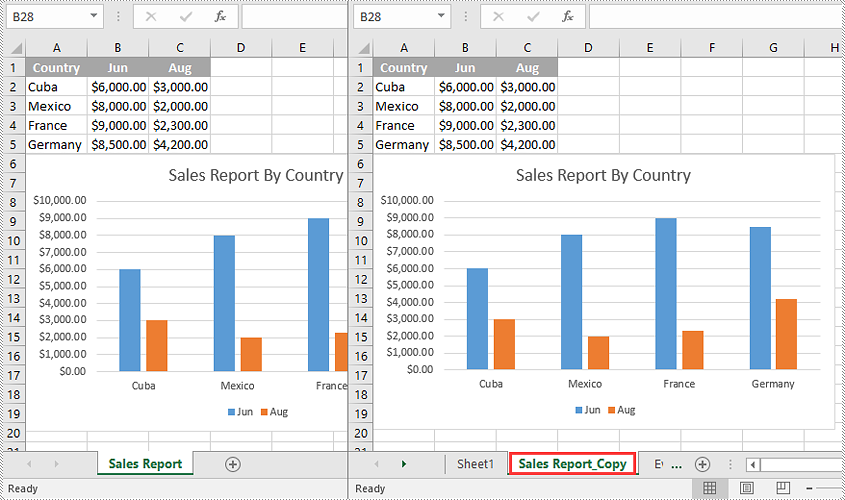
Copying worksheets is very useful when you need to create similar worksheets or want to make changes to worksheets without affecting the original. This feature can save you a significant amount of time and effort, as it allows you to quickly reuse information such as data, formulas, formatting, and layouts from existing worksheets without having to create new worksheets from scratch. This article will explain how to copy worksheets in Excel in C++ using Spire.XLS for C++.
- Copy a Worksheet in the Same Workbook
- Copy a Worksheet to Another Workbook
- Copy Visible Worksheets to a New Workbook
Install Spire.XLS for C++
There are two ways to integrate Spire.XLS for C++ into your application. One way is to install it through NuGet, and the other way is to download the package from our website and copy the libraries into your program. Installation via NuGet is simpler and more recommended. You can find more details by visiting the following link.
Integrate Spire.XLS for C++ in a C++ Application
Copy a Worksheet in the Same Workbook in C++
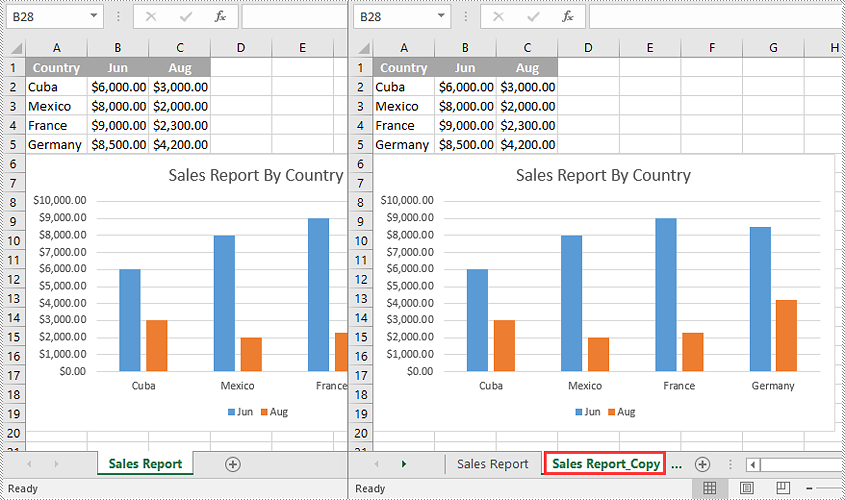
You can copy a worksheet within the same workbook by adding a new worksheet to the workbook and then copying the worksheet to the new worksheet.
The following steps demonstrate how to copy a worksheet within the same workbook:
- Initialize an instance of the Workbook class.
- Load an Excel workbook using the Workbook->LoadFromFile(LPCWSTR_S name) method.
- Get a specific worksheet using the Workbook->GetWorksheets()->Get(int index) method.
- Add a new worksheet to the workbook using the Workbook->GetWorksheets()->Add(LPCWSTR_S name) method.
- Copy the specific worksheet to the new worksheet using the Worksheet->CopyFrom(Worksheet* worksheet) method.
- Save the result workbook to another file using the Workbook->SaveToFile(LPCWSTR_S fileName, ExcelVersion version) method.
- C++
#include "Spire.Xls.o.h"

using namespace Spire::Xls;
using namespace std;

int main()
{
	//Initialize an instance of the Workbook class
	intrusive_ptr<Workbook> workbook = new Workbook();

	//Load an Excel workbook
	workbook->LoadFromFile(L"Input.xlsx");

	//Get the first worksheet
	intrusive_ptr<Worksheet> sourceSheet = dynamic_pointer_cast<Worksheet>(workbook->GetWorksheets()->Get(0));

	//Get the name of the first worksheet
	wstring sheetName = sourceSheet->GetName();

	//Add a new worksheet with a specific name to the workbook
	intrusive_ptr<Worksheet> destSheet = workbook->GetWorksheets()->Add((sheetName + L"_Copy").c_str());

	//Copy the first worksheet to the new worksheet
	destSheet->CopyFrom(sourceSheet);

	//Save the result workbook to another file
	workbook->SaveToFile(L"CopyInSameWorkbook.xlsx", ExcelVersion::Version2016);
	workbook->Dispose();
}
Copy a Worksheet to Another Workbook in C++
To copy a worksheet from one workbook to another, you need to add a new worksheet to the destination workbook and then copy the worksheet from the source workbook to the new worksheet of the destination workbook. It’s worth noting that if you want to keep the source formatting of the source worksheet, you need to copy the theme of the source workbook to the destination workbook.
The following steps demonstrate how to copy a worksheet from one workbook to another and keep its source formatting:
- Initialize an instance of the Workbook class.
- Load the source workbook using the Workbook->LoadFromFile(LPCWSTR_S name) method.
- Get a specific worksheet using the Workbook->GetWorksheets()->Get(int index) method.
- Initialize an instance of the Workbook class.
- Load the destination workbook using the Workbook->LoadFromFile(LPCWSTR_S name) method.
- Add a new worksheet to the destination workbook using the Workbook->GetWorksheets()->Add(LPCWSTR_S name) method.
- Copy the specific worksheet of the source workbook to the new worksheet of the destination workbook using the Worksheet->CopyFrom(Worksheet* worksheet) method.
- Copy the theme from the source workbook to the destination workbook using the Workbook->CopyTheme (Workbook* srcWorkbook) method.
- Save the result workbook to another file using the Workbook->SaveToFile(LPCWSTR_S fileName, ExcelVersion version) method.
- C++
#include "Spire.Xls.o.h"

using namespace Spire::Xls;
using namespace std;

int main()
{
    //Initialize an instance of the Workbook class
    intrusive_ptr<Workbook> sourceWorkbook = new Workbook();
    //Load the source Excel workbook
    sourceWorkbook->LoadFromFile(L"Input.xlsx");

    //Get the first worksheet of the source workbook
    intrusive_ptr<Worksheet> sourceSheet = dynamic_pointer_cast<Worksheet>(sourceWorkbook->GetWorksheets()->Get(0));
    //Get the name of the first worksheet
    wstring sheetName = sourceSheet->GetName();

    //Initialize an instance of the Workbook class
    intrusive_ptr<Workbook> destWorkbook = new Workbook();
    //Load the destination Excel workbook
    destWorkbook->LoadFromFile(L"Sample.xlsx");

    //Add a new worksheet with a specific name to the destination workbook
    intrusive_ptr<Worksheet> destSheet = destWorkbook->GetWorksheets()->Add((sheetName + L"_Copy").c_str());

    //Copy the first worksheet of the source workbook to the new worksheet of the destination workbook
    destSheet->CopyFrom(sourceSheet);

    //Copy the theme from the source workbook to the destination workbook
    destWorkbook->CopyTheme(sourceWorkbook);

    //Save the destination workbook to another file
    destWorkbook->SaveToFile(L"CopyToAnotherWorkbook.xlsx", ExcelVersion::Version2016);
    sourceWorkbook->Dispose();
    destWorkbook->Dispose();
}
Copy Visible Worksheets to a New Workbook in C++
If you only want to share visible worksheets rather than the entire workbook with others, you can copy the visible worksheets to a new workbook.
The following steps demonstrate how to copy visible worksheets from a workbook to a new workbook:
- Initialize an instance of the Workbook class.
- Load the source workbook using the Workbook->LoadFromFile(LPCWSTR_S name) method.
- Initialize an instance of the Workbook class to create a new workbook, then clear the default worksheets in the new workbook using the Workbook->GetWorksheets()->Clear() method.
- Iterate through all the worksheets in the source workbook.
- Check if the current worksheet is visible using the XlsWorksheetBase->GetVisibility() method.
- If the result is true, add a new worksheet to the new workbook using the Workbook->GetWorksheets()->Add(LPCWSTR_S name) method.
- Copy the worksheet from the source workbook to the new worksheet of the new workbook using the Worksheet->CopyFrom(Worksheet* worksheet) method.
- Copy the theme from the source workbook to the new workbook using the Workbook->CopyTheme (Workbook* srcWorkbook) method.
- Save the new workbook to another file using the Workbook->SaveToFile(LPCWSTR_S fileName, ExcelVersion version) method.
- C++
#include "Spire.Xls.o.h"

using namespace Spire::Xls;
using namespace std;

int main()
{
    //Initialize an instance of the Workbook class
    intrusive_ptr<Workbook> sourceWorkbook = new Workbook();
    //Load the source Excel workbook
    sourceWorkbook->LoadFromFile(L"Input.xlsx");

    //Initialize an instance of the Workbook class to create a new workbook
    intrusive_ptr<Workbook> newWorkbook = new Workbook();
    //Clear the default worksheets in the new workbook
    newWorkbook->GetWorksheets()->Clear();

    //Iterate through all the worksheets in the source workbook
    for (int i = 0; i < sourceWorkbook->GetWorksheets()->GetCount(); i++)
    {
        intrusive_ptr<Worksheet> sourceSheet = dynamic_pointer_cast<Worksheet>(sourceWorkbook->GetWorksheets()->Get(i));
        //Check if the current worksheet is visible
        if (sourceSheet->GetVisibility() == WorksheetVisibility::Visible)
        {
            //Get the name of the worksheet
            wstring sheetName = sourceSheet->GetName();
            //Add a new worksheet with a specific name to the new workbook
            intrusive_ptr<Worksheet> destSheet = newWorkbook->GetWorksheets()->Add((sheetName + L"_Copy").c_str());
            //Copy the worksheet from the source workbook to the new worksheet of the new workbook
            destSheet->CopyFrom(sourceSheet);
        }
    }

    //Copy the theme from the source workbook to the new workbook
    newWorkbook->CopyTheme(sourceWorkbook);

    //Save the new workbook to another file
    newWorkbook->SaveToFile(L"CopyVisibleSheetsToNewWorkbook.xlsx", ExcelVersion::Version2016);
    sourceWorkbook->Dispose();
    newWorkbook->Dispose();
}
Apply for a Temporary License
If you'd like to remove the evaluation message from the generated documents, or to get rid of the function limitations, please request a 30-day trial license for yourself.
C++: Freeze Rows and Columns in Excel
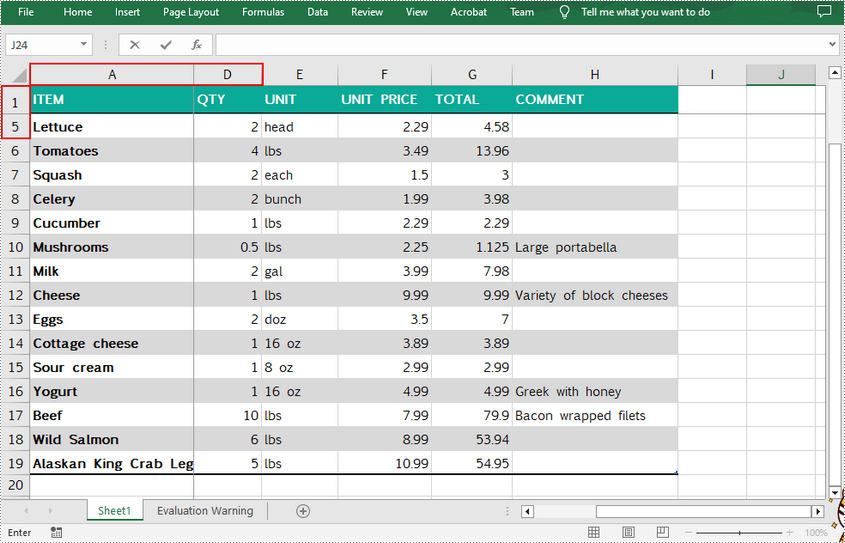
When viewing data in a large excel worksheet, you may often lose track of the header rows or columns when scrolling to another part of the worksheet. Under the circumstances, MS Excel provides the "Freeze Panes" function to help you lock the necessary rows or/and columns to keep them visible all the time. In this article, you will learn how to programmatically freeze rows or/and columns in an Excel worksheet using Spire.XLS for C++.
Spire.XLS for C++ provides the Worksheet->FreezePanes(int rowIndex, int columnIndex) method to freeze all rows and columns above and left of the selected cell which is specified by the rowIndex and the columnIndex.
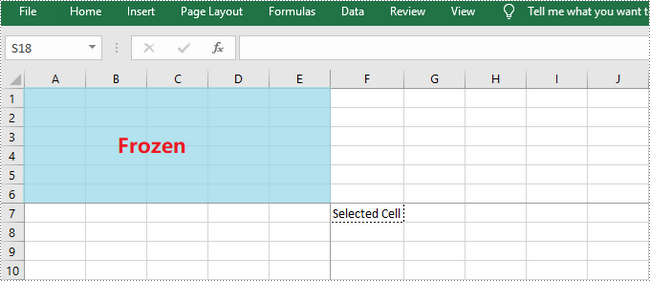
This tutorial provides the code examples for the following cases:
- Freeze the Top Row in Excel in C++
- Freeze the First Column in Excel in C++
- Freeze the First Row and First Column in Excel in C++
Install Spire.XLS for C++
There are two ways to integrate Spire.XLS for C++ into your application. One way is to install it through NuGet, and the other way is to download the package from our website and copy the libraries into your program. Installation via NuGet is simpler and more recommended. You can find more details by visiting the following link.
Integrate Spire.XLS for C++ in a C++ Application
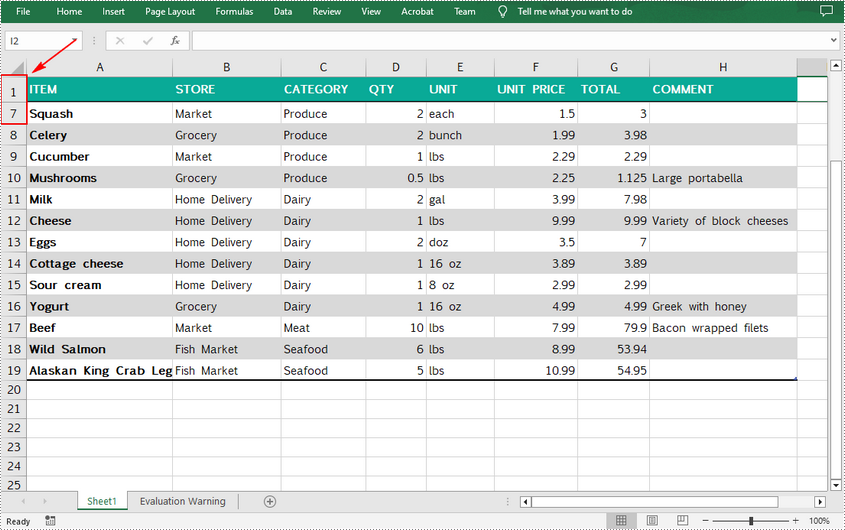
Freeze the Top Row in Excel in C++
To freeze the top row, the selected cell should be the cell (2, 1) – "A2". The following are the detailed steps.
- Create a Workbook object.
- Load an Excel document using Workbook->LoadFromFile() method.
- Get a specific worksheet using Workbook->GetWorksheets()->Get() method.
- Freeze the top row using Worksheet->FreezePanes(2, 1) method.
- Save the workbook to another Excel file using Workbook->SaveToFile() method.
- C++
#include "Spire.Xls.o.h"

using namespace Spire::Xls;
using namespace std;

int main()
{
	//Specify input file path and name
	std::wstring data_path = L"Data\\";
	std::wstring inputFile = data_path + L"sample.xlsx";

	//Specify output file path and name
	std::wstring outputPath = L"Output\\";
	std::wstring outputFile = outputPath + L"FreezeFirstRowAndColumn.xlsx";

	//Create a Workbook object
	intrusive_ptr<Workbook> workbook = new Workbook();

	//Load the Excel document from disk
	workbook->LoadFromFile(inputFile.c_str());

	//Get the first worksheet
	intrusive_ptr<Worksheet> sheet = dynamic_pointer_cast<Worksheet>(workbook->GetWorksheets()->Get(0));

	//Freeze top row
	sheet->FreezePanes(2, 1);

	//Save to file
	workbook->SaveToFile(outputFile.c_str(), ExcelVersion::Version2013);
	workbook->Dispose();
}
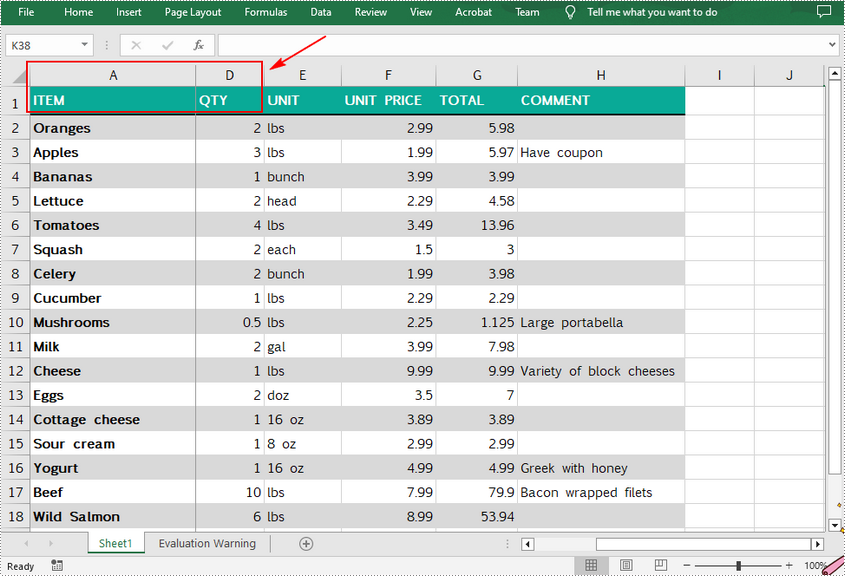
Freeze the First Column in Excel in C++
To freeze the first column, the selected cell should be the cell (1, 2) – "B1". The following are the steps to freeze the first column in an Excel worksheet.
- Create a Workbook object.
- Load an Excel document using Workbook->LoadFromFile() method.
- Get a specific worksheet using Workbook->GetWorksheets()->Get() method.
- Freeze the first column using Worksheet->FreezePanes(1, 2) method.
- Save the workbook to another Excel file using Workbook->SaveToFile() method.
- C++
#include "Spire.Xls.o.h"

using namespace Spire::Xls;
using namespace std;

int main()
{
	//Specify input file path and name
	std::wstring data_path = L"Data\\";
	std::wstring inputFile = data_path + L"sample.xlsx";

	//Specify output file path and name
	std::wstring outputPath = L"Output\\";
	std::wstring outputFile = outputPath + L"FreezeFirstRowAndColumn.xlsx";

	//Create a workbook
	intrusive_ptr<Workbook> workbook = new Workbook();

	//Load the Excel document from disk
	workbook->LoadFromFile(inputFile.c_str());

	//Get the first worksheet
	intrusive_ptr<Worksheet> sheet = dynamic_pointer_cast<Worksheet>(workbook->GetWorksheets()->Get(0));

	//Freeze first column
	sheet->FreezePanes(1, 2);

	//Save to file
	workbook->SaveToFile(outputFile.c_str(), ExcelVersion::Version2013);
	workbook->Dispose();
}
Freeze the First Row and First Column in Excel in C++
If you want to freeze the top row and the first column at the same time, the selected cell should be the cell (2, 2) – "B2". The following are the detailed steps.
- Create a Workbook object.
- Load an Excel document using Workbook->LoadFromFile() method.
- Get a specific worksheet using Workbook->GetWorksheets()->Get() method.
- Freeze the top row and first column using Worksheet->FreezePanes(1, 2) method.
- Save the workbook to another Excel file using Workbook->SaveToFile() method.
- C++
#include "Spire.Xls.o.h"

using namespace Spire::Xls;
using namespace std;

int main()
{
	//Specify input file path and name
	std::wstring data_path = L"Data\\";
	std::wstring inputFile = data_path + L"sample.xlsx";

	//Specify output file path and name
	std::wstring outputPath = L"Output\\";
	std::wstring outputFile = outputPath + L"FreezeFirstRowAndColumn.xlsx";

	//Create a workbook
	intrusive_ptr<Workbook> workbook = new Workbook();

	//Load the Excel document from disk
	workbook->LoadFromFile(inputFile.c_str());

	//Get the first worksheet
	intrusive_ptr<Worksheet> sheet = dynamic_pointer_cast<Worksheet>(workbook->GetWorksheets()->Get(0));

	//Freeze top row and first column
	sheet->FreezePanes(2, 2);

	//Save to file
	workbook->SaveToFile(outputFile.c_str(), ExcelVersion::Version2013);
	workbook->Dispose();
}
Apply for a Temporary License
If you'd like to remove the evaluation message from the generated documents, or to get rid of the function limitations, please request a 30-day trial license for yourself.