Create Nested Groups in Excel in Java
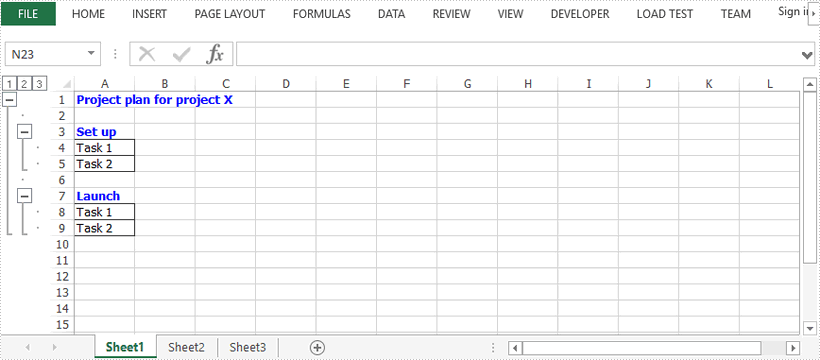
This article demonstrates how to create a nested group in a worksheet using Spire.XLS for Java.
import com.spire.xls.*;

import java.awt.*;

public class CreateNestedGroup {

    public static void main(String[] args) {

        //Create a Workbook object
        Workbook workbook = new Workbook();

        //Get the first worksheet
        Worksheet sheet = workbook.getWorksheets().get(0);

        //Create a cell style
        CellStyle style = workbook.getStyles().addStyle("style");
        style.getFont().setColor(Color.blue);
        style.getFont().isBold(true);

        //Write data to cells
        sheet.get("A1").setValue("Project plan for project X");
        sheet.get("A1").setCellStyleName(style.getName());
        sheet.get("A3").setValue("Set up");
        sheet.get("A3").setCellStyleName(style.getName());
        sheet.get("A4").setValue("Task 1");
        sheet.get("A5").setValue("Task 2");
        sheet.getCellRange("A4:A5").borderAround(LineStyleType.Thin);
        sheet.getCellRange("A4:A5").borderInside(LineStyleType.Thin);
        sheet.get("A7").setValue("Launch");
        sheet.get("A7").setCellStyleName(style.getName());
        sheet.get("A8").setValue("Task 1");
        sheet.get("A9").setValue("Task 2");
        sheet.getCellRange("A8:A9").borderAround(LineStyleType.Thin);
        sheet.getCellRange("A8:A9").borderInside(LineStyleType.Thin);

        //Pass false to isSummaryRowBelow method , which indicates the summary rows appear above detail rows
        sheet.getPageSetup().isSummaryRowBelow(false);

        //Group the rows using groupByRows method
        sheet.groupByRows(2,9,false);
        sheet.groupByRows(4,5,false);
        sheet.groupByRows(8,9,false);

        //Save to file
        workbook.saveToFile("NestedGroup.xlsx", ExcelVersion.Version2016);
    }
}
Java: Merge or Unmerge Cells in Excel
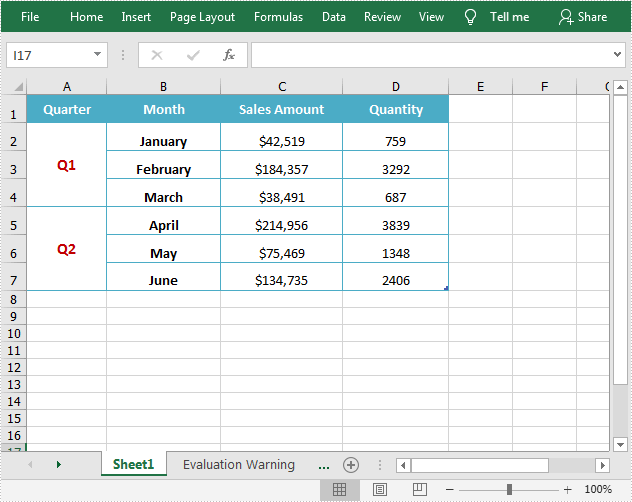
Merging cells in Excel refers to combining two or more adjacent cells into one large cell that spans multiple rows or columns. This is useful for creating titles or labels that need to be centered over a range of cell. In this article, you will learn how to programmatically merge or unmerge cells in an Excel document using Spire.XLS for Java.
Install Spire.XLS for Java
First, you're required to add the Spire.Xls.jar file as a dependency in your Java program. The JAR file can be downloaded from this link. If you use Maven, you can easily import the JAR file in your application by adding the following code to your project's pom.xml file.
<repositories>
    <repository>
        <id>com.e-iceblue</id>
        <name>e-iceblue</name>
        <url>https://repo.e-iceblue.com/nexus/content/groups/public/</url>
    </repository>
</repositories>
<dependencies>
    <dependency>
        <groupId>e-iceblue</groupId>
        <artifactId>spire.xls</artifactId>
        <version>16.10.1</version>
    </dependency>
</dependencies>
Merge Cells in Excel in Java
The detailed steps are as follows.
- Create a Workbook instance.
- Load a sample Excel document using Workbook.loadFromFile() method.
- Get a specified worksheet using Workbook.getWorksheets().get() method.
- Get a specified range using Worksheet.getRange().get() method.
- Merge cells in the specified range using XlsRange.merge() method.
- Set the horizontal alignment of merged cells to Center using XlsRange.getCellStyle().setHorizontalAlignment() method.
- Set the vertical alignment of merged cells to Center using XlsRange.getCellStyle().setVerticalAlignment() method.
- Save the result document using Workbook.saveToFile() method.
- Java
import com.spire.xls.*;

public class MergeCells {
    public static void main(String[] args){

        //Create a Workbook instance
        Workbook workbook = new Workbook();

        //Load a sample Excel document
        workbook.loadFromFile("input.xlsx");

        //Get the first worksheet
        Worksheet sheet = workbook.getWorksheets().get(0);

        //Merge cells by range
        sheet.getRange().get("A2:A4").merge();
        sheet.getRange().get("A5:A7").merge();

        //Set the horizontal alignment of merged cells to Center
        sheet.getRange().get("A2").getCellStyle().setHorizontalAlignment(HorizontalAlignType.Center);
        sheet.getRange().get("A5").getCellStyle().setHorizontalAlignment(HorizontalAlignType.Center);

        //Set the vertical alignment of merged cells to Center
        sheet.getRange().get("A2").getCellStyle().setVerticalAlignment(VerticalAlignType.Center);
        sheet.getRange().get("A5").getCellStyle().setVerticalAlignment(VerticalAlignType.Center);


        //Save the result document
        workbook.saveToFile("MergeCells.xlsx", FileFormat.Version2013);
    }
}
Unmerge Cells in Excel in Java
The detailed steps are as follows.
- Create a Workbook instance.
- Load a sample Excel document using Workbook.loadFromFile() method.
- Get a specified worksheet using Workbook.getWorksheets().get() method.
- Get a specified range using Worksheet.getRange().get() method.
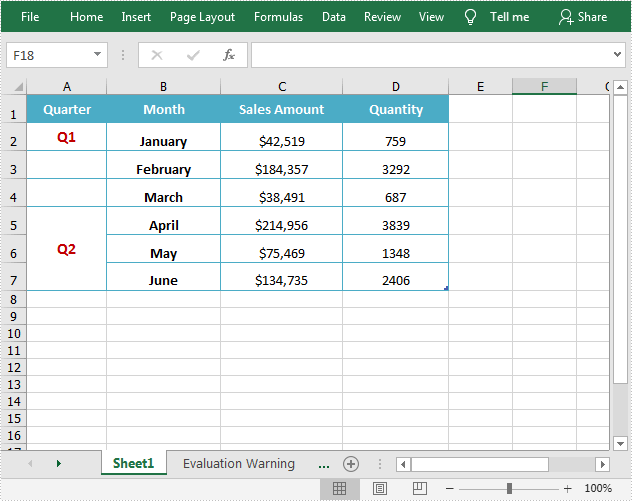
- Unmerge cells in the specified range using XlsRange.unMerge() method.
- Save the result document using Workbook.saveToFile() method.
- Java
import com.spire.xls.FileFormat;
import com.spire.xls.Workbook;
import com.spire.xls.Worksheet;

public class UnmergeCells {
    public static void main(String[] args){

        //Create a Workbook instance
        Workbook workbook = new Workbook();

        //Load a sample Excel document
        workbook.loadFromFile("MergeCells.xlsx");

        //Get the first worksheet
        Worksheet sheet = workbook.getWorksheets().get(0);

        //Unmerge cells by range
        sheet.getRange().get("A2:A4").unMerge();

        //Save the result document
        workbook.saveToFile("UnMergeCells.xlsx", FileFormat.Version2013);
    }
}
Apply for a Temporary License
If you'd like to remove the evaluation message from the generated documents, or to get rid of the function limitations, please request a 30-day trial license for yourself.
Java: Insert or Delete Rows and Columns in Excel
In MS Excel, rows arrange objects from left to right and are identified by row numbers. While columns, on the contrary, arrange objects from top to bottom and are identified by column headers. When processing data in Excel, sometimes you may need to insert additional columns and rows in the middle of your data table, or delete unwanted columns and rows. In this article, you will learn how to complete the below tasks programmatically using Spire.XLS for Java.
- Insert a Row and a Column in Excel
- Insert Multiple Rows and Columns in Excel
- Delete a Specific Row and Column in Excel
- Delete Multiple Rows and Columns in Excel
Install Spire.XLS for Java
First of all, you're required to add the Spire.Xls.jar file as a dependency in your Java program. The JAR file can be downloaded from this link. If you use Maven, you can easily import the JAR file in your application by adding the following code to your project's pom.xml file.
<repositories>
    <repository>
        <id>com.e-iceblue</id>
        <name>e-iceblue</name>
        <url>https://repo.e-iceblue.com/nexus/content/groups/public/</url>
    </repository>
</repositories>
<dependencies>
    <dependency>
        <groupId>e-iceblue</groupId>
        <artifactId>spire.xls</artifactId>
        <version>16.10.1</version>
    </dependency>
</dependencies>
Insert a Row and a Column in Excel
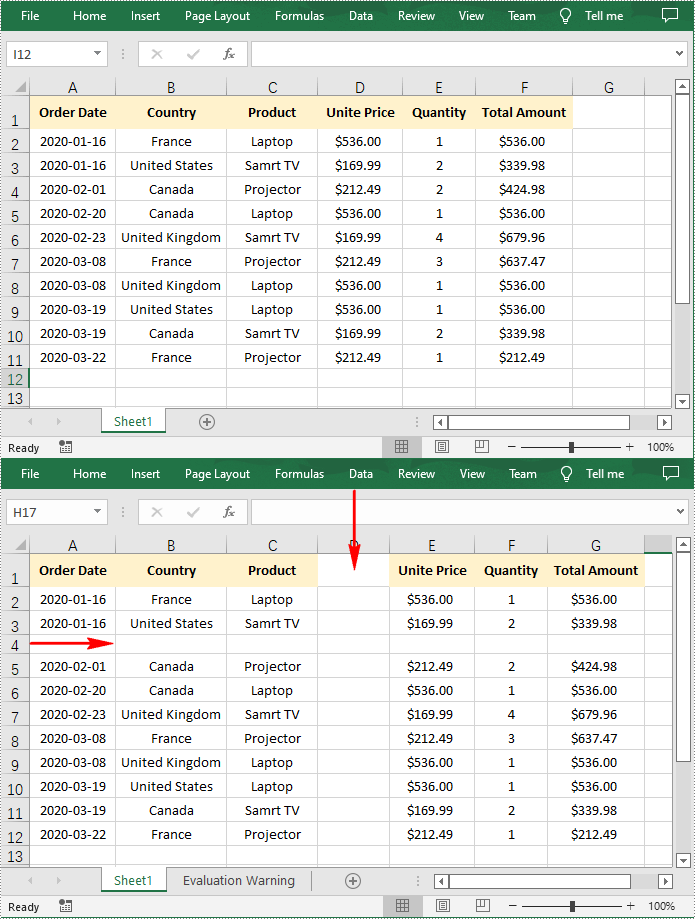
Below are the steps to insert a blank row and a blank column in an Excel worksheet.
- Create a Workbook instance.
- Load a sample Excel file using Workbook.loadFromFile() method.
- Get a specified worksheet using Workbook.getWorksheets().get() method.
- Insert a row into the worksheet using Worksheet.insertRow(int rowIndex) method.
- Insert a column into the worksheet using Worksheet.insertColumn(int columnIndex) method.
- Save the result file using Workbook.saveToFile() method.
- Java
import com.spire.xls.*;

public class InsertRowandColumn {
    public static void main(String[] args) throws Exception {
        //Create a Workbook instance
        Workbook workbook = new Workbook();

        //Load a sample Excel file
        workbook.loadFromFile("Sample.xlsx");

        //Get the first worksheet
        Worksheet worksheet = workbook.getWorksheets().get(0);

        //Insert a row into the worksheet
        worksheet.insertRow(4);

        //Insert a column into the worksheet
        worksheet.insertColumn(4);

        //Save the result file
        workbook.saveToFile("InsertRowAndColumn.xlsx", ExcelVersion.Version2013);
    }
}
Insert Multiple Rows and Columns in Excel
Below are the steps to insert multiple blank rows and columns in an Excel worksheet.
- Create a Workbook instance.
- Load a sample Excel file using Workbook.loadFromFile() method.
- Get a specified worksheet using Workbook.getWorksheets().get() method.
- Insert multiple rows into the worksheet using Worksheet.insertRow((int rowIndex, int rowCount) method.
- Insert multiple columns into the worksheet using Worksheet.insertColumn(int columnIndex, int columnCount) method.
- Save the result file using Workbook.saveToFile() method.
- Java
import com.spire.xls.*;

public class InsertRowsandColumns {
    public static void main(String[] args) throws Exception {
        //Create a Workbook instance
        Workbook workbook = new Workbook();

        //Load a sample Excel file
        workbook.loadFromFile("Sample.xlsx");

        //Get the first worksheet
        Worksheet worksheet = workbook.getWorksheets().get(0);

        //Insert multiple rows into the worksheet.
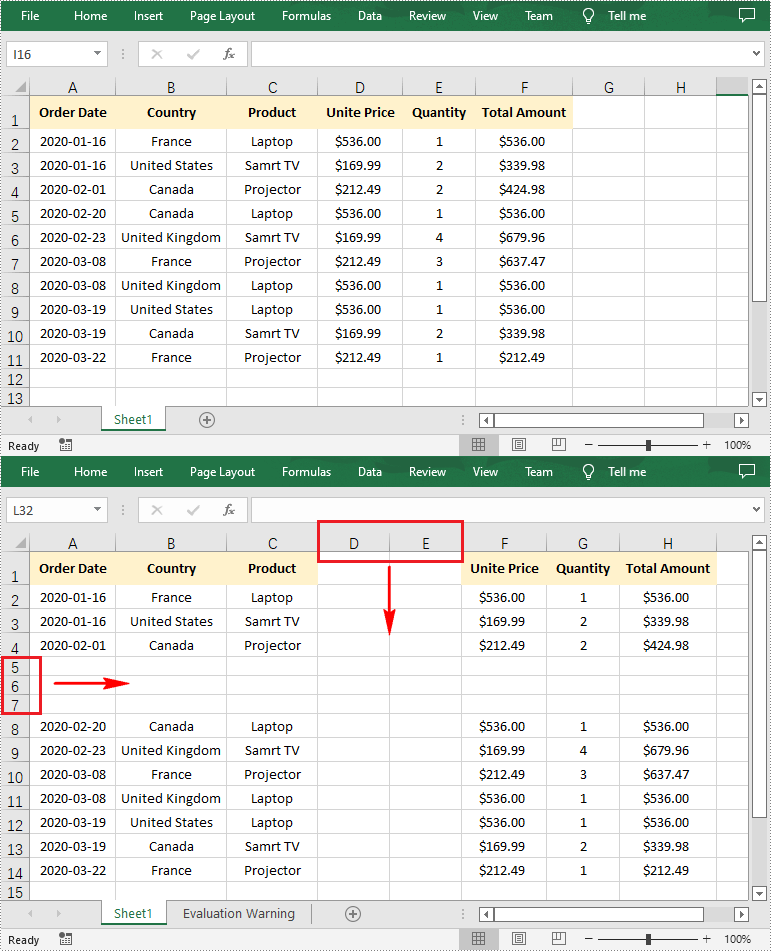
        worksheet.insertRow(5, 3);

        //Insert multiple columns into the worksheet.
        worksheet.insertColumn(4, 2);

        //Save the result file
        workbook.saveToFile("InsertRowsAndColumns.xlsx", ExcelVersion.Version2013);
    }
}
Delete a Specific Row and Column in Excel
Below are the steps to delete a specific row and column in an Excel worksheet.
- Create a Workbook instance.
- Load a sample Excel file using Workbook.loadFromFile() method.
- Get a specified worksheet using Workbook.getWorksheets().get() method.
- Delete a specific row from the worksheet using Worksheet.deleteRow(int index) method.
- Delete a specific column from the worksheet using Worksheet.deleteColumn(int columnIndex) method.
- Save the result file using Workbook.saveToFile() method.
- Java
import com.spire.xls.*;

public class DeleteRowColumn {
    public static void main(String[] args) throws Exception {
        //Create a Workbook instance
        Workbook workbook = new Workbook();

        //Load the sample Excel file
        workbook.loadFromFile("Sample.xlsx");

        //Get the first worksheet
        Worksheet worksheet = workbook.getWorksheets().get(0);

        //Delete a specific row from the worksheet
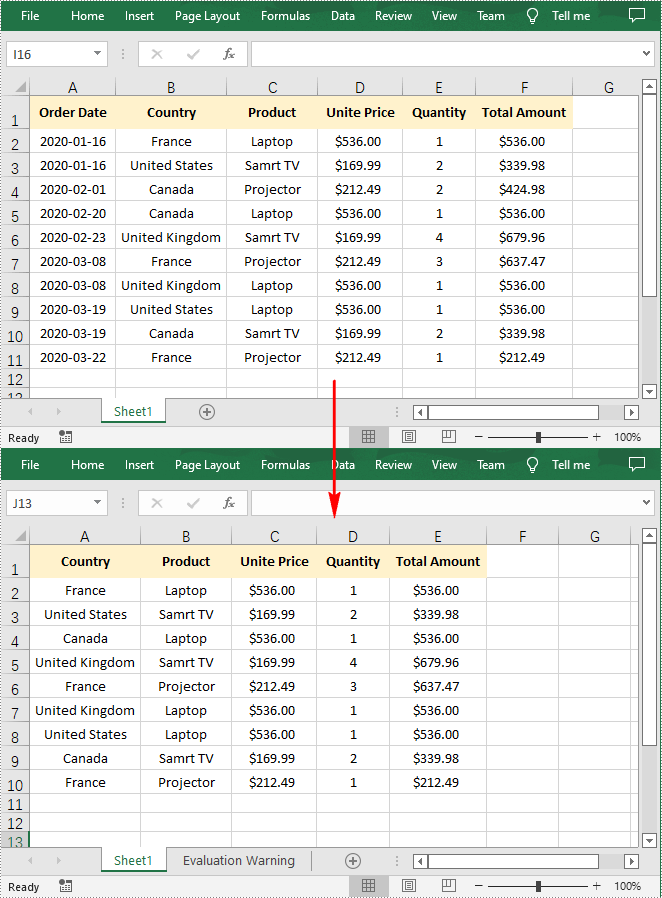
        worksheet.deleteRow(4);

        //Delete a specific column from the worksheet
        worksheet.deleteColumn(1);

        //Save to file.
        workbook.saveToFile("DeleteRowAndColumn.xlsx", ExcelVersion.Version2013);

    }
}
Delete Multiple Rows and Columns in Excel
Below are the steps to delete multiple rows and columns in an Excel worksheet.
- Create a Workbook instance.
- Load a sample Excel file using Workbook.loadFromFile() method.
- Get a specified worksheet using Workbook.getWorksheets().get() method.
- Delete multiple rows from the worksheet using Worksheet.deleteRow(int index, int count) method.
- Delete multiple columns from the worksheet using Worksheet.deleteColumn(int columnIndex, int count) method.
- Save the result file using Workbook.saveToFile() method.
- Java
import com.spire.xls.*;

public class DeleteRowColumn {
    public static void main(String[] args) throws Exception {
        //Create a Workbook instance
        Workbook workbook = new Workbook();

        //Load the sample Excel file
        workbook.loadFromFile("E:\\Files\\Sample.xlsx");

        //Get the first worksheet
        Worksheet worksheet = workbook.getWorksheets().get(0);

        //Delete multiple rows from the worksheet
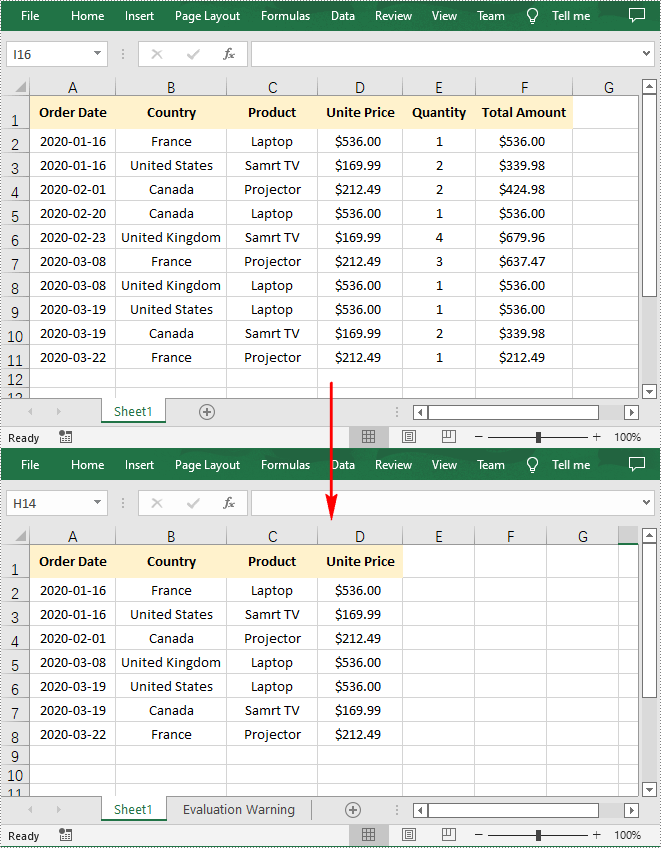
        worksheet.deleteRow(5, 3);

        //Delete multiple columns from the worksheet
        worksheet.deleteColumn(5, 2);

        //Save to file.
        workbook.saveToFile("DeleteRowsAndColumns.xlsx", ExcelVersion.Version2013);

    }
}
Apply for a Temporary License
If you'd like to remove the evaluation message from the generated documents, or to get rid of the function limitations, please request a 30-day trial license for yourself.