How to Insert Controls to Worksheet in C#, VB.NET
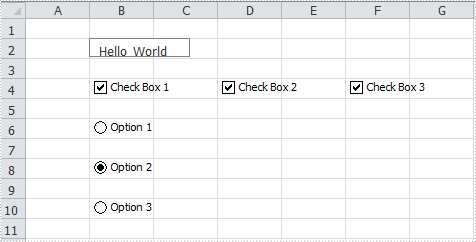
MS Excel contains a set of Windows Forms controls that can be used to Worksheet to host item. Spire.XLS also provides programmers similar features to add controls on Worksheet at runtime without installing any other control program. In this article, I'll introduce you how to insert TextBox, CheckBox and RadioButton into Worksheet via Spire.XLS in C#, VB.NET.
Detailed Steps:
Step 1: Download Spire.XLS and reference dll file to your VS project.
Step 2: Use Spire.Xls.Core as namespace, which contains all the interfaces like ITextBoxShap, ICheckBox, IRadioButton and etc.
Step 3: Initialize a new instance of Workbook and create a Worksheet in it.
Workbook wb = new Workbook();
Worksheet ws = wb.Worksheets[0];
Step 4: Insert a TextBox at specified location and input the display text.
ITextBoxShape textbox = ws.TextBoxes.AddTextBox(2, 2, 15, 100);
textbox.Text = "Hello World";
Step 5: Insert three CheckBox into Worksheet at different locations. Set the CheckState and display text.
ICheckBox cb = ws.CheckBoxes.AddCheckBox(4, 2, 15, 100);
cb.CheckState = CheckState.Checked;
cb.Text = "Check Box 1";

cb = ws.CheckBoxes.AddCheckBox(4, 4, 15, 100);
cb.CheckState = CheckState.Checked;
cb.Text = "Check Box 2";

cb = ws.CheckBoxes.AddCheckBox(4, 6, 15, 100);
cb.CheckState = CheckState.Checked;
cb.Text = "Check Box 3";
Step 6: Insert three RadioButton and set the related properties.
IRadioButton rb = ws.RadioButtons.Add(6, 2, 15, 100);
rb.Text = "Option 1";

rb = ws.RadioButtons.Add(8, 2, 15, 100);
rb.CheckState = CheckState.Checked;
rb.Text = "Option 2";

rb = ws.RadioButtons.Add(10, 2, 15, 100);
rb.Text = "Option 3";
Step 7: Save the file.
ws.DefaultRowHeight = 15;
wb.SaveToFile("Result.xlsx", ExcelVersion.Version2010);
Output:
Full Code:
using Spire.Xls;
using Spire.Xls.Core;
namespace InsertControl
{
    class Program
    {
        static void Main(string[] args)
        {
            Workbook wb = new Workbook();
            Worksheet ws = wb.Worksheets[0];

            ITextBoxShape textbox = ws.TextBoxes.AddTextBox(2, 2, 15, 100);
            textbox.Text = "Hello World";

            ICheckBox cb = ws.CheckBoxes.AddCheckBox(4, 2, 15, 100);
            cb.CheckState = CheckState.Checked;
            cb.Text = "Check Box 1";

            cb = ws.CheckBoxes.AddCheckBox(4, 4, 15, 100);
            cb.CheckState = CheckState.Checked;
            cb.Text = "Check Box 2";

            cb = ws.CheckBoxes.AddCheckBox(4, 6, 15, 100);
            cb.CheckState = CheckState.Checked;
            cb.Text = "Check Box 3";

            IRadioButton rb = ws.RadioButtons.Add(6, 2, 15, 100);
            rb.Text = "Option 1";

            rb = ws.RadioButtons.Add(8, 2, 15, 100);
            rb.CheckState = CheckState.Checked;
            rb.Text = "Option 2";

            rb = ws.RadioButtons.Add(10, 2, 15, 100);
            rb.Text = "Option 3";

            ws.DefaultRowHeight = 15;
            wb.SaveToFile("Result.xlsx", ExcelVersion.Version2010);
        }
    }
}
Imports Spire.Xls
Imports Spire.Xls.Core
Namespace InsertControl
	Class Program
		Private Shared Sub Main(args As String())
			Dim wb As New Workbook()
			Dim ws As Worksheet = wb.Worksheets(0)

			Dim textbox As ITextBoxShape = ws.TextBoxes.AddTextBox(2, 2, 15, 100)
			textbox.Text = "Hello World"

			Dim cb As ICheckBox = ws.CheckBoxes.AddCheckBox(4, 2, 15, 100)
			cb.CheckState = CheckState.Checked
			cb.Text = "Check Box 1"

			cb = ws.CheckBoxes.AddCheckBox(4, 4, 15, 100)
			cb.CheckState = CheckState.Checked
			cb.Text = "Check Box 2"

			cb = ws.CheckBoxes.AddCheckBox(4, 6, 15, 100)
			cb.CheckState = CheckState.Checked
			cb.Text = "Check Box 3"

			Dim rb As IRadioButton = ws.RadioButtons.Add(6, 2, 15, 100)
			rb.Text = "Option 1"

			rb = ws.RadioButtons.Add(8, 2, 15, 100)
			rb.CheckState = CheckState.Checked
			rb.Text = "Option 2"

			rb = ws.RadioButtons.Add(10, 2, 15, 100)
			rb.Text = "Option 3"

			ws.DefaultRowHeight = 15
			wb.SaveToFile("Result.xlsx", ExcelVersion.Version2010)
		End Sub
	End Class
End Namespace
How to set the font and background for TextBox in Excel Chart
Textbox is been widely used in Excel workbooks to give abstract and introduce information for a part of the excel documents. Spire.XLS supports to insert textbox in Excel worksheet and edit the setting of the textbox. We have already shown you how to remove the borderline of textbox in Excel chart. This tutorial will demonstrate how to set the font and background for TextBox in Excel in C#.
Firstly, make sure that Spire.XLS for .NET has been installed on your machine. And then, adds Spire.XLS.dll as reference in the downloaded Bin folder thought the below path: "..\Spire.XLS\Bin\NET4.0\ Spire.XLS.dll".
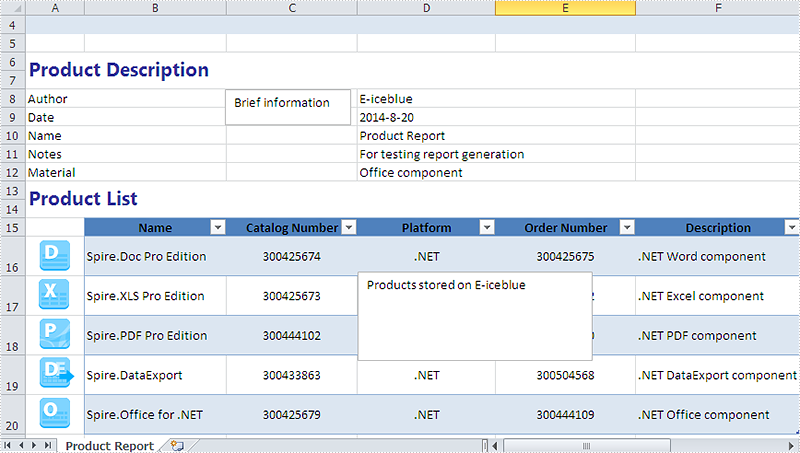
Now it comes to the details of how to set the text font and background color for textbox in Excel in C# and view the textbox before editing:
Step 1: Create a new instance of workbook and load an Excel file with textbox from file.
Workbook workbook = new Workbook();
workbook.LoadFromFile("sample.xlsx");
Step 2: Get the worksheet named in "Product Report" which contains textbox.
Worksheet sheet = workbook.Worksheets["Product Report"];
Step 3: Get the second textbox which will be edited.
XlsTextBoxShape shape = sheet.TextBoxes[1] as XlsTextBoxShape;
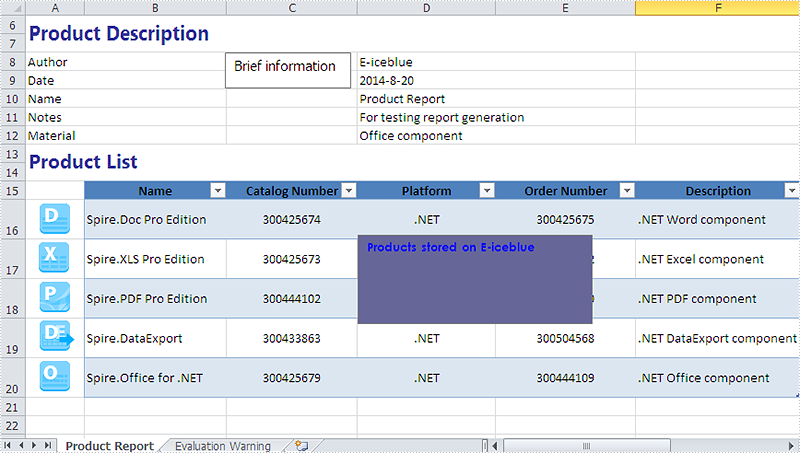
Step 4: Set the font and background color for the second textbox.
//Set the font
ExcelFont font = workbook.CreateFont();
font.FontName = "Century Gothic";
font.Size = 10;
font.IsBold = true;
font.Color = Color.Blue;
(new RichText(shape.RichText)).SetFont(0, shape.Text.Length - 1, font);
//set background color
shape.Fill.FillType = ShapeFillType.SolidColor;
shape.Fill.ForeKnownColor = ExcelColors.BlueGray;
Step 5: Save the document to file and launch it.
string output = "result.xlsx";
workbook.SaveToFile(output,ExcelVersion.Version2010);
System.Diagnostics.Process.Start(output);
Effective screenshot after set the font and background color for textbox in Excel chart:
Full codes:
using Spire.Xls;
using Spire.Xls.Core.Spreadsheet.Shapes;
using System.Drawing;
namespace setFontandBackgroundforTextbox
{
    class Program
    {
        static void Main(string[] args)
        {
            Workbook workbook = new Workbook();
            workbook.LoadFromFile("sample.xlsx");
            Worksheet sheet = workbook.Worksheets["Product Report"];
            XlsTextBoxShape shape = sheet.TextBoxes[1] as XlsTextBoxShape;

            //set font
            ExcelFont font = workbook.CreateFont();
            //font.IsStrikethrough = true;
            font.FontName = "Century Gothic";
            font.Size = 10;
            font.IsBold = true;
            font.Color = Color.Blue;
            (new RichText(shape.RichText)).SetFont(0, shape.Text.Length - 1, font);
            //set background color
            shape.Fill.FillType = ShapeFillType.SolidColor;
            shape.Fill.ForeKnownColor = ExcelColors.BlueGray;

            string output = "result.xlsx";
            workbook.SaveToFile(output,ExcelVersion.Version2010);
            System.Diagnostics.Process.Start(output);

        }
    }
Remove borderline of textbox in Excel chart in C#, VB.NET
There is an article in the tutorials which demonstrates how to insert textbox with contents in Excel. Sometime back, a user of Spire.XLS wanted to know if it is possible to remove the borderline of the textbox that has been inserted in Excel chart. Yes, of course. This article focuses on delivering a solution to this issue.
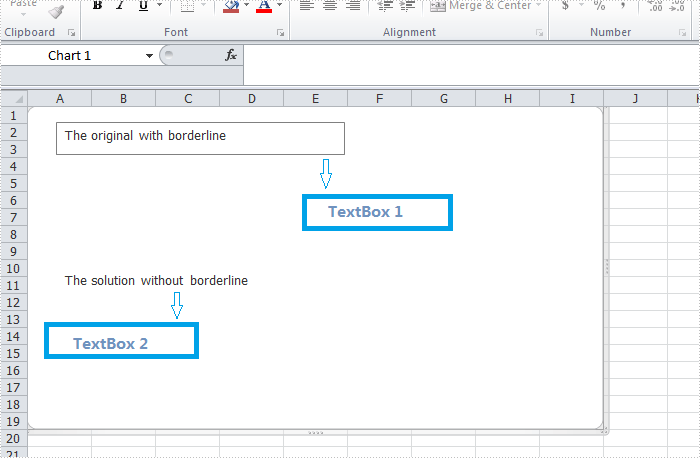
In the following section, we're going to create two textboxes in the same chart, one textbox is built with borderline, the other one without. Then we can learn how to remove borderline using Spire.XLS by comparison.
Code snippet for remove borderline of textbox:
Step 1: Create a new instance of workbook.
Workbook workbook = new Workbook();
workbook.Version=ExcelVersion.Version2010;
Step 2: Create a new worksheet named "Remove Borderline" and add a chart to the worksheet.
Worksheet sheet = workbook.Worksheets[0];
sheet.Name = "Remove Borderline";
Chart chart = sheet.Charts.Add();
Step 3: Create textbox1 in the chart and input text information.
XlsTextBoxShape textbox1 = chart.TextBoxes.AddTextBox(50, 50, 100, 500) as XlsTextBoxShape;
Step 4: Create textbox2 in the chart, input text information and remove borderline.
XlsTextBoxShape textbox = chart.TextBoxes.AddTextBox(500, 50, 100, 500) as XlsTextBoxShape;
textbox.Text = "The solution without borderline";
textbox.Line.Weight = 0;
Step 5: Save and launch the file.
workbook.SaveToFile("Sample.xlsx", ExcelVersion.Version2010);
Process.Start("Sample.xlsx");
Result:
Full code:
using Spire.Xls;
using Spire.Xls.Core.Spreadsheet.Shapes;
using System.Diagnostics;

namespace RemoveBorderlineofTextbox
{
    class Program
    {
        static void Main(string[] args)
        {
            // Create a new workbook
            Workbook workbook = new Workbook();
            workbook.Version = ExcelVersion.Version2010;
            // Get the first worksheet and rename it
            Worksheet sheet = workbook.Worksheets[0];
            sheet.Name = "Remove Borderline";
            // Add a chart to the worksheet
            Chart chart = sheet.Charts.Add();
            // Add the first text box (with visible border)
            XlsTextBoxShape textbox1 = chart.TextBoxes.AddTextBox(50, 50, 100, 500) as XlsTextBoxShape ;
            textbox1.Text = "The original with borderline";
            // Add the second text box (border will be hidden)
            XlsTextBoxShape textbox2 = chart.TextBoxes.AddTextBox(500, 50, 100, 500) as XlsTextBoxShape;
            textbox2.Text = "The solution without borderline";
            // Hide the border by setting line weight to 0
            textbox2.Line.Weight = 0;
            // Save the result file
            workbook.SaveToFile("Sample.xlsx", ExcelVersion.Version2010);
            Process.Start("Sample.xlsx");
        }
    }
}
Imports Spire.Xls
Imports Spire.Xls.Core.Spreadsheet.Shapes
Imports System.Diagnostics
Namespace RemoveBorderlineofTextbox
	Class Program

		Private Shared Sub Main(args As String())
			'Create a new workbook
			Dim workbook As New Workbook()
			workbook.Version = ExcelVersion.Version2010
			'  Get the first worksheet And rename it
			Dim sheet As Worksheet = workbook.Worksheets(0)
			sheet.Name = "Remove Borderline"
			'  Add a chart to the worksheet
			Dim chart As Chart = sheet.Charts.Add()
			'  Add the first text box (with visible border)
			Dim textbox1 As XlsTextBoxShape = TryCast(chart.TextBoxes.AddTextBox(50, 50, 100, 500), XlsTextBoxShape)
			textbox1.Text = "The original with borderline"
			'Add the second text box (border will be hidden)
			Dim textbox2 As XlsTextBoxShape = TryCast(chart.TextBoxes.AddTextBox(500, 50, 100, 500), XlsTextBoxShape)
			textbox2.Text = "The solution without borderline"
			'Hide the border by setting line weight to 0
			textbox2.Line.Weight = 0
			'Save the result file
			workbook.SaveToFile("Sample.xlsx", ExcelVersion.Version2010)
			Process.Start("Sample.xlsx")

		End Class
End Namespace
C#: Add, Extract, or Remove a Textbox in Excel
Textboxes in Excel are versatile tools that allow users to add annotations, labels, or any additional information to their spreadsheets. Whether you want to highlight important data, provide explanations, or create visually appealing reports, managing textboxes is essential.
In this article, you will learn how to add a textbox, extract content from an existing textbox, and remove a textbox in Excel using C# and Spire.XLS for .NET.
Install Spire.XLS for .NET
To begin with, you need to add the DLL files included in the Spire.XLS for .NET package as references in your .NET project. The DLL files can be either downloaded from this link or installed via NuGet.
PM> Install-Package Spire.XLS
Add a Textbox to Excel in C#
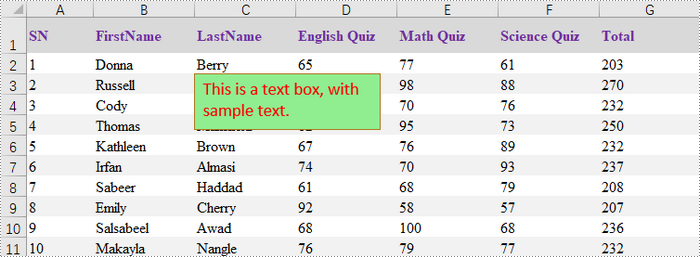
A textbox can be added to a worksheet using the Worksheet.TextBoxes.AddTextBox() method. This method returns an ITextBoxShape object, which contains properties such as Text, HAlignment, and Fill, for configuring the text and formatting of the textbox.
The steps to add a textbox with customized text and formatting to Excel are as follows:
- Create a Workbook object.
- Load an Excel file from the specified file path.
- Get a specific worksheet from the workbook.
- Add a textbox to the worksheet at the specified location using Worksheet.TextBoxes.AddTextBox() method.
- Set the text of the textbox using ITextBoxShape.Text property.
- Customize the appearance of the textbox using other properties of the ITextBoxShape object.
- Save the workbook to a different Excel file.
- C#
using Spire.Xls;
using Spire.Xls.Core;
using System.Drawing;

namespace AddTextbox
{
    class Program
    {
        static void Main(string[] args)
        {
            // Create a Workbook object
            Workbook workbook = new Workbook();

            // Load an Excel document
            workbook.LoadFromFile("C:\\Users\\Administrator\\Desktop\\Input.xlsx");

            // Get a specific sheet
            Worksheet sheet = workbook.Worksheets[0];

            // Add a textbox to the specified location
            ITextBoxShape textBoxShape = sheet.TextBoxes.AddTextBox(3, 3, 60, 200);

            // Set text of the textbox
            textBoxShape.Text = "This is a text box, with sample text.";

            // Create a font
            ExcelFont font = workbook.CreateFont();
            font.FontName = "Calibri";
            font.Size = 14;
            font.Color = Color.Red;

            // Apply font to the text
            textBoxShape.RichText.SetFont(0, textBoxShape.Text.Length - 1, font);

            // Set horizontal alignment
            textBoxShape.HAlignment = CommentHAlignType.Left;

            // Set the fill color of the shape
            textBoxShape.Fill.FillType = ShapeFillType.SolidColor;
            textBoxShape.Fill.ForeColor = Color.LightGreen;

            // Save the Excel file
            workbook.SaveToFile("output/AddTextBox.xlsx", ExcelVersion.Version2010);

            // Dispose resources
            workbook.Dispose();
        }
    }
}
Extract Text from a Textbox in Excel in C#
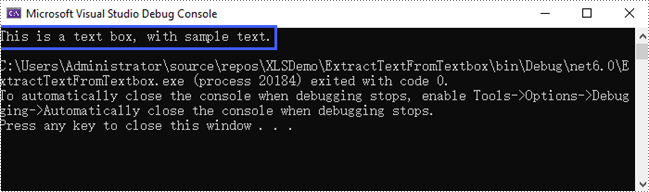
A specific textbox can be accessed using the Worksheet.TextBoxes[index] property. Once retrieved, the textbox's text can be accessed through the ITextBox.Text property.
The steps to extract text from a textbox in Excel are as follows:
- Create a Workbook object.
- Load an Excel file from the specified file path.
- Get a specific worksheet from the workbook.
- Get the text of a specific textbox using Worksheet.TextBoxes[index] property.
- Get the text of the textbox using ITextBox.Text property.
- C#
using Spire.Xls;
using Spire.Xls.Core;

namespace ExtractTextFromTextbox
{
    class Program
    {
        static void Main(string[] args)
        {
            // Create a Workbook object
            Workbook workbook = new Workbook();

            // Load an Excel file
            workbook.LoadFromFile("C:\\Users\\Administrator\\Desktop\\TextBox.xlsx");

            // Get a specific worksheet
            Worksheet sheet = workbook.Worksheets[0];

            // Get a specific textbox
            ITextBox textBox = sheet.TextBoxes[0];

            // Get text from the textbox
            String text = textBox.Text;

            // Print out result
            Console.WriteLine(text);
        }
    }
}
Remove a Textbox from Excel in C#
To remove a specific textbox from a worksheet, use the Worksheet.TextBoxes[index].Remove() method. To clear all textboxes, retrieve the count with the Worksheet.TextBoxes.Count property and iterate through the collection, removing each textbox individually.
The steps to remove a textbox from Excel are as follows:
- Create a Workbook object.
- Load an Excel file from the specified file path.
- Get a specific worksheet from the workbook.
- Remove a specific textbox using Worksheet.TextBoxes[index].Remove() method.
- Save the workbook to a different Excel file.
- C#
using Spire.Xls;

namespace RemoveTextbox
{
    class Program
    {
        static void Main(string[] args)
        {
            // Create a Workbook object
            Workbook workbook = new Workbook();

            // Load an Excel file
            workbook.LoadFromFile("C:\\Users\\Administrator\\Desktop\\TextBox.xlsx");

            // Get a specific worksheet
            Worksheet sheet = workbook.Worksheets[0];

            // Remove a specific textbox
            sheet.TextBoxes[0].Remove();

            // Save the updated document to a different Excel file
            workbook.SaveToFile("output/RemoveTextbox.xlsx", ExcelVersion.Version2016);

            // Dispose resources
            workbook.Dispose();
        }
    }
}
Apply for a Temporary License
If you'd like to remove the evaluation message from the generated documents, or to get rid of the function limitations, please request a 30-day trial license for yourself.