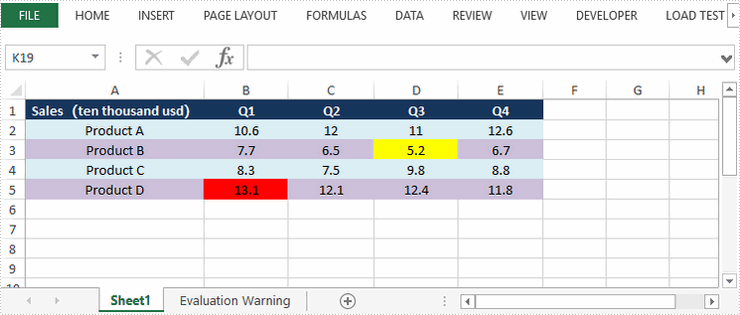
This article demonstrates how to highlight the highest and lowest value in a cell rang through conditional formatting. You can also highlight the top 5 or bottom 5 values by passing 5 to setRank() method in the code snippet below.
import com.spire.xls.*;
import com.spire.xls.core.IConditionalFormat;
import com.spire.xls.core.spreadsheet.collections.XlsConditionalFormats;

import java.awt.*;

public class HighlightTopBottom {
    public static void main(String[] args) {

        //Create a Workbook object
        Workbook workbook = new Workbook();

        //Load the sample Excel file
        workbook.loadFromFile("G:\\360MoveData\\Users\\Administrator\\Desktop\\sales report.xlsx");

        //Get the first worksheet
        Worksheet sheet = workbook.getWorksheets().get(0);

        //Add a conditional formatting and specify ranges
        XlsConditionalFormats conditional = sheet.getConditionalFormats().add();
        conditional.addRange(sheet.getCellRange("B2:E5"));

        //Apply conditional formatting to highlight the highest value
        IConditionalFormat format1 = conditional.addTopBottomCondition(TopBottomType.Top,1);
        format1.setBackColor(Color.red);

        //Apply conditional formatting to highlight the lowest value
        IConditionalFormat format2 = conditional.addTopBottomCondition(TopBottomType.Bottom,1)
        format2.setBackColor(Color.yellow);

        //Save the document
        workbook.saveToFile("output/HighestLowestValue.xlsx", ExcelVersion.Version2016);


    }
}