
Image and Shape (5)
Images are visual representations of information. Adding images to our documents can help us express our thoughts in a simple and beautiful way. In this article, we will introduce how to insert images into Excel in Java using Spire.XLS for Java library.
Install Spire.XLS for Java
First of all, you're required to add the Spire.Xls.jar file as a dependency in your Java program. The JAR file can be downloaded from this link. If you use Maven, you can easily import the JAR file in your application by adding the following code to your project's pom.xml file.
<repositories>
    <repository>
        <id>com.e-iceblue</id>
        <name>e-iceblue</name>
        <url>https://repo.e-iceblue.com/nexus/content/groups/public/</url>
    </repository>
</repositories>
<dependencies>
    <dependency>
        <groupId>e-iceblue</groupId>
        <artifactId>spire.xls</artifactId>
        <version>16.8.4</version>
    </dependency>
</dependencies>
Insert Image from Disk into Excel in Java
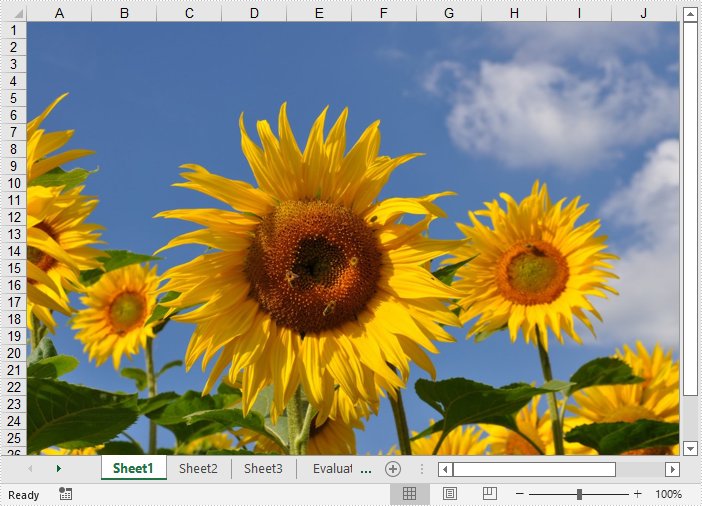
The following are the steps to insert an image from disk into Excel:
- Initialize a Workbook instance
- Get the desired worksheet using Workbook.getWorksheets().get(sheetIndex) method.
- Insert an image into the worksheet using Worksheet.getPictures().add() method.
- Save the result file using Workbook.saveToFile() method.
- Java
import com.spire.xls.ExcelVersion;
import com.spire.xls.Workbook;
import com.spire.xls.Worksheet;

public class InsertImageFromDisk {
    public static void main(String[] args){
        //Initialize a Workbook instance
        Workbook workbook = new Workbook();
        //Get the first sheet
        Worksheet sheet = workbook.getWorksheets().get(0);

        //Insert an image into the worksheet
        sheet.getPictures().add(1, 1,"E:\\work\\sample.jpg");

        //Save the result file
        workbook.saveToFile("InsertImageFromDisk.xlsx", ExcelVersion.Version2016);
    }
}
Insert Web Image from a URL into Excel in Java
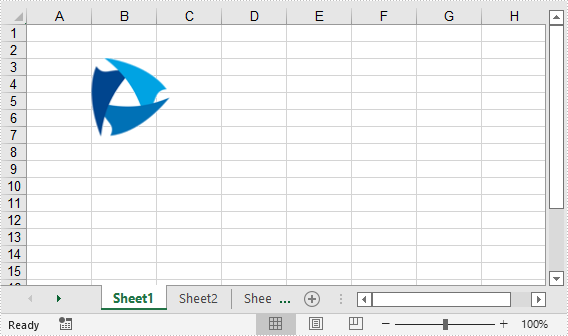
The following are the steps to insert a web image from a URL into an Excel worksheet:
- Initialize a Workbook instance.
- Get the desired worksheet using Workbook.getWorksheets().get(sheetIndex) method.
- Initialize a URL instance to get the image from the specified URL. Within the constructor of URL class, pass the image’s URL as a parameter.
- Read the image into a BufferedImage object using ImageIO.read() method.
- Insert the image into the worksheet using Worksheet.getPictures().add() method.
- Save the result file using Workbook.saveToFile() method.
- Java
import com.spire.xls.ExcelVersion;
import com.spire.xls.Workbook;
import com.spire.xls.Worksheet;

import javax.imageio.ImageIO;
import java.awt.image.BufferedImage;
import java.io.IOException;
import java.net.URL;

public class InsertWebImage {
    public static void main(String[] args) throws IOException {
        //Initialize a Workbook instance
        Workbook workbook = new Workbook();

        //Get the first worksheet
        Worksheet sheet = workbook.getWorksheets().get(0);

        //Initialize a URL instance to get the image from the specified URL
        URL url = new URL("https://www.e-iceblue.com/downloads/demo/Logo.png");
        //Read the image into a BufferedImage object
        BufferedImage bufferedImage = ImageIO.read(url);

        //Insert the image into the worksheet
        sheet.getPictures().add(3, 2, bufferedImage );

        //Save the result file
        workbook.saveToFile("InsertWebImage.xlsx", ExcelVersion.Version2016);
    }
}
Apply for a Temporary License
If you'd like to remove the evaluation message from the generated documents, or to get rid of the function limitations, please request a 30-day trial license for yourself.
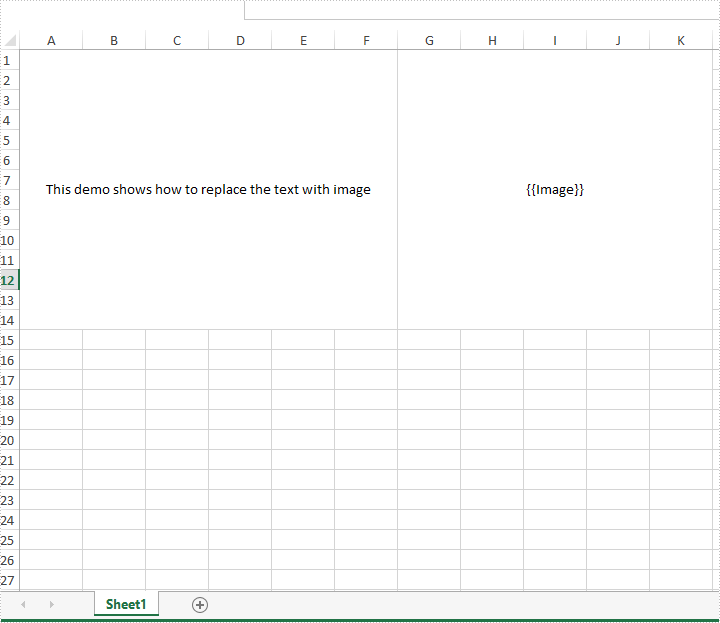
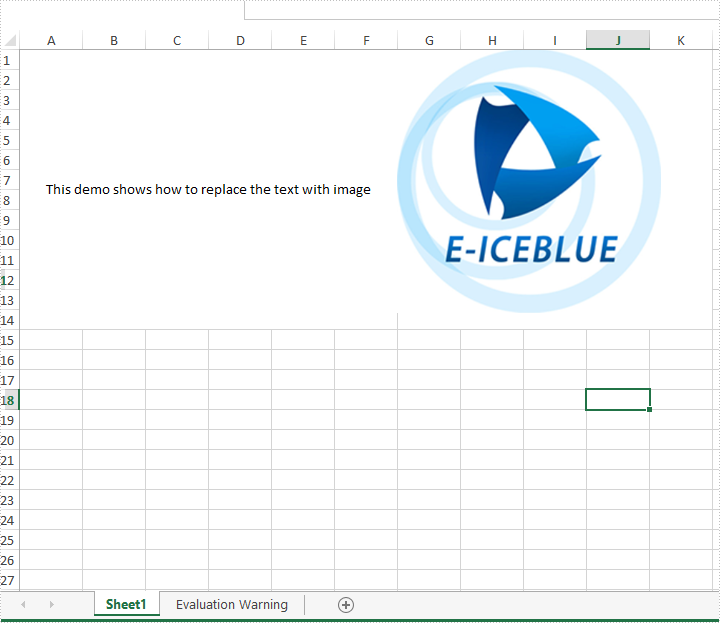
This article will show you how to replace the searched text with image in Excel worksheet by using Spire.XLS in Java applications.
Sample Excel:
import com.spire.xls.*;
import java.io.IOException;

public class replaceTextwithImage {
    public static void main(String[] args) throws IOException {

        //Load the sample Excel document
        Workbook workbook = new Workbook();
        workbook.loadFromFile("Sample.xlsx");
        //Get the first worksheet
        Worksheet worksheet = workbook.getWorksheets().get(0);

        //Find the text string {{Image}}
        CellRange[] ranges = worksheet.findAllString("{{Image}}", false, false);
        for (CellRange range : ranges) {
            //set the text as null
            range.setText("");

            //get the row and column of the searched range
            int row = range.getRow();
            int column = range.getColumn();
            //Add the image to the searched range
            worksheet.getPictures().add(row, column, "logo.jpg", ImageFormatType.Jpeg);

            //Save the document to file
            workbook.saveToFile("replaceTextwithImage.xlsx", ExcelVersion.Version2013);
            }
        }
    }
Output:
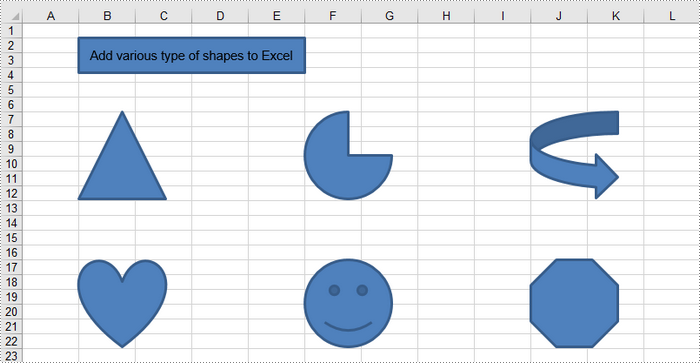
Shapes in Excel are versatile graphical elements that enhance the visual representation of data within your spreadsheets. They include a variety of forms such as rectangles, circles, arrows, lines, and callouts, allowing users to create diagrams, flowcharts, and emphasis on specific data points.
Using shapes can help clarify complex information, guide the reader’s attention, and make presentations more engaging. Shapes can be customized in terms of size, color, and effects, providing flexibility in design.
In this article, you will learn how to insert, format and remove shapes in an Excel worksheet using Spire.XLS for Java.
- Insert Various Types of Shapes to Excel
- Apply Formatting to Shapes in Excel
- Remove Shapes from Excel
Install Spire.XLS for Java
First of all, you're required to add the Spire.Xls.jar file as a dependency in your Java program. The JAR file can be downloaded from this link. If you use Maven, you can easily import the JAR file in your application by adding the following code to your project's pom.xml file.
<repositories>
    <repository>
        <id>com.e-iceblue</id>
        <name>e-iceblue</name>
        <url>https://repo.e-iceblue.com/nexus/content/groups/public/</url>
    </repository>
</repositories>
<dependencies>
    <dependency>
        <groupId>e-iceblue</groupId>
        <artifactId>spire.xls</artifactId>
        <version>16.8.4</version>
    </dependency>
</dependencies>
Insert Various Types of Shapes to Excel
To add a shape to a worksheet, use the PrstGeomShapeCollection.addPrstGeomShape(int row, int column, int width, int height, com.spire.xls.PrstGeomShapeType shapeType) method. The first four parameters specify the shape's position and size, while the fifth parameter indicates the type of shape.
The steps to insert a shape of a certain type to a worksheet are as follows:
- Create a Workbook object.
- Get a specific worksheet using Workbook.getWorksheets().get() method.
- Add a shape to the worksheet using Worksheet.getPrstGeomShapes().addPrstGeomShape() method, specifying the location, size and type of the shape.
- Save the workbook to an Excel file using Workbook.saveToFile() method.
- Java
import com.spire.xls.*;
import com.spire.xls.core.IPrstGeomShape;

import java.io.IOException;

public class InsertShapes {

    public static void main(String[] args) throws IOException {

        // Create a Workbook object
        Workbook workbook = new Workbook();

        // Get the first worksheet
        Worksheet sheet = workbook.getWorksheets().get(0);

        // Add a rectangle
        IPrstGeomShape rectangle = sheet.getPrstGeomShapes().addPrstGeomShape(2, 2, 260, 40, PrstGeomShapeType.Rect);

        // Set text for the shape
        rectangle.setText("Add various type of shapes to Excel");
        rectangle.setTextVerticalAlignment(ExcelVerticalAlignment.MiddleCentered);

        // Add a triangle, a pie, a curved right arrow, a heart, a smile face, and an octagon to the worksheet
        sheet.getPrstGeomShapes().addPrstGeomShape(7, 2, 100, 100, PrstGeomShapeType.Triangle);
        sheet.getPrstGeomShapes().addPrstGeomShape(7, 6,100,100,PrstGeomShapeType.Pie);
        sheet.getPrstGeomShapes().addPrstGeomShape(7, 10, 100, 100, PrstGeomShapeType.CurvedRightArrow);

        sheet.getPrstGeomShapes().addPrstGeomShape(17, 2, 100, 100, PrstGeomShapeType.Heart);
        sheet.getPrstGeomShapes().addPrstGeomShape(17, 6, 100, 100, PrstGeomShapeType.SmileyFace);
        sheet.getPrstGeomShapes().addPrstGeomShape(17, 10, 100, 100, PrstGeomShapeType.Octagon);

        // Save the workbook to an Excel file
        workbook.saveToFile("output/InsertShapes.xlsx", ExcelVersion.Version2016);

        // Dispose resources
        workbook.dispose();
    }
}
Apply Formatting to Shapes in Excel
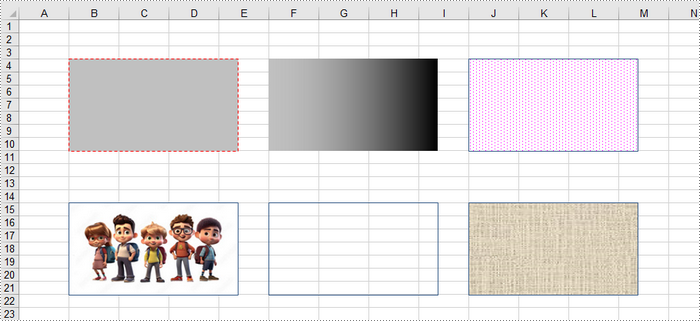
The example above demonstrates how to add various shapes with default formatting to a worksheet. To customize a shape's appearance, you can utilize the IShapeLineFormat, IShapeFill, and IShadow interfaces provided by Spire.XLS.
The steps to apply formatting to a shape in Excel are as follows:
- Create a Workbook object.
- Get a specific worksheet using Workbook.getWorksheets().get() method.
- Add a shape to the worksheet using Worksheet.getPrstGeomShapes().addPrstGeomShape() method, specifying the location, size and type of the shape.
- Get the IShapeLineFormat object using IShape.getLine() method.
- Set the line style, color, width and visibility using the methods under the IShapeLineFormat object.
- Get the IShapeFill object using IShape.getFill() method.
- Set the fill type, fill color, fill image, or fill pattern using the methods under the IShapeFill object.
- Save the workbook to an Excel file using Workbook.saveToFile() method.
- Java
import com.spire.xls.*;
import com.spire.xls.core.IPrstGeomShape;

import javax.imageio.ImageIO;
import java.awt.*;
import java.awt.image.BufferedImage;
import java.io.File;
import java.io.IOException;

public class ApplyFormattingToShapes {

    public static void main(String[] args) throws IOException {

        // Create a Workbook object
        Workbook workbook = new Workbook();

        // Get the first worksheet
        Worksheet sheet = workbook.getWorksheets().get(0);

        // Add the first rectangle to the worksheet
        IPrstGeomShape rectangle_one = sheet.getPrstGeomShapes().addPrstGeomShape(4, 2, 220, 120, PrstGeomShapeType.Rect);

        // Set the line style, width, and color
        rectangle_one.getLine().setDashStyle(ShapeDashLineStyleType.Dashed);
        rectangle_one.getLine().setWeight(1.0);
        rectangle_one.getLine().setForeColor(Color.RED);

        // Set the fill type and fore color
        rectangle_one.getFill().setFillType(ShapeFillType.SolidColor);
        rectangle_one.getFill().setForeColor(Color.lightGray);

        // Add the second rectangle and format the shape
        IPrstGeomShape rectangle_two = sheet.getPrstGeomShapes().addPrstGeomShape(4, 6, 220, 120, PrstGeomShapeType.Rect);
        rectangle_two.getLine().setVisible(false);
        rectangle_two.getFill().setFillType(ShapeFillType.Gradient);
        rectangle_two.getFill().setForeColor(Color.lightGray);
        rectangle_two.getFill().setGradientStyle(GradientStyleType.Vertical);

        // Add the third rectangle and format the shape
        IPrstGeomShape rectangle_three = sheet.getPrstGeomShapes().addPrstGeomShape(4, 10, 220, 120, PrstGeomShapeType.Rect);
        rectangle_three.getLine().setWeight(1.0);
        rectangle_three.getFill().setFillType(ShapeFillType.Pattern);
        rectangle_three.getFill().setPattern(GradientPatternType.Pat80Percent);
        rectangle_three.getFill().setForeColor(Color.white);
        rectangle_three.getFill().setBackColor(Color.magenta);

        // Add the fourth rectangle and format the shape
        IPrstGeomShape rectangle_four = sheet.getPrstGeomShapes().addPrstGeomShape(15, 2, 220, 120, PrstGeomShapeType.Rect);
        rectangle_four.getLine().setWeight(1.0);
        BufferedImage image = ImageIO.read(new File("C:\\Users\\Administrator\\Desktop\\cartoon.jpeg"));
        rectangle_four.getFill().customPicture(image,"myPicture");

        // Add the fifth rectangle and format the shape
        IPrstGeomShape rectangle_five = sheet.getPrstGeomShapes().addPrstGeomShape(15, 6, 220, 120, PrstGeomShapeType.Rect);
        rectangle_five.getLine().setWeight(1.0);
        rectangle_five.getFill().setFillType(ShapeFillType.NoFill);

        // Add the sixth rectangle and format the shape
        IPrstGeomShape rectangle_six = sheet.getPrstGeomShapes().addPrstGeomShape(15, 10, 220, 120, PrstGeomShapeType.Rect);
        rectangle_six.getLine().setWeight(1.0);
        rectangle_six.getFill().setFillType(ShapeFillType.Texture);
        rectangle_six.getFill().setTexture(GradientTextureType.Canvas);

        // Save the workbook to an Excel file
        workbook.saveToFile("output/FormatShapes.xlsx", ExcelVersion.Version2016);

        // Dispose resources
        workbook.dispose();
    }
}
Remove Shapes from Excel
The shapes in a worksheet can be retrieved by utilizing the Worksheet.getPrstGeomShapes() method. To remove a specific shape, call the PrstGeomShapeCollection.get(index).remove() method. If you want to remove all shapes, you can use a for loop to iterate through and delete them.
The steps to remove shapes in an Excel worksheet are as follows:
- Create a Workbook object.
- Load an Excel file using Workbook.loadFromFile() method.
- Get a specific worksheet using Workbook.getWorksheets().get() method.
- Get the shape collection using Worksheet.getPrstGeomShapes() method.
- Remove a specific shape using PrstGeomShapeCollection.get(index).remove() method.
- Save the workbook to an Excel file using Workbook.saveToFile() method.
- Java
import com.spire.xls.ExcelVersion;
import com.spire.xls.Workbook;
import com.spire.xls.Worksheet;
import com.spire.xls.core.spreadsheet.collections.PrstGeomShapeCollection;

public class RemoveShapesFromExcel {

    public static void main(String[] args) {

        // Create a Workbook object
        Workbook workbook = new Workbook();

        // Load an Excel file
        workbook.loadFromFile("C:\\Users\\Administrator\\Desktop\\Shapes.xlsx");

        // Get a specific worksheet
        Worksheet sheet = workbook.getWorksheets().get(0);

        // Get the shape collection from the worksheet
        PrstGeomShapeCollection shapes = sheet.getPrstGeomShapes();

        // Remove a specific shape
        shapes.get(1).remove();

         /*
         // Remove all shapes
         for (int i = sheet.getPrstGeomShapes().getCount()-1; i >= 0; i--)
         {
             sheet.getPrstGeomShapes().get(i).remove();
         }
         */

        // Save the workbook to an Excel file
        workbook.saveToFile("output/RemoveSpecificShape.xlsx", ExcelVersion.Version2013);

        // Dispose resources
        workbook.dispose();
    }
}
Apply for a Temporary License
If you'd like to remove the evaluation message from the generated documents, or to get rid of the function limitations, please request a 30-day trial license for yourself.
This article demonstrates how to remove a specific image or all images from an Excel worksheet using Spire.XLS for Java.
Delete specific image
import com.spire.xls.ExcelVersion;
import com.spire.xls.Workbook;
import com.spire.xls.Worksheet;

public class DeleteSpecificImage {

    public static void main(String[] args) {

        //Create a Workbook object
        Workbook workbook = new Workbook();

        //Load an Excel file
        workbook.loadFromFile("Input.xlsx");

        //Get the first worksheet
        Worksheet sheet = workbook.getWorksheets().get(0);

        //Delete a specific image by its index
        sheet.getPictures().get(1).remove();

        //Save the document
        workbook.saveToFile("DeleteSpecificImage.xlsx", ExcelVersion.Version2013);
    }
Delete all images
import com.spire.xls.ExcelVersion;
import com.spire.xls.Workbook;
import com.spire.xls.Worksheet;

public class DeleteAllImages {

    public static void main(String[] args) {

        //Create a Workbook object
        Workbook workbook = new Workbook();

        //Load an Excel file
        workbook.loadFromFile("Input.xlsx");

        //Get the first worksheet
        Worksheet sheet = workbook.getWorksheets().get(0);

        //Loop through the images inside the worksheet
        for (int i = sheet.getPictures().getCount() - 1; i >= 0; i--) {

            //Delete an image by its index
            sheet.getPictures().get(i).remove();
        }

        //Save the document
        workbook.saveToFile("DeleteAllImages.xlsx", ExcelVersion.Version2013);
    }
}
When it comes to managing images in Excel, the ability to replace or extract them efficiently is important. If there are outdated or incorrect images in Excel, replacing them ensures that your data remains accurate and up-to-date. While extracting images from Excel files can be useful when you need to reuse them in other documents or presentations. In this article, you will learn how to replace or extract images in Excel in Java using Spire.XLS for Java.
Install Spire.XLS for Java
First of all, you're required to add the Spire.Xls.jar file as a dependency in your Java program. The JAR file can be downloaded from this link. If you use Maven, you can easily import the JAR file in your application by adding the following code to your project's pom.xml file.
<repositories>
    <repository>
        <id>com.e-iceblue</id>
        <name>e-iceblue</name>
        <url>https://repo.e-iceblue.com/nexus/content/groups/public/</url>
    </repository>
</repositories>
<dependencies>
    <dependency>
        <groupId>e-iceblue</groupId>
        <artifactId>spire.xls</artifactId>
        <version>16.8.4</version>
    </dependency>
</dependencies>
Replace Images in Excel in Java
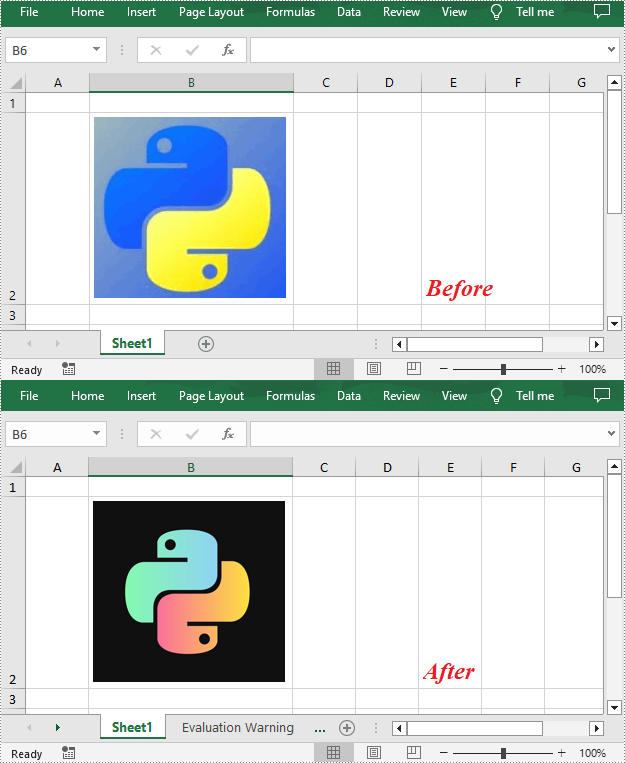
To replace a picture in Excel, you can load a new picture and then pass it as a parameter to the ExcelPicture.setPicture() method. The following are the detailed steps to replace an Excel image with another one.
- Create a Workbook instance.
- Load an Excel file using Workbook.loadFromFile() method.
- Get the first worksheet using Workbook.getWorksheets().get() method.
- Get the first picture in the worksheet using Worksheet.getPictures().get() method.
- Load an image, and then pass it as a parameter to the ExcelPicture.setPicture() method to replace the original picture with the new one.
- Save the result file using Workbook.saveToFile() method.
- Java
import com.spire.xls.*;
import javax.imageio.ImageIO;
import java.awt.image.BufferedImage;
import java.io.*;

public class replaceImages {
    public static void main(String[] args)  throws IOException {
        // Create a Workbook instance
        Workbook workbook = new Workbook();

        // Load an Excel file
        workbook.loadFromFile("ExcelImg.xlsx");

        //Get the first worksheet
        Worksheet sheet = workbook.getWorksheets().get(0);

        //Get the first image in the worksheet
        ExcelPicture pic = sheet.getPictures().get(0);

        // Load an image
        BufferedImage bufferedImage = ImageIO.read(new File("logo.png"));

        // Replace the first image with the loaded one
        pic.setPicture(bufferedImage);

        // Save the result file
        workbook.saveToFile("ReplaceImage.xlsx", ExcelVersion.Version2016);
    }
}
Extract Images from Excel in Java
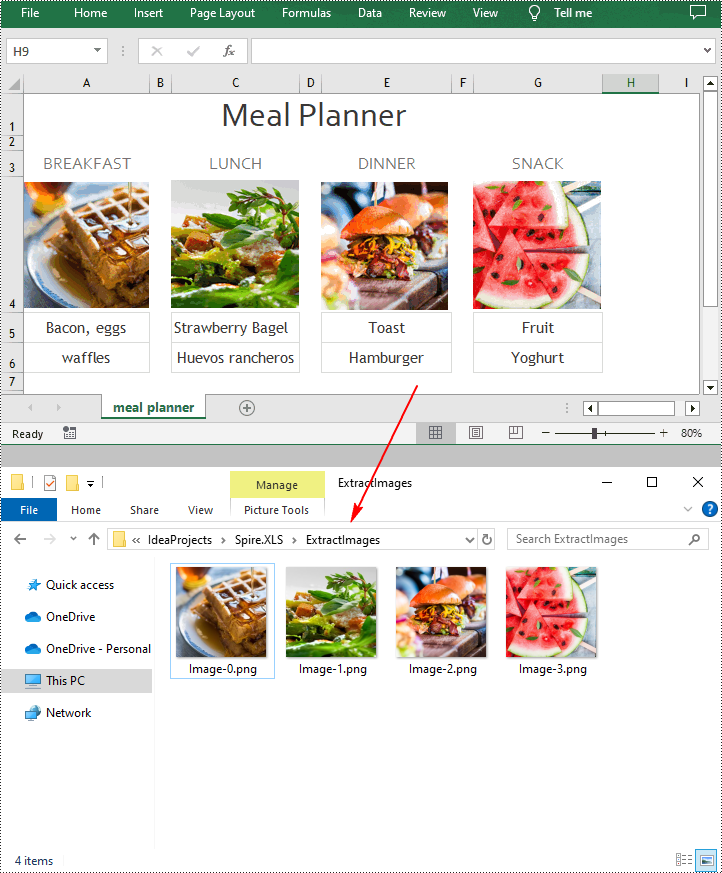
With Spire.XLS for Java, you can also extract all images in an Excel worksheet at once. The following are the detailed steps.
- Create a Workbook instance.
- Load an Excel file using Workbook.loadFromFile() method.
- Get the first worksheet using Workbook.getWorksheets().get() method.
- Get all the images in the worksheet using Worksheet.getPictures() method.
- Loop through to get each image, and then save them to a specified file path.
- Java
import com.spire.xls.*;
import com.spire.xls.collections.PicturesCollection;

import javax.imageio.ImageIO;
import java.awt.image.BufferedImage;
import java.io.*;

public class extractImages {
    public static void main(String[] args)  throws IOException {
        // Create a Workbook instance
        Workbook workbook = new Workbook();

        // Load an Excel file
        workbook.loadFromFile("Test.xlsx");

        // Get the first worksheet
        Worksheet sheet = workbook.getWorksheets().get(0);

        // Get all the pictures in the worksheet
        PicturesCollection pic = sheet.getPictures();

        // Iterate through each image
        for (int i = pic.getCount() - 1; i >= 0; i--)
        {
            // Get a specified image
            ExcelPicture excelPic = pic.get(i);
            BufferedImage loImage = excelPic.getPicture();

            // Save the image to a specified file path
            File file = new File(String.format("ExtractImages\\Image-%d.png", i));
            ImageIO.write(loImage, "PNG", file);
        }
    }
}
Apply for a Temporary License
If you'd like to remove the evaluation message from the generated documents, or to get rid of the function limitations, please request a 30-day trial license for yourself.
