
Conversion (23)
Converting HTML to PDF in Python is a common need when you want to generate printable reports, preserve web content, or create offline documentation with consistent formatting. In this tutorial, you’ll learn how to convert HTML to PDF in Python— whether you're working with a local HTML file or a HTML string. If you're looking for a simple and reliable way to generate PDF files from HTML in Python, this guide is for you.
Install Spire.Doc to Convert HTML to PDF Easily
To convert HTML to PDF in Python, you’ll need a reliable library that supports HTML parsing and PDF rendering. Spire.Doc for Python is a powerful and easy-to-use HTML to PDF converter library that lets you generate PDF documents from HTML content — without relying on a browser, headless engine, or third-party tools.
Install via pip
You can install the library quickly with pip:
pip install spire.doc
Alternative: Manual Installation
You can also download the Spire.Doc package and perform a custom installation if you need more control over the environment.
Tip: Spire.Doc offers a free version suitable for small projects or evaluation purposes.
Once installed, you're ready to convert HTML to PDF in Python in just a few lines of code.
Convert HTML Files to PDF in Python
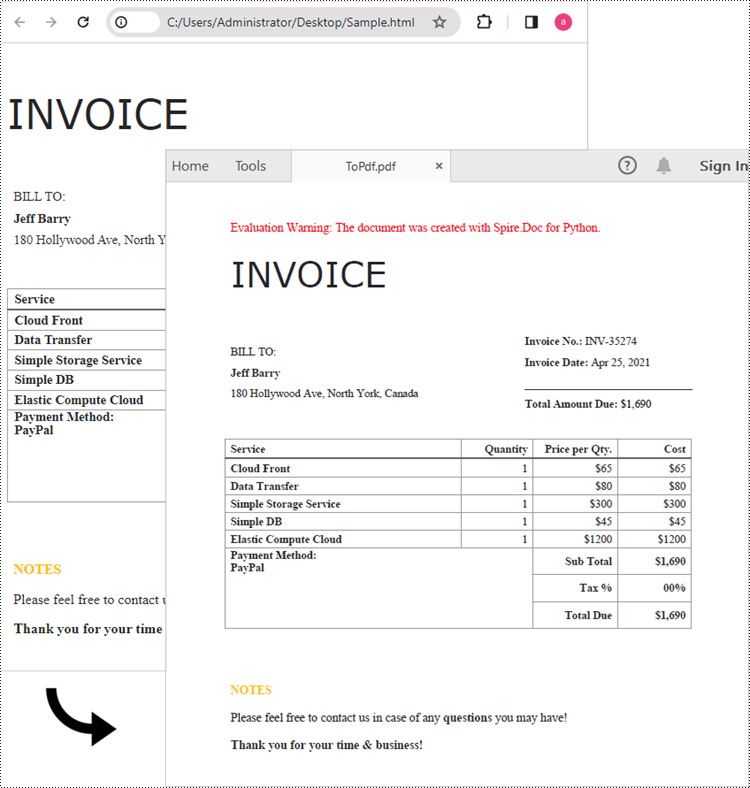
Spire.Doc for Python makes it easy to convert HTML files to PDF. The Document.LoadFromFile() method supports loading various file formats, including .html, .doc, and .docx. After loading an HTML file, you can convert it to PDF by calling Document.SaveToFile() method. Follow the steps below to convert an HTML file to PDF in Python using Spire.Doc.
Steps to convert an HTML file to PDF in Python:
- Create a Document object.
- Load an HTML file using Document.LoadFromFile() method.
- Convert it to PDF using Document.SaveToFile() method.
The following code shows how to convert an HTML file directly to PDF in Python:
from spire.doc import *
from spire.doc.common import *

# Create a Document object
document = Document()

# Load an HTML file
document.LoadFromFile("Sample.html", FileFormat.Html, XHTMLValidationType.none)

# Save the HTML file to a pdf file
document.SaveToFile("output/ToPdf.pdf", FileFormat.PDF)
document.Close()
Convert an HTML String to PDF in Python
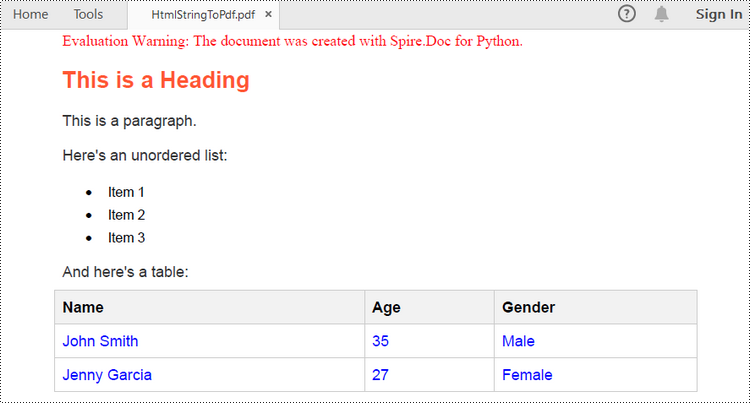
If you want to convert an HTML string to PDF in Python, Spire.Doc for Python provides a straightforward solution. For simple HTML content like paragraphs, text styles, and basic formatting, you can use the Paragraph.AppendHTML() method to insert the HTML into a Word document. Once added, you can save the document as a PDF using the Document.SaveToFile() method.
Here are the steps to convert an HTML string to a PDF file in Python.
- Create a Document object.
- Add a section using Document.AddSection() method and insert a paragraph using Section.AddParagraph() method.
- Specify the HTML string and add it to the paragraph using Paragraph.AppendHTML() method.
- Save the document as a PDF file using Document.SaveToFile() method.
Here's the complete Python code that shows how to convert an HTML string to a PDF:
from spire.doc import *
from spire.doc.common import *

# Create a Document object
document = Document()

# Add a section to the document
sec = document.AddSection()

# Add a paragraph to the section
paragraph = sec.AddParagraph()

# Specify the HTML string
htmlString = """
<html>
<head>
    <title>HTML to Word Example</title>
    <style>
        body {
            font-family: Arial, sans-serif;
        }
        h1 {
            color: #FF5733;
            font-size: 24px;
            margin-bottom: 20px;
        }
        p {
            color: #333333;
            font-size: 16px;
            margin-bottom: 10px;
        }
        ul {
            list-style-type: disc;
            margin-left: 20px;
            margin-bottom: 15px;
        }
        li {
            font-size: 14px;
            margin-bottom: 5px;
        }
        table {
            border-collapse: collapse;
            width: 100%;
            margin-bottom: 20px;
        }
        th, td {
            border: 1px solid #CCCCCC;
            padding: 8px;
            text-align: left;
        }
        th {
            background-color: #F2F2F2;
            font-weight: bold;
        }
        td {
            color: #0000FF;
        }
    </style>
</head>
<body>
    <h1>This is a Heading</h1>
    <p>This is a paragraph.</p>
    <p>Here's an unordered list:</p>
    <ul>
        <li>Item 1</li>
        <li>Item 2</li>
        <li>Item 3</li>
    </ul>
    <p>And here's a table:</p>
    <table>
        <tr>
            <th>Name</th>
            <th>Age</th>
            <th>Gender</th>
        </tr>
        <tr>
            <td>John Smith</td>
            <td>35</td>
            <td>Male</td>
        </tr>
        <tr>
            <td>Jenny Garcia</td>
            <td>27</td>
            <td>Female</td>
        </tr>
    </table>
</body>
</html>
"""

# Append the HTML string to the paragraph
paragraph.AppendHTML(htmlString)

# Save the document as a pdf file
document.SaveToFile("output/HtmlStringToPdf.pdf", FileFormat.PDF)
document.Close()
Customize the Conversion from HTML to PDF in Python
While converting HTML to PDF in Python is often straightforward, there are times when you need more control over the output. For example, you may want to set a password to protect the PDF document, or embed fonts to ensure consistent formatting across different devices. In this section, you’ll learn how to customize the HTML to PDF conversion using Spire.Doc for Python.
1. Set a Password to Protect the PDF
To prevent unauthorized viewing or editing, you can encrypt the PDF by specifying a user password and an owner password.
# Create a ToPdfParameterList object
toPdf = ToPdfParameterList()

# Set PDF encryption passwords
userPassword = "viewer"
ownerPassword = "E-iceblue"
toPdf.PdfSecurity.Encrypt(userPassword, ownerPassword, PdfPermissionsFlags.Default, PdfEncryptionKeySize.Key128Bit)

# Save as PDF with password protection
document.SaveToFile("/HtmlToPdfWithPassword.pdf", toPdf)
2. Embed Fonts to Preserve Formatting
To ensure the PDF displays correctly across all devices, you can embed all fonts used in the document.
# Create a ToPdfParameterList object
ppl = ToPdfParameterList()
ppl.IsEmbeddedAllFonts = True

# Save as PDF with embedded fonts
document.SaveToFile("/HtmlToPdfWithEmbeddedFonts.pdf", ppl)
These options give you finer control when you convert HTML to PDF in Python, especially for professional document sharing or long-term storage scenarios.
The Conclusion
Converting HTML to PDF in Python becomes simple and flexible with Spire.Doc for Python. Whether you're handling static HTML files or dynamic HTML strings, or need to secure and customize your PDFs, this library provides everything you need — all in just a few lines of code. Get a free 30-day license and start converting HTML to high-quality PDF documents in Python today!
FAQs
Q1: Can I convert an HTML file to PDF in Python? Yes. Using Spire.Doc for Python, you can convert a local HTML file to PDF with just a few lines of code.
Q2: How do I convert HTML to PDF in Chrome? While Chrome allows manual "Save as PDF", it’s not suitable for batch or automated workflows. If you're working in Python, Spire.Doc provides a better solution for programmatically converting HTML to PDF.
Q3: How do I convert HTML to PDF without losing formatting? To preserve formatting:
- Use embedded or inline CSS (not external files).
- Use absolute URLs for images and resources.
- Embed fonts using Spire.Doc options like IsEmbeddedAllFonts(True).
EPUB, short for Electronic Publication, is a widely used standard format for eBooks. It is an open and free format based on web standards, enabling compatibility with various devices and software applications. EPUB files are designed to provide a consistent reading experience across different platforms, including e-readers, tablets, smartphones, and computers. By converting your Word document to EPUB, you can ensure that your content is accessible and enjoyable to a broader audience, regardless of the devices and software they use. In this article, we will demonstrate how to convert Word documents to EPUB format in Python using Spire.Doc for Python.
Install Spire.Doc for Python
This scenario requires Spire.Doc for Python and plum-dispatch v1.7.4. They can be easily installed in your Windows through the following pip commands.
pip install Spire.Doc
If you are unsure how to install, please refer to this tutorial: How to Install Spire.Doc for Python on Windows
Convert Word to EPUB in Python
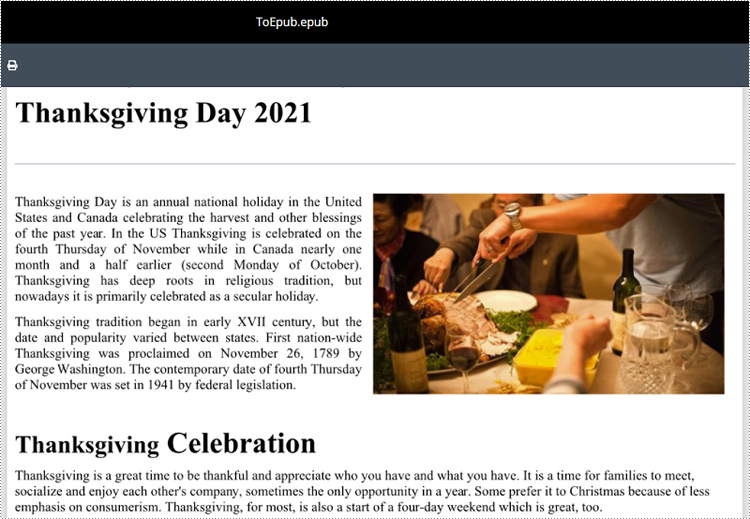
The Document.SaveToFile(fileName:str, fileFormat:FileFormat) method provided by Spire.Doc for Python supports converting a Word document to EPUB format. The detailed steps are as follows.
- Create an object of the Document class.
- Load a Word document using Document.LoadFromFile() method.
- Save the Word document to EPUB format using Document.SaveToFile(fileName:str, fileFormat:FileFormat) method.
- Python
from spire.doc import *
from spire.doc.common import *

# Specify the input Word document and output EPUB file paths
inputFile = "Sample.docx"
outputFile = "ToEpub.epub"

# Create an object of the Document class
doc = Document()
# Load a Word document
doc.LoadFromFile(inputFile)

# Save the Word document to EPUB format
doc.SaveToFile(outputFile, FileFormat.EPub)
# Close the Document object
doc.Close()
Convert Word to EPUB with a Cover Image in Python
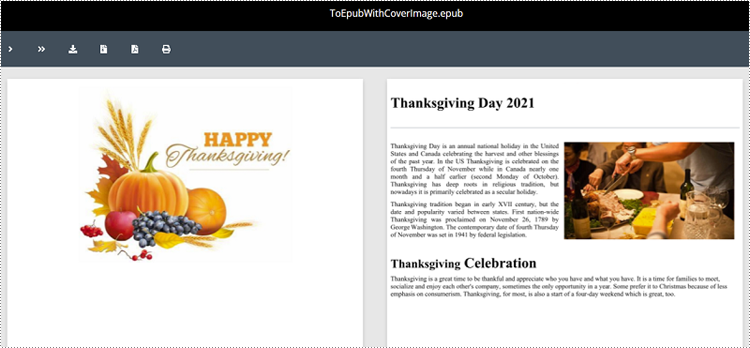
Spire.Doc for Python enables you to convert a Word document to EPUB format and set a cover image for the resulting EPUB file by using the Document.SaveToEpub(fileName:str, coverImage:DocPicture) method. The detailed steps are as follows.
- Create an object of the Document class.
- Load a Word document using Document.LoadFromFile() method.
- Create an object of the DocPicture class, and then load an image using DocPicture.LoadImage() method.
- Save the Word document as an EPUB file and set the loaded image as the cover image of the EPUB file using Document.SaveToEpub(fileName:str, coverImage:DocPicture) method.
- Python
from spire.doc import *
from spire.doc.common import *

# Specify the input Word document and output EPUB file paths
inputFile = "Sample.docx"
outputFile = "ToEpubWithCoverImage.epub"
# Specify the file path for the cover image
imgFile = "Cover.png"

# Create a Document object
doc = Document()
# Load the Word document
doc.LoadFromFile(inputFile)

# Create a DocPicture object
picture = DocPicture(doc)
# Load the cover image file
picture.LoadImage(imgFile)

# Save the Word document as an EPUB file and set the cover image
doc.SaveToEpub(outputFile, picture)
# Close the Document object
doc.Close()
Get a Free License
To fully experience the capabilities of Spire.Doc for Python without any evaluation limitations, you can request a free 30-day trial license.
RTF (Rich Text Format) is a versatile file format that can be opened and viewed by various word processing software. It supports a wide range of text formatting options, such as font style, size, color, tables, images, and more. When working with RTF files, you may sometimes need to convert them to PDF files for better sharing and printing, or to HTML format for publishing on the web. In this article, you will learn how to convert RTF to PDF or HTML with Python using Spire.Doc for Python.
Install Spire.Doc for Python
This scenario requires Spire.Doc for Python and plum-dispatch v1.7.4. They can be easily installed in your Windows through the following pip commands.
pip install Spire.Doc
If you are unsure how to install, please refer to this tutorial: How to Install Spire.Doc for Python on Windows
Convert RTF to PDF in Python
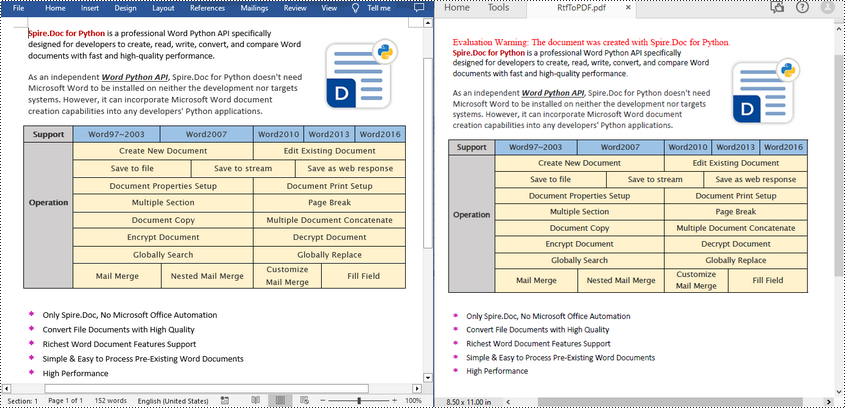
To convert an RTF file to PDF, simply load a file with .rtf extension and then save it as a PDF file using Document.SaveToFile(fileName, FileFormat.PDF) method. The following are the detailed steps.
- Create a Document object.
- Load an RTF file using Document.LoadFromFile() method.
- Save the RTF file as a PDF file using Document.SaveToFile(fileName, FileFormat.PDF) method.
- Python
from spire.doc import *
from spire.doc.common import *

inputFile = "input.rtf"
outputFile = "RtfToPDF.pdf"

# Create a Document object
doc = Document()

# Load an RTF file from disk
doc.LoadFromFile(inputFile)

# Save the RTF file as a PDF file
doc.SaveToFile(outputFile, FileFormat.PDF)
doc.Close()
Convert RTF to HTML in Python
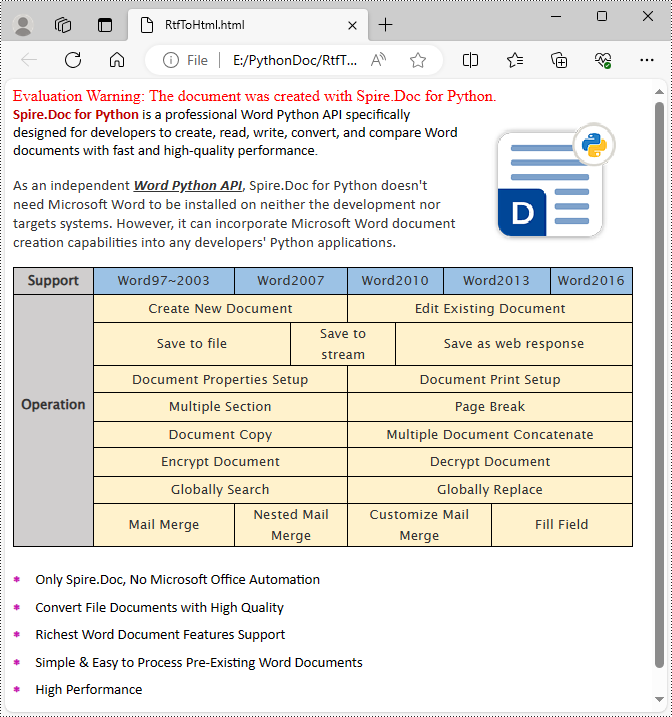
Spire.Doc for Python also allows you to use the Document.SaveToFile(fileName, FileFormat.Html) method to convert the loaded RTF file to HTML format. The following are the detailed steps.
- Create a Document object.
- Load an RTF file using Document.LoadFromFile() method.
- Save the RTF file in HTML format using Document.SaveToFile(fileName, FileFormat.Html) method.
- Python
from spire.doc import *
from spire.doc.common import *

inputFile = "input.rtf"
outputFile = "RtfToHtml.html"

# Create a Document object
doc = Document()

# Load an RTF file from disk
doc.LoadFromFile(inputFile)

# Save the RTF file in HTML format
doc.SaveToFile(outputFile, FileFormat.Html)
doc.Close()
Get a Free License
To fully experience the capabilities of Spire.Doc for Python without any evaluation limitations, you can request a free 30-day trial license.
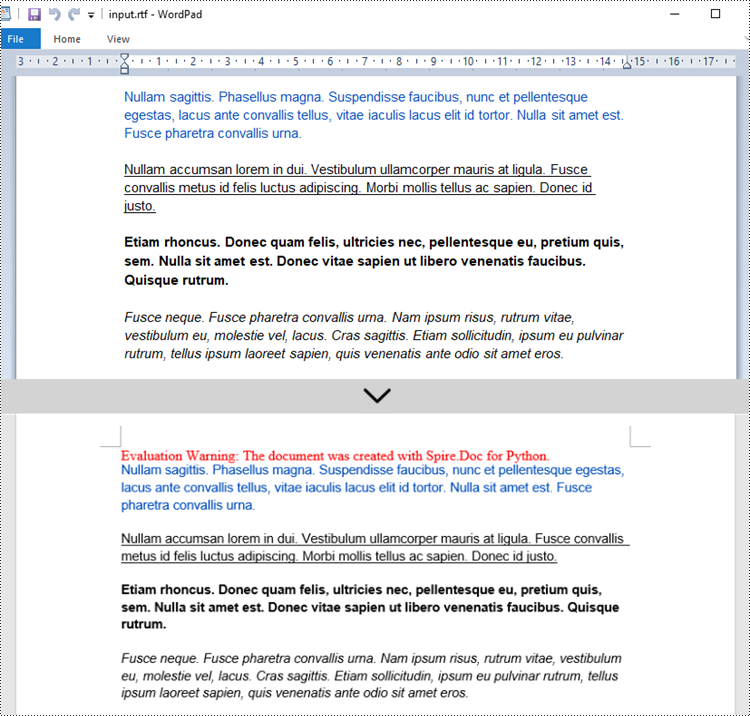
RTF is a flexible file format that preserves formatting and basic styling while offering compatibility with various word processing software. Converting Word to RTF enables users to retain document structure, fonts, hyperlinks, and other essential elements without the need for specialized software. Similarly, converting RTF back to Word format provides the flexibility to edit and enhance documents using the powerful features of Microsoft Word. In this article, you will learn how to convert Word to RTF and vice versa in Python using Spire.Doc for Python.
Install Spire.Doc for Python
This scenario requires Spire.Doc for Python and plum-dispatch v1.7.4. They can be easily installed in your Windows through the following pip command.
pip install Spire.Doc
If you are unsure how to install, please refer to this tutorial: How to Install Spire.Doc for Python on Windows
Convert Word to RTF in Python
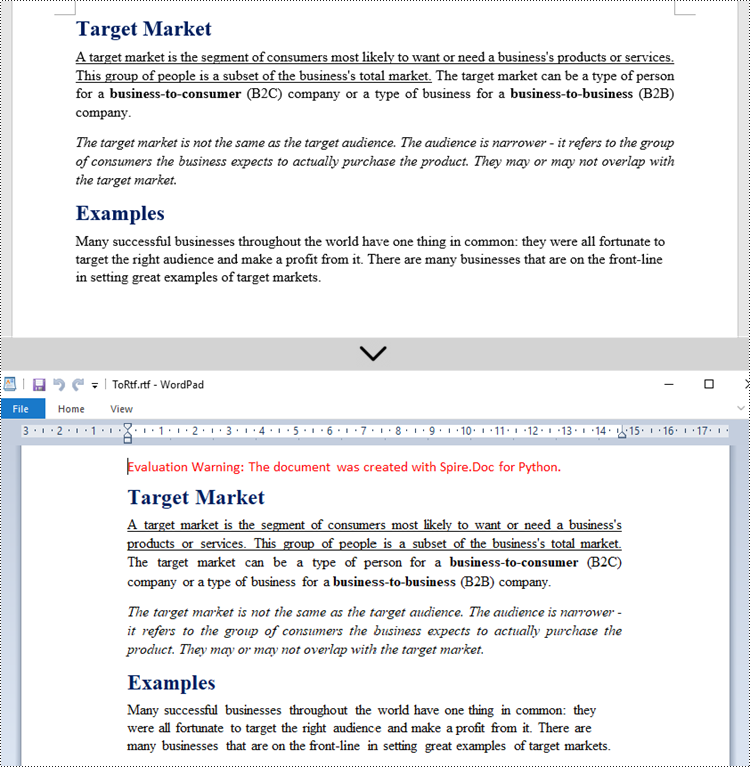
With Spire.Doc for Python, you can load a Word file using the Document.LoadFromFile() method and convert it to a different format, such as RTF, using the Document.SaveToFile() method; Conversely, you can load an RTF file in the same way and save it as a Word file.
The following are the steps to convert Word to RTF using Spire.Doc for Python.
- Create a Document object.
- Load a Word file using Document.LoadFromFile() method.
- Convert it to an RTF file using Document.SaveToFile() method.
- Python
from spire.doc import *
from spire.doc.common import *

# Create a Document object
document = Document()

# Load a Word file
document.LoadFromFile("C:\\Users\\Administrator\\Desktop\\input.docx")

# Convert to a RTF file
document.SaveToFile("output/ToRtf.rtf", FileFormat.Rtf)
document.Close()
Convert RTF to Word in Python
The code for converting RTF to Word is quite simply, too. Follow the steps below.
- Create a Document object.
- Load an RTF file using Document.LoadFromFile() method.
- Convert it to a Word file using Document.SaveToFile() method.
- Python
from spire.doc import *
from spire.doc.common import *

# Create a Document object
document = Document()

# Load a Rtf file
document.LoadFromFile("C:\\Users\\Administrator\\Desktop\\input.rtf")

# Convert to a Word file
document.SaveToFile("output/ToWord.docx", FileFormat.Docx2019)
document.Close()
Get a Free License
To fully experience the capabilities of Spire.Doc for Python without any evaluation limitations, you can request a free 30-day trial license.
Convert HTML to Word DOC or DOCX in Python | Developer Tutorial
2023-11-17 00:56:39 Written by Koohji
Converting HTML files to Word documents in Python is an essential skill for developers building documentation systems, report generators, or applications that transform web-based content into offline editable formats. While HTML excels at displaying content on the web, Word documents provide a more versatile format for offline access, collaboration, and professional presentation.
This in-depth developer guide shows you how to automate the conversion from HTML files and HTML strings into Word DOCX/DOC documents in Python using Spire.Doc for Python—a powerful, standalone library that enables high-quality Word document generation and conversion without the need for Microsoft Word.
Table of Contents
- Why Convert HTML to Word Format
- Install HTML to Word Converter in Python
- Export HTML Files to Word Documents in Python
- Insert HTML Strings into Word Documents in Python
- Supported Output Formats
- Conclusion
- FAQs
Why Convert HTML to Word Format
HTML is ideal for online content delivery, but Word documents offer significant advantages for use cases that require formatting, annotation, printing, or offline access:
- Offline Access: View and edit documents without an internet connection.
- Advanced Editing: Enable features like tracked changes, comments, and section formatting.
- Professional Presentation: Suitable for formal reports, business contracts, user manuals, and documentation.
- Cross-Platform Compatibility: Open and edit using Microsoft Word, Google Docs, LibreOffice, and other word processors.
Install HTML to Word Converter in Python
Spire.Doc for Python is a feature-rich library designed to help developers create, read, convert, and manipulate Word documents directly within Python applications. It offers high-fidelity conversion of HTML content to Word format while preserving the original structure and styles.

Key Benefits
- Fully preserves original HTML structure, CSS styles, and layout
- Accepts both HTML files and HTML strings as input sources
- Supports conversion to .doc, .docx, and other formats
- 100% standalone; no Office automation needed
Installation
You can install the library from PyPI using the following pip command:
pip install spire.doc
Export HTML Files to Word Documents in Python
If you already have an HTML file—such as a saved webpage or generated HTML report—you can save it to a Word document with just a few lines of code.
Code Example
from spire.doc import *
from spire.doc.common import *

# Specify the input and output file paths
inputFile = "Input.html"
outputFile = "HtmlToWord.docx"

# Create an object of the Document class
document = Document()
# Load an HTML file
document.LoadFromFile(inputFile, FileFormat.Html, XHTMLValidationType.none)

# Save the HTML file to a .docx file
document.SaveToFile(outputFile, FileFormat.Docx2016)
document.Close()
Explanation:
This example demonstrates how to load an existing .html file and save it to a Word .docx document:
- Document(): creates a new Word document object.
- LoadFromFile(): loads the HTML file and parses it as an HTML document.
- XHTMLValidationType.none: disables strict validation of the HTML content.
- SaveToFile(): saves the result as a .docx file using the FileFormat.Docx2016 format.
To export as .doc, replace FileFormat.Docx2016 with FileFormat.Doc.
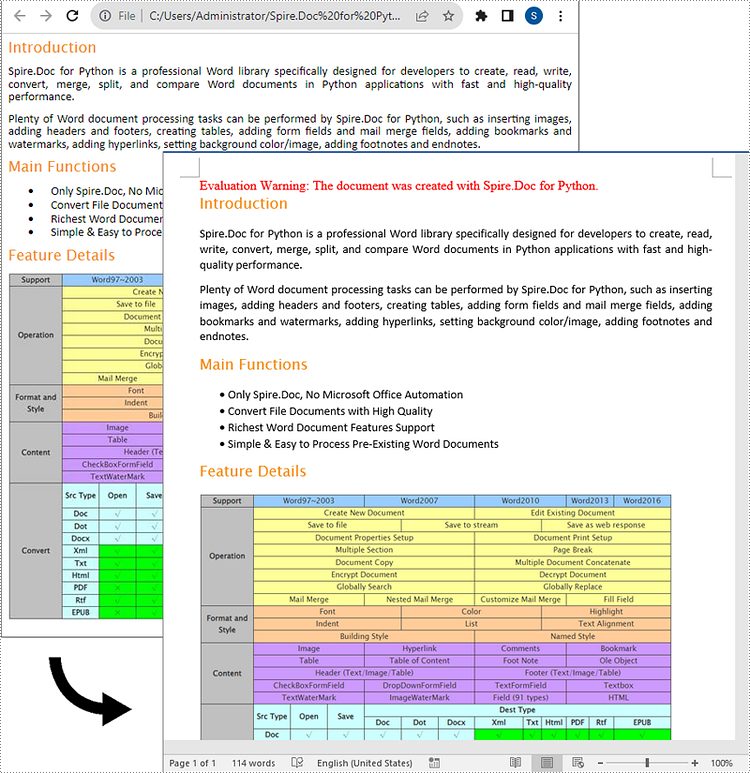
Output:
Here is the Word document generated from the HTML file:
Insert HTML Strings into Word Documents in Python
Sometimes, you may have HTML content as a string—perhaps scraped from the web or dynamically generated. Spire.Doc allows you to insert such HTML content into a Word document without saving it as a file first.
Code Example
from spire.doc import *
from spire.doc.common import *

# Specify the output file path
outputFile = "HtmlStringToWord.docx"

# Create an object of the Document class
document = Document()
# Add a section to the document
sec = document.AddSection()

# Add a paragraph to the section
paragraph = sec.AddParagraph()

# Specify the HTML string
htmlString = """
<html>
<head>
    <title>HTML to Word Example</title>
    <style>
        body {
            font-family: Arial, sans-serif;
        }
        h1 {
            color: #FF5733;
            font-size: 24px;
            margin-bottom: 20px;
        }
        p {
            color: #333333;
            font-size: 16px;
            margin-bottom: 10px;
        }
        ul {
            list-style-type: disc;
            margin-left: 20px;
            margin-bottom: 15px;
        }
        li {
            font-size: 14px;
            margin-bottom: 5px;
        }
        table {
            border-collapse: collapse;
            width: 100%;
            margin-bottom: 20px;
        }
        th, td {
            border: 1px solid #CCCCCC;
            padding: 8px;
            text-align: left;
        }
        th {
            background-color: #F2F2F2;
            font-weight: bold;
        }
        td {
            color: #0000FF;
        }
    </style>
</head>
<body>
    <h1>This is a Heading</h1>
    <p>This is a paragraph demonstrating the conversion of HTML to Word document.</p>
    <p>Here's an example of an unordered list:</p>
    <ul>
        <li>Item 1</li>
        <li>Item 2</li>
        <li>Item 3</li>
    </ul>
    <p>And here's a table:</p>
    <table>
        <tr>
            <th>Product</th>
            <th>Quantity</th>
            <th>Price</th>
        </tr>
        <tr>
            <td>Jacket</td>
            <td>30</td>
            <td>$150</td>
        </tr>
        <tr>
            <td>Sweater</td>
            <td>25</td>
            <td>$99</td>
        </tr>
    </table>
</body>
</html>
"""

# Append the HTML string to the paragraph
paragraph.AppendHTML(htmlString)

# Save the result document
document.SaveToFile(outputFile, FileFormat.Docx2016)
document.Close()
Explanation:
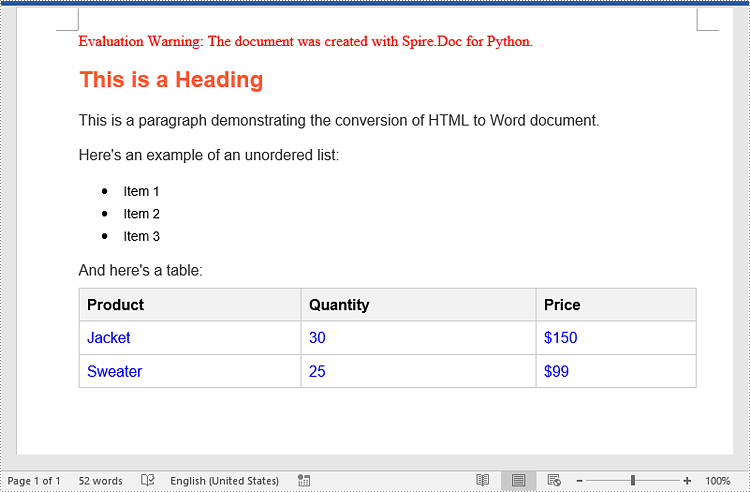
This code converts an HTML string directly into Word content:
- Document(): creates a new document.
- AddSection() and AddParagraph(): adds a section and paragraph to hold the content.
- AppendHTML(): parses and inserts the HTML string into the paragraph, preserving styles and structure.
- SaveToFile(): saves the document to a .docx file using the FileFormat.Docx2016 format.
This approach is ideal for use cases like email-to-Word, content pulled from CMS platforms, or HTML snippets generated dynamically at runtime.
Output:
Here is the Word document generated from the HTML string:
Supported Output Formats
With Spire.Doc for Python, you’re not limited to Word output. You can also convert HTML to various formats, including:
- Image: .png, .jpg, .bmp
- Rich Text: .rtf
- Other: .xml, .xps, .epub, etc.
Conclusion
Spire.Doc for Python provides a powerful solution for developers looking to convert HTML to Word documents with precision and efficiency. Whether you’re working with HTML files or strings, the library simplifies the process while maintaining the integrity of your content.
Give Spire.Doc a try today and see how effortlessly you can add professional document generation to your Python projects!
FAQs
Q1: Can I convert HTML to Word without installing Microsoft Word?
A1: Yes. Spire.Doc is a standalone component and does not require Word or Office on the machine.
Q2: Are CSS styles and tables preserved?
A2: Yes. The library retains CSS styles, tables, images, lists, fonts, and layout formatting.
Q3: Can I batch-convert multiple HTML files to Word?
A3: Absolutely. You can loop through folders and apply the same conversion logic to each file.
Q4: What other formats can I export HTML to?
A4: HTML can be converted to .doc, .docx, .pdf, image formats, .rtf, .xml, and more.
Q5: Is there a trial license?
A5: Yes. you can request a 30-day trial license for full functionality.

Converting Word documents (DOCX or DOC) to HTML format is essential when you want to display formatted content on web pages, import legacy documents into content management systems, or generate web previews for DOCX files. HTML’s universal browser compatibility makes it an ideal format for sharing content online.
This guide shows how to convert Word to HTML in Python using Spire.Doc for Python. It covers both basic and advanced conversion techniques with practical examples, helping you handle diverse conversion needs.
Table of Contents
- Why Convert Word to HTML
- Install Word to HTML Converter in Python
- How to Convert Word to HTML Using Python
- Conclusion
- FAQs
Why Convert Word to HTML?
Here are some typical scenarios where converting Word to HTML is beneficial:
- Web publishing: Display Word content in a browser without requiring users to download the document.
- CMS integration: Import Word-based articles into a web-based content system.
- Content preview: Generate HTML previews for Word attachments or document archives.
- Email rendering: Convert DOCX content into HTML-friendly formats for email templates.
Install Word to HTML Converter in Python
Spire.Doc for Python is a professional library designed for Word document processing and conversion. It provides a reliable way to export Word documents to HTML while preserving accurate formatting and layout.
Benefits of Using Spire.Doc for Word-to-HTML Conversion
- Accurate formatting: Preserves fonts, colors, styles, tables, and images.
- No Office dependency: Does not require Microsoft Word or Office Interop.
- Supports DOCX and DOC: Compatible with both modern and legacy Word formats.
- Customizable output: Fine-tune HTML export settings, including image embedding and CSS styling.
Installation
Install the library from PyPI using the following command:
pip install spire.doc
Need help with the installation? Check this step-by-step guide: How to Install Spire.Doc for Python on Windows.
How to Convert Word to HTML Using Python
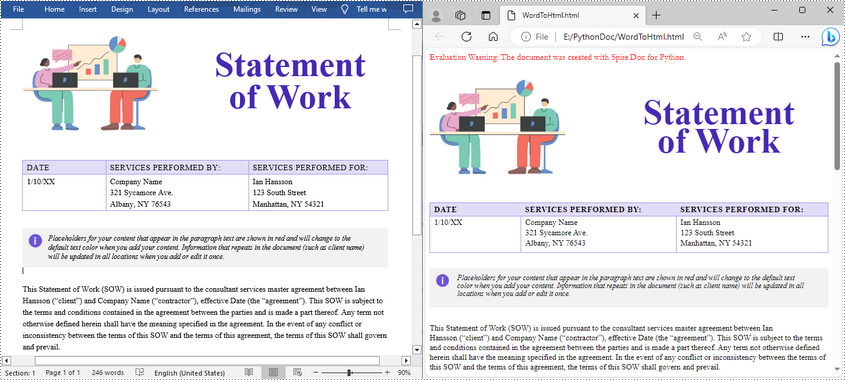
This section demonstrates how to convert Word documents to HTML using Spire.Doc for Python. First, you'll see a quick example using default settings for fast export. Then, you'll learn how to customize the HTML output with advanced options.
Quick Conversion with Default Settings
The following code snippet shows how to save a Word document to HTML format using the default export settings. It’s suitable for simple use cases where no customization is needed.
from spire.doc import *
from spire.doc.common import *

# Create a Document instance
document = Document()

# Load a doc or docx document
document.LoadFromFile("Statement.docx")

# Save the document to HTML format
document.SaveToFile("WordToHtml.html", FileFormat.Html)
document.Close()
Advanced Conversion Options
You can customize the HTML export to suit your needs by configuring options such as including headers and footers, linking to an external CSS stylesheet, choosing whether to embed images or save them separately, and exporting form fields as plain text. The example below shows how to set these options.
from spire.doc import *
from spire.doc.common import *

# Create a Document instance
document = Document()

# Load a .docx or .doc document
document.LoadFromFile("Statement.docx")

# Control whether to include headers and footers in the exported HTML
document.HtmlExportOptions.HasHeadersFooters = False

# Specify the name of the CSS file to use for styling the exported HTML
document.HtmlExportOptions.CssStyleSheetFileName = "sample.css"

# Set the CSS stylesheet type to external, so the HTML file links to the specified CSS file instead of embedding styles inline
document.HtmlExportOptions.CssStyleSheetType = CssStyleSheetType.External

# Configure image export: do not embed images inside HTML, save them to a separate folder
document.HtmlExportOptions.ImageEmbedded = False
document.HtmlExportOptions.ImagesPath = "Images/"

# Export form fields as plain text instead of interactive form elements
document.HtmlExportOptions.IsTextInputFormFieldAsText = True

# Save the document as an HTML file
document.SaveToFile("ToHtmlExportOption.html", FileFormat.Html)
document.Close()
Conclusion
Spire.Doc for Python delivers high-fidelity Word-to-HTML conversions without requiring Microsoft Word. Whether for quick exports or customized HTML output, it provides a versatile, dependable solution.
Beyond HTML conversion, Spire.Doc supports a wide range of Word automation tasks such as document merging, text replacement, and PDF conversion, empowering developers to build robust document processing pipelines. To explore these capabilities further, check out the full Python Word programming guide and start enhancing your document workflows today.
FAQs
Q1: Can Spire.Doc convert both DOC and DOCX files to HTML?
A1: Yes, it supports exporting both legacy DOC and modern DOCX formats.
Q2: Is Microsoft Word required for conversion?
A2: No, Spire.Doc works independently without needing Microsoft Word or Office Interop.
Q3: Can images be embedded directly in the HTML instead of saved separately?
A3: Yes, you can embed images directly into the HTML output by setting ImageEmbedded to True. This ensures that all images are included within the HTML file itself, without creating separate image files or folders.
Get a Free License
To fully experience the capabilities of Spire.Doc for Python without any evaluation limitations, you can request a free 30-day trial license.
Converting a Word document into images can be a useful and convenient option when you want to share or present the content without worrying about formatting issues or compatibility across devices. By converting a Word document into images, you can ensure that the text, images, and formatting remain intact, making it an ideal solution for sharing documents on social media, websites, or through email. In this article, you will learn how to convert Word to PNG, JPEG or SVG in Python using Spire.Doc for Python.
Install Spire.Doc for Python
This scenario requires Spire.Doc for Python and plum-dispatch v1.7.4. They can be easily installed in your Windows through the following pip command.
pip install Spire.Doc
If you are unsure how to install, please refer to this tutorial: How to Install Spire.Doc for Python on Windows
Convert Word to PNG or JPEG in Python
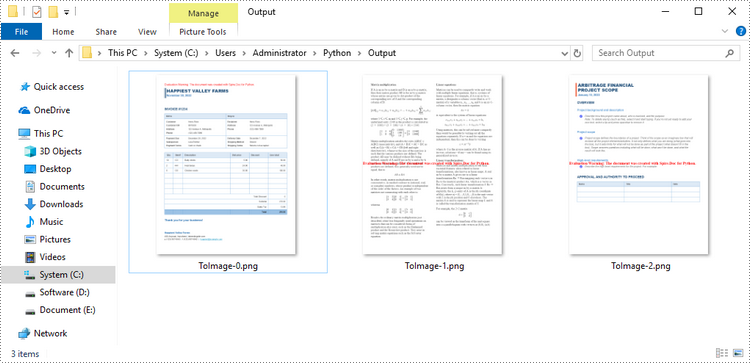
Spire.Doc for Python offers the Document.SaveImageToStream() method to convert a certain page into a bitmap image. Afterwards, you can save the bitmap image to a popular image format such as PNG, JPEG, or BMP. The detailed steps are as follows.
- Create a Document object.
- Load a Word file using Document.LoadFromFile() method.
- Retrieve each page in the document, and convert a specific page into a bitmap image using Document.SaveImageToStreams() method.
- Save the bitmap image into a PNG or JPEG file.
- Python
from spire.doc import *
from spire.doc.common import *

# Create a Document object
document = Document()

# Load a Word file
document.LoadFromFile("C:\\Users\\Administrator\\Desktop\\input.docx")

# Loop through the pages in the document
for i in range(document.GetPageCount()):

    # Convert a specific page to bitmap image
    imageStream = document.SaveImageToStreams(i, ImageType.Bitmap)

    # Save the bitmap to a PNG file
    with open('Output/ToImage-{0}.png'.format(i),'wb') as imageFile:
        imageFile.write(imageStream.ToArray())

document.Close()
Convert Word to SVG in Python
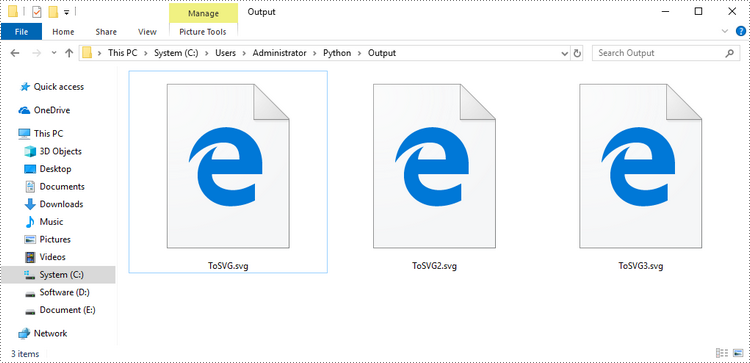
To convert a Word document into multiple SVG files, you can simply use the Document.SaveToFile() method. Here are the steps.
- Create a Document object.
- Load a Word file using Document.LoadFromFile() method.
- Convert it to individual SVG files using Document.SaveToFile() method.
- Python
from spire.doc import *
from spire.doc.common import *

# Create a Document object
document = Document()

# Load a Word file
document.LoadFromFile("C:\\Users\\Administrator\\Desktop\\input.docx")

# Convert it to SVG files
document.SaveToFile("output/ToSVG.svg", FileFormat.SVG)

document.Close()
Get a Free License
To fully experience the capabilities of Spire.Doc for Python without any evaluation limitations, you can request a free 30-day trial license.
Text files are a common file type that contain only plain text without any formatting or styles. If you want to apply formatting or add images, charts, tables, and other media elements to text files, one of the recommended solutions is to convert them to Word files.
Conversely, if you want to efficiently extract content or reduce the file size of Word documents, you can convert them to text format. This article will demonstrate how to programmatically convert text files to Word format and convert Word files to text format using Spire.Doc for Python.
Install Spire.Doc for Python
This scenario requires Spire.Doc for Python and plum-dispatch v1.7.4. They can be easily installed in your Windows through the following pip commands.
pip install Spire.Doc
If you are unsure how to install, please refer to this tutorial: How to Install Spire.Doc for Python on Windows
Convert Text (TXT) to Word in Python
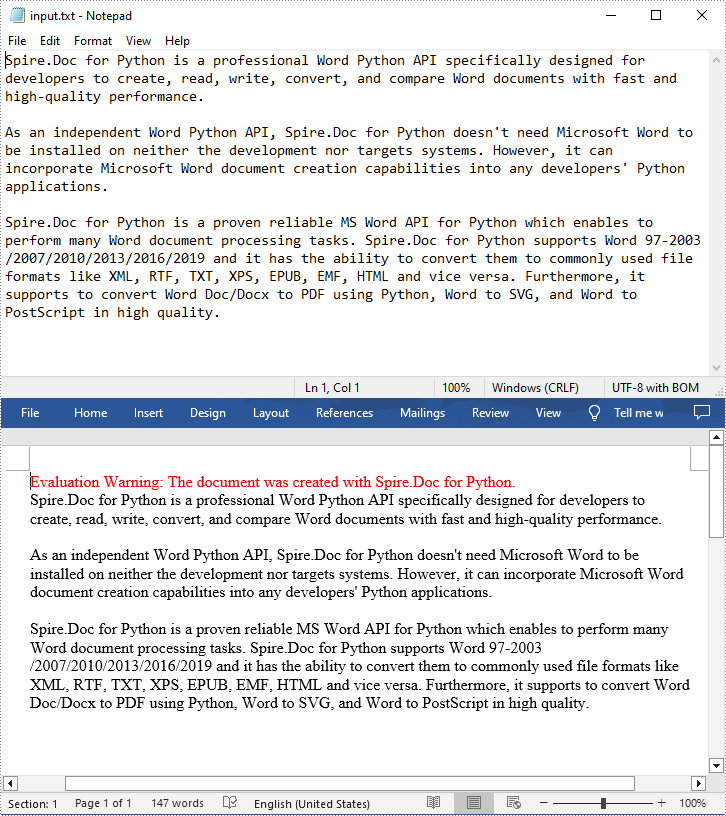
Conversion from TXT to Word is quite simple that requires only a few lines of code. The following are the detailed steps.
- Create a Document object.
- Load a text file using Document.LoadFromFile(string fileName) method.
- Save the text file as a Word file using Document.SaveToFile(string fileName, FileFormat fileFormat) method.
- Python
from spire.doc import *
from spire.doc.common import *

# Create a Document object
document = Document()

# Load a TXT file
document.LoadFromFile("input.txt")

# Save the TXT file as Word
document.SaveToFile("TxtToWord.docx", FileFormat.Docx2016)
document.Close()
Convert Word to Text (TXT) in Python
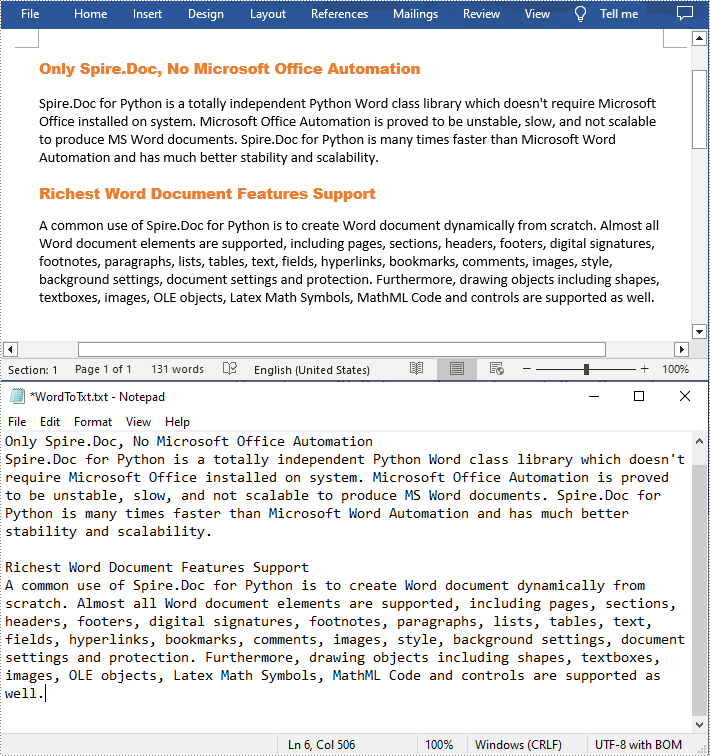
The Document.SaveToFile(string fileName, FileFormat.Txt) method provided by Spire.Doc for Python allows you to export a Word file to text format. The following are the detailed steps.
- Create a Document object.
- Load a Word file using Document.LoadFromFile(string fileName) method.
- Save the Word file in txt format using Document.SaveToFile(string fileName, FileFormat.Txt) method.
- Python
from spire.doc import *
from spire.doc.common import *

# Create a Document object
document = Document()

# Load a Word file from disk
document.LoadFromFile("Input.docx")

# Save the Word file in txt format
document.SaveToFile("WordToTxt.txt", FileFormat.Txt)
document.Close()
Get a Free License
To fully experience the capabilities of Spire.Doc for Python without any evaluation limitations, you can request a free 30-day trial license.
Nowadays, digital documents play a significant role in our daily lives, both in personal and professional settings. One such common format is Microsoft Word - used for creating and editing textual documents. However, there may come a time when you need to convert your Word files into a more universally accessible format, such as PDF. PDFs offer advantages like preserving formatting, ensuring compatibility, and maintaining document integrity across different devices and operating systems. In this article, you will learn how to convert Word to PDF in Python using Spire.Doc for Python.
- Convert Doc or Docx to PDF in Python
- Convert Word to Password-Protected PDF in Python
- Convert Word to PDF with Bookmarks in Python
- Convert Word to PDF with Fonts Embedded in Python
- Set Image Quality When Converting Word to PDF in Python
Install Spire.Doc for Python
This scenario requires Spire.Doc for Python and plum-dispatch v1.7.4. They can be easily installed in your Windows through the following pip command.
pip install Spire.Doc
If you are unsure how to install, please refer to this tutorial: How to Install Spire.Doc for Python on Windows
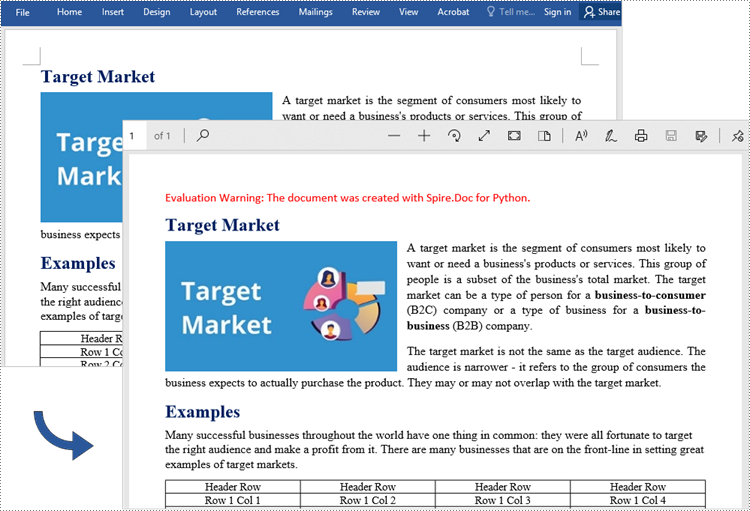
Convert Doc or Docx to PDF in Python
Spire.Doc for Python offers the Document.SaveToFile(string fileName, FileFormat fileFormat) method that allows to save Word as PDF, XPS, HTML, RTF, etc. If you just want to save your Word documents as regular PDFs without additional settings, follow the steps below.
- Create a Document object.
- Load a sample Word document using Document.LoadFromFile() method.
- Save the document to PDF using Doucment.SaveToFile() method.
- Python
from spire.doc import *
from spire.doc.common import *

# Create word document
document = Document()

# Load a doc or docx file
document.LoadFromFile("C:\\Users\\Administrator\\Desktop\\input.docx")

#Save the document to PDF
document.SaveToFile("output/ToPDF.pdf", FileFormat.PDF)
document.Close()
Convert Word to Password-Protected PDF in Python
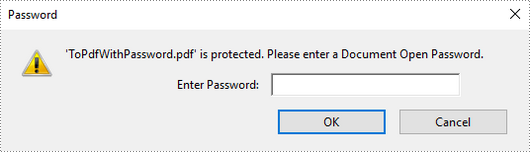
To convert Word to a Password-Protected PDF, you can utilize the Document.SaveToFile(string fileName, ToPdfParameterList paramList) method, where the ToPdfParameterList parameter allows you to control the conversion process of a Word document into a PDF format. This includes options such as encrypting the document during the conversion. Here are the specific steps to accomplish this task.
- Create a Document object.
- Load a sample Word document using Document.LoadFromFile() method.
- Create a ToPdfParameterList object, which is used to set conversion options.
- Specify the open password and permission password and then set both passwords for the generated PDF using ToPdfParameterList.PdfSecurity.Encrypt() method.
- Save the Word document to PDF with password using Doucment.SaveToFile(string fileName, ToPdfParameterList paramList) method.
- Python
from spire.doc import *
from spire.doc.common import *

# Create a Document object
document = Document()

# Load a Word file
document.LoadFromFile("C:\\Users\\Administrator\\Desktop\\input.docx")

# Create a ToPdfParameterList object
parameter = ToPdfParameterList()

# Specify open password and permission password
openPsd = "abc-123"
permissionPsd = "permission"

# Protect the PDF to be generated with open password and permission password
parameter.PdfSecurity.Encrypt(openPsd, permissionPsd, PdfPermissionsFlags.Default, PdfEncryptionKeySize.Key128Bit)

# Save the Word document to PDF
document.SaveToFile("output/ToPdfWithPassword.pdf", parameter)
document.Close()
Convert Word to PDF with Bookmarks in Python
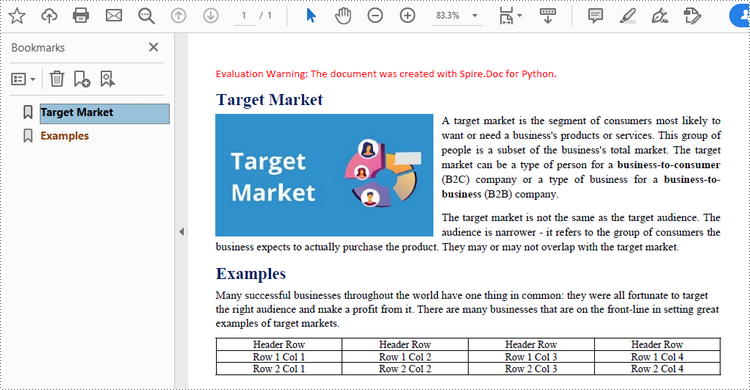
Adding bookmarks to a document can improve its readability. When creating PDF from Word, you may want to keep the existing bookmarks or create new ones based on the headings. Here are the steps to convert Word to PDF while maintaining bookmarks.
- Create a Document object.
- Load a Word file using Document.LoadFromFile() method.
- Create a ToPdfParameterList object, which is used to set conversion options.
- Create bookmarks in PDF from the headings in Word by setting ToPdfParameterList.CreateWordBookmarksUsingHeadings to true.
- Save the document to PDF with bookmarks using Doucment.SaveToFile(string fileName, ToPdfParameterList paramList) method.
- Python
from spire.doc import *
from spire.doc.common import *

# Create a Document object
document = Document()

# Load a Word file
document.LoadFromFile("C:\\Users\\Administrator\\Desktop\\input.docx")

# Create a ToPdfParameterList object
parames = ToPdfParameterList()

# Create bookmarks from Word headings
parames.CreateWordBookmarksUsingHeadings = True

# Create bookmarks in PDF from existing bookmarks in Word
# parames.CreateWordBookmarks = True

# Save the document to PDF
document.SaveToFile("output/ToPdfWithBookmarks.pdf", FileFormat.PDF)
document.Close()
Convert Word to PDF with Fonts Embedded in Python
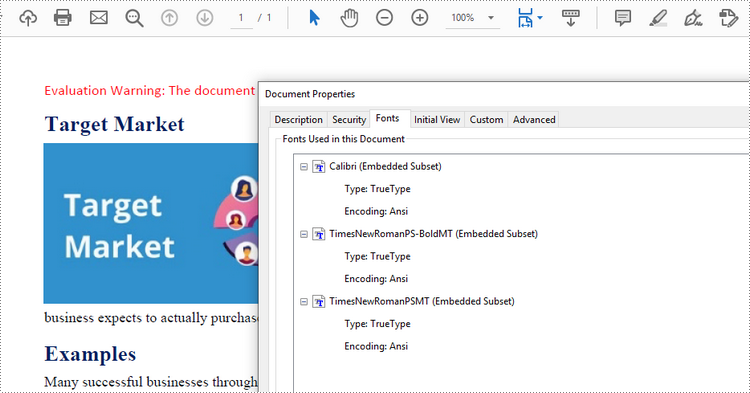
To ensure consistent appearance of a PDF document on any device, you probably need to embed fonts in the generated PDF document. The following are the steps to embed the fonts used in a Word document into the resulting PDF.
- Create a Document object.
- Load a sample Word file using Document.LoadFromFile() method.
- Create a ToPdfParameterList object, which is used to set conversion options.
- Embed fonts in generated PDF through ToPdfParameterList.IsEmbeddedAllFonts property.
- Save the document to PDF using Doucment.SaveToFile(string fileName, ToPdfParameterList paramList) method.
- Python
from spire.doc import *
from spire.doc.common import *

# Create a Document object
document = Document()

# Load a Word file
document.LoadFromFile("C:\\Users\\Administrator\\Desktop\\input.docx")

# Create a ToPdfParameterList object
parameter = ToPdfParameterList()

# Embed fonts in PDF
parameter.IsEmbeddedAllFonts = True

# Save the Word document to PDF
document.SaveToFile("output/EmbedFonts.pdf", parameter)
document.Close()
Set Image Quality When Converting Word to PDF in Python
When converting a Word document to PDF, it is important to consider the size of the resulting file, especially if it contains numerous high-quality images. You have the option to compress the image quality during the conversion process. To do this, follow the steps below.
- Create a Document object.
- Load a sample Word file using Document.LoadFromFile() method.
- Set the image quality through Document.JPEGQuality property.
- Save the document to PDF using Doucment.SaveToFile() method.
- Python
from spire.doc import *
from spire.doc.common import *

# Create a Document object
document = Document()

# Load a Word file
document.LoadFromFile("C:\\Users\\Administrator\\Desktop\\input.docx")

# Compress image to 40% of its original quality
document.JPEGQuality = 40

# Preserve original image quality
# document.JPEGQuality = 100

# Save the Word document to PDF
document.SaveToFile("output/SetImageQuality.pdf", FileFormat.PDF)
document.Close()
Get a Free License
To fully experience the capabilities of Spire.Doc for Python without any evaluation limitations, you can request a free 30-day trial license.
