
Document Operation (28)
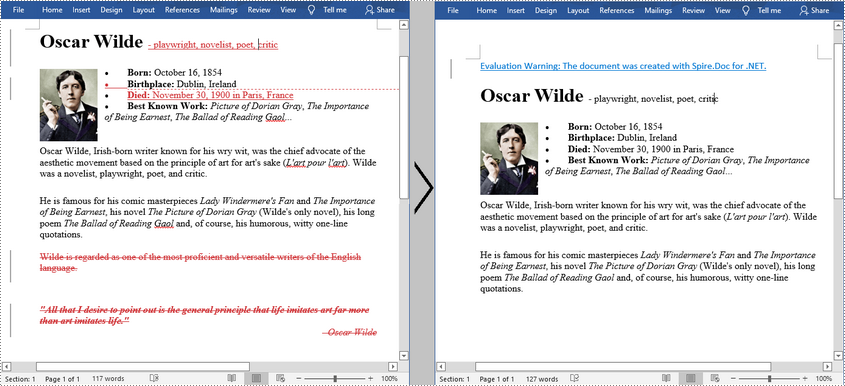
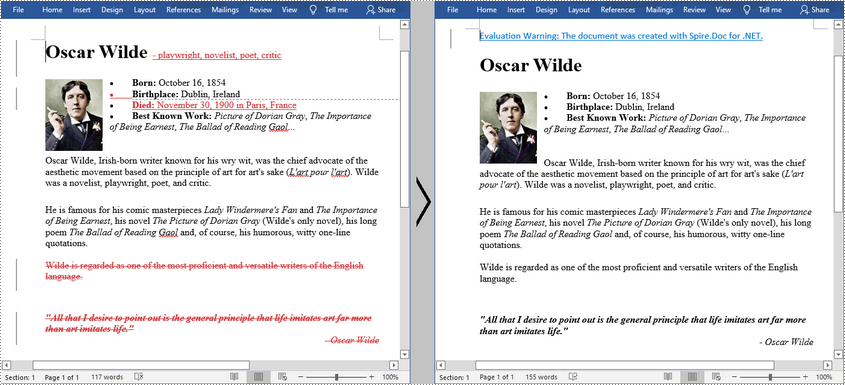
Track Changes in MS Word can track the revisions, corrections, changes, edits, and even suggestions and comments people make to documents. When you receive a revised document with Track Changes turned on, you can decide whether to reject the changes to keep the original content or directly accept them. This article will demonstrate how to programmatically accept or reject all tracked changes in a Word document using Spire.Doc for .NET.
Install Spire.Doc for .NET
To begin with, you need to add the DLL files included in the Spire.Doc for .NET package as references in your .NET project. The DLL files can be either downloaded from this link or installed via NuGet.
PM> Install-Package Spire.Doc
Accept All Tracked Changes in a Word Document
The detailed steps are as follows:
- Create a Document instance.
- Load a sample Word document using Document.LoadFromFile() method.
- Accept all changes in the document using Document.AcceptChanges() method.
- Save the document to another file using Document.SaveToFile() method.
- C#
- VB.NET
using Spire.Doc;

namespace AcceptTrackedChanges
{
    class Program
    {
        static void Main(string[] args)
        {
            //Create a Document instance
            Document doc = new Document();

            //Load a sample Word document
            doc.LoadFromFile("test.docx");

            //Accept all changes in the document
            doc.AcceptChanges();

            //Save the result document
            doc.SaveToFile("AcceptTrackedChanges.docx", FileFormat.Docx);

        }
    }
}
Reject All Tracked Changes in a Word document
The detailed steps are as follows.
- Create a Document instance.
- Load a sample Word document using Document.LoadFromFile() method.
- Reject all changes in the document using Document.RejectChanges() method.
- Save the document to another file using Document.SaveToFile() method.
- C#
- VB.NET
using Spire.Doc;

namespace RejectTrackedChanges
{
    class Program
    {
        static void Main(string[] args)
        {
            //Create a Document instance
            Document doc = new Document();

            //Load a sample Word document
            doc.LoadFromFile("test.docx");

            //Reject all changes in the document
            doc.RejectChanges();

            //Save the result document
            doc.SaveToFile("RejectAllChanges.docx", FileFormat.Docx);

        }
    }
}
Apply for a Temporary License
If you'd like to remove the evaluation message from the generated documents, or to get rid of the function limitations, please request a 30-day trial license for yourself.
In MS Word, you can split a document by manually cutting the content from the original document and pasting it into a new document. Although the task is simple, it can also be quite tedious and time-consuming especially when dealing with a long document. This article will demonstrate how to programmatically split a Word document into multiple files using Spire.Doc for .NET .
Install Spire.Doc for .NET
To begin with, you need to add the DLL files included in the Spire.Doc for.NET package as references in your .NET project. The DLL files can be either downloaded from this link or installed via NuGet.
PM> Install-Package Spire.Doc
Split a Word Document by Page Break
A Word document can contain multiple pages separated by page breaks. To split a Word document by page break, you can refer to the below steps and code.
- Create a Document instance.
- Load a sample Word document using Document.LoadFromFile() method.
- Create a new Word document and add a section to it.
- Traverse through all body child objects of each section in the original document and determine whether the child object is a paragraph or a table.
- If the child object of the section is a table, directly add it to the section of new document using Section.Body.ChildObjects.Add() method.
- If the child object of the section is a paragraph, first add the paragraph object to the section of the new document. Then traverse through all child objects of the paragraph and determine whether the child object is a page break.
- If the child object of the paragraph is a page break, get its index and then remove the page break from its paragraph by index.
- Save the new Word document and then repeat the above processes.
- C#
- VB.NET
using System;
using Spire.Doc;
using Spire.Doc.Documents;

namespace SplitByPageBreak
{
    class Program
    {
        static void Main(string[] args)
        {
            //Create a Document instance
            Document original = new Document();

            //Load a sample Word document
            original.LoadFromFile(@"E:\Files\SplitByPageBreak.docx");

            //Create a new Word document and add a section to it
            Document newWord = new Document();
            Section section = newWord.AddSection();
            int index = 0;

            //Traverse through all sections of the original document
            foreach (Section sec in original.Sections)
            {
                //Traverse through all body child objects of each section
                foreach (DocumentObject obj in sec.Body.ChildObjects)
                {
                    if (obj is Paragraph)
                    {
                        Paragraph para = obj as Paragraph;
                        sec.CloneSectionPropertiesTo(section);

                        //Add paragraph object in the section of original document into section of new document
                        section.Body.ChildObjects.Add(para.Clone());

                        //Traverse through all child objects of each paragraph and determine whether the object is a page break
                        foreach (DocumentObject parobj in para.ChildObjects)
                        {
                            if (parobj is Break && (parobj as Break).BreakType == BreakType.PageBreak)
                            {
                                //Get the index of page break in paragraph
                                int i = para.ChildObjects.IndexOf(parobj);

                                //Remove the page break from its paragraph
                                section.Body.LastParagraph.ChildObjects.RemoveAt(i);

                                //Save the new Word document
                                newWord.SaveToFile(String.Format("result\out-{0}.docx", index), FileFormat.Docx);
                                index++;

                                //Create a new document and add a section
                                newWord = new Document();
                                section = newWord.AddSection();

                                //Add paragraph object in original section into section of new document
                                section.Body.ChildObjects.Add(para.Clone());
                                if (section.Paragraphs[0].ChildObjects.Count == 0)
                                {
                                    //Remove the first blank paragraph
                                    section.Body.ChildObjects.RemoveAt(0);
                                }
                                else
                                {
                                    //Remove the child objects before the page break
                                    while (i >= 0)
                                    {
                                        section.Paragraphs[0].ChildObjects.RemoveAt(i);
                                        i--;
                                    }
                                }
                            }
                        }
                    }
                    if (obj is Table)
                    {
                        //Add table object in original section into section of new document
                        section.Body.ChildObjects.Add(obj.Clone());
                    }
                }
            }

            //Save to file
            newWord.SaveToFile(String.Format("result/out-{0}.docx", index), FileFormat.Docx);

        }
    }
}

Split a Word Document by Section Break
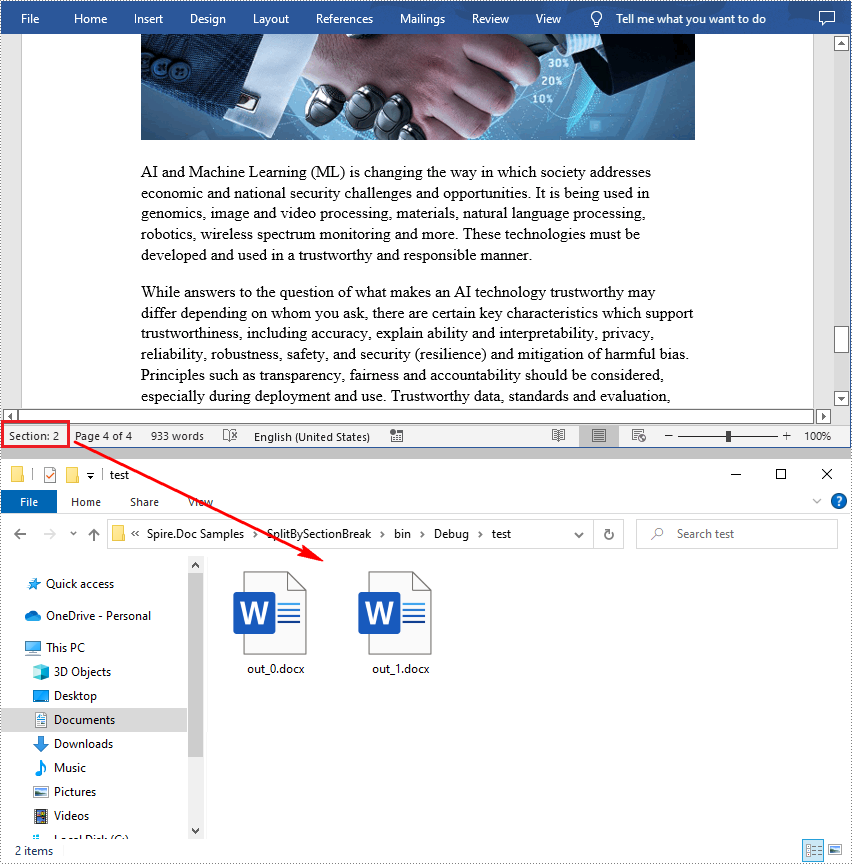
In Word, a section is a part of a document that contains its own page formatting. For documents that contain multiple sections, Spire.Doc for .NET also supports splitting documents by section breaks. The detailed steps are as follows.
- Create a Document instance.
- Load a sample Word document using Document.LoadFromFile() method.
- Define a new Word document object.
- Traverse through all sections of the original Word document.
- Clone each section of the original document using Document.Sections.Clone() method.
- Add the cloned section to the new document as a new section using Document.Sections.Add() method.
- Save the result document using Document.SaveToFile() method.
- C#
- VB.NET
using System;
using Spire.Doc;

namespace SplitBySectionBreak
{
    class Program
    {
        static void Main(string[] args)
        {
            //Create a Document instance
            Document document = new Document();

            //Load a sample Word document
            document.LoadFromFile(@"E:\Files\SplitBySectionBreak.docx");

            //Define a new Word document object
            Document newWord;

            //Traverse through all sections of the original Word document
            for (int i = 0; i < document.Sections.Count; i++)
            {
                newWord = new Document();

                //Clone each section of the original document and add it to the new document as new section
                newWord.Sections.Add(document.Sections[i].Clone());

                //Save the result document
                newWord.SaveToFile(String.Format(@"test\out_{0}.docx", i));
            }
        }
    }
}
Apply for a Temporary License
If you'd like to remove the evaluation message from the generated documents, or to get rid of the function limitations, please request a 30-day trial license for yourself.
Split a Word document into multiple documents by section break in C#
2016-07-25 08:45:33 Written by KoohjiIn Word, we can split a word document in an easiest way - open a copy of the original document, delete the sections that we don’t want and then save the remains to local drive. But doing this section by section is rather cumbersome and boring. This article will explain how we can use Spire.Doc for .NET to programmatically split a Word document into multiple documents by section break instead of copying and deleting manually.
Detail steps and code snippets:
Step 1: Initialize a new word document object and load the original word document which has two sections.
Document document = new Document();
document.LoadFromFile("Test.docx");
Step 2: Define another new word document object.
Document newWord;
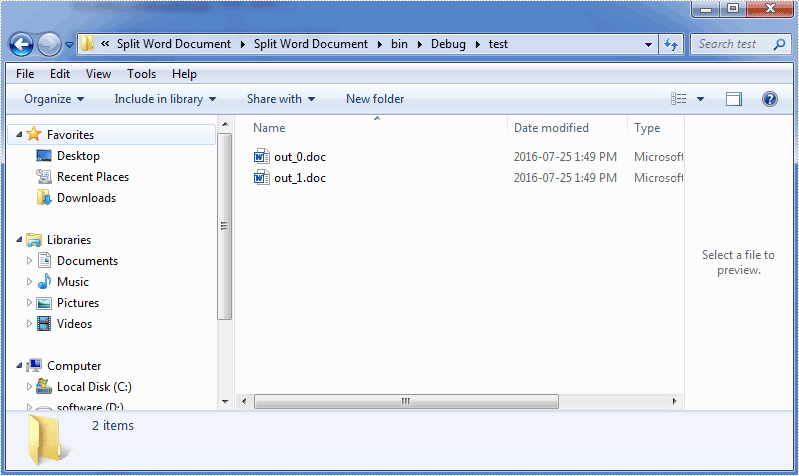
Step 3: Traverse through all sections of the original word document, clone each section and add it to a new word document as new section, then save the document to specific path.
for (int i = 0; i < document.Sections.Count; i++)
{
    newWord = new Document();
    newWord.Sections.Add(document.Sections[i].Clone());
    newWord.SaveToFile(String.Format(@"test\out_{0}.docx", i));
}
Run the project and we'll get the following output:
Full codes:
using System;
using Spire.Doc;

namespace Split_Word_Document
{
    class Program
    {
        static void Main(string[] args)
        {
            Document document = new Document();
            document.LoadFromFile("Test.doc");
            Document newWord;
            for (int i = 0; i < document.Sections.Count; i++)
            {
                newWord = new Document();
                newWord.Sections.Add(document.Sections[i].Clone());
                newWord.SaveToFile(String.Format(@"test\out_{0}.docx", i));
            }
        }
    }
}
Transferring content between Microsoft Word documents is a frequent need for many users. Whether you're consolidating information from multiple sources or reorganizing the structure of a document, being able to effectively copy and paste text, graphics, and formatting is crucial.
This article demonstrates how to copy content from one Word document to another using C# and Spire.Doc for .NET.
- Copy Specified Paragraphs from One Word Document to Another
- Copy a Section from One Word Document to Another
- Copy the Entire Document and Append it to Another
- Create a Copy of a Word Document
Install Spire.Doc for .NET
To begin with, you need to add the DLL files included in the Spire.Doc for.NET package as references in your .NET project. The DLL files can be either downloaded from this link or installed via NuGet.
PM> Install-Package Spire.Doc
Copy Specified Paragraphs from One Word Document to Another in C#
With Spire.Doc library for .NET, you can clone individual paragraphs using the Paragraph.Clone() method, and then add the cloned paragraphs to a different Word document using the ParagraphCollection.Add() method. This allows you to selectively copy and transfer content between documents.
To copy specified paragraphs from one Word document to another, follow these steps:
- Create a Document object to load the source file.
- Create another Document object to load the target file.
- Get the specified paragraphs from the source file.
- Clone these paragraphs using Paragraph.Clone() method.
- Add the cloned paragraphs to the target file using ParagraphCollection.Add() method.
- Save the target file to a different Word file.
- C#
using Spire.Doc;
using Spire.Doc.Documents;

namespace CopyParagraphs
{
    class Program
    {
        static void Main(string[] args)
        {
            // Create a Document object
            Document sourceDoc = new Document();

            // Load the source file
            sourceDoc.LoadFromFile("C:\\Users\\Administrator\\Desktop\\source.docx");

            // Get the specified paragraphs from the source file
            Paragraph p1 = sourceDoc.Sections[0].Paragraphs[8];
            Paragraph p2 = sourceDoc.Sections[0].Paragraphs[9];

            // Create another Document object
            Document targetDoc = new Document();

            // Load the target file
            targetDoc.LoadFromFile("C:\\Users\\Administrator\\Desktop\\target.docx");

            // Get the last section
            Section lastSection = targetDoc.LastSection;

            // Add the paragraphs from the soure file to the target file
            lastSection.Paragraphs.Add((Paragraph)p1.Clone());
            lastSection.Paragraphs.Add((Paragraph)p2.Clone());

            // Save the target file to a different Word file
            targetDoc.SaveToFile("CopyParagraphs.docx", FileFormat.Docx2019);

            // Dispose resources
            sourceDoc.Dispose();
            targetDoc.Dispose();
        }
    }
}

Copy a Section from One Word Document to Another in C#
A section in a Word document can contain not only paragraphs, but also other elements such as tables. To copy an entire section from one Word document to another, you need to iterate through all the child objects within the section and add them individually to a specified section in the target document.
The steps to copy a section between different Word documents are:
- Create Document objects to load the source file and the target file, respectively.
- Get the specified section from the source file.
- Iterate through the child objects in the section, and clone these objects using DocumentObject.Clone() method.
- Add the cloned child objects to a specified section of the target file using DocumentObjectCollection.Add() method.
- Save the updated target file to a new file.
- C#
using Spire.Doc;

namespace CopySection
{
    class Program
    {
        static void Main(string[] args)
        {
            // Create a Document object
            Document sourceDoc = new Document();

            // Load the source file
            sourceDoc.LoadFromFile("C:\\Users\\Administrator\\Desktop\\source.docx");

            // Get the specified section from the source file
            Section section = sourceDoc.Sections[0];

            // Create another Document object
            Document targetDoc = new Document();

            // Load the target file
            targetDoc.LoadFromFile("C:\\Users\\Administrator\\Desktop\\target.docx");

            // Get the last section of the target file
            Section lastSection = targetDoc.LastSection;

            // Iterate through the child objects in the selected section
            foreach (DocumentObject obj in section.Body.ChildObjects)
            {
                // Add the child object to the last section of the target file
                lastSection.Body.ChildObjects.Add(obj.Clone());
            }

            // Save the target file to a different Word file
            targetDoc.SaveToFile("CopySection.docx", FileFormat.Docx2019);

            // Dispose resources
            sourceDoc.Dispose();
            targetDoc.Dispose();
        }
    }
}
Copy the Entire Document and Append it to Another in C#
To copy the full contents from one Word document into another, you can use the Document.InsertTextFromFile() method. This method appends the source document's contents to the target document, starting on a new page.
The steps to copy the entire document and append it to another are as follows:
- Create a Document object.
- Load a Word file (target file) from the given file path.
- Insert content of a different Word document to the target file using Document.InsertTextFromFile() method.
- Save the updated target file to a new Word document.
- C#
using Spire.Doc;

namespace CopyEntireDocument
{
    class Program
    {
        static void Main(string[] args)
        {
            // Specify the path of the source document
            String sourceFile = "C:\\Users\\Administrator\\Desktop\\source.docx";

            // Create a Document object
            Document targetDoc = new Document();

            // Load the target file
            targetDoc.LoadFromFile("C:\\Users\\Administrator\\Desktop\\target.docx");

            // Insert content of the source file to the target file
            targetDoc.InsertTextFromFile(sourceFile, FileFormat.Docx);

            // Save the target file to a different Word file
            targetDoc.SaveToFile("CopyEntireDocuemnt.docx", FileFormat.Docx2019);

            // Dispose resources
            targetDoc.Dispose();
        }
    }
}
Create a Copy of a Word Document in C#
Using Spire.Doc library for .NET, you can leverage the Document.Clone() method to easily duplicate a Word document.
Here are the steps to create a copy of a Word document:
- Create a Document object.
- Load a Word file from the given file path.
- Clone the file using Document.Clone() method.
- Save the cloned document to a new Word file.
- C#
using Spire.Doc;

namespace CloneWordDocument
{
    class Program
    {
        static void Main(string[] args)
        {
            // Create a new document object
            Document sourceDoc = new Document();

            // Load a Word file
            sourceDoc.LoadFromFile("C:\\Users\\Administrator\\Desktop\\sample.docx");

            // Clone the document
            Document newDoc = sourceDoc.Clone();

            // Save the cloned document as a docx file
            newDoc.SaveToFile("Copy.docx", FileFormat.Docx);

            // Dispose resources
            sourceDoc.Dispose();
            newDoc.Dispose();
        }
    }
}
Apply for a Temporary License
If you'd like to remove the evaluation message from the generated documents, or to get rid of the function limitations, please request a 30-day trial license for yourself.
Nowadays, we're facing a bigger chance to download a file from URL since more documents are electronically delivered by internet. In this article, I'll introduce how to download a Word document from URL programmatically using Spire.Doc in C#, VB.NET.
Spire.Doc does not provide a method to download a Word file directly from URL. However, you can download the file from URL into a MemoryStream and then use Spire.Doc to load the document from MemoryStream and save as a new Word document to local folder.
Code Snippet:
Step 1: Initialize a new Word document.
Document doc = new Document();
Step 2: Initialize a new instance of WebClient class.
WebClient webClient = new WebClient();
Step 3: Call WebClient.DownloadData(string address) method to load the data from URL. Save the data to a MemoryStream, then call Document.LoadFromStream() method to load the Word document from MemoryStream.
using (MemoryStream ms = new MemoryStream(webClient.DownloadData("http://www.e-iceblue.com/images/test.docx")))
{
    doc.LoadFromStream(ms,FileFormat.Docx);
}
Step 4: Save the file.
doc.SaveToFile("result.docx",FileFormat.Docx);
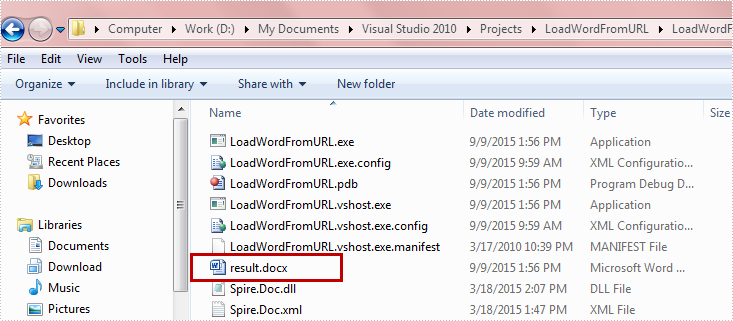
Run the program, the targeted file will be downloaded and saved as a new Word file in Bin folder.
Full Code:
using Spire.Doc;
using System.IO;
using System.Net;

namespace DownloadfromURL
{
    class Program
    {
        static void Main(string[] args)
        {
            Document doc = new Document();
            WebClient webClient = new WebClient();
            using (MemoryStream ms = new MemoryStream(webClient.DownloadData("http://www.e-iceblue.com/images/test.docx")))
            {
                doc.LoadFromStream(ms, FileFormat.Docx);
            }
            doc.SaveToFile("result.docx", FileFormat.Docx);
        }
    }
}
Imports Spire.Doc
Imports System.IO
Imports System.Net
Namespace DownloadfromURL
	Class Program
		Private Shared Sub Main(args As String())
			Dim doc As New Document()
			Dim webClient As New WebClient()
Using ms As New MemoryStream(webClient.DownloadData("http://www.e-iceblue.com/images/test.docx"))
				doc.LoadFromStream(ms, FileFormat.Docx)
			End Using
			doc.SaveToFile("result.docx", FileFormat.Docx)

		End Sub
	End Class
End Namespace
Sometimes in word files, we type another language rather than default, and need spellers and other proofing tools adjust to the language we typed.
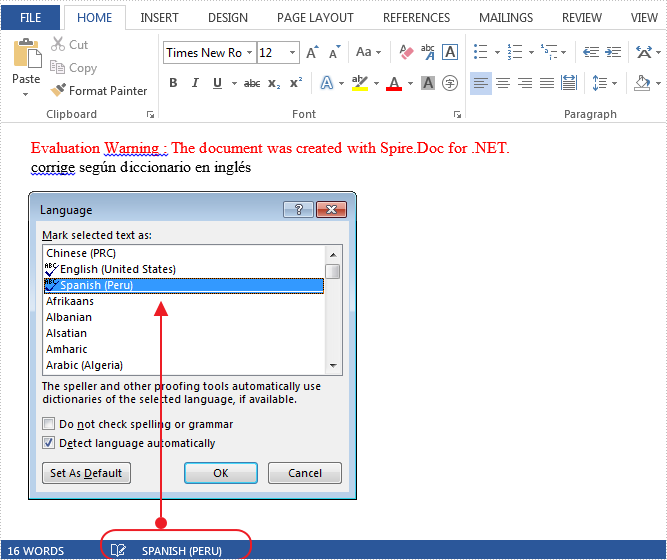
This article is talking about how to alter language dictionary as non-default language via Spire.Doc. Here take English as default language and alter to Spanish in Peru as an example.
As for more language information, refer this Link to Microsoft Locale ID Values.
Here are the steps:
Step 1: Create a new word document.
Document document = new Document();
Step 2: Add new section and paragraph to the document.
Section sec = document.AddSection();
Paragraph para = sec.AddParagraph();
Step 3: Add a textRange for the paragraph and append some Peru Spanish words.
TextRange txtRange = para.AppendText("corrige según diccionario en inglés");
txtRange.CharacterFormat.LocaleIdASCII = 10250;
Step 4: Save and review.
document.SaveToFile("result.docx", FileFormat.Docx2013);
System.Diagnostics.Process.Start("result.docx");
Here is the result screenshot.
Full Code:
using Spire.Doc.Documents;
using Spire.Doc.Fields;
namespace AlterLang
{

    class Program
    {

        static void Main(string[] args)
        {
            Document document = new Document();
            Section sec = document.AddSection();
            Paragraph para = sec.AddParagraph();
            TextRange txtRange = para.AppendText("corrige según diccionario en inglés");
            txtRange.CharacterFormat.LocaleIdASCII = 10250;
            document.SaveToFile("result.docx", FileFormat.Docx2013);
            System.Diagnostics.Process.Start("result.docx");
        }
    }
}
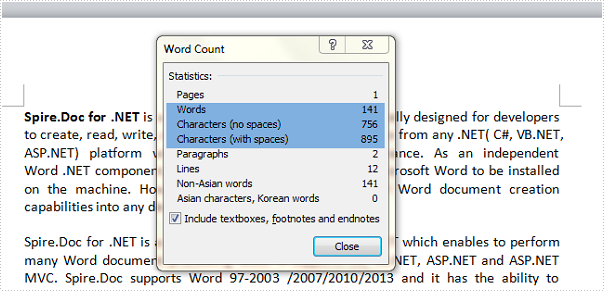
When you type in a document, Word automatically counts the number of pages and words in your document and displays them on the status bar – Word Count, at the bottom of the workspace. But how can we get the number of words, characters in an existing Word document through programming? This article aims to give you a simple solution offered by Spire.Doc.
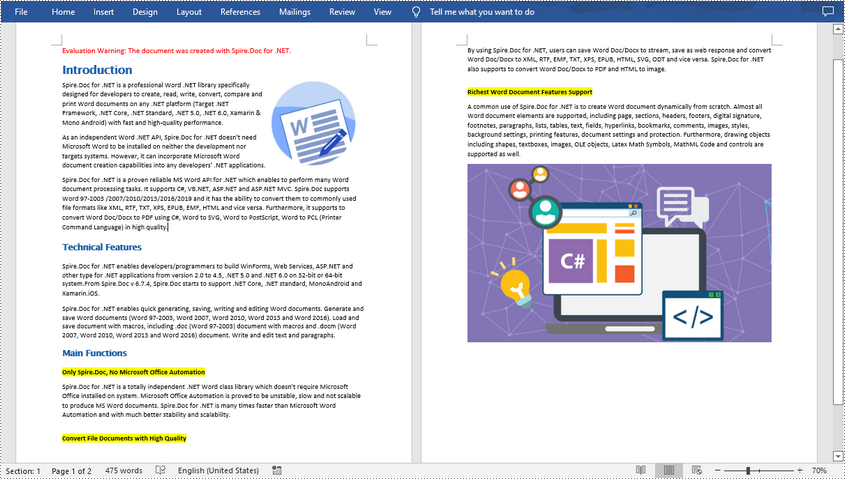
Test file:
Detailed Steps for Getting the Number of Words and Characters
Step 1: Create a new instance of Spire.Doc.Document class and load the test file.
Document doc = new Document();
doc.LoadFromFile("test.docx", FileFormat.Docx2010);
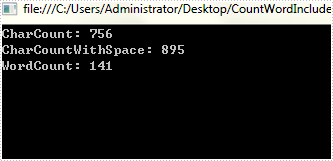
Step 2: Display the number of words, characters including or excluding spaces on console.
Console.WriteLine("CharCount: " + doc.BuiltinDocumentProperties.CharCount);
Console.WriteLine("CharCountWithSpace: " + doc.BuiltinDocumentProperties.CharCountWithSpace);
Console.WriteLine("WordCount: " + doc.BuiltinDocumentProperties.WordCount);
Output:
Full Code:
using Spire.Doc;
using System;
namespace CountNumber
{
    class Program
    {
        static void Main(string[] args)
        {
            Document doc = new Document();
            doc.LoadFromFile("test.docx", FileFormat.Docx2010);
            Console.WriteLine("CharCount: " + doc.BuiltinDocumentProperties.CharCount);
            Console.WriteLine("CharCountWithSpace: " + doc.BuiltinDocumentProperties.CharCountWithSpace);
            Console.WriteLine("WordCount: " + doc.BuiltinDocumentProperties.WordCount);
            Console.ReadKey();
        }
    }
}
Imports Spire.Doc
Namespace CountNumber
	Class Program
		Private Shared Sub Main(args As String())
			Dim doc As New Document()
			doc.LoadFromFile("test.docx", FileFormat.Docx2010)
			Console.WriteLine("CharCount: " + doc.BuiltinDocumentProperties.CharCount)
			Console.WriteLine("CharCountWithSpace: " + doc.BuiltinDocumentProperties.CharCountWithSpace)
			Console.WriteLine("WordCount: " + doc.BuiltinDocumentProperties.WordCount)
			Console.ReadKey()
		End Sub
	End Class
End Namespace
When dealing with Word documents, sometimes developers need to merge multiple files into a single file. Spire.Doc, especially designed for developers enables you to manipulate doc files easily and flexibly.
There is already a document introducing how to merge doc files. Check it here:
.NET Merge Word - Merge Multiple Word Documents into One in C# and VB.NET
Using the method above, you have to copy sections one by one. But the new method just concatenates them. It has improved and is very easy to use
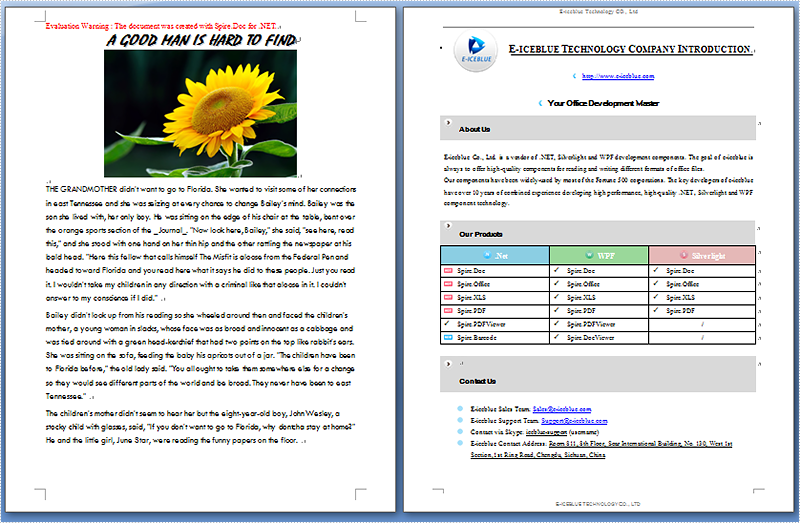
Step 1: Load the original word file "A Good Man.docx".
document.LoadFromFile("A Good Man.docx", FileFormat.Docx);
Step 2: Merge another word file "Original Word.docx" to the original one.
document.InsertTextFromFile("Original Word.docx", FileFormat.Docx);
Step 3: Save the file.
document.SaveToFile("MergedFile.docx", FileFormat.Docx);
Full code and screenshot:
static void Main(string[] args)
{
    Document document = new Document();
    document.LoadFromFile("A Good Man.docx", FileFormat.Docx);

    document.InsertTextFromFile("Original Word.docx", FileFormat.Docx);

    document.SaveToFile("MergedFile.docx", FileFormat.Docx);
    System.Diagnostics.Process.Start("MergedFile.docx");
}
Full code and screenshot:
using Spire.Doc;
namespace MergeWord
{
    class Program
    {
        static void Main(string[] args)
        {
            Document document = new Document();
            document.LoadFromFile("A Good Man.docx", FileFormat.Docx);

            document.InsertTextFromFile("Original Word.docx", FileFormat.Docx);

            document.SaveToFile("MergedFile.docx", FileFormat.Docx);
            System.Diagnostics.Process.Start("MergedFile.docx");
        }
    }
}
Document properties (also known as metadata) are a set of information about a document. All Word documents come with a set of built-in document properties, including title, author name, subject, keywords, etc. In addition to the built-in document properties, Microsoft Word also allows users to add custom document properties to Word documents. In this article, we will explain how to add these document properties to Word documents in C# and VB.NET using Spire.Doc for .NET.
- Add Built-in Document Properties to a Word Document
- Add Custom Document Properties to a Word Document
Install Spire.Doc for .NET
To begin with, you need to add the DLL files included in the Spire.Doc for.NET package as references in your .NET project. The DLL files can be either downloaded from this link or installed via NuGet.
PM> Install-Package Spire.Doc
Add Built-in Document Properties to a Word Document in C# and VB.NET
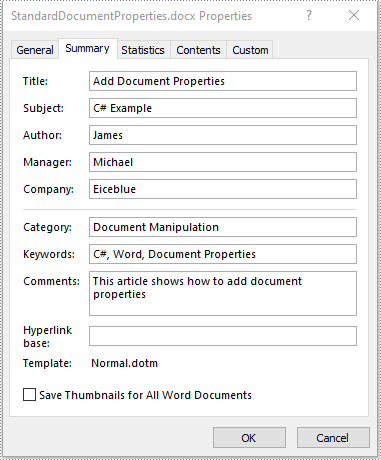
A built-in document property consists of a name and a value. You cannot set or change the name of a built-in document property as it's predefined by Microsoft Word, but you can set or change its value. The following steps demonstrate how to set values for built-in document properties in a Word document:
- Initialize an instance of Document class.
- Load a Word document using Document.LoadFromFile() method.
- Get the built-in document properties of the document through Document.BuiltinDocumentProperties property.
- Set values for specific document properties such as title, subject and author through Title, Subject and Author properties of BuiltinDocumentProperties class.
- Save the result document using Document.SaveToFile() method.
- C#
- VB.NET
using Spire.Doc;

namespace BuiltinDocumentProperties
{
    class Program
    {
        static void Main(string[] args)
        {
            //Create a Document instance
            Document document = new Document();
            //Load a Word document
            document.LoadFromFile("Sample.docx");

            //Add built-in document properties to the document
            BuiltinDocumentProperties standardProperties = document.BuiltinDocumentProperties;
            standardProperties.Title = "Add Document Properties";
            standardProperties.Subject = "C# Example";
            standardProperties.Author = "James";
            standardProperties.Company = "Eiceblue";
            standardProperties.Manager = "Michael";
            standardProperties.Category = "Document Manipulation";
            standardProperties.Keywords = "C#, Word, Document Properties";
            standardProperties.Comments = "This article shows how to add document properties";

            //Save the result document
            document.SaveToFile("StandardDocumentProperties.docx", FileFormat.Docx2013);
        }
    }
}
Add Custom Document Properties to a Word Document in C# and VB.NET
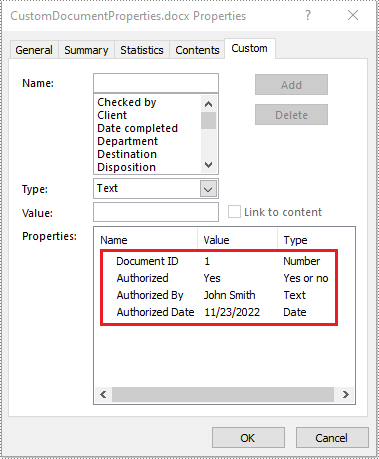
A custom document property can be defined by a document author or user. Each custom document property should contain a name, a value and a data type. The data type can be one of these four types: Text, Date, Number and Yes or No. The following steps demonstrate how to add custom document properties with different data types to a Word document:
- Initialize an instance of Document class.
- Load a Word document using Document.LoadFromFile() method.
- Get the custom document properties of the document through Document.CustomDocumentProperties property.
- Add custom document properties with different data types to the document using CustomDocumentProperties.Add(string, object) method.
- Save the result document using Document.SaveToFile() method.
- C#
- VB.NET
using Spire.Doc;
using System;

namespace CustomDocumentProperties
{
    class Program
    {
        static void Main(string[] args)
        {
            //Create a Document instance
            Document document = new Document();
            //Load a Word document
            document.LoadFromFile("Sample.docx");

            //Add custom document properties to the document
            CustomDocumentProperties customProperties = document.CustomDocumentProperties;
            customProperties.Add("Document ID", 1);
            customProperties.Add("Authorized", true);
            customProperties.Add("Authorized By", "John Smith");
            customProperties.Add("Authorized Date", DateTime.Today);

            //Save the result document
            document.SaveToFile("CustomDocumentProperties.docx", FileFormat.Docx2013);
        }
    }
}
Apply for a Temporary License
If you'd like to remove the evaluation message from the generated documents, or to get rid of the function limitations, please request a 30-day trial license for yourself.
Watch this quick demo video to see how multiple Word documents can be merged into one file using C# and VB.NET.
Long papers or research reports are often completed collaboratively by multiple people. To save time, each person can work on their assigned parts in separate documents and then merge these documents into one after finish editing. Apart from manually copying and pasting content from one Word document to another, this article will demonstrate the following two ways to merge Word documents programmatically using Spire.Doc for .NET .
Install Spire.Doc for .NET
To begin with, you need to add the DLL files included in the Spire.Doc for.NET package as references in your .NET project. The DLL files can be either downloaded from this link or installed via NuGet.
PM> Install-Package Spire.Doc
Merge Documents by Inserting the Entire File
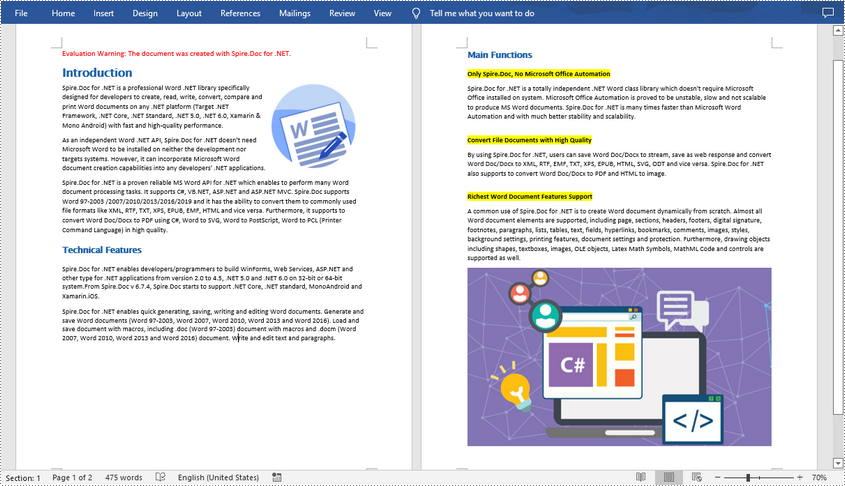
The Document.InsertTextFromFile() method provided by Spire.Doc for .NET allows merging Word documents by inserting other documents entirely into a document. Using this method, the contents of the inserted document will start from a new page. The detailed steps are as follows:
- Create a Document instance.
- Load the original Word document using Document.LoadFromFile() method.
- Insert another Word document entirely to the original document using Document.InsertTextFromFile() method.
- Save the result document using Document.SaveToFile() method.
- C#
- VB.NET
using Spire.Doc;

namespace MergeWord
{
    class Program
    {
        static void Main(string[] args)
        {
            //Create a Document instance
            Document document = new Document();

            //Load the original Word document
            document.LoadFromFile("Doc1.docx", FileFormat.Docx);

            //Insert another Word document entirely to the original document
            document.InsertTextFromFile("Doc2.docx", FileFormat.Docx);

            //Save the result document
            document.SaveToFile("MergedWord.docx", FileFormat.Docx);
        }
    }
}
Merge Documents by Cloning Contents
If you want to merge documents without starting a new page, you can clone the contents of other documents to add to the end of the original document. The detailed steps are as follows:
- Load two Word documents.
- Loop through the second document to get all the sections using Document.Sections property, and then loop through all the sections to get their child objects using Section.Body.ChildObjects property.
- Get the last section of the first document using Document.LastSection property, and then add the child objects to the last section of the first document using LastSection.Body.ChildObjects.Add() method.
- Save the result document using Document.SaveToFile() method.
- C#
- VB.NET
using Spire.Doc;

namespace MergeWord
{
    class Program
    {
        static void Main(string[] args)
        {
            //Load two Word documents
            Document doc1 = new Document("Doc1.docx");
            Document doc2 = new Document("Doc2.docx");

            //Loop through the second document to get all the sections
            foreach (Section section in doc2.Sections)
            {

                //Loop through the sections of the second document to get their child objects
                foreach (DocumentObject obj in section.Body.ChildObjects)
                {

                    // Get the last section of the first document
                     Section lastSection = doc1.LastSection;

                    //Add all child objects to the last section of the first document
                    lastSection.Body.ChildObjects.Add(obj.Clone());
                }
            }

            // Save the result document
            doc1.SaveToFile("MergeDocuments.docx", FileFormat.Docx);
        }
    }
}
Apply for a Temporary License
If you'd like to remove the evaluation message from the generated documents, or to get rid of the function limitations, please request a 30-day trial license for yourself.
