
Comment and Note (6)
In PowerPoint, comments are a very useful feature that can help you add notes or feedback to your slides. In addition to adding or removing comments, sometimes you may need to modify existing comments to correct errors or outdated information. Or in a collaborative editing scenario, you may need to extract comments to collect suggestions of all members. This article will demonstrate how to modify or extract comments in PowerPoint in C# using Spire.Presentation for .NET.
Install Spire.Presentation for .NET
To begin with, you need to add the DLL files included in the Spire.Presentation for .NET package as references in your .NET project. The DLL files can be either downloaded from this link or installed via NuGet.
PM> Install-Package Spire.Presentation
Modify Comments on a Presentation Slide in C#
The ISlide.Comments[].Text property provided by Spire.Presentation for .NET allows you to update the content of a specified comment with new text. The following are the detailed steps.
- Create a Presentation instance.
- Load a PowerPoint presentation using Presentation.LoadFromFile() method.
- Get a specified slide through Prenstion.Slides[] property.
- Update a specified comment on the slide through ISlide.Comments[].Text property.
- Save the result file using Presentation.SaveToFile() method.
- C#
using Spire.Presentation;

namespace ModifyComment
{
    class Program
    {
        static void Main(string[] args)
        {
            // Create a Presentation instance
            Presentation presentation = new Presentation();

            // Load a PowerPoint presentation
            presentation.LoadFromFile("Comments.pptx");

            // Get the first slide
            ISlide slide = presentation.Slides[0];

            // Update the first comment in the slide
            slide.Comments[0].Text = "Replace comment";

            // Save the result file
            presentation.SaveToFile("ModifyComment.pptx", FileFormat.Pptx2016);

        }
    }
}

Extract Comments from a Presentation Slide in C#
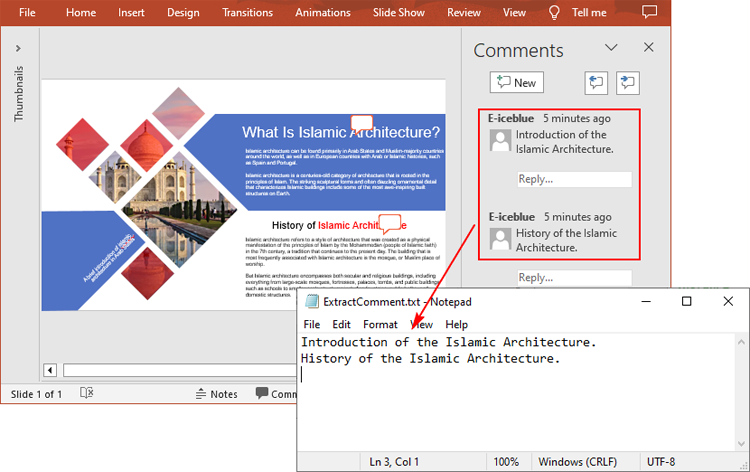
To extract comments from a slide, you need to get all the comments in the slide via the ISlide.Comments property, and then iterate through each comment to get its text content via the Comment.Text property. The following are the detailed steps.
- Create a Presentation instance.
- Load a PowerPoint presentation using Presentation.LoadFromFile() method.
- Create a StringBuilder instance.
- Get a specified slide through Prenstion.Slides[] property.
- Get all comments in the slide through ISlide.Comments property.
- Iterate over each comment to get its text content through Comment.Text property, and then append to the StringBuilder instance.
- Write to a text file using Presentation.SaveToFile() method.
- C#
using Spire.Presentation;
using System.IO;
using System.Text;

namespace ExtractComment
{
    class Program
    {
        static void Main(string[] args)
        {
            // Create a Presentation instance
            Presentation presentation = new Presentation();

            // Load a PowerPoint presentation
            presentation.LoadFromFile("Comments.pptx");

            // Create a StringBuilder instance
            StringBuilder str = new StringBuilder();

            // Get the first slide
            ISlide slide = presentation.Slides[0];

            // Get all comments in the slide
            Comment[] comments = slide.Comments;

            // Append the comment text to the StringBuilder instance
            for (int i = 0; i < comments.Length; i++)
            {
                str.Append(comments[i].Text + "\r\n");
            }

            // Write to a text file
            File.WriteAllText("ExtractComment.txt", str.ToString());
        }
    }
}
Apply for a Temporary License
If you'd like to remove the evaluation message from the generated documents, or to get rid of the function limitations, please request a 30-day trial license for yourself.
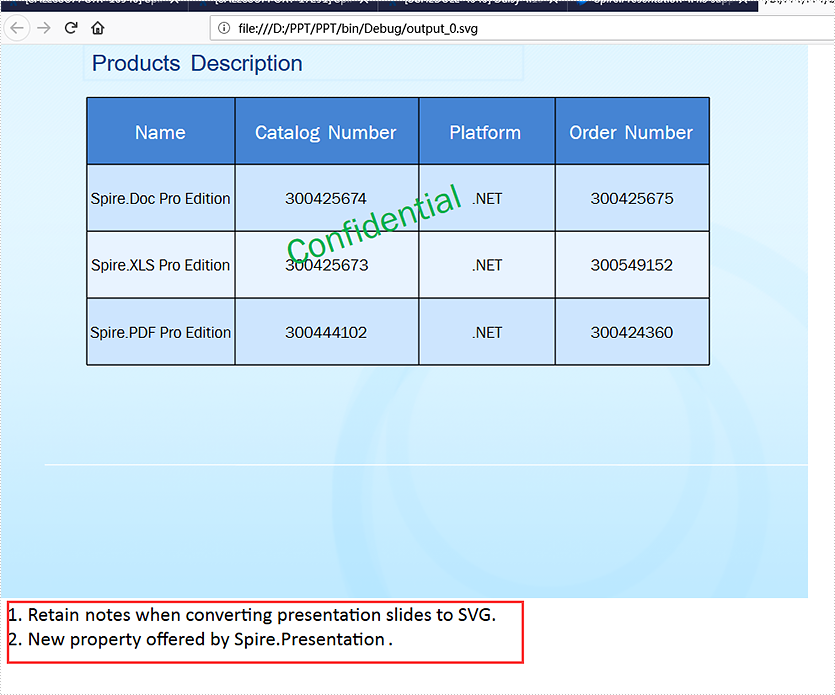
With the help of Spire.Presentation, developers can easily add and get speaker notes on presentation slides. From v 4.4.3, Spire.Presentation supports to retain the notes when converting presentation slides to SVG. This article will show you how to keep the notes when saving presentation slides to SVG in C#.
using Spire.Presentation;
using Spire.Presentation.Drawing;
using System.IO;
using System.Collections.Generic;

namespace PPT
{
    class Program
    {
        static void Main(string[] args)
        {
            //load the sample document with speaker notes
            Presentation ppt = new Presentation();
            ppt.LoadFromFile("Sample.pptx");

            //retain the notes when converting ppt to svg
            ppt.IsNoteRetained = true;


            //convert presentation slides to SVG
            Queue<byte[]> bytes = ppt.SaveToSVG();

            int length = bytes.Count;
            for (int i = 0; i < length; i++)
            {
                FileStream filestream = new FileStream(string.Format(@"output_{0}.svg", i), FileMode.Create);
                byte[] outputBytes = bytes.Dequeue();
                filestream.Write(outputBytes, 0, outputBytes.Length);
            }
            ppt.Dispose();
            ppt.SaveToSVG();

        }
    }
}
Effective screenshot of retaining the speaker notes when converting presentation slides to SVG:
We have demonstrated how to use Spire.Presentation to add and get speaker notes in presentation slides. This article will show how to remove the speaker notes in presentation slides in C#.
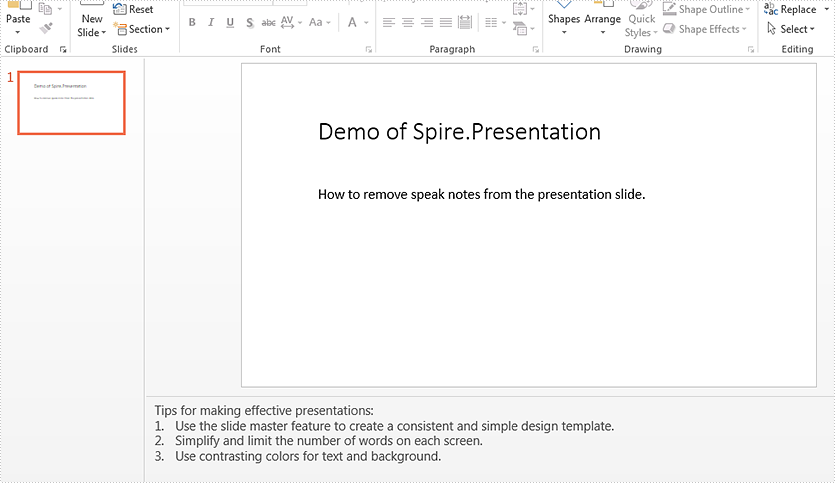
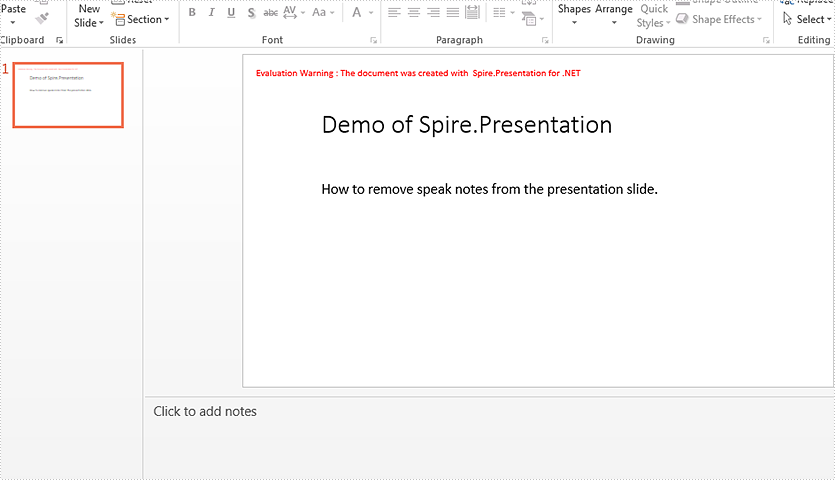
Firstly, view the sample document contains the speaker notes.
Step 1: Create a presentation document and load the document from the file.
Presentation ppt = new Presentation();
ppt.LoadFromFile("Sample.pptx", FileFormat.Pptx2013);
Step 2: Get the first slide from the sample document.
ISlide slide = ppt.Slides[0];
Step 3: Remove the first speak notes:
slide.NotesSlide.NotesTextFrame.Paragraphs.RemoveAt(1);
Remove all the speak notes from the first slide:
slide.NotesSlide.NotesTextFrame.Paragraphs.Clear();
Step 4: Save the document to file.
ppt.SaveToFile("Result.pptx",FileFormat.Pptx2013);
Effective screenshot of removing the first note:
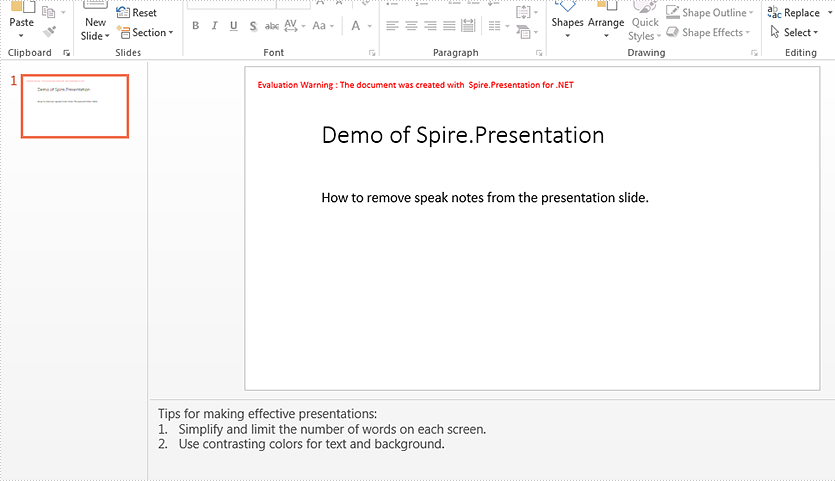
Effective screenshot of removing all the notes:
Full codes:
Remove the first note in presentation slide:
using Spire.Presentation;
namespace RemoveSpeakerNotes
{

    class Program
    {

        static void Main(string[] args)
        {
            Presentation ppt = new Presentation();
            ppt.LoadFromFile("Sample.pptx", FileFormat.Pptx2013);

            ISlide slide = ppt.Slides[0];

            slide.NotesSlide.NotesTextFrame.Paragraphs.RemoveAt(1);
            ppt.SaveToFile("Result.pptx", FileFormat.Pptx2013);

        }

    }
}
Clear all notes in presentation slide:
Imports Spire.Presentation
Namespace RemoveSpeakerNotes

	Class Program

		Private Shared Sub Main(args As String())
			Dim ppt As New Presentation()
			ppt.LoadFromFile("Sample.pptx", FileFormat.Pptx2013)

			Dim slide As ISlide = ppt.Slides(0)

			slide.NotesSlide.NotesTextFrame.Paragraphs.RemoveAt(1)
			ppt.SaveToFile("Result.pptx", FileFormat.Pptx2013)

		End Sub

	End Class
End Namespace
When creating a speaker notes in a presentation slide, you can add more than one item or paragraph in notes and display them within a numbered list. In this tutorial, we’ll show you how to add a numbered list to notes using Spire.Presentation in C#.
Step 1: Initialize an instance of Presentation and get the first slide.
Presentation ppt = new Presentation();
ISlide slide = ppt.Slides[0];
Step 2: Add a new notes slide in the specified slide.
NotesSlide notesSlide = slide.AddNotesSlide();
Step 3: Add a new paragraph with the text to speaker notes.
TextParagraph paragraph = new TextParagraph();
paragraph.Text = "Tips for making effective presentations:";
notesSlide.NotesTextFrame.Paragraphs.Append(paragraph);
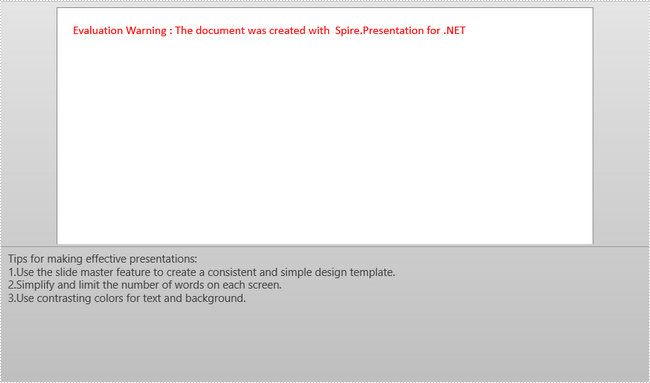
Step 4: Add another paragraph with the text to notes, set the bullet type of the paragraph as numbered, and set the numbered style as Arabic number following by period.
paragraph = new TextParagraph();
paragraph.Text = "Use the slide master feature to create a consistent and simple design template.";
notesSlide.NotesTextFrame.Paragraphs.Append(paragraph);
notesSlide.NotesTextFrame.Paragraphs[1].BulletType = TextBulletType.Numbered;
notesSlide.NotesTextFrame.Paragraphs[1].BulletStyle = NumberedBulletStyle.BulletArabicPeriod;
Step 5: Repeat step 4 to add many more numbered paragraphs to notes.
paragraph = new TextParagraph();
paragraph.Text = "Simplify and limit the number of words on each screen.";
notesSlide.NotesTextFrame.Paragraphs.Append(paragraph);
notesSlide.NotesTextFrame.Paragraphs[2].BulletType = TextBulletType.Numbered;
notesSlide.NotesTextFrame.Paragraphs[2].BulletStyle = NumberedBulletStyle.BulletArabicPeriod;

paragraph = new TextParagraph();
paragraph.Text = "Use contrasting colors for text and background.";
notesSlide.NotesTextFrame.Paragraphs.Append(paragraph);
notesSlide.NotesTextFrame.Paragraphs[3].BulletType = TextBulletType.Numbered;
notesSlide.NotesTextFrame.Paragraphs[3].BulletStyle = NumberedBulletStyle.BulletArabicPeriod;
Step 6: Save the file.
ppt.SaveToFile("Output.pptx", FileFormat.Pptx2013);
Output:
Full Code:
using Spire.Presentation;
namespace AddNumberedList
{

    class Program
    {

        static void Main(string[] args)
        {
            Presentation ppt = new Presentation();
            ISlide slide = ppt.Slides[0];

            NotesSlide notesSlide = slide.AddNotesSlide();

            TextParagraph paragraph = new TextParagraph();
            paragraph.Text = "Tips for making effective presentations:";
            notesSlide.NotesTextFrame.Paragraphs.Append(paragraph);

            paragraph = new TextParagraph();
            paragraph.Text = "Use the slide master feature to create a consistent and simple design template.";
            notesSlide.NotesTextFrame.Paragraphs.Append(paragraph);
            notesSlide.NotesTextFrame.Paragraphs[1].BulletType = TextBulletType.Numbered;
            notesSlide.NotesTextFrame.Paragraphs[1].BulletStyle = NumberedBulletStyle.BulletArabicPeriod;

            paragraph = new TextParagraph();
            paragraph.Text = "Simplify and limit the number of words on each screen.";
            notesSlide.NotesTextFrame.Paragraphs.Append(paragraph);
            notesSlide.NotesTextFrame.Paragraphs[2].BulletType = TextBulletType.Numbered;
            notesSlide.NotesTextFrame.Paragraphs[2].BulletStyle = NumberedBulletStyle.BulletArabicPeriod;

            paragraph = new TextParagraph();
            paragraph.Text = "Use contrasting colors for text and background.";
            notesSlide.NotesTextFrame.Paragraphs.Append(paragraph);
            notesSlide.NotesTextFrame.Paragraphs[3].BulletType = TextBulletType.Numbered;
            notesSlide.NotesTextFrame.Paragraphs[3].BulletStyle = NumberedBulletStyle.BulletArabicPeriod;

            ppt.SaveToFile("Output.pptx", FileFormat.Pptx2013);

        }

    }
}
Speaker notes in PowerPoint are specific contents that appear only on the presenter's monitor when presenting the slideshow. They can remind the presenter of the important points that he needs to explain to the audience. In this article, we will demonstrate how to add, read or delete speaker notes in PowerPoint in C# and VB.NET using Spire.Presentation for .NET.
Install Spire.Presentation for .NET
To begin with, you need to add the DLL files included in the Spire.Presentation for.NET package as references in your .NET project. The DLL files can be either downloaded from this link or installed via NuGet.
PM> Install-Package Spire.Presentation
Add Speaker Notes in PowerPoint in C# and VB.NET
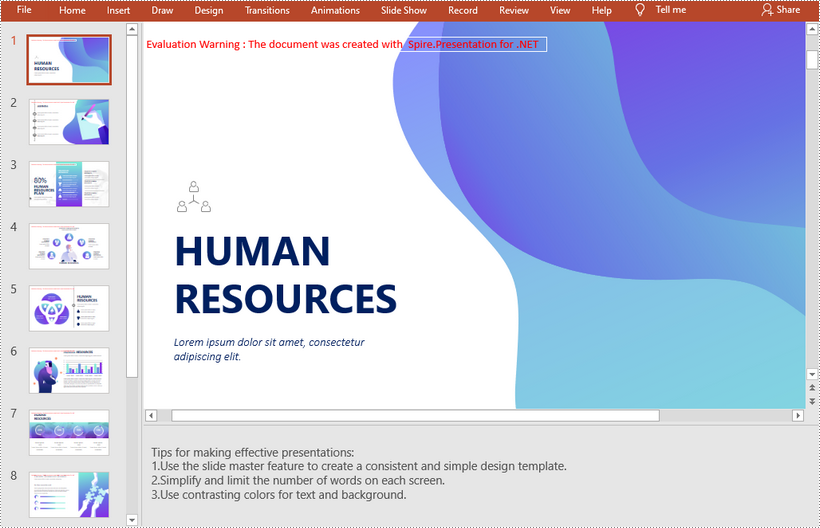
The following are the main steps to add speaker notes to a PowerPoint document:
- Create a Presentation instance and load a PowerPoint document using Presentation.LoadFromFile() method.
- Get the desired slide that you want to add speaker notes to through Presentation.Slides[slideIndex] property.
- Add a notes slide to the slide using ISlide.AddNotesSlides() method.
- Create a TextParagraph instance.
- Set text for the paragraph through TextParagraph.Text property, then append the paragraph to the notes slide using NotesSlide.NotesTextFrame.Paragraphs.Append() method.
- Save the result document using Presentation.SaveToFile() method.
- C#
- VB.NET
using Spire.Presentation;

namespace AddSpeakerNotes
{
    internal class Program
    {
        static void Main(string[] args)
        {
            //Load a PowerPoint document
            Presentation ppt = new Presentation();
            ppt.LoadFromFile("Sample.pptx");

            //Get the first slide
            ISlide slide = ppt.Slides[0];
            //Add a notes slide
            NotesSlide notesSlide = slide.AddNotesSlide();

            //Add a paragraph to the notes slide
            TextParagraph paragraph = new TextParagraph();
            paragraph.Text = "Tips for making effective presentations:";
            notesSlide.NotesTextFrame.Paragraphs.Append(paragraph);

            //Add a paragraph to the notes slide
            paragraph = new TextParagraph();
            paragraph.Text = "Use the slide master feature to create a consistent and simple design template.";
            notesSlide.NotesTextFrame.Paragraphs.Append(paragraph);

            //Add a paragraph to the notes slide
            paragraph = new TextParagraph();
            paragraph.Text = "Simplify and limit the number of words on each screen.";
            notesSlide.NotesTextFrame.Paragraphs.Append(paragraph);

            //Add a paragraph to the notes slide
            paragraph = new TextParagraph();
            paragraph.Text = "Use contrasting colors for text and background.";
            notesSlide.NotesTextFrame.Paragraphs.Append(paragraph);

            //Set the bullet type and bullet style for specific paragraphs on the notes slide
            for (int i = 2; i < notesSlide.NotesTextFrame.Paragraphs.Count;i++)
            {
                notesSlide.NotesTextFrame.Paragraphs[i].BulletType = TextBulletType.Numbered;
                notesSlide.NotesTextFrame.Paragraphs[i].BulletStyle = NumberedBulletStyle.BulletArabicPeriod;
            }

            //Save the result document
            ppt.SaveToFile("SpeakerNotes.pptx", FileFormat.Pptx2013);
        }
    }
}
Read Speaker Notes in PowerPoint in C# and VB.NET
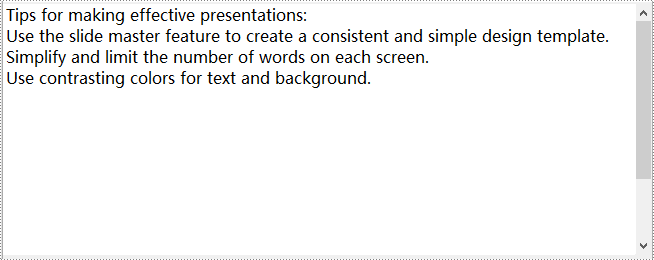
The following are the steps to read the speaker notes on a PowerPoint slide:
- Create a Presentation instance and load the PowerPoint document using Presentation.LoadFromFile() method.
- Get the desired slide that you want to read speaker notes from through Presentation.Slides[slideIndex] property.
- Get the notes slide from the slide through ISlide.NotesSlide property.
- Get the speaker notes from the notes slide through NotesSlide.NotesTextFrame.Text property.
- Create a StringBuilder instance.
- Append the speaker notes to the string builder, then write them into a .txt file.
- C#
- VB.NET
using Spire.Presentation;
using System.Text;
using System.IO;

namespace ReadSpeakerNotes
{
    internal class Program
    {
        static void Main(string[] args)
        {
            //Load the PowerPoint document
            Presentation ppt = new Presentation();
            ppt.LoadFromFile("SpeakerNotes.pptx");

            //Get the first slide
            ISlide slide = ppt.Slides[0];

            //Get the notes slide from the first slide
            NotesSlide notesSlide = slide.NotesSlide;
            //Get the speaker notes from the notes slide
            string notes = notesSlide.NotesTextFrame.Text;
            //Create a StringBuilder instance
            StringBuilder sb = new StringBuilder();
            //Append the speaker notes to the string builder
            sb.AppendLine(notes);

            //Save to .txt file
            File.WriteAllText("SpeakerNotes.txt", sb.ToString());
        }
    }
}
Delete Speaker Notes in PowerPoint in C# and VB.NET
The following are the steps to delete speaker notes from a PowerPoint slide:
- Create a Presentation instance and load the PowerPoint document using Presentation.LoadFromFile() method.
- Get the desired slide that you want to delete speaker notes from through Presentation.Slides[slideIndex] property.
- Get the notes slide from the slide through ISlide.NotesSlide property.
- Delete a specific speaker note from the notes slide using NotesSlide.NotesTextFrame.Paragraphs.RemoveAt(paragraphIndex) method or delete all the speaker notes from the notes slide using NotesSlide.NotesTextFrame.Paragraphs.Clear() method.
- Save the result document using Presentation.SaveToFile() method.
- C#
- VB.NET
using Spire.Presentation;
using System.Text;
using System.IO;

namespace DeleteSpeakerNotes
{
    internal class Program
    {
        static void Main(string[] args)
        {
            //Load the PowerPoint document
            Presentation ppt = new Presentation();
            ppt.LoadFromFile("SpeakerNotes.pptx");

            //Get the first slide
            ISlide slide = ppt.Slides[0];
            //Get the notes slide from the slide
            NotesSlide notesSlide = slide.NotesSlide;

            //Remove a specific speaker note from notes slide
            //notesSlide.NotesTextFrame.Paragraphs.RemoveAt(1);

            //Remove all the speaker notes from notes slide
            notesSlide.NotesTextFrame.Paragraphs.Clear();

            //Save the result document
            ppt.SaveToFile("DeleteSpeakerNotes.pptx", FileFormat.Pptx2013);

        }
    }
}
Apply for a Temporary License
If you'd like to remove the evaluation message from the generated documents, or to get rid of the function limitations, please request a 30-day trial license for yourself.
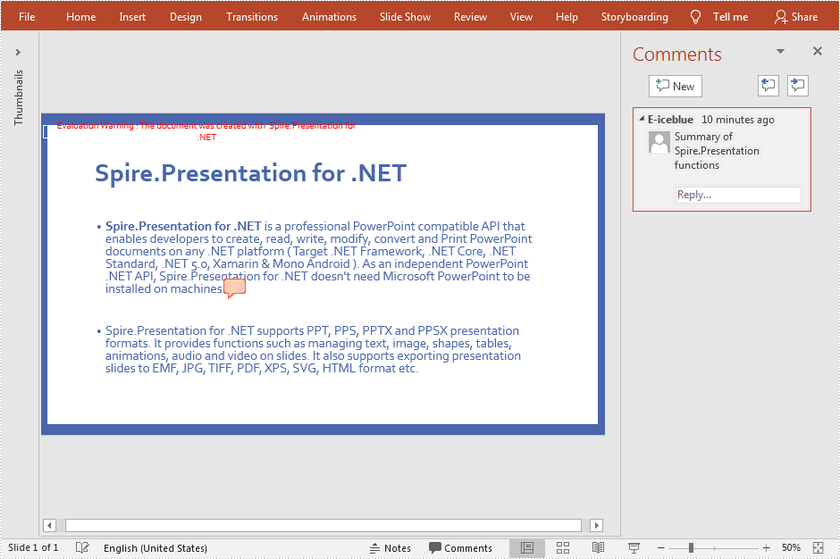
In Microsoft PowerPoint, a comment is a note that you can attach to a phrase or paragraph on a slide. Viewing comments added by the author, readers can learn more information about the content. Likewise, readers can also add comments to provide reviews or feedbacks to the author. In this article, you will learn how to programmatically add or remove comments in a PowerPoint slide using Spire.Presentation for .NET.
Install Spire.Presentation for .NET
To begin with, you need to add the DLL files included in the Spire.Presentation for.NET package as references in your .NET project. The DLL files can be either downloaded from this link or installed via NuGet.
PM> Install-Package Spire.Presentation
Add Comments to a Presentation Slide
The detailed steps are as follows:
- Create a Presentation instance.
- Load a PowerPoint document using Presentation.LoadFromFile() method.
- Get CommentAuthor List using Presentation.CommentAuthors property.
- Add the author of the comment using CommentAuthorList.AddAuthor() method.
- Get a specified slide using Presentation.Slides[] property, and then add a comment to the slide using ISlide.AddComment(ICommentAuthor, String, PointF, DateTime) method.
- Save the result document using Presentation.SaveToFile() method.
- C#
- VB.NET
using Spire.Presentation;
using System;

namespace AddComment
{

    class Program
    {

        static void Main(string[] args)
        {
            //Create a Presentation instance
            Presentation presentation = new Presentation();

            //Load a PowerPoint document
            presentation.LoadFromFile(@"D:\Files\Test.pptx");

            //Add the author of the comment
            ICommentAuthor author = presentation.CommentAuthors.AddAuthor("E-iceblue", "comment:");

            //Add a comment to the specified slide
            presentation.Slides[0].AddComment(author, "Summary of Spire.Presentation functions", new System.Drawing.PointF(25, 22), DateTime.Now);

            //Save the document
            presentation.SaveToFile("comment.pptx", FileFormat.Pptx2010);
        }

    }
}
Remove Comments from a Presentation Slide
The detailed steps are as follows:
- Create a Presentation instance.
- Load a PowerPoint document using Presentation.LoadFromFile() method.
- Get a specified slide using Presentation.Slides[] property.
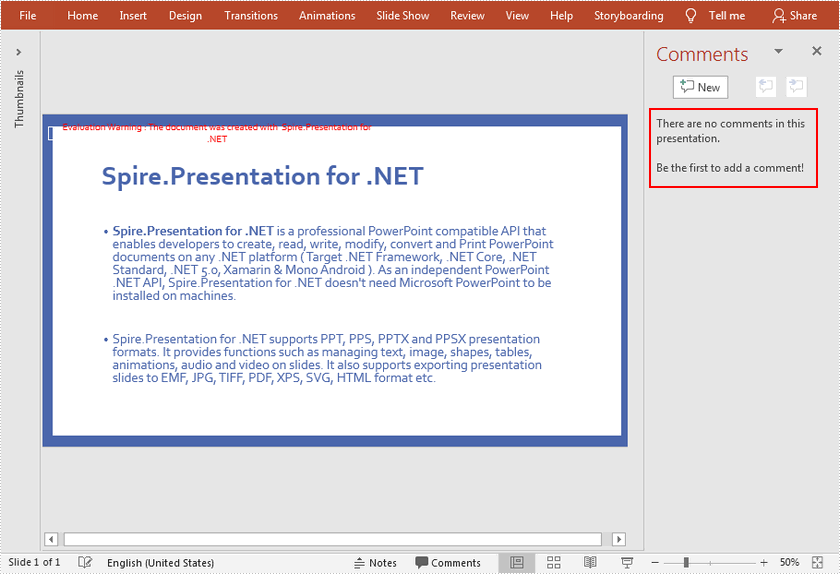
- Remove comment from the specified slide using ISlide.DeleteComment(Comment) method.
- Save the result document using Presentation.SaveToFile() method.
- C#
- VB.NET
using Spire.Presentation;

namespace RemoveComment
{
    class Program
    {
        static void Main(string[] args)
        {
            //Create a Presentation instance
            Presentation presentation = new Presentation();

            //Load a PowerPoint document
            presentation.LoadFromFile("comment.pptx");

            //Get the first slide
            ISlide slide = presentation.Slides[0];

            //Remove comment from the specified slide
            slide.DeleteComment(slide.Comments[0]);

            //Save the document
            presentation.SaveToFile("RemoveComment.pptx", FileFormat.Pptx2010);


        }
    }
}
Apply for a Temporary License
If you'd like to remove the evaluation message from the generated documents, or to get rid of the function limitations, please request a 30-day trial license for yourself.
