Spire.Presentation is a powerful and easy-to-use .NET component, especially designed for developers. Using Spire.Presentation you can generate, modify, convert, render, and print documents without installing Microsoft PowerPoint on your machine. There is a document in our website introducing you how to insert table. And in this document, you will be introduced how to edit a table within a PPT document.
Step 1: Create a Presentation instance and load the file.
Presentation presentation = new Presentation();
presentation.LoadFromFile("table.pptx");
Step 2: Store the data used in replacement in string [].
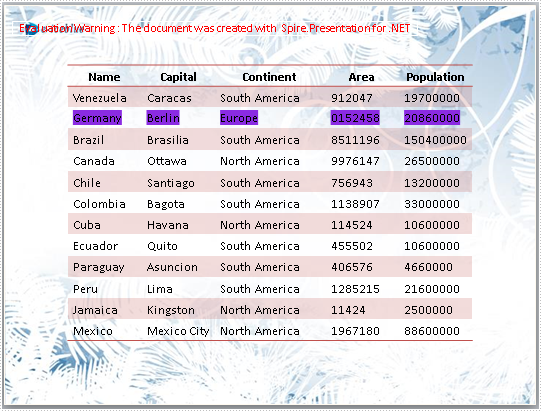
string[] str = new string[] { "Germany", "Berlin", "Europe", "0152458", "20860000" };
Step 3: Get the table within the PPT document.
ITable table = null;
foreach (IShape shape in presentation.Slides[0].Shapes)
{
    if (shape is ITable)
    {
        table = (ITable) shape;
    }
}
Step 4: Fill in the third row with new data and set the HighlightColor.
for (int i = 0; i < table.ColumnsList.Count;i++ )
{
    //replace the data in cell
    table[i, 2].TextFrame.Text = str[i];

    //set the highlightcolor
    table[i, 2].TextFrame.TextRange.HighlightColor.Color = Color.BlueViolet;
}
Step 5: Set the style of the table.
table.StylePreset = TableStylePreset.LightStyle1Accent2;
Step 6: Save the document.
presentation.SaveToFile("result.pptx", FileFormat.Pptx2010);
Download and install Spire.Presentation for .NET and refer to below code to edit table within PPT document.
Screenshots and full code:
Before:
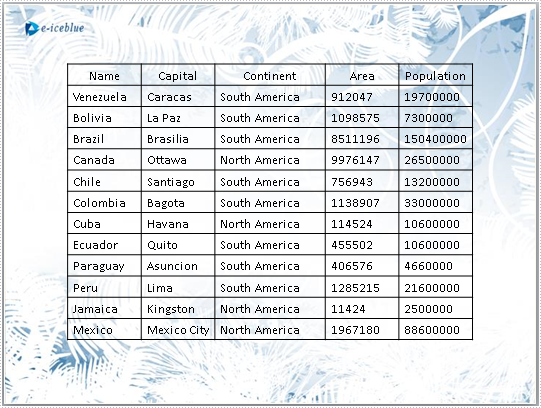
After:
using Spire.Presentation;
using System.Drawing;

namespace EditTable
{

    class Program
    {

        static void Main(string[] args)
        {
            //create a PPT document
            Presentation presentation = new Presentation();

            presentation.LoadFromFile("table.pptx");

            //the data used in replacement
            string[] str = new string[] { "Germany", "Berlin", "Europe", "0152458", "20860000" };

            ITable table = null;

            //get the table in PPT document
            foreach (IShape shape in presentation.Slides[0].Shapes)
            {
                if (shape is ITable)
                {
                    table = (ITable)shape;

                    //change the style of table
                    table.StylePreset = TableStylePreset.LightStyle1Accent2;

                    for (int i = 0; i < table.ColumnsList.Count; i++)
                    {
                        //replace the data in cell
                        table[i, 2].TextFrame.Text = str[i];

                        //set the highlightcolor
                        table[i, 2].TextFrame.TextRange.HighlightColor.Color = Color.BlueViolet;
                    }
                }
            }

            //save the document
            presentation.SaveToFile("result.pptx", FileFormat.Pptx2010);
            System.Diagnostics.Process.Start("result.pptx");

        }

    }
}
Imports Spire.Presentation
Imports System.Drawing

Namespace EditTbale

	Class Program

		Private Shared Sub Main(args As String())
			'create a PPT document
			Dim presentation As New Presentation()

			presentation.LoadFromFile("table.pptx")

			'the data used in replacement
			Dim str As String() = New String() {"Germany", "Berlin", "Europe", "0152458", "20860000"}

			Dim table As ITable = Nothing

			'get the table in PPT document
			For Each shape As IShape In presentation.Slides(0).Shapes
				If TypeOf shape Is ITable Then
					table = DirectCast(shape, ITable)

					'change the style of table
					table.StylePreset = TableStylePreset.LightStyle1Accent2

					For i As Integer = 0 To table.ColumnsList.Count - 1
						'replace the data in cell
						table(i, 2).TextFrame.Text = str(i)

						'set the highlightcolor
						table(i, 2).TextFrame.TextRange.HighlightColor.Color = Color.BlueViolet
					Next
				End If
			Next

			'save the document
			presentation.SaveToFile("result.pptx", FileFormat.Pptx2010)
			System.Diagnostics.Process.Start("result.pptx")

		End Sub

	End Class
End Namespace
If you couldn't successfully use Spire.Presentation, please refer Spire.Presentation Quick Start which can guide you quickly use Spire.Presentation.