Converting Excel to JSON in Java is a common requirement in backend development, especially when building APIs, ETL pipelines, or data integration workflows. In this guide, you will learn how to convert Excel to JSON in Java using Spire.XLS, a powerful library that supports both XLS and XLSX formats with minimal code.
Excel files are widely used for data storage and reporting, while JSON has become the standard format for data exchange in modern applications. However, converting Excel to JSON in Java is not trivial if done manually — developers need to handle file parsing, data type conversion, empty cells, and multi-sheet structures, which can quickly become complex and error-prone.
Using Spire.XLS for Java together with Jackson, developers can easily transform Excel spreadsheets into structured JSON data with clean and maintainable code. This article provides a complete step-by-step tutorial on Java Excel to JSON conversion, including single-sheet conversion, multi-sheet processing, and nested JSON structures.
Quick Navigation
- Why Convert Excel to JSON in Java
- Prerequisites
- Convert Excel to JSON in Java — Step by Step
- Convert XLS and XLSX Files to JSON
- Handling Multi-Sheet Workbooks and Nested JSON
- Handling Empty Cells and Data Types
- Common Pitfalls
- Conclusion
- FAQ
1. Why Convert Excel to JSON in Java
Excel and JSON are widely used in modern software systems but serve very different roles. Excel is designed for structured data entry, analysis, and reporting with support for formulas, formatting, and multi-sheet workbooks. JSON (JavaScript Object Notation), in contrast, is a lightweight data format used for machine-to-machine communication, REST APIs, configuration files, and NoSQL databases.
Because of this difference, Java developers often need to convert Excel to JSON when integrating spreadsheet-based data into backend systems.
Common use cases include:
- REST API integration — Converting Excel data uploaded by users into JSON for API responses
- ETL workflows — Extracting spreadsheet data and transforming it into JSON for databases or data lakes
- Configuration migration — Moving legacy Excel-based configs into JSON-based microservice systems
- Automated reporting — Turning Excel templates into structured JSON for downstream processing
In Java applications, converting Excel to JSON is more than just reading rows and mapping columns. Real-world files often include inconsistent data types, empty cells, date formatting issues, and multi-sheet structures, which make manual parsing complex and error-prone.
Spire.XLS for Java simplifies this process by providing a unified API for both XLS and XLSX formats. It allows developers to directly access cell values, data types, and formatting information, enabling clean and reliable Excel to JSON conversion logic without dealing with low-level file parsing.
2. Prerequisites
Before converting Excel to JSON in Java, set up the following dependencies in your project.
Install Spire.XLS for Java via Maven (Recommended)
Spire.XLS for Java is available through the e-iceblue Maven repository. Add the repository and dependency to your pom.xml:
<repositories>
    <repository>
        <id>com.e-iceblue</id>
        <name>e-iceblue</name>
        <url>https://repo.e-iceblue.com/nexus/content/groups/public/</url>
    </repository>
</repositories>

<dependency>
    <groupId>e-iceblue</groupId>
    <artifactId>spire.xls</artifactId>
    <version>16.6.5</version>
</dependency>
You can also download Spire.XLS for Java and add it to your project manually.
Add a JSON Library
Java does not include built-in JSON support. This guide uses Jackson, the most widely adopted JSON processing library in the Java ecosystem:
<dependency>
    <groupId>com.fasterxml.jackson.core</groupId>
    <artifactId>jackson-databind</artifactId>
    <version>2.17.2</version>
</dependency>
Import Required Classes
Include the following imports in your Java source file:
import com.spire.xls.*;
import com.fasterxml.jackson.databind.ObjectMapper;
import com.fasterxml.jackson.databind.node.ObjectNode;
import com.fasterxml.jackson.databind.node.ArrayNode;
import java.io.File;
import java.io.IOException;
If you prefer manual installation, download the Spire.XLS for Java JAR from the e-iceblue website and add it to your project's classpath.
3. Convert Excel to JSON in Java — Step by Step
The conversion process involves four steps: loading the workbook, reading the header row, iterating through data rows, and assembling the JSON output. This section walks through each step and then presents the complete code.
Step 1: Load the Excel File
Use the Workbook class to open an Excel file. Then retrieve the target worksheet by index:
Workbook workbook = new Workbook();
workbook.loadFromFile("EmployeeData.xlsx");
Worksheet worksheet = workbook.getWorksheets().get(0);
Step 2: Read the Header Row
The first row of the spreadsheet typically contains column headers. These headers become the JSON keys for each record. Read them into a String array:
int columnCount = worksheet.getLastColumn();
String[] headers = new String[columnCount];
for (int col = 1; col <= columnCount; col++) {
    headers[col - 1] = worksheet.get(1, col).getValue();
}
Step 3: Iterate Data Rows and Build JSON Objects
Starting from row 2, loop through each row and create an ObjectNode for every record. Each cell value is mapped to the corresponding header key:
ObjectMapper mapper = new ObjectMapper();
ArrayNode arrayNode = mapper.createArrayNode();
for (int row = 2; row <= worksheet.getLastRow(); row++) {
    ObjectNode record = mapper.createObjectNode();
    for (int col = 1; col <= columnCount; col++) {
        record.put(headers[col - 1], worksheet.get(row, col).getValue());
    }
    arrayNode.add(record);
}
Step 4: Export JSON Output
Use Jackson's ObjectMapper to write the ArrayNode to a file with pretty-print formatting:
try {
    mapper.writerWithDefaultPrettyPrinter().writeValue(new File("EmployeeData.json"), arrayNode);
    System.out.println("JSON exported successfully.");
} catch (IOException e) {
    System.err.println("Failed to write JSON file: " + e.getMessage());
}
workbook.dispose();
Complete Code Example
Here is the full program that reads an Excel file and converts it to JSON:
import com.spire.xls.*;
import com.fasterxml.jackson.databind.ObjectMapper;
import com.fasterxml.jackson.databind.node.ObjectNode;
import com.fasterxml.jackson.databind.node.ArrayNode;
import java.io.File;
import java.io.IOException;

public class ExcelToJsonConverter {

    public static void main(String[] args) {

        // Load the Excel workbook
        Workbook workbook = new Workbook();
        workbook.loadFromFile("EmployeeData.xlsx");

        // Access the first worksheet
        Worksheet worksheet = workbook.getWorksheets().get(0);

        // Read column headers from the first row
        int columnCount = worksheet.getLastColumn();
        String[] headers = new String[columnCount];
        for (int col = 1; col <= columnCount; col++) {
            headers[col - 1] = worksheet.get(1, col).getValue();
        }

        // Create Jackson ObjectMapper and ArrayNode
        ObjectMapper mapper = new ObjectMapper();
        ArrayNode arrayNode = mapper.createArrayNode();

        // Convert each data row to a JSON object
        for (int row = 2; row <= worksheet.getLastRow(); row++) {
            ObjectNode record = mapper.createObjectNode();
            for (int col = 1; col <= columnCount; col++) {
                record.put(headers[col - 1], worksheet.get(row, col).getValue());
            }
            arrayNode.add(record);
        }

        // Write JSON output to file with pretty-print formatting
        try {
            mapper.writerWithDefaultPrettyPrinter().writeValue(new File("EmployeeData.json"), arrayNode);
            System.out.println("Excel data converted to JSON successfully.");
        } catch (IOException e) {
            System.err.println("Error writing JSON file: " + e.getMessage());
        }

        // Release workbook resources
        workbook.dispose();
    }
}
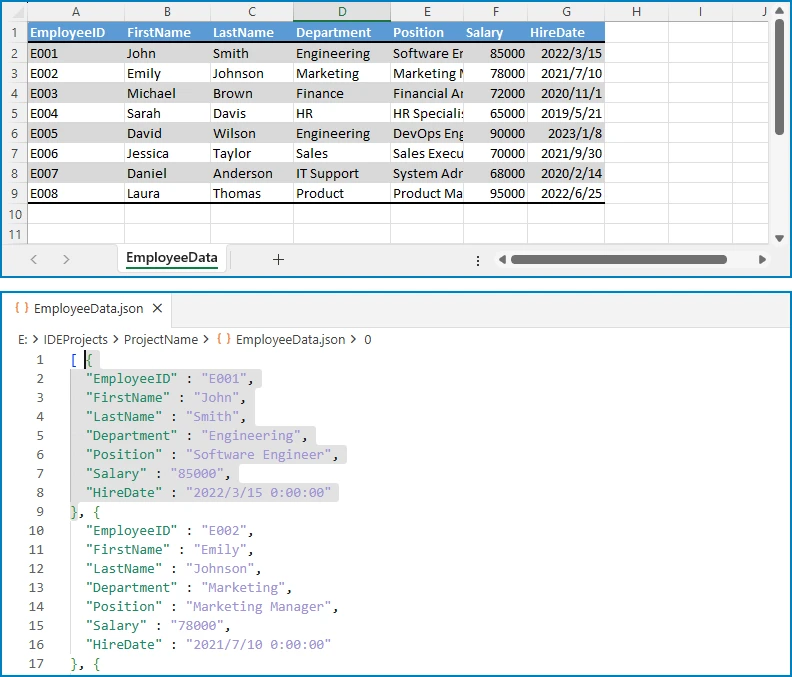
Expected JSON output (for an Excel file with Name, Department, Email, and Salary columns):
[ {
  "EmployeeID" : "E001",
  "FirstName" : "John",
  "LastName" : "Smith",
  "Department" : "Engineering",
  "Position" : "Software Engineer",
  "Salary" : "85000",
  "HireDate" : "2022/3/15 0:00:00"
} ]
The following diagram shows a visual comparison between the original Excel data and the converted JSON output for better understanding.
Key Spire.XLS Classes and Methods
- Workbook — Represents an Excel file. Handles loading, saving, and managing worksheets.
- Worksheet — Represents a single sheet within a workbook. Provides access to rows, columns, and cells.
get(int row, int column)— Returns aCellRangeobject for the specified cell. Row and column indices are 1-based.getValue()— Returns the cell's display value. UnlikegetText(), it correctly retrieves the value regardless of the cell's data type (text, number, date, etc.).getLastRow()/getLastColumn()— Return the last row and column numbers that contain data.
You can also learn how to convert Excel to CSV in Java for scenarios where a lightweight, tabular format is preferred for data exchange and storage.
4. Convert XLS and XLSX Files to JSON
Spire.XLS for Java supports both the legacy XLS format (Excel 97–2003) and the modern XLSX format (Excel 2007 and later). The library detects the file format automatically when you call loadFromFile(), so the same Java code converts XLS to JSON and XLSX to JSON without any modifications.
// Convert XLSX to JSON (modern format)
Workbook xlsxWorkbook = new Workbook();
xlsxWorkbook.loadFromFile("SalesReport.xlsx");

// Convert XLS to JSON (legacy format)
Workbook xlsWorkbook = new Workbook();
xlsWorkbook.loadFromFile("SalesReport.xls");

// Both workbooks are processed identically
Worksheet sheet = xlsxWorkbook.getWorksheets().get(0);
int rowCount = sheet.getLastRow();
int colCount = sheet.getLastColumn();
// ... same conversion logic as the basic example
No additional configuration, format flags, or separate code paths are needed. Whether you receive .xls files from legacy systems or .xlsx files from modern applications, Spire.XLS handles the parsing transparently. This is particularly useful in enterprise environments where Excel files may come from different sources and span multiple format generations.
You can also learn how to convert between XLS and XLSX formats in Java for scenarios where file format migration or legacy upgrade is required.
5. Handling Multi-Sheet Workbooks and Nested JSON
Real-world Excel workbooks often contain multiple worksheets. Converting each sheet to a separate JSON array produces a structured output that preserves the workbook's organization. In some cases, developers also need to build nested JSON objects that reflect hierarchical relationships within the data.
Convert Multiple Sheets to JSON
The following example reads all worksheets in a workbook and creates a JSON object where each key is the sheet name and each value is an array of records from that sheet:
import com.spire.xls.*;
import com.fasterxml.jackson.databind.ObjectMapper;
import com.fasterxml.jackson.databind.node.ObjectNode;
import com.fasterxml.jackson.databind.node.ArrayNode;
import java.io.File;
import java.io.IOException;

public class MultiSheetExcelToJson {

    public static void main(String[] args) {

        Workbook workbook = new Workbook();
        workbook.loadFromFile("SalesReport.xlsx");

        ObjectMapper mapper = new ObjectMapper();
        ObjectNode fullReport = mapper.createObjectNode();

        // Iterate through every worksheet in the workbook
        for (int s = 0; s < workbook.getWorksheets().getCount(); s++) {
            Worksheet worksheet = workbook.getWorksheets().get(s);
            String sheetName = worksheet.getName();

            // Read headers from the first row
            int columnCount = worksheet.getLastColumn();
            String[] headers = new String[columnCount];
            for (int col = 1; col <= columnCount; col++) {
                headers[col - 1] = worksheet.get(1, col).getValue();
            }

            // Convert data rows to JSON objects
            ArrayNode sheetData = mapper.createArrayNode();
            for (int row = 2; row <= worksheet.getLastRow(); row++) {
                ObjectNode record = mapper.createObjectNode();
                for (int col = 1; col <= columnCount; col++) {
                    record.put(headers[col - 1], worksheet.get(row, col).getValue());
                }
                sheetData.add(record);
            }

            // Add this sheet's data to the final output
            fullReport.set(sheetName, sheetData);
        }

        // Write the combined JSON to file with pretty-print formatting
        try {
            mapper.writerWithDefaultPrettyPrinter().writeValue(new File("SalesReport.json"), fullReport);
            System.out.println("Multi-sheet workbook converted to JSON.");
        } catch (IOException e) {
            System.err.println("Error writing JSON: " + e.getMessage());
        }

        workbook.dispose();
    }
}
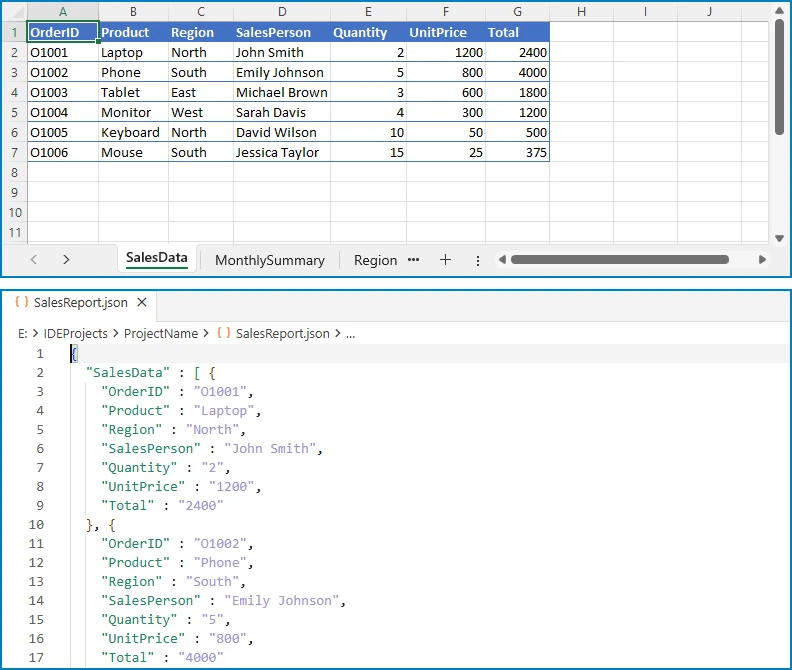
Output (for a workbook with "East Region" and "West Region" sheets):
{
  "East Region": [
    {"Employee": "Alice", "Product": "Laptop", "Amount": "1200"},
    {"Employee": "Bob", "Product": "Monitor", "Amount": "450"}
  ],
  "West Region": [
    {"Employee": "Carol", "Product": "Keyboard", "Amount": "150"},
    {"Employee": "Dave", "Product": "Mouse", "Amount": "75"}
  ]
}
The diagram below illustrates how multiple Excel sheets are mapped into a single JSON object structure.
Build Nested JSON from Excel Data
Some scenarios require nested JSON structures rather than flat arrays. For example, a project management spreadsheet might list projects and their tasks in adjacent columns. The following code groups tasks under their parent projects:
import com.spire.xls.*;
import com.fasterxml.jackson.databind.ObjectMapper;
import com.fasterxml.jackson.databind.node.ObjectNode;
import com.fasterxml.jackson.databind.node.ArrayNode;
import java.util.LinkedHashMap;
import java.util.Map;
import java.io.File;
import java.io.IOException;

public class NestedExcelToJson {

    public static void main(String[] args) {

        Workbook workbook = new Workbook();
        workbook.loadFromFile("ProjectTasks.xlsx");
        Worksheet worksheet = workbook.getWorksheets().get(0);

        ObjectMapper mapper = new ObjectMapper();

        // Use a LinkedHashMap to preserve project insertion order
        Map<String, ObjectNode> projectMap = new LinkedHashMap<>();

        for (int row = 2; row <= worksheet.getLastRow(); row++) {
            String projectName = worksheet.get(row, 1).getValue();
            String taskName = worksheet.get(row, 2).getValue();
            String assignee = worksheet.get(row, 3).getValue();
            String status = worksheet.get(row, 4).getValue();

            // Create project entry on first encounter
            if (!projectMap.containsKey(projectName)) {
                ObjectNode project = mapper.createObjectNode();
                project.put("name", projectName);
                project.set("tasks", mapper.createArrayNode());
                projectMap.put(projectName, project);
            }

            // Build task object and add to the project's task array
            ObjectNode task = mapper.createObjectNode();
            task.put("task", taskName);
            task.put("assignee", assignee);
            task.put("status", status);
            ((ArrayNode) projectMap.get(projectName).get("tasks")).add(task);
        }

        // Assemble final JSON array
        ArrayNode projectsJson = mapper.createArrayNode();
        for (ObjectNode project : projectMap.values()) {
            projectsJson.add(project);
        }

        try {
            mapper.writerWithDefaultPrettyPrinter()
                    .writeValue(new File("ProjectTasks.json"), projectsJson);

            System.out.println("Nested JSON file generated successfully.");
        } catch (IOException e) {
            System.err.println("Error writing JSON file: " + e.getMessage());
        }

        workbook.dispose();
    }
}
Output (for a project-task spreadsheet):
[
  {
    "name": "Website Redesign",
    "tasks": [
      {"task": "Design mockups", "assignee": "Alice", "status": "Complete"},
      {"task": "Frontend implementation", "assignee": "Bob", "status": "In Progress"}
    ]
  },
  {
    "name": "Mobile App",
    "tasks": [
      {"task": "API integration", "assignee": "Carol", "status": "Pending"},
      {"task": "UI testing", "assignee": "Dave", "status": "Not Started"}
    ]
  }
]
The following diagram shows how flat Excel rows are transformed into a nested JSON structure grouped by project.
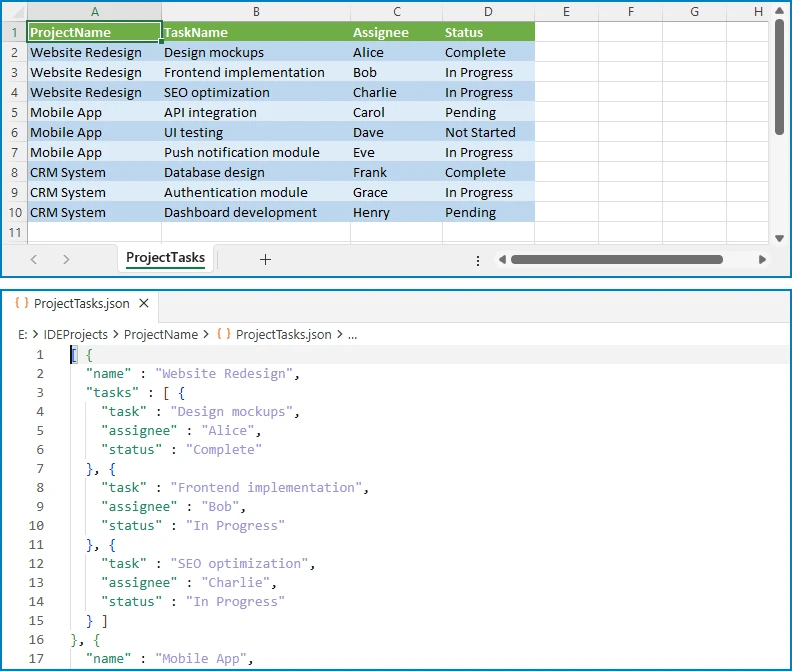
This pattern is useful when Excel data needs to be restructured into a hierarchical format that matches an API schema or a database document model.
You can also explore how to parse Excel files in Java for scenarios where you need to extract and process raw spreadsheet data before transformation.
6. Handling Empty Cells and Data Types
Production Excel files rarely contain clean, complete data. Empty cells, mixed data types, and formatting inconsistencies are common. A robust Java program to convert Excel to JSON must account for these variations.
Detect and Handle Empty Cells
Use CellRange.getType() to check whether a cell is empty before reading its value. Provide a default value to prevent null entries in the JSON output:
CellRange cell = worksheet.get(row, col);
String value;

if (cell.getType() == CellValueType.Empty) {
    value = "";  // or a default value like "N/A"
} else {
    value = cell.getValue();
}
record.put(headers[col - 1], value);
Note: In Jackson,
ObjectNode.put(String, String)is used for string values. For other types, useput(String, double),put(String, boolean), etc.
Preserve Data Types in JSON Output
The getValue() method returns the cell's display value as a string. For numeric data, use getNumberValue() to preserve the original type in the JSON output:
CellRange cell = worksheet.get(row, col);

if (cell.getType() == CellValueType.Number) {
    record.put(headers[col - 1], cell.getNumberValue().doubleValue());
} else if (cell.getType() == CellValueType.Boolean) {
    record.put(headers[col - 1], cell.getBooleanValue());
} else {
    record.put(headers[col - 1], cell.getValue());
}
Handle Date-Formatted Cells
Excel stores dates as serial numbers internally. To output dates as ISO 8601 strings in JSON, detect date formatting and convert accordingly:
CellRange cell = worksheet.get(row, col);

if (cell.getType() == CellValueType.DateTime) {
    java.util.Date date = cell.getDateTimeValue();
    java.text.SimpleDateFormat iso = new java.text.SimpleDateFormat("yyyy-MM-dd");
    record.put(headers[col - 1], iso.format(date));
} else {
    record.put(headers[col - 1], cell.getValue());
}
This approach ensures that dates appear in a standard format (e.g., "2026-07-02") rather than Excel's internal numeric representation.
7. Common Pitfalls
Skipping the Header Row
One of the most frequent mistakes is starting the data loop from row 1 instead of row 2. When the first row contains column headers, including it in the data loop produces a JSON object where the keys are duplicated as values.
Solution: Always read headers from row 1 first, then start the data loop from row 2.
Hardcoding Column Indices
Hardcoding column positions (e.g., worksheet.get(row, 1) for "Name") makes the code fragile. If the Excel template changes and columns are reordered, the JSON keys no longer match the intended data.
Solution: Read headers dynamically from the first row and use the header array to assign JSON keys. This way, column reordering does not break the conversion.
Number Precision Loss
Excel stores numbers as double-precision floating-point values. Using getValue() returns the display content of the cell, but the result is always a string. If the JSON output should contain raw numeric values (rather than strings), additional type conversion is needed.
Solution: Check the cell type with getType() and use getNumberValue() for numeric cells to get the actual numeric value instead of a string representation.
Ignoring Date Formatting
Excel represents dates as serial numbers (e.g., 45109 for June 15, 2023). While getValue() returns the display content of a date cell, the exact format depends on the cell's number format and may not be consistent across different workbooks.
Solution: Use getDateTimeValue() for cells with date formatting and convert the result to a standard ISO 8601 string (yyyy-MM-dd or yyyy-MM-dd'T'HH:mm:ss) for consistent JSON output.
Memory Leaks from Undisposed Workbooks
Spire.XLS workbook objects hold unmanaged resources. Failing to call dispose() after processing can lead to memory leaks, especially when converting multiple files in a batch.
Solution: Always call workbook.dispose() after the conversion is complete. Use a try-finally block to guarantee cleanup even if an exception occurs:
Workbook workbook = new Workbook();
try {
    workbook.loadFromFile("EmployeeData.xlsx");
    // ... conversion logic ...
} finally {
    workbook.dispose();
}
8. Conclusion
In this article, we demonstrated how to convert Excel to JSON in Java using Spire.XLS for Java. Starting from a basic single-sheet conversion, we covered step-by-step workbook loading, header-based key mapping, and JSON output generation. We then extended the approach to handle XLS and XLSX formats, multi-sheet workbooks, nested JSON structures, empty cells, and data type preservation.
Spire.XLS for Java simplifies the entire process with a clean API that requires no Microsoft Office installation. Beyond Excel-to-JSON conversion, the library provides comprehensive spreadsheet capabilities including PDF export, chart creation, formula calculation, and data validation. You can apply for a 30-day free license to evaluate all features in your projects.
9. FAQ
How do I convert Excel to JSON in Java?
Load the Excel file using Spire.XLS for Java, read the header row to determine JSON keys, iterate through the data rows starting from row 2, and map each cell value to its corresponding key in a Jackson ObjectNode. Collect all objects into an ArrayNode and use ObjectMapper to write the result to a file or return it as a string. The complete code example is shown in Section 3.
Which Java library is best for Excel to JSON conversion?
Spire.XLS for Java provides a comprehensive API for reading Excel data with support for both XLS and XLSX formats. It handles cell types, formulas, and formatting natively, making it straightforward to extract structured data for JSON conversion without requiring Microsoft Office or any other external dependency.
Can Spire.XLS handle both XLS and XLSX formats?
Yes. Spire.XLS for Java automatically detects whether a file is in the legacy XLS format (Excel 97–2003) or the modern XLSX format (Excel 2007 and later). The same code works for both formats without any additional configuration. See Section 4 for details.
What is the difference between getValue() and getCellValue() in Spire.XLS?
getValue() returns the cell's display value — it works for all data types (text, number, date, boolean, etc.) and returns what the user sees in the cell. getCellValue() returns the raw underlying value as an Object. Use getValue() when the JSON output should match what users see in Excel, and use getNumberValue() or getBooleanValue() when you need typed values for numeric or boolean data.
How do I handle empty cells when converting Excel to JSON?
Check the cell type using CellRange.getType() before reading a value. If the type is CellValueType.Empty, assign a default value such as an empty string or "N/A". This prevents null entries and ensures consistent JSON structure across all records. See Section 6 for code examples.
Is Spire.XLS for Java free?
Spire.XLS for Java is a commercial library. A free version, Free Spire.XLS for Java, is available with limitations on worksheet count and features. You can also apply for a 30-day free license to evaluate the full feature set before purchasing.
