Combining PDF files is a common requirement in document management applications. For example, a React application may need to assemble invoices, reports, contracts, or scanned pages into a single PDF before the file is archived or shared. When the source documents do not need to be uploaded to a server, performing the operation in the browser can also simplify the workflow.
In this tutorial, you will learn how to merge PDF documents in a React application using Spire.PDF for JavaScript. The first example combines several complete PDF files in one operation. The second example provides more precise control by taking selected pages from different PDFs and adding them to a new document.
On this page:
- Install Spire.PDF for JavaScript in a React Project
- Merge Multiple PDF Documents in React
- Merge Selected Pages from Different PDF Documents in React
- Important Implementation Notes
- Conclusion
Install Spire.PDF for JavaScript in a React Project
Open a terminal in the root directory of your React project and install the spire.office package:
npm i spire.office
After the installation is complete, copy the following runtime files and folder from the installed package to the React project's public folder:
public/
├── _framework/
├── spire.pdf.js
├── Spire.Pdf.Wasm.zip
├── spire.common.js
└── Spire.Common.Wasm.zip
The JavaScript loader, WebAssembly resources, and supporting framework files must remain accessible as static assets when the application runs. For detailed setup instructions and the exact integration process, see How to Integrate Spire.PDF for JavaScript in a React Project.
For the examples in this article, also place the input PDF files in the public folder so that the application can retrieve them with fetch():
public/
├── input_1.pdf
├── input_2.pdf
├── input_3.pdf
└── ...
Merge Multiple PDF Documents in React
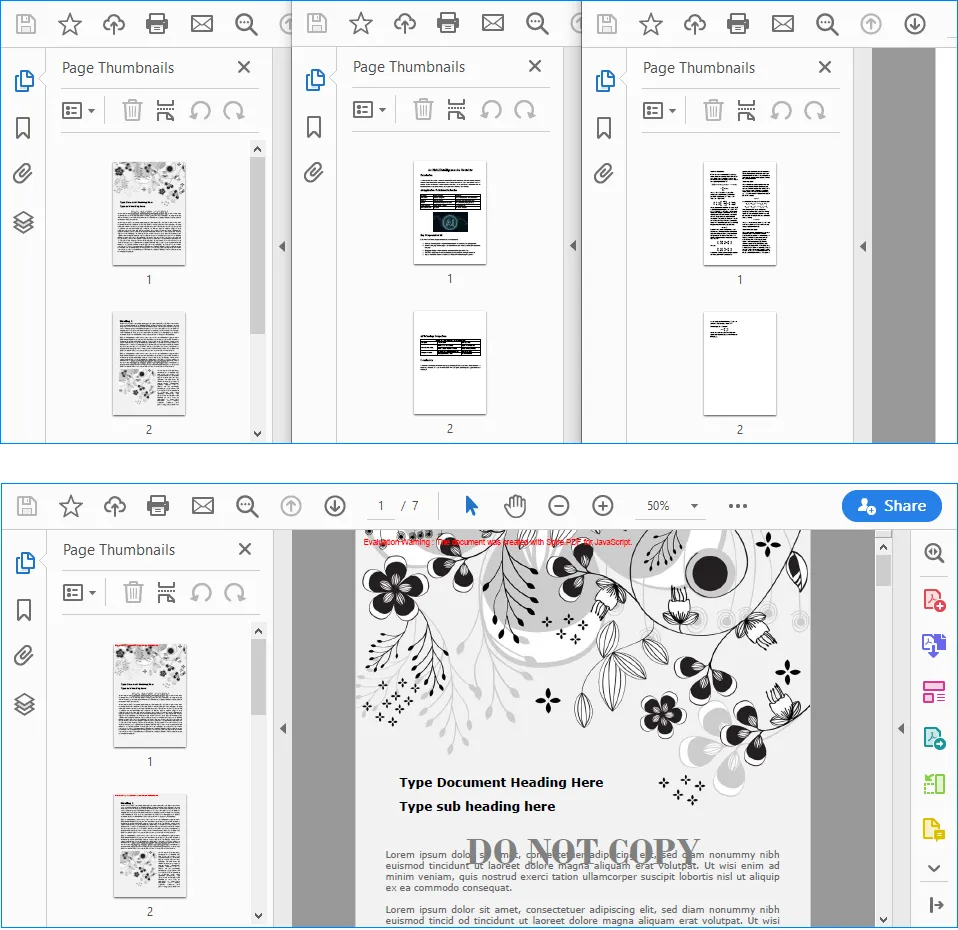
If every page in every source file should appear in the result, the most direct approach is to use the PdfMerger.Merge() method. It accepts an array of input file paths, merges the files in the order in which they appear in the array, and writes the result to the WebAssembly virtual file system.
The following React component merges input_1.pdf, input_2.pdf, and input_3.pdf into a single document named MergedPdf.pdf:
import React, { useState, useEffect } from 'react';

function App() {
  const [wasmModule, setWasmModule] = useState(null);
  const [isGenerating, setIsGenerating] = useState(false);
  const [errorMessage, setErrorMessage] = useState('');

  useEffect(() => {
    (async () => {
      try {
        const publicUrl = process.env.PUBLIC_URL || '';
        const spireModule = await import(/* webpackIgnore: true */ `${publicUrl}/spire.pdf.js`);
        const rawModule = spireModule.default || spireModule;
        window.wasmModule = typeof rawModule === 'function'
          ? await rawModule({ locateFile: p => p.endsWith('.wasm') ? `${publicUrl}/${p}` : p })
          : rawModule;
        setWasmModule(window.wasmModule);
      } catch (error) {
        console.error('Failed to load spire.pdf.js:', error);
      }
    })();
  }, []);

  const loadPdfToVfs = async (fileName) => {
    const publicUrl = process.env.PUBLIC_URL || '';
    const response = await fetch(`${publicUrl}/${fileName}`);

    if (!response.ok) {
      throw new Error(`Failed to load ${fileName}: ${response.status} ${response.statusText}`);
    }

    const fileBytes = new Uint8Array(await response.arrayBuffer());
    const pdfHeader = String.fromCharCode(...fileBytes.slice(0, 4));

    if (pdfHeader !== '%PDF') {
      throw new Error(`${fileName} was loaded, but it is not a valid PDF file.`);
    }

    window.dotnetRuntime.Module.FS.writeFile(fileName, fileBytes, { flags: 'w+' });
    return fileName;
  };

  const MergePdfs = async () => {
    const wasmModule = window.wasmModule?.spirepdf;
    if (!wasmModule || isGenerating) {
      return;
    }

    setIsGenerating(true);
    setErrorMessage('');

    try {
      const inputFiles = await Promise.all([
        loadPdfToVfs('input_1.pdf'),
        loadPdfToVfs('input_2.pdf'),
        loadPdfToVfs('input_3.pdf'),
      ]);

      const outputFileName = 'MergedPdf.pdf';
      const mergeOp = new wasmModule.MergerOptions();
      wasmModule.PdfMerger.Merge({
        inputFiles,
        outputFile: outputFileName,
        pdfMergeOptions: mergeOp
      });

      const modifiedFileArray = window.dotnetRuntime.Module.FS.readFile(outputFileName);
      const modifiedFile = new Blob([modifiedFileArray], { type: 'application/pdf' });
      const url = URL.createObjectURL(modifiedFile);
      const a = document.createElement('a');

      a.href = url;
      a.download = outputFileName;
      document.body.appendChild(a);
      a.click();
      document.body.removeChild(a);
      URL.revokeObjectURL(url);
    } catch (error) {
      console.error('Failed to merge PDFs:', error);
      setErrorMessage(error.message || 'Failed to merge PDFs.');
    } finally {
      setIsGenerating(false);
    }
  };

  return (
    <div style={{ textAlign: 'center', height: '300px' }}>
      <h1>Merge PDF Documents in React</h1>
      <button onClick={MergePdfs} disabled={!wasmModule || isGenerating}>
        {isGenerating ? 'Generating...' : 'Generate'}
      </button>
      {errorMessage && <p style={{ color: 'crimson' }}>{errorMessage}</p>}
    </div>
  );
}

export default App;
Output:
How the Code Works
The component first loads spire.pdf.js inside useEffect(). Because the module is initialized asynchronously, the Generate button remains disabled until the runtime is ready.
The loadPdfToVfs() function then performs three tasks for each source document:
- It retrieves the PDF from the
publicdirectory withfetch(). - It checks the first four bytes for the
%PDFsignature to help catch missing files or non-PDF responses. - It writes the file bytes to the WebAssembly virtual file system, where Spire.PDF can access them.
After all three files have been loaded, PdfMerger.Merge() combines them in the order specified by inputFiles. The output is read from the virtual file system, converted to a PDF Blob, and downloaded through a temporary object URL.
To change the merge order, simply rearrange the entries in the array. For example, the following order would place input_3.pdf first:
const inputFiles = await Promise.all([
  loadPdfToVfs('input_3.pdf'),
  loadPdfToVfs('input_1.pdf'),
  loadPdfToVfs('input_2.pdf'),
]);
Merge Selected Pages from Different PDF Documents in React
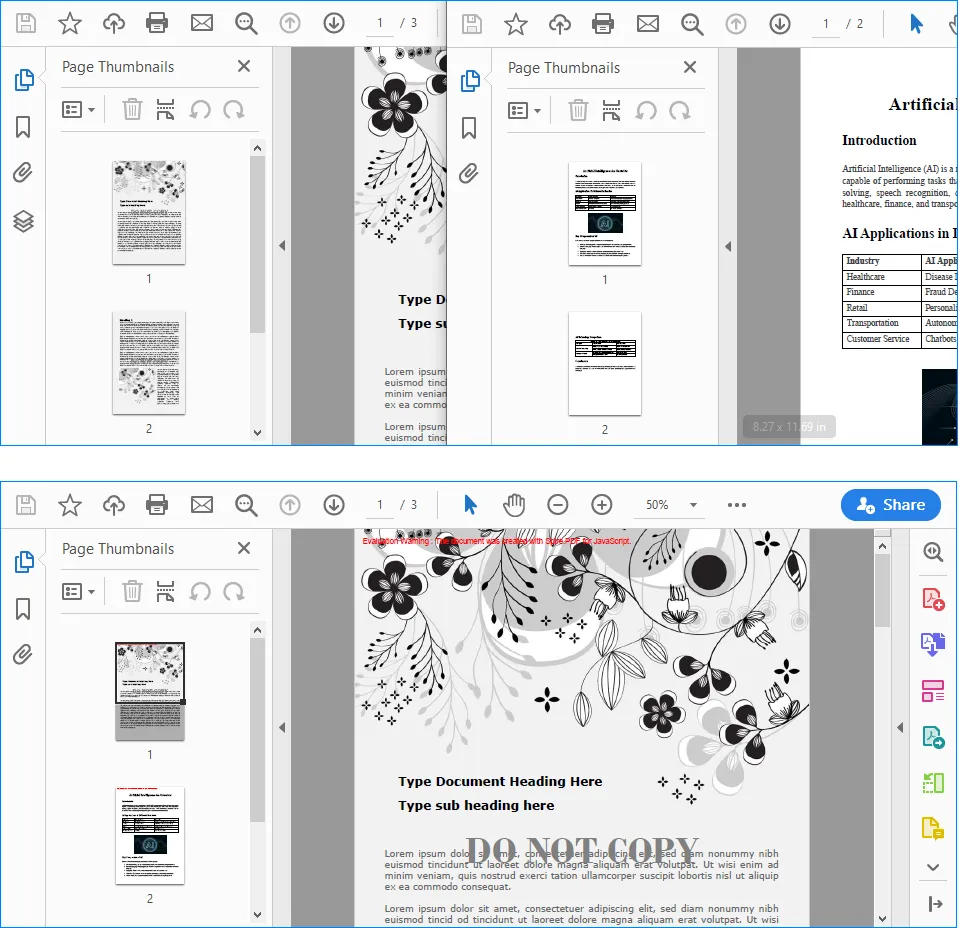
Merging complete documents is not always necessary. You may instead need to create a new PDF from a cover page in one file and a page range in another file. In this situation, load the source files as PdfDocument objects and use InsertPage() and InsertPageRange() to construct the output document.
The following example takes the first page from input_1.pdf, appends every page from input_2.pdf, and saves the selected content as MergedPdf.pdf:
import React, { useState, useEffect } from 'react';

function App() {
  const [wasmModule, setWasmModule] = useState(null);
  const [isGenerating, setIsGenerating] = useState(false);
  const [errorMessage, setErrorMessage] = useState('');

  useEffect(() => {
    (async () => {
      try {
        const publicUrl = process.env.PUBLIC_URL || '';
        const spireModule = await import(/* webpackIgnore: true */ `${publicUrl}/spire.pdf.js`);
        const rawModule = spireModule.default || spireModule;
        window.wasmModule = typeof rawModule === 'function'
          ? await rawModule({ locateFile: p => p.endsWith('.wasm') ? `${publicUrl}/${p}` : p })
          : rawModule;
        setWasmModule(window.wasmModule);
      } catch (error) {
        console.error('Failed to load spire.pdf.js:', error);
      }
    })();
  }, []);

  const loadPdfToVfs = async (fileName) => {
    const publicUrl = process.env.PUBLIC_URL || '';
    const response = await fetch(`${publicUrl}/${fileName}`);

    if (!response.ok) {
      throw new Error(`Failed to load ${fileName}: ${response.status} ${response.statusText}`);
    }

    const fileBytes = new Uint8Array(await response.arrayBuffer());
    const pdfHeader = String.fromCharCode(...fileBytes.slice(0, 4));

    if (pdfHeader !== '%PDF') {
      throw new Error(`${fileName} was loaded, but it is not a valid PDF file.`);
    }

    window.dotnetRuntime.Module.FS.writeFile(fileName, fileBytes, { flags: 'w+' });
    return fileName;
  };

  const MergePdfs = async () => {
    const wasmModule = window.wasmModule?.spirepdf;
    if (!wasmModule || isGenerating) {
      return;
    }

    setIsGenerating(true);
    setErrorMessage('');

    try {
      const [firstInputFile, secondInputFile] = await Promise.all([
        loadPdfToVfs('input_1.pdf'),
        loadPdfToVfs('input_2.pdf'),
      ]);

      const outputFileName = 'MergedPdf.pdf';
      const firstDocument = new wasmModule.PdfDocument();
      const secondDocument = new wasmModule.PdfDocument();
      const mergedDocument = new wasmModule.PdfDocument();

      firstDocument.LoadFromFile({ fileName: firstInputFile });
      secondDocument.LoadFromFile({ fileName: secondInputFile });

      if (firstDocument.Pages.Count < 1) {
        throw new Error('The first PDF does not contain any pages.');
      }

      if (secondDocument.Pages.Count < 1) {
        throw new Error('The second PDF does not contain any pages.');
      }

      mergedDocument.InsertPage({ ldDoc: firstDocument, pageIndex: 0 });
      mergedDocument.InsertPageRange(secondDocument, 0, secondDocument.Pages.Count - 1);
      mergedDocument.SaveToFile({ fileName: outputFileName });

      const modifiedFileArray = window.dotnetRuntime.Module.FS.readFile(outputFileName);
      const modifiedFile = new Blob([modifiedFileArray], { type: 'application/pdf' });
      const url = URL.createObjectURL(modifiedFile);
      const a = document.createElement('a');

      a.href = url;
      a.download = outputFileName;
      document.body.appendChild(a);
      a.click();
      document.body.removeChild(a);
      URL.revokeObjectURL(url);
    } catch (error) {
      console.error('Failed to merge PDFs:', error);
      setErrorMessage(error.message || 'Failed to merge PDFs.');
    } finally {
      setIsGenerating(false);
    }
  };

  return (
    <div style={{ textAlign: 'center', height: '300px' }}>
      <h1>Merge PDF Documents in React</h1>
      <button onClick={MergePdfs} disabled={!wasmModule || isGenerating}>
        {isGenerating ? 'Generating...' : 'Generate'}
      </button>
      {errorMessage && <p style={{ color: 'crimson' }}>{errorMessage}</p>}
    </div>
  );
}

export default App;
Output:
Understanding the Page Selection Logic
The three PdfDocument instances have different roles:
firstDocumentrepresentsinput_1.pdf.secondDocumentrepresentsinput_2.pdf.mergedDocumentis the new PDF that receives the selected pages.
PDF page indexes are zero-based in this example. Therefore, pageIndex: 0 refers to the first page:
mergedDocument.InsertPage({ ldDoc: firstDocument, pageIndex: 0 });
The following statement inserts a continuous range from secondDocument. Its start index is 0, while its end index is secondDocument.Pages.Count - 1, so the complete document is appended:
mergedDocument.InsertPageRange(
  secondDocument,
  0,
  secondDocument.Pages.Count - 1
);
You can change these indexes to merge only the pages required by your application. For instance, this statement inserts pages 2 through 5 from secondDocument because their zero-based indexes are 1 through 4:
mergedDocument.InsertPageRange(secondDocument, 1, 4);
Before using fixed page indexes, make sure the source document contains enough pages. The sample already checks for empty PDFs, but a production application should also validate user-supplied start and end indexes against Pages.Count.
Important Implementation Notes
Keep Runtime and Input Paths Correct
Files stored in the React public directory are requested by URL at runtime. The code uses process.env.PUBLIC_URL so it can construct paths correctly when the application is deployed under a non-root public path. A missing or incorrect file path may return an HTML error page instead of a PDF, which is why the sample verifies the %PDF header before writing the data to the virtual file system.
Wait for WebAssembly Initialization
Spire.PDF cannot process a document until its runtime has finished loading. The wasmModule state controls the button's disabled status, while isGenerating prevents the same operation from being started repeatedly before the current merge has finished.
Validate Page Ranges
When pages are chosen dynamically, check that the start and end indexes are non-negative, that the start index does not exceed the end index, and that both values fall within the source document's page count. This avoids invalid range errors and makes it easier to show a useful message in the React interface.
Release the Download URL
URL.createObjectURL() creates a temporary URL for the generated Blob. Calling URL.revokeObjectURL(url) after the download starts releases that URL and prevents it from remaining in browser memory longer than necessary.
Conclusion
Spire.PDF for JavaScript enables React applications to combine PDF content through a WebAssembly-based workflow. When all pages are required, PdfMerger.Merge() provides a concise way to merge several complete documents in a defined order. When the output must contain only specific content, PdfDocument, InsertPage(), and InsertPageRange() provide page-level control over the result.
With the runtime files configured in the public directory, these techniques can be integrated into document portals, reporting tools, contract workflows, and other React applications that need to assemble PDFs directly in the browser.
