Splitting Excel files into separate files by worksheet, by row, or by column is a common requirement for data distribution and management. Spire.XLS for JavaScript performs the splitting process entirely in the browser via WebAssembly, using a virtual file system (VFS) to manage input and output files — no backend server required.
This article covers three core features:
For installation and project setup, refer to Integrating Spire.XLS for JavaScript in a React Project. The examples below assume Spire.XLS is installed and the WebAssembly module is initialized.
Split by Worksheet
Splitting by worksheet exports each sheet in a multi-sheet workbook as an independent Excel file. When a workbook contains multiple worksheets, each representing different data such as separate departments or months, you can split each worksheet into its own file. Spire.XLS accomplishes this by iterating through all worksheets in the source file, creating new workbooks, and copying each sheet. The steps are as follows:
- Create a
Workbookobject and load the source Excel document withLoadFromFile(). - Iterate through all worksheets in the source document.
- Create a new
Workbookobject. - Copy the source worksheet to the default worksheet of the new workbook using the
CopyFrommethod. - Get the worksheet name via
sheet.Nameas the output file name. - Save the new workbook as an Excel file with
SaveToFile().
Below is a complete code example demonstrating how to split worksheets into separate Excel files:
function App() {
  const splitByWorksheet = async () => {
    // Get the Spire.XLS WASM module
    const xlsModule = window.wasmModule?.spirexls;

    // Check if the module is ready
    if (!xlsModule) {
      alert('Spire.Xls is not ready yet');
      return;
    }

    // Load fonts and the Excel file into VFS
    await window.spire.FetchFileToVFS('arial.ttf', '/Library/Fonts/', `${process.env.PUBLIC_URL}/font/`);
    const inputFileName = 'Sample.xlsx';
    await window.spire.FetchFileToVFS(inputFileName, '', `${process.env.PUBLIC_URL}data/`);

    // Load the workbook
    const workbook = new xlsModule.Workbook();
    workbook.LoadFromFile({ fileName: inputFileName });

    // Iterate through each worksheet and export it as a separate file
    for (let i = 0; i < workbook.Worksheets.Count; i++) {
      let sheet = workbook.Worksheets.get(i);

      // Create a new workbook and copy the current worksheet
      let newWorkbook = new xlsModule.Workbook();
      let newSheet = newWorkbook.Worksheets.get(0);
      newSheet.CopyFrom(sheet);

      // Use the worksheet name as the output file name
      const outputFileName = `${sheet.Name}.xlsx`;
      newWorkbook.SaveToFile({ fileName: outputFileName, version: xlsModule.ExcelVersion.Version2010 });
      newWorkbook.Dispose();

      // Read the split file from VFS and trigger a browser download
      const fileArray = window.dotnetRuntime.Module.FS.readFile(outputFileName);
      const blob = new Blob([fileArray], { type: 'application/vnd.openxmlformats-officedocument.spreadsheetml.sheet' });
      const url = URL.createObjectURL(blob);
      const a = document.createElement('a');
      a.href = url;
      a.download = outputFileName;
      a.click();
      URL.revokeObjectURL(url);
    }

    // Release resources
    workbook.Dispose();
  };

  return (
    <div style={{ textAlign: 'center', height: '300px' }}>
      <h1>Split Excel By Worksheet</h1>
      <button onClick={splitByWorksheet}>
        Generate
      </button>
    </div>
  );
}

export default App;
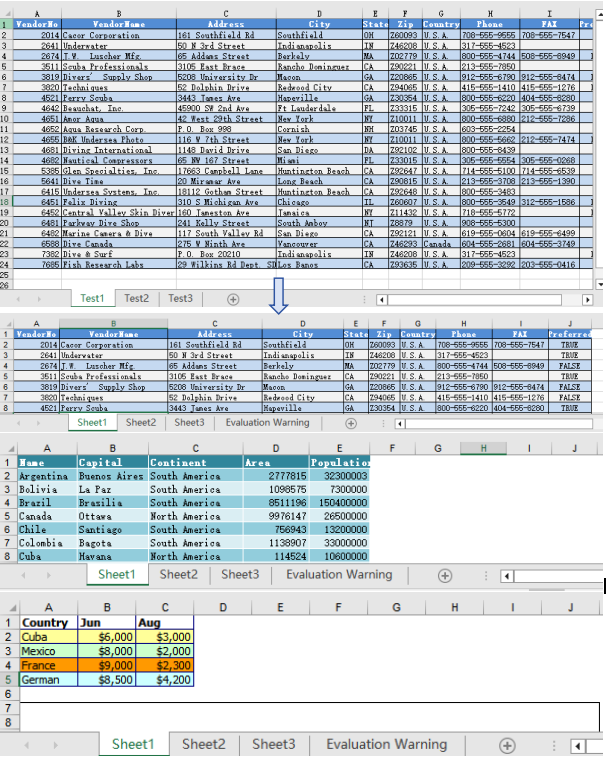
After splitting by worksheet, each resulting file contains a single worksheet from the original workbook
Split by Row
Splitting by row is suitable for breaking up large tables into multiple smaller files by a fixed number of rows, making pagination and distribution easier. When a worksheet contains a large amount of data rows that need to be split into multiple files, Spire.XLS accomplishes this by copying source rows one by one into a new workbook. The steps are as follows:
- Create a
Workbookobject, load the source Excel document withLoadFromFile(), and retrieve the first worksheet. - Create a new
Workbookobject. - Use a loop to call the
Copymethod row by row, copying specified rows from the source worksheet to the new worksheet. - Copy the column widths from the source worksheet to the new worksheet.
- Save the new workbook as an Excel file with
SaveToFile(). - Repeat the steps above to create more split files, copying the header row separately when needed.
Below is a complete code example demonstrating how to split a worksheet into multiple Excel files by row:
function App() {
  const splitByRow = async () => {
    // Get the Spire.XLS WASM module
    const xlsModule = window.wasmModule?.spirexls;

    // Check if the module is ready
    if (!xlsModule) {
      alert('Spire.Xls is not ready yet');
      return;
    }

    // Load fonts and the Excel file into VFS
    await window.spire.FetchFileToVFS('arial.ttf', '/Library/Fonts/', `${process.env.PUBLIC_URL}/font/`);
    const inputFileName = 'Sample.xlsx';
    await window.spire.FetchFileToVFS(inputFileName, '', `${process.env.PUBLIC_URL}data/`);

    // Load the workbook and get the first worksheet
    const workbook = new xlsModule.Workbook();
    workbook.LoadFromFile({ fileName: inputFileName });
    const sheet = workbook.Worksheets.get(0);

    // Create a new workbook (comes with one default worksheet)
    let newWorkbook1 = new xlsModule.Workbook();
    let newSheet1 = newWorkbook1.Worksheets.get(0);

    // Copy rows 1-5 to the target file
    let destRow = 1;
    for (let i = 0; i < 5; i++) {
      sheet.Copy({
        sourceRange: sheet.Rows[i],
        worksheet: newSheet1,
        destRow: destRow,
        destColumn: 1,
        copyStyle: true
      });
      destRow++;
    }

    // Copy column widths
    for (let c = 0; c < sheet.Columns.length; c++) {
      newSheet1.SetColumnWidth(c + 1, sheet.GetColumnWidth(c + 1));
    }

    // Save the first split file
    const outputFileName1 = "Rows1-5.xlsx";
    newWorkbook1.SaveToFile({ fileName: outputFileName1, version: xlsModule.ExcelVersion.Version2010 });
    newWorkbook1.Dispose();

    // Read file data from VFS
    const fileData1 = window.dotnetRuntime.Module.FS.readFile(outputFileName1);

    // Create a second new workbook
    let newWorkbook2 = new xlsModule.Workbook();
    let newSheet2 = newWorkbook2.Worksheets.get(0);

    destRow = 1;

    // Copy the header row
    sheet.Copy({
      sourceRange: sheet.Rows[0],
      worksheet: newSheet2,
      destRow: destRow,
      destColumn: 1,
      copyStyle: true
    });
    destRow++;

    // Copy rows 6-10 to the second target file
    for (let i = 5; i < 10; i++) {
      sheet.Copy({
        sourceRange: sheet.Rows[i],
        worksheet: newSheet2,
        destRow: destRow,
        destColumn: 1,
        copyStyle: true
      });
      destRow++;
    }

    // Copy column widths
    for (let c = 0; c < sheet.Columns.length; c++) {
      newSheet2.SetColumnWidth(c + 1, sheet.GetColumnWidth(c + 1));
    }

    // Save the second split file
    const outputFileName2 = "Rows6-10.xlsx";
    newWorkbook2.SaveToFile({ fileName: outputFileName2, version: xlsModule.ExcelVersion.Version2010 });
    newWorkbook2.Dispose();

    // Read file data from VFS
    const fileData2 = window.dotnetRuntime.Module.FS.readFile(outputFileName2);

    // Package the split files into a ZIP for download
    const zip = new JSZip();
    zip.file(outputFileName1, fileData1);
    zip.file(outputFileName2, fileData2);
    const zipBlob = await zip.generateAsync({ type: 'blob' });
    const zipUrl = URL.createObjectURL(zipBlob);
    const a = document.createElement('a');
    a.href = zipUrl;
    a.download = "SplitByRows.zip";
    a.click();
    URL.revokeObjectURL(zipUrl);

    // Release resources
    workbook.Dispose();
  };

  return (
    <div style={{ textAlign: 'center', height: '300px' }}>
      <h1>Split Excel By Row</h1>
      <button onClick={splitByRow}>
        Generate
      </button>
    </div>
  );
}

export default App;
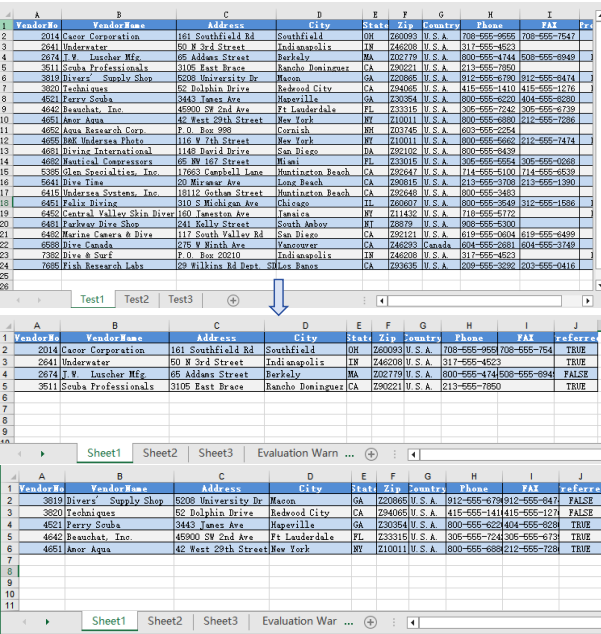
After splitting by row, each file contains the header row and the specified number of data rows
Split by Column
Splitting by column is suitable for breaking up wide tables into multiple files by column groups, making the data structure clearer. When a worksheet contains many columns and you need to split different column groups into separate files, Spire.XLS accomplishes this by copying source columns one by one into a new workbook. The steps are as follows:
- Create a
Workbookobject, load the source Excel document withLoadFromFile(), and retrieve the first worksheet. - Create a new
Workbookobject. - Use a loop to call the
Copymethod column by column, copying specified columns from the source worksheet to the new worksheet. - Copy the column widths from the source worksheet to the new worksheet.
- Save the new workbook as an Excel file with
SaveToFile(). - Repeat the steps above to create more split files.
Below is a complete code example demonstrating how to split a worksheet into multiple Excel files by column:
function App() {
  const splitByColumn = async () => {
    // Get the Spire.XLS WASM module
    const xlsModule = window.wasmModule?.spirexls;

    // Check if the module is ready
    if (!xlsModule) {
      alert('Spire.Xls is not ready yet');
      return;
    }

    // Load fonts and the Excel file into VFS
    await window.spire.FetchFileToVFS('arial.ttf', '/Library/Fonts/', `${process.env.PUBLIC_URL}/font/`);
    const inputFileName = 'Sample.xlsx';
    await window.spire.FetchFileToVFS(inputFileName, '', `${process.env.PUBLIC_URL}data/`);

    // Load the workbook and get the first worksheet
    const workbook = new xlsModule.Workbook();
    workbook.LoadFromFile({ fileName: inputFileName });
    const sheet = workbook.Worksheets.get(0);

    // Create a new workbook and copy columns 1-2 (columns A-B) to the new file
    let newWorkbook1 = new xlsModule.Workbook();
    let newSheet1 = newWorkbook1.Worksheets.get(0);

    for (let i = 1; i <= 2; i++) {
      sheet.Copy({
        sourceRange: sheet.Columns[i - 1],
        worksheet: newSheet1,
        destRow: 1,
        destColumn: i,
        copyStyle: true
      });
    }

    // Copy column widths
    for (let i = 1; i <= 2; i++) {
      newSheet1.SetColumnWidth(i, sheet.GetColumnWidth(i));
    }

    // Save the first split file
    const outputFileName1 = "ColumnsAB.xlsx";
    newWorkbook1.SaveToFile({ fileName: outputFileName1, version: xlsModule.ExcelVersion.Version2010 });
    newWorkbook1.Dispose();

    // Read file data from VFS
    const fileData1 = window.dotnetRuntime.Module.FS.readFile(outputFileName1);

    // Create a second new workbook and copy columns 3-4 (columns C-D) to the new file
    let newWorkbook2 = new xlsModule.Workbook();
    let newSheet2 = newWorkbook2.Worksheets.get(0);

    for (let i = 3; i <= 4; i++) {
      sheet.Copy({
        sourceRange: sheet.Columns[i - 1],
        worksheet: newSheet2,
        destRow: 1,
        destColumn: i - 2,
        copyStyle: true
      });
    }

    // Copy column widths
    for (let i = 3; i <= 4; i++) {
      newSheet2.SetColumnWidth(i - 2, sheet.GetColumnWidth(i));
    }

    // Save the second split file
    const outputFileName2 = "ColumnsCD.xlsx";
    newWorkbook2.SaveToFile({ fileName: outputFileName2, version: xlsModule.ExcelVersion.Version2010 });
    newWorkbook2.Dispose();

    // Read file data from VFS
    const fileData2 = window.dotnetRuntime.Module.FS.readFile(outputFileName2);

    // Package the split files into a ZIP for download
    const zip = new JSZip();
    zip.file(outputFileName1, fileData1);
    zip.file(outputFileName2, fileData2);
    const zipBlob = await zip.generateAsync({ type: 'blob' });
    const zipUrl = URL.createObjectURL(zipBlob);
    const a = document.createElement('a');
    a.href = zipUrl;
    a.download = "SplitByColumns.zip";
    a.click();
    URL.revokeObjectURL(zipUrl);

    // Release resources
    workbook.Dispose();
  };

  return (
    <div style={{ textAlign: 'center', height: '300px' }}>
      <h1>Split Excel By Column</h1>
      <button onClick={splitByColumn}>
        Generate
      </button>
    </div>
  );
}

export default App;
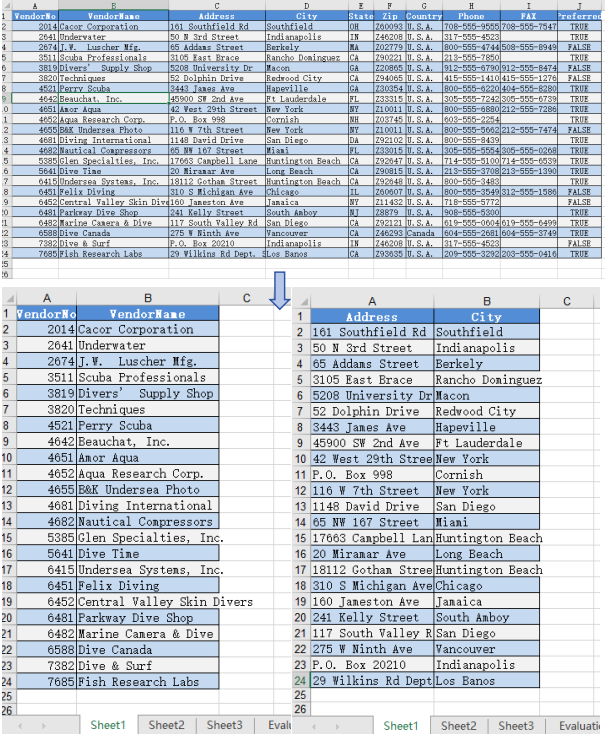
After splitting by column, each file contains a portion of the columns from the original worksheet
FAQ
Worksheet name shows as default (Sheet1) instead of the original name
Cause: The CopyFrom method only copies worksheet content — it does not retain the original worksheet name. The new workbook's default worksheet keeps its default name.
Solution: Manually set the worksheet name after copying using newSheet.Name = sheet.Name:
let newSheet = newWorkbook.Worksheets.get(0);
newSheet.CopyFrom(sheet);
newSheet.Name = sheet.Name;
VFS file loading fails or path is incorrect
Cause: The file path or VFS file name is incorrect, or the required font files have not been loaded into VFS, causing the workbook to fail to load.
Solution: Verify that the FetchFileToVFS parameters use the correct paths. The font file path should be /Library/Fonts/, and ensure the font file name matches exactly (e.g., arial.ttf):
await window.spire.FetchFileToVFS('arial.ttf', '/Library/Fonts/', fontSourcePath);
Get a Free License
Spire.XLS for JavaScript offers a 30-day full-featured free trial license with no functional limitations. Apply here to evaluate before purchasing.
