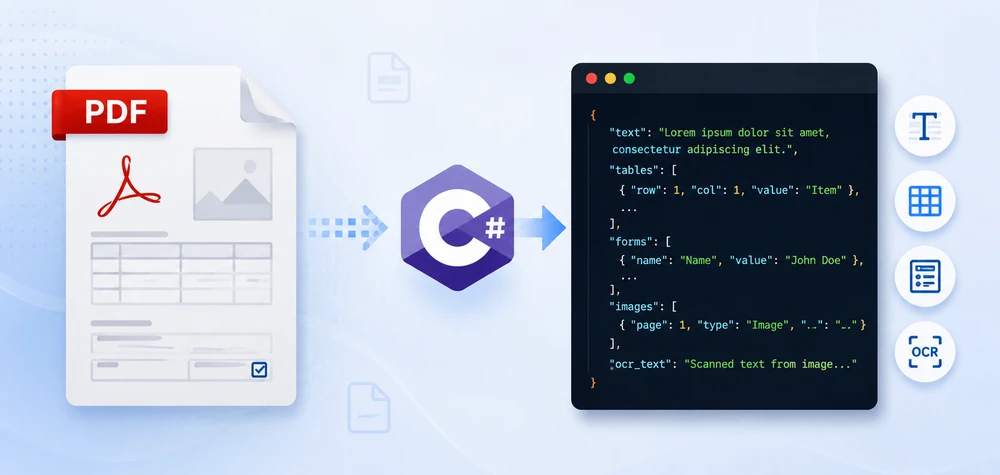
Your application receives a PDF invoice. You need the invoice number, vendor name, and line items — not as text on a page, but as structured JSON your API can consume. That is the real problem behind PDF to JSON conversion.
Unlike CSV or XML, a PDF file has no inherent data structure — no fields, no rows, no schema. Extracting usable JSON requires different approaches depending on what the document actually contains: plain text with key-value patterns, tables with rows and columns, fillable form fields, or scanned images that need OCR.
This article covers all four scenarios with runnable C# code using Spire.PDF for .NET. We build a real invoice-to-JSON converter, handle common table extraction problems like merged cells and missing headers, and package everything into a reusable PdfToJsonConverter class you can drop into any .NET project.
Quick Navigation
- What "PDF to JSON" Actually Means
- Install Spire.PDF for .NET
- Convert PDF Text to JSON in C#
- Convert PDF Tables to JSON in C#
- Convert PDF Form Fields to JSON
- Invoice PDF to JSON: A Real-World Example
- Convert Multiple PDFs to JSON in Batch
- Build a PDF to JSON Converter in C#
- Convert OCR Output to JSON in C#
- Performance Considerations
- FAQ
1. What "PDF to JSON" Actually Means
There is no built-in "PDF to JSON" conversion in the way you might convert a CSV to JSON. A PDF has no JSON structure. What developers actually need is: extract content from a PDF, then shape that content into a JSON format that matches their use case.
Depending on the PDF type and business requirement, the target JSON falls into one of three categories.
Raw Text JSON
Pull all text from each page and wrap it in a JSON envelope. Works for search indexing, RAG pipelines, and document archival.
{
  "sourceFile": "Contract.pdf",
  "pages": [
    { "pageNumber": 1, "text": "SERVICE AGREEMENT\nBetween Contoso Ltd and..." }
  ]
}
Key-Value JSON
Many PDFs follow a Label: Value pattern — employee records, registration forms, simple invoices. The goal here is to parse those pairs into a flat JSON object:
{
  "name": "John Smith",
  "email": "john@contoso.com",
  "department": "Engineering",
  "employeeId": "EMP-2026-0142"
}
Structured Business JSON
Real business documents have nested data: an invoice has a header, line items, tax breakdowns, and payment terms. The JSON output needs to mirror that structure:
{
  "invoiceNumber": "INV-2026-0042",
  "vendor": "Contoso Ltd",
  "date": "2026-06-15",
  "lineItems": [
    { "description": "Widget A", "quantity": 150, "unitPrice": 24.50, "total": 3675.00 }
  ],
  "subtotal": 3675.00,
  "tax": 294.00,
  "total": 3969.00
}
This distinction matters. When you search for "convert PDF to JSON," you need to decide which output format your application requires. The rest of this article shows how to build each one using Spire.PDF in C#.
2. Install Spire.PDF for .NET
Install via NuGet Package Manager Console:
Install-Package Spire.PDF
Or add to your .csproj:
<PackageReference Include="Spire.PDF" Version="*" />
Include these namespaces in your project:
using Spire.Pdf;
using Spire.Pdf.Texts;
using Spire.Pdf.Utilities;
using Spire.Pdf.Fields;
using Spire.Pdf.Widget;
using System.Text.Json;
using System.Text.Json.Serialization;
Spire.PDF supports .NET Framework, .NET Core, and .NET 6/7/8/9+.
3. Convert PDF Text to JSON in C#
The most common starting point: extract text from a PDF and produce JSON output.
Extract Text from PDF
using Spire.Pdf;
using Spire.Pdf.Texts;
using System.Collections.Generic;

using (PdfDocument pdf = new PdfDocument())
{
    pdf.LoadFromFile("EmployeeRecord.pdf");

    var pages = new List<Dictionary<string, string>>();

    for (int i = 0; i < pdf.Pages.Count; i++)
    {
        PdfPageBase page = pdf.Pages[i];

        PdfTextExtractOptions options = new PdfTextExtractOptions();
        options.IsExtractAllText = true;

        PdfTextExtractor extractor = new PdfTextExtractor(page);
        string pageText = extractor.ExtractText(options);

        pages.Add(new Dictionary<string, string>
        {
            { "pageNumber", (i + 1).ToString() },
            { "text", pageText.Trim() }
        });
    }
}
Parse Key-Value Pairs into JSON
If your PDF follows a Label: Value pattern, parse the extracted text into structured fields:
using System.Text.Json;

var parsedFields = new Dictionary<string, string>();

foreach (var page in pages)
{
    string[] lines = page["text"].Split('\n');
    foreach (string line in lines)
    {
        int colonIndex = line.IndexOf(':');
        if (colonIndex > 0)
        {
            string key = line.Substring(0, colonIndex).Trim();
            string value = line.Substring(colonIndex + 1).Trim();
            parsedFields[key] = value;
        }
    }
}

var jsonOptions = new JsonSerializerOptions
{
    WriteIndented = true,
    PropertyNamingPolicy = JsonNamingPolicy.CamelCase
};

string jsonOutput = JsonSerializer.Serialize(parsedFields, jsonOptions);
File.WriteAllText("EmployeeRecord.json", jsonOutput);
Key API Calls
PdfDocument.LoadFromFile()— opens the PDF filePdfTextExtractor.ExtractText()— extracts text content from a pagePdfTextExtractOptions.IsExtractAllText— preserves whitespace and formatting
Output
The following example shows the structured JSON generated from the extracted employee record.
{
  "name": "John Smith",
  "email": "john.smith@contoso.com",
  "department": "Engineering",
  "employeeId": "EMP-2026-0142",
  "startDate": "2024-03-15"
}
The following screenshot shows the actual JSON file generated after running the example.
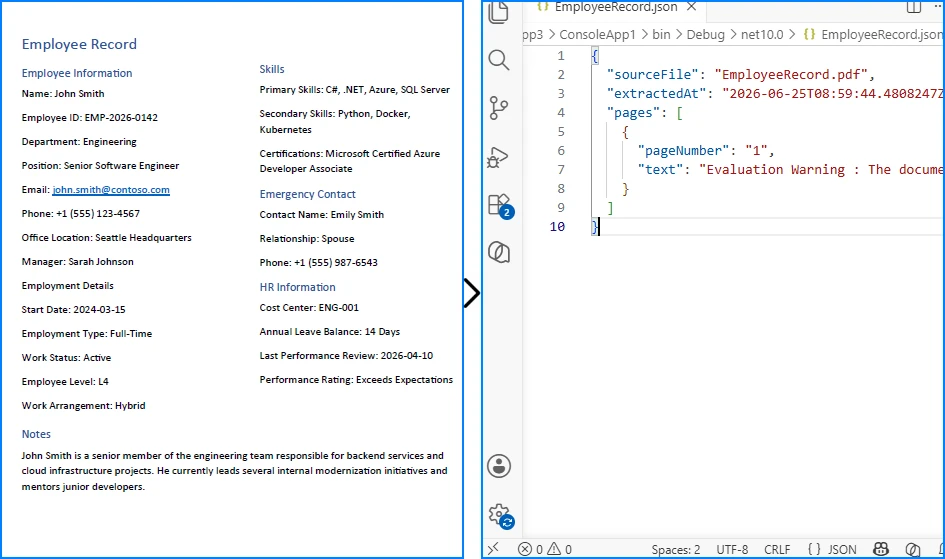
This approach works well for forms, records, and documents with consistent key-value layouts. For unstructured text, skip the parsing step and serialize the raw pages directly.
If you need a deeper look at PDF text extraction, see our dedicated guide on extracting text from PDFs in C# using Spire.PDF for .NET.
4. Convert PDF Tables to JSON in C#
The previous section focused on extracting plain text from PDFs. While that works well for paragraphs and simple records, many business documents organize their most valuable information in tables, such as invoice line items, sales reports, and financial statements. To preserve rows, columns, and relationships between cells, table data must be extracted differently before it can be converted into structured JSON.
Why Table Extraction Is Different from Text Extraction
Text extraction returns a flat stream of characters in reading order. Although a table may appear perfectly organized on the page, the extracted text often loses its row-and-column structure, making it difficult to identify which values belong together.
To preserve the table layout, you need a dedicated table extraction engine. PdfTableExtractor analyzes the page layout, detects table boundaries, and returns PdfTable objects that you can iterate row by row and cell by cell. Instead of producing a flat string such as:
Widget A 150 $24.50 $3,675.00
it enables you to generate structured JSON like:
{
  "Product": "Widget A",
  "Quantity": "150",
  "Unit Price": "$24.50",
  "Total": "$3,675.00"
}
The following example demonstrates how to extract tables from a PDF and serialize them into JSON.
Extract Tables from PDF
using Spire.Pdf;
using Spire.Pdf.Utilities;
using System.Collections.Generic;

using (PdfDocument pdf = new PdfDocument())
{
    pdf.LoadFromFile("SalesReport.pdf");

    PdfTableExtractor tableExtractor = new PdfTableExtractor(pdf);
    var allTables = new List<List<List<string>>>();

    for (int pageIndex = 0; pageIndex < pdf.Pages.Count; pageIndex++)
    {
        PdfTable[] tables = tableExtractor.ExtractTable(pageIndex);

        if (tables != null && tables.Length > 0)
        {
            foreach (PdfTable table in tables)
            {
                int rowCount = table.GetRowCount();
                int colCount = table.GetColumnCount();
                var tableData = new List<List<string>>();

                for (int row = 0; row < rowCount; row++)
                {
                    var rowData = new List<string>();
                    for (int col = 0; col < colCount; col++)
                    {
                        rowData.Add(table.GetText(row, col).Trim());
                    }
                    tableData.Add(rowData);
                }

                allTables.Add(tableData);
            }
        }
    }
}
Serialize Table Data to JSON
var jsonTables = new List<object>();

foreach (var tableData in allTables)
{
    if (tableData.Count < 2) continue;

    var headers = tableData[0];
    var rows = new List<Dictionary<string, string>>();

    for (int i = 1; i < tableData.Count; i++)
    {
        var rowObj = new Dictionary<string, string>();
        for (int j = 0; j < headers.Count && j < tableData[i].Count; j++)
        {
            rowObj[headers[j]] = tableData[i][j];
        }
        rows.Add(rowObj);
    }

    jsonTables.Add(new
    {
        tableIndex = allTables.IndexOf(tableData) + 1,
        headers = headers,
        data = rows
    });
}

string tableJson = JsonSerializer.Serialize(new
{
    sourceFile = "SalesReport.pdf",
    tables = jsonTables
}, new JsonSerializerOptions { WriteIndented = true });

File.WriteAllText("SalesReport_Tables.json", tableJson);
Key API Calls
PdfTableExtractor(PdfDocument)— initializes the table extraction enginePdfTableExtractor.ExtractTable(pageIndex)— detects and extracts tables from a pagePdfTable.GetRowCount()/GetColumnCount()— returns table dimensionsPdfTable.GetText(row, col)— reads cell content
Sample JSON Output
The resulting JSON preserves the original table structure by organizing each row into key-value pairs based on the detected column headers.
{
  "sourceFile": "SalesReport.pdf",
  "tables": [
    {
      "tableIndex": 1,
      "headers": ["Product", "Quantity", "Unit Price", "Total"],
      "data": [
        { "Product": "Widget A", "Quantity": "150", "Unit Price": "$24.50", "Total": "$3,675.00" },
        { "Product": "Widget B", "Quantity": "80", "Unit Price": "$39.90", "Total": "$3,192.00" }
      ]
    }
  ]
}
The following screenshot shows the actual JSON file generated after running the example.
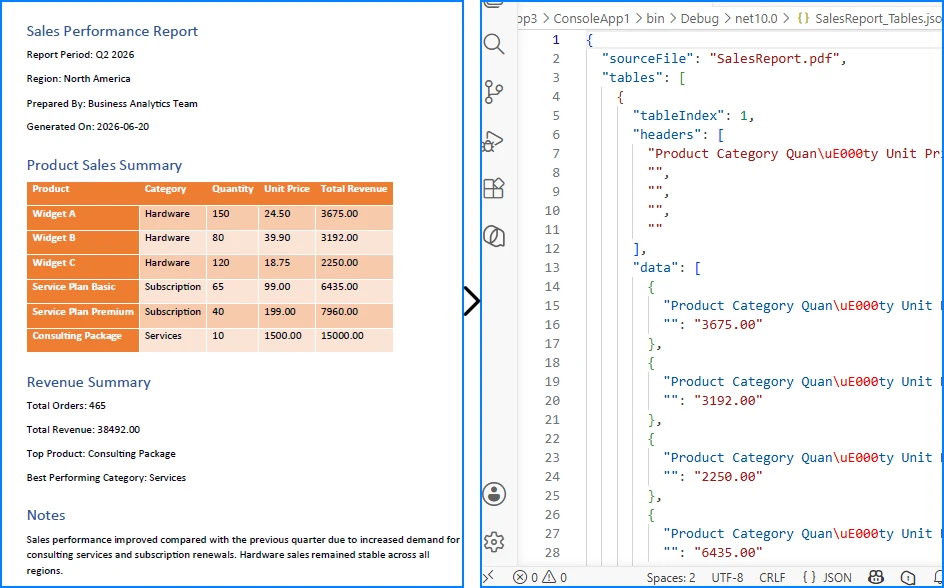
This approach works well for invoices, reports, and other PDFs with well-defined table structures. For documents containing merged cells, missing headers, or multi-page tables, additional post-processing may be required.
If you need a deeper look at PDF table extraction, see our dedicated guide on extracting tables from PDFs in C# using Spire.PDF for .NET.
Common Table Extraction Problems
Real-world PDF tables are messy. Here are the three problems you will hit most often, and how to handle them.
Problem 1: Missing Headers
Many invoices and reports have tables without explicit header rows. The data starts immediately:
Apple      10    $2.99    $29.90
Orange     5     $1.50    $7.50
When the first row is data rather than headers, assign column names manually based on your known schema:
// Define headers when the PDF table has no header row
string[] defaultHeaders = { "Product", "Quantity", "UnitPrice", "Total" };

var rows = new List<Dictionary<string, string>>();
for (int i = 0; i < tableData.Count; i++)  // Start from 0, not 1
{
    var rowObj = new Dictionary<string, string>();
    for (int j = 0; j < defaultHeaders.Length && j < tableData[i].Count; j++)
    {
        rowObj[defaultHeaders[j]] = tableData[i][j];
    }
    rows.Add(rowObj);
}
Problem 2: Merged Cells
Tables in financial reports often have merged cells for grouping:
Quarter    Revenue     Expenses
Q1         $120,000    $95,000
           $115,000    $88,000
Q2         $140,000    $102,000
The extractor returns empty strings for merged cells. Fill them forward from the last non-empty value:
// Fill merged cells with the previous row's value
for (int col = 0; col < headers.Count; col++)
{
    string lastValue = "";
    for (int row = 1; row < tableData.Count; row++)
    {
        if (col < tableData[row].Count && !string.IsNullOrWhiteSpace(tableData[row][col]))
        {
            lastValue = tableData[row][col];
        }
        else if (col < tableData[row].Count)
        {
            tableData[row][col] = lastValue;
        }
    }
}
Problem 3: Multi-Page Tables
Enterprise reports often have a single table spanning multiple pages, with the header row repeated on each page. Handle this by deduplicating headers during serialization:
var combinedRows = new List<Dictionary<string, string>>();
string[] expectedHeaders = null;

for (int pageIndex = 0; pageIndex < pdf.Pages.Count; pageIndex++)
{
    PdfTable[] tables = tableExtractor.ExtractTable(pageIndex);
    if (tables == null) continue;

    foreach (PdfTable table in tables)
    {
        for (int r = 0; r < table.GetRowCount(); r++)
        {
            var cells = new List<string>();
            for (int c = 0; c < table.GetColumnCount(); c++)
            {
                cells.Add(table.GetText(r, c).Trim());
            }

            // First row of first page becomes the headers
            if (expectedHeaders == null && r == 0)
            {
                expectedHeaders = cells.ToArray();
                continue;
            }

            // Skip repeated header rows on subsequent pages
            if (r == 0 && cells.SequenceEqual(expectedHeaders))
                continue;

            var rowDict = new Dictionary<string, string>();
            for (int c = 0; c < expectedHeaders.Length && c < cells.Count; c++)
            {
                rowDict[expectedHeaders[c]] = cells[c];
            }
            combinedRows.Add(rowDict);
        }
    }
}
5. Convert PDF Form Fields to JSON
Unlike plain text or tables, fillable PDF forms already store data as named fields. Applications, surveys, and registration forms contain field names and values that can be mapped directly to JSON key-value pairs, making form data one of the easiest types of PDF content to serialize.
Read and Export Form Fields
using Spire.Pdf;
using Spire.Pdf.Fields;
using Spire.Pdf.Widget;
using System.Collections.Generic;

using (PdfDocument pdf = new PdfDocument())
{
    pdf.LoadFromFile("RegistrationForm.pdf");

    PdfFormWidget formWidget = pdf.Form as PdfFormWidget;
    var formData = new Dictionary<string, object>();

    if (formWidget != null)
    {
        for (int i = 0; i < formWidget.FieldsWidget.List.Count; i++)
        {
            PdfField field = formWidget.FieldsWidget.List[i] as PdfField;

            if (field is PdfTextBoxFieldWidget textBox)
                formData[textBox.Name] = textBox.Text;
            else if (field is PdfCheckBoxWidgetFieldWidget checkBox)
                formData[checkBox.Name] = checkBox.Checked;
            else if (field is PdfRadioButtonListFieldWidget radioButton)
                formData[radioButton.Name] = radioButton.Value;
            else if (field is PdfComboBoxWidgetFieldWidget comboBox)
                formData[comboBox.Name] = comboBox.SelectedValue;
            else if (field is PdfListBoxWidgetFieldWidget listBox)
            {
                var selectedItems = new List<string>();
                foreach (PdfListWidgetItem item in listBox.Values)
                    selectedItems.Add(item.Value);
                formData[listBox.Name] = selectedItems;
            }
        }
    }

    var formOutput = new
    {
        sourceFile = "RegistrationForm.pdf",
        fieldCount = formData.Count,
        fields = formData
    };

    string json = JsonSerializer.Serialize(formOutput, new JsonSerializerOptions
    {
        WriteIndented = true
    });

    File.WriteAllText("RegistrationForm_Data.json", json);
}
Key API Calls
PdfFormWidget— provides access to the document's interactive formPdfTextBoxFieldWidget.Text— reads text input valuesPdfCheckBoxWidgetFieldWidget.Checked— reads checkbox statePdfRadioButtonListFieldWidget.Value— reads selected radio buttonPdfComboBoxWidgetFieldWidget.SelectedValue— reads combo box selection
Output
The following example shows how the extracted form fields are represented as structured JSON.
{
  "sourceFile": "RegistrationForm.pdf",
  "fieldCount": 6,
  "fields": {
    "FullName": "John Smith",
    "Email": "john.smith@contoso.com",
    "Department": "Sales",
    "AgreeTerms": true,
    "SubscriptionPlan": "Enterprise",
    "Skills": ["C#", "SQL", "Azure"]
  }
}
The following screenshot shows the actual JSON file generated after exporting the form data.
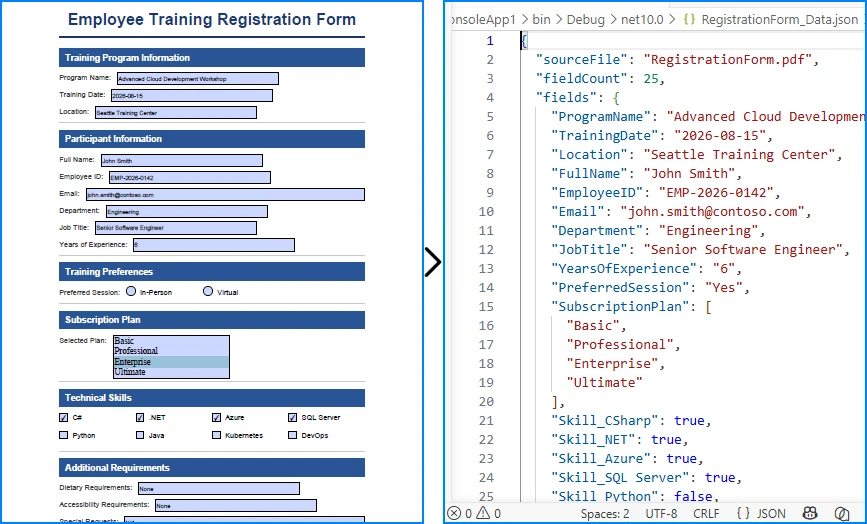
This approach works well for interactive PDF forms that contain structured fields such as text boxes, check boxes, radio buttons, and drop-down lists. Because each field already has a unique name, the extracted data can be serialized directly into JSON without additional parsing.
If you need a deeper look at importing and exporting PDF form field data in C#, see our dedicated guide on working with PDF form fields using Spire.PDF for .NET.
6. Invoice PDF to JSON: A Real-World Example
Invoice processing is one of the most common business use cases for PDF to JSON conversion. Instead of presenting a full parser implementation, this section demonstrates how the extraction techniques from Sections 3 and 4 come together to solve a real problem.
Target JSON Structure
Before writing any extraction code, define your target schema. For a typical invoice, the JSON output might look like this:
{
  "invoiceNumber": "INV-2026-0042",
  "date": "2026-06-15",
  "vendor": "Contoso Ltd",
  "paymentTerms": "Net 30",
  "lineItems": [
    { "description": "Widget A", "quantity": 150, "unitPrice": 24.50, "total": 3675.00 },
    { "description": "Widget B", "quantity": 80, "unitPrice": 39.90, "total": 3192.00 }
  ],
  "subtotal": 8367.00,
  "tax": 669.36,
  "total": 9036.36
}
Extraction Pattern
Use text extraction (Section 3) to parse header fields via regex, and table extraction (Section 4) to pull line items:
// Parse header fields from extracted text using regex
invoice["invoiceNumber"] = Regex.Match(fullText, @"Invoice Number:\s*(\S+)").Groups[1].Value;
invoice["date"] = Regex.Match(fullText, @"Date:\s*(\S+)").Groups[1].Value;
invoice["vendor"] = Regex.Match(fullText, @"Vendor:\s*(.+)").Groups[1].Value;

// Extract line items from table data (Section 4 pattern)
for (int r = 1; r < table.GetRowCount(); r++)
{
    lineItems.Add(new
    {
        description = table.GetText(r, 0).Trim(),
        quantity = int.Parse(table.GetText(r, 1).Trim()),
        unitPrice = ParseCurrency(table.GetText(r, 2)),
        total = ParseCurrency(table.GetText(r, 3))
    });
}
The implementation combines the text extraction introduced in Section 3 with the table extraction introduced in Section 4. Regex is used only for simple field matching — the core PDF processing relies entirely on Spire.PDF APIs.
Handling Different Invoice Layouts
In production, you rarely deal with a single invoice format:
- Fixed template + regex — works when you control the source or process invoices from a known vendor
- Template matching — maintain a set of regex patterns, one per vendor
- AI-assisted extraction — for unknown or highly variable layouts, combine OCR output with an LLM
Regex-based parsing is fast and reliable for known formats. For a production-ready implementation, extend the PdfToJsonConverter class from Section 8 to build a dedicated invoice parser that reuses the same extraction patterns.
7. Convert Multiple PDFs to JSON in Batch
Production workflows process hundreds or thousands of PDFs at once. This batch processor handles errors gracefully and logs results:
using Spire.Pdf;
using Spire.Pdf.Texts;
using System.Collections.Generic;
using System.IO;
using System.Text.Json;

string inputDir = @"C:\PDFs\Invoices";
string outputDir = @"C:\Output\JSON";
Directory.CreateDirectory(outputDir);

string[] pdfFiles = Directory.GetFiles(inputDir, "*.pdf");
var results = new List<object>();

foreach (string pdfPath in pdfFiles)
{
    string fileName = Path.GetFileNameWithoutExtension(pdfPath);
    string outputPath = Path.Combine(outputDir, $"{fileName}.json");

    try
    {
        using (PdfDocument pdf = new PdfDocument())
        {
            pdf.LoadFromFile(pdfPath);
            var pageTexts = new List<string>();

            for (int i = 0; i < pdf.Pages.Count; i++)
            {
                var extractor = new PdfTextExtractor(pdf.Pages[i]);
                var options = new PdfTextExtractOptions { IsExtractAllText = true };
                pageTexts.Add(extractor.ExtractText(options).Trim());
            }

            var doc = new
            {
                sourceFile = Path.GetFileName(pdfPath),
                pageCount = pdf.Pages.Count,
                processedAt = DateTime.UtcNow,
                content = pageTexts
            };

            File.WriteAllText(outputPath, JsonSerializer.Serialize(doc,
                new JsonSerializerOptions { WriteIndented = true }));

            results.Add(new { file = fileName, status = "success" });
        }
    }
    catch (Exception ex)
    {
        results.Add(new { file = fileName, status = "error", error = ex.Message });
    }
}

File.WriteAllText(Path.Combine(outputDir, "_log.json"),
    JsonSerializer.Serialize(results, new JsonSerializerOptions { WriteIndented = true }));
Swap the text-only extraction with the invoice JSON extraction pattern from Section 6 if your batch consists of invoices, or with the PdfToJsonConverter class from Section 8 for general-purpose conversion.
8. Build a PDF to JSON Converter in C#
For production applications, encapsulate all extraction logic into a single class. The PdfToJsonConverter below combines text, table, and form field extraction into one reusable PDF to JSON converter:
using Spire.Pdf;
using Spire.Pdf.Texts;
using Spire.Pdf.Utilities;
using Spire.Pdf.Fields;
using Spire.Pdf.Widget;
using System;
using System.Collections.Generic;
using System.IO;
using System.Text.Json;

public class PdfToJsonConverter
{
    private readonly JsonSerializerOptions _jsonOptions = new()
    {
        WriteIndented = true,
        PropertyNamingPolicy = JsonNamingPolicy.CamelCase,
        DefaultIgnoreCondition = System.Text.Json.Serialization.JsonIgnoreCondition.WhenWritingNull
    };

    public string ConvertToJson(string pdfPath)
    {
        using (PdfDocument pdf = new PdfDocument())
        {
            pdf.LoadFromFile(pdfPath);

            var result = new
            {
                sourceFile = Path.GetFileName(pdfPath),
                processedAt = DateTime.UtcNow,
                text = ExtractText(pdf),
                tables = ExtractTables(pdf),
                formFields = ExtractFormFields(pdf)
            };

            return JsonSerializer.Serialize(result, _jsonOptions);
        }
    }

    public void ConvertAndSave(string pdfPath, string outputPath)
    {
        File.WriteAllText(outputPath, ConvertToJson(pdfPath));
    }

    // Reuses the text extraction technique from Section 3 (PdfTextExtractor + PdfTextExtractOptions)
    private List<PageText> ExtractText(PdfDocument pdf) { return new List<PageText>(); }

    // Reuses the table extraction technique from Section 4 (PdfTableExtractor + ExtractTable)
    private List<TableData> ExtractTables(PdfDocument pdf) { return new List<TableData>(); }

    // Reuses the form field extraction technique from Section 5 (PdfFormWidget + field type checking)
    private Dictionary<string, object> ExtractFormFields(PdfDocument pdf) { return new Dictionary<string, object>(); }
}

public class PageText
{
    public int PageNumber { get; set; }
    public string Text { get; set; }
}

public class TableData
{
    public int PageNumber { get; set; }
    public int RowCount { get; set; }
    public List<List<string>> Rows { get; set; }
}
Usage
var converter = new PdfToJsonConverter();

// Single file
converter.ConvertAndSave("InvoiceReport.pdf", "InvoiceReport.json");

// Use inside an ASP.NET controller
[HttpPost("api/pdf-to-json")]
public IActionResult ConvertPdf(IFormFile file)
{
    var tempPath = Path.GetTempFileName();
    file.CopyTo(new FileStream(tempPath, FileMode.Create));
    var converter = new PdfToJsonConverter();
    string json = converter.ConvertToJson(tempPath);
    return Content(json, "application/json");
}
The helper methods (ExtractText, ExtractTables, ExtractFormFields) reuse the extraction techniques introduced in Sections 3–5. Refer to those sections for the full implementations.
Best Practices for Production Pipelines
When building PDF to JSON conversion into a production system:
- Define your JSON schema first. Map each PDF element to a target field before writing extraction code.
- Validate extracted data. Currency strings, dates, and IDs should be parsed and verified before serialization.
- Handle missing values. Use
JsonIgnoreCondition.WhenWritingNullto omit null fields from output. - Include metadata. Always record source file name, page numbers, and extraction timestamp for auditing.
- Clean text artifacts. Trim whitespace, normalize line breaks, and handle encoding issues in extracted strings.
9. Convert OCR Output to JSON in C#
Scanned PDFs contain images rather than selectable text, so they must be processed with an OCR engine before they can be converted to JSON. Spire.PDF handles PDF rendering and page processing, while text recognition should be performed by an OCR solution such as Tesseract or Azure AI Vision.
For a complete walkthrough, see How to Extract Text from Scanned PDFs in C#.
Once OCR returns the recognized text, you can parse it using the same techniques shown earlier in this article.
Parse OCR Text into JSON
string recognizedText = ocrEngine.Recognize(imagePath);

// Parse recognized text using the same helper methods demonstrated in previous examples.
var parsedData = ParseRecognizedText(recognizedText);

string json = JsonSerializer.Serialize(parsedData, new JsonSerializerOptions
{
    WriteIndented = true
});
Best Practices
- Scan documents at 300 DPI or higher for better OCR accuracy.
- Validate important fields such as invoice numbers, dates, and currency values before serialization.
- Reuse the parsing patterns introduced earlier in this article to build consistent JSON structures.
10. Performance Considerations
PDF to JSON conversion works fine for a single 5-page document. In production, you are processing hundreds of files with hundreds of pages each. These are the issues you will actually hit.
Large PDFs (100+ Pages)
Avoid loading all page text into a List<string> before serialization. Process and write each page incrementally:
using (var stream = File.Create("output.json"))
using (var writer = new Utf8JsonWriter(stream, new JsonWriterOptions { Indented = true }))
{
    writer.WriteStartObject();
    writer.WriteString("sourceFile", Path.GetFileName(pdfPath));
    writer.WriteStartArray("pages");

    for (int i = 0; i < pdf.Pages.Count; i++)
    {
        var extractor = new PdfTextExtractor(pdf.Pages[i]);
        var options = new PdfTextExtractOptions { IsExtractAllText = true };
        string text = extractor.ExtractText(options).Trim();

        writer.WriteStartObject();
        writer.WriteNumber("pageNumber", i + 1);
        writer.WriteString("text", text);
        writer.WriteEndObject();
    }

    writer.WriteEndArray();
    writer.WriteEndObject();
}
Utf8JsonWriter writes directly to the stream instead of building a string in memory. For a 500-page document, this can cut peak memory usage by 60-70% compared to JsonSerializer.Serialize().
Memory Usage
PdfDocument holds parsed page trees, fonts, and image references in memory. Two rules:
- Always wrap
PdfDocumentinusing— it releases unmanaged resources on dispose - Process one document at a time — do not keep multiple
PdfDocumentinstances open simultaneously unless you have the RAM for it
For batch jobs processing 1000+ files, the using pattern inside the loop ensures each document is fully released before the next one loads.
Parallel Processing
Batch conversion is CPU-bound and parallelizes well:
var pdfFiles = Directory.GetFiles(inputDir, "*.pdf");

Parallel.ForEach(pdfFiles,
    new ParallelOptions { MaxDegreeOfParallelism = Environment.ProcessorCount },
    pdfPath =>
{
    string outputPath = Path.Combine(outputDir,
        Path.GetFileNameWithoutExtension(pdfPath) + ".json");
    var converter = new PdfToJsonConverter();
    converter.ConvertAndSave(pdfPath, outputPath);
});
Each thread creates its own PdfToJsonConverter and PdfDocument instance. PdfDocument is not thread-safe — never share a single instance across threads.
When to Use Streaming JSON
Use Utf8JsonWriter over JsonSerializer.Serialize() when:
- Output JSON exceeds 50 MB
- You are processing PDFs with 200+ pages
- Running in a memory-constrained environment (container with 512 MB limit)
For smaller documents, JsonSerializer is simpler and the memory difference is negligible.
11. FAQ
Can I convert PDF to JSON in C# for free?
Spire.PDF for .NET offers a free evaluation version with a page limit. For production use, you can apply for a 30-day free license or purchase a commercial license. The System.Text.Json serializer is built into .NET and free.
Can scanned PDFs be converted to JSON?
Yes, but you need an external OCR engine. Spire.PDF renders PDF pages as images via SaveAsImage(), which you then pass to Tesseract, Azure Computer Vision, or Amazon Textract for text recognition. The recognized text is then parsed and serialized to JSON. See Section 9 for the integration pattern.
Can I convert PDF tables to JSON automatically?
Yes. PdfTableExtractor automatically detects table structures on each page without manual configuration. It handles both properly structured tables (created in Word or Excel) and visual tables (text aligned to look like rows and columns). For multi-page tables or tables without headers, see the handling patterns in Section 4.
Can I batch convert multiple PDFs to JSON?
Yes. Iterate through a directory using Directory.GetFiles(), process each PDF with Spire.PDF extraction APIs, and save individual JSON files. Include error handling so one failed file does not stop the batch. See Section 7 for a complete example.
How can I convert large PDF files to JSON in C#?
Process the PDF page-by-page rather than loading all content into memory at once. For very large files (100+ pages), use Utf8JsonWriter to write JSON incrementally to a stream instead of building the entire output in memory. See Section 10 for the streaming JSON pattern and parallel processing approach.
Can I convert PDF to JSON using an API?
Yes. You can wrap the PdfToJsonConverter class from this article in an ASP.NET Web API endpoint. Accept a PDF upload, run the extraction, and return the JSON response. Spire.PDF works in any .NET hosting environment — ASP.NET Core, Azure Functions, AWS Lambda, or a self-hosted console app. See the ASP.NET controller example in Section 8.
Conclusion
PDF to JSON is not a single operation. Depending on your document, you are solving one of three different problems: wrapping raw text in a JSON envelope, parsing key-value patterns into flat objects, or building structured business JSON from text and table extraction.
This article covered all three, plus the complications that break naive implementations: tables without headers, merged cells, multi-page tables, fillable form fields, varying invoice layouts, batch processing, memory management for large documents, and OCR integration boundaries.
The PdfToJsonConverter class is a starting point you can adapt to your document types. The invoice extraction pattern shown in Section 6 demonstrates how to combine these techniques for real business documents. Both use Spire.PDF for .NET, which handles all PDF reading locally without external dependencies.
To get started:
- Install via NuGet:
Install-Package Spire.PDF - Apply for a 30-day free license to evaluate without page limits
- Explore the Spire.PDF documentation for additional extraction scenarios
