Downloading PDF files from URLs programmatically is essential for developers building document processing systems, web scrapers, content aggregators, or automated report generators. Automating PDF download and processing improves workflow efficiency, allowing developers to extract information, archive documents, or perform analysis without manual intervention.
In this guide, we demonstrate how to download PDFs from URLs using Python with Spire.PDF, process them entirely in memory, handle network errors, manage large files, and troubleshoot common issues.
Quick Navigation:
- Why Use Spire.PDF for Python
- Install Required Libraries
- Download PDF from URL
- Processing PDFs Without Saving
- Handling Large PDFs
- Adding Retry Logic
- Common Issues and Troubleshooting
- Conclusion
- FAQs
1. Why Use Spire.PDF for Python
Spire.PDF for Python enables loading PDFs directly from memory, without needing a disk path. This makes in-memory processing fast and avoids unnecessary disk I/O.
Key capabilities include:
- Load PDFs from bytes or Stream objects
- Extract text, images, and metadata
- Modify PDFs and convert to other formats
- Efficiently handle large files in memory
These capabilities are particularly useful in web scraping pipelines, document archiving systems, automated report generation, and content extraction workflows, where performance and memory efficiency are important.
2. Install Required Libraries
Install Spire.PDF and requests via pip:
pip install spire.pdf requests
Import the necessary modules:
from spire.pdf import *
import requests
3. Download PDF from URL
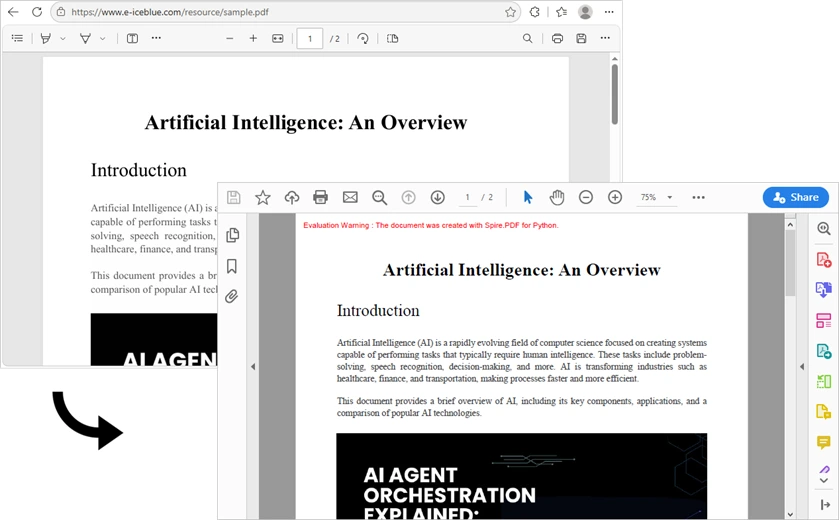
Here’s a complete example showing how to download a PDF from a URL, process it in memory, and save it to disk. Each line includes explanations for clarity.
import requests
from spire.pdf import *

def download_pdf_from_url():

    # Specify the PDF URL
    url = "resource/sample.pdf"

    # Send HTTP GET request to download the PDF
    response = requests.get(url)
    # Raise an error if the request failed (4xx or 5xx)
    response.raise_for_status()

    # Create a Stream object from the downloaded bytes
    stream = Stream(response.content)

    # Load PDF from Stream
    document = PdfDocument(stream)

    # Save PDF to local file
    document.SaveToFile("Downloaded.pdf")
    document.Close()

    print("PDF downloaded and saved successfully!")

if __name__ == "__main__":
    download_pdf_from_url()
Output:
Explanation of key components:
requests.get(url)– Sends the HTTP GET request. The server responds with headers and the PDF binary.response.raise_for_status()– Checks for HTTP errors (e.g., 404, 500).response.content– Contains raw PDF bytes.Stream(response.content)– Wraps bytes in a readable, seekable in-memory stream.PdfDocument(stream)– Loads the PDF into memory for further operations.document.SaveToFile()– writes the PDF to disk.
This workflow loads PDF data into memory for instant saving, improving speed and avoiding unnecessary disk writes.
4. Processing PDFs Without Saving
You can extract metadata or text directly in memory without writing files:
def process_pdf_from_url():
    url = "resource/sample.pdf"
    response = requests.get(url)
    response.raise_for_status()

    # Load PDF in memory
    document = PdfDocument(Stream(response.content))

    # Retrieve document information
    print(f"Number of pages: {document.Pages.Count}")
    info = document.DocumentInformation
    print(f"Title: {info.Title}")
    print(f"Author: {info.Author}")

    # Extract text from the first page
    from spire.pdf import PdfTextExtractor
    extractor = PdfTextExtractor(document.Pages[0])
    text = extractor.ExtractText()
    print(f"First 100 characters: {text[:100]}")

    document.Close()

if __name__ == "__main__":
    process_pdf_from_url()
Why this is useful: You can analyze content, index text, or extract metadata without creating unnecessary files on disk. This is ideal for server-side scripts, cloud functions, or batch processing.
5. Handling Large PDFs
Downloading very large PDFs (e.g., 100MB+) can consume significant memory. Use streaming download and temporary files to reduce memory usage:
import tempfile
import os

def download_large_pdf(url: str, output_path: str):
    try:
        response = requests.get(url, stream=True, timeout=60)
        response.raise_for_status()

        # Write chunks to a temporary file
        with tempfile.NamedTemporaryFile(delete=False, suffix=".pdf") as tmp:
            for chunk in response.iter_content(chunk_size=8192):
                if chunk:
                    tmp.write(chunk)
            temp_path = tmp.name

        # Load PDF from temporary file
        document = PdfDocument()
        document.LoadFromFile(temp_path)
        document.SaveToFile(output_path)
        document.Close()

        # Clean up temporary file
        os.unlink(temp_path)
        print(f"Large PDF saved to: {output_path}")

    except Exception as e:
        print(f"Error: {e}")
Notes:
stream=Trueavoids loading the entire file into memory.- Temporary files allow processing PDFs that exceed available RAM.
6. Adding Retry Logic
Network requests may fail intermittently. Adding retries improves robustness:
import time

def download_with_retry(url: str, output_path: str, max_retries: int = 3):
    for attempt in range(max_retries):
        try:
            response = requests.get(url, timeout=30)
            response.raise_for_status()
            document = PdfDocument(Stream(response.content))
            document.SaveToFile(output_path)
            document.Close()
            print(f"Downloaded successfully: {output_path}")
            return True
        except requests.exceptions.RequestException as e:
            print(f"Attempt {attempt + 1} failed: {e}")
            if attempt < max_retries - 1:
                wait_time = 2 ** attempt
                print(f"Retrying in {wait_time} seconds...")
                time.sleep(wait_time)
    print("All retry attempts failed.")
    return False
Why use this: Exponential backoff prevents overwhelming servers and handles transient network failures gracefully.
7. Common Issues and Troubleshooting
PDF Not Found (404)
Problem: The URL does not point to a valid PDF, resulting in a 404 error.
Solution: Verify the URL and add a User-Agent header if needed:
import requests

url = "https://example.com/missing.pdf"
headers = {'User-Agent': 'Mozilla/5.0'}
response = requests.get(url, headers=headers)

if response.status_code == 404:
    print("PDF not found (404)")
Server Returns HTML Instead of PDF
Problem: The URL returns an HTML page instead of a PDF.
Solution: Check the Content-Type and parse HTML to locate the actual PDF:
import requests
from bs4 import BeautifulSoup

url = "https://example.com/download-page"
response = requests.get(url)
content_type = response.headers.get('Content-Type', '')

if 'application/pdf' not in content_type and 'text/html' in content_type:
    soup = BeautifulSoup(response.text, 'html.parser')
    for link in soup.find_all('a', href=True):
        if link['href'].endswith('.pdf'):
            print(f"Found PDF link: {link['href']}")
            # Download the actual PDF URL
Extracted Text Shows Garbled Characters
Problem: Text extraction returns unreadable characters, often due to encoding or scanned PDFs.
Solution: Ensure proper handling or use OCR for scanned PDFs:
from spire.pdf import PdfDocument, PdfTextExtractor

document = PdfDocument("example.pdf")
extractor = PdfTextExtractor(document.Pages[0])
text = extractor.ExtractText()
print(text[:200])
# If text is still garbled, the PDF may be image-based; consider OCR
PDF Loads But Has No Pages
Problem: document.Pages.Count returns 0 even though the file exists.
Solution: PDF may be corrupted or password-protected:
from spire.pdf import PdfDocument, Stream

with open("protected.pdf", "rb") as f:
    pdf_bytes = f.read()

# For password-protected PDF
document = PdfDocument(Stream(pdf_bytes), "password")
print(f"Pages: {document.Pages.Count}")
8. Conclusion
In this article, we demonstrated how to download PDF files from URLs in Python using Spire.PDF for Python. By leveraging the Stream class, developers can load PDF data directly from memory without unnecessary disk I/O, enabling efficient document processing pipelines.
We covered the complete workflow: downloading PDF data with the requests library, creating Stream objects from bytes, loading PdfDocument instances, handling network errors, managing large files, and troubleshooting common issues. The production-ready code examples provide a solid foundation for building robust PDF download and processing systems.
To fully experience the capabilities of Spire.PDF for Python without any evaluation limitations, you can request a free 30-day trial license.
9. FAQs
Q1. How do I download a PDF from a URL using Python?
Use the requests library to fetch the PDF data and Spire.PDF to load it from memory:
response = requests.get(url)
stream = Stream(response.content)
document = PdfDocument(stream)
Q2. How do I handle authentication-protected PDFs?
For basic authentication, use the auth parameter:
response = requests.get(url, auth=('username', 'password'))
For token-based authentication, add headers:
headers = {'Authorization': 'Bearer YOUR_TOKEN'}
response = requests.get(url, headers=headers)
Q3. What's the maximum PDF file size I can download?
The theoretical limit depends on your system's available memory. For files larger than 200MB, use the streaming approach with a temporary file instead of loading everything into memory.
Q4. Can I download multiple PDFs in parallel?
Yes. Use concurrent.futures or asyncio to download multiple PDFs simultaneously for better performance.
from concurrent.futures import ThreadPoolExecutor

urls = ["url1.pdf", "url2.pdf", "url3.pdf"]
with ThreadPoolExecutor(max_workers=5) as executor:
    executor.map(lambda u: download_pdf(u), urls)
