In finance and tax scenarios, invoice data entry is one of the most common and time-consuming tasks. The invoice number, date, amount, tax amount and buyer on every invoice must be manually checked and entered into Excel or a financial system one by one. During mid-month reconciliation, month-end tax filing or reimbursement peak periods, the backlog of invoices often numbers in the hundreds, and manual entry speed becomes the bottleneck. The traditional approach is to open each invoice PDF page by page, find the corresponding fields, copy and paste — which is not only inefficient but also highly prone to omissions, misalignments and mistyped amounts. Any single error directly affects the accuracy of reconciliation and tax filing. Invoice layouts also vary widely, with fields in all sorts of positions, further increasing the risk of errors in manual processing. Automating the repetitive work of "reading each invoice and copying its fields" is therefore one of the pain points financial teams most urgently want to solve.
Traditional SDK API vs. Spire.Agent.Office
For "extracting fields from a PDF invoice and exporting to Excel", the traditional SDK and Spire.Agent.Office take two completely different paths. With the traditional approach, you must first figure out the field positions and page structure of every invoice, then write locating and extraction code for each field — change the layout and you must change the code. With the agent approach, you only need to describe in natural language "what to extract and what to export as"; the AI understands and orchestrates the rest:
| Traditional Spire.Office for .NET API | Spire.Agent.Office | |
|---|---|---|
| Driving approach | Write loops + conditionals + exception-handling code, controlling every step of document processing | Describe the goal in natural language; the AI understands and orchestrates the execution path |
| Code volume | Page-by-page parsing usually needs 300-600 lines of C# (page traversal, field locating, data export, etc.) | ~10 lines of calling code + 1 natural language instruction |
| Field recognition | Hard-code the page position and format of each field; layout changes require code changes | AI automatically understands the invoice layout and locates fields such as invoice number, date, amount |
| Page handling | Manually traverse every page and extract each one | AI automatically extracts page by page and aggregates |
| Data export | Manually write Excel writing logic and column layout | AI automatically generates a structured Excel with aligned fields |
| Requirement changes | Change extracted fields → change code → compile → redeploy | Modify the instruction; takes effect immediately |
From the comparison, when invoice layouts, extracted fields or export structures change frequently, the agent only needs a change of one sentence, while the traditional approach requires changing code and redeploying.
This article explains how to use the Spire.Agent.Office PDF AI capability to automatically extract the invoice number, date, amount, tax amount and buyer name from each page of a PDF invoice and export them to Excel, digitalizing your financial documents in one step.
For product installation and SpireToken configuration, please refer to Integrating Spire.Agent.Office in a .NET Project. The examples below assume Spire.Agent.Office is installed and SpireToken is configured.
Automatic Invoice Information Extraction
The core idea of automatic invoice information extraction is: pass multiple invoice PDFs to the AI agent as attachments; the agent reads each invoice, understands the layout page by page, recognizes fields such as invoice number, issue date, amount, tax ID, tax amount, buyer name and title, and aggregates them into a structured Excel. The whole process is roughly divided into three steps — first the agent reads each invoice PDF and locates the invoice fields on every page; second, it aligns the fields recognized on each page by semantics; finally, it aggregates the results into Excel and beautifies them as requested (auto-fitting column widths, adding borders, keeping numeric values with two decimal places and right-aligned). The whole "page-by-page parsing → field recognition → aggregation & beautification" process is completed automatically by the AI from a natural language instruction, without writing a separate parsing routine for each invoice or worrying about layout differences between suppliers.
For invoice PDFs with dozens or hundreds of pages, the traditional approach requires a set of locating rules for each layout, whereas with the agent approach you always maintain just one natural language instruction no matter how the invoice source or layout changes. Requirements such as the amount basis (tax-inclusive vs. tax-exclusive), column order, or whether to flag anomalies can also be written directly into the instruction and take effect immediately.
The following example uses the Spire.Agent.Office agent to automatically extract invoice information from each page of PDFs and export it to Excel through a natural language instruction:
using Spire.Agent.Office.AI;
using Spire.Agent.Office.Extensions;
using Spire.Pdf;

// PDF processing configuration
string key = "**************************";  // Apply for a SpireToken Key on the official website

string inputDir = @"E:\invoices";  // Directory containing invoice PDFs (multiple allowed)
string[] pdfFiles = Directory.GetFiles(inputDir, "*.pdf", SearchOption.TopDirectoryOnly);
string savePath = @"E:\output\merged.xlsx";  // Output file path (null -> auto-generated to the output directory)

string instruction =
    "Read the attachment files and identify the information of each invoice, extracting the invoice number, issue date, amount, tax ID, tax amount, buyer name and title.\n" +
    "Put each invoice as one row and summarize them into a single Excel table.\n" +
    "When exporting to Excel, please beautify the table appropriately:\n" +
    "auto-fit the column widths so that text is fully displayed; add borders to the whole data area to make rows and columns clear and readable;\n" +
    "keep numeric columns such as amount and tax amount with two decimal places and right-aligned. Finally save as a well-formatted, easy-to-read Excel file.";

// Call the PDF processing function (attachments are the invoice PDFs)
AIResult result = ExecuteDemoPDF(instruction, savePath, key, pdfFiles);

// Execute PDF document AI processing
static AIResult ExecuteDemoPDF(string instruction, string savePath, string key, string[] attachments)
{
    // Create an AIOptions configuration object
    AIOptions options = new AIOptions();
    options.SpireToken = key;  // Set SpireToken Key

    // Process the PDF document with a PdfDocument object
    using (PdfDocument pdf = new PdfDocument())
    {
        // Create the AI document processor; attachments are the invoice PDFs
        AIDocumentProcessor processor = pdf.AI(options);
        return processor.ExecuteInstruction(pdf, instruction, savePath, attachments);
    }
}
Original invoice PDF 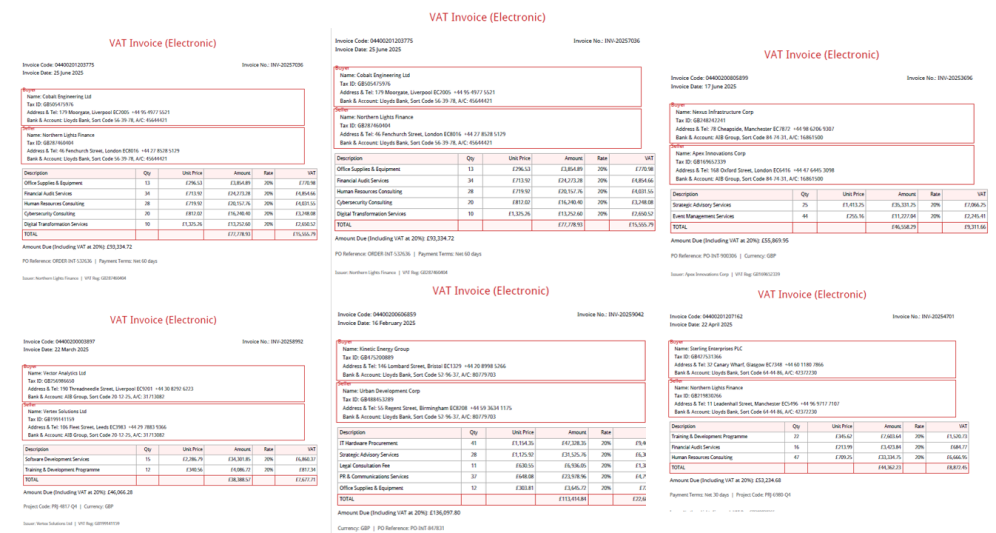 Extracted and exported Excel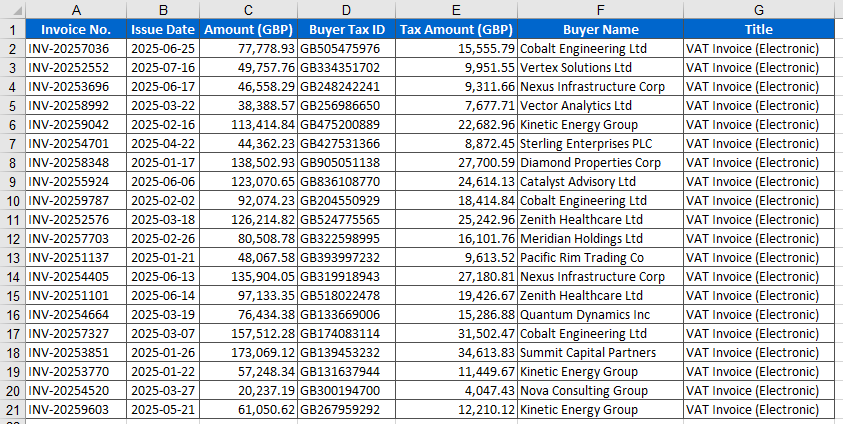
FAQ
The extracted amount or tax amount is incorrect
Reason: The invoice amount has both uppercase and lowercase forms, or the tax-inclusive/tax-exclusive basis is inconsistent.
Solution: Specify the extraction basis clearly in the instruction (e.g., "extract the total amount including tax", "extract the amount excluding tax"); the AI agent will extract according to the specified basis. If the invoice has two forms of amount, it is also recommended to state which one takes precedence to avoid ambiguity.
How are invoices with different layouts recognized?
Reason: Invoices from different suppliers have different layouts and field positions.
Solution: The AI agent can automatically understand the invoice layout and locate fields; for unusual layouts, you can add field hints in the instruction (e.g., "the invoice number is located in the upper-right corner") to help the agent locate more accurately.
The column order / field names of the result don't match expectations
Reason: By default the AI outputs fields in the order it recognizes them.
Solution: Specify the field names and order clearly in the instruction (e.g., "export in the order: invoice number, date, amount, tax amount, buyer"), and the agent will arrange the output columns as requested.
Getting a SpireToken Key
- Contact sales@e-iceblue.com or visit https://www.e-iceblue.com/TemLicense.html to obtain a trial/commercial API key
Configure it in code:
AIOptions options = new AIOptions();
options.SpireToken = key;
