Spire.OfficeJS is a powerful front-end JavaScript library that enables users to edit, preview, and process Office documents directly in a web browser—without plugins and without installing local tools such as Microsoft Office or WPS.
This article explains how to use Spire.OfficeJS in a native JavaScript environment.
Spire.OfficeJS consists of four modules:
- Spire.WordJS: Provides preview and editing capabilities for Word documents, with full compatibility with Microsoft Word and WPS formats, such as .doc, .docx, .wps, and .wpt.
- Spire.ExcelJS: Enables preview and editing of Excel documents, including formats such as .xls, .xlsx, .et, and .ett.
- Spire.PresentationJS: Supports preview and editing of PowerPoint documents, including .ppt and .pptx.
- Spire.PDFJS: Provides preview functionality for PDF documents.
Table of Contents
Preparation
Spire.OfficeJS is powered by a web service. To use it in a native JavaScript environment, you must first start the web service. The service is launched using scripts included in the product package, with the default service port set to 3000.
Step 1. Download and Extract the Installation Package
Download the Spire.OfficeJS package for your operating system, and extract it to a local directory.
Step 2. Initialize Fonts
- Windows
- Linux (x86_64)
In the extracted product directory, run the run_servers.bat file.The terminal output will be similar to the following:

In the extracted product folder, run the command sh run_genallfonts.sh start to execute the run_genallfonts.sh file.
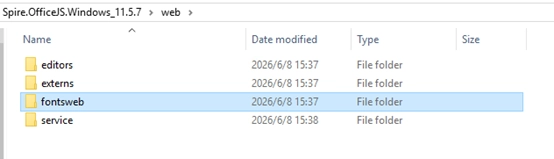
After execution, a new fontsweb folder containing the base fonts will be generated under the web directory.
Step 3. Start the Web Service
- Windows
- Linux (x86_64)
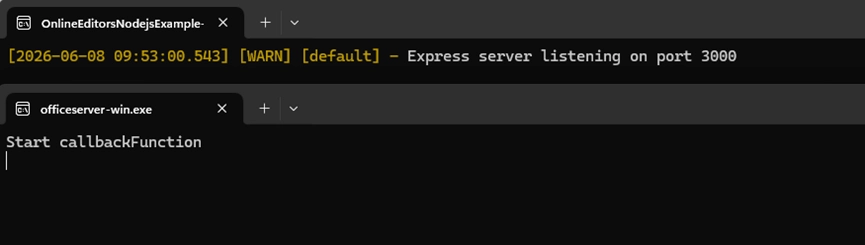
Run the run_servers.sh file in the extracted product directory using the command sh run_servers.sh start (to stop the service, use sh run_servers.sh stop to restart the service, use sh run_servers.sh restart). The terminal output is shown below:

Once started, the service will occupy two ports:
- Port 3000: Demo Document Management System
- Port 8000: Co-authoring Service Port
In the extracted product directory, run the run_servers.bat file. The terminal output will be similar to the following:
Step 4. Configure the Service Address
The default access address of the service is 127.0.0.1. If you need to access it via a domain name or actual IP address, modify the baseUrl value in the example\config\default.json file to the domain name or actual IP. To enable collaborative editing, you also need to update the coAuthorURL value accordingly. After making the configuration changes, restart the service for them to take effect.
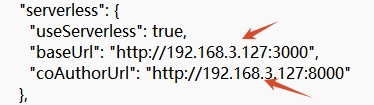
Now, the client can access the sample system using the configured IP address or domain name, for example: 192.168.3.127:3000
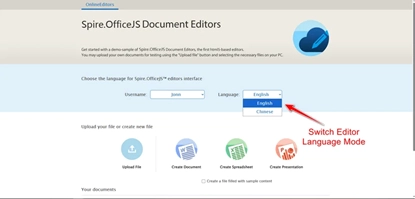
Below is an example of the effect after collaborative editing mode is enabled.
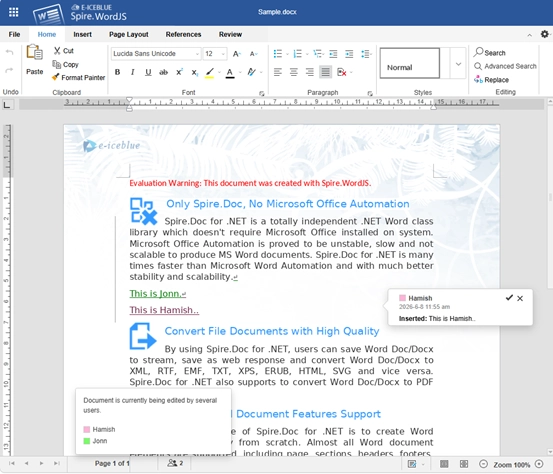
JavaScript Integration Examples:
- Browser Preview Integration (HTML):
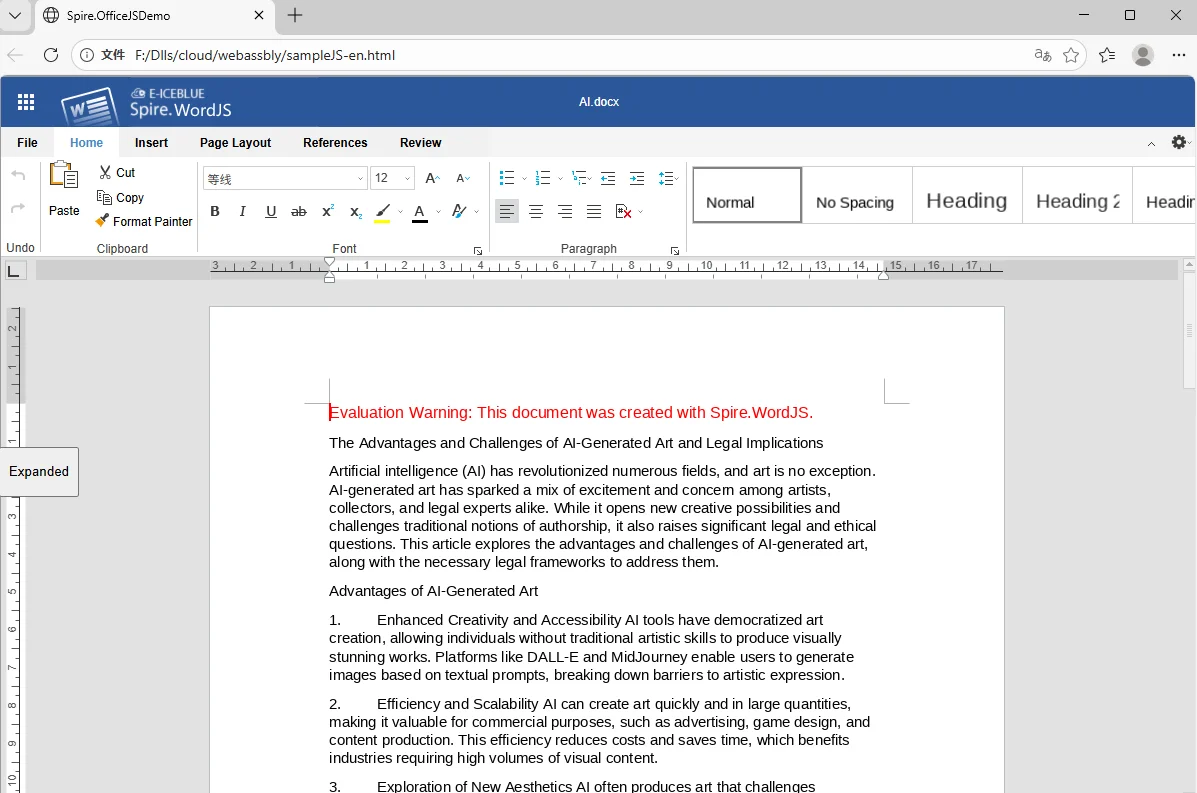
Script file:
To help you get started quickly, you can download the complete HTML example file using the link below and open it directly in your browser:
Demo Download
- Parameter Description:
| Parameter | Example Description | Value | ||
| fileAttrs | File Configuration Object | |||
| fileInfo | File Information Object | |||
| name | File Name Optional | Optional | ||
| ext | Document Name | docx,xlsx,pptx | ||
| primary | Document Unique Identifier | Optional | ||
| creator | Document Creator | Optional | ||
| createTime | Document Creation Time | Optional | ||
| sourceUrl | Document URL | Required. Must be accessible and have the appropriate access permissions. | ||
| createUrl | Template Document URL | Optional | ||
| user | User Configuration Object | |||
| id | User ID | Optional | ||
| name | User Name | Optional | ||
| editorAttrs | Editor Configuration Object | |||
| editorMode | Edit Mode Optional. Accepts 'edit' (edit) or 'view' (view). Default is 'edit'. | Optional. Accepts 'edit' (edit) or 'view' (view). Default is 'edit'. | ||
| editorWidth | Width | Optional. Default value is 100%. | ||
| editorHeight | Height | Optional. Default value is 100%. | ||
| editorType | Editor Type | Optional. If not specified, the editor type is determined automatically based on the file type. Must be set to document, spreadsheet, or presentation. | ||
| platform | Editor Platform Type | Required. Accepts 'desktop' (desktop view), 'mobile' (mobile view), or 'embedded' (embedded view). Must be set to one of: desktop, mobile, or embedded. | ||
| viewLanguage | UI Language | Optional. Accepts "en" or "zh". If not specified, the browser’s default language is used. | ||
| isReadOnly | Read-Only Mode | Default is false, allowing the document to be edited. When set to true, the document is read-only. | ||
| canChat | Chat Enabled | Default is true. When set to false, chat is disabled. | ||
| canComment | Comments Enabled | Default is true. When set to false, comments are disabled. | ||
| canReview | Track Changes Enabled | Default is true. When set to false, track changes is disabled. | ||
| canDownload | Download Allowed | Default is true, allowing downloads. When set to false, downloading is not allowed. | ||
| canEdit | Edit Allowed | Default is true, allowing editing. When set to false, editing is not allowed. | ||
| canForcesave | Force Save Enabled | Default is true. When set to false, force save is disabled. | ||
| embedded | Embedded View Configuration Object | Includes saveUrl, embedUrl, shareUrl, and toolbarDocked, used to control saving, sharing, and toolbar display in embedded mode. | ||
| saveUrl | Embedded Document Save URL | Default is empty. Can be set to a URL used to save edited content. | ||
| embedUrl | Embedded Document Access URL | Default is empty. Can be set to a URL used to open the document directly. | ||
| shareUrl | Embedded Document Share URL | Default is empty. Can be set to a URL used to share the document. | ||
| toolbarDocked | Toolbar Dock Position | Default is "top". Accepts "top" or "bottom". | ||
| events | Events | |||
| plugins | Editor Plugin Configuration Object | Default is empty. Used to extend editor functionality. | ||
| pluginsData | Plugin Data Array | Default is empty. Plugins can be added as needed. | ||
| useWebAssemblyDoc | Enable WebAssembly for Word Documents | Default is true, allowing Word documents to be processed in the browser. When set to false, WebAssembly support is disabled. | ||
| spireDocJsLicense | Word WebAssembly License File URL | Default is empty. Used to activate the WebAssembly functionality. | ||
| useWebAssemblyExcel | Enable WebAssembly for Excel Documents | Default is true, allowing Excel documents to be processed in the browser. When set to false, WebAssembly support is disabled. | ||
| spireXlsJsLicense | Excel WebAssembly License File URL | Default is empty. Used to activate the WebAssembly functionality. | ||
| useWebAssemblyPpt | Enable WebAssembly for PowerPoint Documents | Default is true, allowing PowerPoint documents to be processed in the browser. When set to false, WebAssembly support is disabled. | ||
| spirePresentationJsLicense | PowerPoint WebAssembly License File URL | Default is empty. Used to activate the WebAssembly functionality. | ||
| useWebAssemblyPdf | Enable WebAssembly for PDF Documents | Default is true, allowing PDF documents to be processed in the browser. When set to false, WebAssembly support is disabled. | ||
| spirePdfJsLicense | PDF WebAssembly License File | Default is empty. Used to activate the WebAssembly functionality. | ||
| spireOfficeJsLicense | OfficeJS License File | Default is empty. Used to activate all online document editing features. | ||
| serverless | Serverless Mode Configuration Object | Includes useServerless, baseUrl, and fileData, allowing the front end to upload, edit, and download documents directly. | ||
| useSeverless | Enable Serverless Mode | Default is true. When enabled, the front end can operate on documents directly. When set to false, a server-side service is required. | ||
| baseUrl | Service URL in Serverless Mode | Default is empty. Must be set to the deployed server IP address and port. | ||
| coAuthorUrl | Service Url under collaborative editing mode | Default is empty. Must be set to the deployed server IP address and port. | ||
| fileData | Document Data | Default is empty. Stores the uploaded file data on the front end and is used to initialize the editor. | ||
Note: Applying a license removes the default watermark and unlocks all features. If you need a license file, please feel free to contact us at any time.
Frequently Asked Questions
During the deployment and integration of Spire.OfficeJS, you may encounter certain issues. The table below lists some common problems along with their solutions for your reference. If you have any additional questions, please contact our technical support team.
| Issue | Cause | Solution |
|---|---|---|
| Unable to access the service in the browser | Service not started / Required ports not open | Verify that the service is running and ensure port 3000 is open. |
| Page loads but displays a blank screen | Browser cache contains outdated resources | Clear the browser cache or reopen the page in private/incognito mode |
| JavaScript file fails to load | Incorrect IP address or port | Check whether the SpireCloudEditor.js script URL is correct |
| File upload fails | baseUrl is not configured with the actual deployment address |
Update the configuration file and restart the service |
| Unable to execute the script on Linux | Insufficient script permissions | Run chmod +x run_servers.sh to grant execute permissions |
Summary
At this point, you have successfully completed the deployment and integration of Spire.OfficeJS. Your system can now view and edit documents online directly in the browser, without requiring client-side installations or additional development environments.
If you would like to explore more advanced usage scenarios or learn how to integrate Spire.OfficeJS into different types of applications, please refer to the related documentation or contact our team for further guidance.
