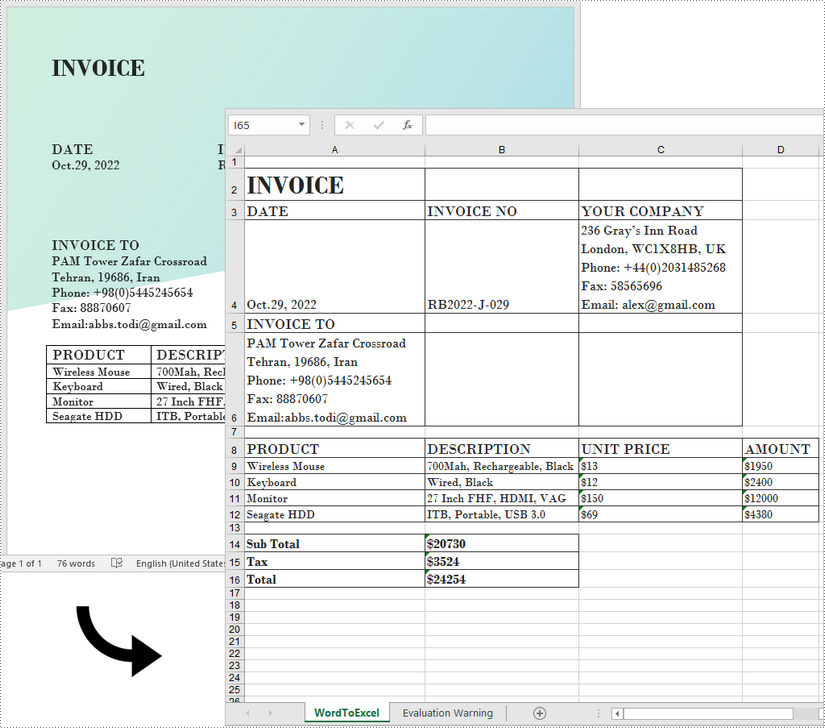
Word와 Excel은 완전히 다른 두 가지 파일 형식입니다. Word 문서는 에세이, 편지를 쓰거나 보고서를 작성하는 데 사용되며 Excel 문서는 데이터를 표 형식으로 저장하거나 차트를 만들거나 수학 계산을 수행하는 데 사용됩니다. Excel은 Word의 원래 레이아웃에 따라 내용을 거의 렌더링할 수 없기 때문에 복잡한 Word 문서를 Excel 스프레드시트로 변환하지 않는 것이 좋습니다.
그러나 Word 문서가 주로 테이블로 구성되어 있고 Excel에서 테이블 데이터를 분석하려는 경우 Spire.Office for .NET 를 사용하여 다음을 수행할 수 있습니다 convert Word to Excel 하면서 좋은 가독성을 유지합니다.
Spire.Office for .NET 설치
먼저 Spire.Office for .NET 패키지에 포함된 DLL 파일을 .NET 프로젝트의 참조로 추가해야 합니다. DLL 파일은 다음에서 다운로드할 수 있습니다 이 링크 또는 NuGet을 통해 설치됩니다.
PM> Install-Package Spire.Office
C# 및 VB.NET에서 Word를 Excel로 변환
이 시나리오는 실제로 Spire.Office 패키지의 두 라이브러리를 사용합니다. Spire.Doc for .NET과 Spire.XLS for .NET입니다. 전자는 Word 문서에서 내용을 읽고 추출하는 데 사용되며 후자는 Excel 문서를 만들고 특정 셀에 데이터를 쓰는 데 사용됩니다. 이 코드 예제를 쉽게 이해할 수 있도록 특정 기능을 수행하는 다음 세 가지 사용자 지정 메서드를 만들었습니다.
- ExportTableInExcel() - Word 테이블의 데이터를 지정된 Excel 셀로 내보냅니다.
- CopyContentInTable() - Word의 표 셀에서 Excel 셀로 내용을 복사합니다.
- CopyTextAndStyle() - Word 단락에서 서식이 있는 텍스트를 Excel 셀로 복사합니다.
다음 단계는 Spire.Office for .NET를 사용하여 전체 Word 문서에서 워크시트로 데이터를 내보내는 방법을 보여줍니다.
- Word 파일을 로드할 문서 개체를 만듭니다.
- Worbbook 개체를 만들고 "WordToExcel"이라는 워크시트를 추가합니다.
- Word 문서의 모든 섹션을 탐색하고 특정 섹션 아래의 모든 문서 개체를 탐색한 다음 문서 개체가 단락인지 표인지 확인합니다.
- 문서 개체가 문단인 경우 CoypTextAndStyle() 메서드를 사용하여 Excel의 지정된 셀에 문단을 작성합니다.
- 문서 개체가 테이블인 경우 ExportTableInExcel() 메서드를 사용하여 Word에서 Excel 셀로 테이블 데이터를 내보냅니다.
- 셀 내의 데이터가 셀 경계를 초과하지 않도록 Excel에서 행 높이와 열 너비를 자동으로 맞춥니다.
- Workbook.SaveToFile() 메서드를 사용하여 통합 문서를 Excel 파일로 저장합니다.
- C#
- VB.NET
using Spire.Doc;
    using Spire.Doc.Documents;
    using Spire.Doc.Fields;
    using Spire.Xls;
    using System;
    using System.Drawing;

    namespace ConvertWordToExcel
    {
        class Program
        {
            static void Main(string[] args)
            {
                //Create a Document object
                Document doc = new Document();

                //Load a Word file
                doc.LoadFromFile(@"C:\Users\Administrator\Desktop\Invoice.docx");

                //Create a Workbook object
                Workbook wb = new Workbook();

                //Remove the default worksheets
                wb.Worksheets.Clear();

                //Create a worksheet named "WordToExcel"
                Worksheet worksheet = wb.CreateEmptySheet("WordToExcel");
                int row = 1;
                int column = 1;

                //Loop through the sections in the Word document
                foreach (Section section in doc.Sections)
                {
                    //Loop through the document object under a certain section
                    foreach (DocumentObject documentObject in section.Body.ChildObjects)
                    {
                        //Determine if the object is a paragraph
                        if (documentObject is Paragraph)
                        {
                            CellRange cell = worksheet.Range[row, column];
                            Paragraph paragraph = documentObject as Paragraph;
                            //Copy paragraph from Word to a specific cell
                            CopyTextAndStyle(cell, paragraph);
                            row++;
                        }

                        //Determine if the object is a table
                        if (documentObject is Table)
                        {
                            Table table = documentObject as Table;
                            //Export table data from Word to Excel
                            int currentRow = ExportTableInExcel(worksheet, row, table);
                            row = currentRow;
                        }
                    }
                }

                //Auto fit row height and column width
                worksheet.AllocatedRange.AutoFitRows();
                worksheet.AllocatedRange.AutoFitColumns();

                //Wrap text in cells
                worksheet.AllocatedRange.IsWrapText = true;

                //Save the workbook to an Excel file
                wb.SaveToFile("WordToExcel.xlsx", ExcelVersion.Version2013);
            }

            //Export data from Word table to Excel cells
            private static int ExportTableInExcel(Worksheet worksheet, int row, Table table)
            {
                CellRange cell;
                int column;
                foreach (TableRow tbRow in table.Rows)
                {
                    column = 1;
                    foreach (TableCell tbCell in tbRow.Cells)
                    {
                        cell = worksheet.Range[row, column];
                        cell.BorderAround(LineStyleType.Thin, Color.Black);
                        CopyContentInTable(tbCell, cell);
                        column++;
                    }
                    row++;
                }
                return row;
            }

            //Copy content from a Word table cell to an Excel cell
            private static void CopyContentInTable(TableCell tbCell, CellRange cell)
            {
                Paragraph newPara = new Paragraph(tbCell.Document);
                for (int i = 0; i < tbCell.ChildObjects.Count; i++)
                {
                    DocumentObject documentObject = tbCell.ChildObjects[i];
                    if (documentObject is Paragraph)
                    {
                        Paragraph paragraph = documentObject as Paragraph;
                        foreach (DocumentObject cObj in paragraph.ChildObjects)
                        {
                            newPara.ChildObjects.Add(cObj.Clone());
                        }
                        if (i < tbCell.ChildObjects.Count - 1)
                        {
                            newPara.AppendText("\n");
                        }
                    }
                }
                CopyTextAndStyle(cell, newPara);
            }

            //Copy text and style of a paragraph to a cell
            private static void CopyTextAndStyle(CellRange cell, Paragraph paragraph)
            {
                RichText richText = cell.RichText;
                richText.Text = paragraph.Text;
                int startIndex = 0;
                foreach (DocumentObject documentObject in paragraph.ChildObjects)
                {
                    if (documentObject is TextRange)
                    {
                        TextRange textRange = documentObject as TextRange;
                        string fontName = textRange.CharacterFormat.FontName;
                        bool isBold = textRange.CharacterFormat.Bold;
                        Color textColor = textRange.CharacterFormat.TextColor;
                        float fontSize = textRange.CharacterFormat.FontSize;
                        string textRangeText = textRange.Text;
                        int strLength = textRangeText.Length;
                        ExcelFont font = cell.Worksheet.Workbook.CreateFont();
                        font.Color = textColor;
                        font.IsBold = isBold;
                        font.Size = fontSize;
                        font.FontName = fontName;
                        int endIndex = startIndex + strLength;
                        richText.SetFont(startIndex, endIndex, font);
                        startIndex += strLength;
                    }
                    if (documentObject is DocPicture)
                    {
                        DocPicture picture = documentObject as DocPicture;
                        cell.Worksheet.Pictures.Add(cell.Row, cell.Column, picture.Image);
                        cell.Worksheet.SetRowHeightInPixels(cell.Row, 1, picture.Image.Height);
                    }
                }
                switch (paragraph.Format.HorizontalAlignment)
                {
                    case HorizontalAlignment.Left:
                        cell.Style.HorizontalAlignment = HorizontalAlignType.Left;
                        break;
                    case HorizontalAlignment.Center:
                        cell.Style.HorizontalAlignment = HorizontalAlignType.Center;
                        break;
                    case HorizontalAlignment.Right:
                        cell.Style.HorizontalAlignment = HorizontalAlignType.Right;
                        break;
                }
            }
        }
    }
임시 면허 신청
생성된 문서에서 평가 메시지를 제거하거나 기능 제한을 제거하려면 다음을 수행하십시오 30일 평가판 라이선스 요청 자신을 위해.