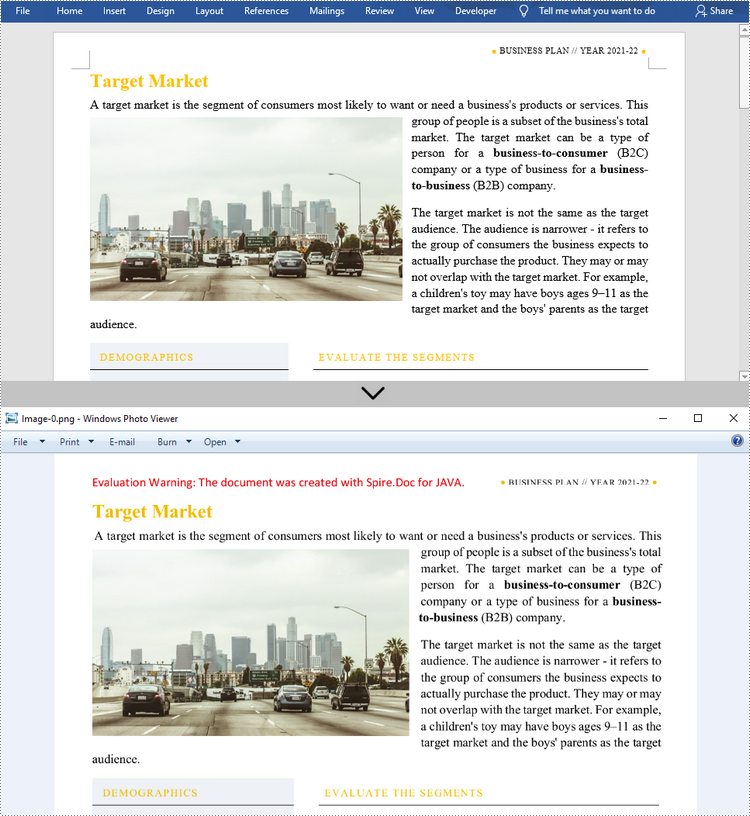
Word 문서를 이미지로 변환해야 하는 데에는 여러 가지 이유가 있습니다. 예를 들어, 많은 장치에서는 특별한 소프트웨어 없이도 이미지를 직접 열고 표시할 수 있으며, 이미지가 전송될 때 콘텐츠를 변조하기가 어렵습니다. 이 기사에서는 다음 방법을 배웁니다 Word를 널리 사용되는 이미지 형식으로 변환 Spire.Doc for Java 사용하여 JPG, PNG 및 SVG와 같은 파일을 만들 수 있습니다.
Spire.Doc for Java 설치
먼저 Spire.Doc.jar 파일을 Java 프로그램의 종속성으로 추가해야 합니다. JAR 파일은 이 링크에서 다운로드할 수 있습니다. Maven을 사용하는 경우 프로젝트의 pom.xml 파일에 다음 코드를 추가하여 애플리케이션에서 JAR 파일을 쉽게 가져올 수 있습니다.
<repositories>
    <repository>
        <id>com.e-iceblue</id>
        <name>e-iceblue</name>
        <url>https://repo.e-iceblue.com/nexus/content/groups/public/</url>
    </repository>
</repositories>
<dependencies>
    <dependency>
        <groupId>e-iceblue</groupId>
        <artifactId>spire.doc</artifactId>
        <version>14.9.5</version>
    </dependency>
</dependencies>
Java에서 Word를 JPG로 변환
Spire.Doc for Java 전체 Word 문서를 개별 BufferedImage 이미지로 변환하는 Document.saveToImages() 메서드를 제공합니다. 그런 다음 각 BufferedImage를 BMP, EMF, JPEG, PNG, GIF 또는 WMF 파일로 저장할 수 있습니다. 다음은 이 라이브러리를 사용하여 Word를 JPG로 변환하는 단계입니다.
- 문서 개체를 만듭니다.
- Document.loadFromFile() 메서드를 사용하여 Word 문서를 로드합니다.
- Document.saveToImages() 메서드를 사용하여 문서를 BufferedImage 이미지로 변환합니다.
- 특정 컬렉션을 얻으려면 이미지 컬렉션을 반복하세요.
- 다른 색상 공간으로 이미지를 다시 작성합니다.
- BufferedImage를 JPG 파일에 씁니다.
- Java
import com.spire.doc.Document;
    import com.spire.doc.documents.ImageType;
    import javax.imageio.ImageIO;
    import java.awt.image.BufferedImage;
    import java.io.File;
    import java.io.IOException;

    public class ConvertWordToJPG {

        public static void main(String[] args) throws IOException {

            //Create a Document object
            Document doc = new Document();

            //Load a Word document
            doc.loadFromFile("C:\\Users\\Administrator\\Desktop\\ConvertTemplate.docx");

            //Convert the whole document into individual buffered images
            BufferedImage[] images = doc.saveToImages(ImageType.Bitmap);

            //Loop through the images
            for (int i = 0; i < images.length; i++) {

                //Get the specific image
                BufferedImage image = images[i];

                //Re-write the image with a different color space
                BufferedImage newImg = new BufferedImage(image.getWidth(), image.getHeight(), BufferedImage.TYPE_INT_RGB);
                newImg.getGraphics().drawImage(image, 0, 0, null);

                //Write to a JPG file
                File file = new File("C:\\Users\\Administrator\\Desktop\\Images\\" + String.format(("Image-%d.jpg"), i));
                ImageIO.write(newImg, "JPEG", file);
            }
        }
    }
Java에서 Word를 SVG로 변환
Spire.Doc for Java 사용하면 Word 문서를 바이트 배열 목록으로 저장할 수 있습니다. 그런 다음 각 바이트 배열을 SVG 파일로 작성할 수 있습니다. Word를 SVG로 변환하는 자세한 단계는 다음과 같습니다.
- 문서 개체를 만듭니다.
- Document.loadFromFile() 메서드를 사용하여 Word 파일을 로드합니다.
- Document.saveToSVG() 메서드를 사용하여 문서를 바이트 배열 목록으로 저장합니다.
- 특정 바이트 배열을 얻으려면 목록의 항목을 반복하세요.
- 바이트 배열을 SVG 파일에 씁니다.
- Java
import com.spire.doc.Document;
    import java.io.FileOutputStream;
    import java.io.IOException;
    import java.util.List;

    public class ConvertWordToSVG {

        public static void main(String[] args) throws IOException {

            //Create a Document object
            Document doc = new Document();

            //Load a Word document
            doc.loadFromFile("C:\\Users\\Administrator\\Desktop\\ConvertTemplate.docx");

            //Save the document as a list of byte arrays
            List<byte[]> svgBytes = doc.saveToSVG();

            //Loop through the items in the list
            for (int i = 0; i < svgBytes.size(); i++)
            {
                //Get a specific byte array
                byte[] byteArray = svgBytes.get(i);

                //Specify the output file name
                String outputFile = String.format("Image-%d.svg", i);

                //Write the byte array to a SVG file
                try (FileOutputStream stream = new FileOutputStream("C:\\Users\\Administrator\\Desktop\\Images\\" + outputFile)) {
                    stream.write(byteArray);
                }
            }
        }
    }
사용자 정의된 해상도로 Word를 PNG로 변환
일반적으로 해상도가 높은 이미지가 더 선명합니다. 다음 단계에 따라 Word를 PNG로 변환하는 동안 이미지 해상도를 사용자 지정할 수 있습니다.
- 문서 개체를 만듭니다.
- Document.loadFromFile() 메서드를 사용하여 Word 파일을 로드합니다.
- Document.saveToImages() 메서드를 사용하여 문서를 지정된 해상도의 BufferedImage 이미지로 변환합니다.
- 이미지 컬렉션을 반복하여 특정 컬렉션을 얻고 PNG 파일로 저장합니다.
- Java
import com.spire.doc.Document;
    import com.spire.doc.documents.ImageType;
    import javax.imageio.ImageIO;
    import java.awt.image.BufferedImage;
    import java.io.File;
    import java.io.IOException;

    public class ConvertWordToPNG {

        public static void main(String[] args) throws IOException {

            //Create a Document object
            Document doc = new Document();

            //Load a Word document
            doc.loadFromFile("C:\\Users\\Administrator\\Desktop\\ConvertTemplate.docx");

            //Convert the whole document into individual buffered images with customized resolution
            BufferedImage[] images = doc.saveToImages(0, doc.getPageCount(), ImageType.Bitmap, 150, 150);

            //Loop through the images
            for (int i = 0; i < images.length; i++) {

                //Get the specific image
                BufferedImage image = images[i];

                //Write to a PNG file
                File file = new File("C:\\Users\\Administrator\\Desktop\\Images\\" + String.format(("Image-%d.png"), i));
                ImageIO.write(image, "PNG", file);
            }
        }
    }
임시 라이센스 신청
생성된 문서에서 평가 메시지를 제거하고 싶거나, 기능 제한을 없애고 싶다면 30일 평가판 라이센스 요청 자신을 위해.