HTML은 온라인 보기용으로 설계되었지만 Word 문서는 일반적으로 인쇄 및 실제 문서화에 사용됩니다. HTML을 Word로 변환하면 콘텐츠가 인쇄에 최적화되어 전문적인 문서화 목적에 필요한 정확한 페이지 나누기, 머리글, 바닥글 및 기타 필수 요소가 가능해집니다. 이번 글에서는 방법을 설명하겠습니다 Python에서 HTML을 Word로 변환 사용하여 Spire.Doc for Python.
Spire.Doc for Python 설치
이 시나리오에는 Spire.Doc for Python 및 Plum-dispatch v1.7.4가 필요합니다. 다음 pip 명령을 통해 VS Code에 쉽게 설치할 수 있습니다.
pip install Spire.Doc
설치 방법을 잘 모르는 경우 다음 튜토리얼을 참조하세요: VS Code에서 Spire.Doc for Python 설치하는 방법
Python을 사용하여 HTML 파일을 Word로 변환
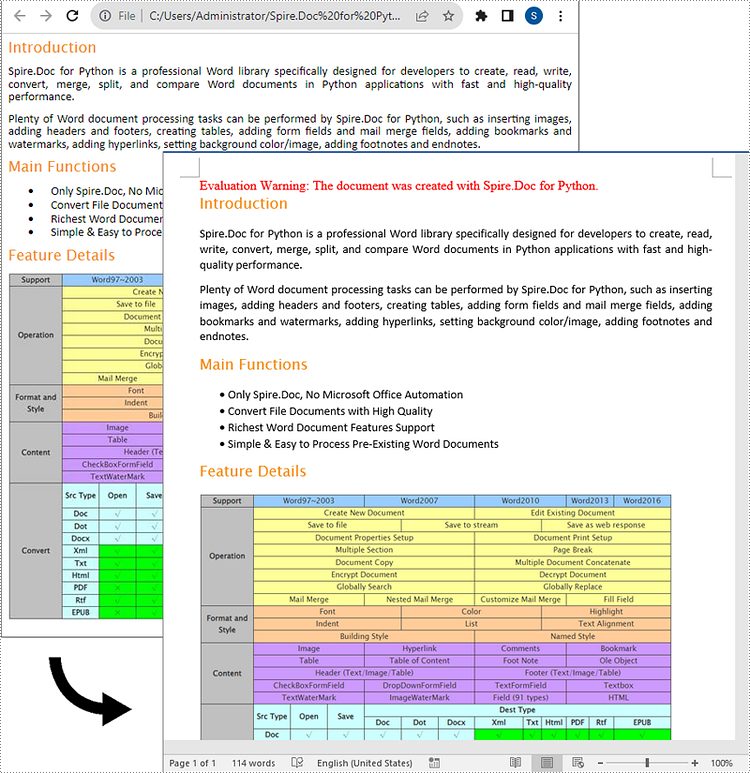
Spire.Doc for Python에서 제공하는 Document.SaveToFile() 메서드를 사용하면 HTML 파일을 Word 형식으로 쉽게 변환할 수 있습니다. 자세한 단계는 다음과 같습니다.
- Document 클래스의 객체를 만듭니다.
- Document.LoadFromFile() 메서드를 사용하여 HTML 파일을 로드합니다.
- Document.SaveToFile() 메서드를 사용하여 HTML 파일을 Word 형식으로 저장합니다.
- Python
from spire.doc import *
from spire.doc.common import *

# Specify the input and output file paths
inputFile = "Input.html"
outputFile = "HtmlToWord.docx"

# Create an object of the Document class
document = Document()
# Load an HTML file
document.LoadFromFile(inputFile, FileFormat.Html, XHTMLValidationType.none)

# Save the HTML file to a .docx file
document.SaveToFile(outputFile, FileFormat.Docx2016)
document.Close()
Python을 사용하여 HTML 문자열을 Word로 변환
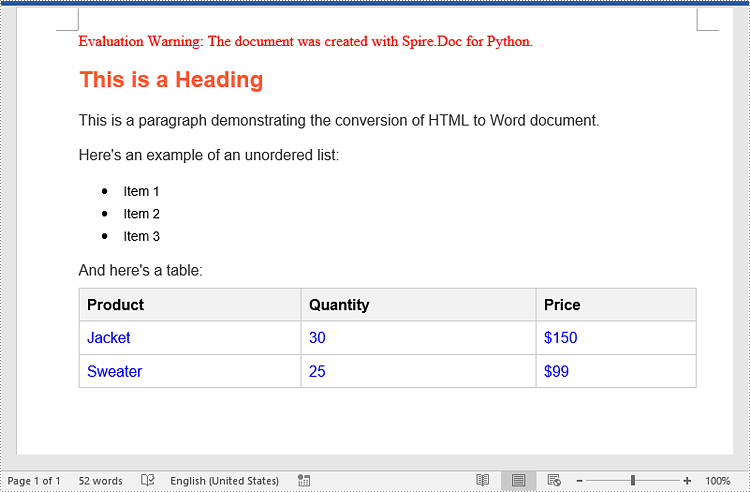
HTML 문자열을 Word로 변환하려면 Paragraph.AppendHTML() 메서드를 사용할 수 있습니다. 자세한 단계는 다음과 같습니다.
- Document 클래스의 객체를 만듭니다.
- Document.AddSection() 메서드를 사용하여 문서에 섹션을 추가합니다.
- Section.AddParagraph() 메서드를 사용하여 섹션에 단락을 추가합니다.
- Paragraph.AppendHTML() 메서드를 사용하여 HTML 문자열을 단락에 추가합니다.
- Document.SaveToFile() 메서드를 사용하여 결과 문서를 저장합니다.
- Python
from spire.doc import *
from spire.doc.common import *

# Specify the output file path
outputFile = "HtmlStringToWord.docx"

# Create an object of the Document class
document = Document()
# Add a section to the document
sec = document.AddSection()

# Add a paragraph to the section
paragraph = sec.AddParagraph()

# Specify the HTML string
htmlString = """
<html>
<head>
    <title>HTML to Word Example</title>
    <style>
        body {
            font-family: Arial, sans-serif;
        }
        h1 {
            color: #FF5733;
            font-size: 24px;
            margin-bottom: 20px;
        }
        p {
            color: #333333;
            font-size: 16px;
            margin-bottom: 10px;
        }
        ul {
            list-style-type: disc;
            margin-left: 20px;
            margin-bottom: 15px;
        }
        li {
            font-size: 14px;
            margin-bottom: 5px;
        }
        table {
            border-collapse: collapse;
            width: 100%;
            margin-bottom: 20px;
        }
        th, td {
            border: 1px solid #CCCCCC;
            padding: 8px;
            text-align: left;
        }
        th {
            background-color: #F2F2F2;
            font-weight: bold;
        }
        td {
            color: #0000FF;
        }
    </style>
</head>
<body>
    <h1>This is a Heading</h1>
    <p>This is a paragraph demonstrating the conversion of HTML to Word document.</p>
    <p>Here's an example of an unordered list:</p>
    <ul>
        <li>Item 1</li>
        <li>Item 2</li>
        <li>Item 3</li>
    </ul>
    <p>And here's a table:</p>
    <table>
        <tr>
            <th>Product</th>
            <th>Quantity</th>
            <th>Price</th>
        </tr>
        <tr>
            <td>Jacket</td>
            <td>30</td>
            <td>$150</td>
        </tr>
        <tr>
            <td>Sweater</td>
            <td>25</td>
            <td>$99</td>
        </tr>
    </table>
</body>
</html>
"""

# Append the HTML string to the paragraph
paragraph.AppendHTML(htmlString)

# Save the result document
document.SaveToFile(outputFile, FileFormat.Docx2016)
document.Close()
임시 라이센스 신청
생성된 문서에서 평가 메시지를 제거하고 싶거나, 기능 제한을 없애고 싶다면 30일 평가판 라이센스 요청 자신을 위해.