많은 수의 Word 문서를 처리하는 것은 매우 어려울 수 있습니다. 많은 양의 문서를 편집하거나 검토하는 경우 문서를 열고 닫는 데 많은 시간이 낭비됩니다. 더욱이, 다수의 개별 Word 문서를 공유하고 수신하는 것은 공유자와 수신자 모두의 반복적인 전송 및 수신 작업을 많이 요구할 수 있기 때문에 성가신 일이 될 수 있습니다. 따라서 효율성을 높이고 시간을 절약하려면 다음을 수행하는 것이 좋습니다 관련 Word 문서 병합 단일 파일로. 이 기사를 통해 Spire.Doc for Python 쉽게 사용하는 방법을 알게 될 것입니다 Word 문서 병합 Python 프로그램을 통해
Spire.Doc for Python 설치
이 시나리오에는 Spire.Doc for Python 및 Plum-dispatch v1.7.4가 필요합니다. 다음 pip 명령을 통해 VS Code에 쉽게 설치할 수 있습니다.
pip install Spire.Doc
설치 방법을 잘 모르는 경우 다음 튜토리얼을 참조하세요: VS Code에서 Spire.Doc for Python를 설치하는 방법
Python으로 파일을 삽입하여 Word 문서 병합
Document.insertTextFromFile() 메소드는 다른 Word 문서를 현재 문서에 삽입하는 데 사용되며 삽입된 내용은 새 페이지에서 시작됩니다. Word 문서를 삽입하여 병합하는 자세한 단계는 다음과 같습니다.
- Document 클래스의 객체를 생성하고 Document.LoadFromFile() 메서드를 사용하여 Word 문서를 로드합니다.
- Document.InsertTextFromFile() 메서드를 사용하여 다른 문서의 내용을 해당 문서에 삽입합니다.
- Document.SaveToFile() 메서드를 사용하여 문서를 저장합니다.
- Python
from spire.doc import *
from spire.doc.common import *

# Create an object of Document class and load a Word document
doc = Document()
doc.LoadFromFile("Sample1.docx")

# Insert the content from another Word document to this one
doc.InsertTextFromFile("Sample2.docx", FileFormat.Auto)

# Save the document
doc.SaveToFile("output/InsertDocuments.docx")
doc.Close()
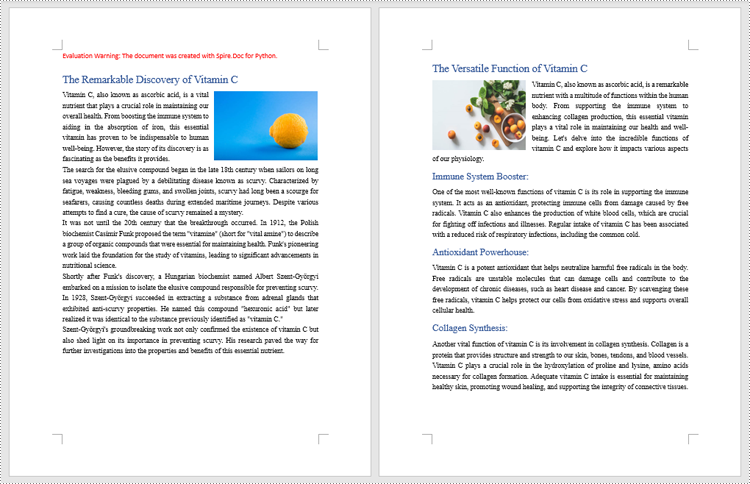
Python으로 내용을 복제하여 Word 문서 병합
Word 문서 병합은 한 Word 문서의 내용을 다른 Word 문서로 복제하여 수행할 수도 있습니다. 이 방법은 원본 문서의 서식을 유지하며 다른 문서에서 복제된 내용은 새 페이지를 시작하지 않고 현재 문서의 끝 부분에서 계속됩니다. 자세한 단계는 다음과 같습니다.
- Document 클래스의 두 개체를 만들고 Document.LoadFromFile() 메서드를 사용하여 두 개의 Word 문서를 로드합니다.
- Document.Sections.get_Item() 메서드를 사용하여 대상 문서의 마지막 섹션을 가져옵니다.
- 복제할 문서의 섹션을 반복한 다음 섹션의 하위 개체를 반복합니다.
- Section.Body.ChildObjects.get_Item() 메서드를 사용하여 섹션 하위 개체를 가져옵니다.
- Section.Body.ChildObjects.Add() 메서드를 사용하여 대상 문서의 마지막 섹션에 하위 개체를 추가합니다.
- Document.SaveToFile() 메서드를 사용하여 결과 문서를 저장합니다.
- Python
from spire.doc import *
from spire.doc.common import *

# Create two objects of Document class and load two Word documents
doc1 = Document()
doc1.LoadFromFile("Sample1.docx")
doc2 = Document()
doc2.LoadFromFile("Sample2.docx")

# Get the last section of the first document
lastSection = doc1.Sections.get_Item(doc1.Sections.Count - 1)

# Loop through the sections in the second document
for i in range(doc2.Sections.Count):
    section = doc2.Sections.get_Item(i)
    # Loop through the child objects in the sections
    for j in range(section.Body.ChildObjects.Count):
        obj = section.Body.ChildObjects.get_Item(j)
        # Add the child objects from the second document to the last section of the first document
        lastSection.Body.ChildObjects.Add(obj.Clone())

# Save the result document
doc1.SaveToFile("output/MergeByCloning.docx")
doc1.Close()
doc2.Close()
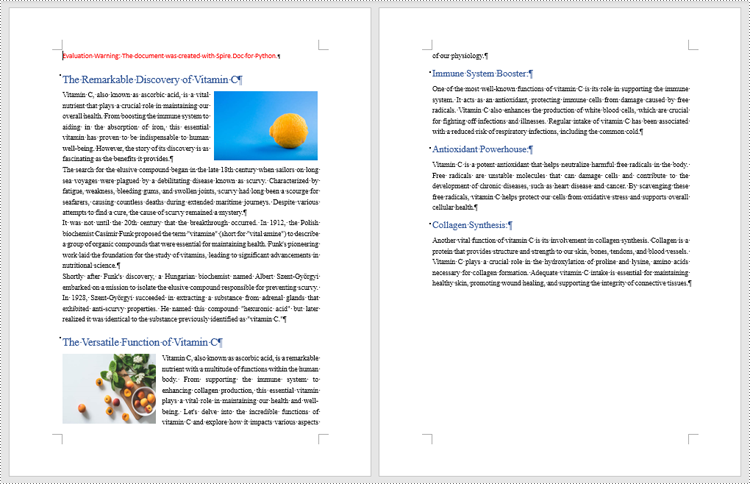
임시 라이센스 신청
생성된 문서에서 평가 메시지를 제거하고 싶거나, 기능 제한을 없애고 싶다면 30일 평가판 라이센스 요청 자신을 위해.