Convert PDF to JSON in C#: Text, Tables, Forms & OCR
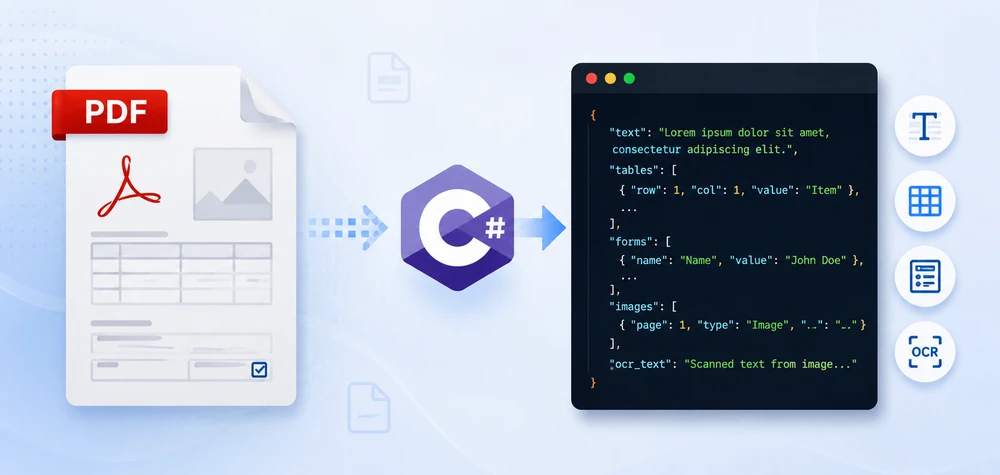
Your application receives a PDF invoice. You need the invoice number, vendor name, and line items — not as text on a page, but as structured JSON your API can consume. That is the real problem behind PDF to JSON conversion.
Unlike CSV or XML, a PDF file has no inherent data structure — no fields, no rows, no schema. Extracting usable JSON requires different approaches depending on what the document actually contains: plain text with key-value patterns, tables with rows and columns, fillable form fields, or scanned images that need OCR.
This article covers all four scenarios with runnable C# code using Spire.PDF for .NET. We build a real invoice-to-JSON converter, handle common table extraction problems like merged cells and missing headers, and package everything into a reusable PdfToJsonConverter class you can drop into any .NET project.
Quick Navigation
- What "PDF to JSON" Actually Means
- Install Spire.PDF for .NET
- Convert PDF Text to JSON in C#
- Convert PDF Tables to JSON in C#
- Convert PDF Form Fields to JSON
- Invoice PDF to JSON: A Real-World Example
- Convert Multiple PDFs to JSON in Batch
- Build a PDF to JSON Converter in C#
- Convert OCR Output to JSON in C#
- Performance Considerations
- FAQ
1. What "PDF to JSON" Actually Means
There is no built-in "PDF to JSON" conversion in the way you might convert a CSV to JSON. A PDF has no JSON structure. What developers actually need is: extract content from a PDF, then shape that content into a JSON format that matches their use case.
Depending on the PDF type and business requirement, the target JSON falls into one of three categories.
Raw Text JSON
Pull all text from each page and wrap it in a JSON envelope. Works for search indexing, RAG pipelines, and document archival.
{
  "sourceFile": "Contract.pdf",
  "pages": [
    { "pageNumber": 1, "text": "SERVICE AGREEMENT\nBetween Contoso Ltd and..." }
  ]
}
Key-Value JSON
Many PDFs follow a Label: Value pattern — employee records, registration forms, simple invoices. The goal here is to parse those pairs into a flat JSON object:
{
  "name": "John Smith",
  "email": "john@contoso.com",
  "department": "Engineering",
  "employeeId": "EMP-2026-0142"
}
Structured Business JSON
Real business documents have nested data: an invoice has a header, line items, tax breakdowns, and payment terms. The JSON output needs to mirror that structure:
{
  "invoiceNumber": "INV-2026-0042",
  "vendor": "Contoso Ltd",
  "date": "2026-06-15",
  "lineItems": [
    { "description": "Widget A", "quantity": 150, "unitPrice": 24.50, "total": 3675.00 }
  ],
  "subtotal": 3675.00,
  "tax": 294.00,
  "total": 3969.00
}
This distinction matters. When you search for "convert PDF to JSON," you need to decide which output format your application requires. The rest of this article shows how to build each one using Spire.PDF in C#.
2. Install Spire.PDF for .NET
Install via NuGet Package Manager Console:
Install-Package Spire.PDF
Or add to your .csproj:
<PackageReference Include="Spire.PDF" Version="*" />
Include these namespaces in your project:
using Spire.Pdf;
using Spire.Pdf.Texts;
using Spire.Pdf.Utilities;
using Spire.Pdf.Fields;
using Spire.Pdf.Widget;
using System.Text.Json;
using System.Text.Json.Serialization;
Spire.PDF supports .NET Framework, .NET Core, and .NET 6/7/8/9+.
3. Convert PDF Text to JSON in C#
The most common starting point: extract text from a PDF and produce JSON output.
Extract Text from PDF
using Spire.Pdf;
using Spire.Pdf.Texts;
using System.Collections.Generic;

using (PdfDocument pdf = new PdfDocument())
{
    pdf.LoadFromFile("EmployeeRecord.pdf");

    var pages = new List<Dictionary<string, string>>();

    for (int i = 0; i < pdf.Pages.Count; i++)
    {
        PdfPageBase page = pdf.Pages[i];

        PdfTextExtractOptions options = new PdfTextExtractOptions();
        options.IsExtractAllText = true;

        PdfTextExtractor extractor = new PdfTextExtractor(page);
        string pageText = extractor.ExtractText(options);

        pages.Add(new Dictionary<string, string>
        {
            { "pageNumber", (i + 1).ToString() },
            { "text", pageText.Trim() }
        });
    }
}
Parse Key-Value Pairs into JSON
If your PDF follows a Label: Value pattern, parse the extracted text into structured fields:
using System.Text.Json;

var parsedFields = new Dictionary<string, string>();

foreach (var page in pages)
{
    string[] lines = page["text"].Split('\n');
    foreach (string line in lines)
    {
        int colonIndex = line.IndexOf(':');
        if (colonIndex > 0)
        {
            string key = line.Substring(0, colonIndex).Trim();
            string value = line.Substring(colonIndex + 1).Trim();
            parsedFields[key] = value;
        }
    }
}

var jsonOptions = new JsonSerializerOptions
{
    WriteIndented = true,
    PropertyNamingPolicy = JsonNamingPolicy.CamelCase
};

string jsonOutput = JsonSerializer.Serialize(parsedFields, jsonOptions);
File.WriteAllText("EmployeeRecord.json", jsonOutput);
Key API Calls
PdfDocument.LoadFromFile()— opens the PDF filePdfTextExtractor.ExtractText()— extracts text content from a pagePdfTextExtractOptions.IsExtractAllText— preserves whitespace and formatting
Output
The following example shows the structured JSON generated from the extracted employee record.
{
  "name": "John Smith",
  "email": "john.smith@contoso.com",
  "department": "Engineering",
  "employeeId": "EMP-2026-0142",
  "startDate": "2024-03-15"
}
The following screenshot shows the actual JSON file generated after running the example.
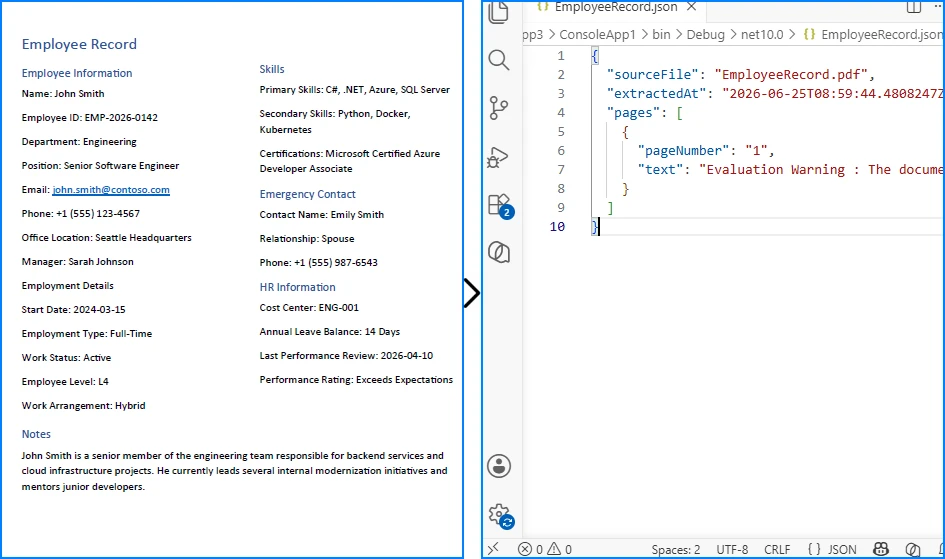
This approach works well for forms, records, and documents with consistent key-value layouts. For unstructured text, skip the parsing step and serialize the raw pages directly.
If you need a deeper look at PDF text extraction, see our dedicated guide on extracting text from PDFs in C# using Spire.PDF for .NET.
4. Convert PDF Tables to JSON in C#
The previous section focused on extracting plain text from PDFs. While that works well for paragraphs and simple records, many business documents organize their most valuable information in tables, such as invoice line items, sales reports, and financial statements. To preserve rows, columns, and relationships between cells, table data must be extracted differently before it can be converted into structured JSON.
Why Table Extraction Is Different from Text Extraction
Text extraction returns a flat stream of characters in reading order. Although a table may appear perfectly organized on the page, the extracted text often loses its row-and-column structure, making it difficult to identify which values belong together.
To preserve the table layout, you need a dedicated table extraction engine. PdfTableExtractor analyzes the page layout, detects table boundaries, and returns PdfTable objects that you can iterate row by row and cell by cell. Instead of producing a flat string such as:
Widget A 150 $24.50 $3,675.00
it enables you to generate structured JSON like:
{
  "Product": "Widget A",
  "Quantity": "150",
  "Unit Price": "$24.50",
  "Total": "$3,675.00"
}
The following example demonstrates how to extract tables from a PDF and serialize them into JSON.
Extract Tables from PDF
using Spire.Pdf;
using Spire.Pdf.Utilities;
using System.Collections.Generic;

using (PdfDocument pdf = new PdfDocument())
{
    pdf.LoadFromFile("SalesReport.pdf");

    PdfTableExtractor tableExtractor = new PdfTableExtractor(pdf);
    var allTables = new List<List<List<string>>>();

    for (int pageIndex = 0; pageIndex < pdf.Pages.Count; pageIndex++)
    {
        PdfTable[] tables = tableExtractor.ExtractTable(pageIndex);

        if (tables != null && tables.Length > 0)
        {
            foreach (PdfTable table in tables)
            {
                int rowCount = table.GetRowCount();
                int colCount = table.GetColumnCount();
                var tableData = new List<List<string>>();

                for (int row = 0; row < rowCount; row++)
                {
                    var rowData = new List<string>();
                    for (int col = 0; col < colCount; col++)
                    {
                        rowData.Add(table.GetText(row, col).Trim());
                    }
                    tableData.Add(rowData);
                }

                allTables.Add(tableData);
            }
        }
    }
}
Serialize Table Data to JSON
var jsonTables = new List<object>();

foreach (var tableData in allTables)
{
    if (tableData.Count < 2) continue;

    var headers = tableData[0];
    var rows = new List<Dictionary<string, string>>();

    for (int i = 1; i < tableData.Count; i++)
    {
        var rowObj = new Dictionary<string, string>();
        for (int j = 0; j < headers.Count && j < tableData[i].Count; j++)
        {
            rowObj[headers[j]] = tableData[i][j];
        }
        rows.Add(rowObj);
    }

    jsonTables.Add(new
    {
        tableIndex = allTables.IndexOf(tableData) + 1,
        headers = headers,
        data = rows
    });
}

string tableJson = JsonSerializer.Serialize(new
{
    sourceFile = "SalesReport.pdf",
    tables = jsonTables
}, new JsonSerializerOptions { WriteIndented = true });

File.WriteAllText("SalesReport_Tables.json", tableJson);
Key API Calls
PdfTableExtractor(PdfDocument)— initializes the table extraction enginePdfTableExtractor.ExtractTable(pageIndex)— detects and extracts tables from a pagePdfTable.GetRowCount()/GetColumnCount()— returns table dimensionsPdfTable.GetText(row, col)— reads cell content
Sample JSON Output
The resulting JSON preserves the original table structure by organizing each row into key-value pairs based on the detected column headers.
{
  "sourceFile": "SalesReport.pdf",
  "tables": [
    {
      "tableIndex": 1,
      "headers": ["Product", "Quantity", "Unit Price", "Total"],
      "data": [
        { "Product": "Widget A", "Quantity": "150", "Unit Price": "$24.50", "Total": "$3,675.00" },
        { "Product": "Widget B", "Quantity": "80", "Unit Price": "$39.90", "Total": "$3,192.00" }
      ]
    }
  ]
}
The following screenshot shows the actual JSON file generated after running the example.

This approach works well for invoices, reports, and other PDFs with well-defined table structures. For documents containing merged cells, missing headers, or multi-page tables, additional post-processing may be required.
If you need a deeper look at PDF table extraction, see our dedicated guide on extracting tables from PDFs in C# using Spire.PDF for .NET.
Common Table Extraction Problems
Real-world PDF tables are messy. Here are the three problems you will hit most often, and how to handle them.
Problem 1: Missing Headers
Many invoices and reports have tables without explicit header rows. The data starts immediately:
Apple      10    $2.99    $29.90
Orange     5     $1.50    $7.50
When the first row is data rather than headers, assign column names manually based on your known schema:
// Define headers when the PDF table has no header row
string[] defaultHeaders = { "Product", "Quantity", "UnitPrice", "Total" };

var rows = new List<Dictionary<string, string>>();
for (int i = 0; i < tableData.Count; i++)  // Start from 0, not 1
{
    var rowObj = new Dictionary<string, string>();
    for (int j = 0; j < defaultHeaders.Length && j < tableData[i].Count; j++)
    {
        rowObj[defaultHeaders[j]] = tableData[i][j];
    }
    rows.Add(rowObj);
}
Problem 2: Merged Cells
Tables in financial reports often have merged cells for grouping:
Quarter    Revenue     Expenses
Q1         $120,000    $95,000
           $115,000    $88,000
Q2         $140,000    $102,000
The extractor returns empty strings for merged cells. Fill them forward from the last non-empty value:
// Fill merged cells with the previous row's value
for (int col = 0; col < headers.Count; col++)
{
    string lastValue = "";
    for (int row = 1; row < tableData.Count; row++)
    {
        if (col < tableData[row].Count && !string.IsNullOrWhiteSpace(tableData[row][col]))
        {
            lastValue = tableData[row][col];
        }
        else if (col < tableData[row].Count)
        {
            tableData[row][col] = lastValue;
        }
    }
}
Problem 3: Multi-Page Tables
Enterprise reports often have a single table spanning multiple pages, with the header row repeated on each page. Handle this by deduplicating headers during serialization:
var combinedRows = new List<Dictionary<string, string>>();
string[] expectedHeaders = null;

for (int pageIndex = 0; pageIndex < pdf.Pages.Count; pageIndex++)
{
    PdfTable[] tables = tableExtractor.ExtractTable(pageIndex);
    if (tables == null) continue;

    foreach (PdfTable table in tables)
    {
        for (int r = 0; r < table.GetRowCount(); r++)
        {
            var cells = new List<string>();
            for (int c = 0; c < table.GetColumnCount(); c++)
            {
                cells.Add(table.GetText(r, c).Trim());
            }

            // First row of first page becomes the headers
            if (expectedHeaders == null && r == 0)
            {
                expectedHeaders = cells.ToArray();
                continue;
            }

            // Skip repeated header rows on subsequent pages
            if (r == 0 && cells.SequenceEqual(expectedHeaders))
                continue;

            var rowDict = new Dictionary<string, string>();
            for (int c = 0; c < expectedHeaders.Length && c < cells.Count; c++)
            {
                rowDict[expectedHeaders[c]] = cells[c];
            }
            combinedRows.Add(rowDict);
        }
    }
}
5. Convert PDF Form Fields to JSON
Unlike plain text or tables, fillable PDF forms already store data as named fields. Applications, surveys, and registration forms contain field names and values that can be mapped directly to JSON key-value pairs, making form data one of the easiest types of PDF content to serialize.
Read and Export Form Fields
using Spire.Pdf;
using Spire.Pdf.Fields;
using Spire.Pdf.Widget;
using System.Collections.Generic;

using (PdfDocument pdf = new PdfDocument())
{
    pdf.LoadFromFile("RegistrationForm.pdf");

    PdfFormWidget formWidget = pdf.Form as PdfFormWidget;
    var formData = new Dictionary<string, object>();

    if (formWidget != null)
    {
        for (int i = 0; i < formWidget.FieldsWidget.List.Count; i++)
        {
            PdfField field = formWidget.FieldsWidget.List[i] as PdfField;

            if (field is PdfTextBoxFieldWidget textBox)
                formData[textBox.Name] = textBox.Text;
            else if (field is PdfCheckBoxWidgetFieldWidget checkBox)
                formData[checkBox.Name] = checkBox.Checked;
            else if (field is PdfRadioButtonListFieldWidget radioButton)
                formData[radioButton.Name] = radioButton.Value;
            else if (field is PdfComboBoxWidgetFieldWidget comboBox)
                formData[comboBox.Name] = comboBox.SelectedValue;
            else if (field is PdfListBoxWidgetFieldWidget listBox)
            {
                var selectedItems = new List<string>();
                foreach (PdfListWidgetItem item in listBox.Values)
                    selectedItems.Add(item.Value);
                formData[listBox.Name] = selectedItems;
            }
        }
    }

    var formOutput = new
    {
        sourceFile = "RegistrationForm.pdf",
        fieldCount = formData.Count,
        fields = formData
    };

    string json = JsonSerializer.Serialize(formOutput, new JsonSerializerOptions
    {
        WriteIndented = true
    });

    File.WriteAllText("RegistrationForm_Data.json", json);
}
Key API Calls
PdfFormWidget— provides access to the document's interactive formPdfTextBoxFieldWidget.Text— reads text input valuesPdfCheckBoxWidgetFieldWidget.Checked— reads checkbox statePdfRadioButtonListFieldWidget.Value— reads selected radio buttonPdfComboBoxWidgetFieldWidget.SelectedValue— reads combo box selection
Output
The following example shows how the extracted form fields are represented as structured JSON.
{
  "sourceFile": "RegistrationForm.pdf",
  "fieldCount": 6,
  "fields": {
    "FullName": "John Smith",
    "Email": "john.smith@contoso.com",
    "Department": "Sales",
    "AgreeTerms": true,
    "SubscriptionPlan": "Enterprise",
    "Skills": ["C#", "SQL", "Azure"]
  }
}
The following screenshot shows the actual JSON file generated after exporting the form data.
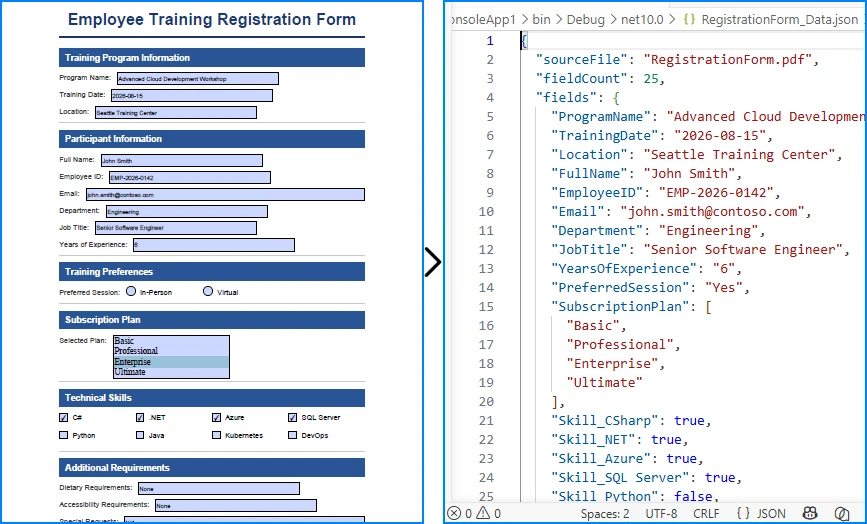
This approach works well for interactive PDF forms that contain structured fields such as text boxes, check boxes, radio buttons, and drop-down lists. Because each field already has a unique name, the extracted data can be serialized directly into JSON without additional parsing.
If you need a deeper look at importing and exporting PDF form field data in C#, see our dedicated guide on working with PDF form fields using Spire.PDF for .NET.
6. Invoice PDF to JSON: A Real-World Example
Invoice processing is one of the most common business use cases for PDF to JSON conversion. Instead of presenting a full parser implementation, this section demonstrates how the extraction techniques from Sections 3 and 4 come together to solve a real problem.
Target JSON Structure
Before writing any extraction code, define your target schema. For a typical invoice, the JSON output might look like this:
{
  "invoiceNumber": "INV-2026-0042",
  "date": "2026-06-15",
  "vendor": "Contoso Ltd",
  "paymentTerms": "Net 30",
  "lineItems": [
    { "description": "Widget A", "quantity": 150, "unitPrice": 24.50, "total": 3675.00 },
    { "description": "Widget B", "quantity": 80, "unitPrice": 39.90, "total": 3192.00 }
  ],
  "subtotal": 8367.00,
  "tax": 669.36,
  "total": 9036.36
}
Extraction Pattern
Use text extraction (Section 3) to parse header fields via regex, and table extraction (Section 4) to pull line items:
// Parse header fields from extracted text using regex
invoice["invoiceNumber"] = Regex.Match(fullText, @"Invoice Number:\s*(\S+)").Groups[1].Value;
invoice["date"] = Regex.Match(fullText, @"Date:\s*(\S+)").Groups[1].Value;
invoice["vendor"] = Regex.Match(fullText, @"Vendor:\s*(.+)").Groups[1].Value;

// Extract line items from table data (Section 4 pattern)
for (int r = 1; r < table.GetRowCount(); r++)
{
    lineItems.Add(new
    {
        description = table.GetText(r, 0).Trim(),
        quantity = int.Parse(table.GetText(r, 1).Trim()),
        unitPrice = ParseCurrency(table.GetText(r, 2)),
        total = ParseCurrency(table.GetText(r, 3))
    });
}
The implementation combines the text extraction introduced in Section 3 with the table extraction introduced in Section 4. Regex is used only for simple field matching — the core PDF processing relies entirely on Spire.PDF APIs.
Handling Different Invoice Layouts
In production, you rarely deal with a single invoice format:
- Fixed template + regex — works when you control the source or process invoices from a known vendor
- Template matching — maintain a set of regex patterns, one per vendor
- AI-assisted extraction — for unknown or highly variable layouts, combine OCR output with an LLM
Regex-based parsing is fast and reliable for known formats. For a production-ready implementation, extend the PdfToJsonConverter class from Section 8 to build a dedicated invoice parser that reuses the same extraction patterns.
7. Convert Multiple PDFs to JSON in Batch
Production workflows process hundreds or thousands of PDFs at once. This batch processor handles errors gracefully and logs results:
using Spire.Pdf;
using Spire.Pdf.Texts;
using System.Collections.Generic;
using System.IO;
using System.Text.Json;

string inputDir = @"C:\PDFs\Invoices";
string outputDir = @"C:\Output\JSON";
Directory.CreateDirectory(outputDir);

string[] pdfFiles = Directory.GetFiles(inputDir, "*.pdf");
var results = new List<object>();

foreach (string pdfPath in pdfFiles)
{
    string fileName = Path.GetFileNameWithoutExtension(pdfPath);
    string outputPath = Path.Combine(outputDir, $"{fileName}.json");

    try
    {
        using (PdfDocument pdf = new PdfDocument())
        {
            pdf.LoadFromFile(pdfPath);
            var pageTexts = new List<string>();

            for (int i = 0; i < pdf.Pages.Count; i++)
            {
                var extractor = new PdfTextExtractor(pdf.Pages[i]);
                var options = new PdfTextExtractOptions { IsExtractAllText = true };
                pageTexts.Add(extractor.ExtractText(options).Trim());
            }

            var doc = new
            {
                sourceFile = Path.GetFileName(pdfPath),
                pageCount = pdf.Pages.Count,
                processedAt = DateTime.UtcNow,
                content = pageTexts
            };

            File.WriteAllText(outputPath, JsonSerializer.Serialize(doc,
                new JsonSerializerOptions { WriteIndented = true }));

            results.Add(new { file = fileName, status = "success" });
        }
    }
    catch (Exception ex)
    {
        results.Add(new { file = fileName, status = "error", error = ex.Message });
    }
}

File.WriteAllText(Path.Combine(outputDir, "_log.json"),
    JsonSerializer.Serialize(results, new JsonSerializerOptions { WriteIndented = true }));
Swap the text-only extraction with the invoice JSON extraction pattern from Section 6 if your batch consists of invoices, or with the PdfToJsonConverter class from Section 8 for general-purpose conversion.
8. Build a PDF to JSON Converter in C#
For production applications, encapsulate all extraction logic into a single class. The PdfToJsonConverter below combines text, table, and form field extraction into one reusable PDF to JSON converter:
using Spire.Pdf;
using Spire.Pdf.Texts;
using Spire.Pdf.Utilities;
using Spire.Pdf.Fields;
using Spire.Pdf.Widget;
using System;
using System.Collections.Generic;
using System.IO;
using System.Text.Json;

public class PdfToJsonConverter
{
    private readonly JsonSerializerOptions _jsonOptions = new()
    {
        WriteIndented = true,
        PropertyNamingPolicy = JsonNamingPolicy.CamelCase,
        DefaultIgnoreCondition = System.Text.Json.Serialization.JsonIgnoreCondition.WhenWritingNull
    };

    public string ConvertToJson(string pdfPath)
    {
        using (PdfDocument pdf = new PdfDocument())
        {
            pdf.LoadFromFile(pdfPath);

            var result = new
            {
                sourceFile = Path.GetFileName(pdfPath),
                processedAt = DateTime.UtcNow,
                text = ExtractText(pdf),
                tables = ExtractTables(pdf),
                formFields = ExtractFormFields(pdf)
            };

            return JsonSerializer.Serialize(result, _jsonOptions);
        }
    }

    public void ConvertAndSave(string pdfPath, string outputPath)
    {
        File.WriteAllText(outputPath, ConvertToJson(pdfPath));
    }

    // Reuses the text extraction technique from Section 3 (PdfTextExtractor + PdfTextExtractOptions)
    private List<PageText> ExtractText(PdfDocument pdf) { return new List<PageText>(); }

    // Reuses the table extraction technique from Section 4 (PdfTableExtractor + ExtractTable)
    private List<TableData> ExtractTables(PdfDocument pdf) { return new List<TableData>(); }

    // Reuses the form field extraction technique from Section 5 (PdfFormWidget + field type checking)
    private Dictionary<string, object> ExtractFormFields(PdfDocument pdf) { return new Dictionary<string, object>(); }
}

public class PageText
{
    public int PageNumber { get; set; }
    public string Text { get; set; }
}

public class TableData
{
    public int PageNumber { get; set; }
    public int RowCount { get; set; }
    public List<List<string>> Rows { get; set; }
}
Usage
var converter = new PdfToJsonConverter();

// Single file
converter.ConvertAndSave("InvoiceReport.pdf", "InvoiceReport.json");

// Use inside an ASP.NET controller
[HttpPost("api/pdf-to-json")]
public IActionResult ConvertPdf(IFormFile file)
{
    var tempPath = Path.GetTempFileName();
    file.CopyTo(new FileStream(tempPath, FileMode.Create));
    var converter = new PdfToJsonConverter();
    string json = converter.ConvertToJson(tempPath);
    return Content(json, "application/json");
}
The helper methods (ExtractText, ExtractTables, ExtractFormFields) reuse the extraction techniques introduced in Sections 3–5. Refer to those sections for the full implementations.
Best Practices for Production Pipelines
When building PDF to JSON conversion into a production system:
- Define your JSON schema first. Map each PDF element to a target field before writing extraction code.
- Validate extracted data. Currency strings, dates, and IDs should be parsed and verified before serialization.
- Handle missing values. Use
JsonIgnoreCondition.WhenWritingNullto omit null fields from output. - Include metadata. Always record source file name, page numbers, and extraction timestamp for auditing.
- Clean text artifacts. Trim whitespace, normalize line breaks, and handle encoding issues in extracted strings.
9. Convert OCR Output to JSON in C#
Scanned PDFs contain images rather than selectable text, so they must be processed with an OCR engine before they can be converted to JSON. Spire.PDF handles PDF rendering and page processing, while text recognition should be performed by an OCR solution such as Tesseract or Azure AI Vision.
For a complete walkthrough, see How to Extract Text from Scanned PDFs in C#.
Once OCR returns the recognized text, you can parse it using the same techniques shown earlier in this article.
Parse OCR Text into JSON
string recognizedText = ocrEngine.Recognize(imagePath);

// Parse recognized text using the same helper methods demonstrated in previous examples.
var parsedData = ParseRecognizedText(recognizedText);

string json = JsonSerializer.Serialize(parsedData, new JsonSerializerOptions
{
    WriteIndented = true
});
Best Practices
- Scan documents at 300 DPI or higher for better OCR accuracy.
- Validate important fields such as invoice numbers, dates, and currency values before serialization.
- Reuse the parsing patterns introduced earlier in this article to build consistent JSON structures.
10. Performance Considerations
PDF to JSON conversion works fine for a single 5-page document. In production, you are processing hundreds of files with hundreds of pages each. These are the issues you will actually hit.
Large PDFs (100+ Pages)
Avoid loading all page text into a List<string> before serialization. Process and write each page incrementally:
using (var stream = File.Create("output.json"))
using (var writer = new Utf8JsonWriter(stream, new JsonWriterOptions { Indented = true }))
{
    writer.WriteStartObject();
    writer.WriteString("sourceFile", Path.GetFileName(pdfPath));
    writer.WriteStartArray("pages");

    for (int i = 0; i < pdf.Pages.Count; i++)
    {
        var extractor = new PdfTextExtractor(pdf.Pages[i]);
        var options = new PdfTextExtractOptions { IsExtractAllText = true };
        string text = extractor.ExtractText(options).Trim();

        writer.WriteStartObject();
        writer.WriteNumber("pageNumber", i + 1);
        writer.WriteString("text", text);
        writer.WriteEndObject();
    }

    writer.WriteEndArray();
    writer.WriteEndObject();
}
Utf8JsonWriter writes directly to the stream instead of building a string in memory. For a 500-page document, this can cut peak memory usage by 60-70% compared to JsonSerializer.Serialize().
Memory Usage
PdfDocument holds parsed page trees, fonts, and image references in memory. Two rules:
- Always wrap
PdfDocumentinusing— it releases unmanaged resources on dispose - Process one document at a time — do not keep multiple
PdfDocumentinstances open simultaneously unless you have the RAM for it
For batch jobs processing 1000+ files, the using pattern inside the loop ensures each document is fully released before the next one loads.
Parallel Processing
Batch conversion is CPU-bound and parallelizes well:
var pdfFiles = Directory.GetFiles(inputDir, "*.pdf");

Parallel.ForEach(pdfFiles,
    new ParallelOptions { MaxDegreeOfParallelism = Environment.ProcessorCount },
    pdfPath =>
{
    string outputPath = Path.Combine(outputDir,
        Path.GetFileNameWithoutExtension(pdfPath) + ".json");
    var converter = new PdfToJsonConverter();
    converter.ConvertAndSave(pdfPath, outputPath);
});
Each thread creates its own PdfToJsonConverter and PdfDocument instance. PdfDocument is not thread-safe — never share a single instance across threads.
When to Use Streaming JSON
Use Utf8JsonWriter over JsonSerializer.Serialize() when:
- Output JSON exceeds 50 MB
- You are processing PDFs with 200+ pages
- Running in a memory-constrained environment (container with 512 MB limit)
For smaller documents, JsonSerializer is simpler and the memory difference is negligible.
11. FAQ
Can I convert PDF to JSON in C# for free?
Spire.PDF for .NET offers a free evaluation version with a page limit. For production use, you can apply for a 30-day free license or purchase a commercial license. The System.Text.Json serializer is built into .NET and free.
Can scanned PDFs be converted to JSON?
Yes, but you need an external OCR engine. Spire.PDF renders PDF pages as images via SaveAsImage(), which you then pass to Tesseract, Azure Computer Vision, or Amazon Textract for text recognition. The recognized text is then parsed and serialized to JSON. See Section 9 for the integration pattern.
Can I convert PDF tables to JSON automatically?
Yes. PdfTableExtractor automatically detects table structures on each page without manual configuration. It handles both properly structured tables (created in Word or Excel) and visual tables (text aligned to look like rows and columns). For multi-page tables or tables without headers, see the handling patterns in Section 4.
Can I batch convert multiple PDFs to JSON?
Yes. Iterate through a directory using Directory.GetFiles(), process each PDF with Spire.PDF extraction APIs, and save individual JSON files. Include error handling so one failed file does not stop the batch. See Section 7 for a complete example.
How can I convert large PDF files to JSON in C#?
Process the PDF page-by-page rather than loading all content into memory at once. For very large files (100+ pages), use Utf8JsonWriter to write JSON incrementally to a stream instead of building the entire output in memory. See Section 10 for the streaming JSON pattern and parallel processing approach.
Can I convert PDF to JSON using an API?
Yes. You can wrap the PdfToJsonConverter class from this article in an ASP.NET Web API endpoint. Accept a PDF upload, run the extraction, and return the JSON response. Spire.PDF works in any .NET hosting environment — ASP.NET Core, Azure Functions, AWS Lambda, or a self-hosted console app. See the ASP.NET controller example in Section 8.
Conclusion
PDF to JSON is not a single operation. Depending on your document, you are solving one of three different problems: wrapping raw text in a JSON envelope, parsing key-value patterns into flat objects, or building structured business JSON from text and table extraction.
This article covered all three, plus the complications that break naive implementations: tables without headers, merged cells, multi-page tables, fillable form fields, varying invoice layouts, batch processing, memory management for large documents, and OCR integration boundaries.
The PdfToJsonConverter class is a starting point you can adapt to your document types. The invoice extraction pattern shown in Section 6 demonstrates how to combine these techniques for real business documents. Both use Spire.PDF for .NET, which handles all PDF reading locally without external dependencies.
To get started:
- Install via NuGet:
Install-Package Spire.PDF - Apply for a 30-day free license to evaluate without page limits
- Explore the Spire.PDF documentation for additional extraction scenarios
.NET PDF to JPG Converter: Convert PDF Pages to Images in C#
Working with PDF documents is a common requirement in modern applications. Whether you are building a document management system , an ASP.NET web service , or a desktop viewer application , there are times when you need to display a PDF page as an image. Instead of embedding the full PDF viewer, you can convert PDF pages to JPG images and use them wherever images are supported.
In this guide, we will walk through a step-by-step tutorial on how to convert PDF files to JPG images using Spire.PDF for .NET. We’ll cover the basics of converting a single page, handling multiple pages, adjusting resolution and quality, saving images to streams, and even batch converting entire folders of PDFs.
By the end, you’ll have a clear understanding of how to implement PDF-to-image conversion in your .NET projects.
Table of Contents:
- Install .NET PDF-to-JPG Converter Library
- Core Method: SaveAsImage
- Steps to Convert PDF to JPG in C# .NET
- Convert a Single Page to JPG
- Convert Multiple Pages (All or Range)
- Advanced Conversion Options
- Troubleshooting & Best Practices
- Conclusion
- FAQs
Install .NET PDF-to-JPG Converter Library
To perform the conversion, we’ll use Spire.PDF for .NET , a library designed for developers who need full control over PDFs in C#. It supports reading, editing, and converting PDFs without requiring Adobe Acrobat or any third-party dependencies.
Installation via NuGet
You can install Spire.PDF directly into your project using NuGet Package Manager Console:
Install-Package Spire.PDF
Alternatively, open NuGet Package Manager in Visual Studio, search for Spire.PDF , and click Install.
Licensing Note
Spire.PDF offers a free version with limitations, allowing conversion of only the first few pages. For production use, a commercial license unlocks the full feature set.
Core Method: SaveAsImage
The heart of PDF-to-image conversion in Spire.PDF lies in the SaveAsImage() method provided by the PdfDocument class.
Here’s what you need to know:
-
Syntax (overload 1):
-
Image SaveAsImage(int pageIndex, PdfImageType imageType);
- pageIndex: The zero-based index of the PDF page you want to convert.
- imageType: The type of image to generate, typically PdfImageType.Bitmap.
-
Syntax (overload 2 with resolution):
-
Image SaveAsImage(int pageIndex, PdfImageType imageType, int dpiX, int dpiY);
- dpiX, dpiY: Horizontal and vertical resolution (dots per inch).
Higher DPI = better quality but larger file size.
Supported PdfImageType Values
- Bitmap → returns a raw image.
- Metafile → returns a vector image (less common for JPG export).
Most developers use Bitmap when exporting to JPG.
Steps to Convert PDF to JPG in C# .NET
- Import the Spire.Pdf and System.Drawing namespaces.
- Create a new PdfDocument instance.
- Load the PDF file from the specified path.
- Use SaveAsImage() to convert one or more pages into images.
- Save the generated image(s) in JPG format.
Convert a Single Page to JPG
Here’s a simple workflow to convert a single PDF page to a JPG image:
using Spire.Pdf.Graphics;
using Spire.Pdf;
using System.Drawing.Imaging;
using System.Drawing;

namespace ConvertSpecificPageToPng
{
    class Program
    {
        static void Main(string[] args)
        {
            // Create a PdfDocument object
            PdfDocument doc = new PdfDocument();

            // Load a sample PDF document
            doc.LoadFromFile("C:\\Users\\Administrator\\Desktop\\sample.pdf");

            // Convert a specific page to a bitmap image
            Image image = doc.SaveAsImage(0, PdfImageType.Bitmap);

            // Save the image as a JPG file
            image.Save("ToJPG.jpg", ImageFormat.Jpeg);

            // Disposes resources
            doc.Dispose();
        }
    }
}
Output:
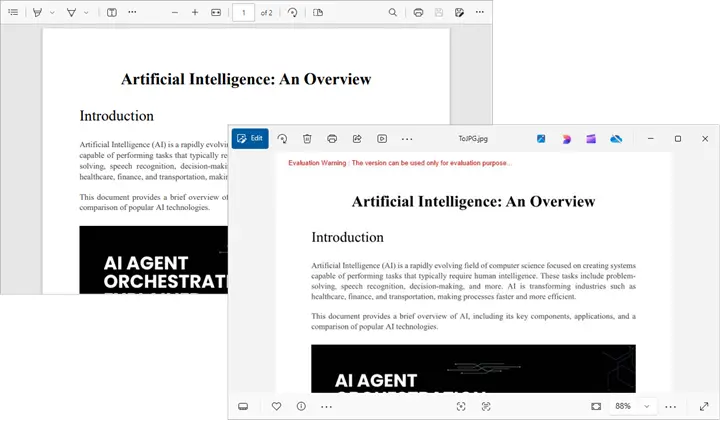
Spire.PDF supports converting PDF to various other image formats like PNG, BMP, SVG, and TIFF. For more details, refer to the documentation: Convert PDF to Image in C#.
Convert Multiple Pages (All or Range)
Convert All Pages
The following loop iterates over all pages, converts each one into an image, and saves it to disk with page numbers in the filename.
for (int i = 0; i < doc.Pages.Count; i++)
{
    Image image = doc.SaveAsImage(i, PdfImageType.Bitmap);
    string fileName = string.Format("Output\\ToJPG-{0}.jpg", i);
    image.Save(fileName, ImageFormat.Jpeg);
}
Convert a Range of Pages
To convert a specific range of pages (e.g., pages 2 to 4), modify the for loop as follows:
for (int i = 1; i <= 3; i++)
{
    Image image = doc.SaveAsImage(i, PdfImageType.Bitmap);
    string fileName = string.Format("Output\\ToJPG-{0}.jpg", i);
    image.Save(fileName, ImageFormat.Jpeg);
}
Advanced Conversion Options
Set Image Resolution/Quality
By default, the output resolution might be too low for printing or detailed analysis. You can set DPI explicitly:
Image image = doc.SaveAsImage(0, PdfImageType.Bitmap, 300, 300);
image.Save("ToJPG.jpg", ImageFormat.Jpeg);
Tips:
- 72 DPI : Default, screen quality.
- 150 DPI : Good for previews and web.
- 300 DPI : High quality, suitable for printing.
Higher DPI results in sharper images but also increases memory and file size.
Save the Converted Images as Stream
Instead of writing directly to disk, you can store the output in memory streams. This is useful in:
- ASP.NET applications returning images to browsers.
- Web APIs sending images as HTTP responses.
- Database storage for binary blobs.
using (MemoryStream ms = new MemoryStream())
{
    pdf.SaveAsImage(0, PdfImageType.Bitmap, 300, 300).Save(ms, ImageFormat.Jpeg);
    byte[] imageBytes = ms.ToArray();
}
Here, the JPG image is stored as a byte array , ready for further processing.
Batch Conversion (Multiple PDFs)
In scenarios where you need to process multiple PDF documents at once, you can apply batch conversion as shown below:
string[] files = Directory.GetFiles("InputPDFs", "*.pdf");
foreach (string file in files)
{
    PdfDocument doc = new PdfDocument();
    doc.LoadFromFile(file);
    for (int i = 0; i < doc.Pages.Count; i++)
    {
        Image image = doc.SaveAsImage(i, PdfImageType.Bitmap);
        string fileName = Path.GetFileNameWithoutExtension(file);
        image.Save($"Output\\{fileName}-Page{i + 1}.jpg", ImageFormat.Jpeg);
    }
    doc.Dispose();
}
Troubleshooting & Best Practices
Working with PDF-to-image conversion in .NET can come with challenges. Here’s how to address them:
- Large PDFs consume memory
- Use lower DPI (e.g., 150 instead of 300).
- Process in chunks rather than loading everything at once.
- Images are blurry or low quality
- Increase DPI.
- Consider using PNG instead of JPG for sharp diagrams or text.
- File paths cause errors
- Always check that the output directory exists.
- Use Path.Combine() for cross-platform paths.
- Handling password-protected PDFs
- Provide the password when loading:
doc.LoadFromFile("secure.pdf", "password123");
- Dispose objects
- Always call Dispose() on PdfDocument and Image objects to release memory.
Conclusion
Converting PDF to JPG in .NET is straightforward with Spire.PDF for .NET . The library provides the SaveAsImage() method, allowing you to convert a single page or an entire document with just a few lines of code. With options for custom resolution, stream handling, and batch conversion , you can adapt the workflow to desktop apps, web services, or cloud platforms.
By following best practices like managing memory and adjusting resolution, you can ensure efficient, high-quality output that fits your project’s requirements.
If you’re exploring more advanced document processing, Spire also offers libraries for Word, Excel, and PowerPoint, enabling a complete .NET document solution.
FAQs
Q1. Can I convert PDFs to formats other than JPG?
Yes. Spire.PDF supports PNG, BMP, SVG, and other common formats.
Q2. What DPI should I use?
- 72 DPI for thumbnails.
- 150 DPI for web previews.
- 300 DPI for print quality.
Q3. Does Spire.PDF support encrypted PDFs?
Yes, but you need to provide the correct password when loading the file.
Q4. Can I integrate this in ASP.NET?
Yes. You can save images to memory streams and return them as HTTP responses.
Q5. Can I convert images back to PDF?
Yes. You can load JPG, PNG, or BMP files and insert them into PDF pages, effectively converting images back into a PDF.
Get a Free License
To fully experience the capabilities of Spire.PDF for .NET without any evaluation limitations, you can request a free 30-day trial license.
C#: Convert HTML to PDF using ChromeHtmlConverter
HTML is widely used to present content in web browsers, but preserving its exact layout when sharing or printing can be challenging. PDF, by contrast, is a universally accepted format that reliably maintains document layout across various devices and operating systems. Converting HTML to PDF is particularly useful in web development, especially when creating printable versions of web pages or generating reports from web data.
Spire.PDF for .NET now supports a streamlined method to convert HTML to PDF in C# using the ChromeHtmlConverter class. This tutorial provides step-by-step guidance on performing this conversion effectively.
- Convert HTML to PDF with ChromeHtmlConverter in C#
- Generate Output Logs During HTML to PDF Conversion in C#
Install Spire.PDF for .NET
To begin with, you need to add the DLL files included in the Spire.PDF for.NET package as references in your .NET project. The DLLs files can be either downloaded from this link or installed via NuGet.
PM> Install-Package Spire.PDF
Install Google Chrome
This method requires Google Chrome to perform the conversion. If Chrome is not already installed, you can download it from this link and install it.
Convert HTML to PDF using ChromeHtmlConverter in C#
You can utilize the ChromeHtmlConverter.ConvertToPdf() method to convert an HTML file to a PDF using the Chrome plugin. This method accepts 3 parameters, including the input HTML file path, output PDF file path, and ConvertOptions which allows customization of conversion settings like conversion timeout, PDF paper size and page margins. The detailed steps are as follows.
- Create an instance of the ChromeHtmlConverter class and provide the path to the Chrome plugin (chrome.exe) as a parameter in the class constructor.
- Create an instance of the ConvertOptions class.
- Customize the conversion settings, such as the conversion timeout, the paper size and page margins of the converted PDF through the properties of the ConvertOptions class.
- Convert an HTML file to PDF using the ChromeHtmlConverter.ConvertToPdf() method.
- C#
using Spire.Additions.Chrome;

namespace ConvertHtmlToPdfUsingChrome
{
    internal class Program
    {
        static void Main(string[] args)
        {
            //Specify the input URL and output PDF file path
            string inputUrl = @"https://www.e-iceblue.com/Tutorials/Spire.PDF/Spire.PDF-Program-Guide/C-/VB.NET-Convert-Image-to-PDF.html";
            string outputFile = @"HtmlToPDF.pdf";

            //Specify the path to the Chrome plugin
            string chromeLocation = @"C:\Program Files\Google\Chrome\Application\chrome.exe";

            //Create an instance of the ChromeHtmlConverter class
            ChromeHtmlConverter converter = new ChromeHtmlConverter(chromeLocation);

            // Create an instance of the ConvertOptions class
            ConvertOptions options = new ConvertOptions();
            //Set conversion timeout
            options.Timeout = 10 * 3000;
            //Set paper size and page margins of the converted PDF
            options.PageSettings = new PageSettings()
            {
                PaperWidth = 8.27,
                PaperHeight = 11.69,
                MarginTop = 0,
                MarginLeft = 0,
                MarginRight = 0,
                MarginBottom = 0

            };

            //Convert the URL to PDF
            converter.ConvertToPdf(inputUrl, outputFile, options);
        }
    }
}
The converted PDF file maintains the same appearance as if the HTML file were printed to PDF directly through the Chrome browser:
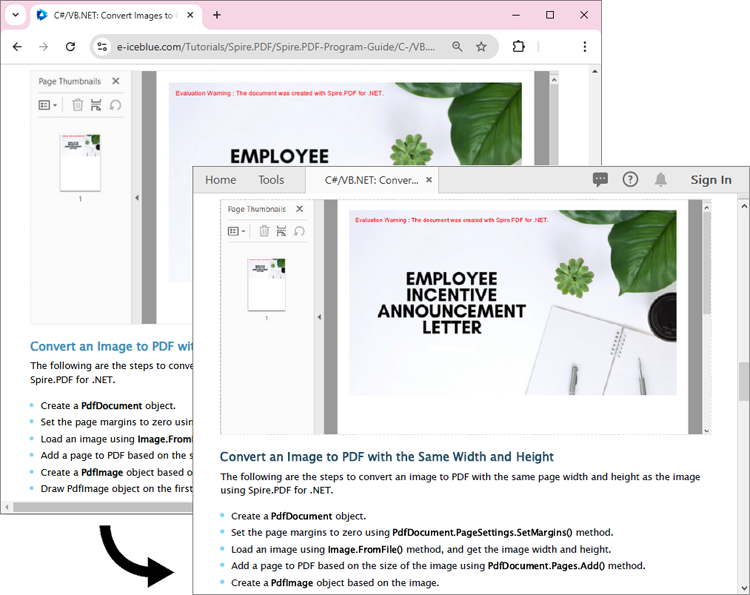
Generate Output Logs During HTML to PDF Conversion in C#
Spire.PDF for .NET enables you to generate output logs during HTML to PDF conversion using the Logger class. The detailed steps are as follows.
- Create an instance of the ChromeHtmlConverter class and provide the path to the Chrome plugin (chrome.exe) as a parameter in the class constructor.
- Enable Logging by creating a Logger object and assigning it to the ChromeHtmlConverter.Logger property.
- Create an instance of the ConvertOptions class.
- Customize the conversion settings, such as the conversion timeout, the paper size and page margins of the converted PDF through the properties of the ConvertOptions class.
- Convert an HTML file to PDF using the ChromeHtmlConverter.ConvertToPdf() method.
- C#
using Spire.Additions.Chrome;

namespace ConvertHtmlToPdfUsingChrome
{
    internal class Program
    {
        static void Main(string[] args)
        {
            //Specify the input URL and output PDF file path
            string inputUrl = @"https://www.e-iceblue.com/Tutorials/Spire.PDF/Spire.PDF-Program-Guide/C-/VB.NET-Convert-Image-to-PDF.html";
            string outputFile = @"HtmlToPDF.pdf";

            // Specify the log file path
            string logFilePath = @"Logs.txt";

            //Specify the path to the Chrome plugin
            string chromeLocation = @"C:\Program Files\Google\Chrome\Application\chrome.exe";

            //Create an instance of the ChromeHtmlConverter class
            ChromeHtmlConverter converter = new ChromeHtmlConverter(chromeLocation);
            //Enable logging
            converter.Logger = new Logger(logFilePath);

            //Create an instance of the ConvertOptions class
            ConvertOptions options = new ConvertOptions();
            //Set conversion timeout
            options.Timeout = 10 * 3000;
            //Set paper size and page margins of the converted PDF
            options.PageSettings = new PageSettings()
            {
                PaperWidth = 8.27,
                PaperHeight = 11.69,
                MarginTop = 0,
                MarginLeft = 0,
                MarginRight = 0,
                MarginBottom = 0

            };

            //Convert the URL to PDF
            converter.ConvertToPdf(inputUrl, outputFile, options);
        }
    }
}
Here is the screenshot of the output log file:
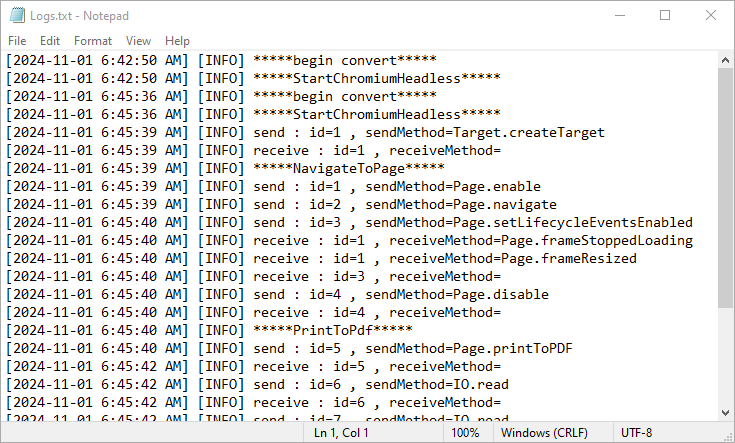
Apply for a Temporary License
If you'd like to remove the evaluation message from the generated documents, or to get rid of the function limitations, please request a 30-day trial license for yourself.
C#: Convert PDF to Markdown
The need to convert PDF documents into more flexible and editable formats, such as Markdown, has become a common task for developers and content creators. Converting PDFs to Markdown files facilitates easier editing and version control, and enhances content portability across different platforms and applications, making it particularly suitable for modern web publishing workflows. By utilizing Spire.PDF for .NET, developers can automate the conversion process, ensuring that the rich formatting and structure of the original PDFs are preserved in the resulting Markdown files.
This article will demonstrate how to use Spire.PDF for .NET to convert PDF documents to Markdown format with C# code.
Install Spire.PDF for .NET
To begin with, you need to add the DLL files included in the Spire.PDF for.NET package as references in your .NET project. The DLL files can be either downloaded from this link or installed via NuGet.
PM> Install-Package Spire.PDF
Convert PDF Documents to Markdown Files
With the Spire.PDF for .NET library, developers can easily load any PDF file using the PdfDocument.LoadFromFile(string filename) method and then save the document in the desired format by calling the PdfDocument.SaveToFile(string filename, FileFormat fileFormat) method. To convert a PDF to Markdown format, simply specify the FileFormat.Markdown enumeration as a parameter when invoking the method.
The detailed steps for converting PDF documents to Markdown files are as follows:
- Create an instance of PdfDocument class.
- Load a PDF document using PdfDocument.LoadFromFile(string filename) method.
- Convert the document to a Markdown file using PdfDocument.SaveToFile(string filename, FileFormat.Markdown) method.
- C#
using Spire.Pdf;

namespace PDFToMarkdown
{
    class Program
    {
        static void Main(string[] args)
        {
            // Create an instance of PdfDocument class
            PdfDocument pdf = new PdfDocument();

            // Load a PDF document
            pdf.LoadFromFile("Sample.pdf");

            // Convert the document to Markdown file
            pdf.SaveToFile("output/PDFToMarkdown.md", FileFormat.Markdown);

            // Release resources
            pdf.Close();
        }
    }
}
The PDF Document:
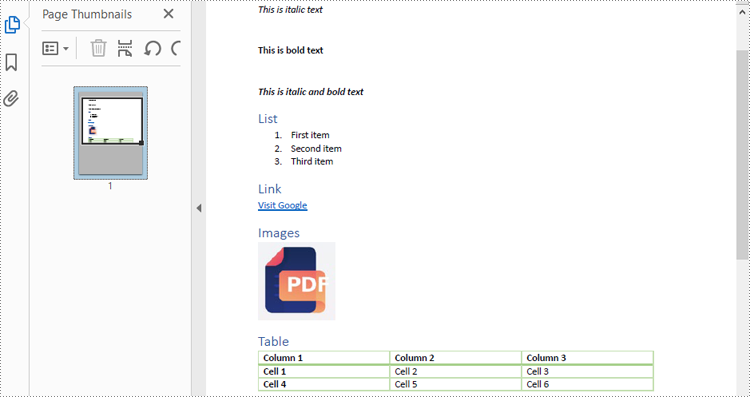
The Result Markdown File:
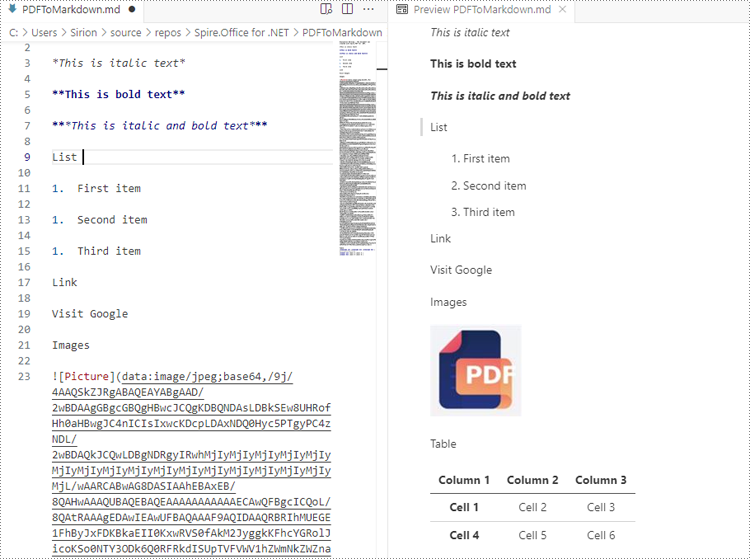
Convert PDF to Markdown by Streams
In addition to directly reading files for manipulation, Spire.PDF for .NET also supports loading a PDF document from a stream using PdfDocument.LoadFromStream() method and converting it to a Markdown file stream using PdfDocument.SaveToStream() method. Using streams reduces memory usage, supports large files, enables real-time data transfer, and simplifies data exchange with other systems.
The detailed steps for converting PDF documents to Markdown files by streams are as follows:
- Create a Stream object of PDF documents by downloading from the web or reading from a file.
- Load the PDF document from the stream using PdfDocument.LoadFromStream(Stream stream) method.
- Create another Stream object to store the converted Markdown file.
- Convert the PDF document to a Markdown file stream using PdfDocument.SaveToStream(Stream stream, FileFormat.Markdown) method.
- C#
using Spire.Pdf;
using System.IO;
using System.Net.Http;

namespace PDFToMarkdownByStream
{
    class Program
    {
        static async Task Main(string[] args)
        {
            // Create an instance of PdfDocument class
            PdfDocument pdf = new PdfDocument();

            // Download a PDF document from a url as bytes
            using (HttpClient client = new HttpClient())
            {
                byte[] pdfBytes = await client.GetByteArrayAsync("http://example.com/Sample.pdf");

                // Create a MemoryStream using the bytes
                using (MemoryStream inputStream = new MemoryStream(pdfBytes))
                {
                    // Load the PDF document from the stream
                    pdf.LoadFromStream(inputStream);

                    // Create another MemoryStream object to store the Markdown file
                    using (MemoryStream outputStream = new MemoryStream())
                    {
                        // Convert the PDF document to a Markdown file stream
                        pdf.SaveToStream(outputStream, FileFormat.Markdown);
                        outputStream.Position = 0; // Reset the position of the stream for subsequent reads

                        // Upload the result stream or write it to a file
                        await client.PostAsync("http://example.com/upload", new StreamContent(outputStream));
                        File.WriteAllBytes("output.md", outputStream.ToArray());
                    }
                }
            }

            // Release resources
            pdf.Close();
        }
    }
}
Apply for a Temporary License
If you'd like to remove the evaluation message from the generated documents, or to get rid of the function limitations, please request a 30-day trial license for yourself.
C#/VB.NET: Convert Multiple Images into a Single PDF
If you have multiple images that you want to combine into one file for easier distribution or storage, converting them into a single PDF document is a great solution. This process not only saves space but also ensures that all your images are kept together in one file, making it convenient to share or transfer. In this article, you will learn how to combine several images into a single PDF document in C# and VB.NET using Spire.PDF for .NET.
Install Spire.PDF for .NET
To begin with, you need to add the DLL files included in the Spire.PDF for.NET package as references in your .NET project. The DLL files can be either downloaded from this link or installed via NuGet.
PM> Install-Package Spire.PDF
Combine Multiple Images into a Single PDF in C# and VB.NET
In order to convert all the images in a folder to a PDF, we iterate through each image, add a new page to the PDF with the same size as the image, and then draw the image onto the new page. The following are the detailed steps.
- Create a PdfDocument object.
- Set the page margins to zero using PdfDocument.PageSettings.SetMargins() method.
- Get the folder where the images are stored.
- Iterate through each image file in the folder, and get the width and height of a specific image.
- Add a new page that has the same width and height as the image to the PDF document using PdfDocument.Pages.Add() method.
- Draw the image on the page using PdfPageBase.Canvas.DrawImage() method.
- Save the document using PdfDocument.SaveToFile() method.
- C#
- VB.NET
using Spire.Pdf;
using Spire.Pdf.Graphics;
using System.Drawing;

namespace ConvertMultipleImagesIntoPdf
{
    class Program
    {
        static void Main(string[] args)
        {
            //Create a PdfDocument object
            PdfDocument doc = new PdfDocument();

            //Set the page margins to 0
            doc.PageSettings.SetMargins(0);

            //Get the folder where the images are stored
            DirectoryInfo folder = new DirectoryInfo(@"C:\Users\Administrator\Desktop\Images");

            //Iterate through the files in the folder
            foreach (FileInfo file in folder.GetFiles())
            {
                //Load a particular image
                Image image = Image.FromFile(file.FullName);

                //Get the image width and height
                float width = image.PhysicalDimension.Width;
                float height = image.PhysicalDimension.Height;

                //Add a page that has the same size as the image
                PdfPageBase page = doc.Pages.Add(new SizeF(width, height));

                //Create a PdfImage object based on the image
                PdfImage pdfImage = PdfImage.FromImage(image);

                //Draw image at (0, 0) of the page
                page.Canvas.DrawImage(pdfImage, 0, 0, pdfImage.Width, pdfImage.Height);
            }

            //Save to file
            doc.SaveToFile("CombinaImagesToPdf.pdf");
            doc.Dispose();
        }
    }
}
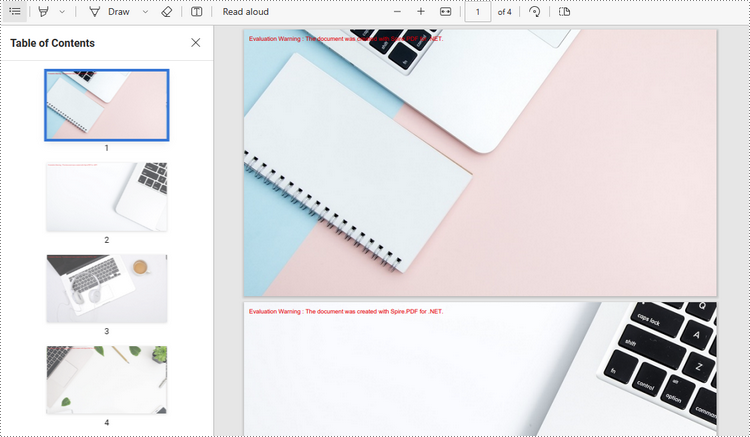
Apply for a Temporary License
If you'd like to remove the evaluation message from the generated documents, or to get rid of the function limitations, please request a 30-day trial license for yourself.
C#/VB.NET: Convert PDF to PowerPoint
PDF files are great for presenting on different types of devices and sharing across platforms, but it has to admit that editing PDF is a bit challenging. When you receive a PDF file and need to prepare a presentation based on the content inside, it is recommended to convert the PDF file to a PowerPoint document to have a better presentation effect and also to ensure the content can be further edited. This article will demonstrate how to programmatically convert PDF to PowerPoint presentation using Spire.PDF for .NET.
Install Spire.PDF for .NET
To begin with, you need to add the DLL files included in the Spire.PDF for.NET package as references in your .NET project. The DLLs files can be either downloaded from this link or installed via NuGet.
PM> Install-Package Spire.PDF
Convert PDF to PowerPoint Presentation in C# and VB.NET
From Version 8.11.10, Spire.PDF for .NET supports converting PDF to PPTX using PdfDocument.SaveToFile() method. With this method, each page of your PDF file will be converted to a single slide in PowerPoint. Below are the steps to convert a PDF file to an editable PowerPoint document.
- Create a PdfDocument instance.
- Load a sample PDF document using PdfDocument.LoadFromFile() method.
- Save the document as a PowerPoint document using PdfDocument.SaveToFile(string filename, FileFormat.PPTX) method.
- C#
- VB.NET
using Spire.Pdf;

namespace PDFtoPowerPoint
{
    class Program
    {
        static void Main(string[] args)
        {
            //Create a PdfDocument instance
            PdfDocument pdf = new PdfDocument();

            //Load a sample PDF document
            pdf.LoadFromFile(@"C:\Users\Administrator\Desktop\Sample.pdf");

            //Convert the PDF to PPTX document
            pdf.SaveToFile("ConvertPDFtoPowerPoint.pptx", FileFormat.PPTX);
        }
    }
}

Apply for a Temporary License
If you'd like to remove the evaluation message from the generated documents, or to get rid of the function limitations, please request a 30-day trial license for yourself.
C#/VB.NET: Convert PDF to Linearized
PDF linearization, also known as "Fast Web View", is a way of optimizing PDF files. Ordinarily, users can view a multipage PDF file online only when their web browsers have downloaded all pages from the server. However, if the PDF file is linearized, the browsers can display the first page very quickly even if the full download has not been completed. This article will demonstrate how to convert a PDF to linearized in C# and VB.NET using Spire.PDF for .NET.
Install Spire.PDF for .NET
To begin with, you need to add the DLL files included in the Spire.PDF for.NET package as references in your .NET project. The DLLs files can be either downloaded from this link or installed via NuGet.
- Package Manager
PM> Install-Package Spire.PDF
Convert PDF to Linearized
The following are the steps to convert a PDF file to linearized:
- Load a PDF file using PdfToLinearizedPdfConverter class.
- Convert the file to linearized using PdfToLinearizedPdfConverter.ToLinearizedPdf() method.
- C#
- VB.NET
using Spire.Pdf.Conversion;

namespace ConvertPdfToLinearized
{
    class Program
    {
        static void Main(string[] args)
        {
            //Load a PDF file
            PdfToLinearizedPdfConverter converter = new PdfToLinearizedPdfConverter("Sample.pdf");
            //Convert the file to a linearized PDF
            converter.ToLinearizedPdf("Linearized.pdf");
        }
    }
}
Imports Spire.Pdf.Conversion

Namespace ConvertPdfToLinearized
    Friend Class Program
        Private Shared Sub Main(ByVal args As String())
            'Load a PDF file
            Dim converter As PdfToLinearizedPdfConverter = New PdfToLinearizedPdfConverter("Sample.pdf")
            'Convert the file to a linearized PDF
            converter.ToLinearizedPdf("Linearized.pdf")
        End Sub
    End Class
End Namespace
Open the result file in Adobe Acrobat and take a look at the document properties, you can see the value of “Fast Web View” is Yes which means the file is linearized.
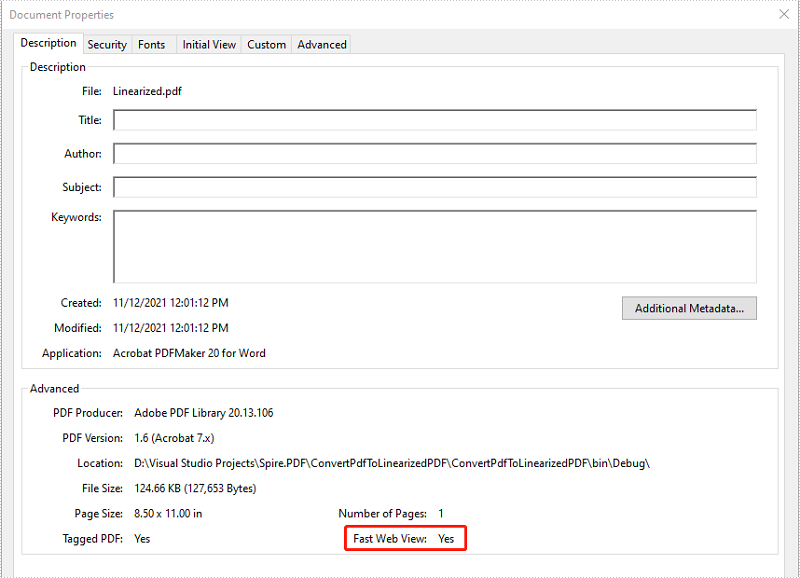
Apply for a Temporary License
If you'd like to remove the evaluation message from the generated documents, or to get rid of the function limitations, please request a 30-day trial license for yourself.
C#/VB.NET: Convert PDF to Grayscale (Black and White)
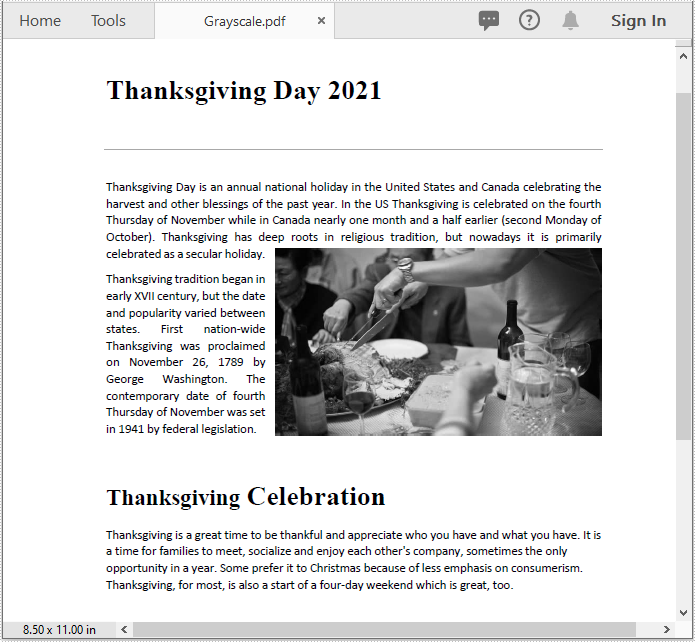
Converting a PDF with color images to grayscale can help you reduce the file size and print the PDF in a more affordable mode without consuming colored ink. In this article, you will learn how to achieve the conversion programmatically in C# and VB.NET using Spire.PDF for .NET.
Install Spire.PDF for .NET
To begin with, you need to add the DLL files included in the Spire.PDF for.NET package as references in your .NET project. The DLLs files can be either downloaded from this link or installed via NuGet.
- Package Manager
PM> Install-Package Spire.PDF
Convert PDF to Grayscale
The following are the steps to convert a color PDF to grayscale:
- Load a PDF file using PdfGrayConverter class.
- Convert the PDF to grayscale using PdfGrayConverter.ToGrayPdf() method.
- C#
- VB.NET
using Spire.Pdf.Conversion;

namespace ConvertPdfToGrayscale
{
    class Program
    {
        static void Main(string[] args)
        {
            //Create a PdfGrayConverter instance and load a PDF file
            PdfGrayConverter converter = new PdfGrayConverter(@"Sample.pdf");
            //Convert the PDF to grayscale
            converter.ToGrayPdf("Grayscale.pdf");
            converter.Dispose();
        }
    }
}
Imports Spire.Pdf.Conversion

Namespace ConvertPdfToGrayscale
    Friend Class Program
        Private Shared Sub Main(ByVal args As String())
            'Create a PdfGrayConverter instance and load a PDF file
            Dim converter As PdfGrayConverter = New PdfGrayConverter("Sample.pdf")
            'Convert the PDF to grayscale
            converter.ToGrayPdf("Grayscale.pdf")
            converter.Dispose()
        End Sub
    End Class
End Namespace
The input PDF:
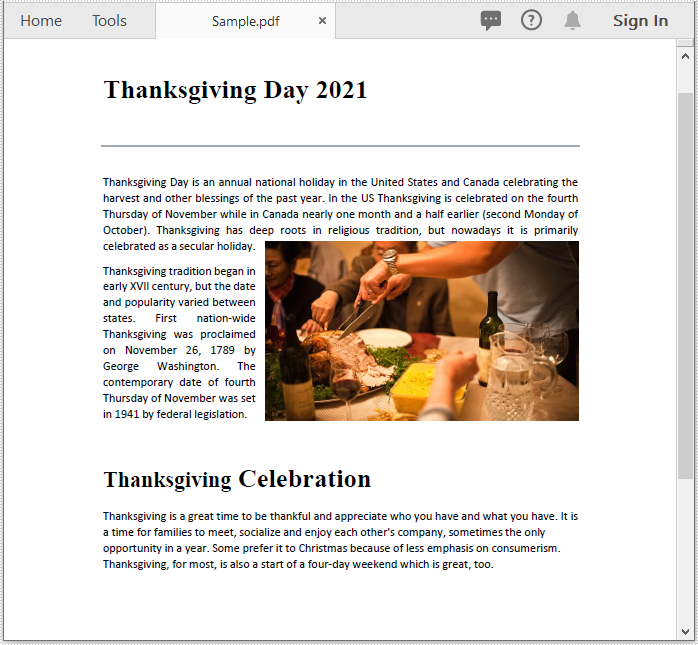
The output PDF:
Apply for a Temporary License
If you'd like to remove the evaluation message from the generated documents, or to get rid of the function limitations, please request a 30-day trial license for yourself.
C#/VB.NET: Convert PDF to Excel
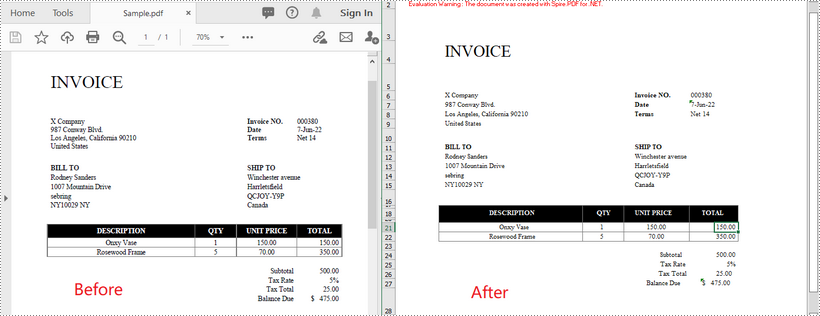
PDF is a versatile file format, but it is difficult to edit. If you want to modify and calculate PDF data, converting PDF to Excel would be an ideal solution. In this article, you will learn how to convert PDF to Excel in C# and VB.NET using Spire.PDF for .NET.
Install Spire.PDF for .NET
To begin with, you need to add the DLL files included in the Spire.PDF for.NET package as references in your .NET project. The DLL files can be either downloaded from this link or installed via NuGet.
PM> Install-Package Spire.PDF
Convert PDF to Excel in C# and VB.NET
The following are the steps to convert a PDF document to Excel:
- Initialize an instance of PdfDocument class.
- Load the PDF document using PdfDocument.LoadFromFile(filePath) method.
- Save the document to Excel using PdfDocument.SaveToFile(filePath, FileFormat.XLSX) method.
- C#
- VB.NET
using Spire.Pdf;
using Spire.Pdf.Conversion;

namespace ConvertPdfToExcel
{
    class Program
    {
        static void Main(string[] args)
        {
            //Initialize an instance of PdfDocument class
            PdfDocument pdf = new PdfDocument();
            //Load the PDF document
            pdf.LoadFromFile("Sample.pdf");

            //Save the PDF document to XLSX
            pdf.SaveToFile("PdfToExcel.xlsx", FileFormat.XLSX);
        }
    }
}
Convert a Multi-Page PDF to One Excel Worksheet in C# and VB.NET
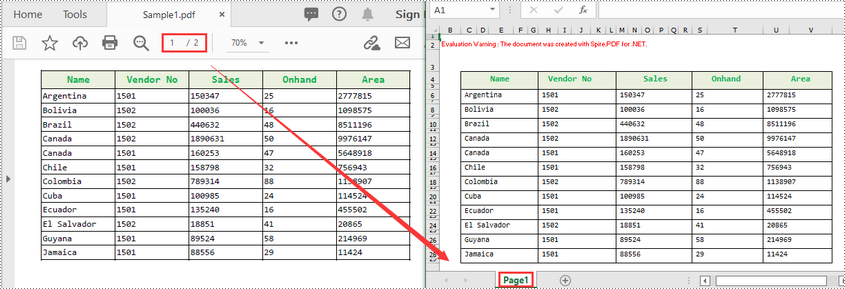
The following are the steps to covert a multi-page PDF to one Excel worksheet:
- Initialize an instance of PdfDocument class.
- Load the PDF document using PdfDocument.LoadFromFile(filePath) method.
- Initialize an instance of XlsxLineLayoutOptions class, in the class constructor, setting the first parameter - convertToMultipleSheet as false.
- Set PDF to XLSX convert options using PdfDocument.ConvertOptions.SetPdfToXlsxOptions(XlsxLineLayoutOptions) method.
- Save the document to Excel using PdfDocument.SaveToFile(filePath, FileFormat.XLSX) method.
- C#
- VB.NET
using Spire.Pdf;
using Spire.Pdf.Conversion;

namespace ConvertPdfToExcel
{
    class Program
    {
        static void Main(string[] args)
        {
            //Initialize an instance of PdfDocument class
            PdfDocument pdf = new PdfDocument();
            //Load the PDF document
            pdf.LoadFromFile("Sample1.pdf");

            //Initialize an instance of XlsxLineLayoutOptions class, in the class constructor, setting the first parameter - convertToMultipleSheet as false.
            //The four parameters represent: convertToMultipleSheet, showRotatedText, splitCell, wrapText
            XlsxLineLayoutOptions options = new XlsxLineLayoutOptions(false, true, true, true);
            //Set PDF to XLSX convert options
            pdf.ConvertOptions.SetPdfToXlsxOptions(options);

            //Save the PDF document to XLSX
            pdf.SaveToFile("PdfToOneExcelSheet.xlsx", FileFormat.XLSX);
        }
    }
}
Apply for a Temporary License
If you'd like to remove the evaluation message from the generated documents, or to get rid of the function limitations, please request a 30-day trial license for yourself.
C#/VB.NET: Convert SVG to PDF
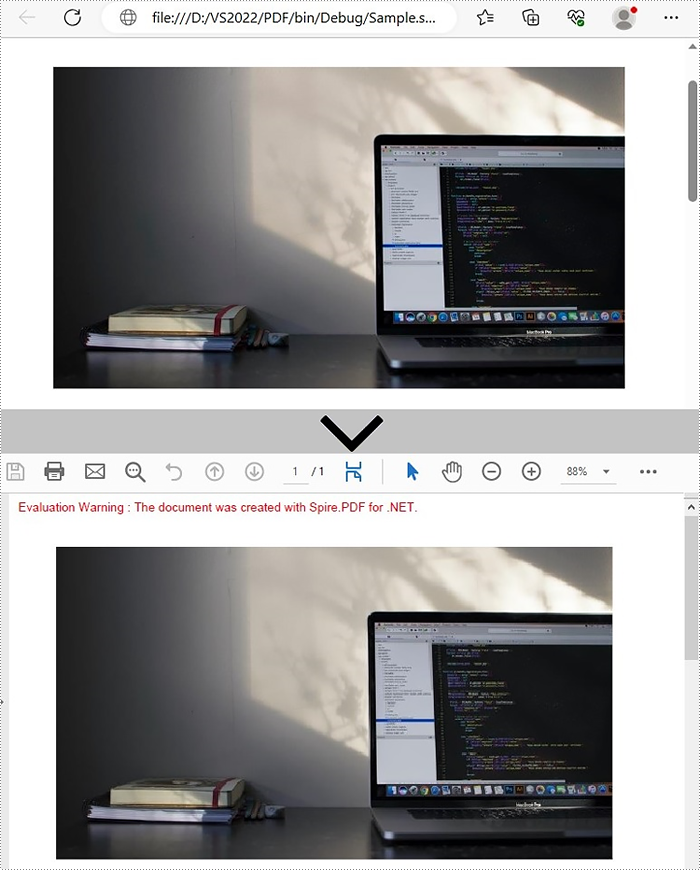
SVG is a file format for vector graphics, used to create images that can be scaled without loss of quality. However, PDF is more suitable for sharing and printing due to its support for high-quality printing, encryption, digital signatures, and other features. Converting SVG to PDF ensures good image display on different devices and environments, and better protects intellectual property. In this tutorial, we will show you how to convert SVG to PDF and how to add a SVG image to PDF in C# and VB.NET using Spire.PDF for .NET.
Install Spire.PDF for .NET
To begin with, you need to add the DLL files included in the Spire.PDF for .NET package as references in your .NET project. The DLLs files can be either downloaded from this link or installed via NuGet.
PM> Install-Package Spire.PDF
Convert SVG to PDF in C# and VB.NET
Spire.PDF for .NET provides the PdfDocument.SaveToFile(String, FileFormat) method, which allows users to save an SVG file as a PDF. The detailed steps are as follows.
- Create a PdfDocument object.
- Load a sample SVG file using PdfDocument.LoadFromFile() method.
- Convert the SVG file to PDF using PdfDocument.SaveToFile(String, FileFormat) method.
- C#
- VB.NET
using Spire.Pdf;

namespace SVGtoPDF
{
    class Program
    {
        static void Main(string[] args)
        {
            //Create a PdfDocument object
            PdfDocument doc = new PdfDocument();

            //Load a sample SVG file
            doc.LoadFromSvg("Sample.svg");

            //Save result document
            doc.SaveToFile("Result.pdf", FileFormat.PDF);
            doc.Dispose();
        }
    }
}
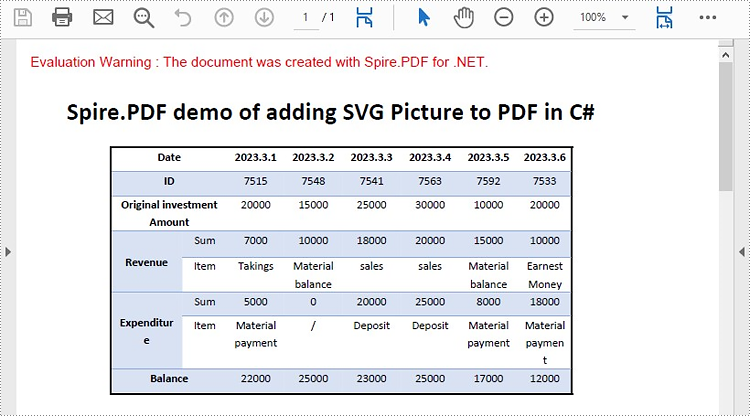
Add SVG image to PDF in C# and VB.NET
In addition to converting SVG to PDF directly, it also supports adding SVG image files to the specified locations in PDF. Please check the steps as below:
- Create a PdfDocument object and load an SVG file using PdfDocument. LoadFromSvg() method.
- Create a template based on the content of the SVG file using PdfDocument. Pages[].CreateTemplate() method.
- Get the width and height of the template on the page.
- Create another PdfDocument object and load a PDF file using PdfDocument.LoadFromFile() method.
- Draw the template with a custom size at a specified location using PdfDocument.Pages[].Canvas.DrawTemplate() method.
- Save to PDF file using PdfDocument.SaveToFile(String, FileFormat) method.
- C#
- VB.NET
using Spire.Pdf;
using Spire.Pdf.Graphics;
using System.Drawing;

namespace AddSVGImagetoPDF
{
    class Program
    {
        static void Main(string[] args)
        {
            //Create a PdfDocument object
            PdfDocument doc1 = new PdfDocument();

            //Load an SVG file
            doc1.LoadFromSvg("C:\\Users\\Administrator\\Desktop\\sample.svg");

            //Create a template based on the content of the SVG file
            PdfTemplate template = doc1.Pages[0].CreateTemplate();

            //Get the width and height of the template
            float width = template.Width;
            float height = template.Height;

            //Create another PdfDocument object
            PdfDocument doc2 = new PdfDocument();

            //Load a PDF file
            doc2.LoadFromFile("C:\\Users\\Administrator\\Desktop\\sample.pdf");

            //Draw the template with a custom size at a specified location
            doc2.Pages[0].Canvas.DrawTemplate(template, new PointF(0, 0), new SizeF(width * 0.8f, height * 0.8f));

            //Save to PDF file
            doc2.SaveToFile("AddSvgToPdf.pdf", FileFormat.PDF);
            doc2.Dispose();
        }
    }
}
Apply for a Temporary License
If you'd like to remove the evaluation message from the generated documents, or to get rid of the function limitations, please request a 30-day trial license for yourself.