C#/VB.NET: Convert Text Files to PDF
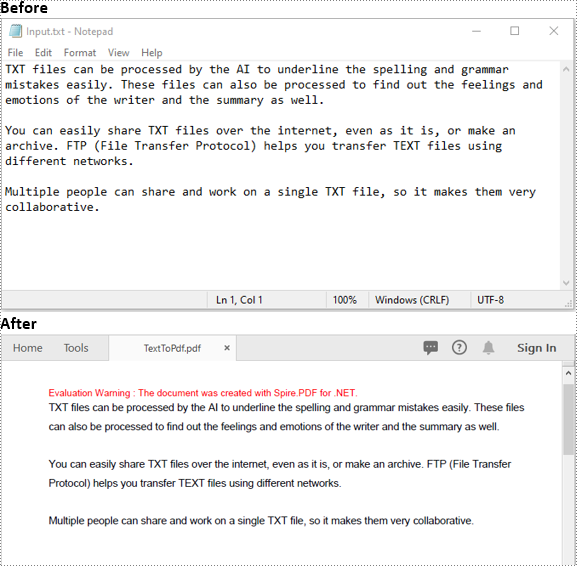
A text file is a type of computer file that contains plain text. It can be viewed on almost any computer but has very basic and limited functionalities. If you would like to perform more manipulations on text files, such as inserting annotations or form fields, you can convert them to PDF. In this article, we will demonstrate how to convert text files to PDF in C# and VB.NET using Spire.PDF for .NET.
Install Spire.PDF for .NET
To begin with, you need to add the DLL files included in the Spire.PDF for.NET package as references in your .NET project. The DLLs files can be either downloaded from this link or installed via NuGet.
PM> Install-Package Spire.PDF
Convert Text Files to PDF in C# and VB.NET
The following are the main steps to convert a text file to PDF using Spire.PDF for .NET:
- Read the text in the text file into a string object using File.ReadAllText() method.
- Create a PdfDocument instance and add a page to the PDF file using PdfDocument.Pages.Add() method.
- Create a PdfTextWidget instance from the text.
- Draw the text onto the PDF page using PdfTextWidget.Draw() method.
- Save the result file using PdfDocument.SaveToFile() method.
- C#
- VB.NET
using Spire.Pdf;
using Spire.Pdf.Graphics;
using System.Drawing;
using System.IO;

namespace ConvertTextToPdf
{
    class Program
    {
        static void Main(string[] args)
        {
            //Read the text from the text file
            string text = File.ReadAllText(@"Input.txt");

            //Create a PdfDocument instance
            PdfDocument pdf = new PdfDocument();
            //Add a page
            PdfPageBase page = pdf.Pages.Add();

            //Create a PdfFont instance
            PdfFont font = new PdfFont(PdfFontFamily.Helvetica, 11);

            //Create a PdfTextLayout instance
            PdfTextLayout textLayout = new PdfTextLayout();
            textLayout.Break = PdfLayoutBreakType.FitPage;
            textLayout.Layout = PdfLayoutType.Paginate;

            //Create a PdfStringFormat instance
            PdfStringFormat format = new PdfStringFormat();
            format.Alignment = PdfTextAlignment.Justify;
            format.LineSpacing = 20f;

            //Create a PdfTextWidget instance from the text
            PdfTextWidget textWidget = new PdfTextWidget(text, font, PdfBrushes.Black);
            //Set string format
            textWidget.StringFormat = format;

            //Draw the text at the specified location of the page
            RectangleF bounds = new RectangleF(new PointF(10, 25), page.Canvas.ClientSize);
            textWidget.Draw(page, bounds, textLayout);

            //Save the result file
            pdf.SaveToFile("TextToPdf.pdf", FileFormat.PDF);
        }
    }
}
Apply for a Temporary License
If you'd like to remove the evaluation message from the generated documents, or to get rid of the function limitations, please request a 30-day trial license for yourself.
Effective Methods to Convert HTML to PDF in C#

Converting HTML to PDF is a common task for developers who need to generate printable documents or preserve web content offline. With Spire.PDF for .NET, developers can achieve this conversion through multiple approaches that suit different environments. Whether you prefer using the built-in HTML-to-PDF capabilities with the QT plugin, or you want more control through ChromeHtmlConverter, Spire.PDF provides flexible solutions. This tutorial covers several ways to convert HTML to PDF using C# in .NET applications.
| Method | Best For | Features |
|---|---|---|
| 1. Convert HTML/URL to PDF With QT Plugin | Developers who seek quick setup with minimal customization | Login session support; Shorter code with faster conversion process |
| 2. ChromeHtmlConverter with Output Logs | Developers who need high-fidelity output and diagnostics | Pixel-perfect rendering; Executes JS and dynamic content; Logs useful for debugging |
Convert HTML/URL to PDF with QT Plugin
Before guiding you to the specific code sample of how to convert HTML files to PDF format, let me introduce Spire.PDF for .NET to you. It is a powerful C# library designed for creating, editing, and converting PDF documents. Except for HTML to PDF conversion, you can also use it to add digital signatures, create PDF Portfolios, extract elements like texts and images, and PDF file merging and splitting.
More reasons to help you choose Spire.PDF for .NET:
- Compress PDF files from 10 – 100 times to reduce file size
- Widely compatibility of C# environments
- Add encryption to PDF files to protect your file privacy
- More features waiting for you to explore...
To run the conversion process smoothly, you should use the C# API with QT plugin. In the following content, you will learn the step-by-step tutorial.
Step 1. Download Spire.PDF for .NET code library from the official download page to add it in your C# program.
Tip: To unlock all powerful functions of Spire.PDF, please request a 30-day trial license for yourself.
Step 2. Download the plugin on your computer. You can click the following link according to your own computer system.
Step 3. After downloading, unzip package somewhere on your disk to get the "plugins" folder like the pic shows below.
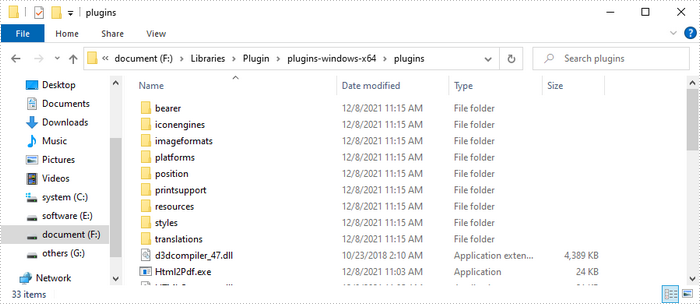
We recommend that you set the "Platform target" of your project to x64 or x86 accordingly.

Step 4. After adding the plugin, you just need to copy the following code sample to manage the conversion process.
If you have the original HTML file, copy the following code to your C# program:
using System.IO;
using Spire.Additions.Qt;
using System.Drawing;
using Spire.Pdf.Graphics;

namespace ConvertHtmlStringToPdfWithPlugin
{
    class Program
    {
        static void Main(string[] args)
        {
            //Get the HTML string from a .html file
            string htmlString = File.ReadAllText(@"C:\Users\Administrator\Desktop\Document\Html\Sample.html");

            //Specify the output file path
            string fileName = "HtmlStringToPdf.pdf";

            //Specify the plugin path
            string pluginPath = "F:\\Libraries\\Plugin\\plugins-windows-x64\\plugins";

            //Set plugin path
            HtmlConverter.PluginPath = pluginPath;

            //Convert HTML string to PDF
            HtmlConverter.Convert(htmlString, fileName, true, 100000, new Size(1080, 1000), new PdfMargins(0), LoadHtmlType.SourceCode);
        }
    }
}
If you only get the URL, the code sample below is what you need:
using Spire.Pdf.Graphics;
using Spire.Additions.Qt;
using System.Drawing;

namespace ConvertUrlToPdf
{
    class Program
    {
        static void Main(string[] args)
        {
            //Specify the URL path
            string url = "https://www.wikipedia.org/";

            //Specify the output file path
            string fileName = "UrlToPdf.pdf";

            //Specify the plugin path
             string pluginPath = "F:\\Libraries\\Plugin\\plugins-windows-x64\\plugins";

            //Set the plugin path
             HtmlConverter.PluginPath = pluginPath;

            //Convert URL to PDF
            HtmlConverter.Convert(url, fileName, true, 100000, new Size(1080, 1000), new PdfMargins(0));
        }
    }
}
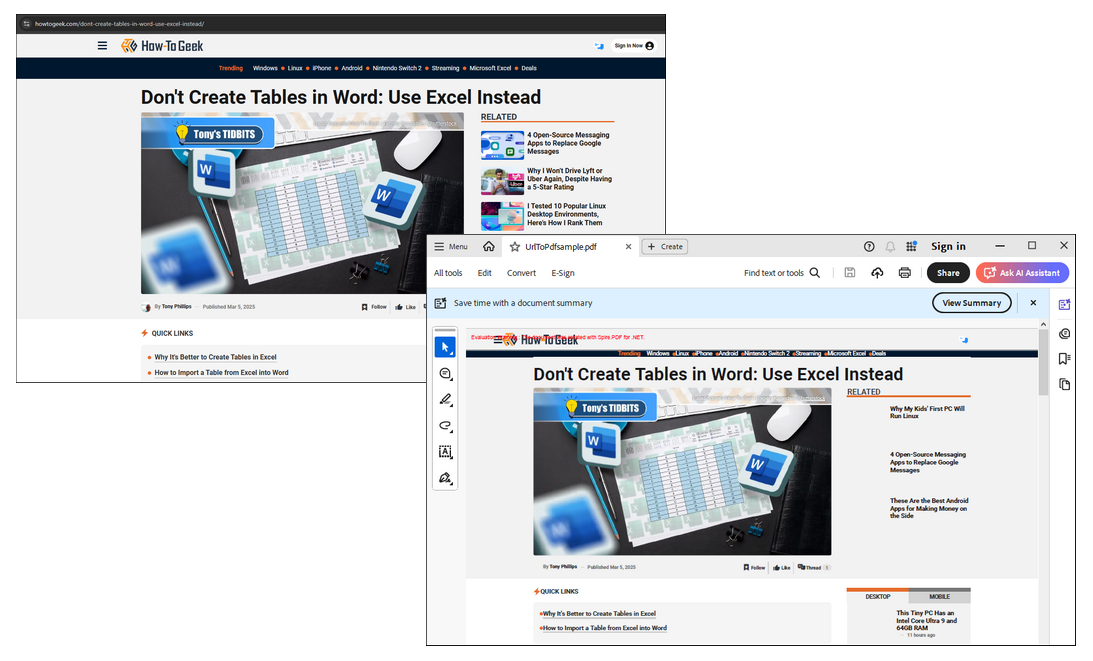
RESULT:
Convert HTML to PDF using ChromeHtmlConverter with Output Logs
Unlike standard conversion methods that rely solely on engine defaults or basic libraries, ChromeHtmlConverter leverages the power of a headless Chrome browser to render HTML content exactly as it appears in a real browser environment. It provides output logs, which are essential for diagnosing rendering issues, monitoring conversion performance, or maintaining compliance in production environments.
Let's now look at the specific code to use Spire.PDF for .NET and ChromeHtmlConverter to manage this conversion:
using Spire.Additions.Chrome;

namespace ConvertHtmlToPdfUsingChrome
{
    internal class Program
    {
        static void Main(string[] args)
        {
            //Specify the input URL and output PDF file path
            string inputUrl = @"https://www.e-iceblue.com/Tutorials/Spire.PDF/Spire.PDF-Program-Guide/C-/VB.NET-Convert-Image-to-PDF.html";
            string outputFile = @"HtmlToPDF.pdf";

            // Specify the log file path
            string logFilePath = @"Logs.txt";

            //Specify the path to the Chrome plugin
            string chromeLocation = @"C:\Program Files\Google\Chrome\Application\chrome.exe";

            //Create an instance of the ChromeHtmlConverter class
            ChromeHtmlConverter converter = new ChromeHtmlConverter(chromeLocation);
            //Enable logging
            converter.Logger = new Logger(logFilePath);

            //Create an instance of the ConvertOptions class
            ConvertOptions options = new ConvertOptions();
            //Set conversion timeout
            options.Timeout = 10 * 3000;
            //Set paper size and page margins of the converted PDF
            options.PageSettings = new PageSettings()
            {
                PaperWidth = 8.27,
                PaperHeight = 11.69,
                MarginTop = 0,
                MarginLeft = 0,
                MarginRight = 0,
                MarginBottom = 0

            };

            //Convert the URL to PDF
            converter.ConvertToPdf(inputUrl, outputFile, options);
        }
    }
}
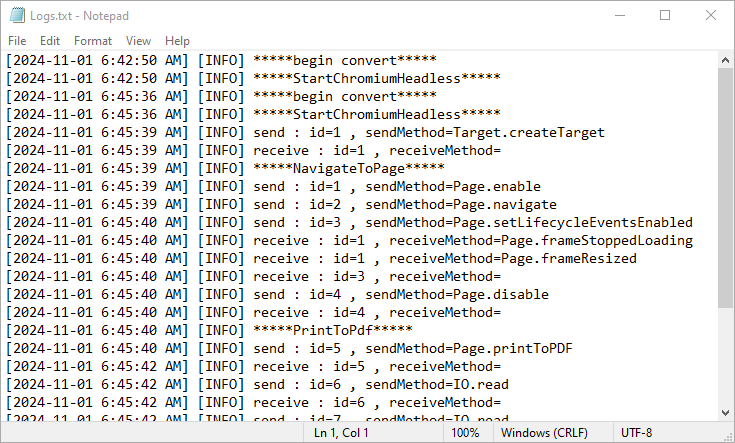
The output log looks like below:
Read more details with the following post:
Convert HTML to PDF using ChromeHtmlConverter
Conclusion:
Spire.PDF for .NET offers a range of tools to convert HTML/URL to PDF in C#, whether you're dealing with local HTML files or remote web pages. Depending on your project requirements—such as rendering complexity, output quality, or dependency preferences, you can select the most suitable method.