Set border and shading in PowerPoint document in C#, VB.NET
Suppose you want your doc document more attract and prominent your content. You would use a kind of border and shading style to beatify your document and give prominence to the key points. AS well as doc document the PPT document also can set shape to as border and shading.
Spire.Presentation for .NET, a professional .NET PPT component to allow users to manipulate PPT documents without automation. It can set kinds of shape types which can help users to beatify their document as their expectation
Below demonstrate the effect by a screenshot which shows a shape type in PPT document with C#, VB.NET via Spire.Presentation for .NET.
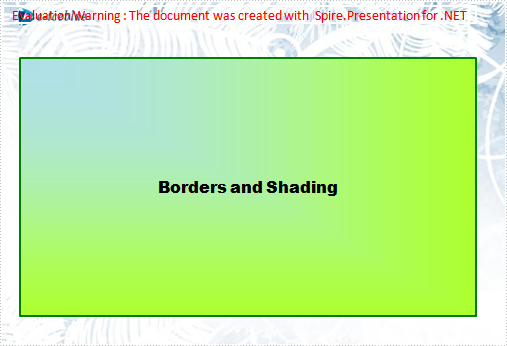
There is a guide to introduce a method to set shape type to achieve above screenshot with C#, VB.NET via Spire.Presentation for .NET.
This method is:
First, new a PPT document and set its slide. Then, new a shape and set its line color and gradient color. Last set the font and fill style for the paragraph. Now Download and install Spire.Presentation for .NET and use below code to experience this method to set shape type in PPT document.
The full code:
using System;
using System.Drawing;
using Spire.Presentation;
using Spire.Presentation.Drawing;

namespace BorderAndShading
{
    class Program
    {
        static void Main(string[] args)
        {
            Presentation presentation = new Presentation();

            //set background Image
            string ImageFile = @" bg.png";
            RectangleF rect = new RectangleF(0, 0, presentation.SlideSize.Size.Width, presentation.SlideSize.Size.Height);
            presentation.Slides[0].Shapes.AppendEmbedImage(ShapeType.Rectangle, ImageFile, rect);
            presentation.Slides[0].Shapes[0].Line.FillFormat.SolidFillColor.Color = Color.FloralWhite;

            //append new shape
            IAutoShape shape = presentation.Slides[0].Shapes.AppendShape(ShapeType.Rectangle,
                new RectangleF(120, 70, 450, 300));

            //set the LineColor
            shape.ShapeStyle.LineColor.Color = Color.Green;

            //set the gradient color of shape
            shape.Fill.FillType = Spire.Presentation.Drawing.FillFormatType.Gradient;
            shape.Fill.Gradient.GradientShape = Spire.Presentation.Drawing.GradientShapeType.Rectangle;
            shape.Fill.Gradient.GradientStyle = Spire.Presentation.Drawing.GradientStyle.FromTopLeftCorner;
            shape.Fill.Gradient.GradientStops.Append(1f, KnownColors.GreenYellow);
            shape.Fill.Gradient.GradientStops.Append(0, KnownColors.PowderBlue);
            shape.AppendTextFrame("Borders and Shading");

            //set the Font
            shape.TextFrame.Paragraphs[0].TextRanges[0].LatinFont = new TextFont("Arial Black");
            shape.TextFrame.Paragraphs[0].TextRanges[0].Fill.FillType = FillFormatType.Solid;
            shape.TextFrame.Paragraphs[0].TextRanges[0].Fill.SolidColor.Color = Color.Black;

            //save the document
            presentation.SaveToFile("BordersAndShading.pptx", FileFormat.Pptx2007);
            System.Diagnostics.Process.Start("BordersAndShading.pptx");
        }
    }
}
Imports System.Text
Imports System.Drawing
Imports Spire.Presentation
Imports Spire.Presentation.Drawing

Module Module1

    Sub Main()
        'create PPT document
        Dim presentation As New Presentation()

        'set background Image
        Dim ImageFile As String = "bg.png"
        Dim rect As New RectangleF(0, 0, presentation.SlideSize.Size.Width, presentation.SlideSize.Size.Height)
        presentation.Slides(0).Shapes.AppendEmbedImage(ShapeType.Rectangle, ImageFile, rect)
        presentation.Slides(0).Shapes(0).Line.FillFormat.SolidFillColor.Color = Color.FloralWhite

        'append new shape
        Dim shape As IAutoShape = presentation.Slides(0).Shapes.AppendShape(ShapeType.Rectangle, New RectangleF(30, 70, 550, 300))

        'set the LineColor
        shape.ShapeStyle.LineColor.Color = Color.Green

        'set the gradient color of shape
        shape.Fill.FillType = Spire.Presentation.Drawing.FillFormatType.Gradient
        shape.Fill.Gradient.GradientShape = Spire.Presentation.Drawing.GradientShapeType.Rectangle
        shape.Fill.Gradient.GradientStyle = Spire.Presentation.Drawing.GradientStyle.FromTopLeftCorner
        shape.Fill.Gradient.GradientStops.Append(1.0F, KnownColors.GreenYellow)

        shape.Fill.Gradient.GradientStops.Append(0, KnownColors.PowderBlue)
        shape.AppendTextFrame("Borders and Shading")

        'set the Font
        shape.TextFrame.Paragraphs(0).TextRanges(0).LatinFont = New TextFont("Arial Black")
        shape.TextFrame.Paragraphs(0).TextRanges(0).Fill.FillType = FillFormatType.Solid
        shape.TextFrame.Paragraphs(0).TextRanges(0).Fill.SolidColor.Color = Color.Black

        'save the document
        presentation.SaveToFile("BordersAndShading.pptx", FileFormat.Pptx2007)
        System.Diagnostics.Process.Start("BordersAndShading.pptx")

    End Sub

End Module
How to Set Font of Text in PowerPoint
PPT file format is commonly used for office and educational slide shows. With Spire.Presentation, you can generate beautiful and powerful PPT files and edit them without utilizing Microsoft PowerPoint. The PPT files generated are compatible with PowerPoint.
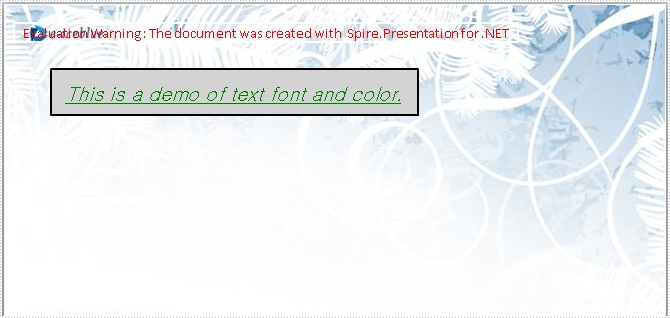
In this document, I will introduce you how to set Font of text in PPT file. First add IAutoShape to the slide. The IAutoShape is a TextBox. You have to add it first. Then add text to the IAutoShape using the method AppendTextFrame. Then you can get the property TextRange of the shape. Using TextRange, you can set Font of text finally.
Step 1: Add the shape to the slide.
IAutoShape shape = presentation.Slides[0].Shapes.AppendShape(ShapeType.Rectangle,
                new RectangleF(50, 70, 400, 50));
Step 2: Add the text to the shape.
shape.AppendTextFrame("This is a demo of text font and color.");
Step 3: Get the property TextRange of the text.
TextRange textRange = shape.TextFrame.TextRange;
Step 4: Set the Font of the text in shape.
textRange.FontHeight = 21;
textRange.IsItalic = TriState.True;
textRange.TextUnderlineType = TextUnderlineType.Single;
textRange.LatinFont = new TextFont("Gulim");
Step 5: Save the document.
presentation.SaveToFile("text.pptx", FileFormat.Pptx2007);
Full code:
using Spire.Presentation;
using System.Drawing;
namespace SetFont
{
    class Program
    {
        static void Main(string[] args)
        {
            //create PPT document
            Presentation presentation = new Presentation();

            //set background Image
            string ImageFile = @"..\..\..\..\..\..\Data\bg.png";
            RectangleF rect = new RectangleF(0, 0, presentation.SlideSize.Size.Width, presentation.SlideSize.Size.Height);
            presentation.Slides[0].Shapes.AppendEmbedImage(ShapeType.Rectangle, ImageFile, rect);
            presentation.Slides[0].Shapes[0].Line.FillFormat.SolidFillColor.Color = Color.FloralWhite;

            //append new shape
            IAutoShape shape = presentation.Slides[0].Shapes.AppendShape(ShapeType.Rectangle,
                new RectangleF(50, 70, 400, 50));

            //set the LineColor
            shape.ShapeStyle.LineColor.Color = Color.Black;

            //set the color and fill style
            shape.Fill.FillType = Spire.Presentation.Drawing.FillFormatType.Solid;
            shape.Fill.SolidColor.Color = Color.LightGray;
            shape.AppendTextFrame("This is a demo of text font and color.");

            //set the color of text in shape
            TextRange textRange = shape.TextFrame.TextRange;
            textRange.Fill.FillType = Spire.Presentation.Drawing.FillFormatType.Solid;
            textRange.Fill.SolidColor.Color = Color.Green;

            //set the Font of text in shape
            textRange.FontHeight = 21;
            textRange.IsItalic = TriState.True;
            textRange.TextUnderlineType = TextUnderlineType.Single;
            textRange.LatinFont = new TextFont("Gulim");

            //save the document
            presentation.SaveToFile("text.pptx", FileFormat.Pptx2007);
            System.Diagnostics.Process.Start("text.pptx");
        }
    }
}
Screenshot:
Align Text in PowerPoint Document in C#, VB.NET
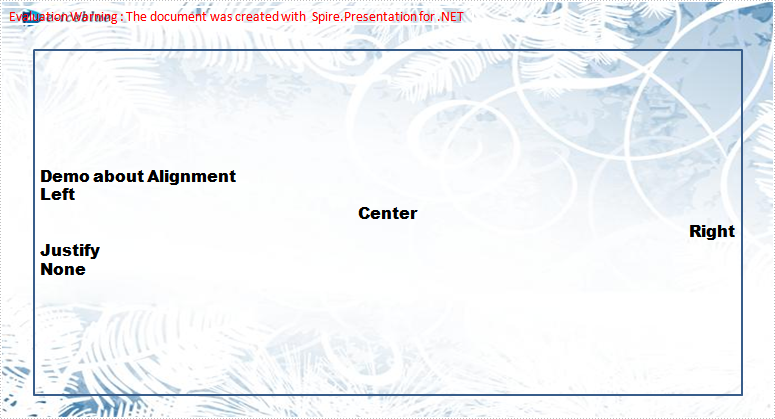
PPT text Alignment can be taken as one kind of text format tools. It allows users to align text with the following styles: Left, Right, Center and Justify. By default, text will be aligned right. Also, users can customize alignment. Below demonstrate the effect by a screenshot which shows the text is corresponding to the alignment, for example, text Left is aligned left and Center is aligned center.
Spire.Presentation for .NET, a professional .NET PPT component to allow users to manipulate PPT documents without automation. This guide will introduce a method to align text with C#, VB.NET via Spire.Presentation for .NET.
The method is:
First, new a PPT document, and set its slide. Then, traversal all alignment and use the new paragraph to show them. Last set the font and fill style for added paragraphs.
Download and install Spire.Presentation for .NET and use below code to experience this method to align text in PPT document.
The full code:
using System;
using System.Drawing;
using Spire.Presentation;
using Spire.Presentation.Drawing;

namespace Alignment
{
    class Program
    {
        static void Main(string[] args)
        {
            Presentation presentation = new Presentation();


            //set background Image
            string ImageFile = @"bg.png";
            // set the rectangle size and position
            RectangleF rect = new RectangleF(0, 0, presentation.SlideSize.Size.Width, presentation.SlideSize.Size.Height);
    //set the slide's shapes,background image and rectangle .
            presentation.Slides[0].Shapes.AppendEmbedImage(ShapeType.Rectangle, ImageFile, rect);
            //set the shape's solidFillColor
            presentation.Slides[0].Shapes[0].Line.FillFormat.SolidFillColor.Color = Color.FloralWhite;

            //append new shape
            IAutoShape shape = presentation.Slides[0].Shapes.AppendShape(ShapeType.Rectangle, new RectangleF(50, 70, 600, 400));

            shape.TextFrame.Paragraphs[0].Alignment = TextAlignmentType.Left;
            shape.Fill.FillType = FillFormatType.None;
            shape.TextFrame.Text = "Demo about Alignment";

            foreach (TextAlignmentType textAlign in Enum.GetValues(typeof(TextAlignmentType)))
            {
                //create a text range
                TextRange textRange = new TextRange(textAlign.ToString());

                //create a new paragraph
                TextParagraph paragraph = new TextParagraph();

                //apend the text range
                paragraph.TextRanges.Append(textRange);

                //set the alignment
                paragraph.Alignment = textAlign;

                //append to shape

                shape.TextFrame.Paragraphs.Append(paragraph);
            }


            //set the font and fill style
            foreach (TextParagraph paragraph in shape.TextFrame.Paragraphs)
            {
                paragraph.TextRanges[0].LatinFont = new TextFont("Arial Black");
                paragraph.TextRanges[0].Fill.FillType = FillFormatType.Solid;
                paragraph.TextRanges[0].Fill.SolidColor.Color = Color.Black;
            }

            //save the document
            presentation.SaveToFile("alignment.pptx", FileFormat.Pptx2010);
            System.Diagnostics.Process.Start("alignment.pptx");
        }
    }
}
Imports System.Text
Imports System.Drawing
Imports Spire.Presentation
Imports Spire.Presentation.Drawing

Public Class Form1

    Private Sub btnRun_Click(ByVal sender As System.Object, ByVal e As System.EventArgs) Handles btnRun.Click

        'create PPT document
        Dim presentation As New Presentation()

        'set background Image
        Dim ImageFile As String = "bg.png"
        Dim rect As New RectangleF(0, 0, presentation.SlideSize.Size.Width, presentation.SlideSize.Size.Height)
        presentation.Slides(0).Shapes.AppendEmbedImage(ShapeType.Rectangle, ImageFile, rect)
        presentation.Slides(0).Shapes(0).Line.FillFormat.SolidFillColor.Color = Color.FloralWhite

        'append new shape
        Dim shape As IAutoShape = presentation.Slides(0).Shapes.AppendShape(ShapeType.Rectangle, New RectangleF(50, 70, 350, 200))
        shape.TextFrame.Paragraphs(0).Alignment = TextAlignmentType.Left
        shape.Fill.FillType = FillFormatType.None
        shape.TextFrame.Text = "Demo about Alignment"

        For Each textAlign As TextAlignmentType In [Enum].GetValues(GetType(TextAlignmentType))
            'create a text range
            Dim textRange As New TextRange(textAlign.ToString())

            'create a new paragraph
            Dim paragraph As New TextParagraph()

            'apend the text range
            paragraph.TextRanges.Append(textRange)

            'set the alignment
            paragraph.Alignment = textAlign

            'append to shape
            shape.TextFrame.Paragraphs.Append(paragraph)
        Next


        'set the font and fill style
        For Each paragraph As TextParagraph In shape.TextFrame.Paragraphs
            paragraph.TextRanges(0).LatinFont = New TextFont("Arial Black")
            paragraph.TextRanges(0).Fill.FillType = FillFormatType.Solid
            paragraph.TextRanges(0).Fill.SolidColor.Color = Color.Black
        Next

        'save the document
        presentation.SaveToFile("alignment.pptx", FileFormat.Pptx2010)
        System.Diagnostics.Process.Start("alignment.pptx")

    End Sub
End Class