Insert Background Image in WPF
Excel Background Image, one kind of page layout setting, is used to beautify files. Actually, with a beautiful background image, the Excel file will be more attractive to readers. Also, different from inserting image in Excel directly, background image will not cover data information. It means that all the data in Excel can be displayed even though background image is inserted.
Spire.XLS for WPF, a professional component to operate Excel files in WPF applications, enables users to insert background image in Excel. This guide will focus on how to realize this function by using C#, VB.NET.
Assign value for BackgroundImage property of PageSetup in Worksheet class to insert background image. Because the type of BackgroundImage is Bitmap, so the assigned value must be bitmap image. The following screenshot shows result after inserting background image.

Download and install Spire.XLS for WPF. Then add a button in MainWindow. Double click the button to use the following code to insert background image in Excel.
         Bitmap bm = new Bitmap(Image.FromFile(@"E:\Work\Documents\SampleImage\Flower.jpg"));
            sheet.PageSetup.BackgoundImage = bm;
         Dim bm As New Bitmap(Image.FromFile("E:\Work\Documents\SampleImage\Flower.jpg"))
        sheet.PageSetup.BackgoundImage = bm
Spire.XLS allows user to operate Excel document directly such as save to stream, save as web response, copy, lock/unlock worksheet, set up workbook properties, etc. As a professional WPF/.NET/Silverlight Excel component, it owns the ability of inserting content into Excel document, formatting cells and converting Excel documents to popular office file formats. Spire.XLS for WPF supports Excel 97-2003, Excel 2007 and Excel 2010.
Convert Excel to PDF in WPF
Software developers are often asked to find a way to convert Microsoft Excel into PDF as PDF files are widely used for exchanging documents between organizations, government sectors and individuals. This solution demonstrates a way of converting Excel to PDF for WPF developers and maintains high visual fidelity in the conversion.
Spire.XLS for WPF is a WPF Excel component which enables your WPF applications to fast generate, read, write and modify Excel document without Microsoft Office Excel Automation. It also fully supports converting files from Excel to PDF, Excel to HTML, Excel to CSV, Excel to Text, Excel to Image and Excel to XML. All the conversion is independent of any other software.
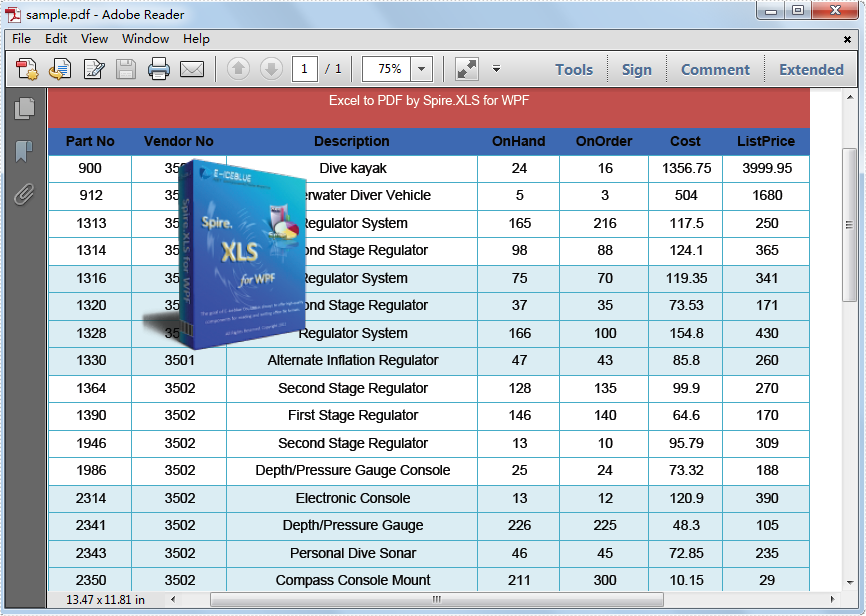
Any kind of trial and evaluation is always welcomed. Please feel free to download Spire.XLS for WPF to have a trial and convert your Excel to PDF for personal use. Below is a screenshot of the source Excel file we load in this demo. At the end, a screenshot of PDF will be demonstrated for comparison with the source Excel file.
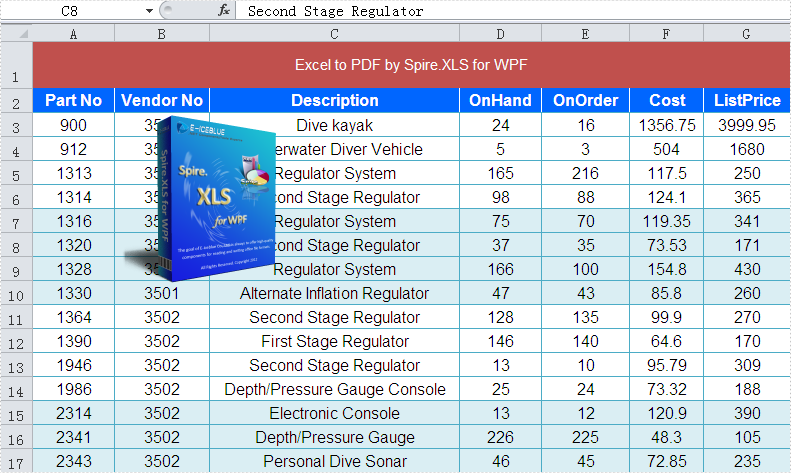
Now this is the key procedure for converting Excel to PDF in WPF.
Step 1: Load Excel file or Create Excel from scratch.
In this step, instantiate an object of the Workbook class by calling its empty constructor and then you may open/load an existing template file or skip this step if you are creating the workbook from scratch.
// load Excel file
Workbook workbook = new Workbook();
workbook.LoadFromFile("D:\\test.xlsx");
[VB.NET]
' load Excel file
Dim workbook As New Workbook()
workbook.LoadFromFile("D:\test.xlsx")
Step 2: Set PDF template.
In this step, we will set PDF template which will be used below.
// Set PDF template
PdfDocument pdfDocument = new PdfDocument();
pdfDocument.PageSettings.Orientation = PdfPageOrientation.Landscape;
pdfDocument.PageSettings.Width = 970;
pdfDocument.PageSettings.Height = 850;
' Set PDF template
Dim pdfDocument As New PdfDocument()
pdfDocument.PageSettings.Orientation = PdfPageOrientation.Landscape
pdfDocument.PageSettings.Width = 970
pdfDocument.PageSettings.Height = 850
Step 3: Convert Excel to PDF in WPF.
Now we will use the template which we have already set above to convert Excel to PDF in WPF.
//Convert Excel to PDF using the template above
PdfConverter pdfConverter = new PdfConverter(workbook);
PdfConverterSettings settings = new PdfConverterSettings();
settings.TemplateDocument = pdfDocument;
pdfDocument = pdfConverter.Convert(settings);
'Convert Excel to PDF using the template above
Dim pdfConverter As New PdfConverter(workbook)
Dim settings As New PdfConverterSettings()
settings.TemplateDocument = pdfDocument
pdfDocument = pdfConverter.Convert(settings)
Step 4: Save and preview PDF.
Please use the codes below to save and preview PDF.
// Save and preview PDF
pdfDocument.SaveToFile("sample.pdf");
System.Diagnostics.Process.Start("sample.pdf");
' Save and preview PDF
pdfDocument.SaveToFile("sample.pdf")
System.Diagnostics.Process.Start("sample.pdf")
The picture below is a screenshot of the PDF, Please see:
Move Worksheet in WPF
It is not an easy task for WPF developers moving worksheet to another location in a workbook, as calculations or charts that are based on worksheet data might become inaccurate if you move the worksheet in WPF application. Here presents a solution that saves you from these worries. Apply Spire.Xls for WPF in your application, and you easily can move worksheet in your WPF application.
Spire.XLS for WPF is a professional Excel component which enables developers/programmers to fast generate, read, write and modify Excel document in WPF applications. Spire.XLS for .NET embed a method - Spire.Xls.WorkShee.MoveWorksheet(int destIndex) in its class design used to move a worksheet to another location in the spreadsheet. The method takes the target worksheet index as a parameter and lead no inaccuracy on these calculations or charts.
Now Feel free to download Spire.XLS for WPF and use the code samples below to move worksheet in WPF application.
using Spire.Xls;
using System.Windows;

namespace WpfApplication1
{
    public partial class MainWindow : Window
    {
        public MainWindow()
        {
            InitializeComponent();
        }
        private void button2_Click(object sender, RoutedEventArgs e)
        {
            //open Excel
            Workbook mywbk = new Workbook();
            mywbk.LoadFromFile(@"..\test.xls");

            // Locate the Worksheet
            Worksheet mysht = mywbk.Worksheets[0];

            //Move Worksheet
            mysht.MoveWorksheet(2);

            //Save and Launch
            mywbk.SaveToFile("result.xls");
            System.Diagnostics.Process.Start("result.xls");

        }
    }
}
Imports Spire.Xls
Imports System.Windows

Namespace WpfApplication1
	Public Partial Class MainWindow
		Inherits Window
		Public Sub New()
			InitializeComponent()
		End Sub
		Private Sub button2_Click(sender As Object, e As RoutedEventArgs)
			'open Excel
			Dim mywbk As New Workbook()
			mywbk.LoadFromFile("..\test.xls")

			' Locate the Worksheet
			Dim mysht As Worksheet = mywbk.Worksheets(0)

			'Move Worksheet
			mysht.MoveWorksheet(2)

			'Save and Launch
			mywbk.SaveToFile("result.xls")
			System.Diagnostics.Process.Start("result.xls")

		End Sub
	End Class
End Namespace
How to Set Excel Background Color in WPF
Excel background color is a very useful property when we need to demonstrate data for special purpose. That is also a basic feature for any Excel solution developer. Here will demonstrate how to design Excel background color regardless whether Microsoft Excel is installed on your system or not. Spire.Xls for WPF is a professional component for directly managing Excel operations. With it you can easily and fast set Excel background color in WPF.
Spire.Xls for WPF is always welcome to any kind of trial and evaluation. So now please feel free to download Spire.Xls for WPF and then follow our guide to easily set Excel background color in WPF or try other function of Spire.Xls for WPF.
Friendly Reminder:
- Before we code to set Excel background color in WPF, please add spire.xls dll as reference by Clicking Project → Add Reference → Browse → Choose the folder contains Spire.XLS for WPF → Bin → .NET 4.0.
- Please make sure the namespace-Spire.Xls being imported.
Next we will demonstrate the how to set Excel background color in WPF within just 3 Steps.
Step 1: Load Excel in WPF
Spire.XLS for WPF enables users directly loading Excel file or create a new Excel. We will load an Excel in this step and later set its background color in WPF. Please check the code examples below.
Workbook workbook = new Workbook();
workbook.LoadFromFile(@"..\test.xls", ExcelVersion.Version97to2003);
Dim workbook As New Workbook()
workbook.LoadFromFile("..\test.xls", ExcelVersion.Version97to2003)
Step 2: Set Excel background color in WPF
In this step, we will set the background color of the Excel which we just loaded above. With Spire.Xls for WPF, developers only need few lines of codes to freely set background colors in Excel. Please check the following example.
Worksheet worksheet = workbook.Worksheets[0];
//set the backgroundcolor=LightBlue of Range["A2:E9"]
worksheet.Range["A2:E9"].Style.Color = Color.LightBlue;
//set the backgroundcolor=Silver of Range["A11:E18"]
worksheet.Range["A11:E18"].Style.Color = Color.Silver;
Dim worksheet As Worksheet = workbook.Worksheets(0)
'set the backgroundcolor=LightBlue of Range["A2:E9"]
worksheet.Range("A2:E9").Style.Color = Color.LightBlue
'set the backgroundcolor=Silver of Range["A11:E18"]
worksheet.Range("A11:E18").Style.Color = Color.Silver
Step 3: Save and preview
Now we will use the following codes to save and preview our work.
workbook.SaveToFile("sample.xls", ExcelVersion.Version97to2003);
System.Diagnostics.Process.Start(workbook.FileName);
workbook.SaveToFile("sample.xls", ExcelVersion.Version97to2003)
System.Diagnostics.Process.Start(workbook.FileName)
We have successfully set Excel background color in WPF, now press F5 to run this application and you will see the different background color we set. Below is an effective screenshot, please have a check:

Insert Excel Worksheets in WPF
Are there multiple choices for creating Excel worksheets in WPF with quick and steady performance? The answer is definitely positive. The post presents different choices for creating Excel worksheets in WPF.
Each solution will be managed within several lines of code; meanwhile the performance will be perfect for any kind of user. All the solution will be built base on Spire.Xls for WPF, which enables developers to fast generate, edit Excel files. Developers can control Excel on cell formatting, page setup, data sort and filter, chart and formulas. Besides, developers can use this component to import data into Excel from database and export data from Excel to database.
Spire.Xls for WPF is always welcome to any kind of trial and evaluation. So now please feel free to download Spire.XLS for WPF and then follow our guide to easily insert Excel worksheets WPF or try other function of Spire.Xls for WPF.
Friendly Reminder:
- Before we code to insert Excel worksheet in WPF, please add spire.xls dll as reference by Clicking Project → Add Reference → Browse → Choose the folder contains Spire.XLS for WPF → Bin → .NET 4.0.
- Please make sure the namespace-Spire.Xls being imported.
Step 1: Insert a worksheet to Excel in WPF
In this method, we will insert a worksheet to Excel in WPF by calling Workbook.Worksheet.add(string sheetname) function, please check my code examples.
Workbook myWorkbook = new Workbook();
myWorkbook.Worksheets.Add("My New Worksheet");
myWorkbook.SaveToFile("Result.xls");
System.Diagnostics.Process.Start(myWorkbook.FileName);
Dim myWorkbook As New Workbook()
myWorkbook.Worksheets.Add("My New Worksheet")
myWorkbook.SaveToFile("Result.xls")
System.Diagnostics.Process.Start(myWorkbook.FileName)
Effective Screenshot shows we have successfully inserted Excel worksheet in WPF.

Step 2: Create empty Excel worksheet in WPF
In this method, we will insert a worksheet to Excel in WPF using Workbook.CreateEmptySheet(string sheetname) function, please check my code examples.
Workbook workbook = new Workbook();
workbook.CreateEmptySheet("New Empty Worksheet");
workbook.SaveToFile("Sample.xls");
System.Diagnostics.Process.Start(workbook.FileName);
Dim workbook As New Workbook()
workbook.CreateEmptySheet("New Empty Worksheet")
workbook.SaveToFile("Sample.xls")
System.Diagnostics.Process.Start(workbook.FileName)
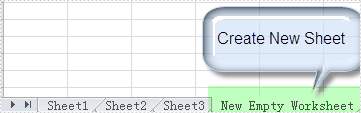
Effective Screenshot shows we have successfully inserted Excel worksheet in WPF.
Step 3: Insert several worksheet at one time
Workbook workbook = new Workbook();
workbook.CreateEmptySheets(6);
workbook.SaveToFile("Sample.xls");
System.Diagnostics.Process.Start(workbook.FileName);
Dim workbook As New Workbook()
workbook.CreateEmptySheets(6)
workbook.SaveToFile("Sample.xls")
System.Diagnostics.Process.Start(workbook.FileName)
Five worksheet have been inserted at one time, please check the effective screenshot:

Export Data from Excel Worksheet to Datatable in WPF
Export data is equally important with import data for excel users. Export data from Exel worksheet directly to datatable escapes many troubles and saves much time. This post will introduce you a method to export data from excel worksheet to datatable for WPF with C#, VB.NET.
Spire.XLS for WPF enables you to quickly export your data from Excel worksheet to datatable by following the below three steps. Spire.XLS for WPF supports to operate Excel 97-2003, Excel 2007 and Excel 2010. However, .NET Framework and Visual Studio must be installed for using Spire.XLS for WPF.
Make sure Spire.XLS and Visual Studio are correctly installed. And then follow steps.
Step 1: Create a new project
Create a new project by choosing WPF Application in Visual Studio.
Add a button and dataGrid in MainWindow. The default button name is "Button1". You can set Button1 Content property to be "Run" in its properties by right clicking it.
Step 2: Add reference and project namespaces
Add Spire.XLS. Wpf.dll as reference in Project. The Default location of Spire.Doc for WPF is "C:\Program Files\e-iceblue\Spire.XLS for WPF".
Double click the "Run" button, you can see the following method has been added automatically:
namespace dataexport

{
    ///
    /// Interaction logic for MainWindow.xaml
    ///
    public partial class MainWindow : Window
    {
        public MainWindow()
        {
            InitializeComponent();
        }

        private void button1_Click(object sender, RoutedEventArgs e)
        {
     }
    }
}
Namespace dataexport

	'''
	''' Interaction logic for MainWindow.xaml
	'''
	Public Partial Class MainWindow
		Inherits Window
		Public Sub New()
			InitializeComponent()
		End Sub

		Private Sub button1_Click(sender As Object, e As RoutedEventArgs)
             End Sub
	 End Class
End Namespace
Add below namespaces at the top of the method
using Spire.Xls;
using System.Data;
Imports Spire.Xls
Imports System.Data
Step 3: Export data from excel worksheet to datatable
Create a new Excel workbook and load an excel file from system
Workbook workbook = new Workbook();
workbook.LoadFromFile(@"D:\michelle\e-iceblue\Spire.XLS\Demos\Data\dataexport.xls", ExcelVersion.Version97to2003);
Worksheet sheet = workbook.Worksheets[0];
Dim workbook As New Workbook()
workbook.LoadFromFile("D:\michelle\e-iceblue\Spire.XLS\Demos\Data\dataexport.xls", ExcelVersion.Version97to2003)
Dim sheet As Worksheet = workbook.Worksheets(0)
Export data from excel worksheet to datatable:
DataTable dataTable = sheet.ExportDataTable();
DataView view = new DataView(dataTable);
this.dataGrid1.ItemsSource = view;
this.dataGrid1.AutoGenerateColumns = true;
Dim dataTable As DataTable = sheet.ExportDataTable()
Dim view As New DataView(dataTable)
Me.dataGrid1.ItemsSource = view
Me.dataGrid1.AutoGenerateColumns = True
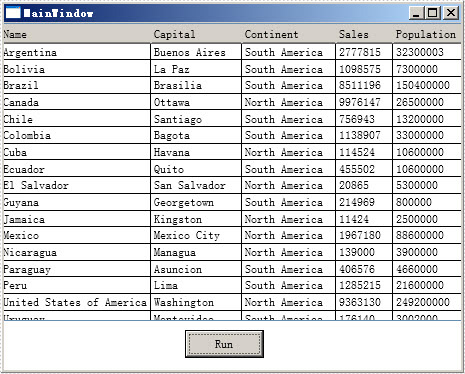
Press F5 and click "Run" in MainWindow, you can see the datatable as below picture.
Effective Screeshot:
Export Data from Database to Excel in WPF
This section will introduce a solution to export data from database to Excel for WPF. The whole solution is easily performed by this WPF Excel component Spire.XLS for WPF.

In the task of database to Excel, first we need to connect with database by this class provided by Microsoft: System.Data.Oledb.OledbConnection. Here we use an MS access database. Then, OleDbCommand can help us specify a datatable from database in order to save the data in Dataset later. Finally fill the data into dataset table. After all the connection, we can see the key source code provided by Spire.XLS to export data columns from datatable to Excel: Spire.Xls.Worksheet.InsertDataTable(System.Data.DataTable dataTable, bool columnHeaders, int firstRow, int firstColumn).
There are four parameters passed.
- dataTable: The first parameter is to export the data column;
- columnHeaders: the second is to indicate whether to import field names;
- firstRow, firstColumn: the third and fourth parameters are index of first row and first column.
Here we can download Spire.XLS for WPF. After installing it on system, and start our database to excel task as below code:
//export datatable to excel
Workbook book = new Workbook();
Worksheet sheet = book.Worksheets[0];
sheet.InsertDataTable(t, true, 1, 1);
book.SaveToFile("insertTableToExcel.xls");
System.Diagnostics.Process.Start("insertTableToExcel.xls");
//export datatable to excel
Dim book As New Workbook()
Dim sheet As Worksheet = book.Worksheets(0)
sheet.InsertDataTable(t, True, 1, 1)
book.SaveToFile("insertTableToExcel.xls")
System.Diagnostics.Process.Start("insertTableToExcel.xls")
End Sub
End Class
End Namespace