
Spire.Presentation for Java (83)
Children categories
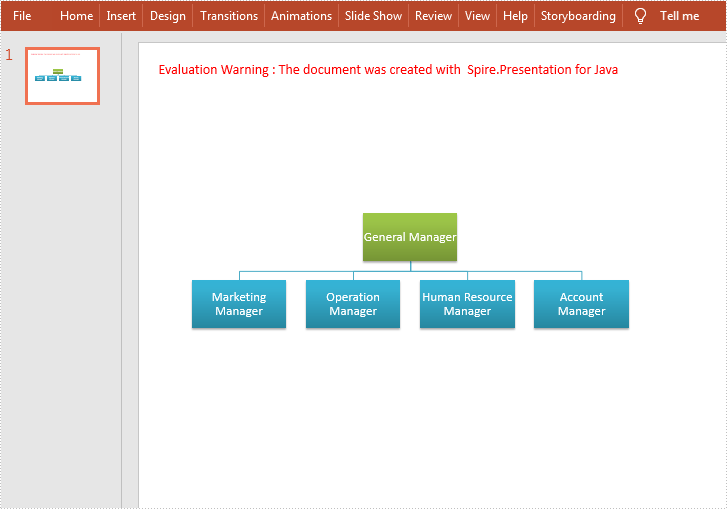
A SmartArt graphic is a visual representation of information and ideas. It can turn ordinary text into the predefined graphic, which makes the text information easier to understand. In this article, you will learn how to create a SmartArt in PowerPoint and custom its layout programmatically using Spire.Presentation for Java.
Install Spire.Presentation for Java
First of all, you're required to add the Spire.Presentation.jar file as a dependency in your Java program. The JAR file can be downloaded from this link. If you use Maven, you can easily import the JAR file in your application by adding the following code to your project's pom.xml file.
<repositories>
    <repository>
        <id>com.e-iceblue</id>
        <name>e-iceblue</name>
        <url>https://repo.e-iceblue.com/nexus/content/groups/public/</url>
    </repository>
</repositories>
<dependencies>
    <dependency>
        <groupId>e-iceblue</groupId>
        <artifactId>spire.presentation</artifactId>
        <version>11.8.3</version>
    </dependency>
</dependencies>
Create a SmartArt in PowerPoint
The detailed steps are as follows.
- Create a Presentation object.
- Get a specified slide using Presentation.getSlides().get() method.
- Insert a SmartArt into the specified slide using ISlide.getShapes().appendSmartArt() method.
- Set the style and color of the SmartArt using ISmartArt.setStyle() method and ISmartArt.setColorStyle() method.
- Loop through the nodes in SmartArt and remove all default nodes using ISmartArt.getNodes().removeNode() method.
- Add a parent node to the SmartArt using ISmartArt.getNodes().addNode() method, and then add 4 child nodes using ISmartArtNode.getChildNodes().addNode() method.
- Add text to each node using ISmartArtNode.getTextFrame().setText() method.
- Get the text range of the above added text using ISmartArtNode.getTextFrame().getTextRange() method, and then set the text font size using PortionEx.setFontHeight() method.
- Save the document to file using Presentation.saveToFile() method.
- Java
import com.spire.presentation.FileFormat;
import com.spire.presentation.ISlide;
import com.spire.presentation.Presentation;
import com.spire.presentation.diagrams.*;

public class AddSmartArt {

    public static void main(String[] args) throws Exception {

        //Create a Presentation object.
        Presentation presentation = new Presentation();

        //Get the first slide
        ISlide slide = presentation.getSlides().get(0);

        //Insert a SmartArt (Organization Chart) into the slide
        ISmartArt smartArt = slide.getShapes().appendSmartArt(60, 60, 500, 400, SmartArtLayoutType.ORGANIZATION_CHART);

        //Set the style and color of SmartArt
        smartArt.setStyle(SmartArtStyleType.MODERATE_EFFECT);
        smartArt.setColorStyle(SmartArtColorType.COLORFUL_ACCENT_COLORS_4_TO_5);

        //Remove all default nodes
        for (Object a : smartArt.getNodes()) {
            smartArt.getNodes().removeNode(0);
        }

        //Add a parent node
        ISmartArtNode node1 = smartArt.getNodes().addNode();

        //Add 4 child nodes
        ISmartArtNode node1_1 = node1.getChildNodes().addNode();
        ISmartArtNode node1_2 = node1.getChildNodes().addNode();
        ISmartArtNode node1_3 = node1.getChildNodes().addNode();
        ISmartArtNode node1_4 = node1.getChildNodes().addNode();

        //Add text to each node and set its font size
        node1.getTextFrame().setText("General Manager");
        node1.getTextFrame().getTextRange().setFontHeight(14f);
        node1_1.getTextFrame().setText("Marketing Manager");
        node1_1.getTextFrame().getTextRange().setFontHeight(12f);
        node1_2.getTextFrame().setText("Operation Manager");
        node1_2.getTextFrame().getTextRange().setFontHeight(12f);
        node1_3.getTextFrame().setText("Human Resource Manager");
        node1_3.getTextFrame().getTextRange().setFontHeight(12f);
        node1_4.getTextFrame().setText("Account Manager");
        node1_4.getTextFrame().getTextRange().setFontHeight(12f);

        //Save the document
        presentation.saveToFile("SmartArt.pptx", FileFormat.PPTX_2010);
        presentation.dispose();
    }
}
Apply for a Temporary License
If you'd like to remove the evaluation message from the generated documents, or to get rid of the function limitations, please request a 30-day trial license for yourself.
Java: Convert PowerPoint to Images (PNG, JPG, TIFF, SVG)
2022-10-21 07:12:00 Written by AdministratorIn comparison with PowerPoint documents, image files are easier to view because they can be opened on almost any device without the need for specific software. If you want to make your PowerPoint documents accessible on a wide range of devices, you can convert them to images. In this article, we will explain how to convert PowerPoint documents to various image formats in Java using Spire.Presentation for Java.
- Convert PowerPoint Documents to JPG or PNG Images
- Convert PowerPoint Documents to TIFF Images
- Convert PowerPoint Documents to SVG Images
Install Spire.Presentation for Java
First of all, you're required to add the Spire.Presentation.jar file as a dependency in your Java program. The JAR file can be downloaded from this link. If you use Maven, you can easily import the JAR file in your application by adding the following code to your project's pom.xml file.
<repositories>
    <repository>
        <id>com.e-iceblue</id>
        <name>e-iceblue</name>
        <url>https://repo.e-iceblue.com/nexus/content/groups/public/</url>
    </repository>
</repositories>
<dependencies>
    <dependency>
        <groupId>e-iceblue</groupId>
        <artifactId>spire.presentation</artifactId>
        <version>11.8.3</version>
    </dependency>
</dependencies>
Convert PowerPoint Documents to JPG or PNG Images in Java
The following are the steps to convert a PowerPoint document to JPG or PNG image:
- Initialize an instance of Presentation class.
- Load a PowerPoint document using Presentation.loadFromFile() method.
- Iterate through all slides in the PowerPoint document.
- Save each slide as a BufferedImage object using ISlide.saveAsImage() method.
- Save the BufferedImage object to PNG or JPG file using ImageIO.write() method.
- Java
import com.spire.presentation.ISlide;
import com.spire.presentation.Presentation;

import javax.imageio.ImageIO;
import java.awt.image.BufferedImage;
import java.io.File;

public class ConvertPowerPointToPngOrJpg {
    public static void main(String []args) throws Exception {
        //Create a Presentation instance
        Presentation presentation = new Presentation();
        //Load a PowerPoint document
        presentation.loadFromFile("Sample.pptx");

        //Iterate through all slides in the PowerPoint document
        for(int i = 0; i < presentation.getSlides().getCount(); i++)
        {
            ISlide slide = presentation.getSlides().get(i);
            //Save each slide as PNG image
            BufferedImage image = slide.saveAsImage();
            String fileName = String.format("ToImage-%1$s.png", i);
            ImageIO.write(image, "PNG",new File(fileName));
        }
    }
}

Convert PowerPoint Documents to TIFF Images in Java
The following are the steps to convert a PowerPoint document to TIFF image:
- Initialize an instance of Presentation class.
- Load a PowerPoint document using Presentation.loadFromFile() method.
- Convert the PowerPoint document to TIFF image using Presentation.saveToFile(String, FileFormat) method.
- Java
import com.spire.presentation.FileFormat;
import com.spire.presentation.Presentation;

public class ConvertPowerPointToTiff {
    public static void main(String []args) throws Exception {
        //Create a Presentation instance
        Presentation presentation = new Presentation();
        //Load a PowerPoint document
        presentation.loadFromFile("Sample.pptx");

        //Convert the PowerPoint document to TIFF image
        presentation.saveToFile("toTIFF.tiff", FileFormat.TIFF);
    }
}

Convert PowerPoint Documents to SVG Images in Java
The following are the steps to convert a PowerPoint document to SVG images:
- Initialize an instance of Presentation class.
- Load a PowerPoint document using Presentation.loadFromFile() method.
- Convert the PowerPoint document to SVG and save the results into an ArrayList of byte arrays using Presentation.saveToSVG() method.
- Iterate through the byte arrays in the ArrayList.
- Get the current byte array using ArrayList.get(int) method.
- Initialize an instance of FileOutputStream class and save the byte array to an SVG file using FileOutputStream.write() method.
- Java
import com.spire.presentation.Presentation;

import java.io.FileOutputStream;
import java.util.ArrayList;

public class ConvertPowerPointToSVG {
    public static void main(String []args) throws Exception {
        //Create a Presentation instance
        Presentation presentation = new Presentation();
        //Load a PowerPoint document
        presentation.loadFromFile("Sample.pptx");

        //Convert the PowerPoint document to SVG and save the results into an ArrayList of byte arrays
        ArrayList<byte[]> svgBytes =(ArrayList) presentation.saveToSVG();
        int len = svgBytes.size();
        //Iterate through the byte arrays in the ArrayList
        for (int i = 0; i < len; i++)
        {
            //Get the current byte array
            byte[] bytes = svgBytes.get(i);
            //Specify the output file name
            String fileName= String.format("ToSVG-%d.svg", i);
            //Create a FileOutputStream instance
            FileOutputStream stream = new FileOutputStream(fileName);
            //Save the byte array to an SVG file
            stream.write(bytes);
        }
    }
}

Apply for a Temporary License
If you'd like to remove the evaluation message from the generated documents, or to get rid of the function limitations, please request a 30-day trial license for yourself.
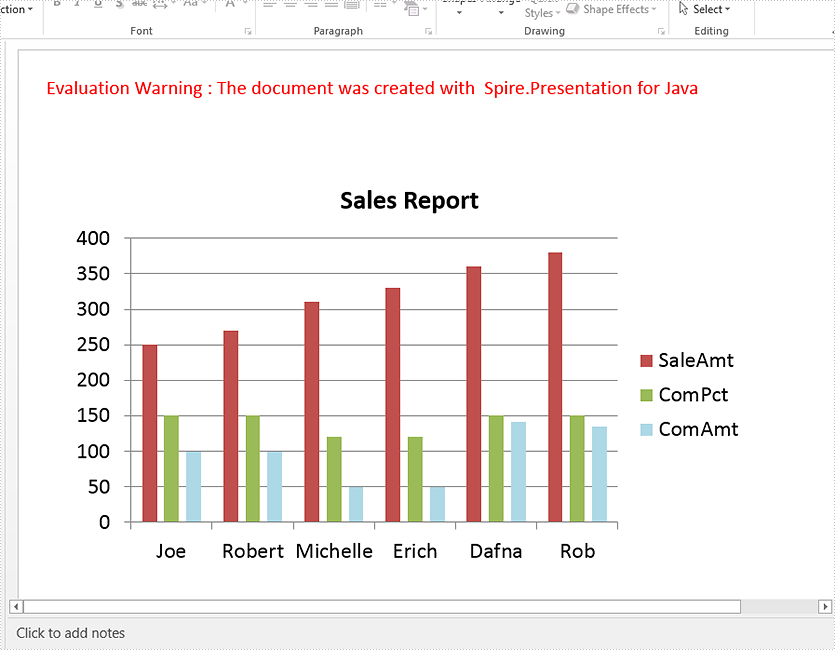
This article demonstrates how to create a chart in a PowerPoint document using Spire.Presentation for Java.
import com.spire.presentation.*;
import com.spire.pdf.tables.table.*;
import com.spire.presentation.charts.*;
import com.spire.presentation.drawing.FillFormatType;
import java.awt.geom.Rectangle2D;
import java.lang.Object;


public class CreateChart {
    public static void main(String[] args) throws Exception {

        //Create a presentation instance
        Presentation presentation = new Presentation();

        //Add a column clustered chart
        Rectangle2D.Double rect = new Rectangle2D.Double(40, 100, 550, 320);
        IChart chart = null;
        chart = presentation.getSlides().get(0).getShapes().appendChart(ChartType.COLUMN_CLUSTERED, rect);

        //Set chart title
        chart.getChartTitle().getTextProperties().setText("Sales Report");
        chart.getChartTitle().getTextProperties().isCentered(true);
        chart.getChartTitle().setHeight(30);
        chart.hasTitle(true);

        //Create a dataTable
        DataTable dataTable = new DataTable();
        dataTable.getColumns().add(new DataColumn("SalesPers", DataTypes.DATATABLE_STRING));
        dataTable.getColumns().add(new DataColumn("SaleAmt", DataTypes.DATATABLE_INT));
        dataTable.getColumns().add(new DataColumn("ComPct", DataTypes.DATATABLE_INT));
        dataTable.getColumns().add(new DataColumn("ComAmt", DataTypes.DATATABLE_INT));
        DataRow row1 = dataTable.newRow();
        row1.setString("SalesPers", "Joe");
        row1.setInt("SaleAmt", 250);
        row1.setInt("ComPct", 150);
        row1.setInt("ComAmt", 99);
        DataRow row2 = dataTable.newRow();
        row2.setString("SalesPers", "Robert");
        row2.setInt("SaleAmt", 270);
        row2.setInt("ComPct", 150);
        row2.setInt("ComAmt", 99);
        DataRow row3 = dataTable.newRow();
        row3.setString("SalesPers", "Michelle");
        row3.setInt("SaleAmt", 310);
        row3.setInt("ComPct", 120);
        row3.setInt("ComAmt", 49);
        DataRow row4 = dataTable.newRow();
        row4.setString("SalesPers", "Erich");
        row4.setInt("SaleAmt", 330);
        row4.setInt("ComPct", 120);
        row4.setInt("ComAmt", 49);
        DataRow row5 = dataTable.newRow();
        row5.setString("SalesPers", "Dafna");
        row5.setInt("SaleAmt", 360);
        row5.setInt("ComPct", 150);
        row5.setInt("ComAmt", 141);
        DataRow row6 = dataTable.newRow();
        row6.setString("SalesPers", "Rob");
        row6.setInt("SaleAmt", 380);
        row6.setInt("ComPct", 150);
        row6.setInt("ComAmt", 135);
        dataTable.getRows().add(row1);
        dataTable.getRows().add(row2);
        dataTable.getRows().add(row3);
        dataTable.getRows().add(row4);
        dataTable.getRows().add(row5);
        dataTable.getRows().add(row6);

        //Import data from dataTable to chart data
        for (int c = 0; c < dataTable.getColumns().size(); c++) {
            chart.getChartData().get(0, c).setText(dataTable.getColumns().get(c).getColumnName());
        }
        for (int r = 0; r < dataTable.getRows().size(); r++) {
            Object[] datas = dataTable.getRows().get(r).getArrayList();
            for (int c = 0; c < datas.length; c++) {
                chart.getChartData().get(r + 1, c).setValue(datas[c]);

            }
        }

        chart.getSeries().setSeriesLabel(chart.getChartData().get("B1", "D1"));
        chart.getCategories().setCategoryLabels(chart.getChartData().get("A2", "A7"));
        chart.getSeries().get(0).setValues(chart.getChartData().get("B2", "B7"));

        chart.getSeries().get(1).setValues(chart.getChartData().get("C2", "C7"));

        chart.getSeries().get(2).setValues(chart.getChartData().get("D2", "D7"));
        chart.getSeries().get(2).getFill().setFillType(FillFormatType.SOLID);
      chart.getSeries().get(2).getFill().getSolidColor().setKnownColor(KnownColors.LIGHT_BLUE);

        //Set overlap
        chart.setOverLap(-50);

        //Set gap width
        chart.setGapDepth(200);

        //Save the document
        presentation.saveToFile("output/CreateChart.pptx", FileFormat.PPTX_2010);
    }
}
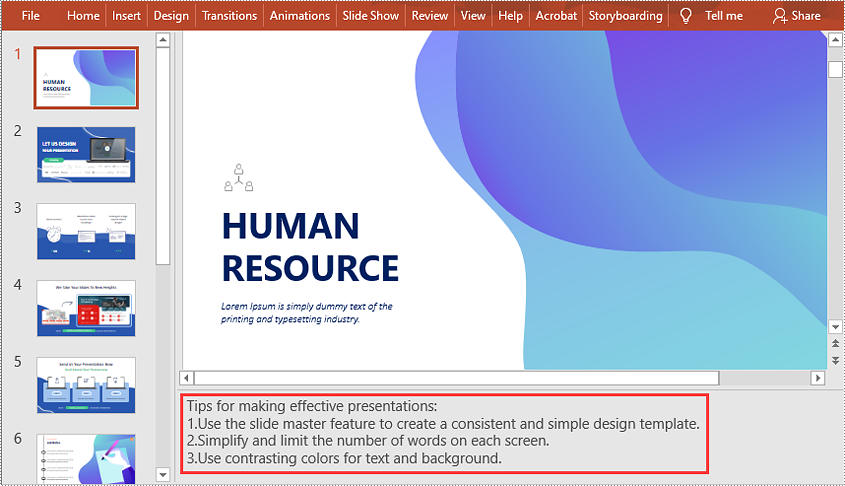
When presenting a slideshow to an audience, you probably want to explain more than what appears on the slides. Adding speaker notes to your presentation is a great way to help you remember what needs to be said during the slideshow. In this article, you will learn how to add, read or delete speaker notes in PowerPoint in Java using Spire.Presentation for Java.
Install Spire.Presentation for Java
First of all, you're required to add the Spire.Presentation.jar file as a dependency in your Java program. The JAR file can be downloaded from this link. If you use Maven, you can easily import the JAR file in your application by adding the following code to your project's pom.xml file.
<repositories>
    <repository>
        <id>com.e-iceblue</id>
        <name>e-iceblue</name>
        <url>https://repo.e-iceblue.com/nexus/content/groups/public/</url>
    </repository>
</repositories>
<dependencies>
    <dependency>
        <groupId>e-iceblue</groupId>
        <artifactId>spire.presentation</artifactId>
        <version>11.8.3</version>
    </dependency>
</dependencies>
Add Speaker Notes in PowerPoint in Java
The following are the main steps to add speaker notes to a PowerPoint document:
- Create a Presentation instance and load a PowerPoint document using Presentation.loadFromFile() method.
- Get the slide that you want to add speaker notes to using Presentation.getSlides().get(slideIndex) method.
- Add a notes slide to the slide using ISlide.addNotesSlides() method.
- Create a ParagraphEx instance.
- Set text for the paragraph through ParagraphEx.setText() method, then append the paragraph to the notes slide using NotesSlide.getNotesTextFrame().getParagraphs().append() method.
- Save the result document using Presentation.saveToFile() method.
- Java
import com.spire.presentation.*;

public class AddSpeakerNotes {
    public static void main(String []args) throws Exception {
        //Load a PowerPoint document
        Presentation ppt = new Presentation();
        ppt.loadFromFile("Sample.pptx");

        //Get the first slide
        ISlide slide = ppt.getSlides().get(0);
        //Add a notes slide
        NotesSlide notesSlide = slide.addNotesSlide();

        //Add a paragraph to the notes slide
        ParagraphEx paragraph = new ParagraphEx();
        paragraph.setText("Tips for making effective presentations:");
        notesSlide.getNotesTextFrame().getParagraphs().append(paragraph);

        //Add a paragraph to the notes slide
        paragraph = new ParagraphEx();
        paragraph.setText("Use the slide master feature to create a consistent and simple design template.");
        notesSlide.getNotesTextFrame().getParagraphs().append(paragraph);

        //Add a paragraph to the notes slide
        paragraph = new ParagraphEx();
        paragraph.setText("Simplify and limit the number of words on each screen.");
        notesSlide.getNotesTextFrame().getParagraphs().append(paragraph);

        //Add a paragraph to the notes slide
        paragraph = new ParagraphEx();
        paragraph.setText("Use contrasting colors for text and background.");
        notesSlide.getNotesTextFrame().getParagraphs().append(paragraph);

        //Set the bullet type and bullet style for specific paragraphs on the notes slide
        for (int i = 1; i < notesSlide.getNotesTextFrame().getParagraphs().getCount();i++)
        {
            notesSlide.getNotesTextFrame().getParagraphs().get(i).setBulletType(TextBulletType.NUMBERED);
            notesSlide.getNotesTextFrame().getParagraphs().get(i).setBulletStyle(NumberedBulletStyle.BULLET_ARABIC_PERIOD);
        }

        //Save the result document
        ppt.saveToFile("SpeakerNotes.pptx", FileFormat.PPTX_2013);
    }
}
Read Speaker Notes in PowerPoint in Java
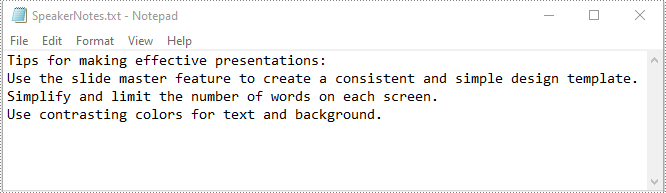
The following are the steps to read the speaker notes on a PowerPoint slide:
- Create a Presentation instance and load the PowerPoint document using Presentation.loadFromFile() method.
- Get the slide that you want to read speaker notes from using Presentation.getSlides().get(slideIndex) method.
- Get the notes slide from the slide using ISlide.getNotesSlide() method.
- Get the speaker notes from the notes slide using NotesSlide.getNotesTextFrame().getText() method.
- Create a StringBuilder instance.
- Append the speaker notes to the string builder, then write them into a .txt file.
- Java
import com.spire.presentation.ISlide;
import com.spire.presentation.NotesSlide;
import com.spire.presentation.Presentation;

import java.io.FileWriter;

public class ReadSpeakerNotes {
    public static void main(String []args) throws Exception {
        //Load the PowerPoint document
        Presentation ppt = new Presentation();
        ppt.loadFromFile("SpeakerNotes.pptx");

        //Get the first slide
        ISlide slide = ppt.getSlides().get(0);

        //Get the notes slide from the first slide
        NotesSlide notesSlide = slide.getNotesSlide();
        //Get the speaker notes from the notes slide
        String notes = notesSlide.getNotesTextFrame().getText();

        //Create a StringBuilder instance
        StringBuilder sb = new StringBuilder();
        //Append the speaker notes to the string builder
        sb.append(notes + "\n");

        //Save the speaker notes to a .txt file
        FileWriter writer = new FileWriter("SpeakerNotes.txt");
        writer.write(sb.toString());
        writer.flush();
        writer.close();
    }
}
Delete Speaker Notes in PowerPoint in Java
The following are the steps to delete speaker notes from a PowerPoint slide:
- Create a Presentation instance and load the PowerPoint document using Presentation.loadFromFile() method.
- Get the slide that you want to delete speaker notes from using Presentation.getSlides().get(slideIndex) method.
- Get the notes slide from the slide using ISlide.getNotesSlide() method.
- Remove a specific speaker note from the notes slide using NotesSlide.getNotesTextFrame().getParagraphs().removeAt(paragraphIndex) method or remove all the speaker notes from the notes slide using NotesSlide.getNotesTextFrame().getParagraphs().clear() method.
- Save the result document using Presentation.saveToFile() method.
- Java
import com.spire.presentation.FileFormat;
import com.spire.presentation.ISlide;
import com.spire.presentation.NotesSlide;
import com.spire.presentation.Presentation;

public class DeleteSpeakerNotes {
    public static void main(String []args) throws Exception {
        //Load the PowerPoint document
        Presentation ppt = new Presentation();
        ppt.loadFromFile("SpeakerNotes.pptx");

        //Get the first slide
        ISlide slide = ppt.getSlides().get(0);
        //Get the notes slide from the slide
        NotesSlide notesSlide = slide.getNotesSlide();

        //Remove a specific speaker note from notes slide
        notesSlide.getNotesTextFrame().getParagraphs().removeAt(1);

        //Remove all the speaker notes from notes slide
        notesSlide.getNotesTextFrame().getParagraphs().clear();

        //Save the result document
        ppt.saveToFile("DeleteSpeakerNotes.pptx", FileFormat.PPTX_2013);
    }
}
Apply for a Temporary License
If you'd like to remove the evaluation message from the generated documents, or to get rid of the function limitations, please request a 30-day trial license for yourself.
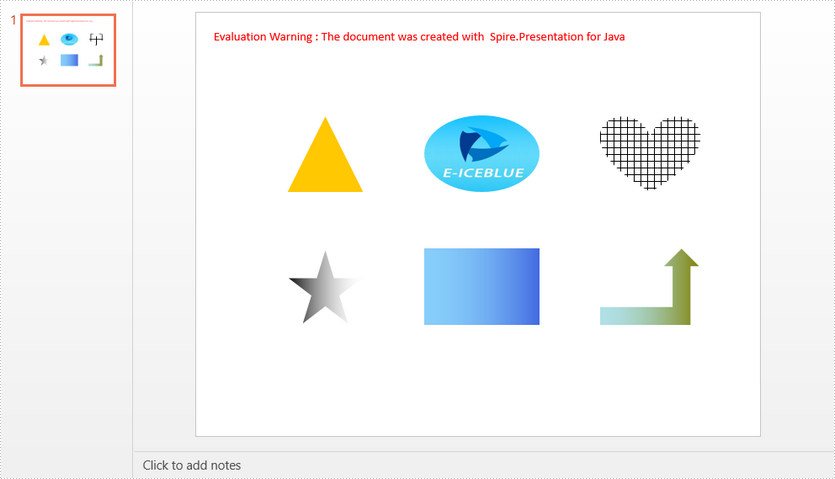
This article demonstrates how to add a variety of shapes to a PowerPoint slide and how to fill the shapes with a solid color, a picture, a pattern or a gradient.
Entire Code
import com.spire.presentation.*;
import com.spire.presentation.drawing.*;

import javax.imageio.ImageIO;
import java.awt.*;
import java.awt.geom.Rectangle2D;
import java.awt.image.BufferedImage;
import java.io.File;

public class AddShapes {

    public static void main(String[] args) throws Exception {

        //create a PowerPoint document
        Presentation presentation = new Presentation();

        //append a Triangle and fill the shape with a solid color
        IAutoShape shape = presentation.getSlides().get(0).getShapes().appendShape(ShapeType.TRIANGLE, new Rectangle2D.Double(115, 130, 100, 100));
        shape.getFill().setFillType(FillFormatType.SOLID);
        shape.getFill().getSolidColor().setColor(Color.orange);
        shape.getShapeStyle().getLineColor().setColor(Color.white);

        //append an Ellipse and fill the shape with a picture
        shape = presentation.getSlides().get(0).getShapes().appendShape(ShapeType.ELLIPSE, new Rectangle2D.Double(290, 130, 150, 100));
        shape.getFill().setFillType(FillFormatType.PICTURE);
        shape.getFill().getPictureFill().setFillType(PictureFillType.STRETCH);
        BufferedImage image = ImageIO.read(new File("C:\\Users\\Administrator\\Desktop\\logo.png"));
        shape.getFill().getPictureFill().getPicture().setEmbedImage(presentation.getImages().append(image));
        shape.getShapeStyle().getLineColor().setColor(Color.white);

        //append a Heart and fill the shape with a pattern
        shape = presentation.getSlides().get(0).getShapes().appendShape(ShapeType.HEART, new Rectangle2D.Double(515, 130, 130, 100));
        shape.getFill().setFillType(FillFormatType.PATTERN);
        shape.getFill().getPattern().setPatternType(PatternFillType.CROSS);
        shape.getShapeStyle().getLineColor().setColor(Color.white);

        //append a Five-Pointed Star and fill the shape with a gradient color
        shape = presentation.getSlides().get(0).getShapes().appendShape(ShapeType.FIVE_POINTED_STAR, new Rectangle2D.Double(115, 300, 100, 100));
        shape.getFill().setFillType(FillFormatType.GRADIENT);
        shape.getFill().getGradient().getGradientStops().append(0, KnownColors.BLACK);
        shape.getShapeStyle().getLineColor().setColor(Color.white);

        //append a Rectangle and fill the shape with gradient colors
        shape = presentation.getSlides().get(0).getShapes().appendShape(ShapeType.RECTANGLE, new Rectangle2D.Double(290, 300, 150, 100));
        shape.getFill().setFillType(FillFormatType.GRADIENT);
        shape.getFill().getGradient().getGradientStops().append(0, KnownColors.LIGHT_SKY_BLUE);
        shape.getFill().getGradient().getGradientStops().append(1, KnownColors.ROYAL_BLUE);
        shape.getShapeStyle().getLineColor().setColor(Color.white);

        //append a Bent Up Arrow and fill the shape with gradient colors
        shape = presentation.getSlides().get(0).getShapes().appendShape(ShapeType.BENT_UP_ARROW, new Rectangle2D.Double(515, 300, 130, 100));
        shape.getFill().setFillType(FillFormatType.GRADIENT);
        shape.getFill().getGradient().getGradientStops().append(1f, KnownColors.OLIVE);
        shape.getFill().getGradient().getGradientStops().append(0, KnownColors.POWDER_BLUE);
        shape.getShapeStyle().getLineColor().setColor(Color.white);

        //save the document
        presentation.saveToFile("output/AddShapes.pptx", FileFormat.PPTX_2010);
    }
}
Output
Making your slides easy to read is vital to creating an effective PowerPoint presentation. One of the most common ways of doing this is to format the text as a bulleted or numbered list. A list can help organize information in a neat manner as well as attract the reader’s attention. In this article, you will learn how to create numbered lists and bulleted lists in a PowerPoint slide in Java using Spire.Presentation for Java.
- Create a Numbered List in PowerPoint
- Create a Bulleted List with Symbol Bullets in PowerPoint
- Create a Bulleted List with Image Bullets in PowerPoint
Install Spire.Presentation for Java
First of all, you're required to add the Spire.Presentation.jar file as a dependency in your Java program. The JAR file can be downloaded from this link. If you use Maven, you can easily import the JAR file in your application by adding the following code to your project's pom.xml file.
<repositories>
    <repository>
        <id>com.e-iceblue</id>
        <name>e-iceblue</name>
        <url>https://repo.e-iceblue.com/nexus/content/groups/public/</url>
    </repository>
</repositories>
<dependencies>
    <dependency>
        <groupId>e-iceblue</groupId>
        <artifactId>spire.presentation</artifactId>
        <version>11.8.3</version>
    </dependency>
</dependencies>
Create a Numbered List in PowerPoint in Java
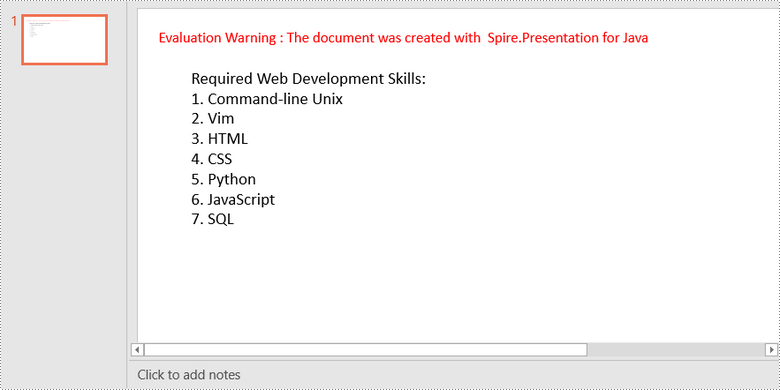
Spire.Presentation supports adding numerals or bullet points in front of paragraphs to create a numbered or bulleted list. To specify the bullet type, use ParagraphEx.setBulletType() method. The following are the steps to create a numbered list in a PowerPoint slide using Spire.Presentation for Java.
- Create a Presentation object.
- Get the first slide using Presentation.getSlides().get() method.
- Append a shape to the slide using ISlide.getShapes().appendShape() method.
- Specify list content inside a String list.
- Create paragraphs based on the list content, and set the bullet type of these paragraphs to NUMBERED using ParagraphEx.setBulletType() method.
- Set the numbered bullet style using ParagraphEx.setBulletStyle() method.
- Save the document to a PowerPoint file using Presentation.saveToFile() method.
- Java
import com.spire.presentation.*;
import com.spire.presentation.drawing.FillFormatType;

import java.awt.*;
import java.awt.geom.Rectangle2D;

public class CreateNumberedList {

    public static void main(String[] args) throws Exception {

        //Create a Presentation object
        Presentation presentation = new Presentation();
        presentation.getSlideSize().setType(SlideSizeType.SCREEN_16_X_9);

        //Get the first slide
        ISlide slide = presentation.getSlides().get(0);

        //Append a shape to the slide and set shape style
        Rectangle2D rect = new Rectangle2D.Double(50, 50, 300, 200);
        IAutoShape shape = slide.getShapes().appendShape(ShapeType.RECTANGLE, rect);
        shape.getLine().setFillType(FillFormatType.NONE);
        shape.getFill().setFillType(FillFormatType.NONE);

        //Add text to the default paragraph
        ParagraphEx titleParagraph = shape.getTextFrame().getParagraphs().get(0);
        titleParagraph.setText("Required Web Development Skills:");
        titleParagraph.getTextRanges().get(0).getFill().setFillType(FillFormatType.SOLID);
        titleParagraph.getTextRanges().get(0).getFill().getSolidColor().setColor(Color.black);
        titleParagraph.setAlignment(TextAlignmentType.LEFT);

        //Specify list content
        String[] listContent = new String[] {
                " Command-line Unix",
                " Vim",
                " HTML",
                " CSS",
                " Python",
                " JavaScript",
                " SQL"
        };

        //Create a numbered list
        for(int i = 0; i < listContent.length; i ++)
        {
            ParagraphEx paragraph = new ParagraphEx();
            shape.getTextFrame().getParagraphs().append(paragraph);
            paragraph.setText(listContent[i]);
            paragraph.getTextRanges().get(0).getFill().setFillType(FillFormatType.SOLID);
            paragraph.getTextRanges().get(0).getFill().getSolidColor().setColor(Color.black);
            paragraph.setBulletType(TextBulletType.NUMBERED);
            paragraph.setBulletStyle(NumberedBulletStyle.BULLET_ARABIC_PERIOD);
        }

        //Save the document
        presentation.saveToFile("NumberedList.pptx", FileFormat.PPTX_2013);
    }
}
Create a Bulleted List with Symbol Bullets in PowerPoint in Java
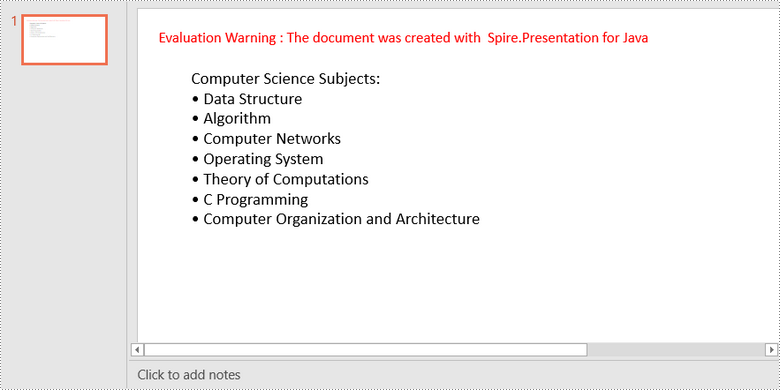
The process of creating a bulleted list using symbol bullets is very similar to that of creating a numbered list. The only difference is that you need to set the bullet type to SYMBOL. The following are the steps.
- Create a Presentation object.
- Get the first slide using Presentation.getSlides().get() method.
- Append a shape to the slide using ISlide.getShapes().appendShape() method.
- Specify list content inside a String list.
- Create paragraphs based on the list content, and set the bullet type of these paragraphs to SYMBOL using ParagraphEx.setBulletType() method.
- Save the document to a PowerPoint file using Presentation.saveToFile() method.
- Java
import com.spire.presentation.*;
import com.spire.presentation.drawing.FillFormatType;

import java.awt.*;
import java.awt.geom.Rectangle2D;

public class CreateBulletedListWithSymbol {

    public static void main(String[] args) throws Exception {

        //Create a Presentation object
        Presentation presentation = new Presentation();
        presentation.getSlideSize().setType(SlideSizeType.SCREEN_16_X_9);

        //Get the first slide
        ISlide slide = presentation.getSlides().get(0);

        //Append a shape to the slide and set shape style
        Rectangle2D rect = new Rectangle2D.Double(50, 50, 350, 200);
        IAutoShape shape = slide.getShapes().appendShape(ShapeType.RECTANGLE, rect);
        shape.getLine().setFillType(FillFormatType.NONE);
        shape.getFill().setFillType(FillFormatType.NONE);

        //Add text to the default paragraph
        ParagraphEx titleParagraph = shape.getTextFrame().getParagraphs().get(0);
        titleParagraph.setText("Computer Science Subjects:");
        titleParagraph.getTextRanges().get(0).getFill().setFillType(FillFormatType.SOLID);
        titleParagraph.getTextRanges().get(0).getFill().getSolidColor().setColor(Color.black);
        titleParagraph.setAlignment(TextAlignmentType.LEFT);

        //Specify list content
        String[] listContent = new String[] {
                " Data Structure",
                " Algorithm",
                " Computer Networks",
                " Operating System",
                " Theory of Computations",
                " C Programming",
                " Computer Organization and Architecture"
        };

        //Create a bulleted list with symbol bullets
        for(int i = 0; i < listContent.length; i ++)
        {
            ParagraphEx paragraph = new ParagraphEx();
            shape.getTextFrame().getParagraphs().append(paragraph);
            paragraph.setText(listContent[i]);
            paragraph.getTextRanges().get(0).getFill().setFillType(FillFormatType.SOLID);
            paragraph.getTextRanges().get(0).getFill().getSolidColor().setColor(Color.black);
            paragraph.setBulletType(TextBulletType.SYMBOL);
        }

        //Save the document
        presentation.saveToFile("SymbolBullets.pptx", FileFormat.PPTX_2013);
    }
}
Create a Bulleted List with Image Bullets in PowerPoint in Java
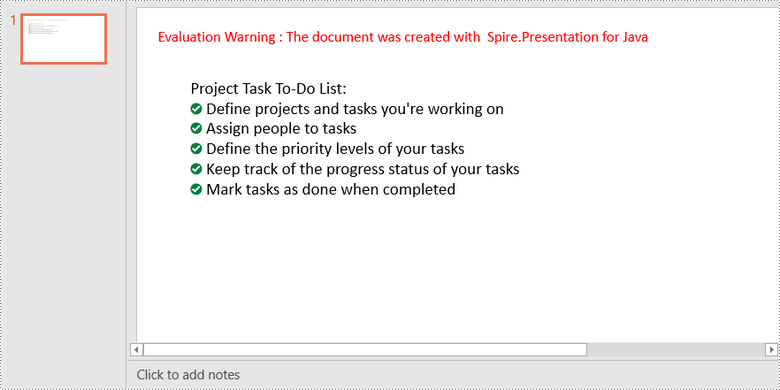
To use an image as bullet points, you need to set the bullet type to PICTURE and specify an image for the BulletPicture object. The following are the detailed steps.
- Create a Presentation object.
- Get the first slide using Presentation.getSlides().get() method.
- Append a shape to the slide using ISlide.getShapes().appendShape() method.
- Specify list content inside a String list.
- Create paragraphs based on the list content, and set the bullet type of these paragraphs to PICTURE using ParagraphEx.setBulletType() method.
- Set the image for the bullets using Paragraph.getBulletPicture().setEmbedImage() method.
- Save the document to a PowerPoint file using Presentation.saveToFile() method.
- Java
import com.spire.presentation.*;
import com.spire.presentation.drawing.FillFormatType;

import javax.imageio.ImageIO;
import java.awt.*;
import java.awt.geom.Rectangle2D;
import java.awt.image.BufferedImage;
import java.io.File;

public class CreateBulletedListWithImage {

    public static void main(String[] args) throws Exception {

        //Create a Presentation object
        Presentation presentation = new Presentation();
        presentation.getSlideSize().setType(SlideSizeType.SCREEN_16_X_9);

        //Get the first slide
        ISlide slide = presentation.getSlides().get(0);

        //Append a shape to the slide and set shape style
        Rectangle2D rect = new Rectangle2D.Double(50, 50, 400, 180);
        IAutoShape shape = slide.getShapes().appendShape(ShapeType.RECTANGLE, rect);
        shape.getLine().setFillType(FillFormatType.NONE);
        shape.getFill().setFillType(FillFormatType.NONE);

        //Add text to the default paragraph
        ParagraphEx titleParagraph = shape.getTextFrame().getParagraphs().get(0);
        titleParagraph.setText("Project Task To-Do List:");
        titleParagraph.getTextRanges().get(0).getFill().setFillType(FillFormatType.SOLID);
        titleParagraph.getTextRanges().get(0).getFill().getSolidColor().setColor(Color.black);
        titleParagraph.setAlignment(TextAlignmentType.LEFT);

        //Specify list content
        String[] listContent = new String[] {
                " Define projects and tasks you're working on",
                " Assign people to tasks",
                " Define the priority levels of your tasks",
                " Keep track of the progress status of your tasks",
                " Mark tasks as done when completed"
        };

        //Create a bulleted list with image bullets
        BufferedImage image = ImageIO.read(new File("C:\\Users\\Administrator\\Desktop\\R-C25.png"));
        for(int i = 0; i < listContent.length; i ++)
        {
            ParagraphEx paragraph = new ParagraphEx();
            shape.getTextFrame().getParagraphs().append(paragraph);
            paragraph.setText(listContent[i]);
            paragraph.getTextRanges().get(0).getFill().setFillType(FillFormatType.SOLID);
            paragraph.getTextRanges().get(0).getFill().getSolidColor().setColor(Color.black);
            paragraph.setBulletType(TextBulletType.PICTURE);
            paragraph.getBulletPicture().setEmbedImage(presentation.getImages().append(image));
        }

        //Save the document
        presentation.saveToFile("ImageBullets.pptx", FileFormat.PPTX_2013);
    }
}
Apply for a Temporary License
If you'd like to remove the evaluation message from the generated documents, or to get rid of the function limitations, please request a 30-day trial license for yourself.
A PowerPoint presentation, developed by Microsoft Corporation, is a versatile file format used for creating visually captivating and interactive content. It includes rich features and multiple elements such as text and images, making it a powerful tool for various scenarios, such as business introductions and academic speeches. If you need to edit or manipulate the text of PowerPoint, programmatically extracting it and saving it to a new file is an effective approach. In this article, we will show you how to extract text from PowerPoint using Spire.Presentation for Java.
Install Spire.Presentation for Java
First of all, you're required to add the Spire.Presentation.jar file as a dependency in your Java program. The JAR file can be downloaded from this link. If you use Maven, you can easily import the JAR file in your application by adding the following code to your project's pom.xml file.
<repositories>
    <repository>
        <id>com.e-iceblue</id>
        <name>e-iceblue</name>
        <url>https://repo.e-iceblue.com/nexus/content/groups/public/</url>
    </repository>
</repositories>
<dependencies>
    <dependency>
        <groupId>e-iceblue</groupId>
        <artifactId>spire.presentation</artifactId>
        <version>11.8.3</version>
    </dependency>
</dependencies>
Extract Text from the Whole PowerPoint File
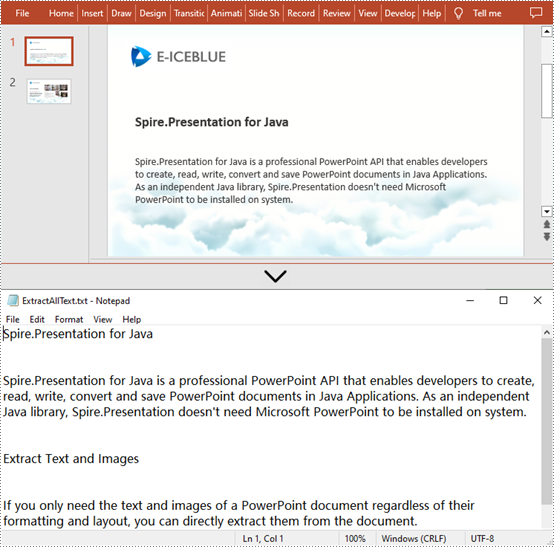
Spire.Presentation for Java supports looping through all slides and extracting text from the paragraphs on each slide using ParagraphEx.getText() method. The detailed steps are as follows.
- Create an object of Presentation class.
- Load a sample presentation using Presentation.loadFromFile() method.
- Create an object of StringBuilder class.
- Loop through shapes in each slide and paragraphs in each shape.
- Extract all text from these slides by calling ParagraphEx.getText() method and append the extracted text to StringBuilder object.
- Create an object of FileWriter class, and write the extracted text to a new .txt file.
- Java
import com.spire.presentation.*;

import java.io.*;

public class ExtractText {
    public static void main(String[] args) throws Exception {

        //Create an object of Presentation class
        Presentation presentation = new Presentation();

        //Load a sample presentation
        presentation.loadFromFile("sample.pptx");

        //Create a  StringBuilder object
        StringBuilder buffer = new StringBuilder();

        //Loop through each slide and extract text
        for (Object slide : presentation.getSlides()) {
            for (Object shape : ((ISlide) slide).getShapes()) {
                if (shape instanceof IAutoShape) {
                    for (Object tp : ((IAutoShape) shape).getTextFrame().getParagraphs()) {
                        buffer.append(((ParagraphEx) tp).getText()+"\n");
                    }
                }
            }
        }

        //Write the extracted text to a new .txt file
        FileWriter writer = new FileWriter("output/ExtractAllText.txt");
        writer.write(buffer.toString());
        writer.flush();
        writer.close();
        presentation.dispose();
    }
}
Extract Text from the Specific Slide
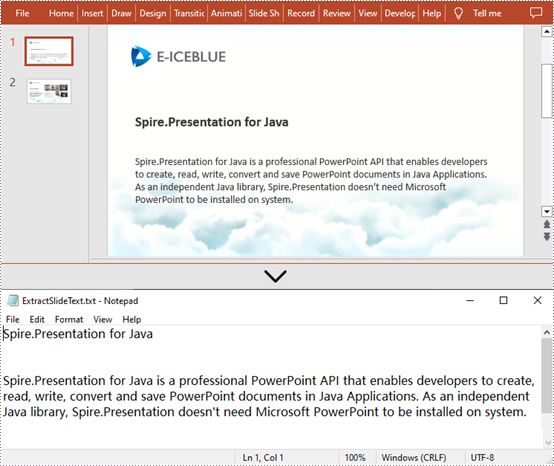
Spire.Presentation for Java also supports users to extract text from the specific slide. Simply get the desired slide by calling Presentation.getSlides().get() method before extracting text from the paragraphs on it. The following are detailed steps.
- Create an object of Presentation class.
- Load a sample presentation using Presentation.loadFromFile() method.
- Create an object of StringBuilder class.
- Get the first slide of this file by calling Presentation.getSlides().get() method.
- Loop through each shape and the paragraphs in each shape.
- Extract the text from the first slide by calling ParagraphEx.getText() method and append the extracted text to StringBuilder object.
- Create an object of FileWriter class, and write the extracted text to a new .txt file.
- Java
import com.spire.presentation.*;

import java.io.*;

public class ExtractText {
    public static void main(String[] args) throws Exception {

        //Create an object of Presentation class
        Presentation presentation = new Presentation();

        //Load a sample presentation
        presentation.loadFromFile("sample.pptx");

        //Create a StringBuilder object
        StringBuilder buffer = new StringBuilder();

        //Get the first slide of the presentation
        ISlide Slide = presentation.getSlides().get(0);

        //Loop through each paragraphs in each shape and extract text
        for (Object shape : Slide.getShapes()) {
            if (shape instanceof IAutoShape) {
                for (Object tp : ((IAutoShape) shape).getTextFrame().getParagraphs()) {
                    buffer.append(((ParagraphEx) tp).getText()+"\n");
                }
            }
        }

        //Write the extracted text to a new .txt file
        FileWriter writer = new FileWriter("output/ExtractSlideText.txt");
        writer.write(buffer.toString());
        writer.flush();
        writer.close();
        presentation.dispose();
    }
}
Apply for a Temporary License
If you'd like to remove the evaluation message from the generated documents, or to get rid of the function limitations, please request a 30-day trial license for yourself.
Occasionally, you may need to protect PowerPoint documents. For instance, when you want to prevent unauthorized users from viewing and editing a PowerPoint document. Conversely, sometimes you may also need to unprotect PowerPoint documents. For example, when you wish to make a password-protected PowerPoint document accessible to everyone. In this article, we will introduce how to protect or unprotect PowerPoint documents in Java using Spire.Presentation for Java.
- Protect a PowerPoint Document with a Password
- Mark a PowerPoint Document as Final
- Remove Password Protection from a PowerPoint Document
- Remove Mark as Final Option from a PowerPoint Document
Install Spire.Presentation for Java
First of all, you're required to add the Spire.Presentation.jar file as a dependency in your Java program. The JAR file can be downloaded from this link. If you use Maven, you can easily import the JAR file in your application by adding the following code to your project's pom.xml file.
<repositories>
    <repository>
        <id>com.e-iceblue</id>
        <name>e-iceblue</name>
        <url>https://repo.e-iceblue.com/nexus/content/groups/public/</url>
    </repository>
</repositories>
<dependencies>
    <dependency>
        <groupId>e-iceblue</groupId>
        <artifactId>spire.presentation</artifactId>
        <version>11.8.3</version>
    </dependency>
</dependencies>
Protect a PowerPoint Document with a Password in Java
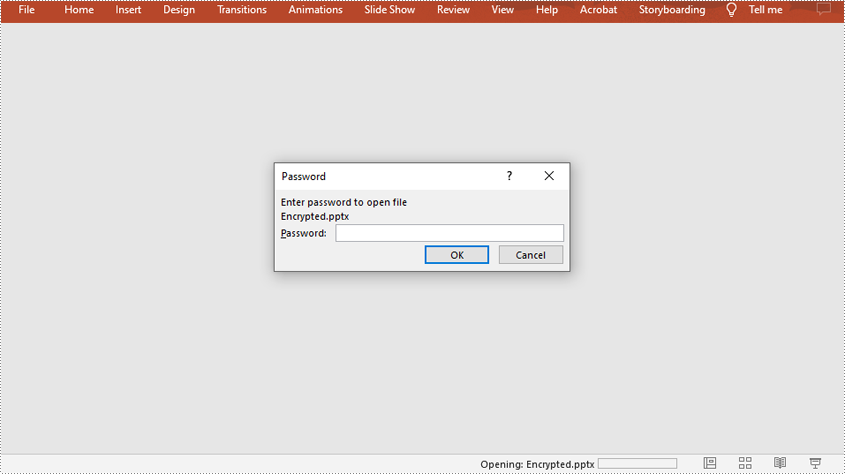
You can protect a PowerPoint document with a password to ensure that only the people who have the right password can view it.
The following steps demonstrate how to protect a PowerPoint document with a password:
- Initialize an instance of Presentation class.
- Load a PowerPoint document using Presentation.loadFromFile() method.
- Encrypt the document with a password using Presentation.encrypt() method.
- Save the result document using Presentation.saveToFile() method.
- Java
import com.spire.presentation.FileFormat;
import com.spire.presentation.Presentation;

public class ProtectPPTWithPassword {
    public static void main(String []args) throws Exception {
        //Create a Presentation instance
        Presentation presentation = new Presentation();

        //Load a PowerPoint document
        presentation.loadFromFile("Sample.pptx");

        //Encrypt the document with a password
        presentation.encrypt("your password");

        //Save the result document
        presentation.saveToFile("Encrypted.pptx", FileFormat.PPTX_2013);

    }
}
Mark a PowerPoint Document as Final in Java
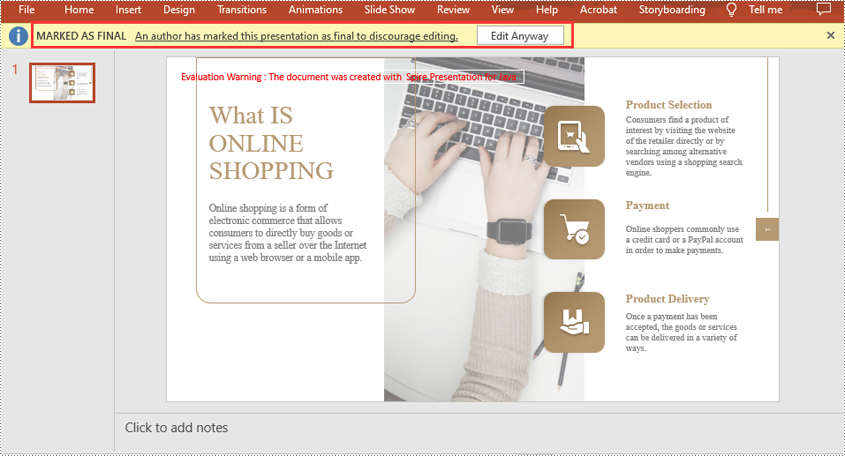
You can mark a PowerPoint document as final to inform readers that the document is final and no further editing is expected.
The following steps demonstrate how to mark a PowerPoint document as final:
- Initialize an instance of Presentation class.
- Load a PowerPoint document using Presentation.LoadFromFile() method.
- Mark the document as final using Presentation.getDocumentProperty().set() method.
- Save the result document using Presentation.SaveToFile() method.
- Java
import com.spire.presentation.FileFormat;
import com.spire.presentation.Presentation;

public class MarkPPTAsFinal {
    public static void main(String []args) throws Exception {
        //Create a Presentation instance
        Presentation ppt = new Presentation();
        //Load a PowerPoint document
        ppt.loadFromFile("Sample.pptx");

        //Mark the document as final
        ppt.getDocumentProperty().set("_MarkAsFinal", true);

        //Save the result document
        ppt.saveToFile("MarkAsFinal.pptx", FileFormat.PPTX_2013);
    }
}
Remove Password Protection from a PowerPoint Document in Java
You can remove password protection from a PowerPoint document by loading the document with the correct password, then removing the password protection from it.
The following steps demonstrate how to remove password protection from a PowerPoint document:
- Initialize an instance of Presentation class.
- Load a PowerPoint document using Presentation.loadFromFile() method.
- Mark the document as final through Presentation.removeEncryption() method.
- Save the result document using Presentation.saveToFile() method.
- Java
import com.spire.presentation.FileFormat;
import com.spire.presentation.Presentation;

public class RemovePasswordProtectionFromPPT {
    public static void main(String []args) throws Exception {
        //Create a Presentation instance
        Presentation presentation = new Presentation();

        //Load a password-protected PowerPoint document with the right password
        presentation.loadFromFile("Encrypted.pptx", "your password");

        //Remove password protection from the document
        presentation.removeEncryption();

        //Save the result document
        presentation.saveToFile("RemoveProtection.pptx", FileFormat.PPTX_2013);

    }
}

Remove Mark as Final Option from a PowerPoint Document in Java
The mark as final feature makes a PowerPoint document read-only to prevent further changes, if you decide to make changes to the document later, you can remove the mark as final option from it.
The following steps demonstrate how to remove mark as final option from a PowerPoint document:
- Initialize an instance of Presentation class.
- Load a PowerPoint document using Presentation.loadFromFile() method.
- Remove the mark as final option from the document using Presentation.getDocumentProperty().set() method.
- Save the result document using Presentation.saveToFile() method.
- Java
import com.spire.presentation.FileFormat;
import com.spire.presentation.Presentation;

public class RemoveMarkAsFinalFromPPT {
    public static void main(String []args) throws Exception {
        //Create a Presentation instance
        Presentation ppt = new Presentation();
        //Load a PowerPoint document
        ppt.loadFromFile( "MarkAsFinal.pptx");

        //Remove mark as final option from the document
        ppt.getDocumentProperty().set("_MarkAsFinal", false);

        //Save the result document
        ppt.saveToFile("RemoveMarkAsFinal.pptx", FileFormat.PPTX_2013);
    }
}

Apply for a Temporary License
If you'd like to remove the evaluation message from the generated documents, or to get rid of the function limitations, please request a 30-day trial license for yourself.
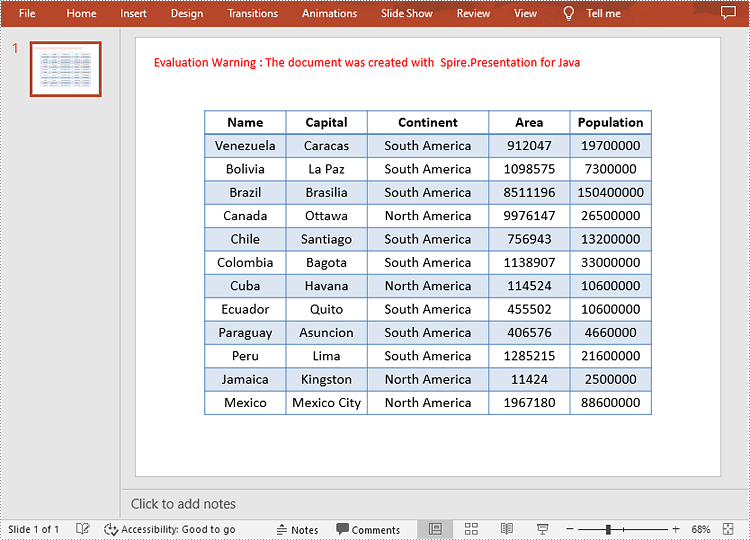
Tables in PowerPoint are a valuable tool for organizing and presenting data in a clear and concise manner. When creating business presentations or financial reports, you can insert tables to present data effectively and make your presentations more impactful and attractive to your audience. This article will demonstrate how to programmatically add a table to a presentation slide using Spire.Presentation for Java.
Install Spire.Presentation for Java
First of all, you're required to add the Spire.Presentation.jar file as a dependency in your Java program. The JAR file can be downloaded from this link. If you use Maven, you can easily import the JAR file in your application by adding the following code to your project's pom.xml file.
<repositories>
    <repository>
        <id>com.e-iceblue</id>
        <name>e-iceblue</name>
        <url>https://repo.e-iceblue.com/nexus/content/groups/public/</url>
    </repository>
</repositories>
<dependencies>
    <dependency>
        <groupId>e-iceblue</groupId>
        <artifactId>spire.presentation</artifactId>
        <version>11.8.3</version>
    </dependency>
</dependencies>
Insert a Table in PowerPoint in Java
To create a table in a specified PowerPoint slide, you can use the ISlide.getShapes().appendTable() method. With Spire.Presentation for Java, you are also allowed to format the style of the table. The following are the detailed steps.
- Create a Presentation instance.
- Get a specified slide using Presentation.getSlides().get() method.
- Define two double arrays to specify the number and size of rows and columns in the table.
- Add a table with the specified number and size of rows and columns to the slide using ISlide.getShapes().appendTable() method.
- Define some data and then then fill the table with the data using ITable.get().getTextFrame().setText() method.
- Set the text font and alignment of the table.
- Set a built-in table style using ITable.setStylePreset() method.
- Save the result document using Presentation.saveToFile() method.
- Java
import com.spire.presentation.*;

public class AddTable {
    public static void main(String[] args) throws Exception {
        //Create a Presentation instance
        Presentation presentation = new Presentation();

        //Get the first slide
        ISlide slide = presentation.getSlides().get(0);

        //Define two double arrays to specify the number and size of rows and columns in the table
        Double[] widths = new Double[]{100d, 100d, 150d, 100d, 100d};
        Double[] heights = new Double[]{15d, 15d, 15d, 15d, 15d, 15d, 15d, 15d, 15d, 15d, 15d, 15d, 15d};


        //Add a table with the specified number and size of rows and columns to the slide
        ITable table = slide.getShapes().appendTable((float) presentation.getSlideSize().getSize().getWidth() / 2 - 275, 90, widths, heights);

        //Specify table data
        String[][] dataStr = new String[][]
                {
                        {"Name", "Capital", "Continent", "Area", "Population"},
                        {"Venezuela", "Caracas", "South America", "912047", "19700000"},
                        {"Bolivia", "La Paz", "South America", "1098575", "7300000"},
                        {"Brazil", "Brasilia", "South America", "8511196", "150400000"},
                        {"Canada", "Ottawa", "North America", "9976147", "26500000"},
                        {"Chile", "Santiago", "South America", "756943", "13200000"},
                        {"Colombia", "Bagota", "South America", "1138907", "33000000"},
                        {"Cuba", "Havana", "North America", "114524", "10600000"},
                        {"Ecuador", "Quito", "South America", "455502", "10600000"},
                        {"Paraguay", "Asuncion", "South America", "406576", "4660000"},
                        {"Peru", "Lima", "South America", "1285215", "21600000"},
                        {"Jamaica", "Kingston", "North America", "11424", "2500000"},
                        {"Mexico", "Mexico City", "North America", "1967180", "88600000"}
                };

        //Add data to table
        for (int i = 0; i < 13; i++) {
        for (int j = 0; j < 5; j++) {
        //Fill the table with data
        table.get(j, i).getTextFrame().setText(dataStr[i][j]);

        //Set the text font
        table.get(j, i).getTextFrame().getParagraphs().get(0).getTextRanges().get(0).setLatinFont(new TextFont("Calibri"));

        //Set the text alignment of the table
        table.get(j, i).getTextFrame().getParagraphs().get(0).setAlignment(TextAlignmentType.CENTER);
            }
        }

        //Set the table style
        table.setStylePreset(TableStylePreset.LIGHT_STYLE_3_ACCENT_1);

        //Save the result document
        presentation.saveToFile("AddTable.pptx", FileFormat.PPTX_2013);
    }
}
Apply for a Temporary License
If you'd like to remove the evaluation message from the generated documents, or to get rid of the function limitations, please request a 30-day trial license for yourself.
Slides are one of the important elements in a PowerPoint document because they carry the information or ideas you would like to present to your audience. When editing a PowerPoint document, it's inevitable that you will perform operations on presentation slides, such as creating new slides, deleting unwanted slides, or hiding slides temporarily. This article will demonstrate how to programmatically add, hide/unhide or delete a PowerPoint slide using Spire.Presentation for Java.
- Add a New Slide at the End of the PowerPoint Document
- Insert a New Slide Before a Specific Slide in PowerPoint
- Hide or Unhide a Specific Slide in PowerPoint
- Delete a Specific Slide from a PowerPoint Document
Install Spire.Presentation for Java
First of all, you're required to add the Spire.Presentation.jar file as a dependency in your Java program. The JAR file can be downloaded from this link. If you use Maven, you can easily import the JAR file in your application by adding the following code to your project's pom.xml file.
<repositories>
    <repository>
        <id>com.e-iceblue</id>
        <name>e-iceblue</name>
        <url>https://repo.e-iceblue.com/nexus/content/groups/public/</url>
    </repository>
</repositories>
<dependencies>
    <dependency>
        <groupId>e-iceblue</groupId>
        <artifactId>spire.presentation</artifactId>
        <version>11.8.3</version>
    </dependency>
</dependencies>
Add a New Slide at the End of the PowerPoint Document
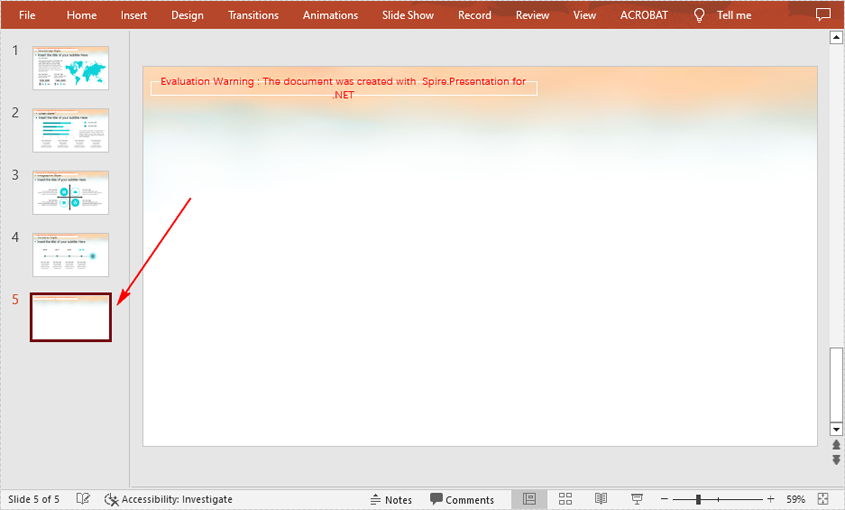
The Presentation.getSlides().append() method provided by Spire.Presentation for Java allows you to append a new slide after the last slide of a PowerPoint document. The detailed steps are as follows.
- Initialize an instance of Presentation class.
- Load a PowerPoint document using Presentation.loadFromFile() method.
- Add a new blank slide at the end of the document using Presentation.getSlides().append() method.
- Save the result document using Presentation.saveToFile() method.
- Java
import com.spire.presentation.*;

public class AddNewSlideinPowerPoint {
    public static void main(String[] args) throws Exception {
        //Initialize an instance of Presentation class
        Presentation presentation = new Presentation();

        //Load a sample PowerPoint document
        presentation.loadFromFile("Sample.pptx");

        //Add a new slide at the end of the document
        presentation.getSlides().append();

        //Save the result document
        presentation.saveToFile("AddSlide.pptx", FileFormat.PPTX_2013);
    }
}
Insert a New Slide Before a Specific Slide in PowerPoint
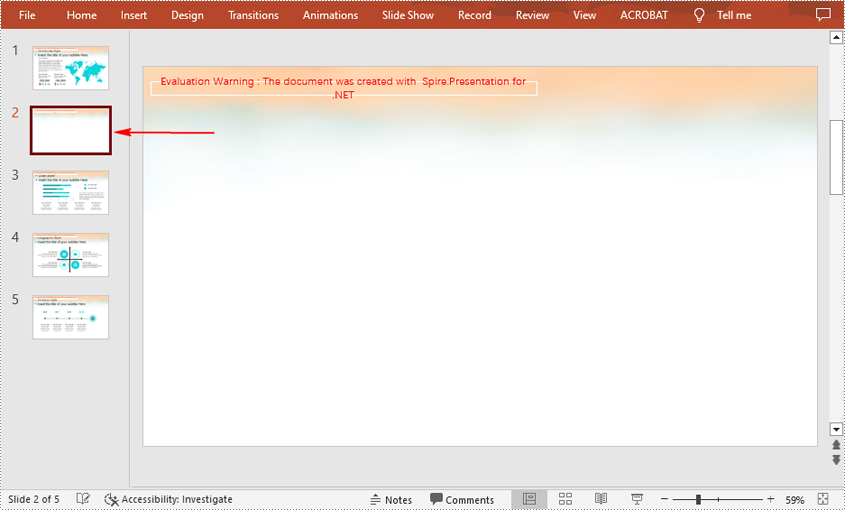
Sometimes you may also need to insert a slide before a specific slide to add additional supporting information, and below are the detailed steps to accomplish the task.
- Initialize an instance of Presentation class.
- Load a PowerPoint document using Presentation.loadFromFile() method.
- Insert a blank slide before a specified slide using Presentation.getSlides().insert() method.
- Save the result document using Presentation.saveToFile() method.
- Java
import com.spire.presentation.*;

public class InsertSlideinPowerPoint {
    public static void main(String[] args) throws Exception {
        //Initialize an instance of Presentation class
        Presentation presentation = new Presentation();

        //Load a sample PowerPoint document
        presentation.loadFromFile("Sample.pptx");

        //Insert a blank slide before the second slide
        presentation.getSlides().insert(1);

        //Save the result document
        presentation.saveToFile("InsertSlide.pptx", FileFormat.PPTX_2013);
    }
}
Hide or Unhide a Specific Slide in PowerPoint
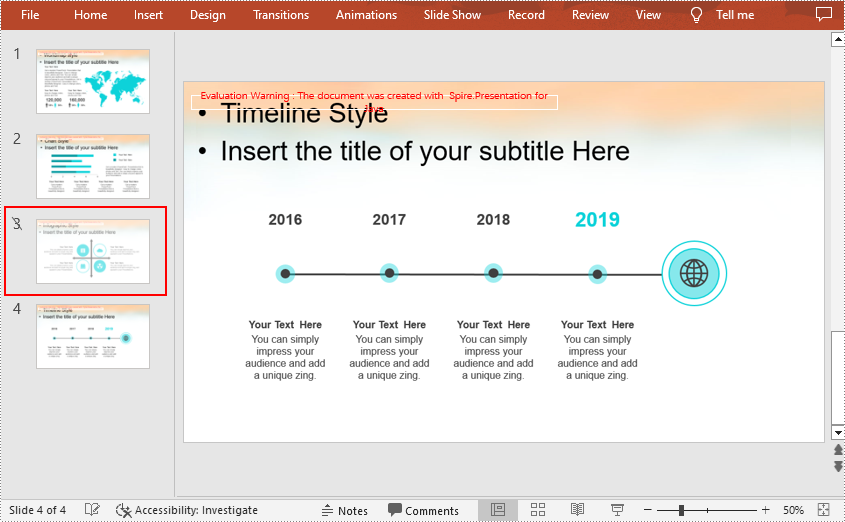
For the slides that you temporarily do not want to show during a presentation, you can simply hide the slides without deleting them. Below are the steps to hide or unhide a specific PowerPoint slide.
- Initialize an instance of Presentation class.
- Load a PowerPoint document using Presentation.loadFromFile() method.
- Get a specified slide using Presentation.getSlides().get() method.
- Hide or unhide the slide by setting the value of ISlide.setHidden() method to true or false.
- Save the result document using Presentation.saveToFile() method.
- Java
import com.spire.presentation.*;

public class HideUnhideSlides {
    public static void main(String[] args) throws Exception {
        //Initialize an instance of Presentation class
        Presentation presentation = new Presentation();

        //Load a sample PowerPoint document
        presentation.loadFromFile("Sample.pptx");

        //Get the third slide
        ISlide slide = presentation.getSlides().get(2);

        //Hide the slide
        slide.setHidden(true);

        //Unhide the slide
        //slide.setHidden(false);

        //Save the result document
        presentation.saveToFile("HideSlide.pptx", FileFormat.PPTX_2010);
    }
}
Delete a Specific Slide from a PowerPoint Document
If you want to remove a unnecessary slide from the document, you can use the Presentation.getSlides().removeAt(int index) method. The detailed steps are as follows.
- Initialize an instance of Presentation class.
- Load a PowerPoint document using Presentation.loadFromFile() method.
- Remove a specified slide from the document using Presentation.getSlides().removeAt() method.
- Save the result document using Presentation.saveToFile() method.
- Java
import com.spire.presentation.*;

public class DeletePowerPointSlide {
    public static void main(String[] args) throws Exception {
        //Initialize an instance of Presentation class
        Presentation presentation = new Presentation();

        //Load a sample PowerPoint document
        presentation.loadFromFile("Sample");

        //Remove the first slide
        presentation.getSlides().removeAt(0);

        //Save the document
        presentation.saveToFile("RemoveSlide.pptx", FileFormat.PPTX_2013);
    }
}

Apply for a Temporary License
If you'd like to remove the evaluation message from the generated documents, or to get rid of the function limitations, please request a 30-day trial license for yourself.
